
Scheduling Bold Data Hub Jobs:
The Schedule page contains a list of pipeline names and allows you to configure On Demand or Interval based schedules.
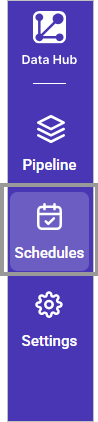
On Demand Schedule:
Data refresh can be initiated on demand by selecting the Run Now option.

Note:
Run Nowoption only works if we save thepipelineinExtracttab.
Interval Schedule:
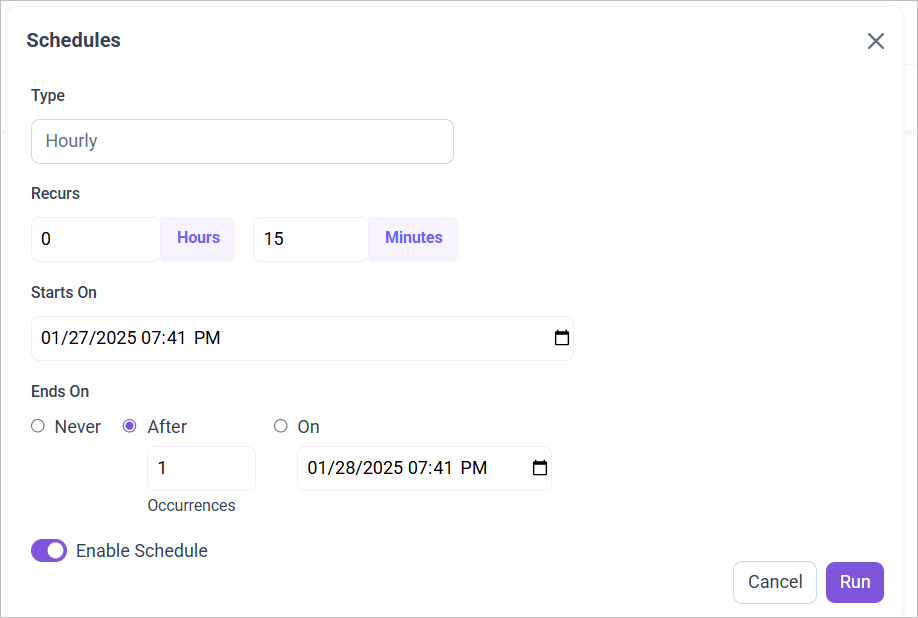
- To configure interval-based scheduling, click on the schedules tab and select the created pipeline and click on the schedule icon and configure it.

- Select the recurrence type, recurrence, start date, and end date in the Refresh Setting dialog box.
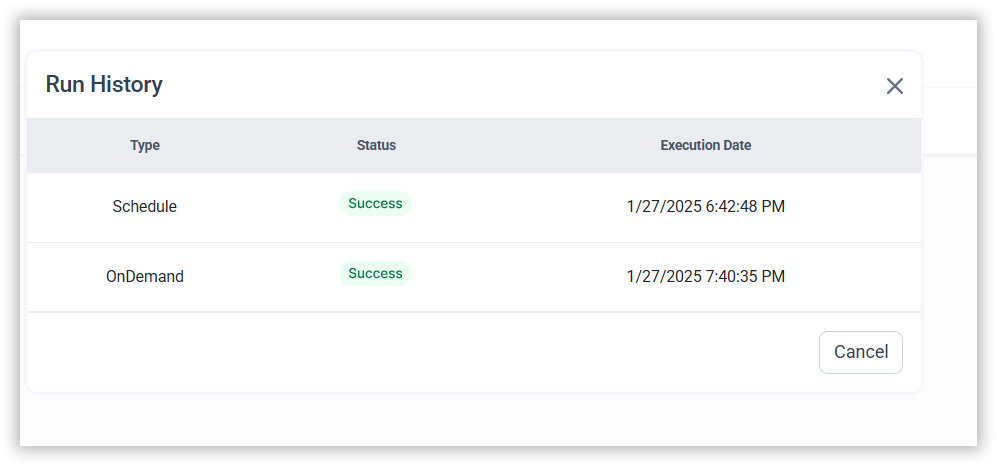
- The Schedule history can be checked using the history option as well as logs.
Mail Alert
The Mail Alert feature enables users to configure email notifications for each pipeline. Upon completion of a pipeline’s scheduled execution, an alert is sent to the specified recipients.

Note: Configure the
Sender mailin theSettingstab before scheduling/run the pipeline.
Configuring Mail Alert Settings
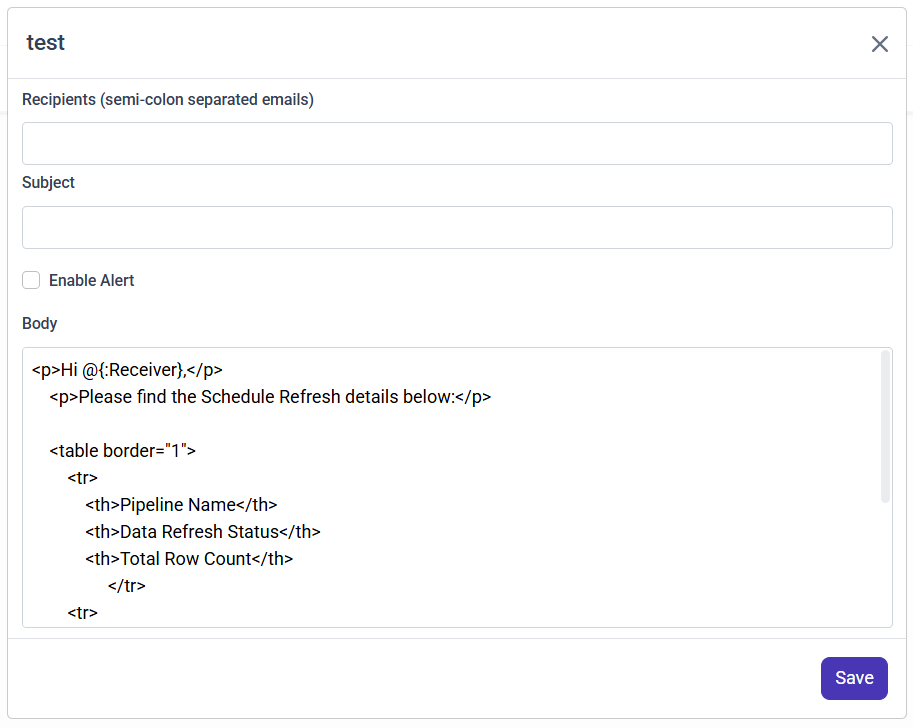
To set up mail alerts for your pipelines, follow the steps below:
-
Add Recipients
-
Enter one or more email addresses in the Recipients field.
-
Separate multiple email addresses with a semicolon ( ; ).
Example:
user1@example.com;user2@example.com
-
-
Set Mail Subject
- Specify a clear and concise subject line for the alert email.
-
Enable Mail Alerts
- Toggle the Enable Mail Alert option to activate the notification.
-
Mail Alert Body
- A default email body is generated, containing pipeline execution details.
- You may customize the content and remove unnecessary columns from the body if required.
Configure Sender mail settings in settings tab Email Settings