
Data Sampling feature in Bold BI
The Data Sampling feature in Bold BI will provide a better design experience by limiting the number of records when creating dashboards with millions of data. However, this limitation will not be applied during the preview or publishing of dashboards.
Enabling Data sampling in Bold BI:
To enable Data Sampling in Bold BI, please follow these steps:
-
Connect to a data source by providing valid credentials.
-
Drag and drop the table inside the query designer page.
-
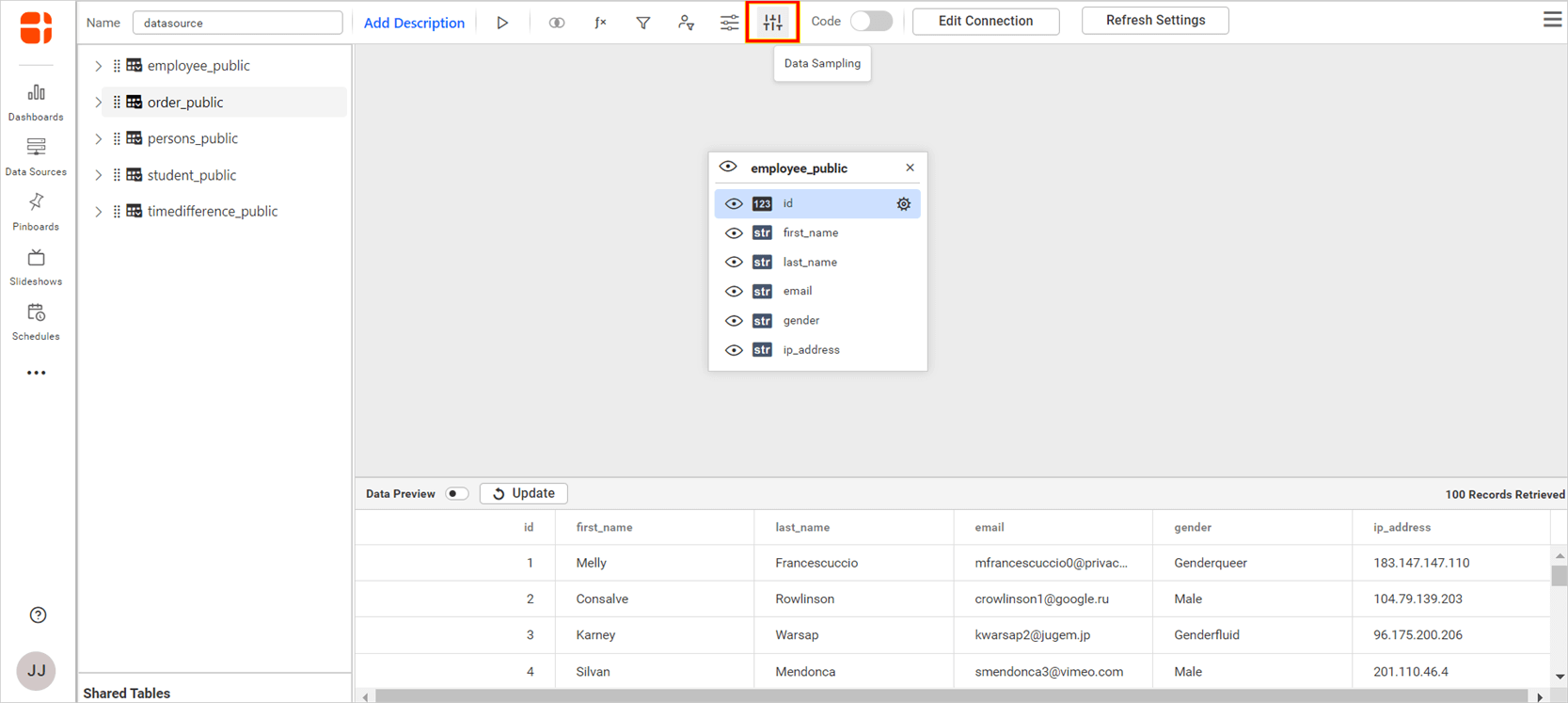
Click on the
Data samplingbutton as shown in the following image.
- The
Data samplingdialog will be disabled by default.
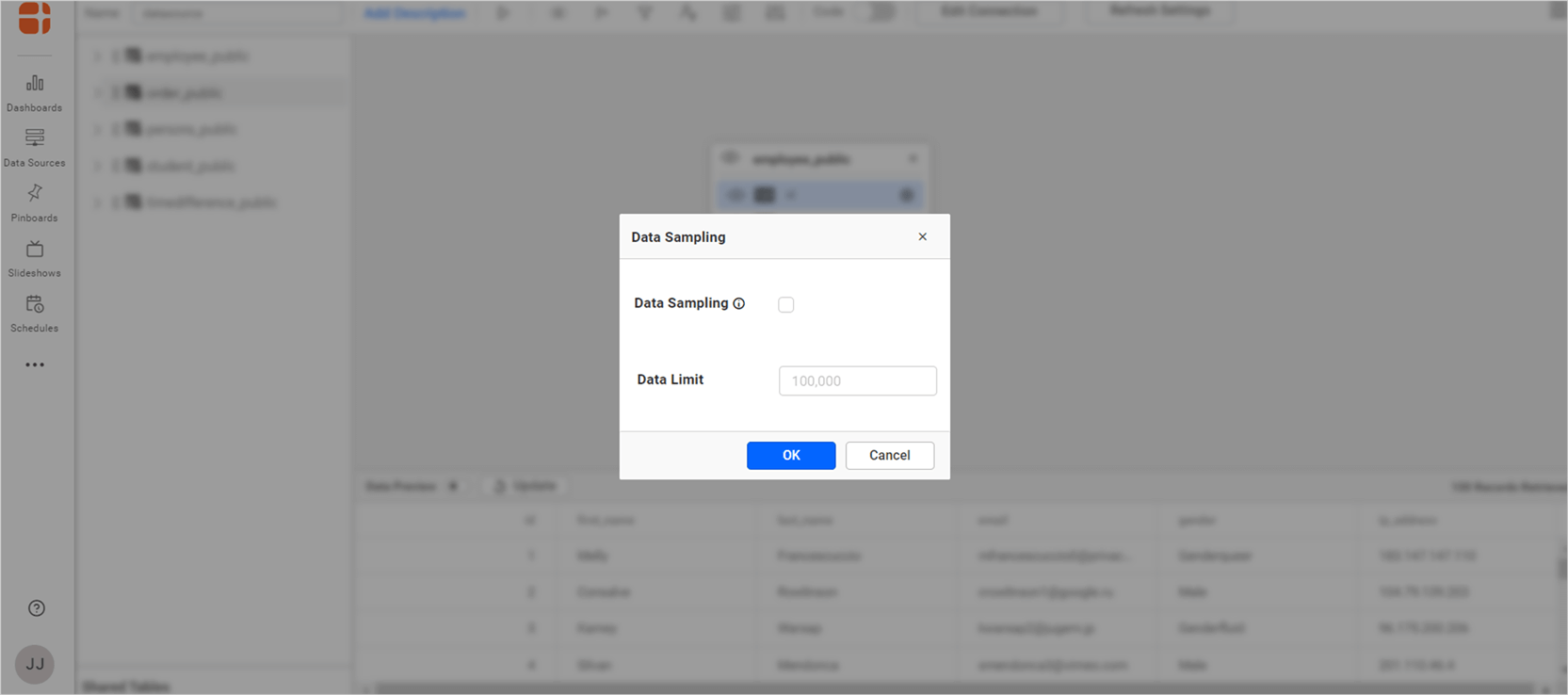
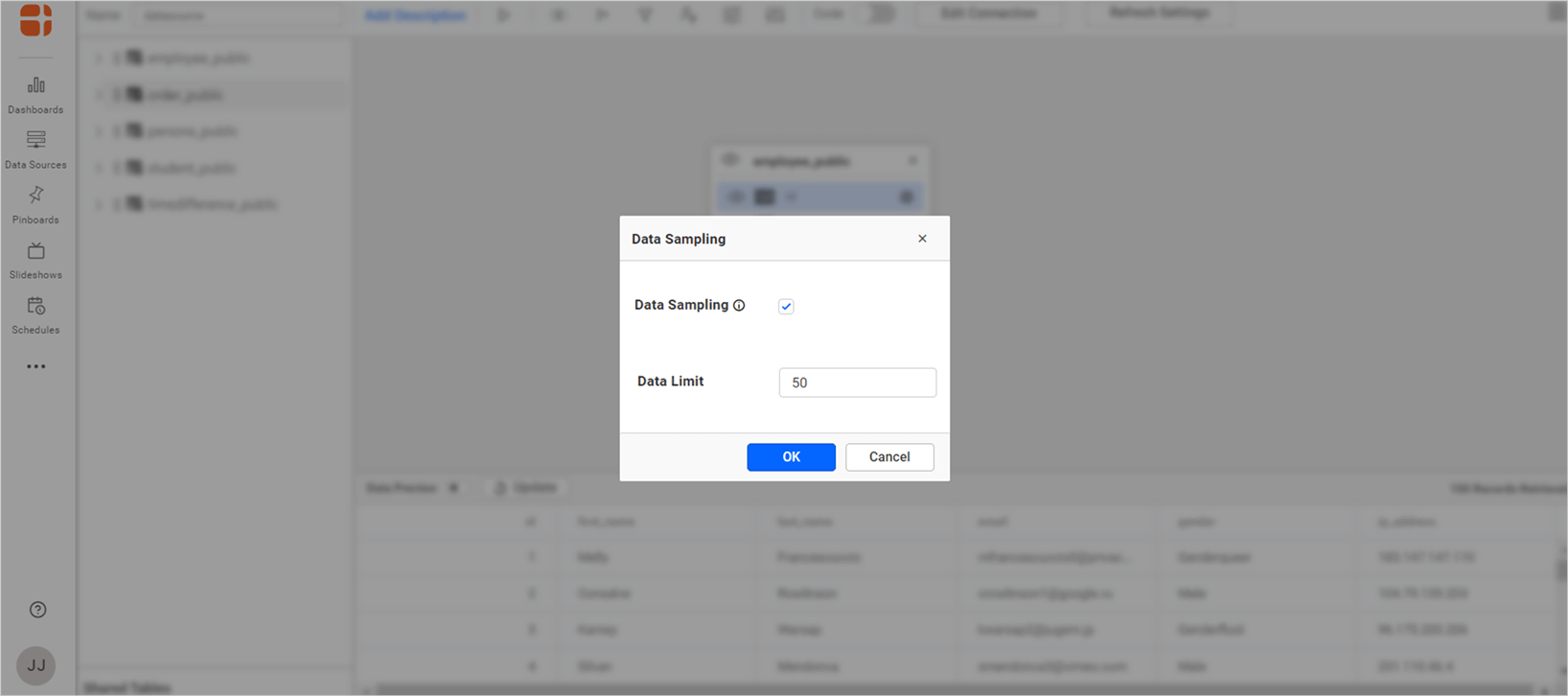
- Click on the
checkboxto enable and enter the number of records needed when creating a dashboard.
NOTE: The Data Sampling button will be disabled when switching to the code view mode in Bold BI.
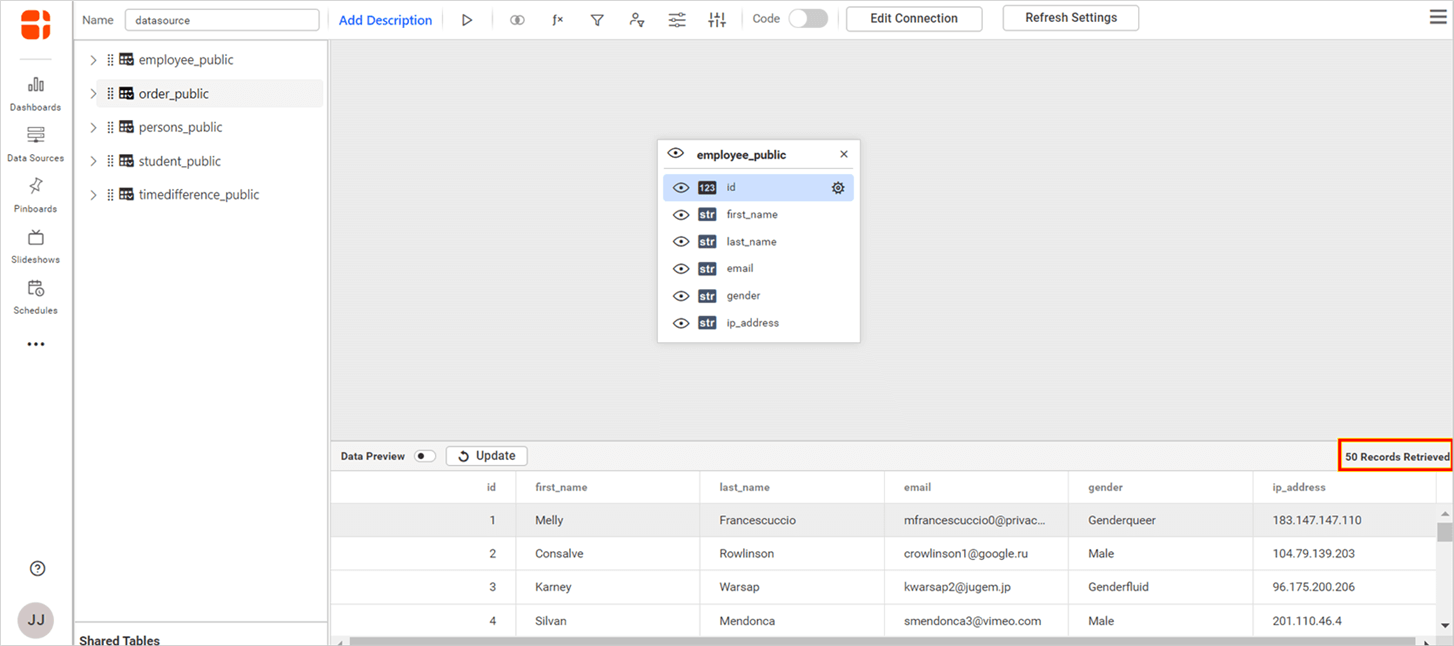
- Select
OKand click on preview to ensure thatData Samplinghas been applied to the data source as shown in the following image.
- Data sources enabled with
Data Samplingcan be identified using the icon as shown in the following image.
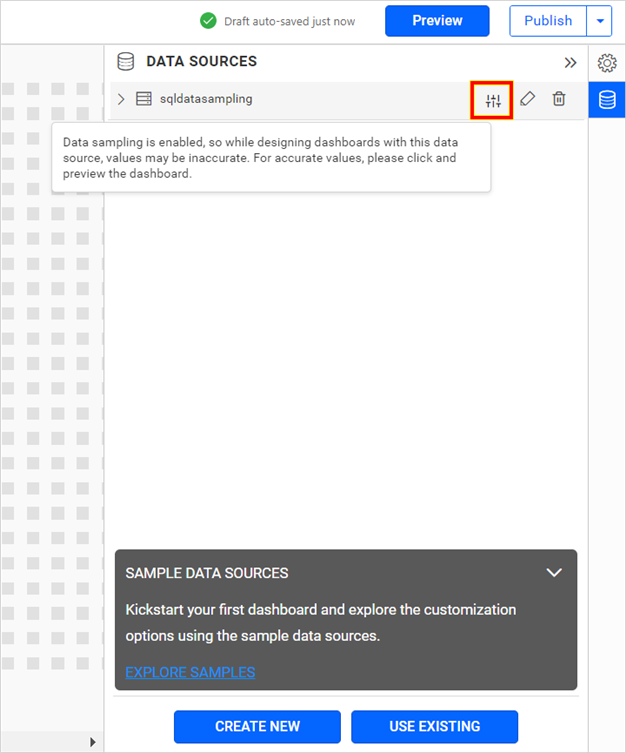
- While designing dashboards in Bold BI, the
Data Samplinglimit will be applied to all widgets.
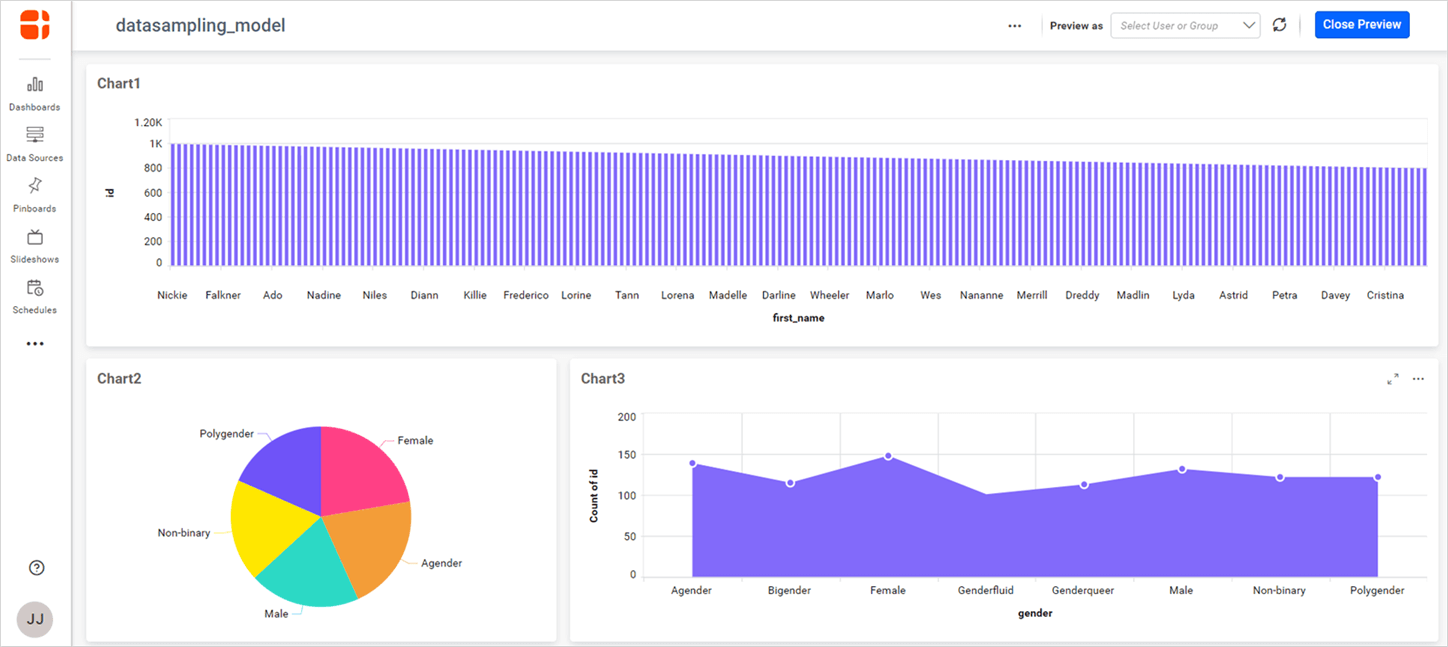
However, during the preview or publishing of the dashboard,Data Samplingwill be automatically disabled to ensure data integrity.
NOTE: Data Sampling is not supported for the following data sources: SSAS, SparkSQL, AWS OpenSearch, Elasticsearch,Influx DB and ODBC.