Connecting Bold BI to MySQL data source
The Bold BI dashboard designer supports connecting to MySQL database using SQL Query (C# API).
Supported Server Versions: MySQL (5.1, 5.5, 5.6, 5.7, and 8.0)
Choose MySQL data source
To configure the MySQL data source, follow these steps:
-
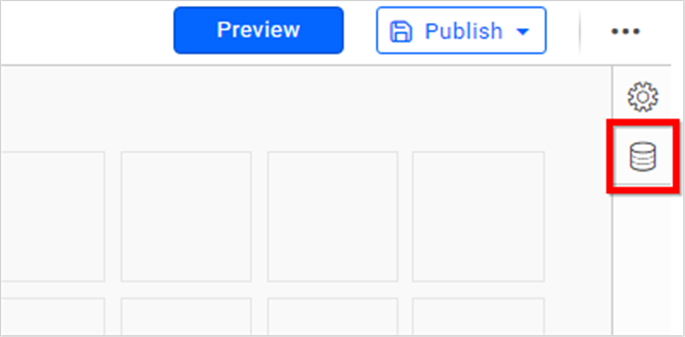
Click Data Sources in the configuration panel to add a new data connection.
-
Click CREATE NEW to launch a new connection from the connection panel.
-
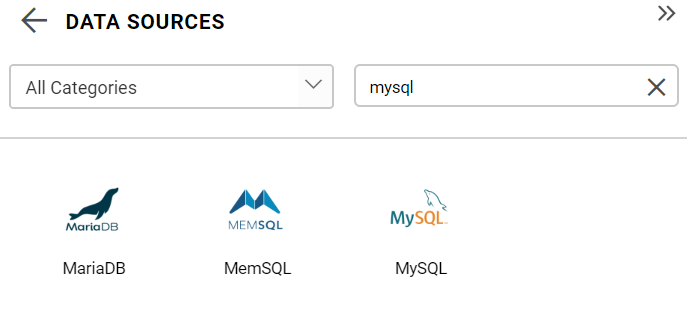
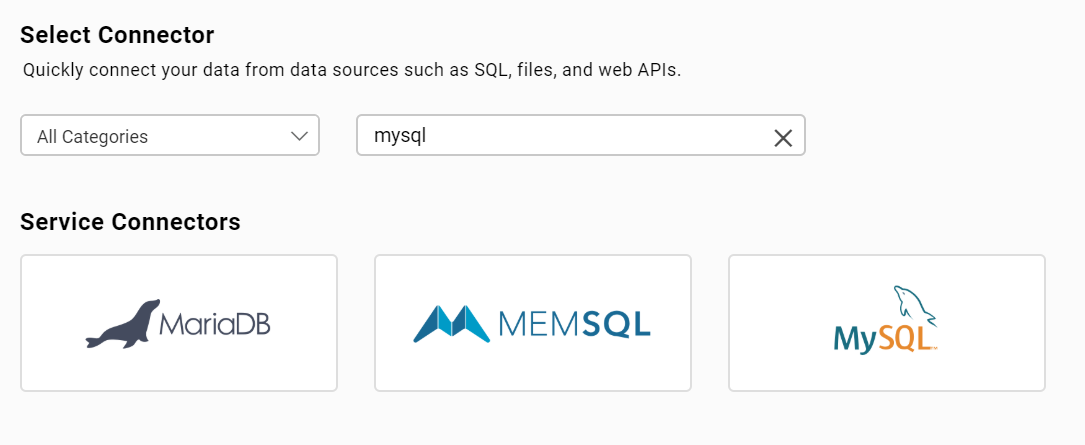
Select the MySQL connection in the connection panel.
NOTE: You can also create a data source from the home page by clicking on the Data Sources menu on the left menu panel and selecting Create Data Source from the data sources page.
Connect to MySQL
Create MySQL data source
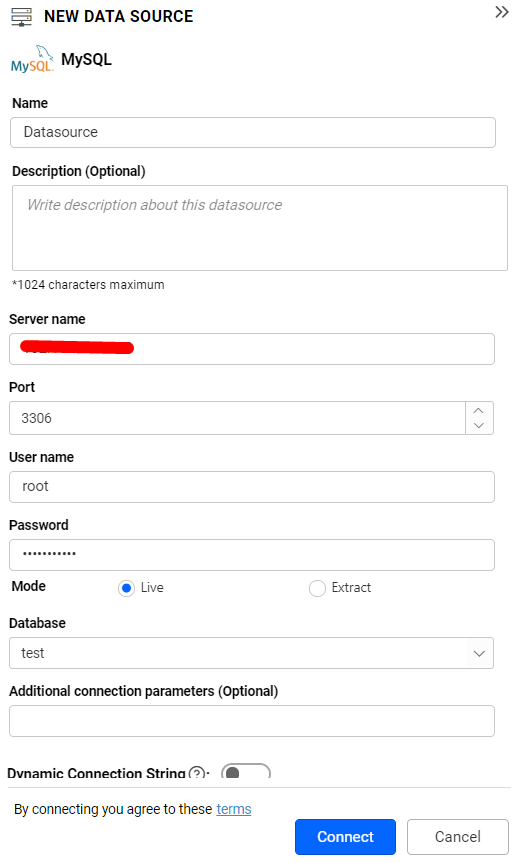
After clicking a data source, the NEW DATA SOURCE configuration panel opens. Follow the given steps to create a MySQL data source:
-
Enter a name and description (optional) for the data source.
-
Enter a valid MySQL server or host name in the Server Name text box.
-
Enter a valid MySQL user name in the User Name text box.
-
Enter a valid MySQL password in the Password text box.
-
Select a database you want to query from the listed databases associated with the given MySQL Server in the database combo box.
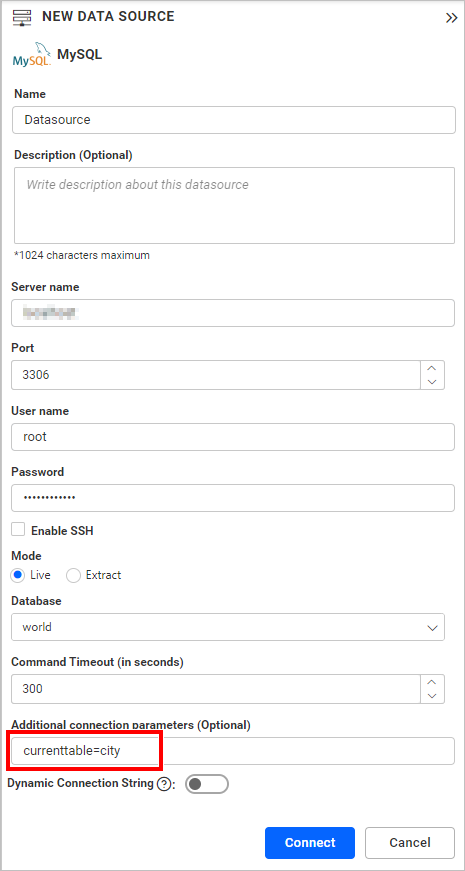
To connect MySQL with a specific table, enter the property currenttable={tablename} or specifictable={tablename} in the Additional connection parameters text box. The tables can be separated by commas {table1, table2} to connect with multiple tables.
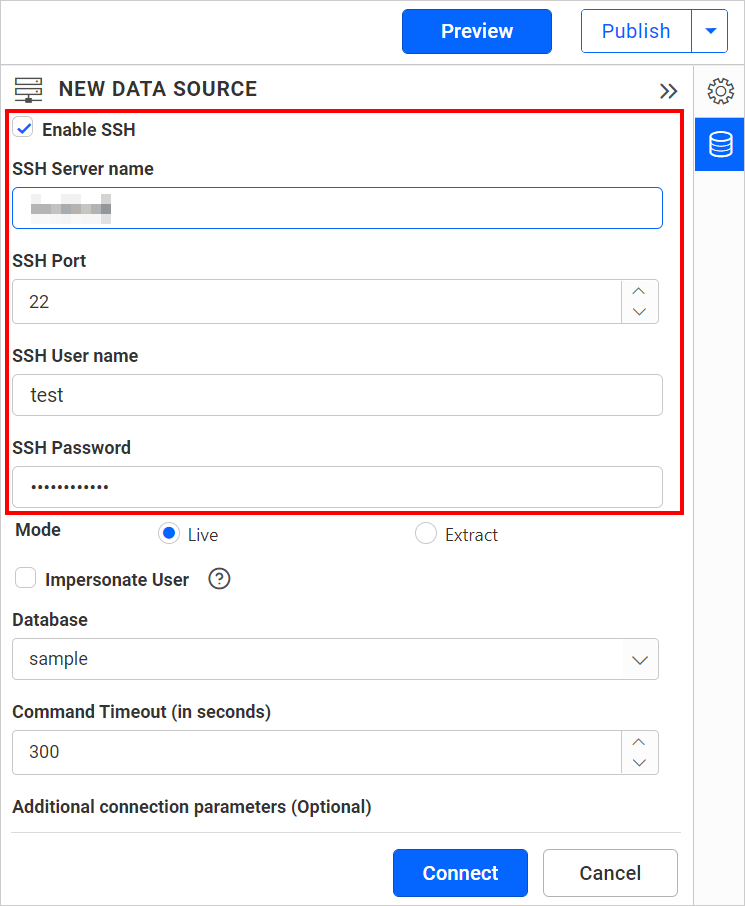
NOTE: To connect data source with SSH, enable the SSH check box in the NEW DATA SOURCE configuration panel and enter the required credentials.
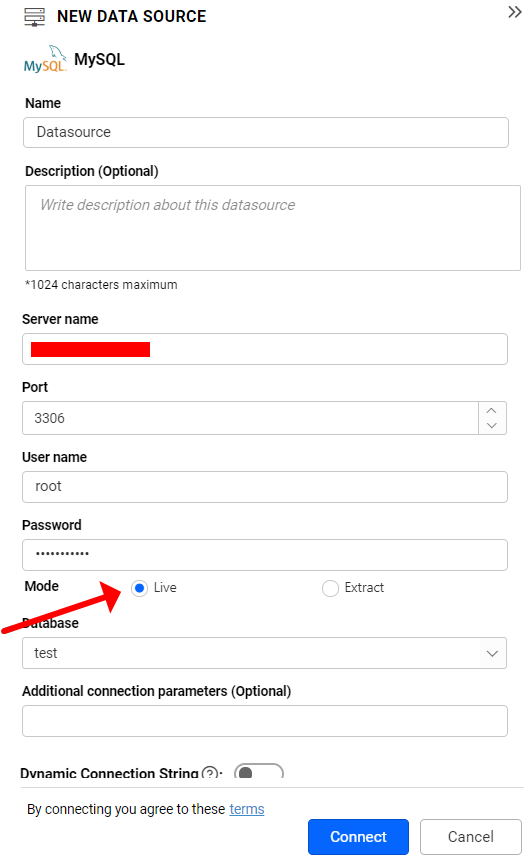
There are two connection types available in a data source:
* Live mode
* Extract mode
Live mode connection
In this connection type, a data source is directly fetched from source. Choose the Live mode option for this connection.
Data Preview
- Click Connect to connect to the MySQL server with the configured details.
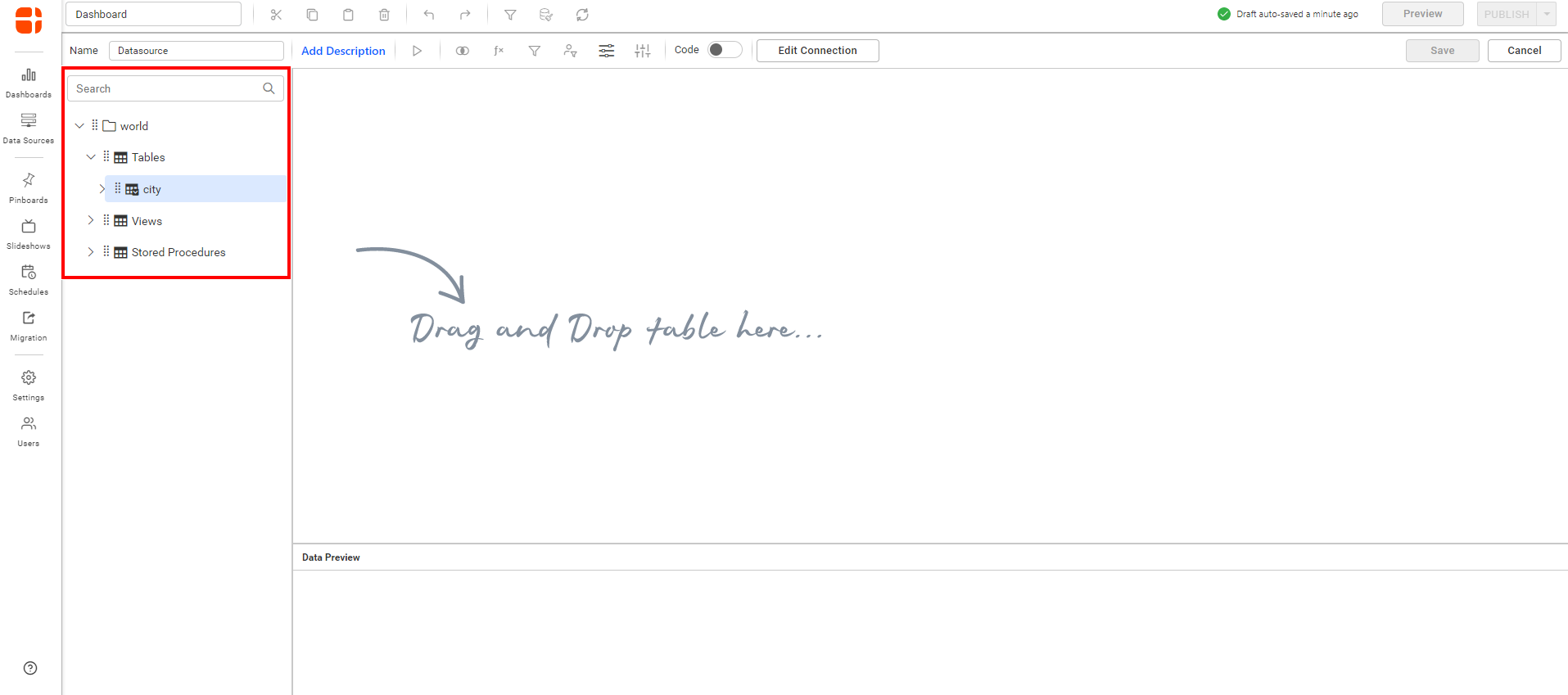
The schema represents the collection list retrieved from the MySQL server. This dialog displays a list of schemas in a treeview and their corresponding values.
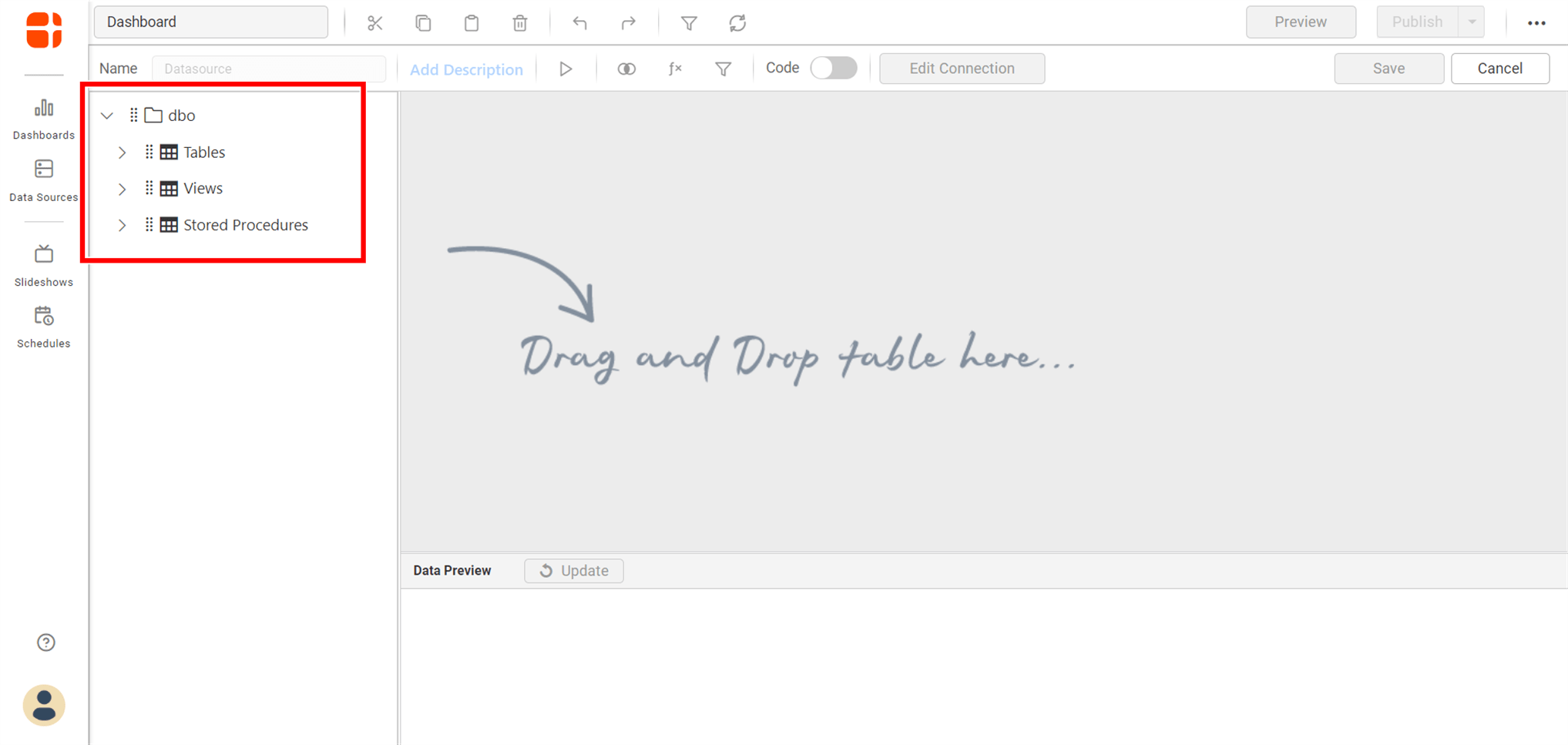
If the table name is provided in the Additional connection parameters text box, only the specified table will be listed.
-
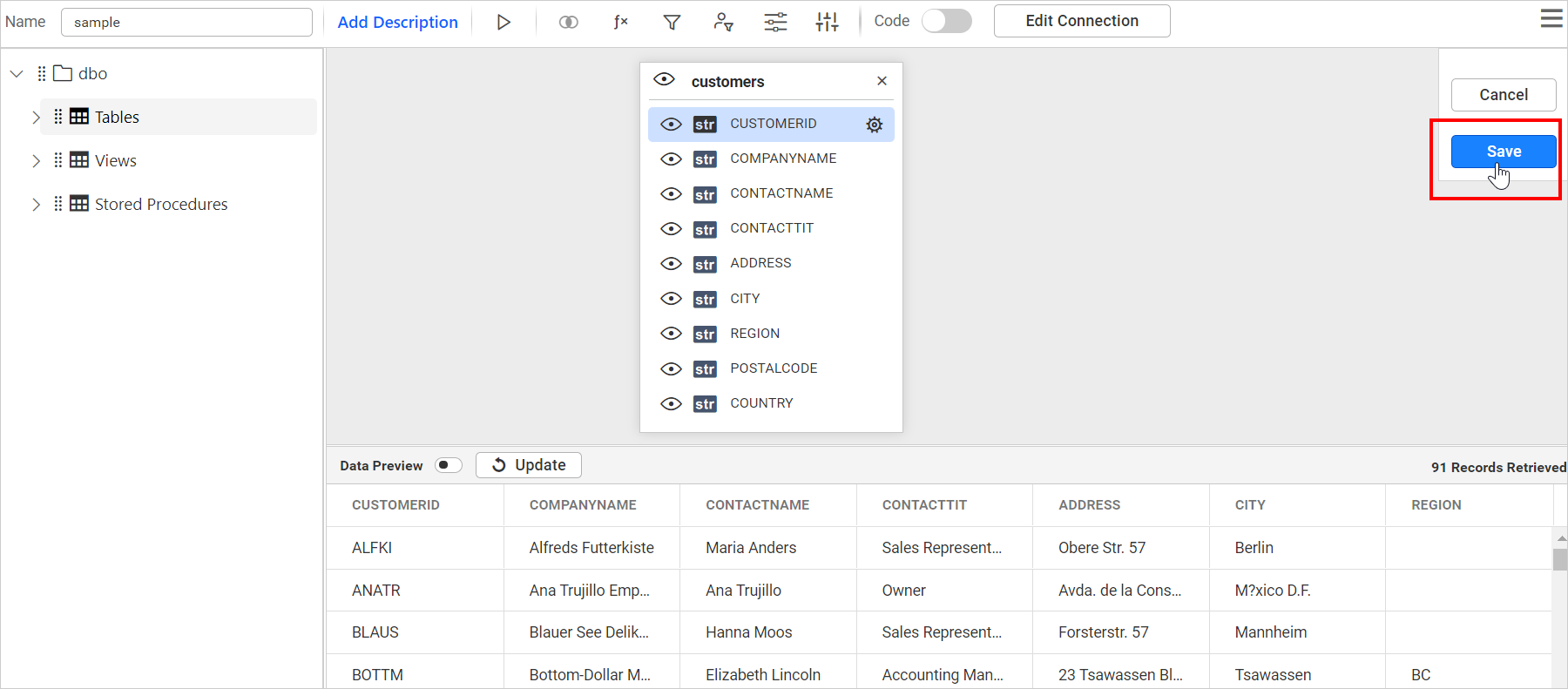
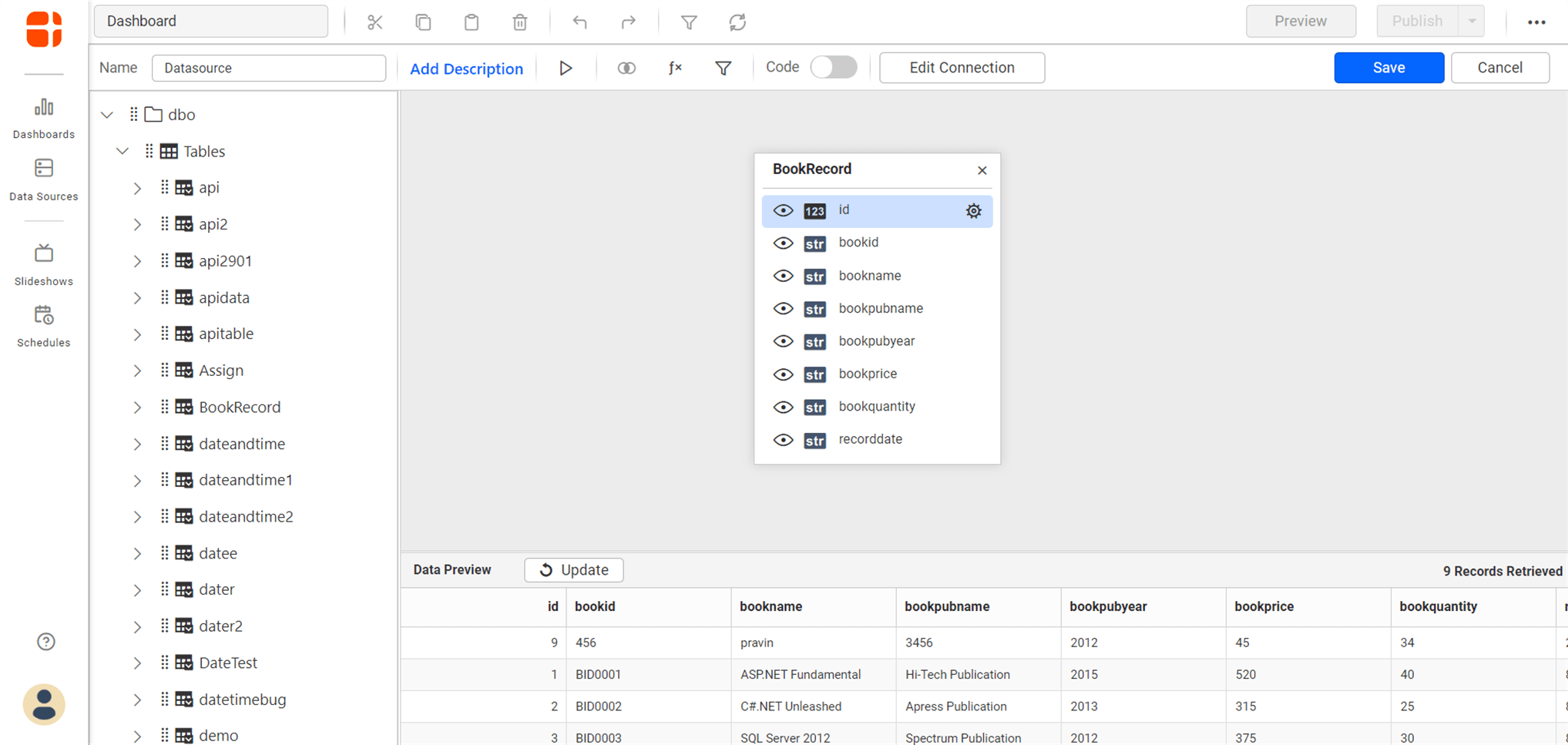
Now, the data design view page with the selected table schema opens. Drag and drop the table.
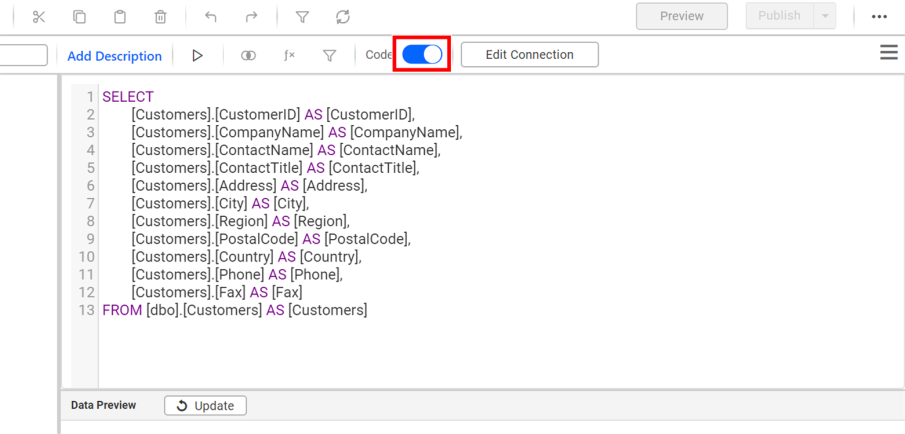
You can use the Code View options to passing a query to display data.
-
Click Save to save the data source with a relevant name.
Extract mode connection
- In this connection type, a data source is fetched from source periodically. Choose the Extract mode option for this connection.
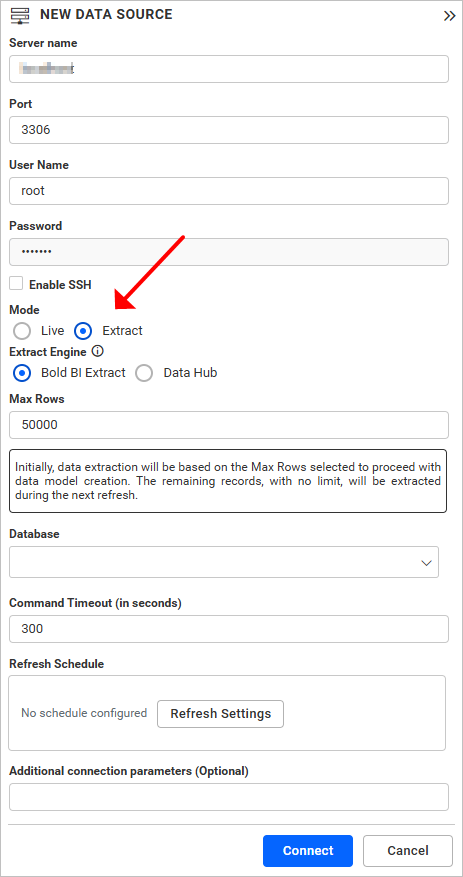
- Within extract mode, users can choose between two methods of connecting to the data source. Refer Extract Engine.
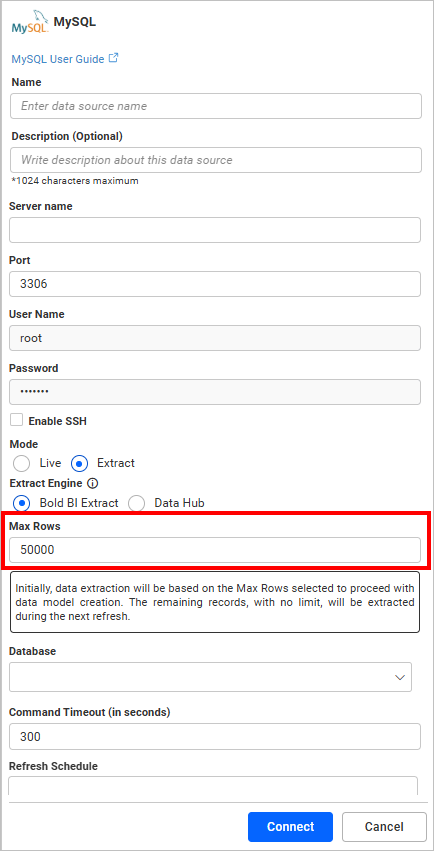
NOTE: Initially, data will be extracted based on the Max Rows selected in order to proceed with data model creation. The remaining records, for which there is no limit, will be extracted during the next refresh. And This option is only applicable to Bold BI Extract.
Refresh Settings
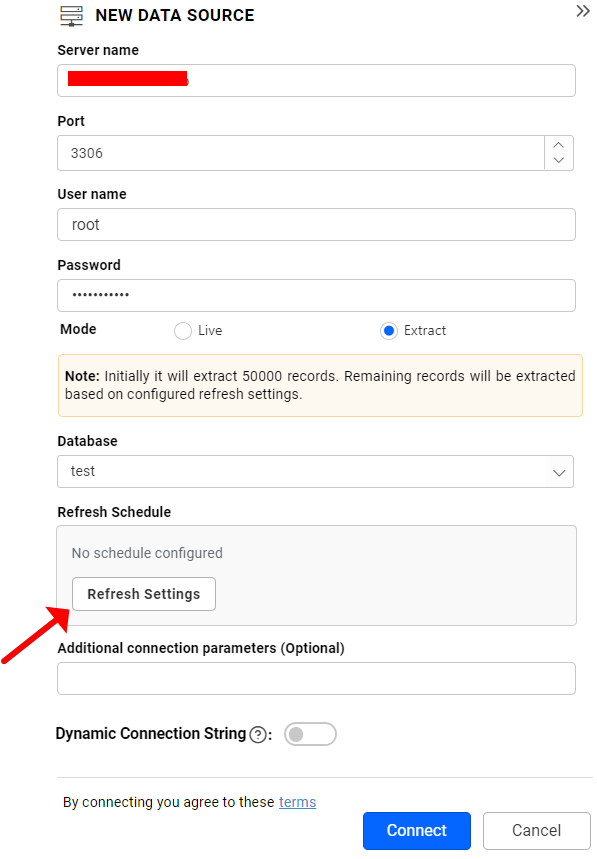
Steps to configure the data source refresh settings:
-
Click Refresh Settings in the configuration panel.
-
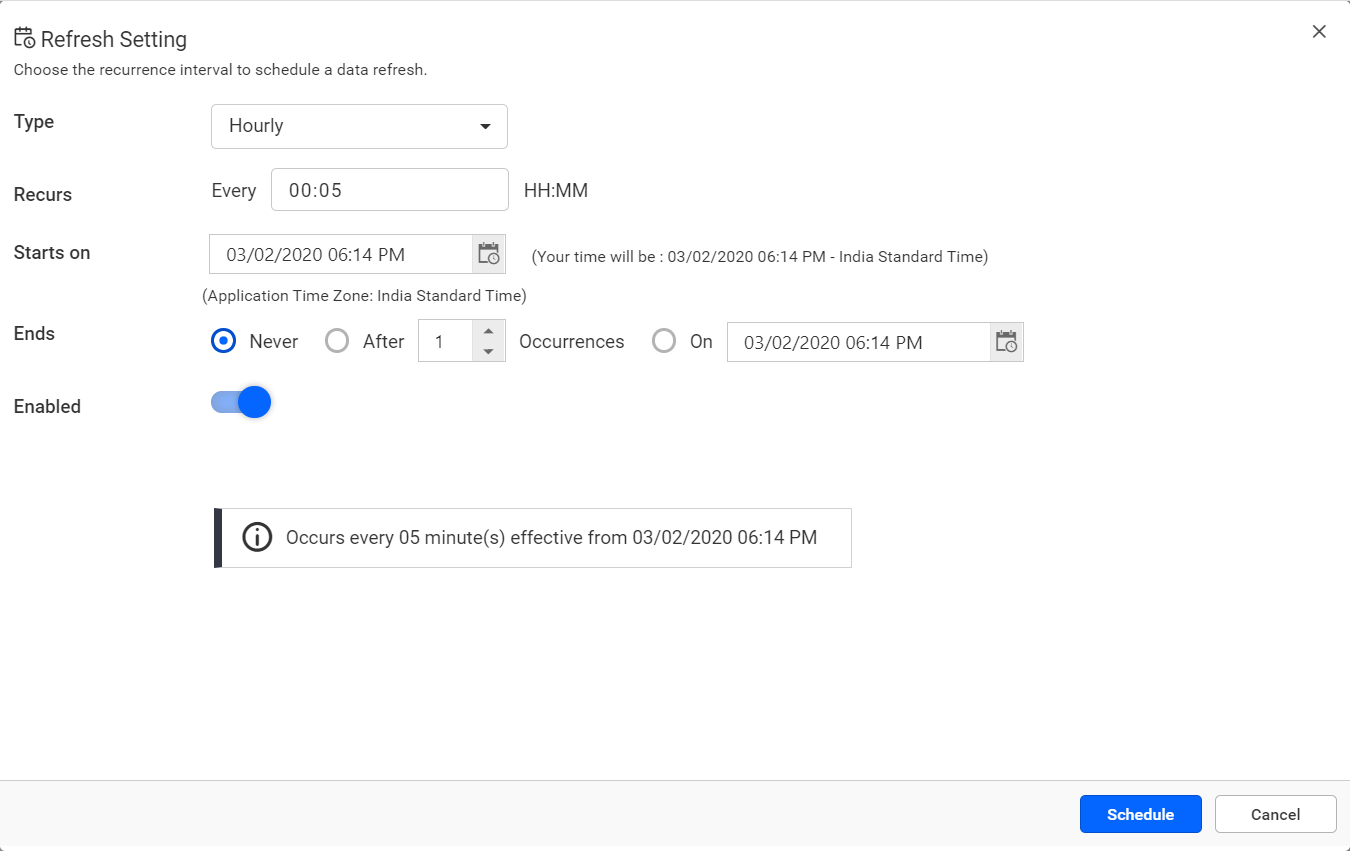
Select the recurrence type, recurrence start and end dates in the Refresh Setting dialog box.
- Data refresh can be scheduled hourly, daily, weekly, and monthly.
- Application Time Zone is displayed below the date picker. Start time of the schedule is converted to the client Time Zone and shown in the right side for users convenience. After selecting, click Schedule.
Preview and data import
- Click Connect to connect the MySQL server with configured details.
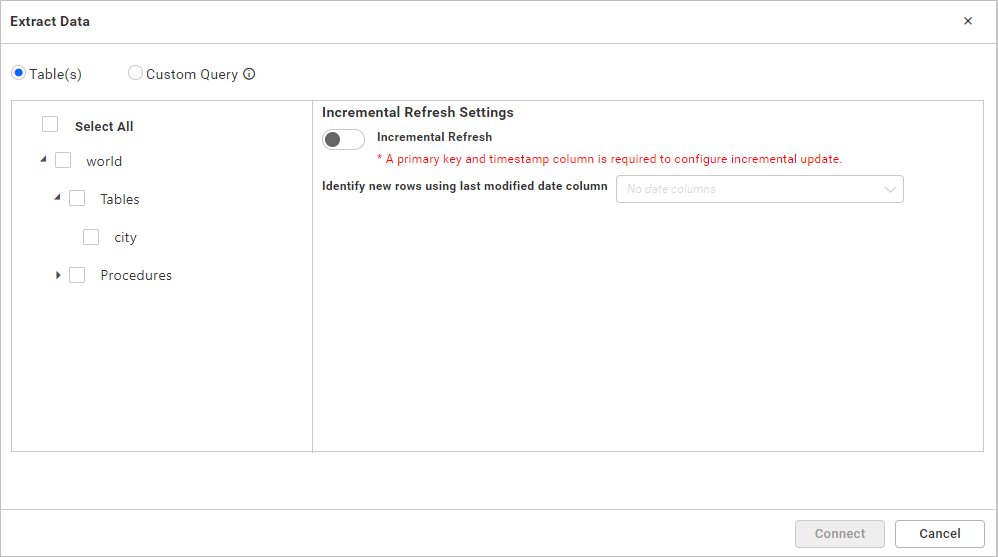
- The Extract data dialog opens. This dialog has two modes of connection either via Table or Custom query. Under the custom query option, write required query and click Connect.
Under Table option, this dialog displays a list of tables and views in a treeview. Select the required table(s) or view(s) from the treeview to use in the designer. Incremental Update can be performed in both tables and views. The option is available for configuring the incremental refresh column for the selected items in the right-side panel. * The table must have a primary key column and date column to configure the incremental refresh option. * The Views must have a date column to configure the incremental refresh option and unique column(s) is optional which is used to update the modified records.
If you have configured it, then the data source will work on Incremental update, otherwise, it works on the Full load concept. Finally, click Connect.
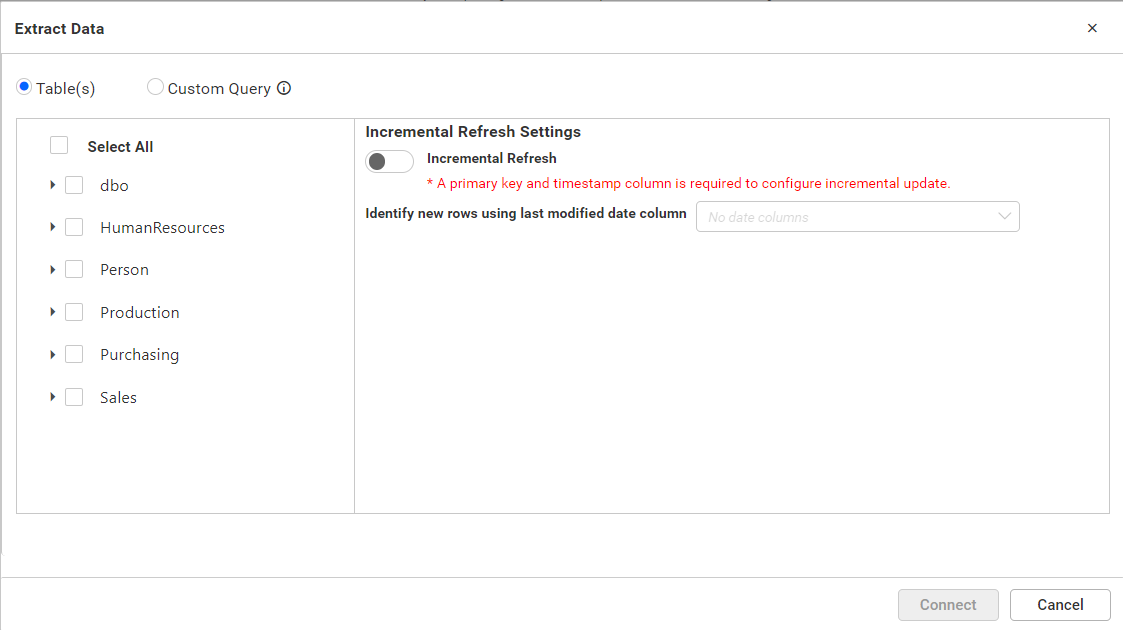
If the table name is provided in the Additional connection parameters text box, only the specified table will be listed for selection.
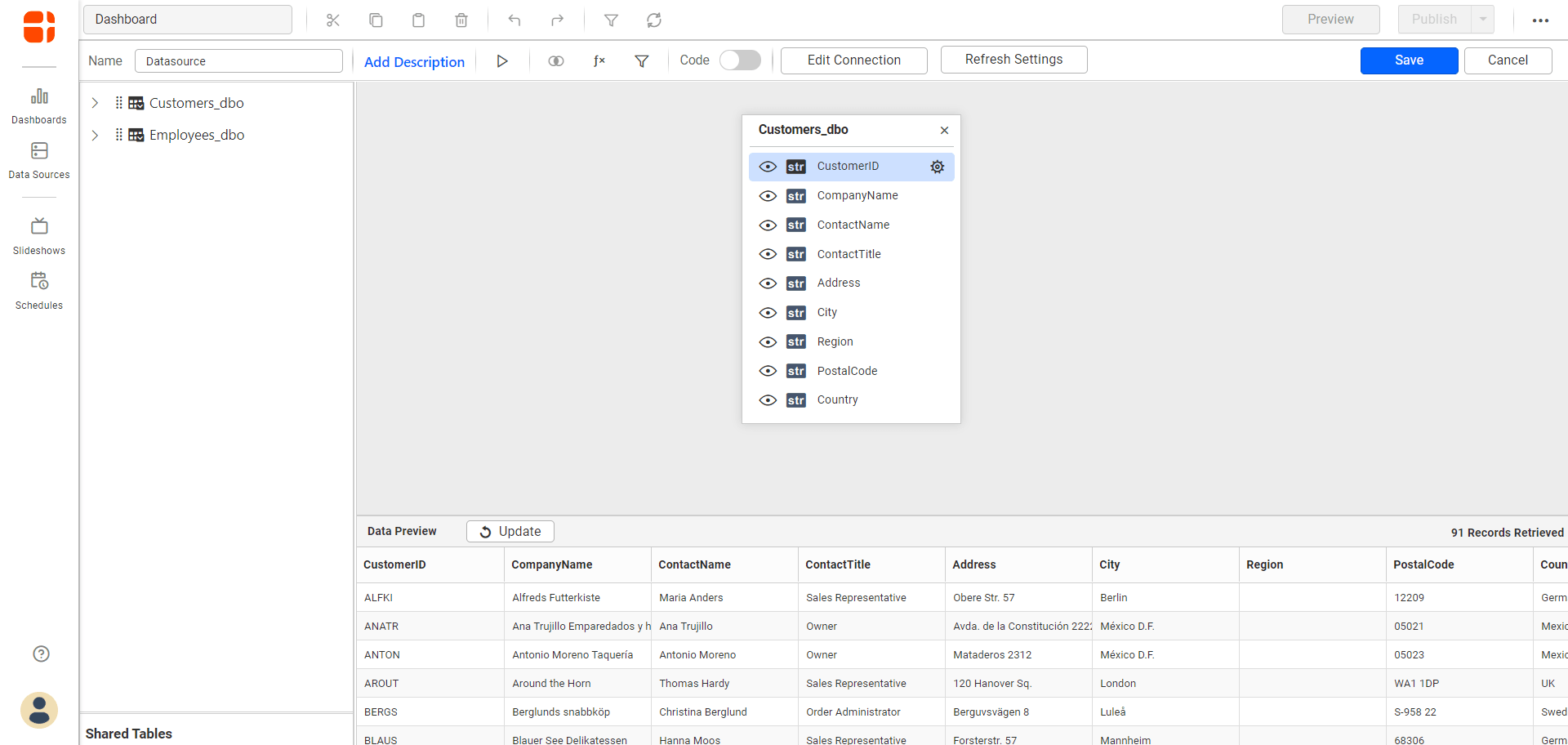
You can use the Code View options for passing query to display data.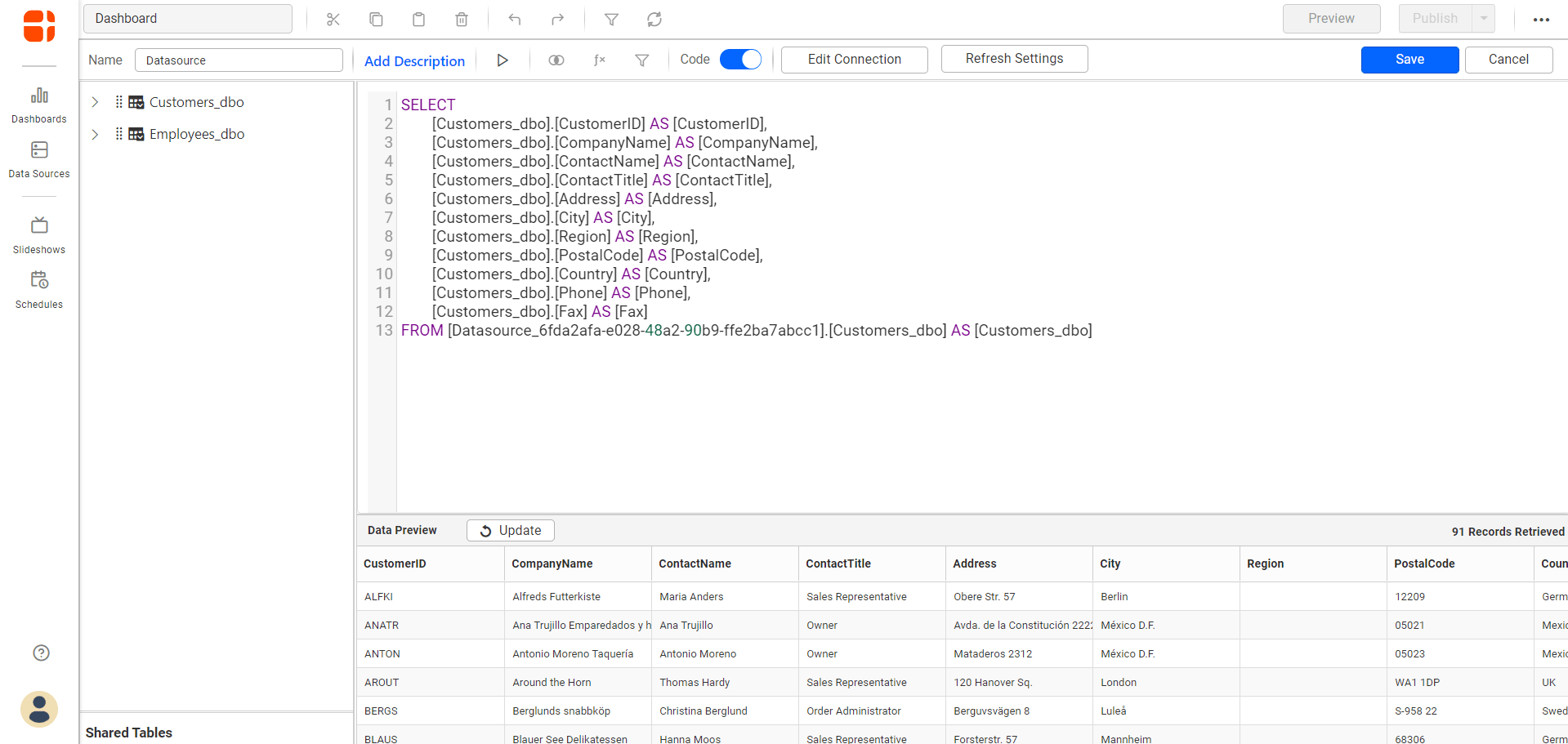
- Click Save to save the data source with a relevant name.
Connect using custom attribute and dashboard parameter
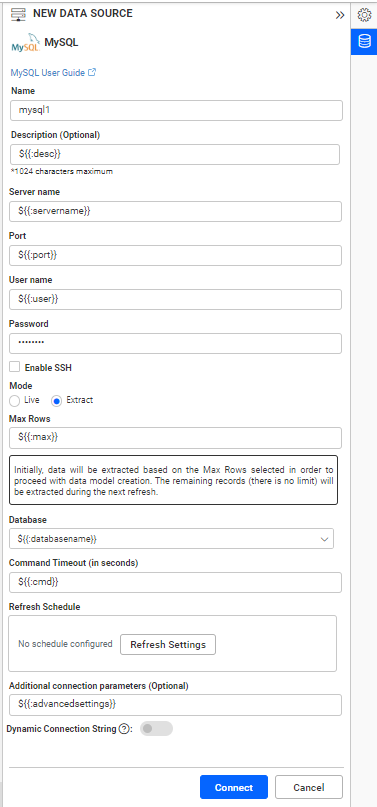
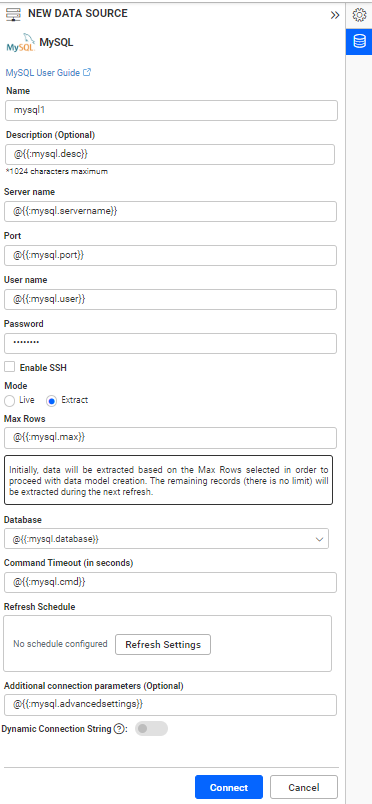
We have added support for custom attributes and dashboard parameters in the data source connection. You can now connect to the data source using custom attributes or dashboard parameters.
Custom Attribute
Dashboard Parameter
Connecting to DataSource using REST API with Custom Attributes
For example, we configure a MySQL DataSource using a REST API.
Configuring a MySQL DataSource connection using custom attributes via an API involves setting up:
Configure the following properties:
- Username.
- Password.
- Servername.
- Port.
- Database.
- Maxrows.
- CommandTimeout.
- AdvancedSettings.
Creating the Connection
To create a connection, use the following JSON structure:
"Connection":
{
"Servername": "${{:DB_Server_Name}},
"Port": "string",
"Username": "${{:DB_User_Name}},
"Password": "${{:DB_Password}},
"Database": "Sample_Database",
"Schemaname": "sample_schema",
"Tablename": "${{:DB_Table_Name}},
"AdvancedSettings": "string",
"CommandTimeout": "string",
"IsSshConnection": "false",
"SshServerName": "string",
"SshPort": 0,
"SshUsername": "string",
"SshPassword": "string",
"Expressions" : [{
"Name": "Expression1",
"Expression" : "SUM(numeric expression)"
    },
    {
"Name": "Expression2",
"Expression" :  "UPPER(string expression)"
}]
}
To know more about Connecting Bold BI to MySQL Data Source via REST API
Note: Refer to the Dashboard Parameter Documentation and Custom Attributes Documentation for more details.
NOTE: In future, you can edit the connection information for both Live and Extract mode connections using the Edit Connection option.
Connecting Bold BI to MySQL Data Source via REST API
Prerequisites
Supported Server Versions: MySQL (5.1, 5.5, 5.6, 5.7, and 8.0)
Type while creating the data source needs to be mysql.
Modes
Through the REST API, only the live mode data source can be created and edited.
Parameters for creating Data Source
NOTE: The ability to provide join support is available only during the creation of a new data source. Join in edit connection mode is not supported.
| Parameters | Details |
|---|---|
| Servername required | string
Server name or Host name of the connection |
| Port required | string
Port number used to connect to mysql
|
| Username required | string
A valid Username for the connection |
| Password required | string
A valid Password for the connection |
| Database required | string
database which needs to be connected |
| Schemaname required for table mode | string
Enter a valid Schemaname |
| Tablename required for table mode | string
Enter a valid Tablename |
JoinType Required For Join Info | string
Enter a valid JoinType For Example (Inner,Outer) |
| LeftTable Required For Join Info | string
Enter a valid Left Table name |
| RightTable Required For Join Info | string
Enter a valid Right Table name |
| LeftField Required For Join Info | string
Enter a valid Left Table Column Name |
| RightField Required For Join Info | string
Enter a valid Right Table Column Name |
| Condition Required For Join Info | string
Enter a valid Condition For Example (AND,OR) |
| LeftField Required For Join Info | string
Enter a valid Left Table Column Name |
| Operator Required For Join Info | string
Enter a Valid Operator For Example (=,>=) |
| Value Optional For only Join Info | string
Specifically choose the column values. |
| Query required for code view mode | string
Enter a valid Query |
| AdvancedSettings optional | string
Additional optional connection parameters can be provided. By default, it is empty. |
| CommandTimeout optional | string
Enter a valid Timeout for connection. By default, it is 300 |
| IsSshConnection optional | `boolean` Enable or disable SSH. By default, it is false. |
| SshServerName optional | string
Enter a valid Ssh Server name. By default, it is empty. |
| SshPort optional | `integer` Enter a valid Ssh Port number. |
| SshUserName optional | string
Enter a valid Ssh Username. By default, it is empty. |
| SshPassword optional | string
Enter a valid Ssh Password. By default, it is empty. |
| Expressions optional | `Array of Objects` |
Parameters for edit the connection while upload the dashboard via API
| Parameters | Details |
|---|---|
| ServerName required | string
Server name or Host name of the connection |
| Port required | string
Port number used to connect to the postgresql
|
| UserName required | string
A valid username for the connection |
| Password required | string
A valid Password for the connection |
| Database required | string
database which needs to be connected |
| Schema required for table mode | string
Enter a valid Schemaname |
| CommandTimeout optional | string
Enter a valid Timeout for connection. By default, it is 300 |
| TrustServerCertificate optional | `boolean` To enable trusting the server's certificate without validation, set it to true. To perform standard SSL certificate validation, set it to false. By default, it is false. |
| IsSshConnection optional | `boolean` Enable or disable SSH. By default, it is false. |
| SshServerName optional | string
Enter a valid Ssh Server name. By default, it is empty. |
| SshPort optional | `integer` Enter a valid Ssh Port number. |
| SshUserName optional | string
Enter a valid Ssh Username. By default, it is empty. |
| SshPassword optional | string
Enter a valid Ssh Password. By default, it is empty. |
Parameters for adding expressions when creating Data Source
| Parameters | Details |
|---|---|
| Name required | string
Name of the Expression
|
| Expression required | string
Expression
|
Parameters for editing Data Source
NOTE: To edit a Data Source via API, all parameters are optional. Only the parameter that needs to be changed should be provided.
Parameters for modifying expressions when editing Data Source
| Parameters | Details |
|---|---|
| Name required | string
Name of the Expression
|
| Expression required | string
Expression
|
| Action optional | string
add/delete/edit
By default, it is add
|
| NewName optional | string
For renaming the expression. This is applicable only if the Action is edit
|
Connection Sample for Table Mode
For creating connection:
"Connection":
{
"Servername": "string",
"Port": "string",
"Username": "string",
"Password": "string",
"Database": "string",
"Schemaname": "string",
"Tablename": "string",
"AdvancedSettings": "string",
"CommandTimeout": "string",
"IsSshConnection": "false",
"SshServerName": "string",
"SshPort": 0,
"SshUsername": "string",
"SshPassword": "string",
"Expressions" : [{
"Name": "Expression1",
"Expression" : "SUM(numeric expression)"
    },
    {
"Name": "Expression2",
"Expression" :  "UPPER(string expression)"
}]
}
For creating connection with multiple tables :
"Connection":
{
"Servername": "string",
"Port": "string",
"Username": "string",
"Password": "string",
"Database": "string",
"Tables": [
            {
                "Tablename": "string",
                "Schemaname": "string"
            },
            {
                "Tablename": "string",
                "Schemaname": "string"
            }
        ],
"JoinInfo": [
            {
                "JoinType": "string",
                "LeftTable": "string",
                "RightTable": "string",
                "JoinFieldInfos": [
                    {
                        "Condition": "string",
                        "LeftField": "string",
                        "Operator": "string",
                        "RightField": "string",
                        "Value": "string"
                    },
                    {
                        "Condition": "string",
                        "LeftField": "string",
                        "Operator": "string",
                        "RightField": "string",
                        "Value": "string"
                    }
                ]
            }
        ],
"AdvancedSettings": "string",
"CommandTimeout": "string",
"IsSshConnection": "false",
"SshServerName": "string",
"SshPort": 0,
"SshUsername": "string",
"SshPassword": "string",
"Expressions" : [{
"Name": "Expression1",
"Expression" : "SUM(numeric expression)"
    },
    {
"Name": "Expression2",
"Expression" :  "UPPER(string expression)"
}]
}
For editing connection:
"Connection":
{
"Servername": "string",
"Port": "string",
"Username": "string",
"Password": "string",
"Database": "string",
"Schemaname": "string",
"Tablename": "string",
"AdvancedSettings": "string",
"CommandTimeout": "string",
"IsSshConnection": "false",
"SshServerName": "string",
"SshPort": 0,
"SshUsername": "string",
"SshPassword": "string",
"Expressions" : [{
"Name": "Expression1",
"Expression" : "SUM(numeric expression)",
"NewName" : "Sum",
"Action": "edit"
    },
    {
"Name": "Expression2",
"Expression" :  "UPPER(string expression)"
"Action": "delete"
}]
}
NOTE: Through the Rest API, the data source can be created or edited with only one table. If different table is provided in edit data source, the table will be replaced. The widgets will be retained only if the schema is same as the previous table.
Connection Sample for Code View Mode
"Connection":
{
"Servername": "string",
"Port": "string",
"Username": "string",
"Password": "string",
"Database": "string",
"Query": "string",
"AdvancedSettings": "string",
"CommandTimeout": "string",
"IsSshConnection": "false",
"SshServerName": "string",
"SshPort": 0,
"SshUsername": "string",
"SshPassword": "string",
"Expressions" : [{
"Name": "Expression1",
"Expression" : "SUM(numeric expression)"
    },
    {
"Name": "Expression2",
"Expression" :  "UPPER(string expression)"
}]
}
Sample connection for editing the connection while uploading the dashboard via API.
"Connection": {
    "ServerName": "string",
    "Database": "string",
    "Username": "string",
    "Port": "string",
    "Schema": "string",
    "SslMode": "false",
    "TrustServerCertificate": "string",
    "AdvancedSettings": "string",
    "CommandTimeout": "string"
    }
How to enable SSL through connection parameters for MySQL data source
Bold BI application allows you to enable SSL through connection parameters in the MySQL data source by following these steps.
Steps to connect MySQL with SSL
-
Refer to the Connecting Bold BI to MySQL data source for successfully connecting to it.
-
To connect MySQL with SSL connection, you need to add the connection string ssl-mode=Require in the Additional connection parameters textbox along with the existing server details and click Connect.
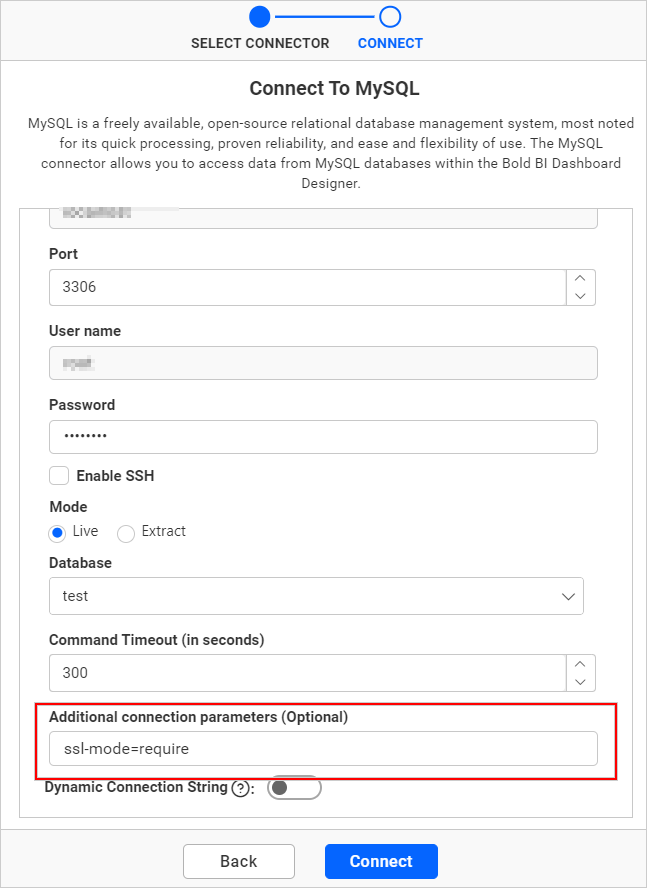
In this way, you can enable SSL in the connection by passing parameters in the connection string.
-
Drag and drop the table from the table schema onto the data design view page.
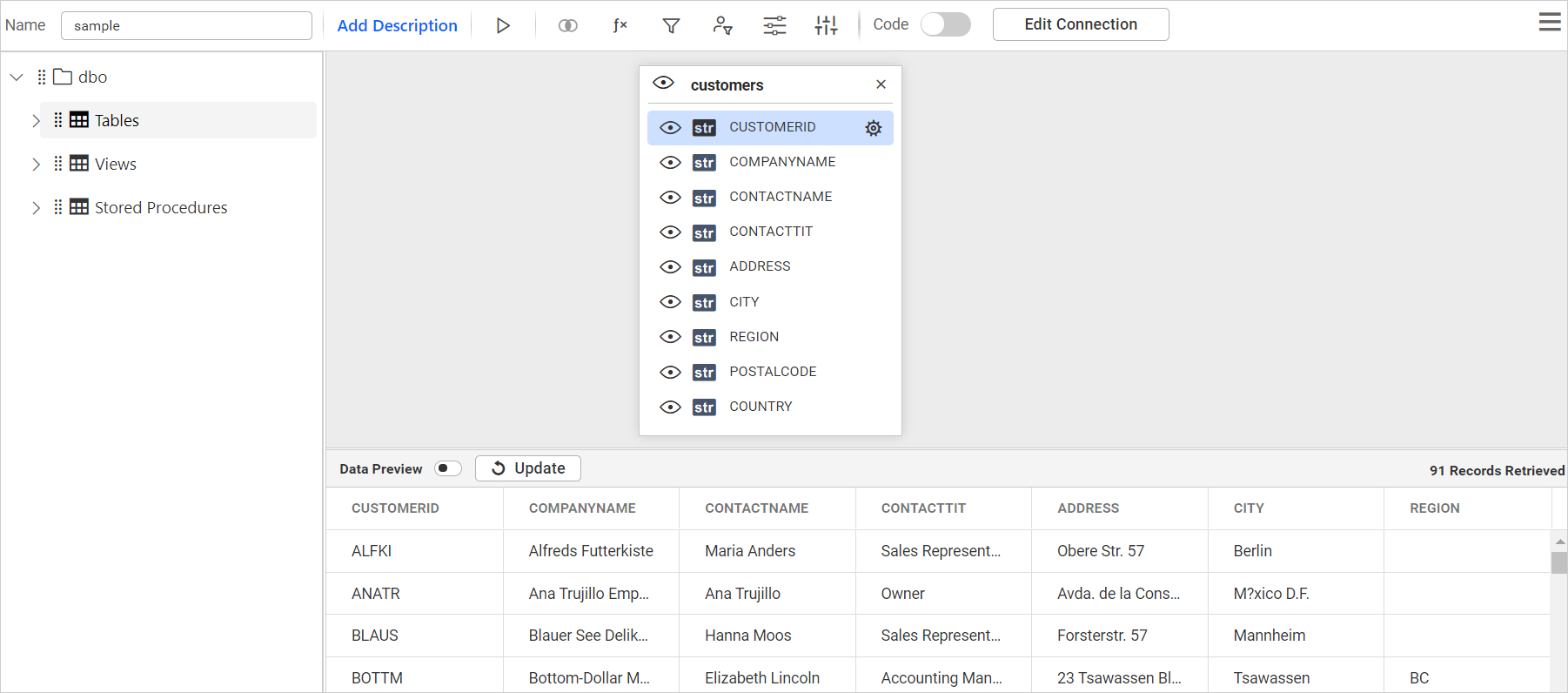
-
Click Save to save the data source with a relevant name in order to proceed with designing a dashboard.