
Working with Data Sources
This section explains how to create a new data source and fetch data from it.
Creating a New Data Source
To bind data to a widget, a minimum of one data source is required. Follow these steps to create a data source:
-
Click the
Data Sourcebutton in the configuration panel. The data panel will open.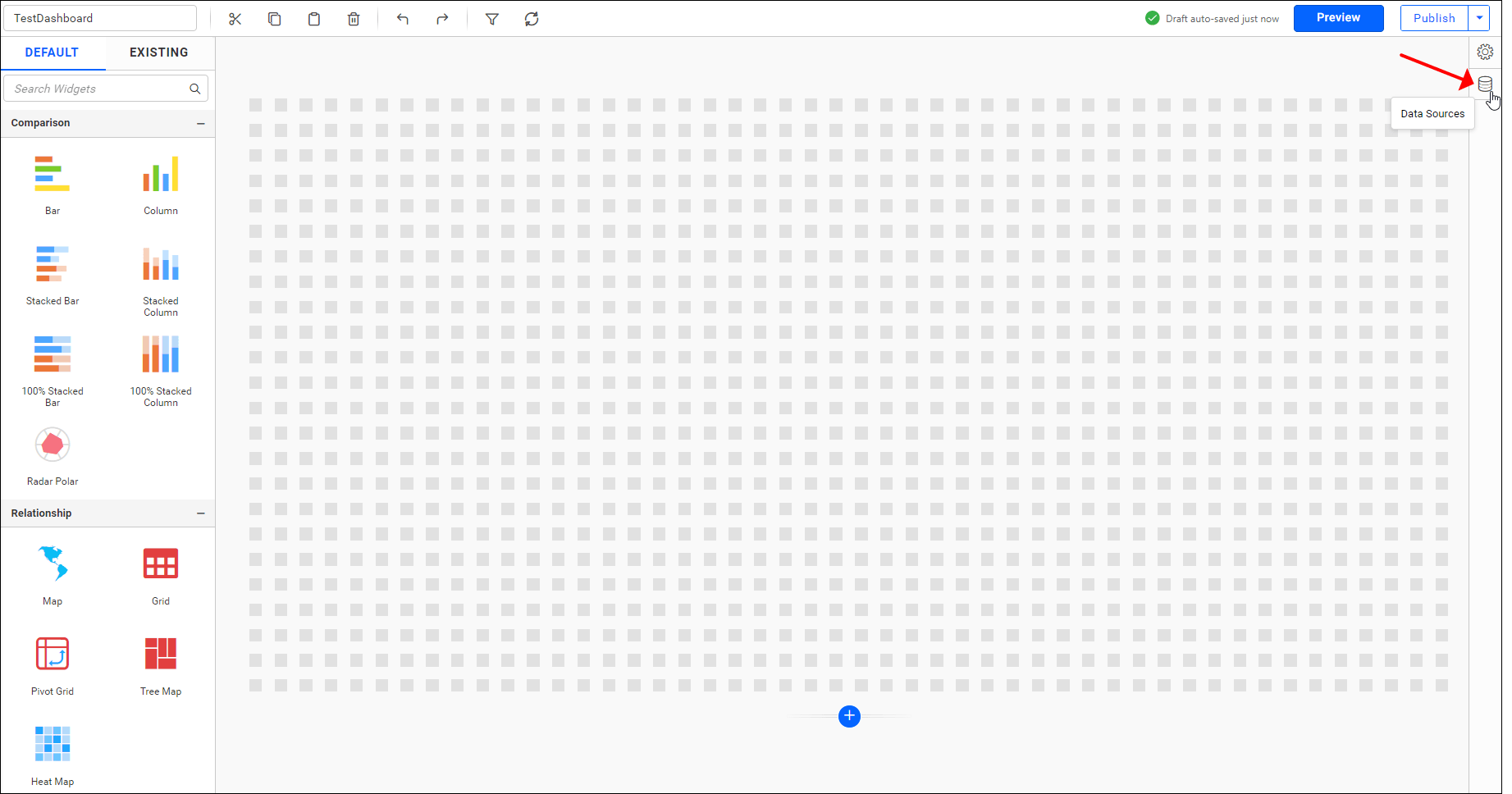
-
Click
CREATE NEWto launch a new connection from the connection type panel.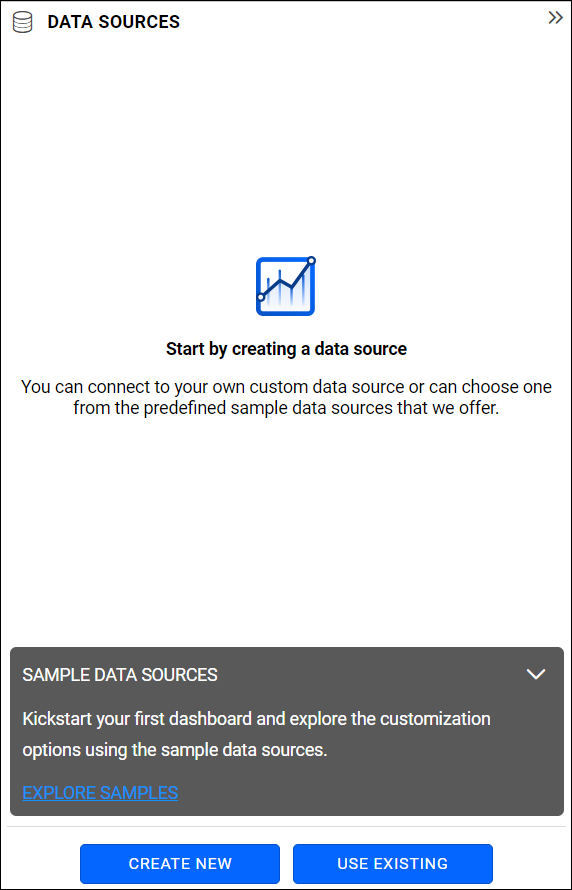
-
In the connection type panel, click on any one of the listed connection types (in this example,
Microsoft SQLconnection type is clicked) shown in the following image.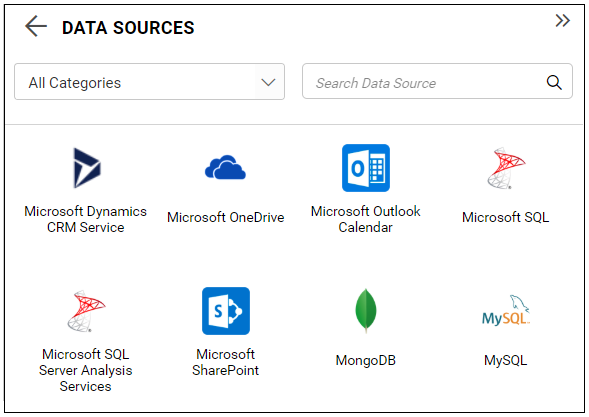
-
In the
NEW DATA SOURCEconfiguration panel, fill in the connection type and related details.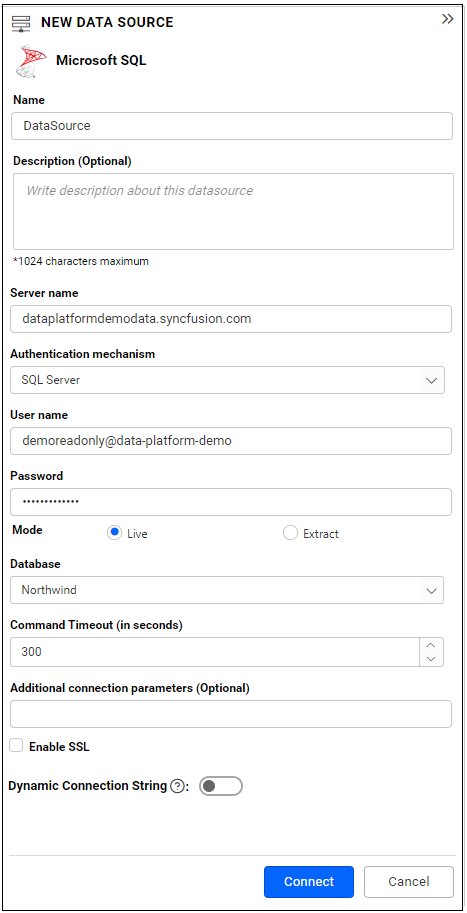
-
Click
Connectin theNEW DATA SOURCEconfiguration panel.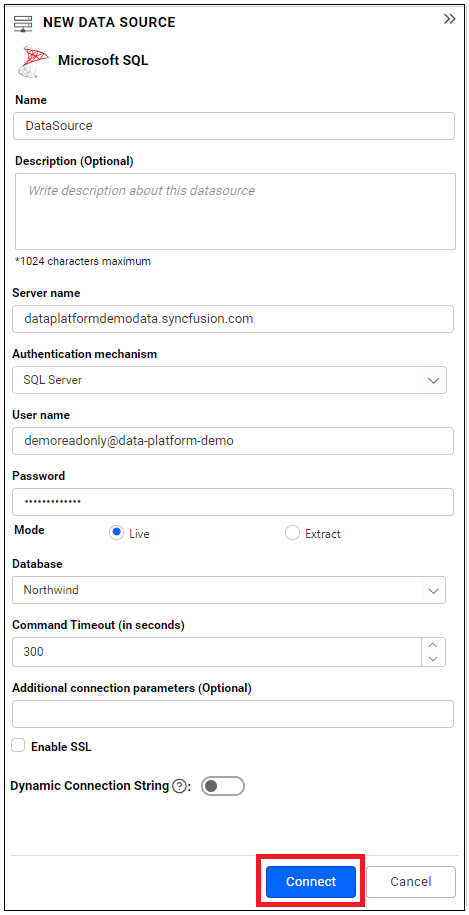
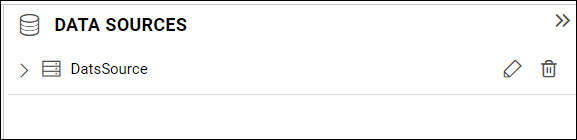
Now, the following view will be displayed.
-
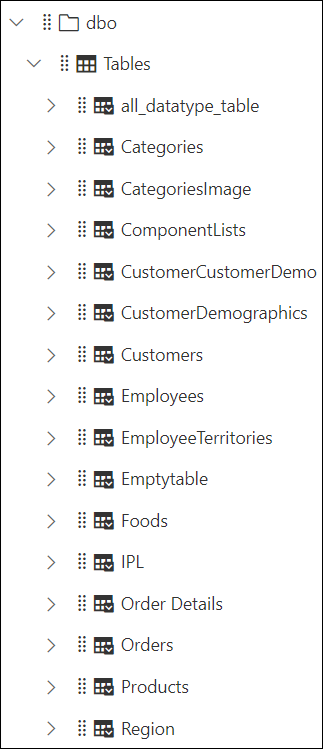
You can drag and drop tables or views in the data design view by expanding the tree view.
-
In the data design view, we have a
SEARCHoption. You can choose the desired tables/views/stored procedure using theSEARCHoption as follows.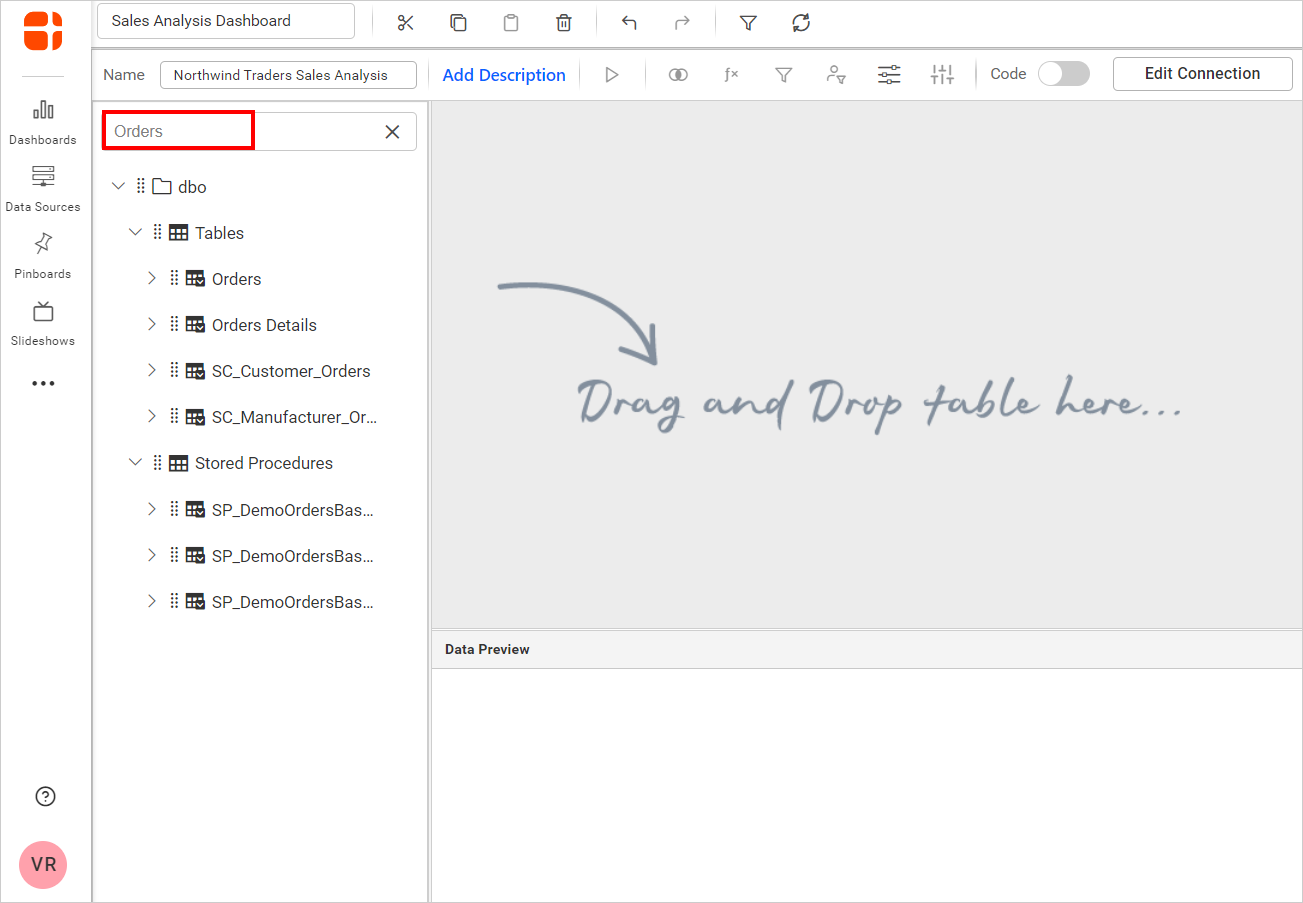
-
Click
Updateor enable theData Previewtoggle option to show the preview data. When the toggle button is disabled, click the Update icon every time to preview data for each action.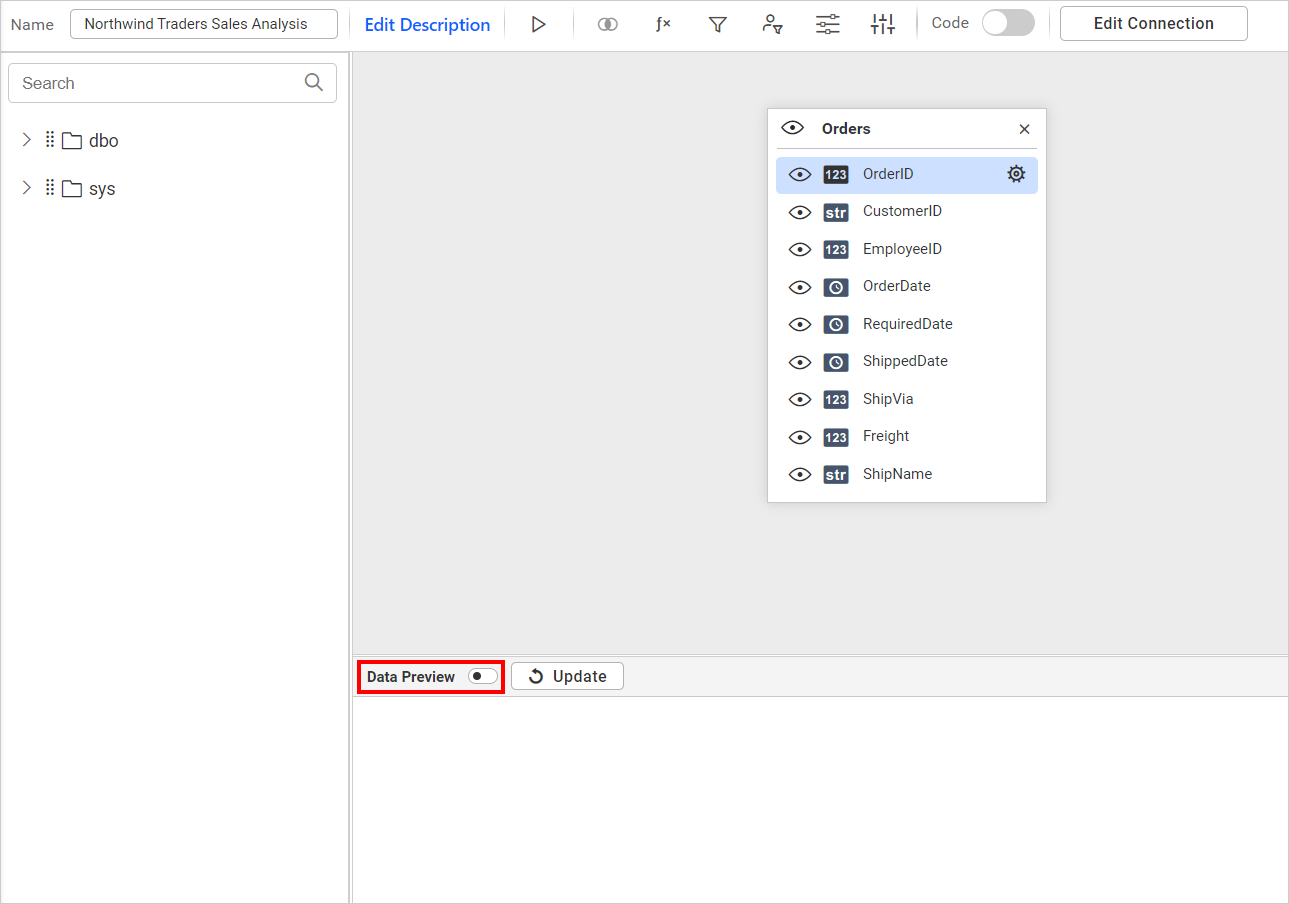
-
Click
Savedata source with a valid name.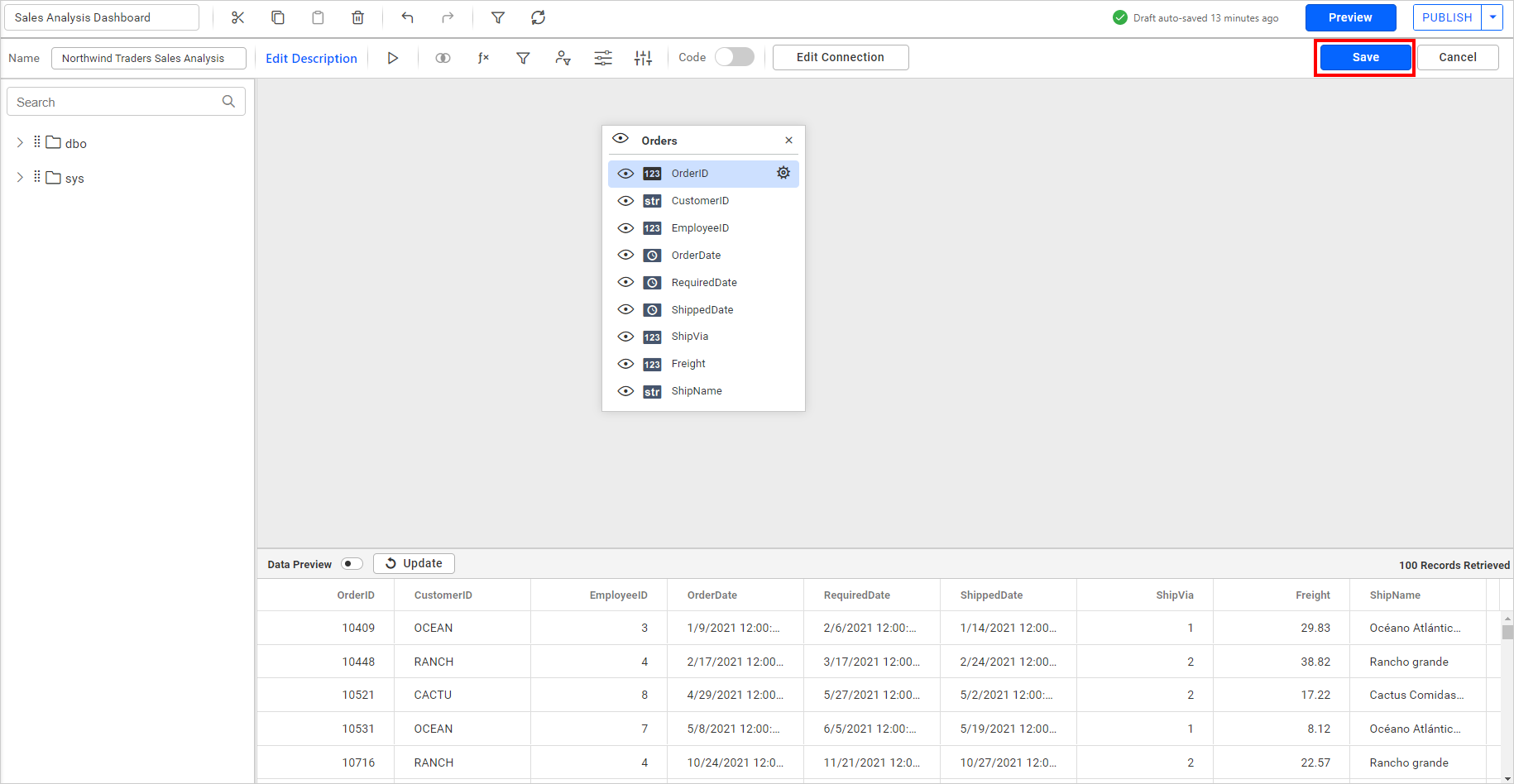
Post your message
If you are still unable to find the information you are looking for in the self-help resources mentioned above, please contact us and send your requirements.