Filtering Views through URL Parameters
Passing Parameter With URL
You can pass parameters to a dashboard by including them in the dashboard URL. Passing parameter values within the URL will apply filters in the dashboard on initial load itself.
To set a dashboard parameter within a URL, use the following syntax:
parameter=value1, value2,…, valueN
where the parameter represents the column name.
The parameter can be single-valued or multiple-valued.
To append your query string made with parameters and values to the URL, add a prefix (?) to the query string. If (?) is already present in the URL, add a prefix(&) to the query string.
http://<servername>/<culturename>/dashboards/<dashboardid>/<category>/<dashboardname>?ProductName=Chang
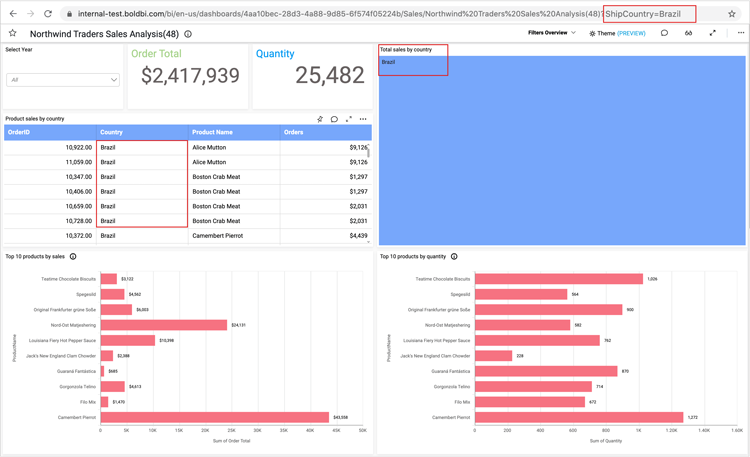
Here is a dashboard view illustrating the same with a single-valued parameter.
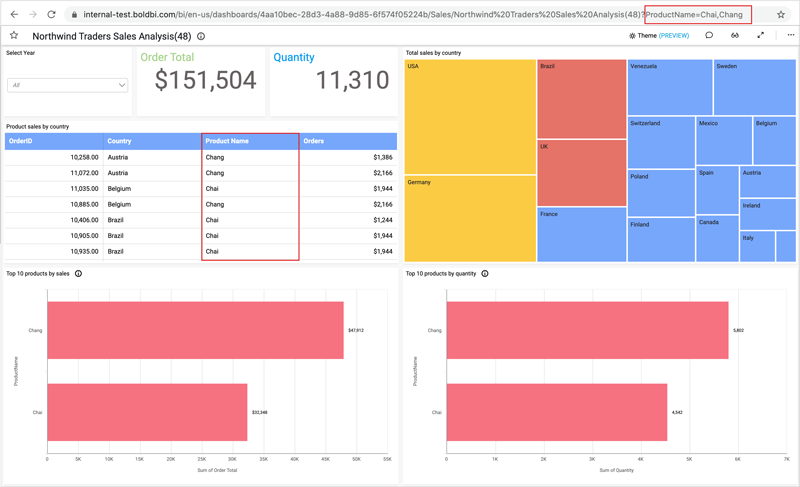
Here is a dashboard view illustrating the same with a multi-valued parameter.
Supported Operators
You can also define parameters with operators to search for one or more values, like below.
| Operator | Syntax |
| IN | parameter=IN(value1, value2,..., valueN) |
| NOTIN | parameter=NOTIN(value1, value2, …, valueN) |
| BETWEEN | parameter=BETWEEN(value1, value2) |
| INBETWEEN | parameter=INBETWEEN(value1, value2) |
| NOTBETWEEN | parameter=NOTBETWEEN(value1, value2) |
| STARTSWITH | parameter=STARTSWITH(value) |
| ENDSWITH | parameter=ENDSWITH(value) |
| CONTAINS | parameter=CONTAINS(value1, value2) |
Date Parameters Support
You can define parameters (date and time typed columns) with date and time functions applied to search for formatted date values like the one shown below.
http://<servername>/<culturename>/dashboards/<dashboardid>/<category>/<dashboardname>?Year(OrderDate)=1996
| Function | Syntax |
| YEAR | YEAR(parameter)=value1, value2, …, valueN |
| MONTHNAME | MONTHNAME(parameter)=value1, value2, …, valueN |
| QUARTER | QUARTER(parameter)=value1, value2, …, valueN |
| QUARTERYEAR | QUARTERYEAR(parameter)=value1, value2, …, valueN |
| MONTHYEAR | MONTHYEAR(parameter)=value1, value2, …, valueN |
| DAYMONTHYEAR | DAYMONTHYEAR(parameter)=value1, value2, …, valueN |
| MONTHDAYYEAR | MONTHDAYYEAR(parameter)=value1, value2, …, valueN |
| HOURS | HOURS(parameter)=value1, value2, …, valueN |
| MINUTES | MINUTES(parameter)=value1, value2, …, valueN |
| DAY | DAY(parameter)=value1, value2, …, valueN |
| SECONDS | SECONDS(parameter)=value1, value2, …, valueN |
| DATEHOUR | DATEHOUR(parameter)=value1, value2, …, valueN |
| DAYOFWEEK | DAYOFWEEK(parameter)=value1, value2, …, valueN |
| WEEKOFYEAR | WEEKOFYEAR(parameter)=value1, value2, …, valueN |
List of operators supported in date and time functions. For example, for illustrative purposes, we are using the year date and time function.
| Function | Syntax |
| IN | YEAR(parameter)=IN(value1, value2, …, valueN) |
| NOTIN | YEAR(parameter)=NOTIN(value1, value2, …, valueN) |
| BETWEEN | parameter=BETWEEN(value1,value2) |
| INBETWEEN | parameter=INBETWEEN(value1,value2) |
NOTE: The between and inbetween operators, the value must be in the format M/d/yyyy h:mm tt. Additionally, no date time function is required for this.
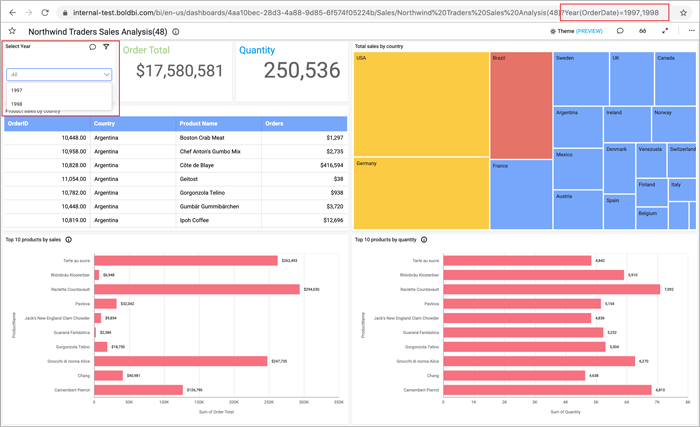
Here is a dashboard view illustrating the use of parameters with date and time functions.
Measure Parameters Support
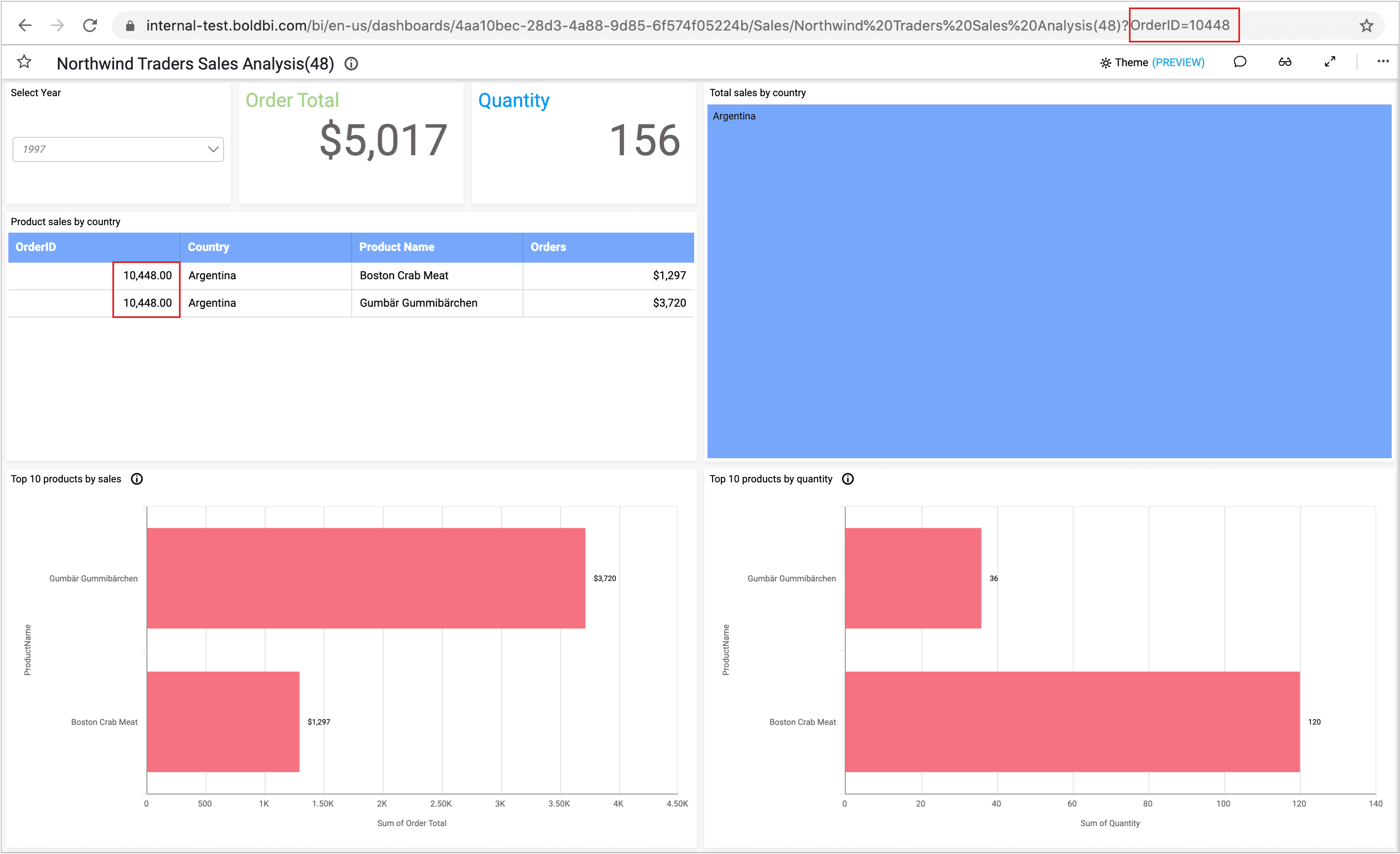
You can define parameters with measure-typed columns just as shown below:
http://<servername>/<culturename>/dashboards/<dashboardid>/<category>/<dashboardname>?MeasureTypeParameter=value
For measures, you can use the following operators with the value.
| Function | Syntax |
| BETWEEN | parameter=BETWEEN(value1, value2) |
| NOTBETWEEN | parameter=NOTBETWEEN(value1, value2) |
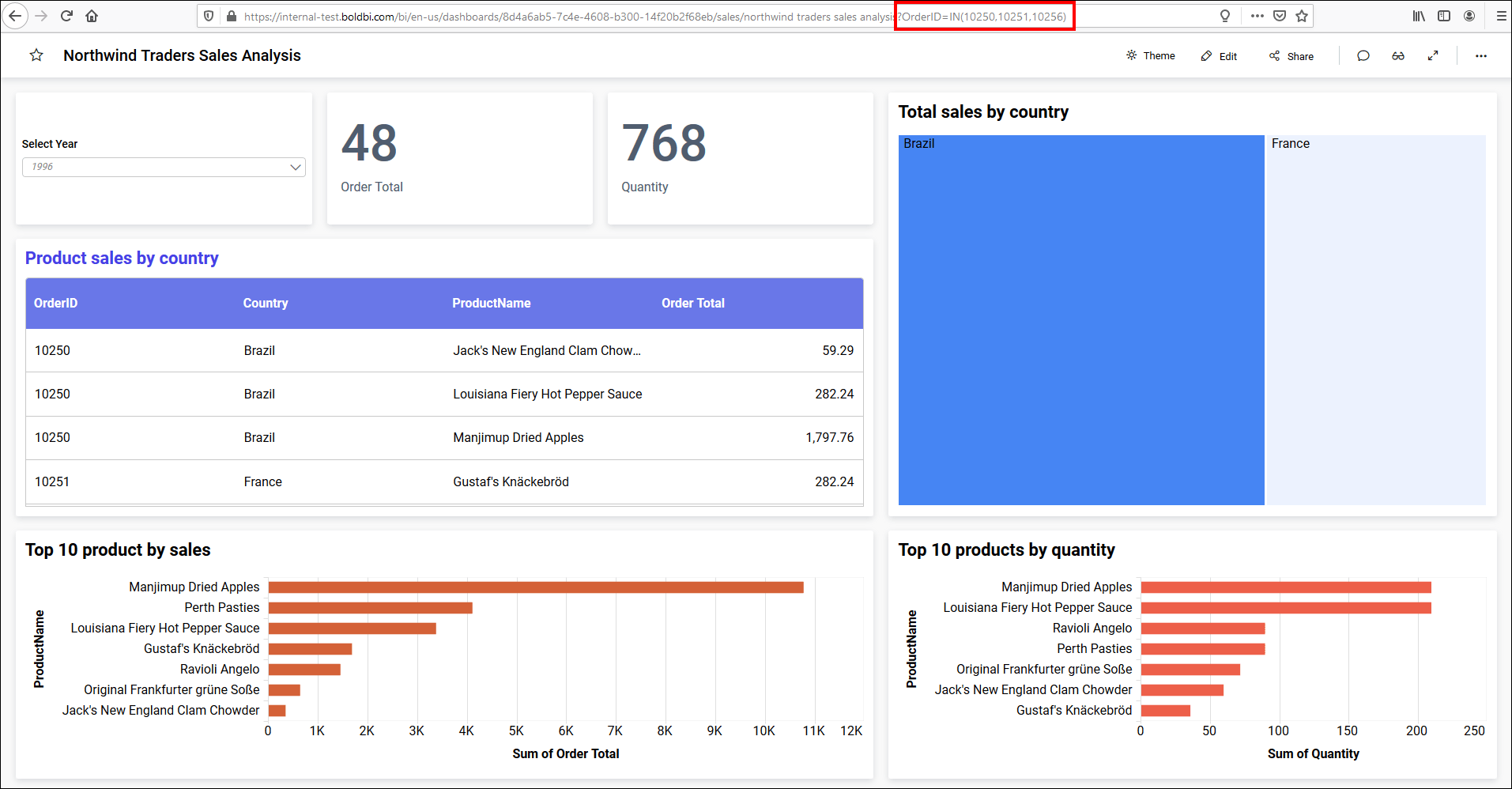
| IN | parameter=IN(value1, value2, ..., valueN) |
| NOTIN | parameter=NOTIN(value1, value2, ..., valueN) |
In addition to these operators, you can apply the following conditions to measure parameters.
| Condition |
| parameter!=value |
| parameter<value |
| parameter>value |
| parameter<=value |
| parameter>=value |
Comma separator is used in the condition to filter with multiple values for the measure column, like parameter=value1, value2, value3, ..., valueN.
NOTE: You are only allowed to pass one parameter value, except for between and not between which require 2 parameter values.
Here is a dashboard view illustrating the use of parameters with measure values.
Dimension Parameters Support
You can also pass Dimension type parameter values to filter.
http://<servername>/<culturename>/dashboards/<dashboardid>/<category>/<dashboardname>?DimensionTypeParameter=value
For measures, you can only use the following operators with the value.
| Function | Syntax |
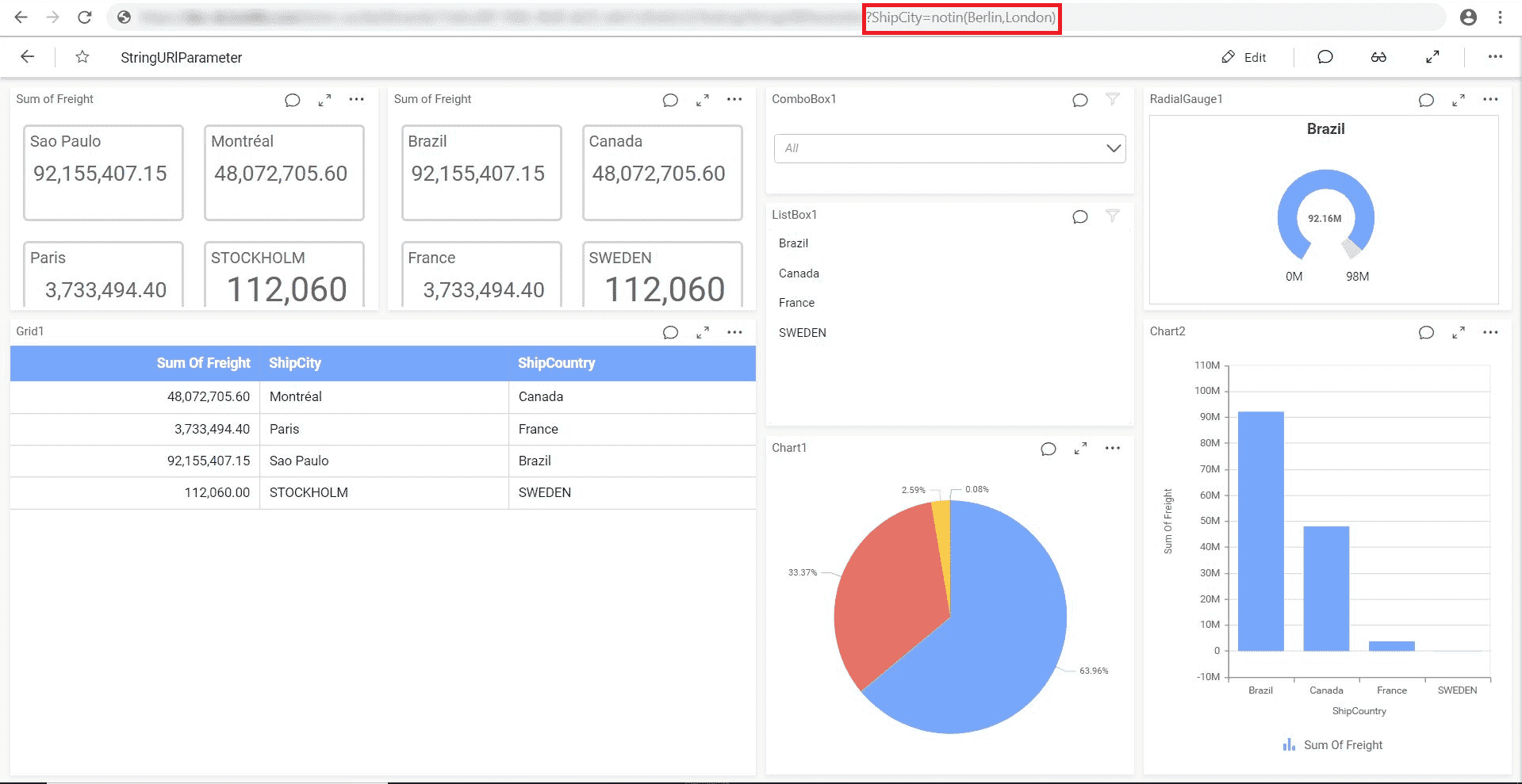
| IN | parameter=IN(value1, value2, …, valueN) |
| NOTIN | parameter=NOTIN(value1, value2, …, valueN) |
| STARTSWITH | parameter=STARTSWITH(value) |
| ENDSWITH | parameter=ENDSWITH(value) |
| CONTAINS | parameter=CONTAINS(value) |
Here is a dashboard view illustrating the use of parameters with measure parameter values.
Special Characters Support
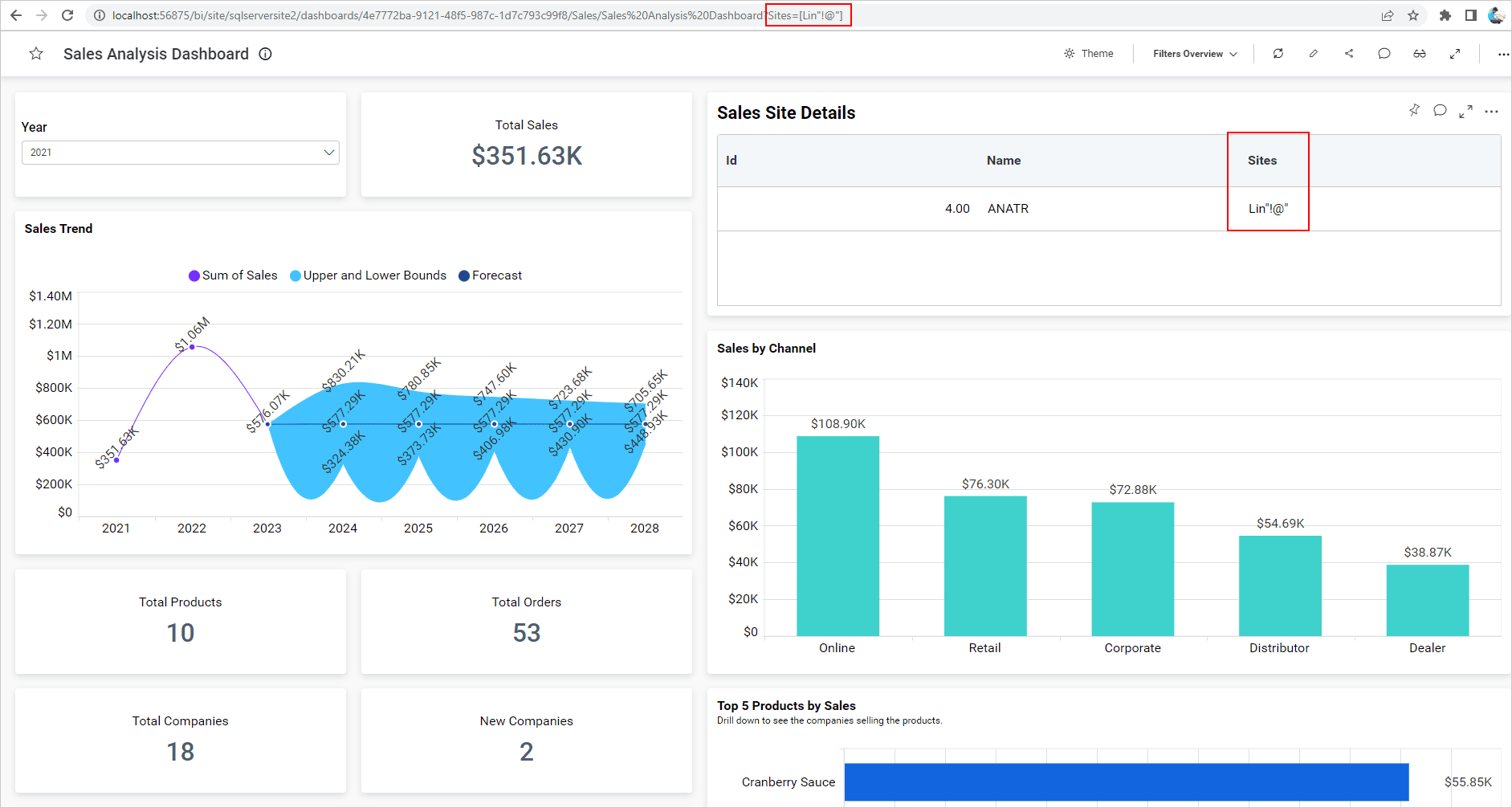
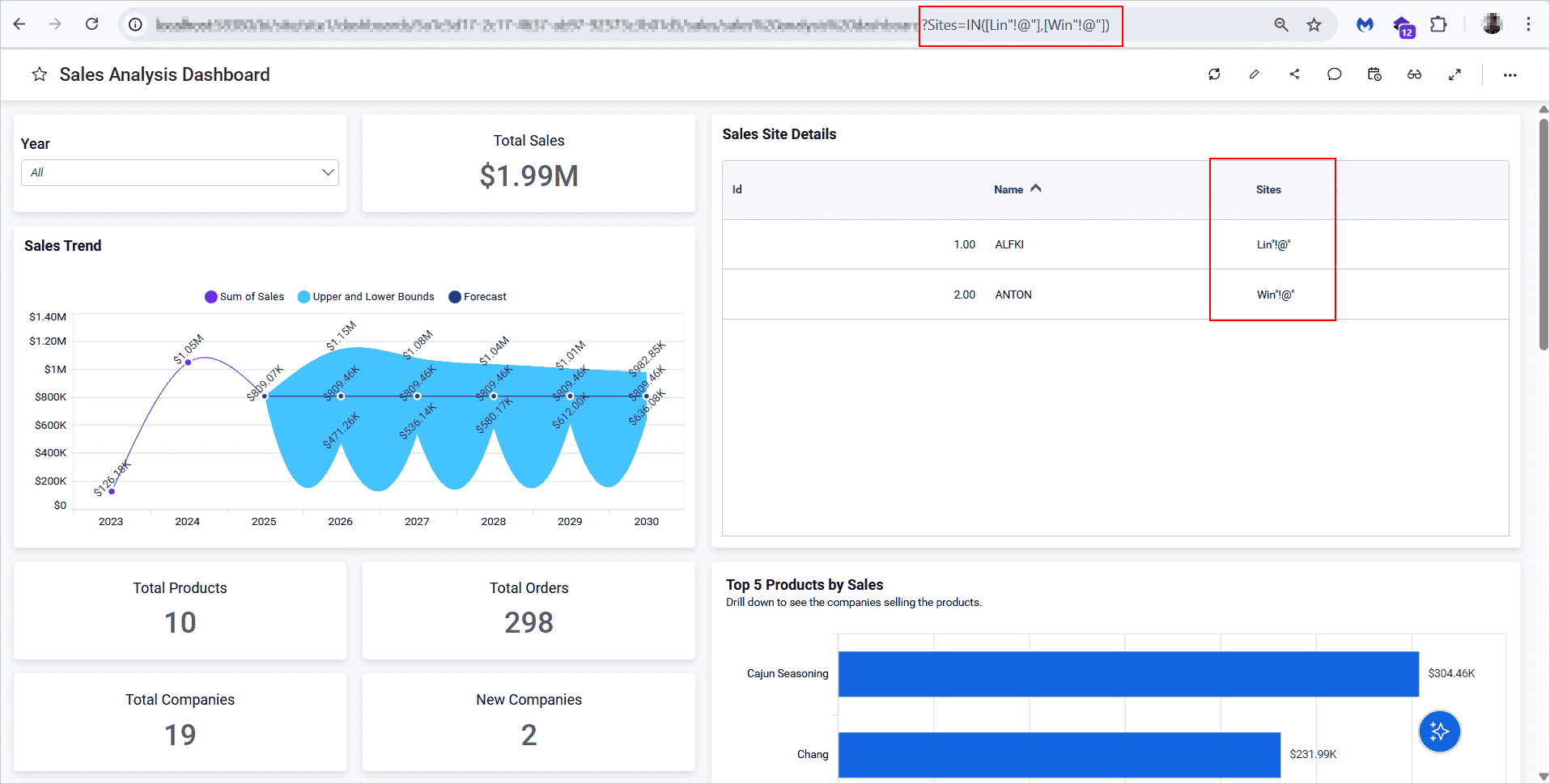
You can also pass parameter values with special characters to filter. To use a value with special characters, you can pass the value inside square brackets as shown below:
Syntax for a single value
http://<servername>/<culturename>/dashboards/<dashboardid>/<category>/<dashboardname>?DimensionTypeParameter=[value"!@"]
Syntax for multiple values
http://<servername>/<culturename>/dashboards/<dashboardid>/<category>/<dashboardname>?DimensionTypeParameter=IN([value1"!@"],[value2"!@"])
| Special Characters |
| ! |
| % |
| @ |
| $ |
| ^ |
| * |
| ( |
| ) |
| - |
| _ |
| + |
| [ |
| ] |
| : |
| ; |
| " |
| / |
| \ |
| ? |
| `` |
| . |
| > |
| < |
Here is a dashboard view illustrating the use of parameters with special characters.
Passing Keywords with URL
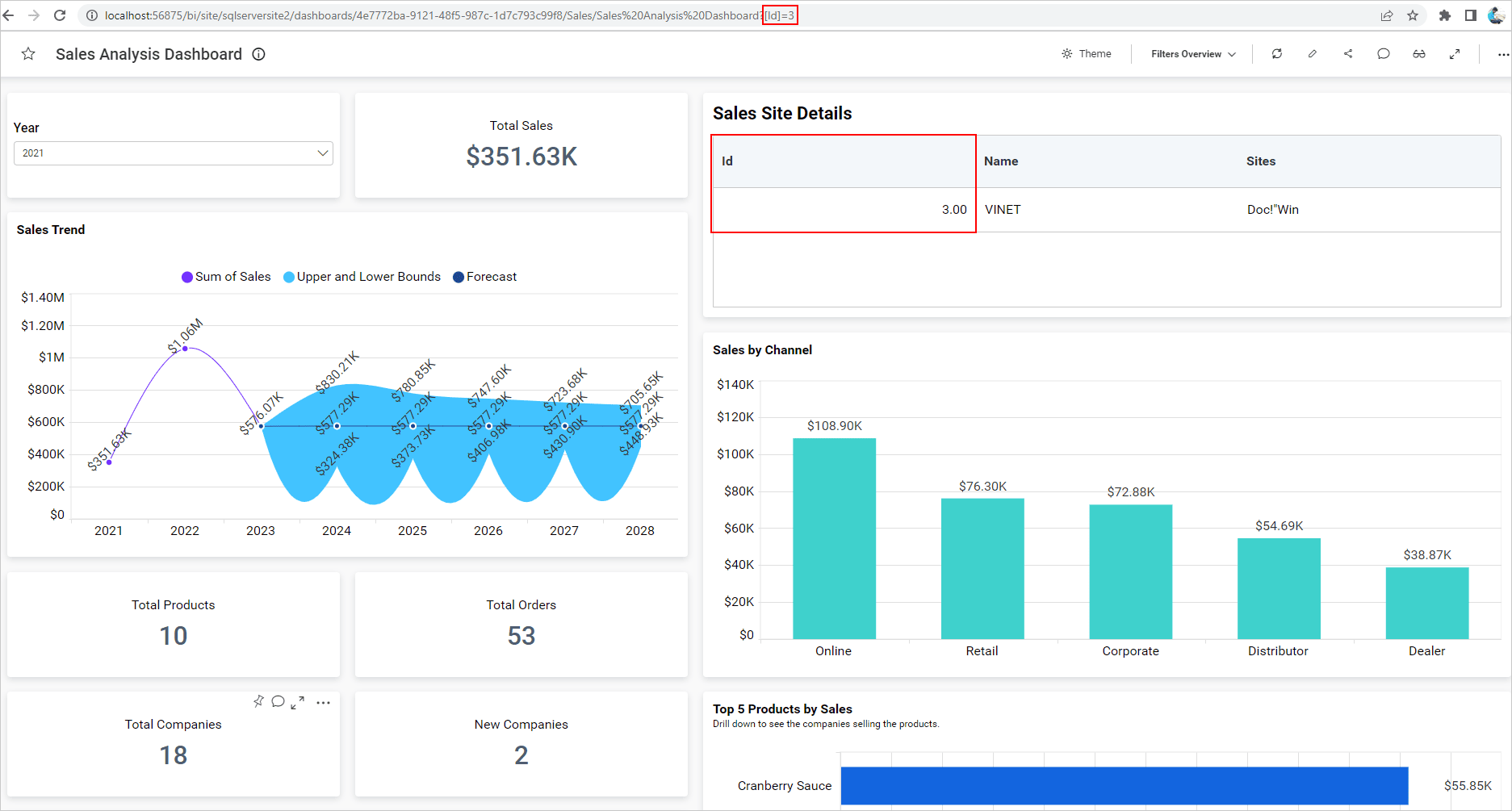
The following keywords are used for our internal purposes. If you have any of these keywords as column names, you can specify them inside square brackets as shown below:
http://<servername>/<culturename>/dashboards/<dashboardid>/<category>/<dashboardname>?[Keywords]=value
| Keywords |
| Id |
| Comment |
| tab |
| showmydashboards |
| viewid |
| ismultitab |
| bi_theme |
| multitabid |
| hide_header |
| Hide_tool |
| hide_widget_tool |
| isembed |
| views |
| export |
| dashboard_comments |
| widget_comment |
| embed_dashboard_views_edit |
| embed_dashboard_favorite |
| embed_dashboard_toolbar |
| embed_expirationtime |
| embed_nonce |
| embed_user_token |
Here is a dashboard view illustrating the use of parameters with the mentioned keywords.
Passing Parameters with dataSource
You can pass a parameter value along with the DataSource name to specifically filter the data. For this purpose, you can pass the URL as shown below:
http://<servername>/<culturename>/dashboards/<dashboardid>/<category>/<dashboardname>?DataSourceName.ParameterName=value
Here is a dashboard view illustrating the use of parameters with DataSource.
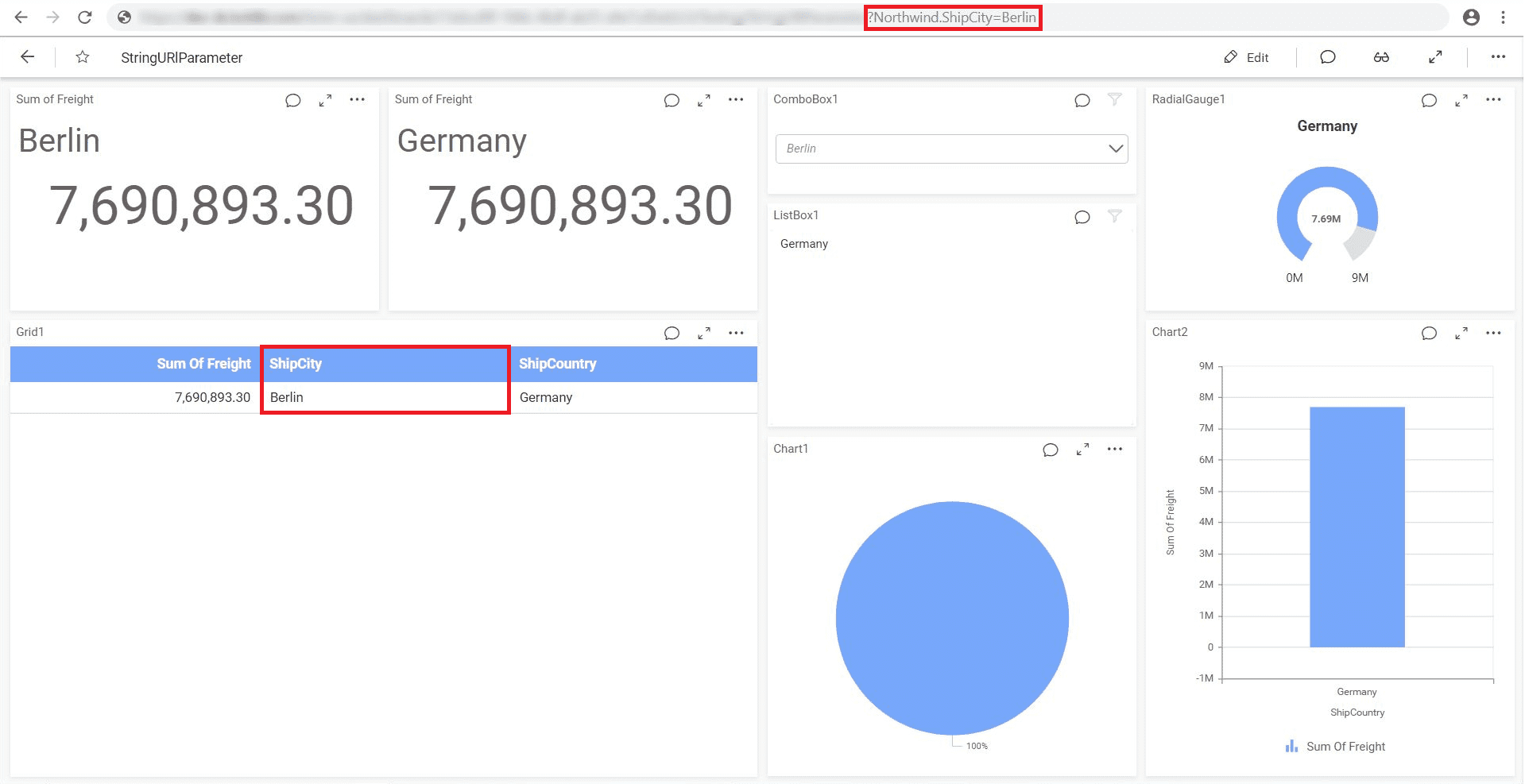
Where Northwind is the required data source name.
Passing Multiple Parameters With URL
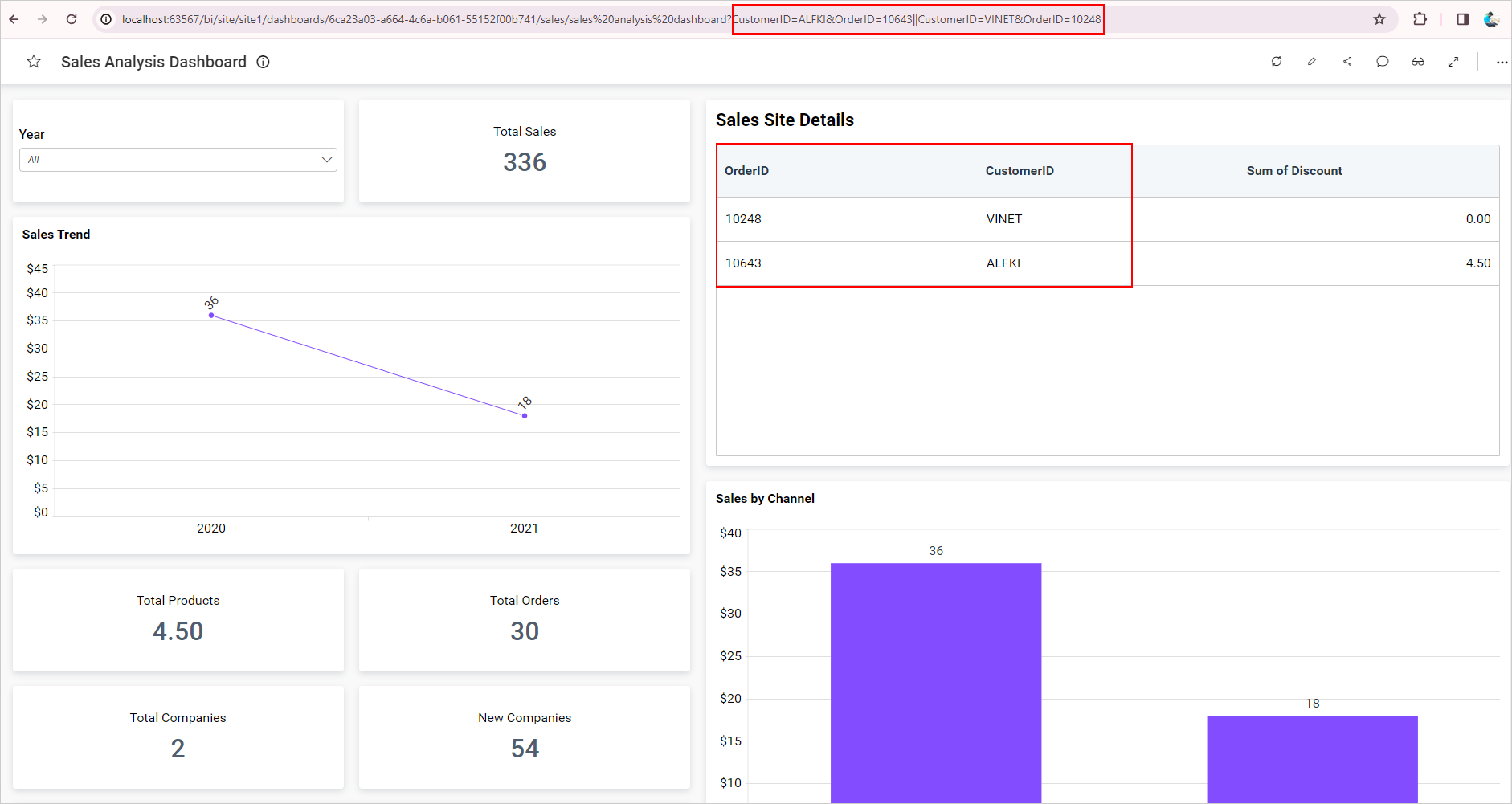
You can pass more than one parameter within a URL by introducing an ampersand (& or &&) or vertical bar (| or ||) symbol in between them to differentiate, like below:
http://<servername>/<culturename>/dashboards/<dashboardid>/<category>/<dashboardname>?CustomerID=ALFKI&OrderID=10643||CustomerID=VINET&OrderID=10248
Here is a dashboard view illustrating the same.
Grouped URL Parameters
The Grouped URL Parameters feature allows users to filter values using multiple conditions combined with AND/OR operators. This is achieved by enclosing the conditions within parentheses to define the logical grouping, as shown below:
http://<servername>/<culturename>/dashboards/<dashboardid>/<category>/<dashboardname>?(((CustomerID=ALFKI&OrderID=10643)&City=Berlin)|(ProductName=Aniseed Syrup&Country=Austria, USA))
Below is a dashboard view illustrating this concept:
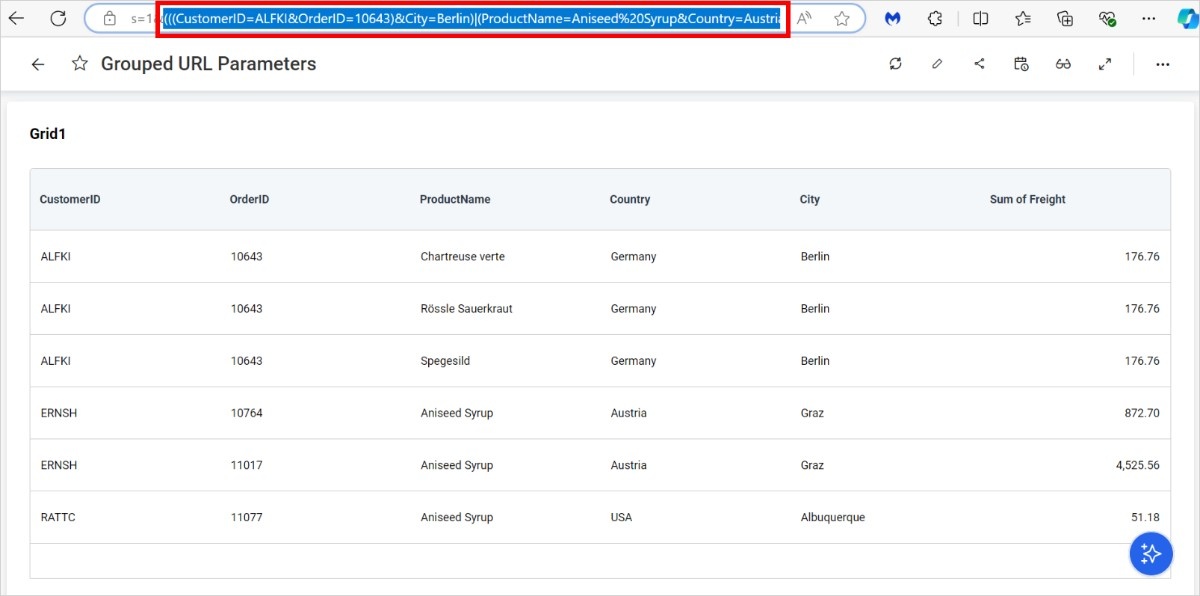
NOTE: Parameters cannot be used within grouped URLs.
Limitations of URL Parameter
For example, CompanyName=Syncfusion Inc~,~
There is no data to be displayed in widgets. -
Example Scenario:
-
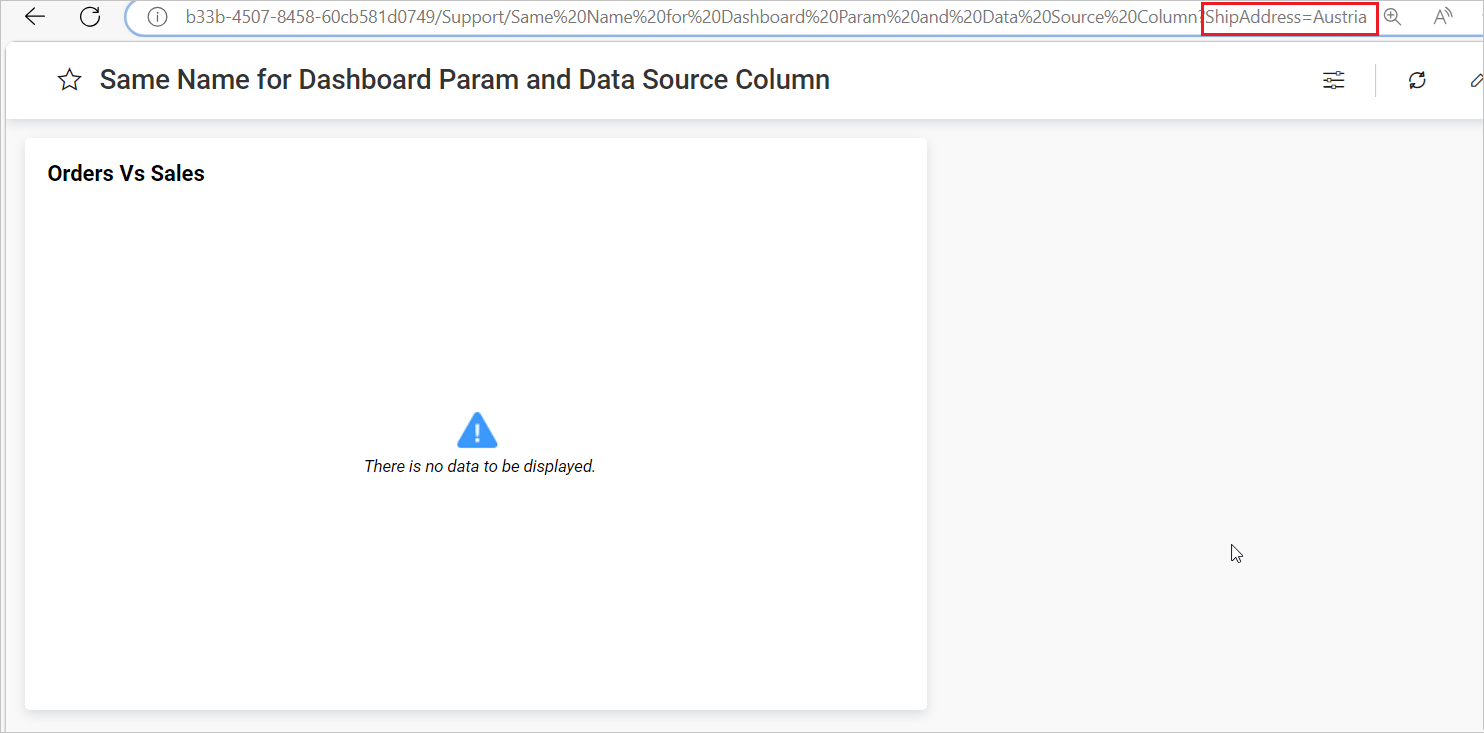
Consider a scenario where a user creates a dashboard parameter named `ShipAddress` with the country name value and uses it in the code view of a data source.
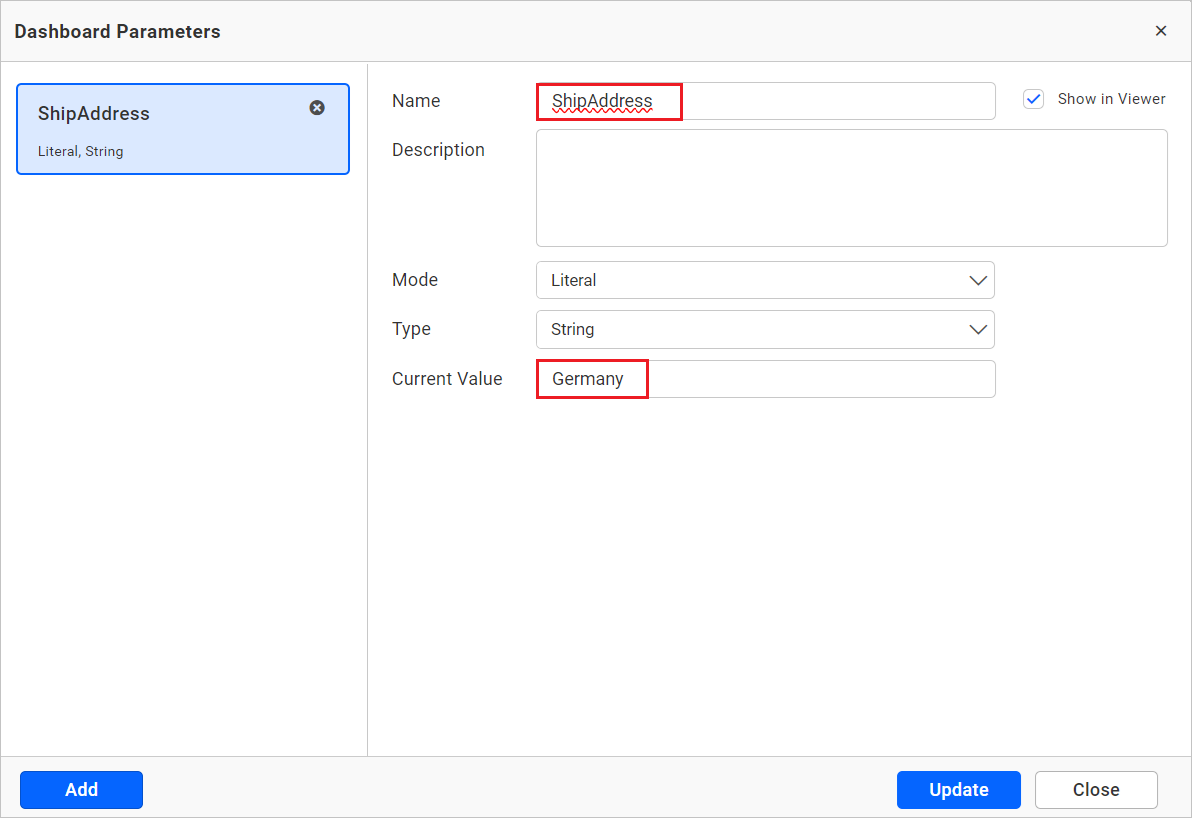
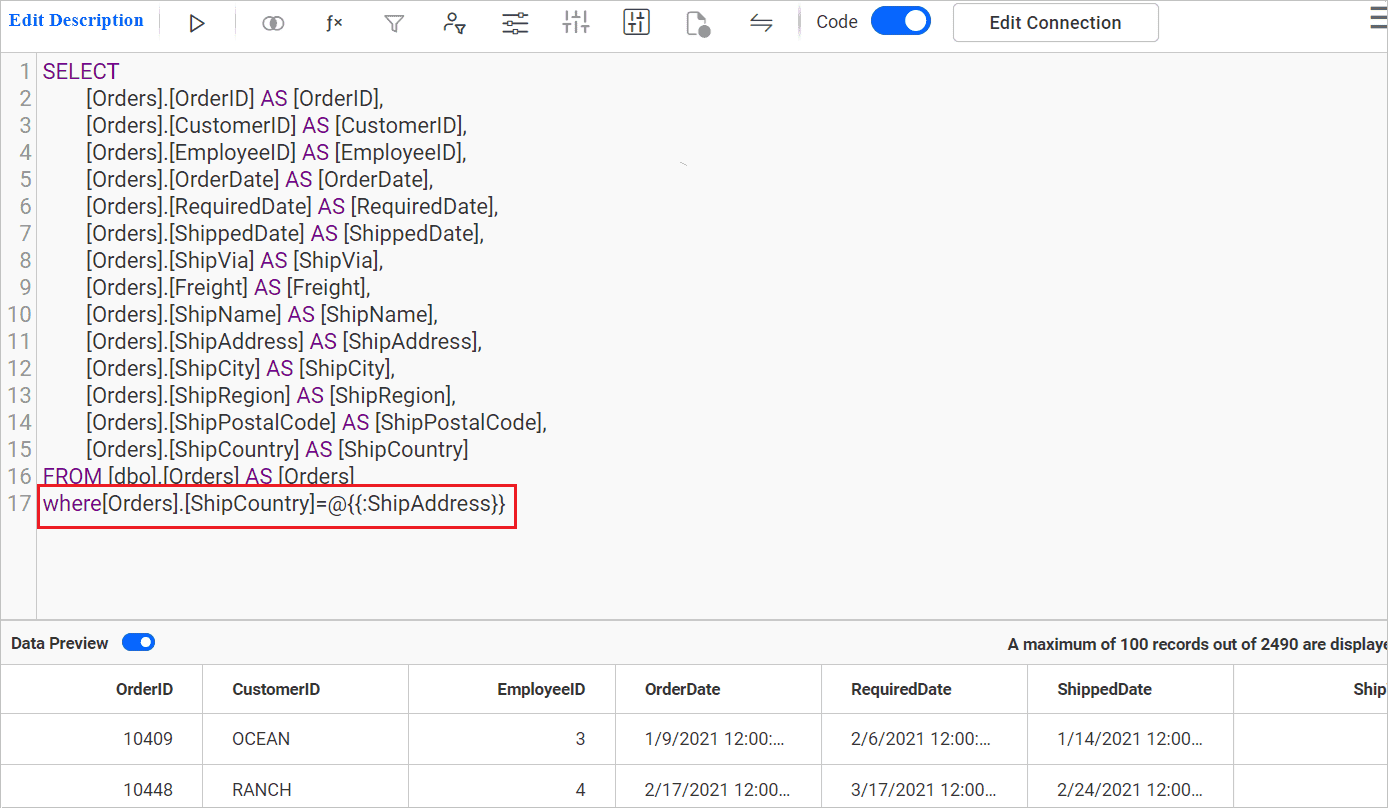
However, the data source also contains a column named ‘ShipAddress’ with shipping address details.
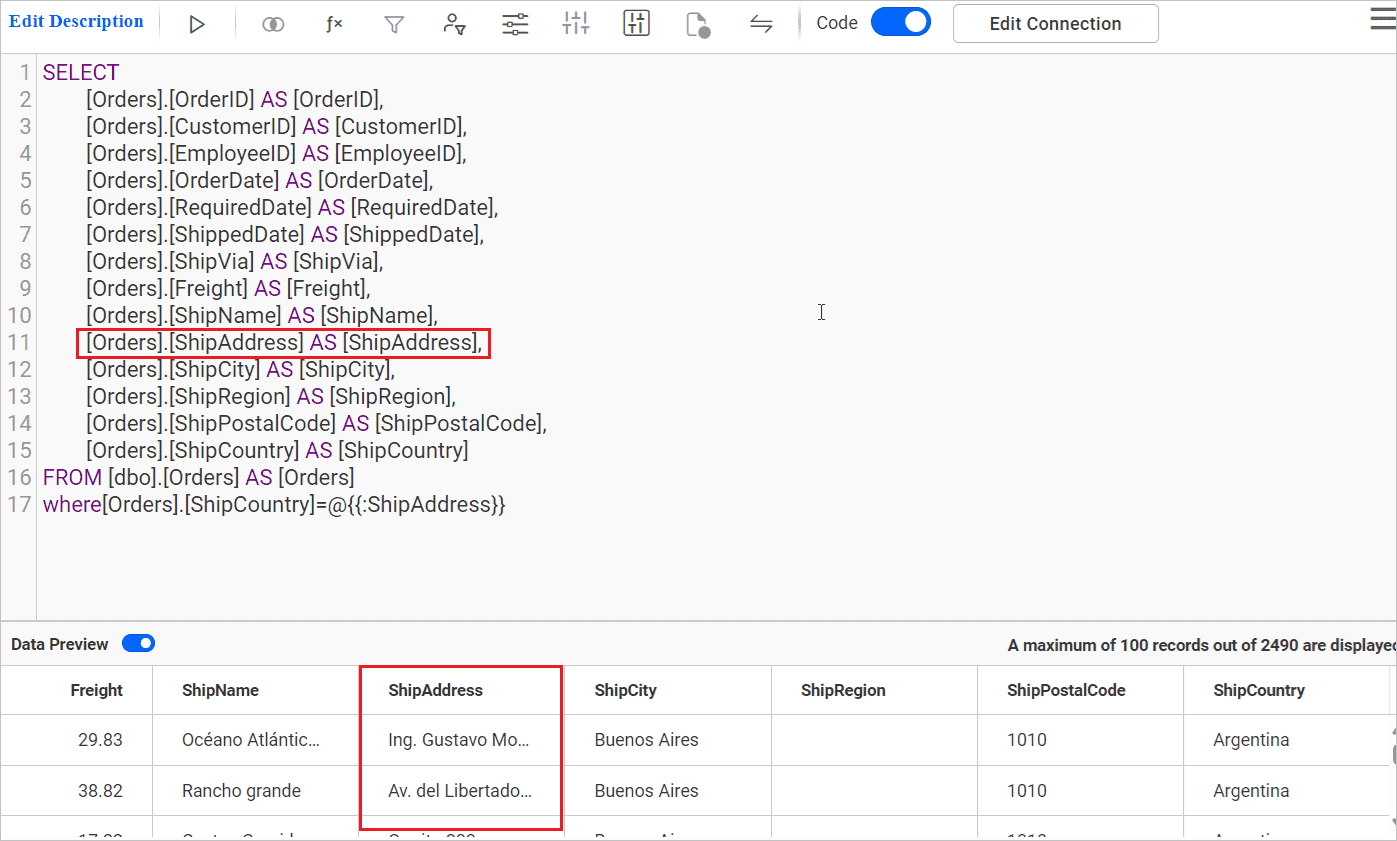
When applying a URL parameter like ‘Dashboard-URL?ShipAddress=Austria, it will filter the data source column ShipAddress instead of the dashboard parameter ShipAddress. This will result in a There is no data to be displayed message in widgets.