Configuring Interaction For Grid Widget
The following options allow the widget state to be preserved after the dashboard page is reloaded.
- Allow Column Reorder
- Enable Column Chooser
Allow Column Reorder
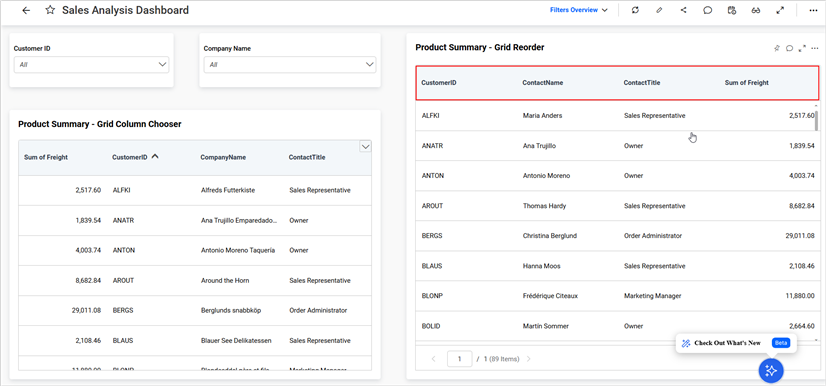
You can configure the Allow Column Reorder option through the widget properties. For detailed instructions, refer to this link.
Steps to save the reordered columns to views
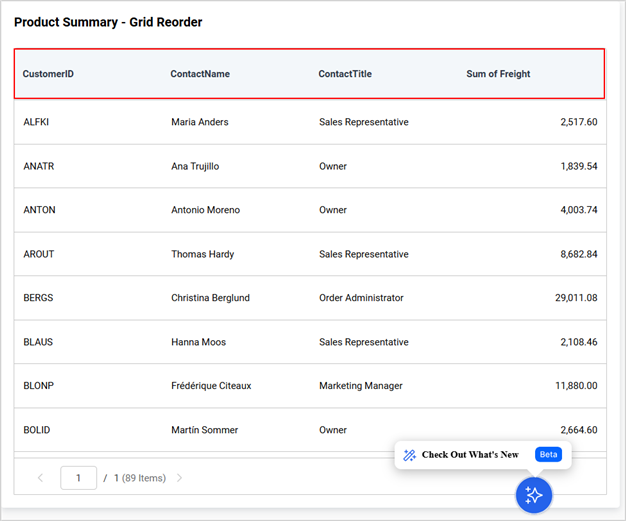
- Reorder the columns as desired on the widget.
-
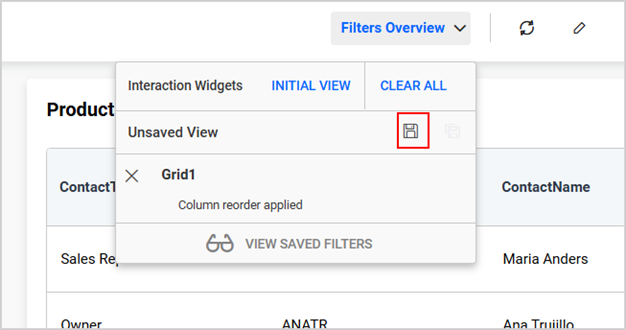
The changes will be indicated as
Column reorder appliedbeneath the widget name in theFilter Overviewpanel, located under theInteraction Widgetssection. -
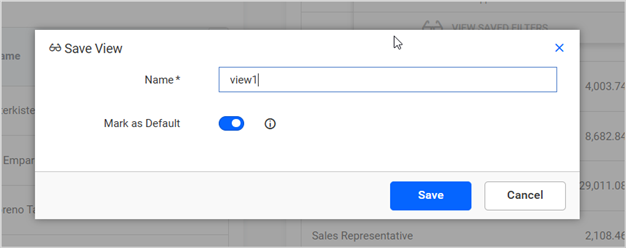
Click the Save icon, enter a name for the dashboard view in the
Save Viewpopup, and then save the view.
- After reloading the dashboard, the reordered columns will be retained.
Enable Column Chooser
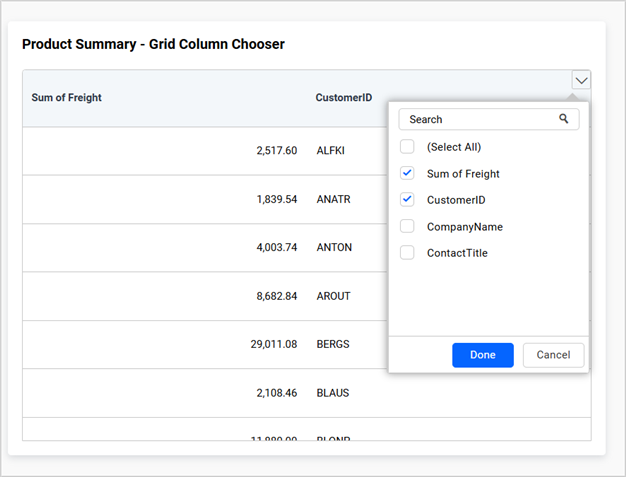
You can configure the Enable Column Chooser option through the widget properties. For detailed instructions, refer to this link.
Steps to save the unselected columns to Views
- Use the Column Chooser to modify column visibility.
-
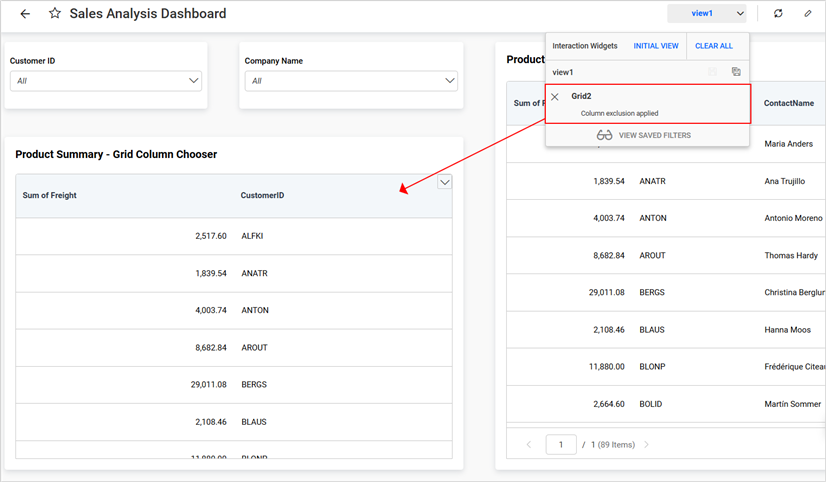
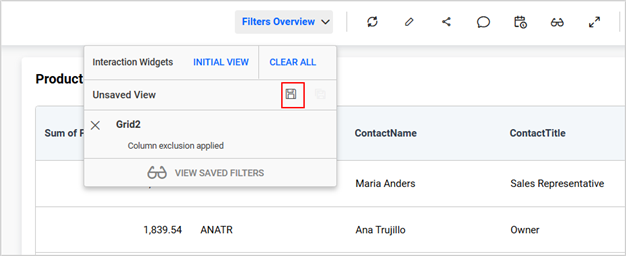
The changes will be indicated as
Column exclusion appliedbeneath the widget name in theFilter Overviewpanel, located under theInteraction Widgetssection. -
Click the Save icon, enter a name for the dashboard view in the
Save Viewpopup, and then save the view.
- After reloading the dashboard, the column visibility settings will be retained.