
Custom Formatting Date Type Column
Custom date format allows you to set the desired format for the date field implicitly and apply formatting based on the fiscal year. This can be supported for all date formats such as year, month, date, day, and many more.
NOTE: Custom date format support is only applicable for chart and grid widgets.
Configuring custom date format to date field
The custom date format option is applicable only for the date-time type of dimension column. To configure the custom date format settings, open the Date Settings dialog from the Settings option by clicking the Settings icon.
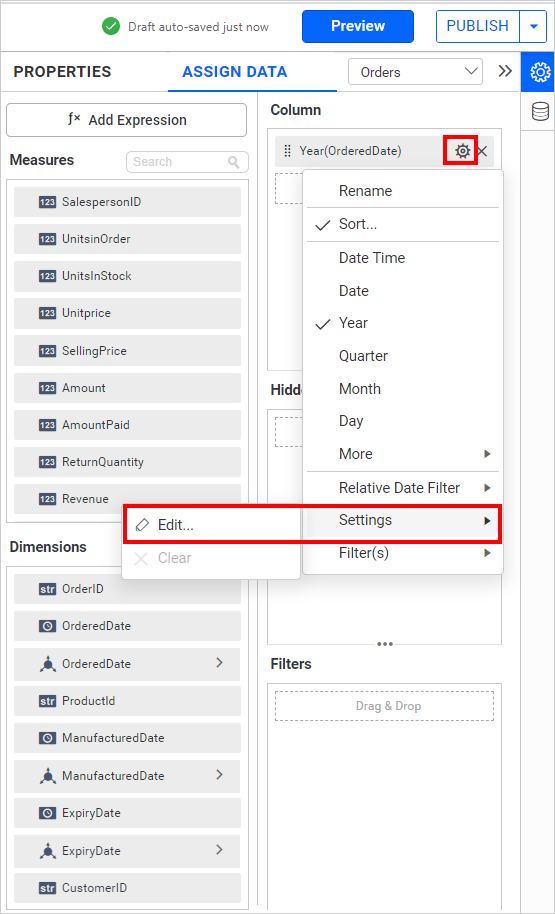
By clicking Edit.. menu item, Date Settings dialog will open as follows.
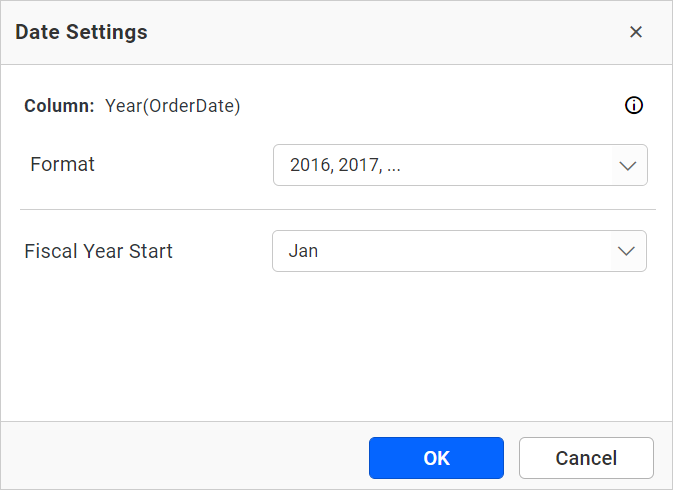
The Date Settings dialog has the following options that allow you to customize the date field with the applicable date format:
To clear the custom date format settings for the date field, click on clear in the settings drop-down menu. This menu item is enabled only when the date field is already configured with custom date settings.
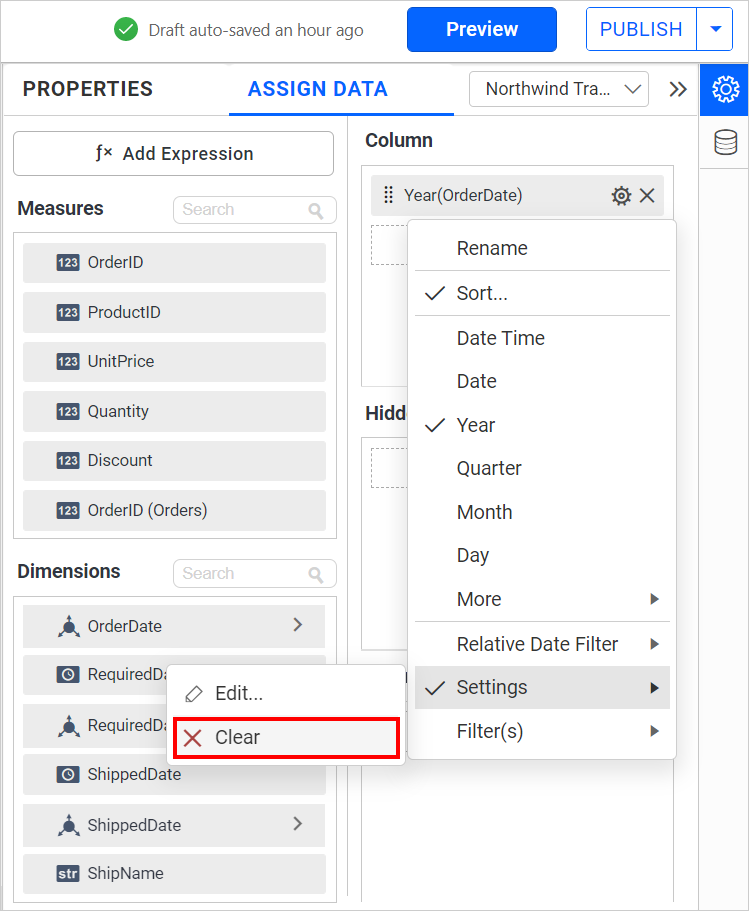
How to customize date field with custom date format
The date field can be customized by the Format and Fiscal year start options provided in the Date Settings dialog.
Format
You can customize the date format of the date field using various custom date format options based on the fiscal year. For example, if the date format is Year, then the year format can be customized by using the provided default options like 2016-2017...or 16-17....
Follow these steps to apply a predefined date format:
-
Click on the
Formatdropdown. -
Choose any one of the predefined format options as follows.
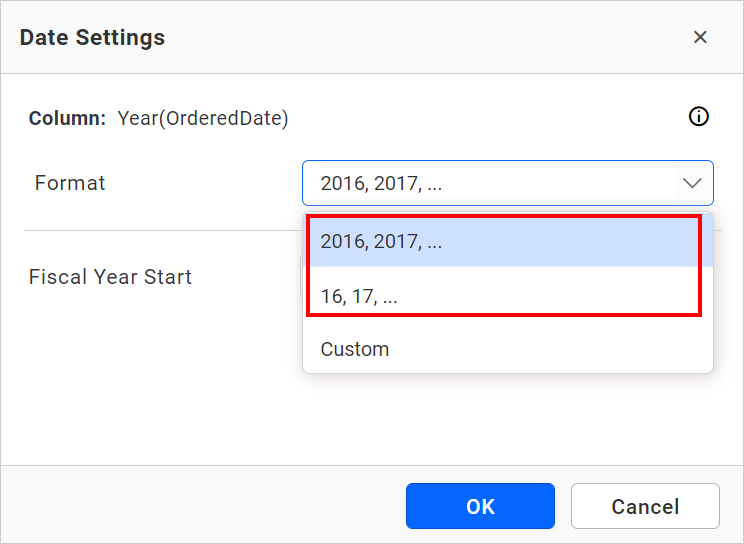
The supported built-in date format types are listed in the following table.
| Types | Formats |
| Year | 2016, 2017, ... |
| 16, 17... | |
| Quarter | Quarter 1, Quarter 2 |
| Q1, Q2, Q3, Q4 | |
| 1, 2, 3, 4 | |
| Month | Jan, Feb, Mar |
| January, February | |
| 1, 2, 3...12 | |
| 01, 02, 03...12 | |
| Hour | 00, 01, 02, 03... |
| 1 AM, 2 PM.. | |
| 0, 1, 2, 3.... | |
| Minutes | 00, 01, 02, 03... |
| 0, 1, 2, 3... | |
| Seconds | 00, 01, 02, 03... |
| 0, 1, 2, 3... | |
| Quarter Year | Quarter 1 2017, Quarter 2 2018 |
| Q1 2017, Q2 2017 | |
| Month Year | Jan 2016, Feb 2017 |
| January 2016, February 2017 | |
| Date Hour | 23/07/2017 00 |
| Week of Year | 00, 01, 02, 03... |
| Week 0, Week 1, Week 2... | |
| Week 00, Week 01, Week 02... | |
| Day | 00, 01, 02, 03...31 |
| 1, 2, 3...31 |
Custom Format
You can see the Custom option under the Format drop-down, which allows the user to customize the date format based on their requirements.
For example, if the date format is set to Date, then the format can be customized to MM/dd/yyyy, dd-MM-yyyy, and more.
To apply a custom format, follow these steps:
-
Click on the
Formatdropdown. -
Select the
Customoption. -
A textbox named
Custom Formatwill be enabled. -
Add desired formats, which can be referred to from the supported format information by hovering over the
info icon.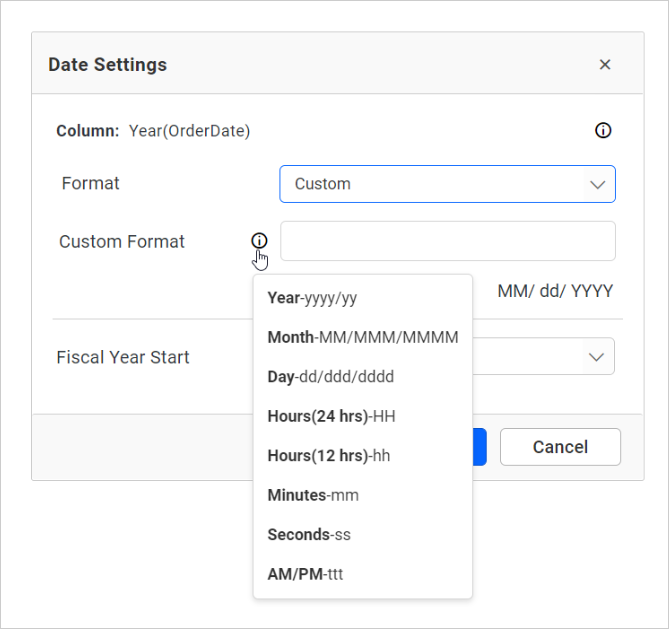
-
The preview of the entered date format will be displayed under the text box.
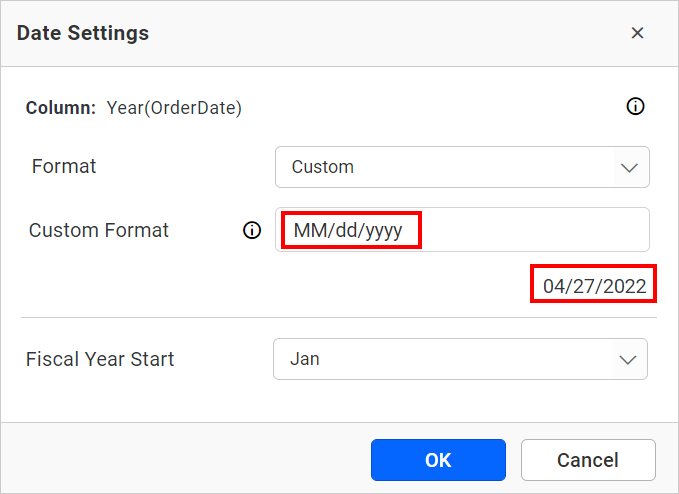
NOTE: The Custom Format option is visible only for Date Time, Date, Year, and Date Hour.
The supported custom format types are provided in the following table.
| Types | Custom Formats | description |
| Year | yy | Displays the year, from 00 to 99 |
| yyyy | Display the year as a four-digit number | |
| Month | MM | Display the month, from 01 through 12 |
| MMM | Display the abbreviated name of the month | |
| MMMM | Display the full name of the month | |
| Hour | HH | Display the hour, using a 24-hour clock from 00 to 23 |
| hh | Display the hour, using a 12-hour clock from 01 to 12 | |
| Minute | mm | Display the minute, from 00 through 59 |
| Second | ss | Display the second, from 00 through 59 |
| Time | ttt | Display the AM/PM |
Fiscal Year Start
If you want to apply the custom format along with the fiscal year, use the Fiscal Year Start option from the Date Settings dialog as follows.
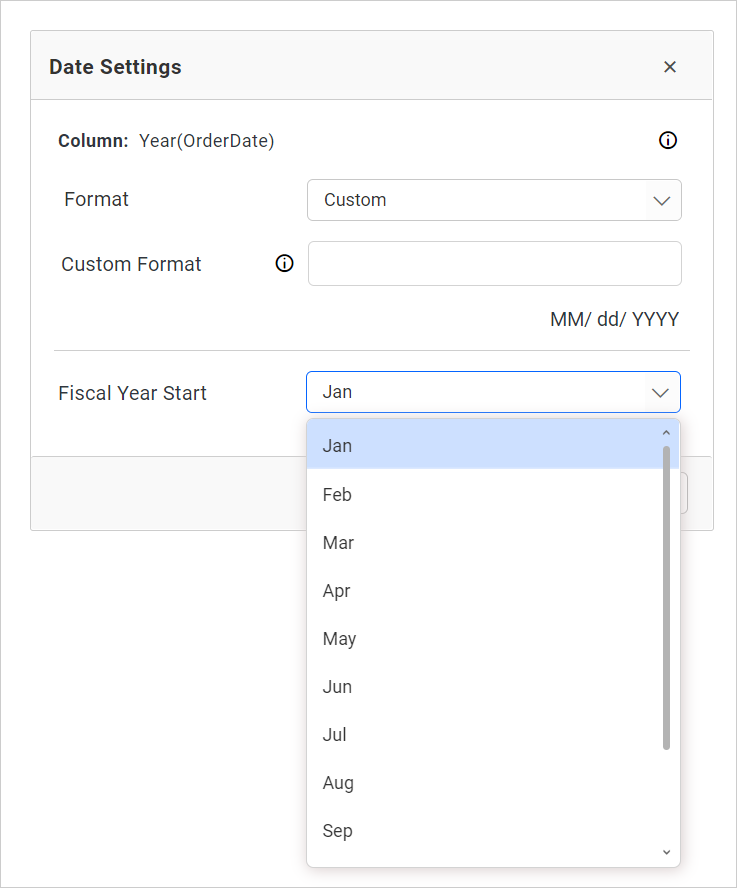
NOTE: The filtering operation won’t work when you are choosing the widget as a master and applying the custom date format for the date column.