
Text Filter
Text Filter enables you to filter the items based on the value typed in the text box. To configure the text filter, a minimum requirement of 1 column is needed.
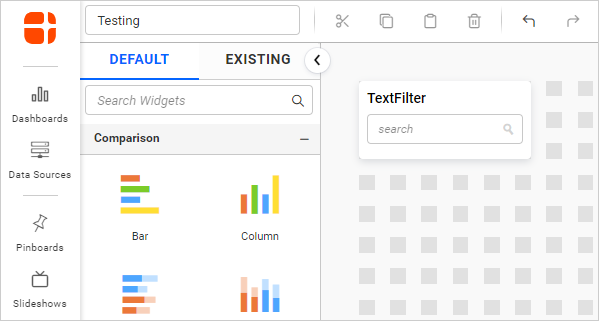
How to configure table data to text filter?
The following procedure explains the configuration of the data for the Text filter:
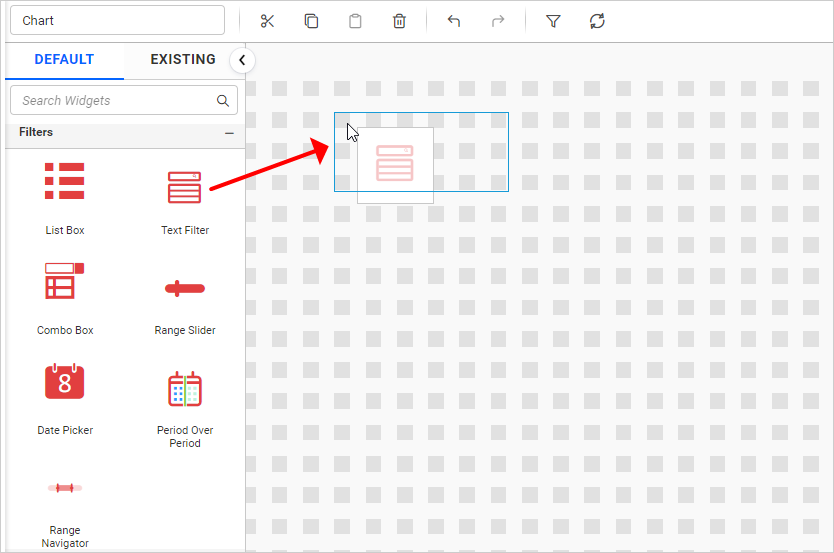
- Drag and drop the
Text Filterwidget from the toolbox into the design panel and resize it to your required size. You can find the widget in the toolbox bysearch.
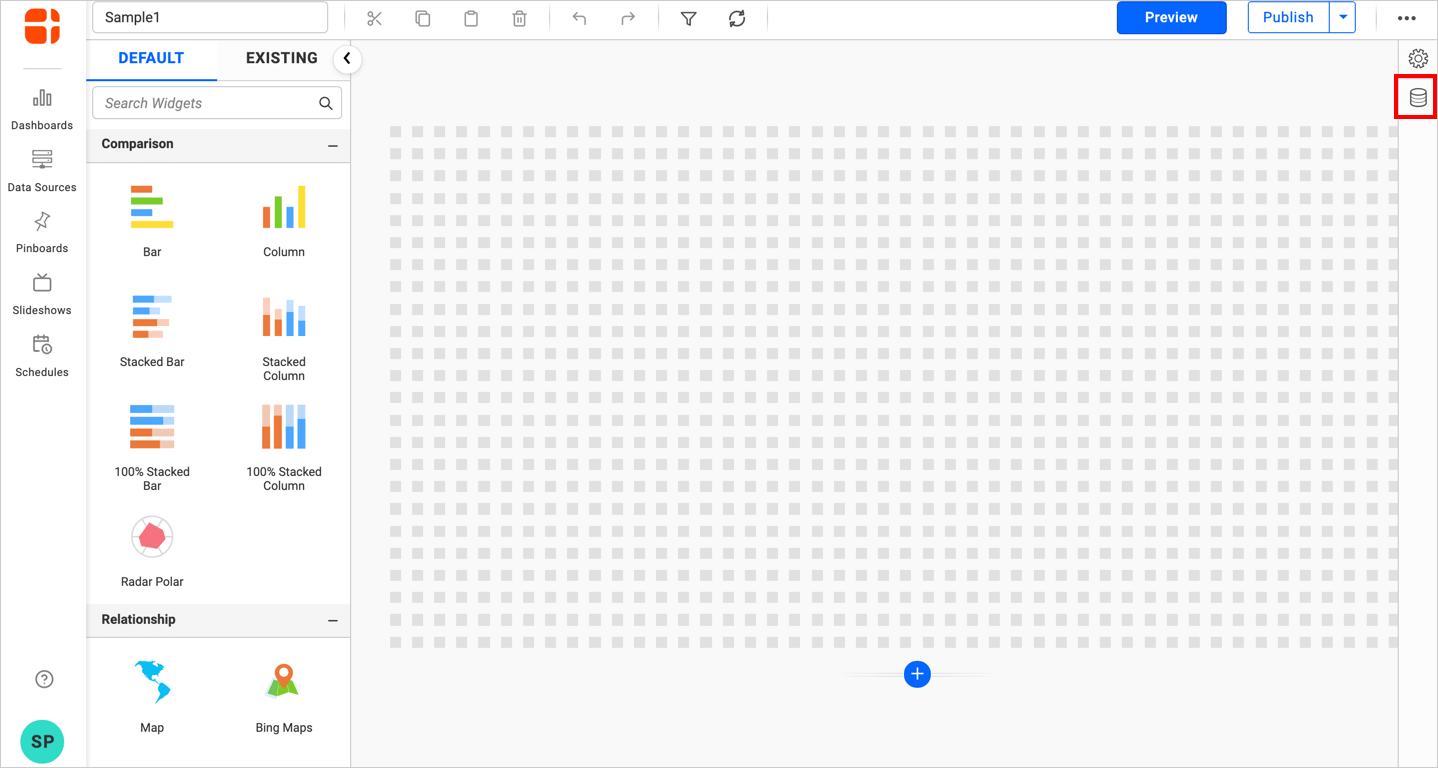
- Click the
Data Sourcebutton in the configuration panel.
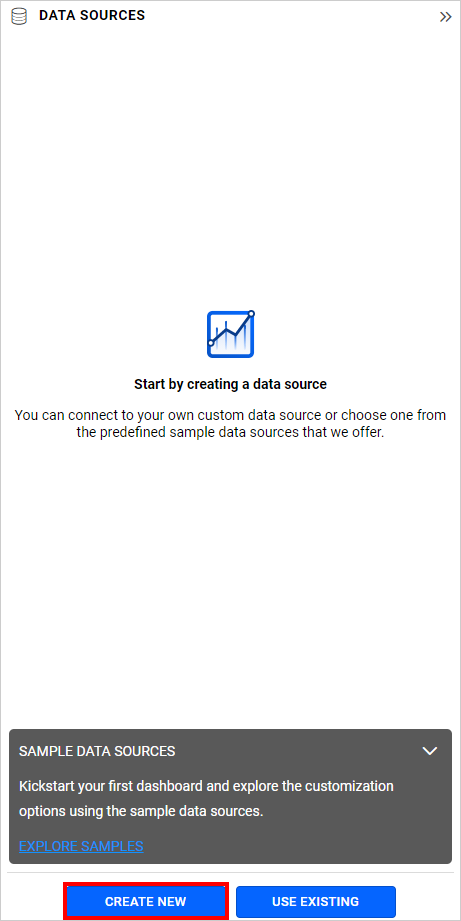
- Click the
CREATE NEWbutton to launch a new connection from the connection type panel.
- In the connection type panel, click on any one of the listed connection type buttons (Here, the
Microsoft ExcelConnection type is selected for demonstration).
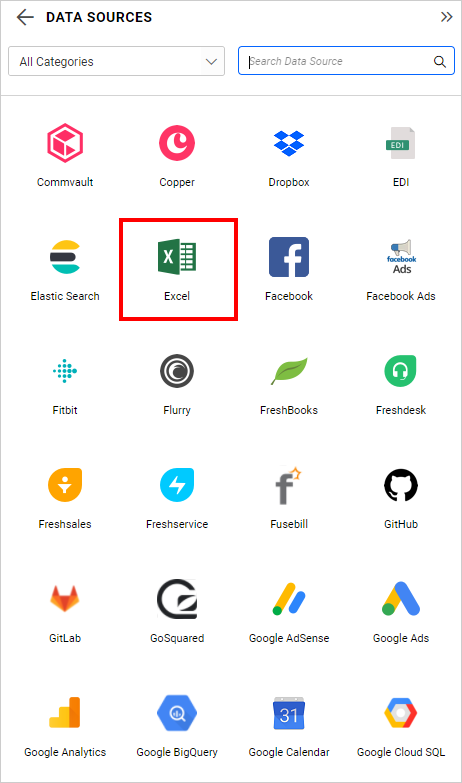
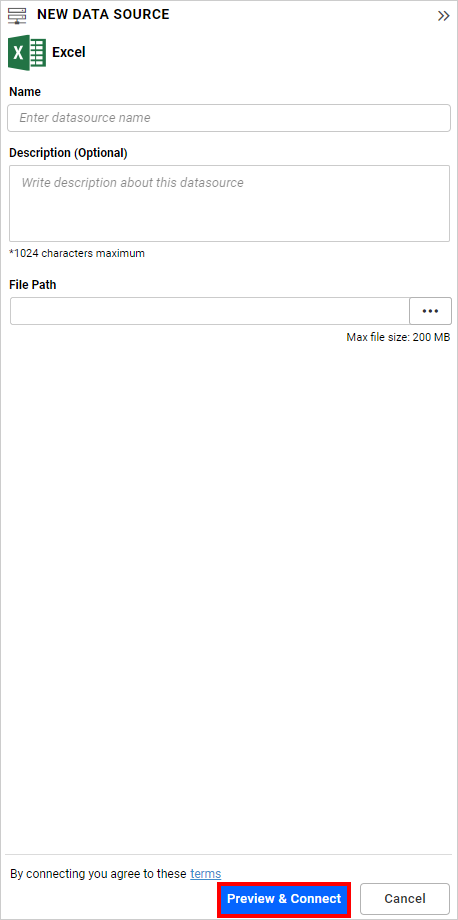
- In the
NEW DATA SOURCEconfiguration panel, fill in the connection type and related details. Click thePreview & Connectbutton.
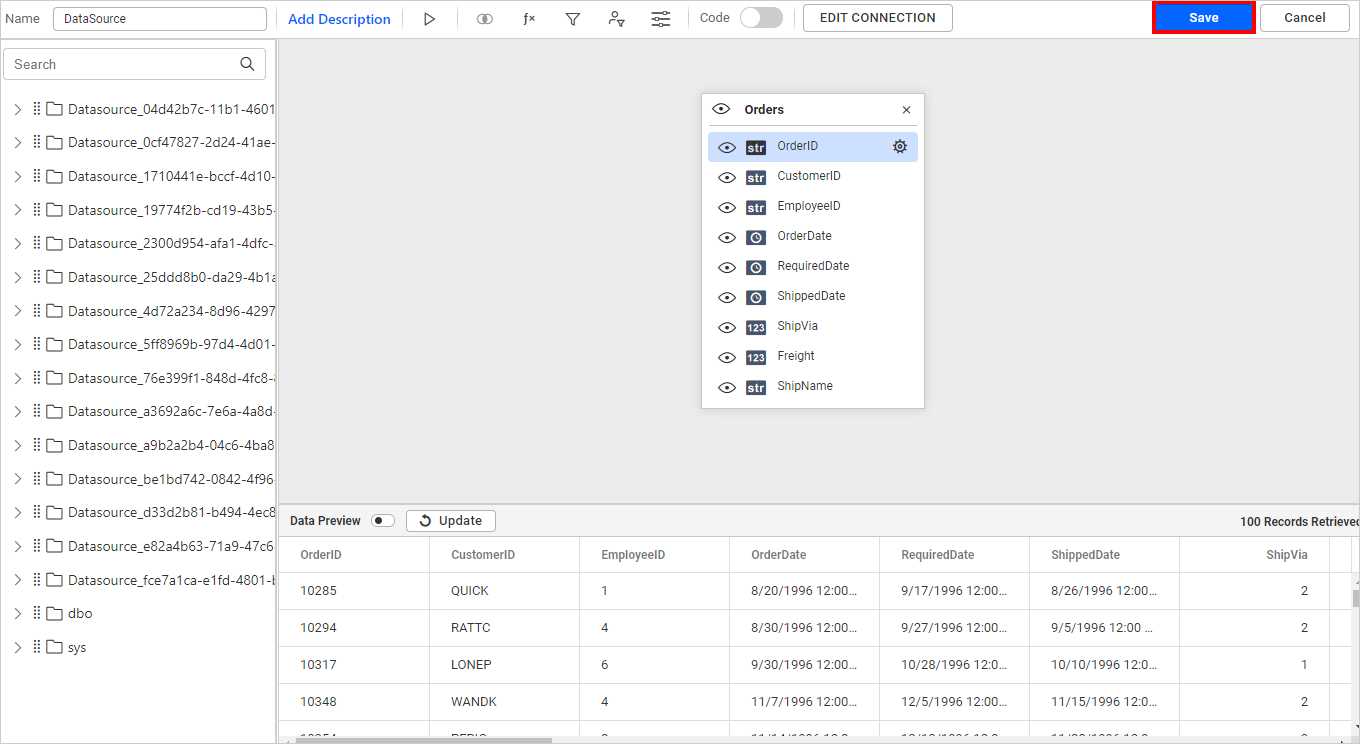
- Drag your preferred table or view from the left pane in the data design view, then click the
Savebutton.
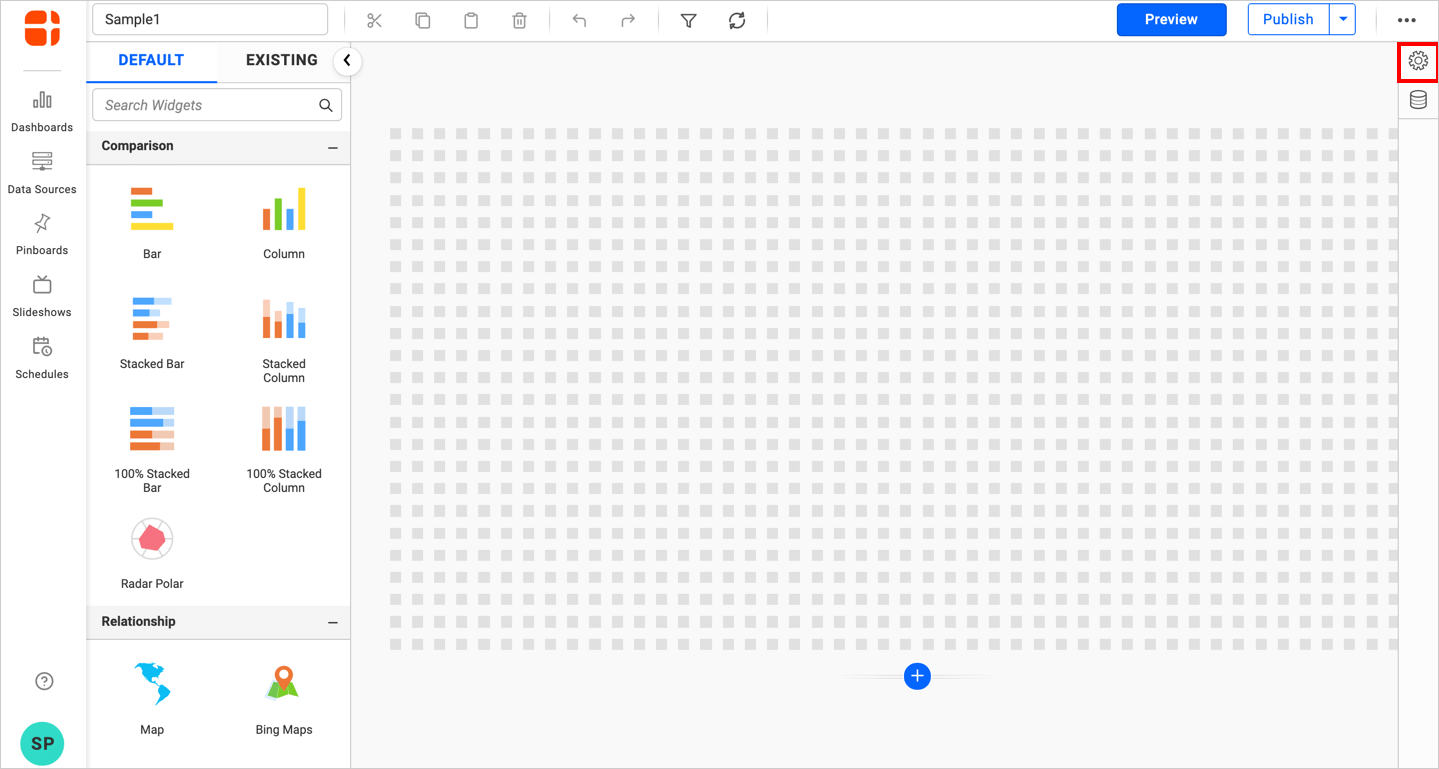
- Click the
Propertiesbutton in the configuration panel; the property pane will open.
- Now, switch to the
ASSIGN DATAtab.
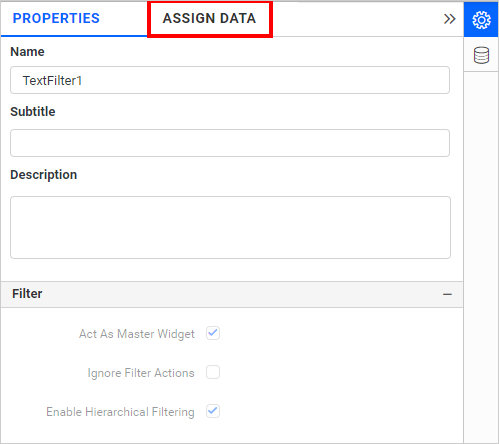
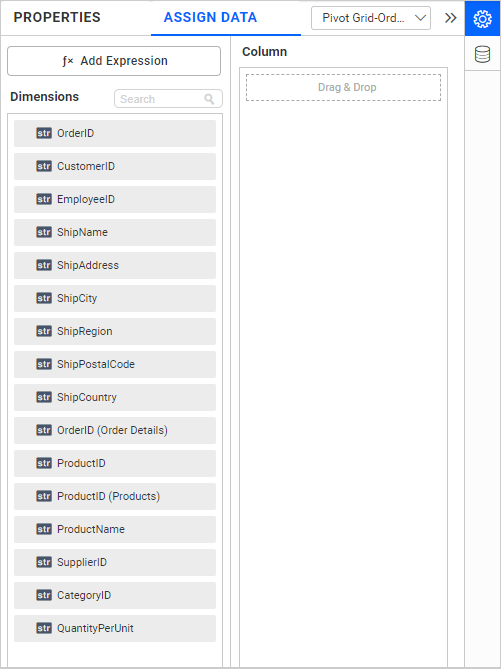
- The
ASSIGN DATAtab will open with the available dimensions from the connected data source.
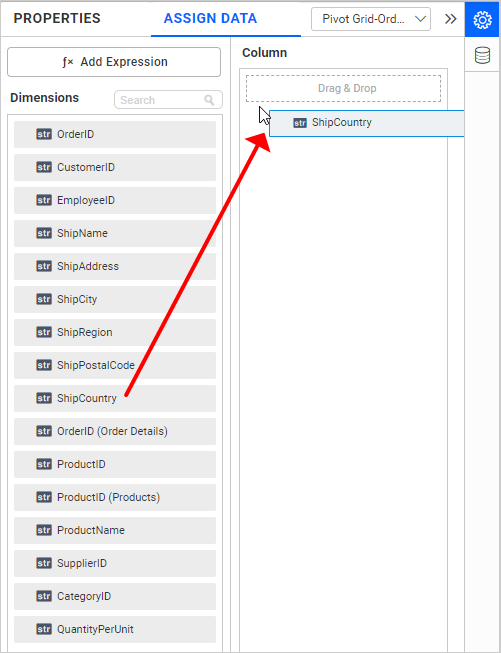
Adding Values
You can add the Dimensions to the Column section by dragging and dropping the required column.
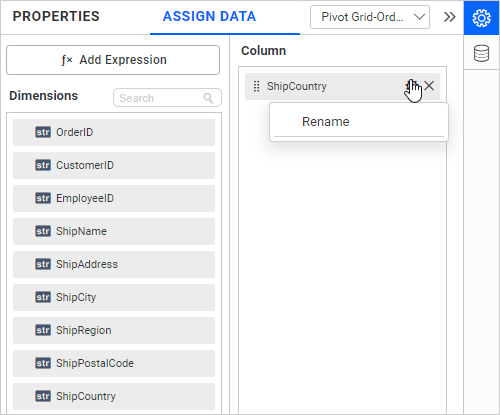
Renaming field
The configured field name can be edited using the Rename option provided in the settings menu.
Filtering Options
The text filter widget allows you to apply filtering for slave widgets with the following filtering options:
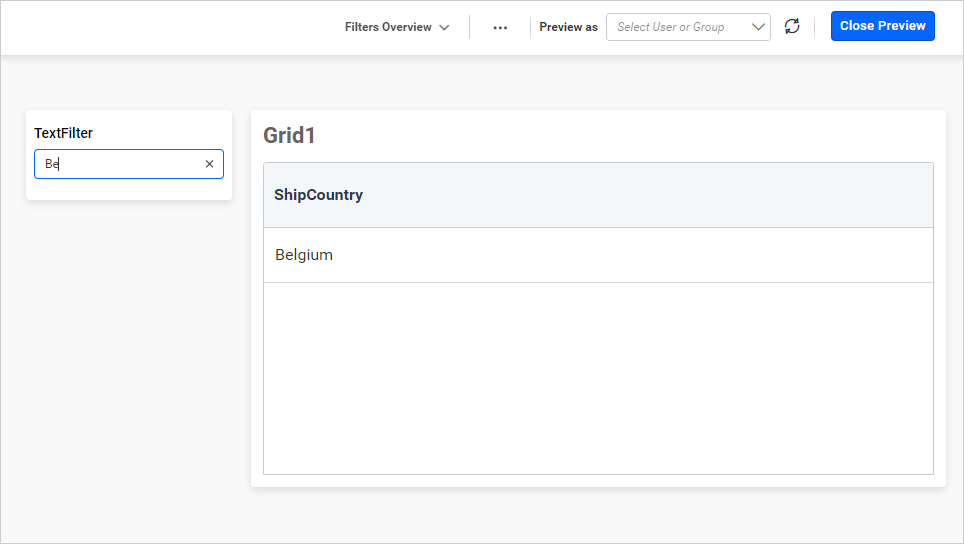
Contains
It performs a contains operation. By default, the text filter filtering option will be contains.
Syntax: [text]
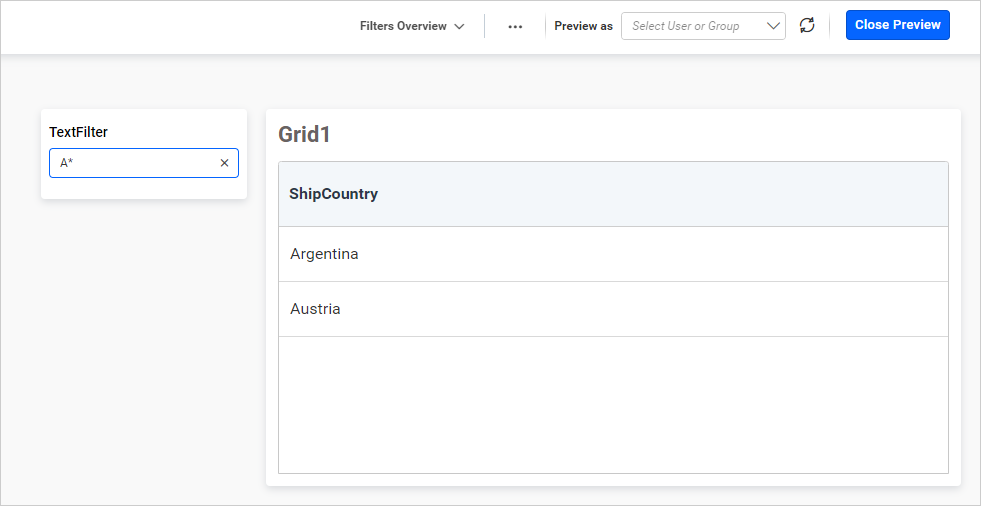
Starts With
It starts with the operation.
Syntax: [text]*
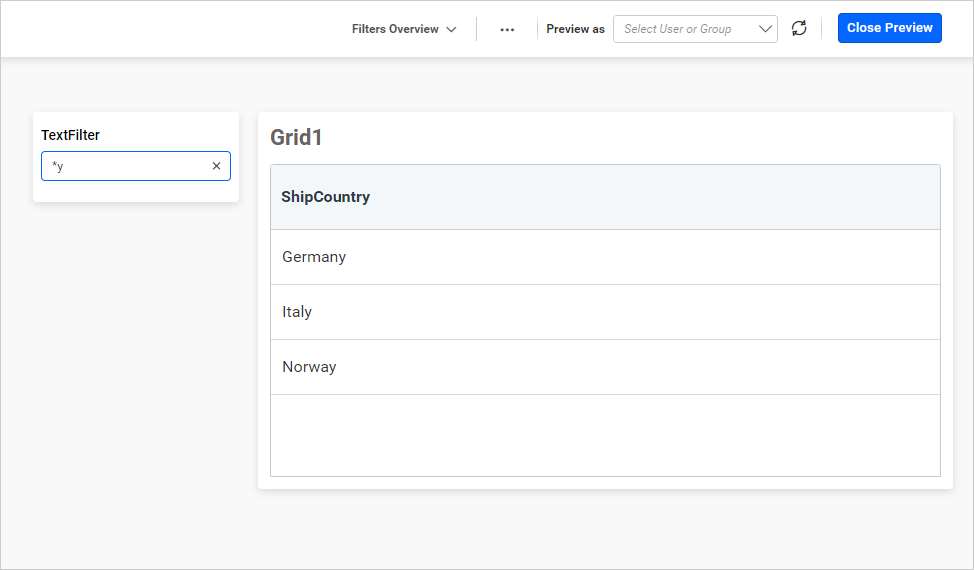
Ends With
It ends with the operation.
Syntax: *[text]
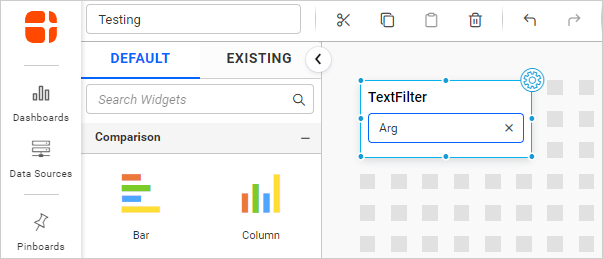
You can apply a filter by making an initial selection.
How to format Text Filter?
You can format the text filter for a better illustration of the view that you require through the settings available in the Properties tab. This pane can be opened from the design view by clicking the Settings icon at the top right corner of the widget.
General Settings
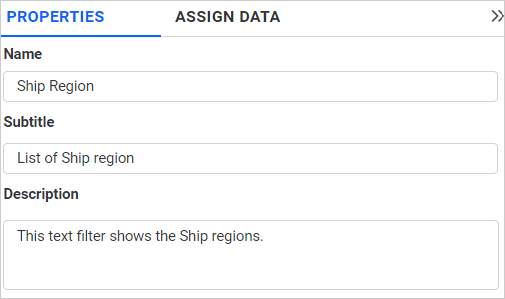
Name
This allows you to set the title for this text filter widget.
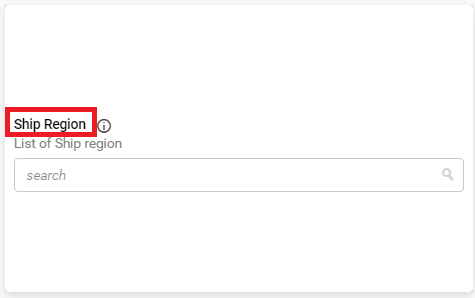
Subtitle
This allows you to set the subtitle for this text filter widget.
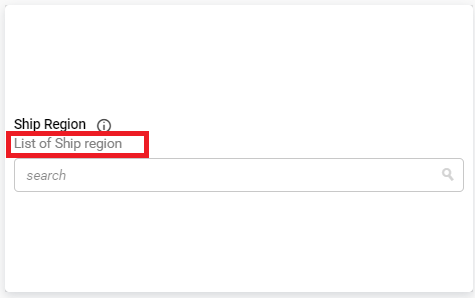
Description
This allows you to set a brief explanation about this text filter widget.
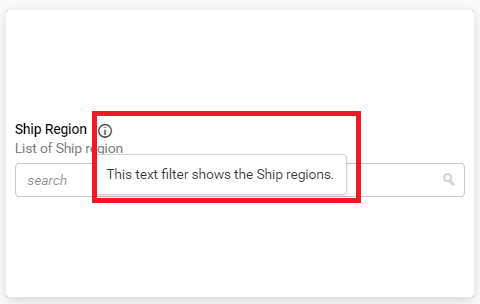
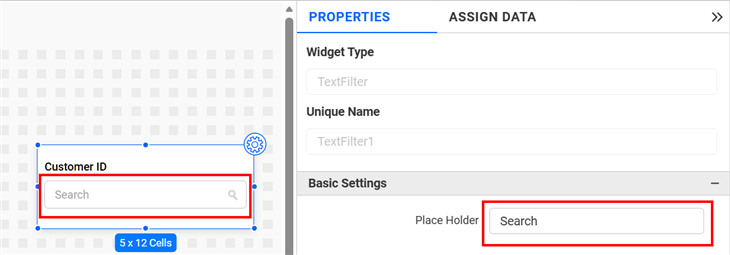
Place Holder
The Placeholder property of a text filter provides context for the user’s input. By default, the placeholder text in the text filter is set to Search.
Filter
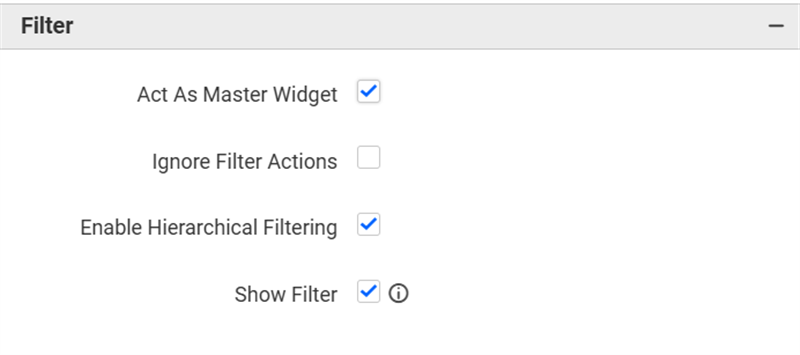
Act as Master Widget
This allows you to define this text filter widget as a master widget so that its filter action can be made to listen to other widgets in the dashboard.
Ignore Filter Actions
This allows you to define this text filter widget to ignore responding to the filter actions applied on other widgets in the dashboard.
Enable Hierarchical Filtering
Using this option, you can enable or disable hierarchical top N filtering. When applying the Top N filter with multiple dimension columns, the data returned can be customized based on whether the filtering needs to be done as flat or based on the hierarchy of dimension columns added.
When Enable Hierarchical Filtering is enabled, the Top N will be applied for each individual column separately based on the number set for each column.
Show Filter
This feature allows you to toggle the visibility of the Filter icon for the text filter widget when the Act as Master Widget option is enabled.
Container Appearance
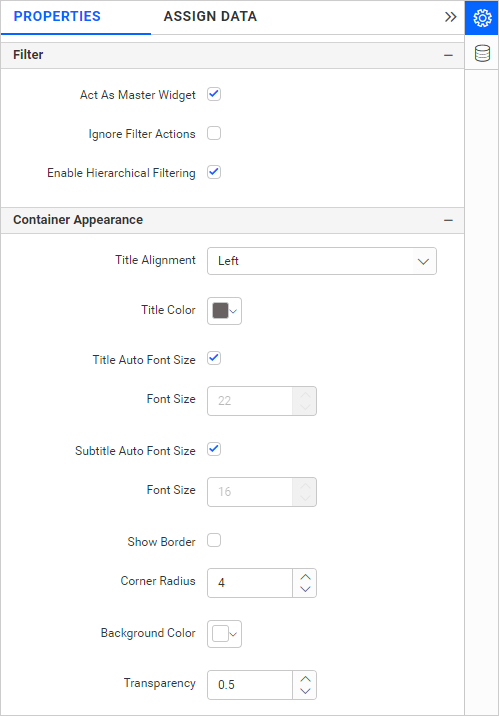
Title Alignment
This allows you to handle the alignment of the widget title to either left, center, or right.
Title Color
This allows you to apply the text color to the widget title.
Title Auto Font Size
By enabling Auto Font Size, the font size of the title will be adjusted automatically if the resolution of the screen varies.
Font Size
This allows you to apply the specified size of the font to the widget title if the Title Auto Font Size is disabled. The value can be between 10 and 44.
Subtitle Auto Font Size
By enabling Auto Font Size, the font size of the subtitle will be adjusted automatically if the resolution of the screen varies.
Font Size
This allows you to apply the specified size of the font to the widget title if the Subtitle Auto Font Size is disabled. The value can be between 10 and 32.
Show Border
This allows you to toggle the visibility of the border surrounding the widget.
Corner Radius
This allows you to apply the specified radius to the widget corners if the Show Border is enabled. The value can be between 0 and 100.
Background Color
This allows you to set the background color for the text filter widget.
Transparency
This property allows you to specify the transparency for the background color.
Show Shadow
This property allows you to toggle the visibility of the shadow for the text filter widget.
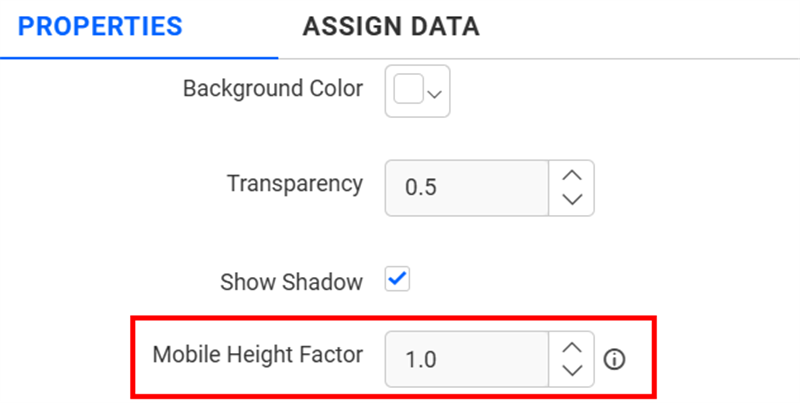
Mobile Height Factor
This option allows you to resize widgets specifically for mobile view.
Container actions
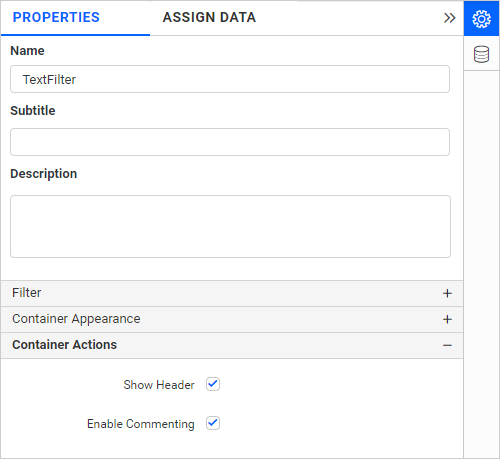
Show Header
This allows you to enable or disable the widget title of the text filter widget.
Enable Comments
This allows you to enable or disable comments for the dashboard widget. For more details, refer to the Commenting Widget.