
Scatter Chart
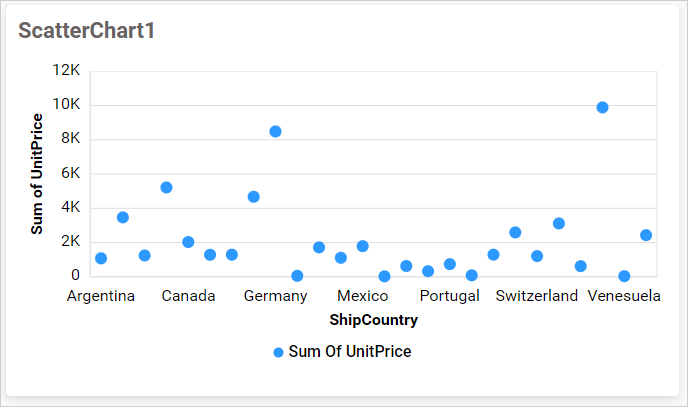
A Scatter Chart is a type of plot or mathematical diagram that uses Cartesian coordinates to display values for typically two variables in a set of data.
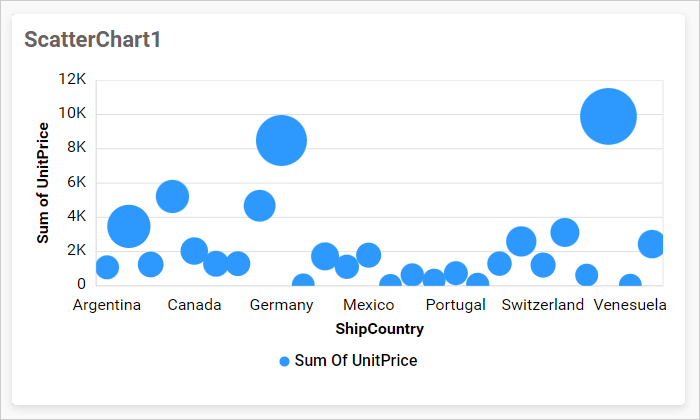
A Bubble Chart is a variation of a scatter chart in which the data points are replaced with bubbles, and an additional dimension of the data is represented in the size of the bubbles.
How to configure the table data to scatter chart
A Scatter chart requires a minimum of 1 X-Axis element and 1 Y-Axis element to showcase the data. The measure or expression field that you would like to analyze can be dropped into the X-axis and Y-Axis blocks. The dimension that you would like to categorize the measure can be dropped onto the Label block. If you would like to visualize data in a bubble type, then the respective measure can be dropped onto the Size block in addition.
The following steps explain the data configuration of the Scatter Chart:
-
Drag and drop the
Scatter chart controlicon from the tool box into the design panel. You can find the control in the tool box by searching.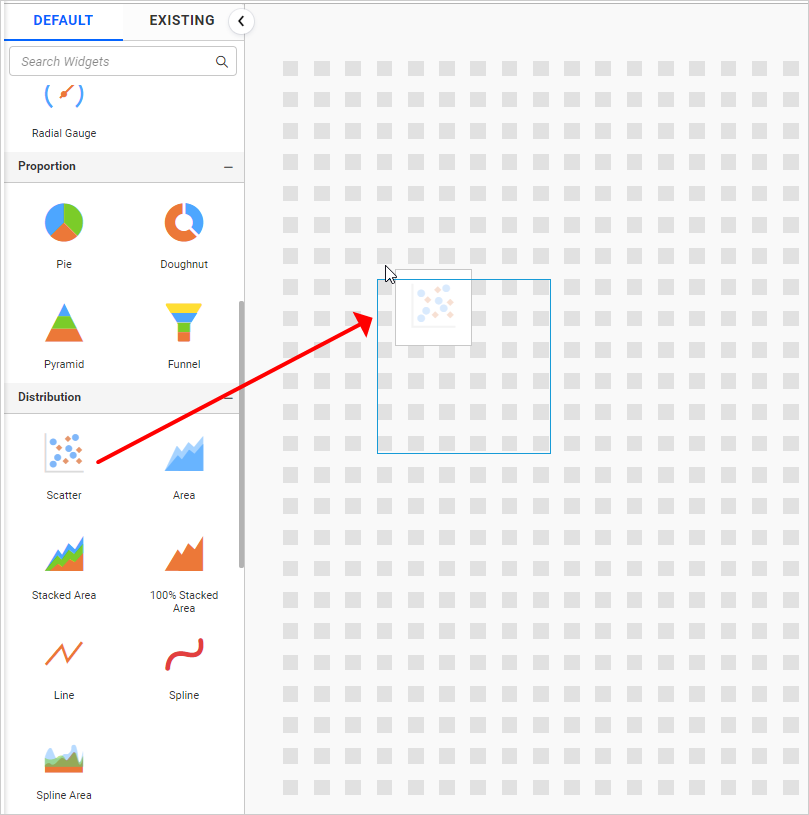
-
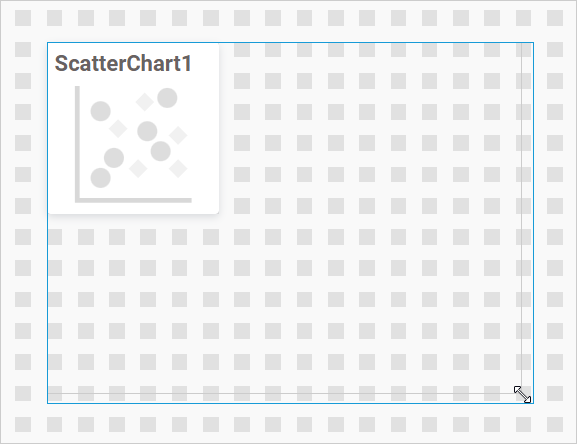
Resize the widget as required.
-
Click the
Data Sourcebutton in the configuration panel.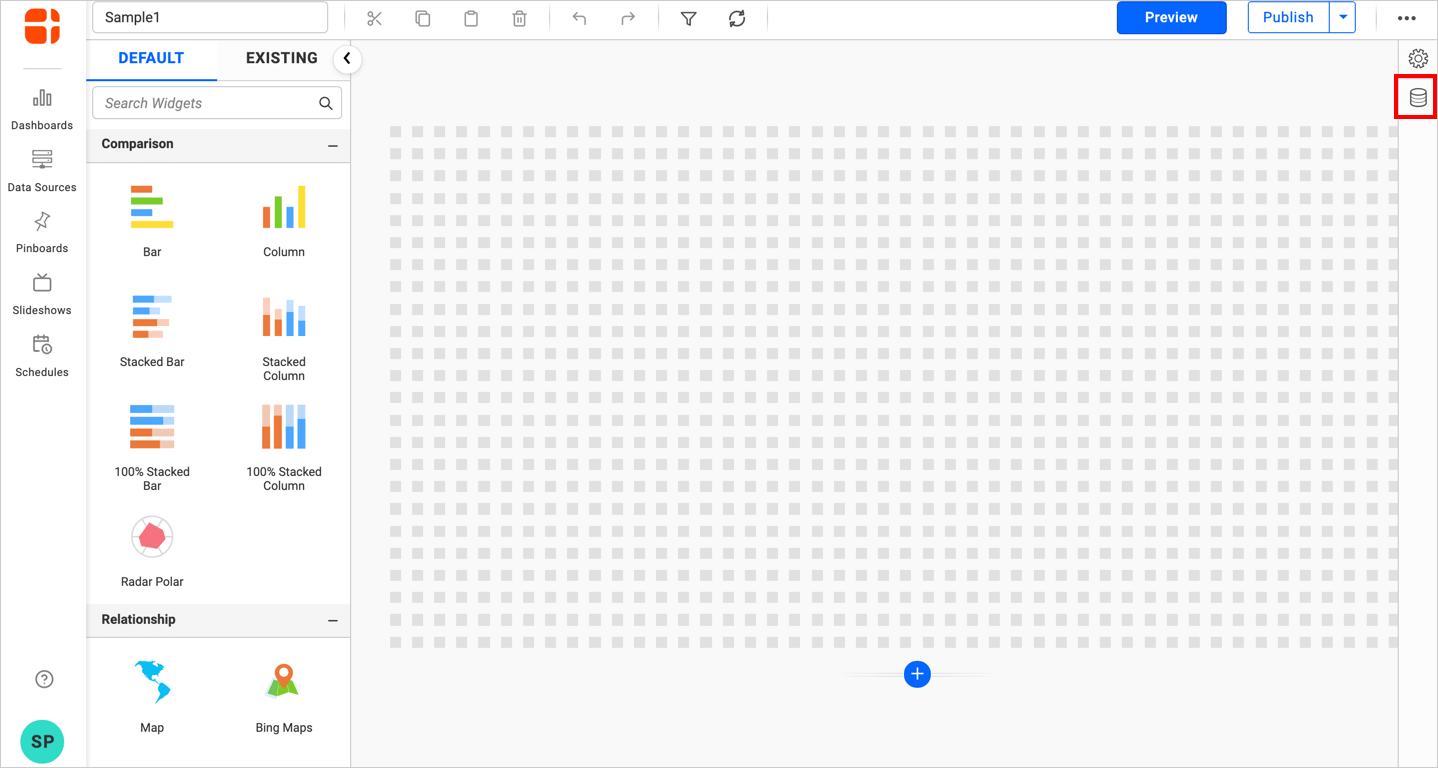
-
Click the
CREATE NEWbutton to launch a new connection from the connection type panel.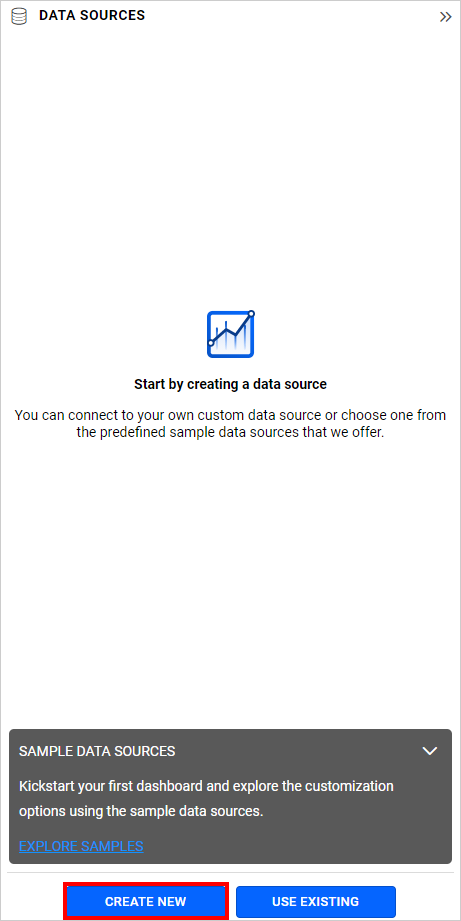
-
In the connection type panel, click any one of the listed connection type buttons (Here, the
Microsoft ExcelConnection type is selected for demonstration).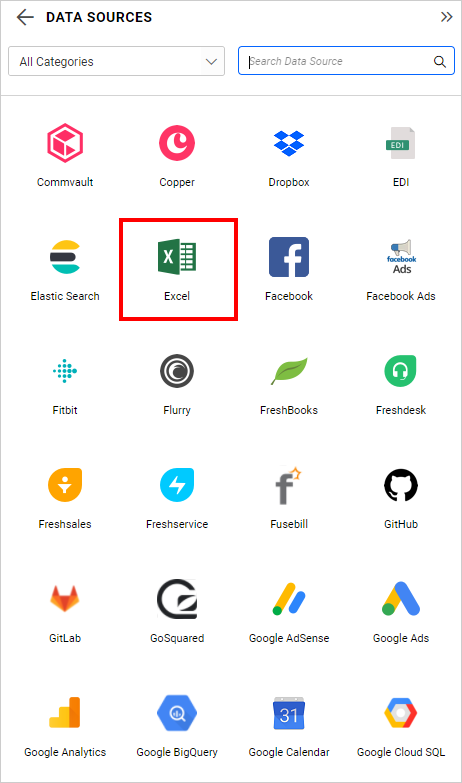
-
In the
NEW DATA SOURCEconfiguration panel, fill in the connection type and related details. Click thePreview & Connectbutton.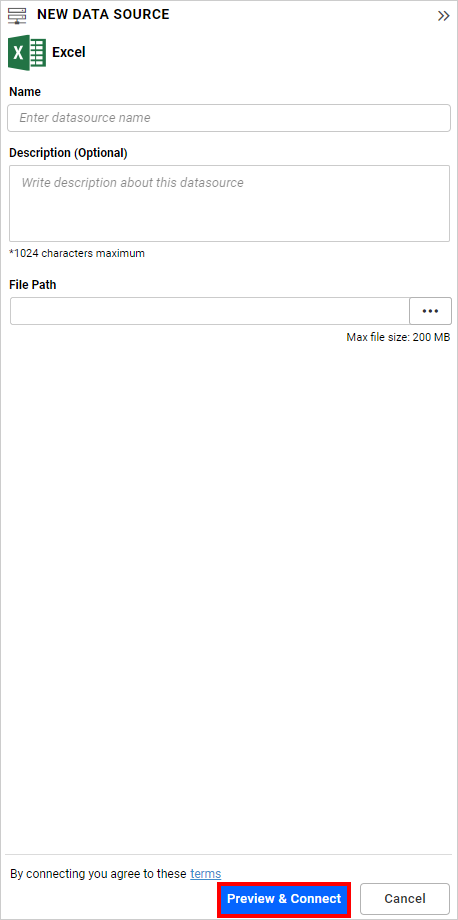
-
Drag and drop your preferred table or view from the left pane in the data design view, and click the
Savebutton.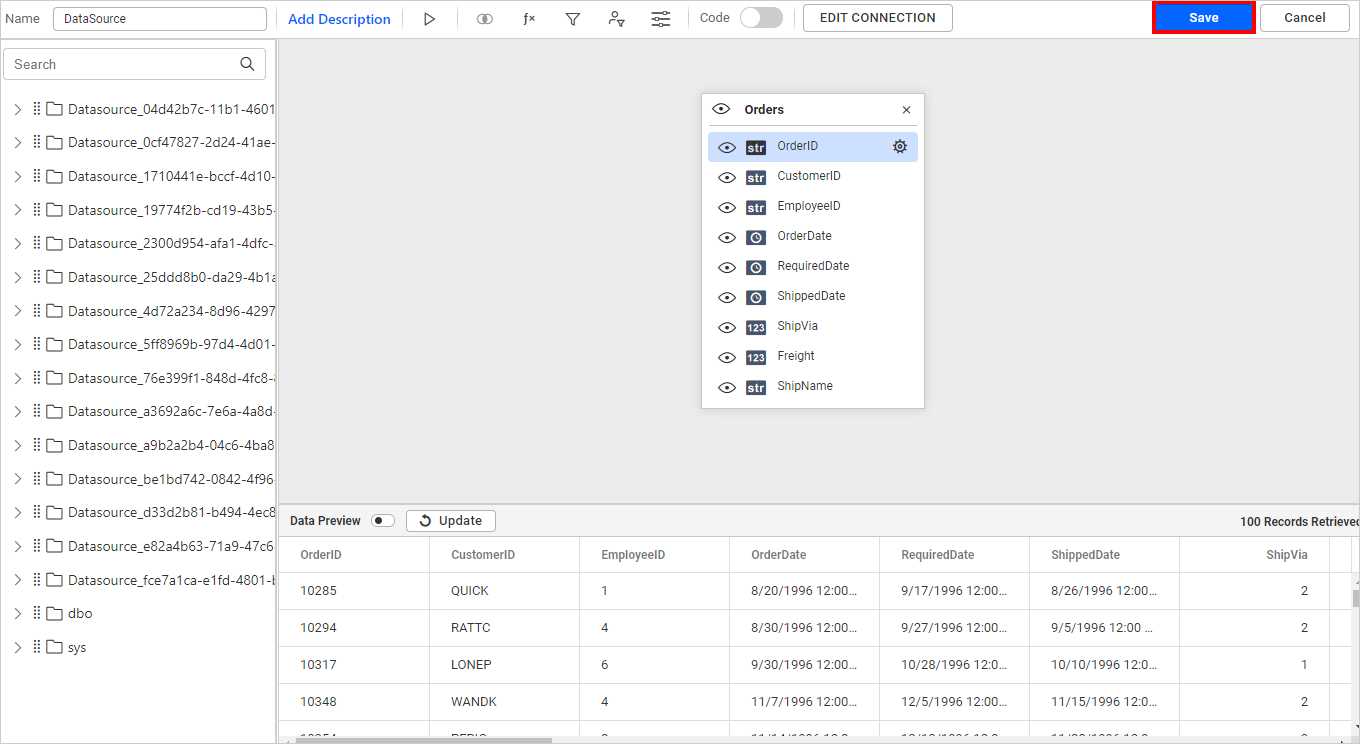
-
Click the
Properties iconin the configuration panel.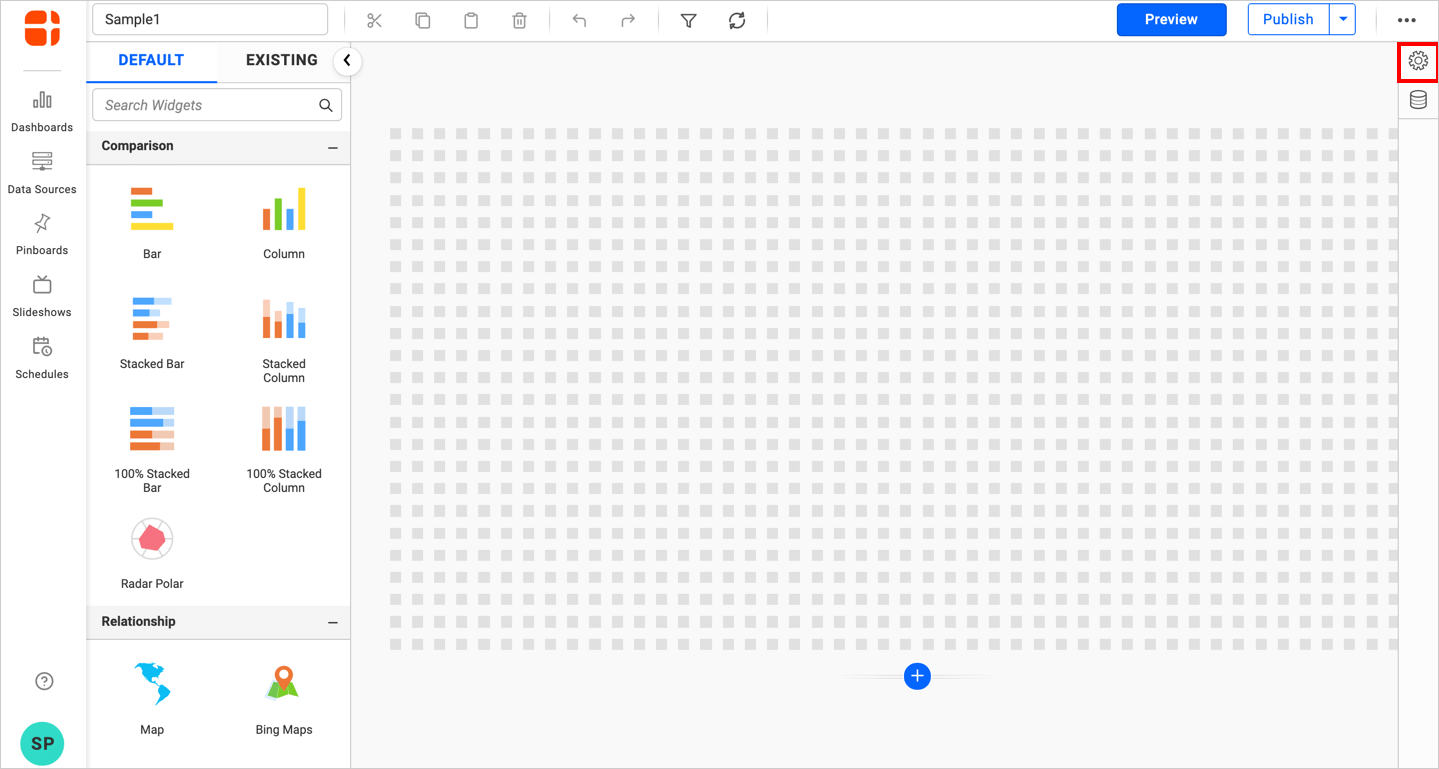
-
The
propertiespanel of the widget will be displayed as shown in the following screenshot.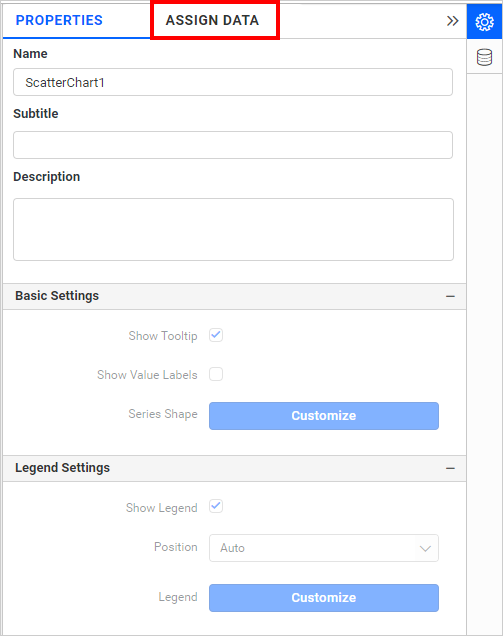
-
Now, switch to the
ASSIGN DATAtab.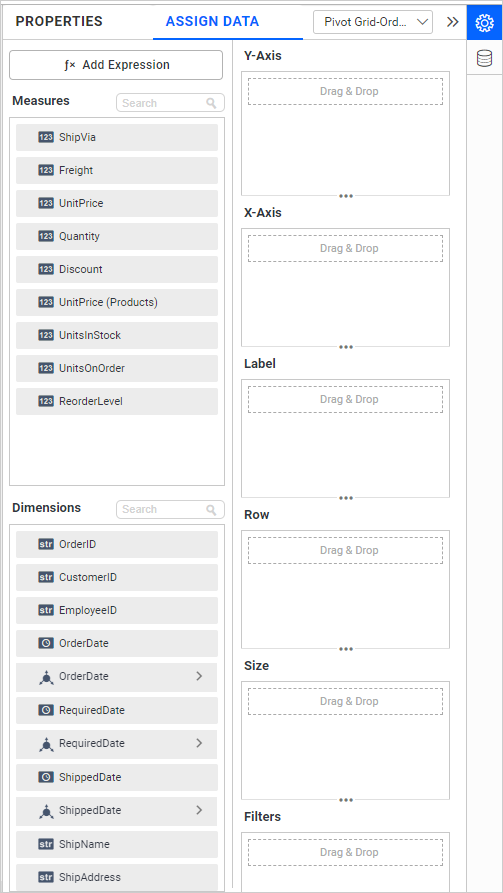
-
The
ASSIGN DATAtab will be opened with the available columns from the connected data source.
Adding fields to Y-Axis
You can drag and drop the Measures field into the Y-Axis section.
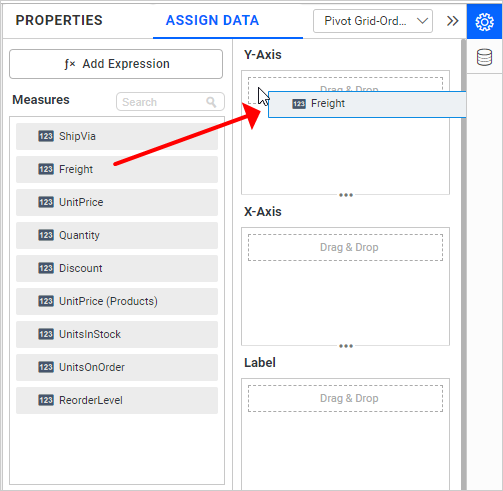
Note: It is a mandatory section and only one value can be configured.
Settings menu options
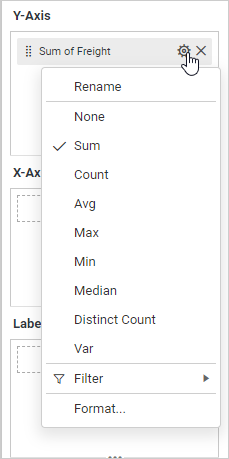
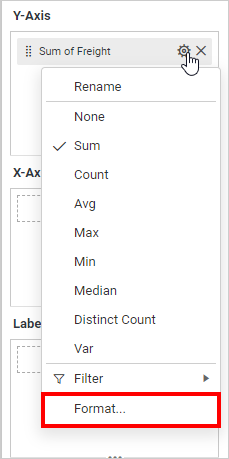
You can filter and format the data displayed in the widget from the settings menu options. To open the settings menu, click the settings icon.
The following screenshots show the various settings menu options based on the type of field configured in the section.
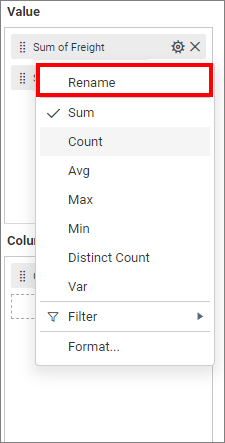
Renaming fields
The configured field names can be edited by using the Rename option provided in the settings menu.
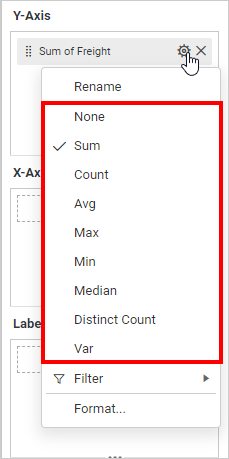
Changing the aggregation type
You can change the aggregation type of the measure section from the settings menu as shown in the screenshot. Refer to this section for more details.
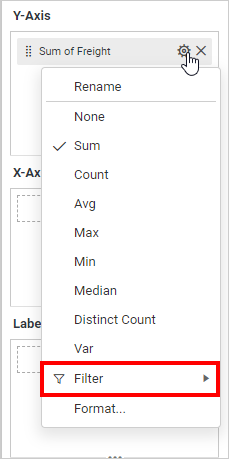
Filtering data
You can use Filters to change the values by selecting the Filter option. For more details, refer to Measure filter and dimension filter.
Measure formatting
You can format the elements by selecting the Format option. For more details, refer to measure format.
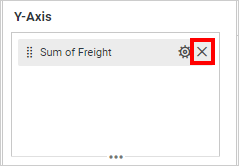
Removing the fields
To remove the added value fields, click the highlighted button.
Adding fields to X-Axis
You can drag and drop the Measures or Dimensions field into the X-Axis section.
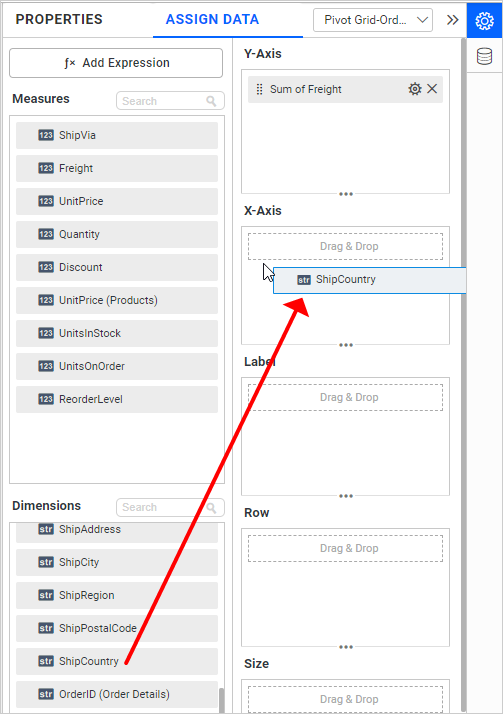
Note: It is a mandatory section and only one value can be configured.
Settings
You can change the Settings.
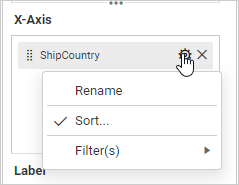
Renaming fields
The configured field names can be edited by using the Rename option provided in the settings menu.
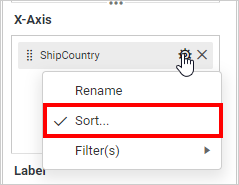
Sorting
You can Sort the dimension data using the Sort option under the Settings menu list. To apply sorting for the data, refer to the Sort.
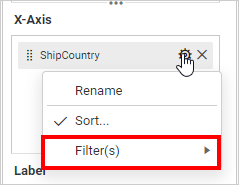
Filtering data
You can apply filters by selecting the Filter(s) option in the settings. For more details, refer to the filter.
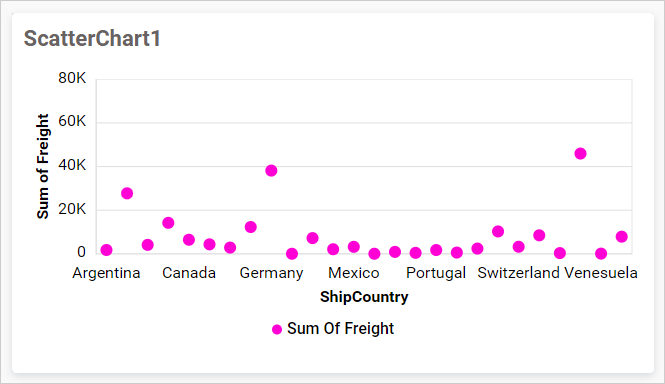
The chart will be rendered like this,
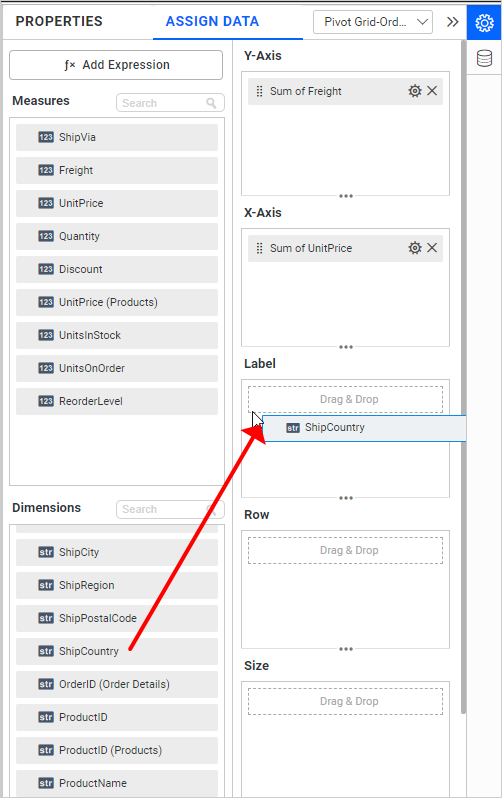
Adding fields to Label
You can drag and drop the Dimensions field into the Label section.
The chart will be rendered like this,
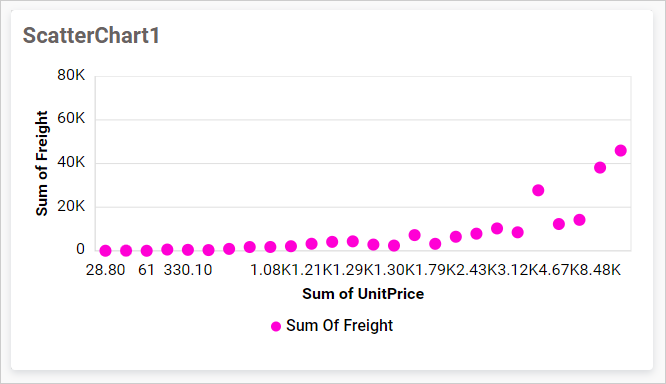
Note: You can not bind field into Label section, when X-Axis section bind with Dimensions field. You can not bind field into Label, when X-Axis or Y-Axis or both have summary type as None. You can not visualize data when X-Axis or Y-Axis summary type changed to as None when Label section is configured with data
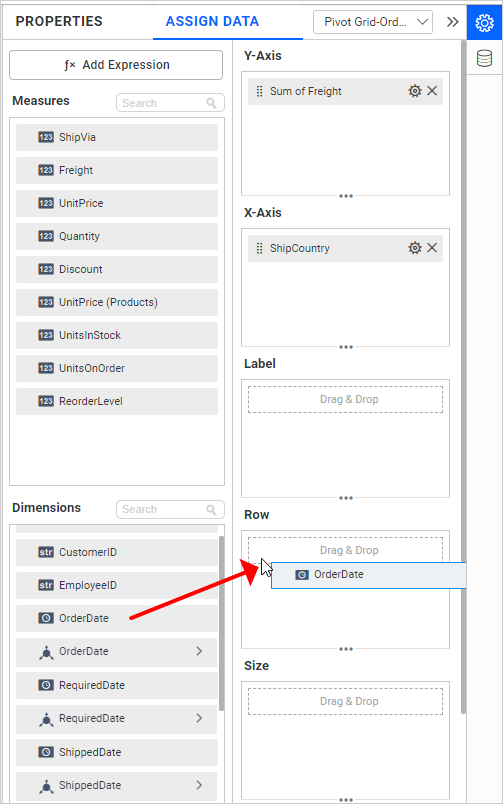
Adding fields to Row
Drag and drop the elements from sections to Row.
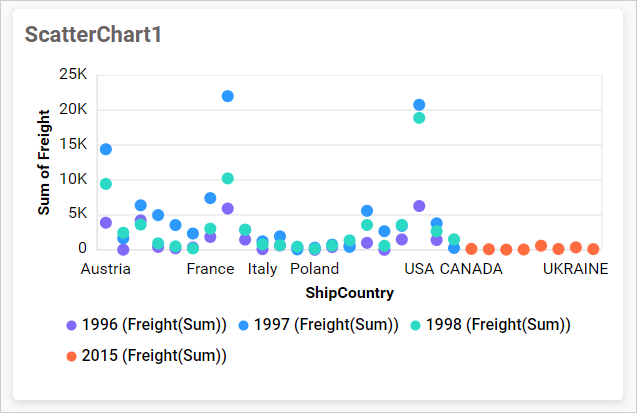
Adding fields to Size section
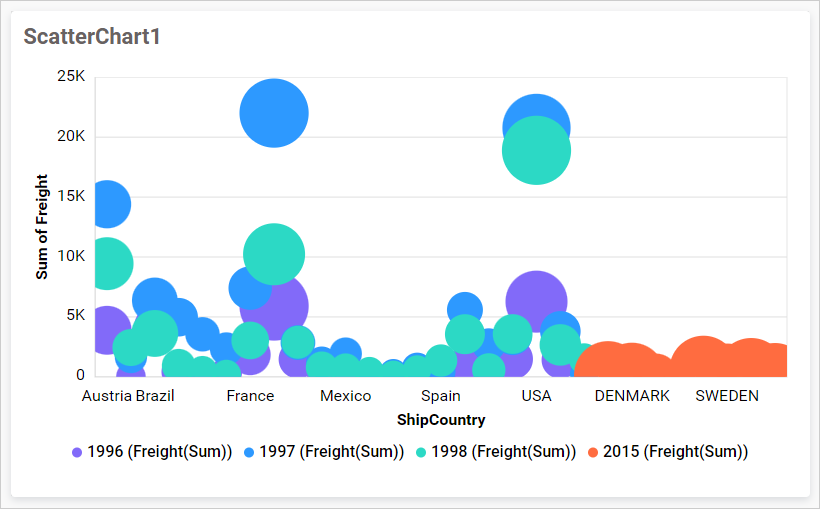
When you bind data to the Size section, the chart will render as a bubble chart. You can drag and drop the Measures field into the Size section.
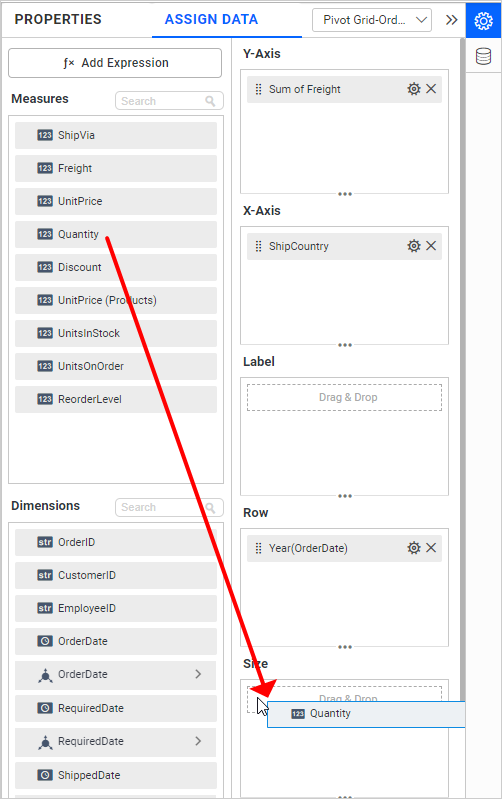
Chart will render as shown,
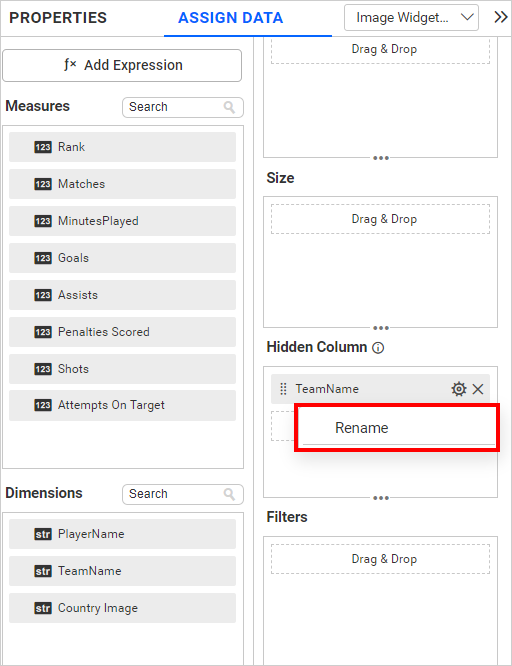
Hidden Column
Hidden columns are useful in cases where we don’t want the fields to take part in the visualization, but only to be used for linking, filtering and view data.
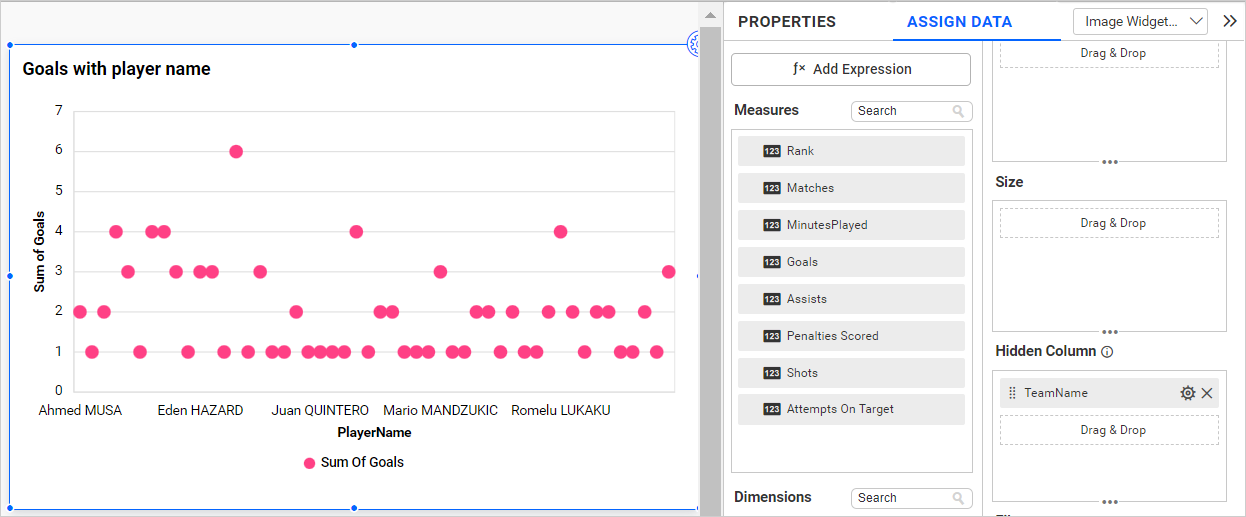
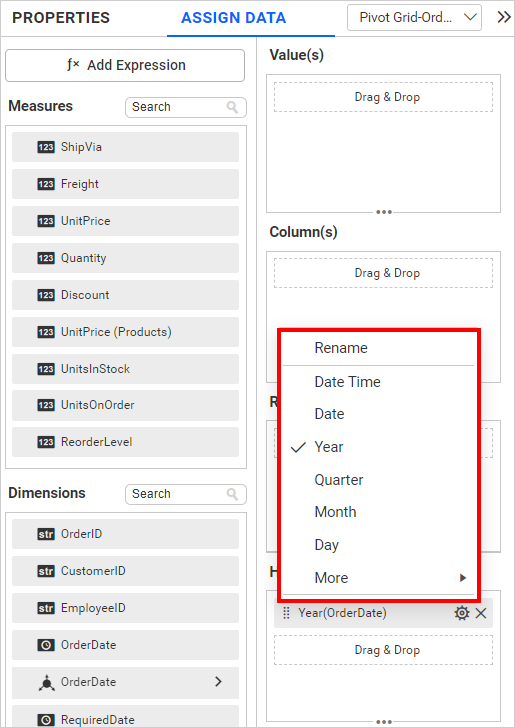
We can configure both measure and dimension fields into the hidden column. For measure, we will have all the settings we have for the measure fields except formatting and filtering.
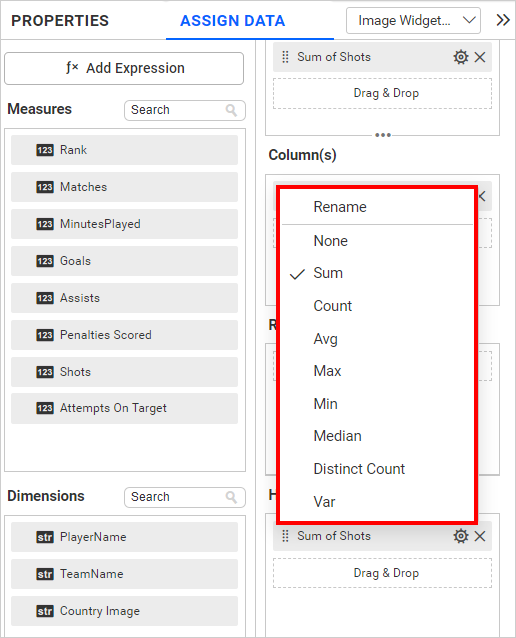
In the case of dimension fields, we will have the following options only. In Date fields, we will have all available types except sorting, relative date filter, settings, and filters.
Linking
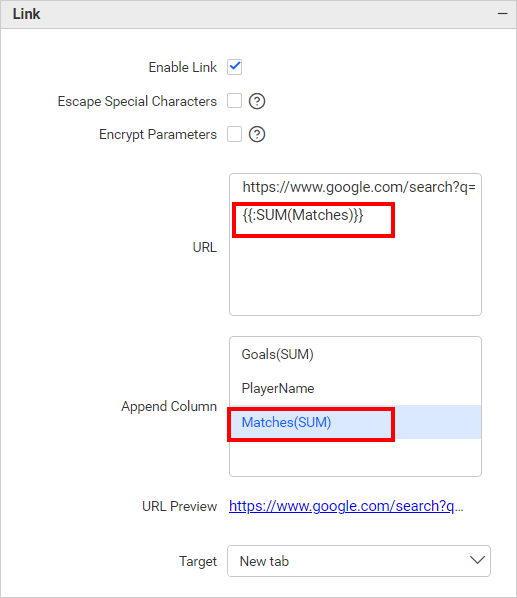
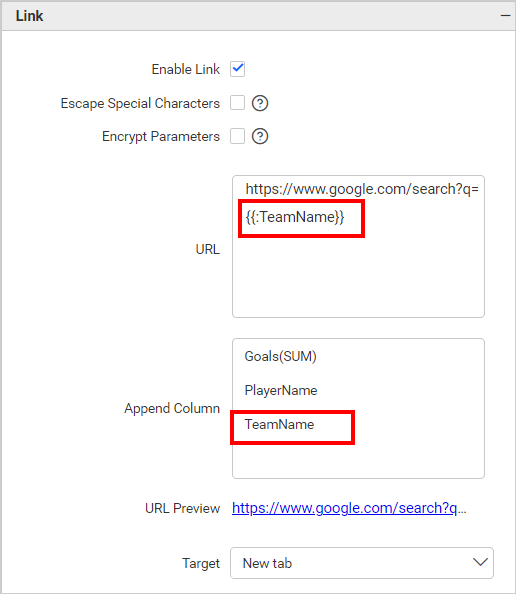
The primary use case of hidden columns is linking. On configuring hidden columns, we can see below that the fields configured in hidden columns are listed in the linking section. By configuring the column in linking, we can pass the corresponding column value in the linking parameter.
Measure Based Example: If we wish to pass the number of Matches played as a URL parameter but do not want it to influence the visualization, we can configure the Matches in the hidden columns and incorporate them into the link.
Dimension Based Example: If we wish to pass the number of Team Name played as a URL parameter but do not want it to influence the visualization, we can configure the Team Name in the hidden columns and incorporate them into the link.
Filtering
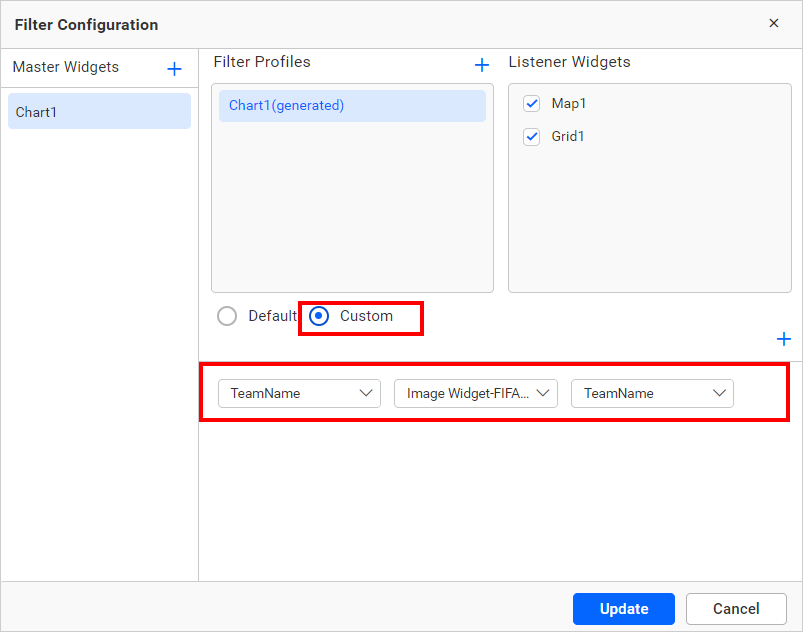
You can use hidden columns to filter data in the visualizations. Configure hidden columns and click the below filter icon.

Click the Custom button highlighted in the filter configuration dialog image below. It will list all the fields configured in the widget. Keep the field configured in the hidden column and remove the other fields, then click the Update button.
Now, we can see in the below image, the data is filtered based on the hidden column field instead of the actual column that we bound in the widget.
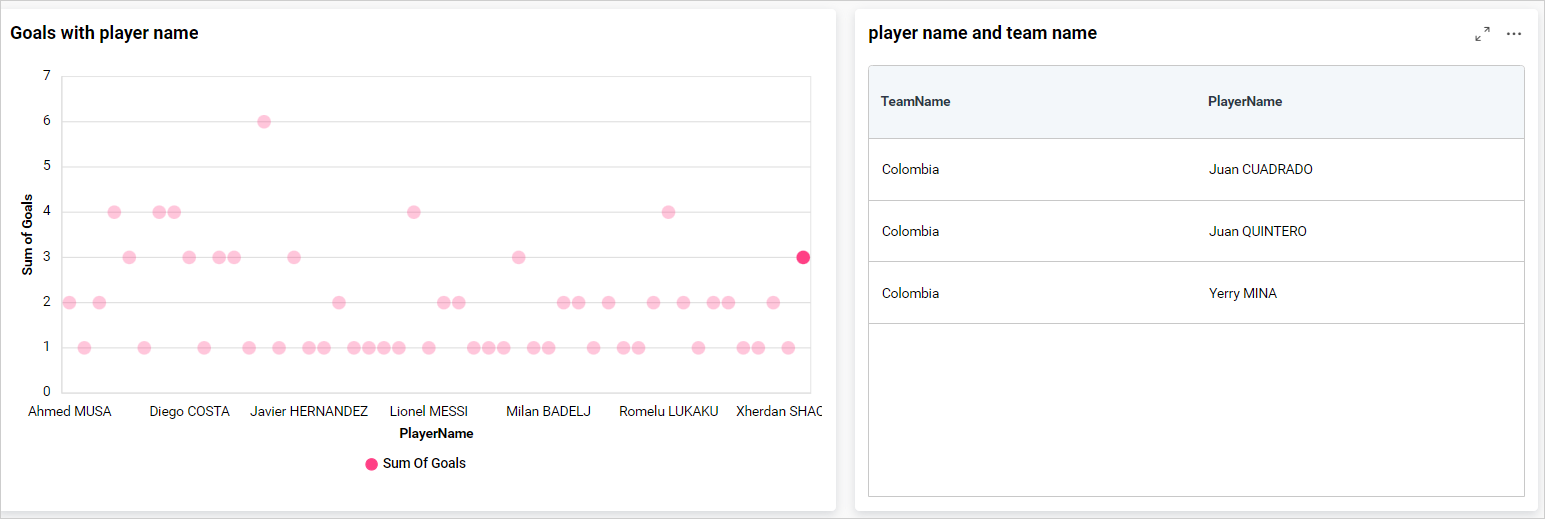
For more details about filtering the widget data, refer to the Cross Filter Configuration documentation.
View Data
You can view the data in the hidden columns in the underlying data view. This is useful for checking the data in more detail and can help you to identify any issues with the data.
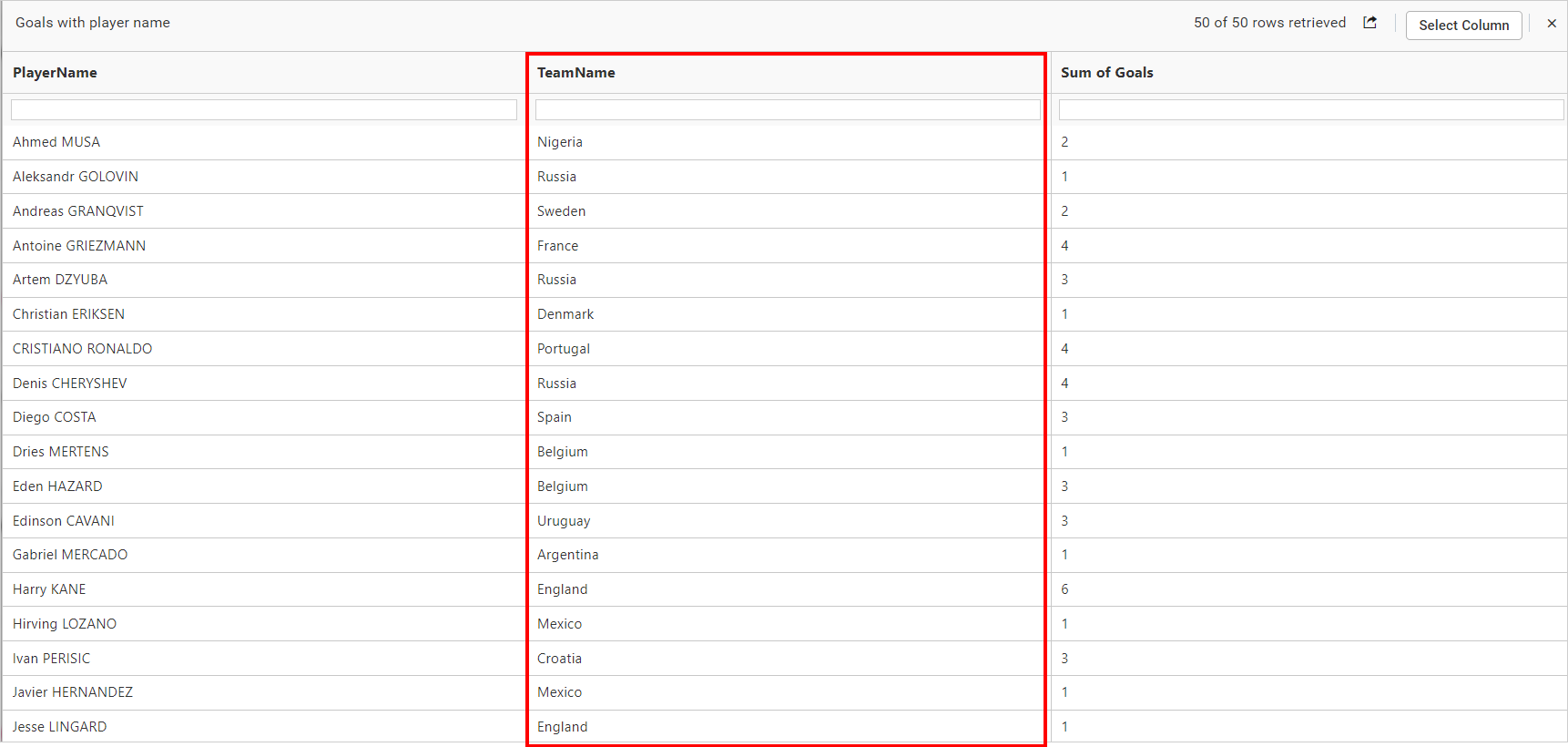
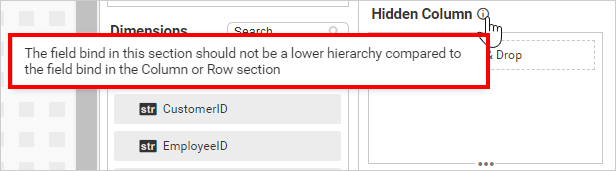
NOTE: We don’t recommend configuring lower hierarchy data in hidden columns as we can see in the info icon in the
Hidden Columnsection denotes the same.
The below chart displays the goals by each team without hidden columns.
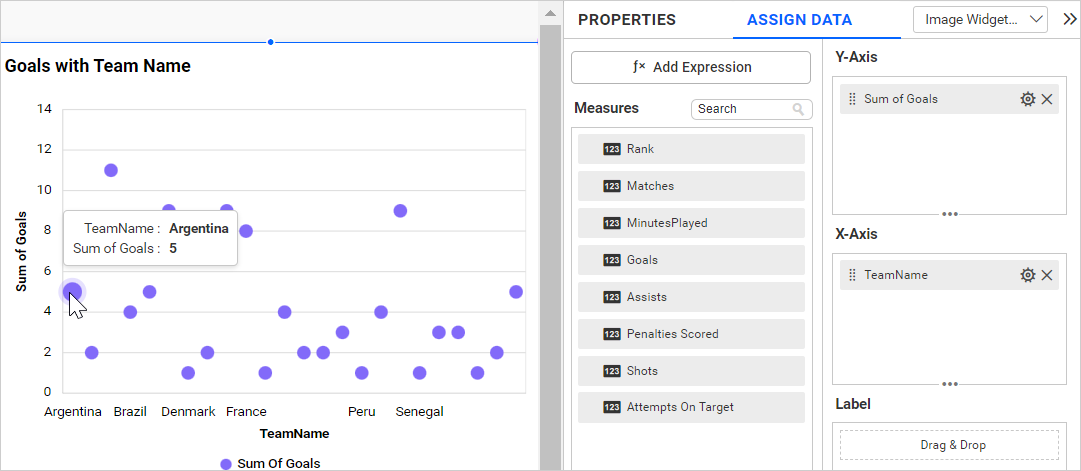
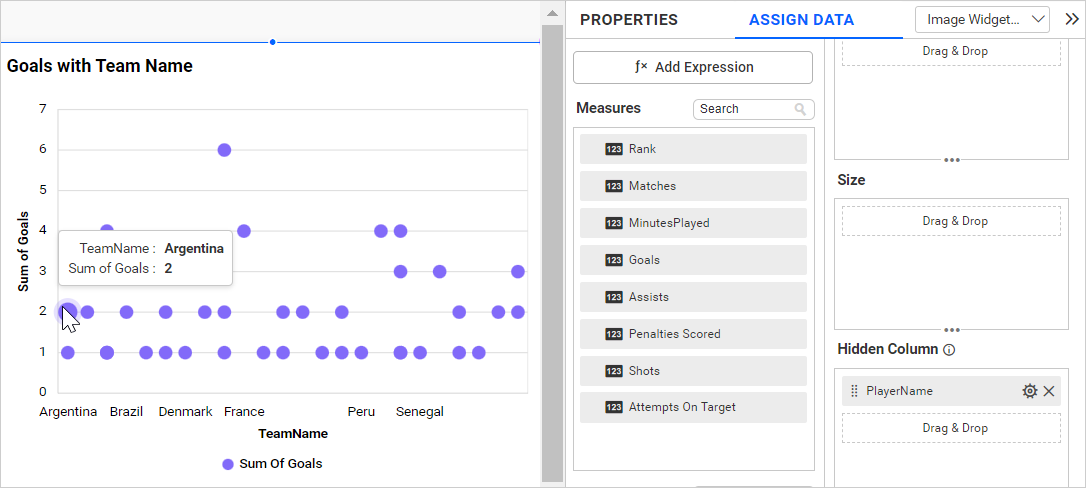
If we configure lower hierarchy data (Player Name) in hidden columns compared to column and Row field data, the data configured in the widgets gets duplicated, and individual columns are split based on hidden column field. This affects the chart visualization as we can see in the below image.
Adding tooltip fields
You can configure the tooltip section to showcase additional information in the widget’s tooltip without affecting the visualization. Refer to this section for more details on configuring the tooltip fields.
How to format scatter chart widget
You can format the scatter chart for better illustration of the view that you require using the settings available in the Properties tab.
General settings
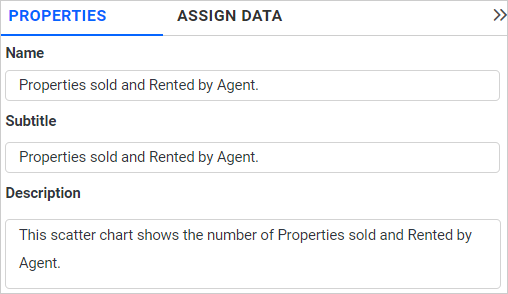
Name
This allows you to set a title for this scatter chart widget.
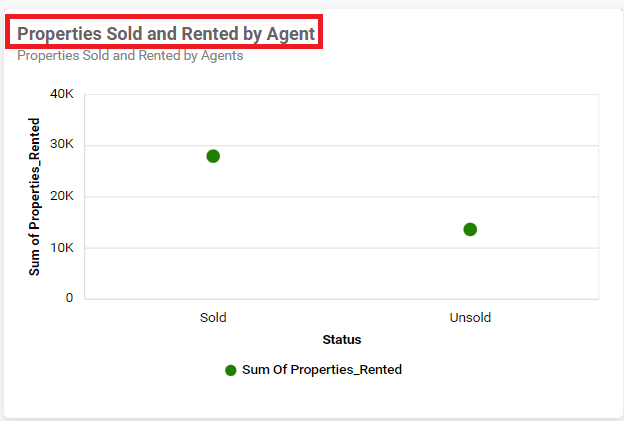
Subtitle
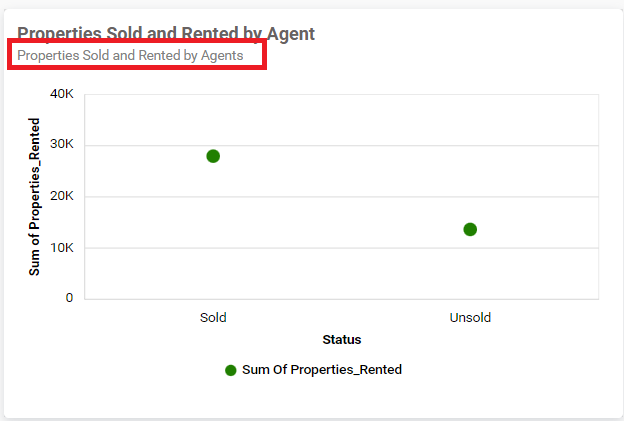
This allows you to set a subtitle for this scatter chart widget.
Description
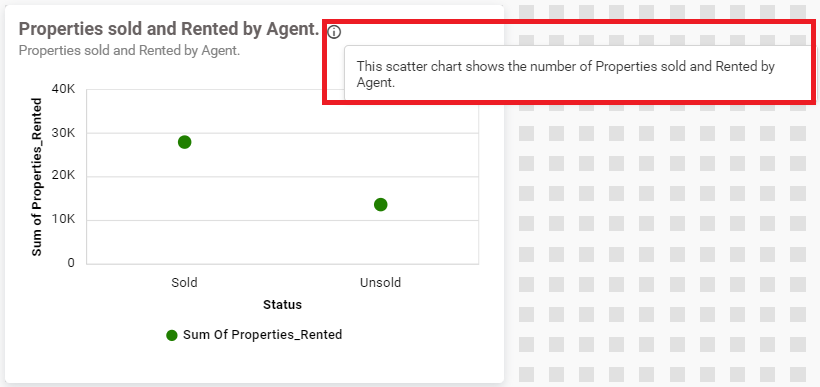
This allows you to set a description for this scatter chart widget.
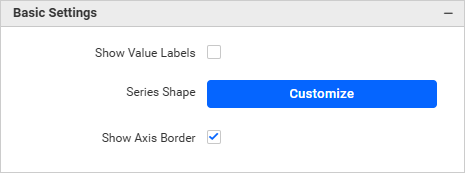
Basic settings
Show Value Labels
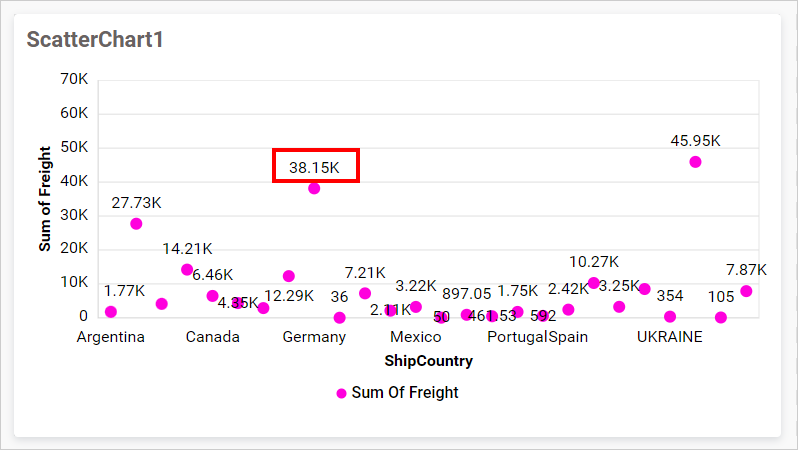
This allows you to toggle the visibility of value labels.
Series Shape
This allows you to change the shape of the series to Circle, Rectangle, Triangle, and Diamond.
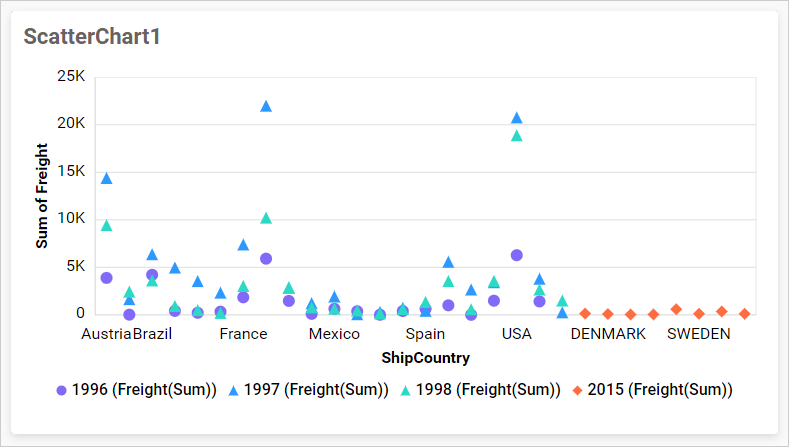
Note: This option only enabled if Row is configured.
Tooltip Settings
The Tooltip Settings section allows you to customize the appearance and behavior of tooltips in widget visualizations.
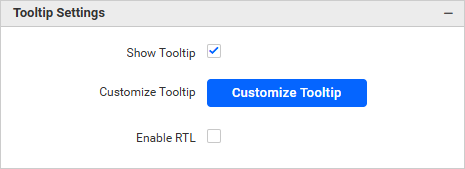
Show Tooltip
This option allows you to toggle the visibility of the tooltip in the chart.
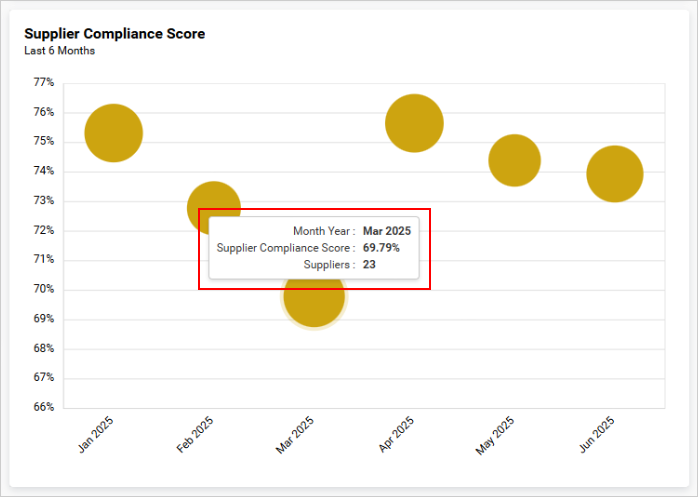
Customize Tooltip
This option allows you to customize which columns are visible in the chart’s tooltip.
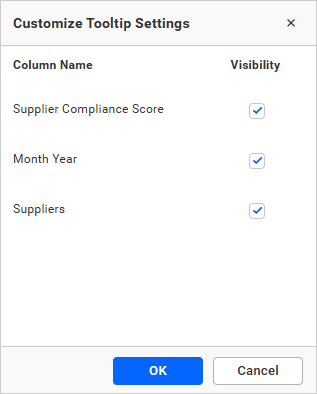
Enable RTL
This option allows you to display fields and their data from right to left.
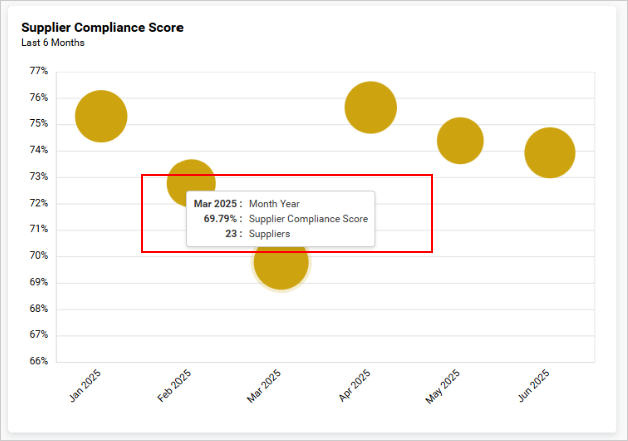
Legend Settings
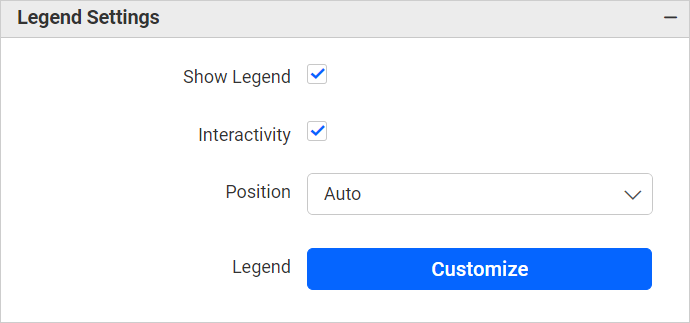
Show legend
A Legend is a text used to describe the data plotted. This allows you to toggle the visibility of the legend in the scatter chart.
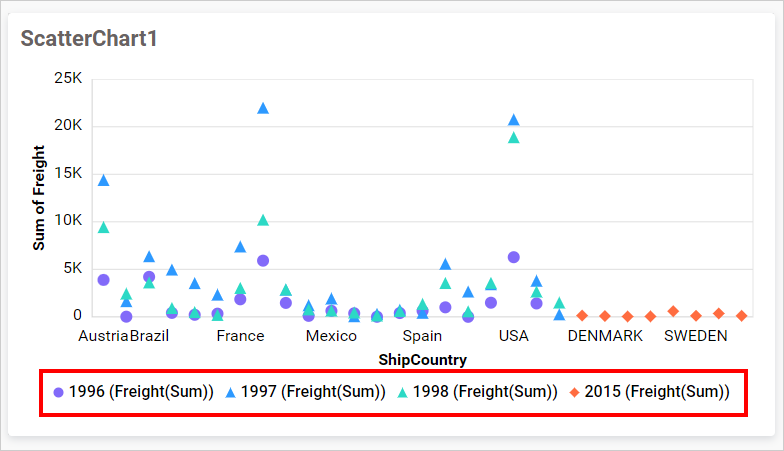
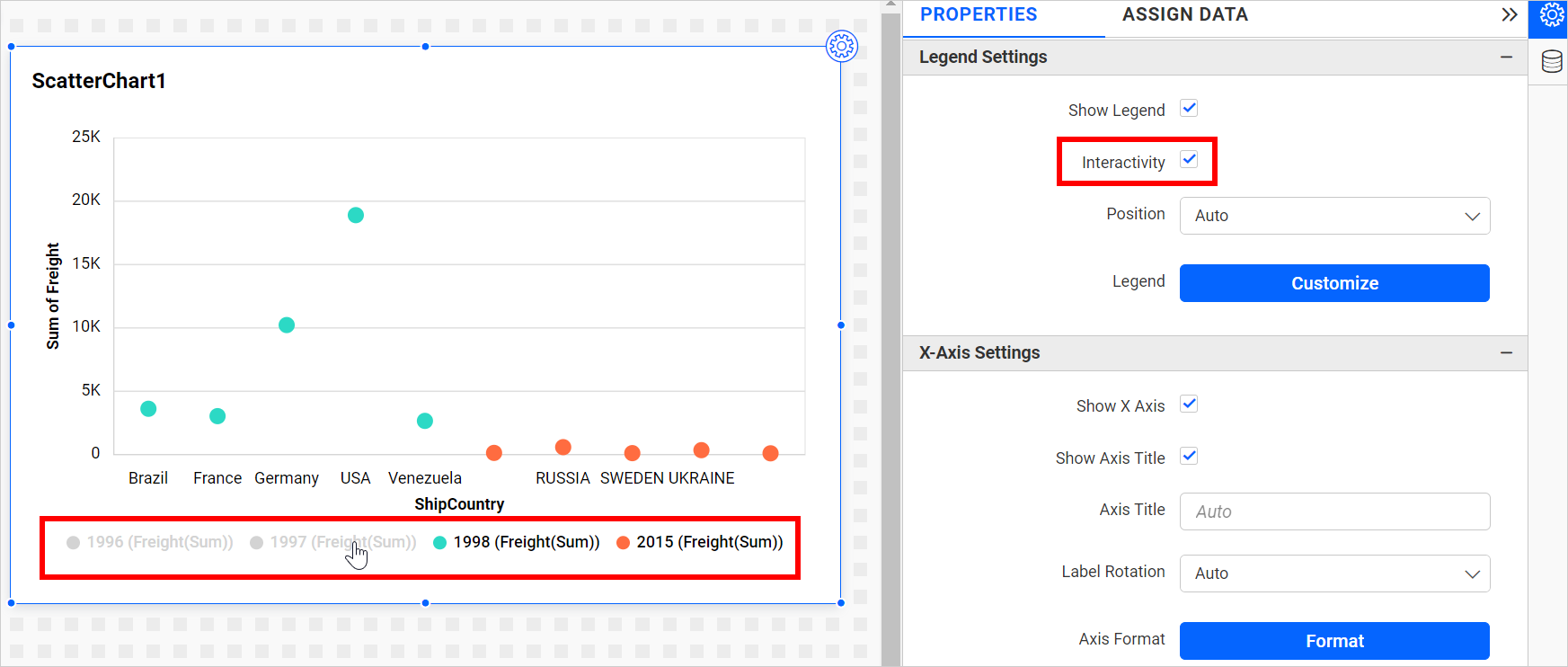
Legend Interactivity
The chart legend interactivity option allows you to control the behavior of the chart legends. This provides an option to make chart legends non-clickable, which can be especially useful in scenarios where you do not want users to hide or show series data by clicking on the legend. This might also be useful when displaying critical pieces of data that should always be present for accuracy and context purposes.
Disabling the Interactivity feature in the Legend Settings category does not allow you to click on the legends.
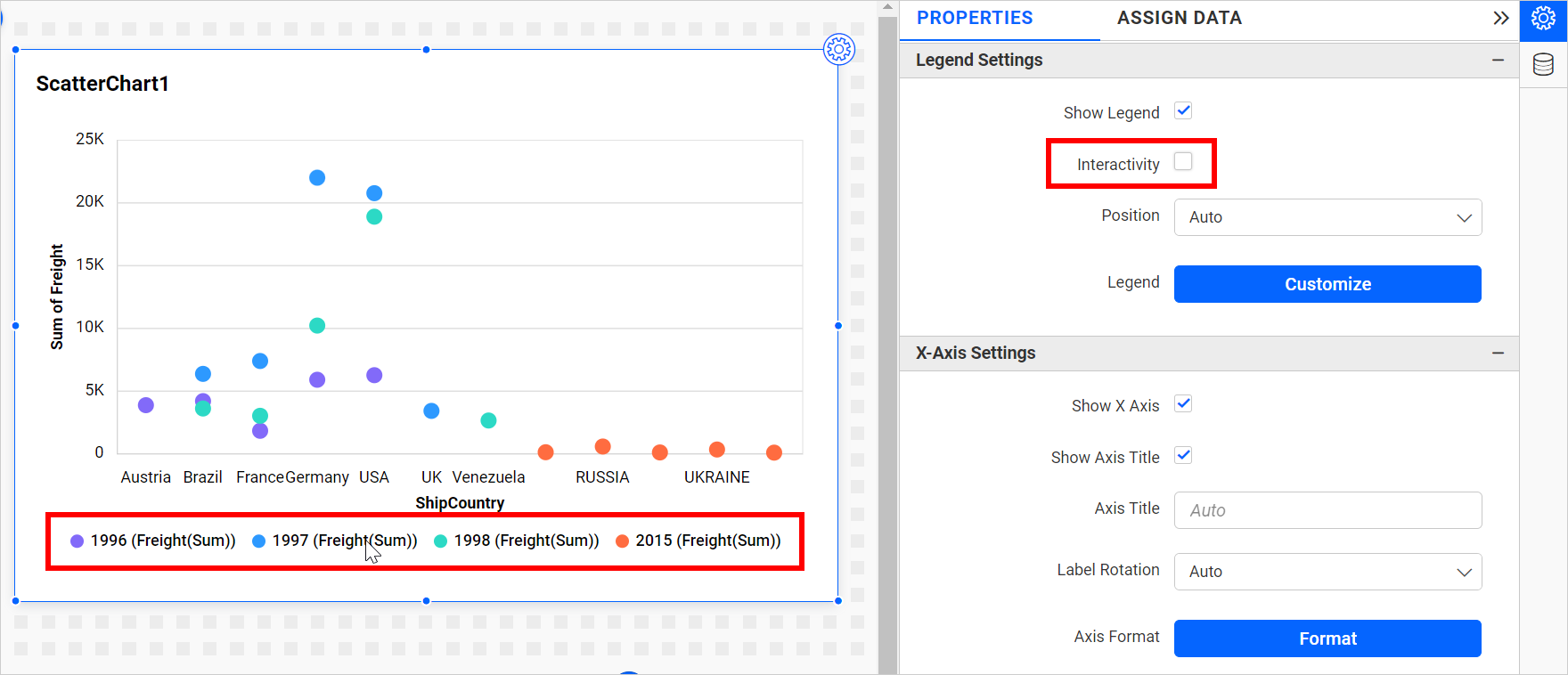 Enabling the Interactivity feature in the Legend Settings category allows you to click on the legends.
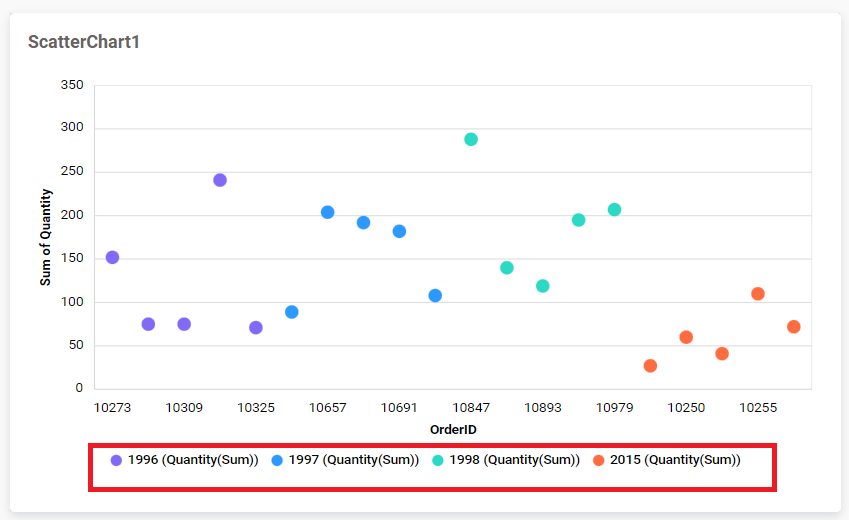
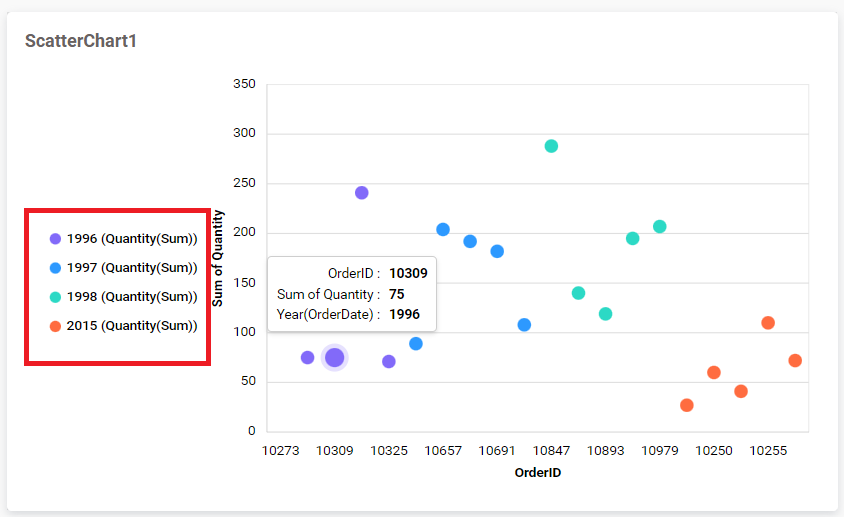
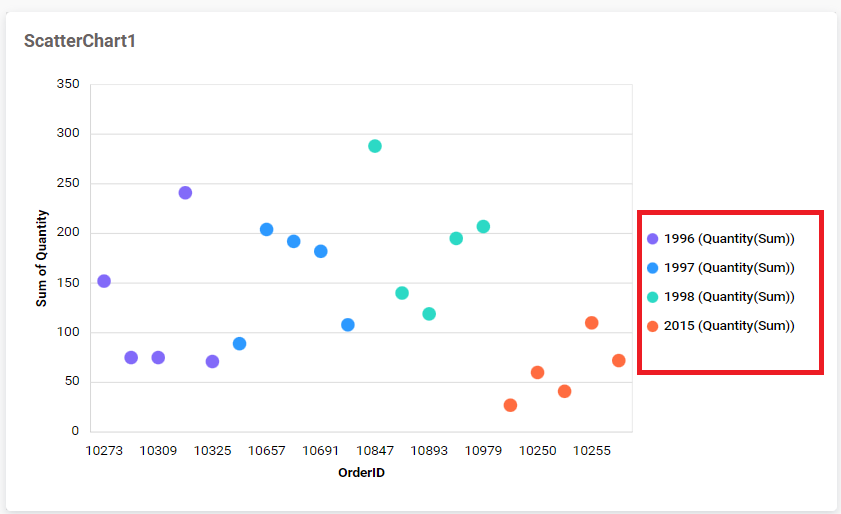
Legend Position
A Legend is a text used to describe the data plotted. This option allows you to place the legend at the position of Left, Right, Top, and Bottom.
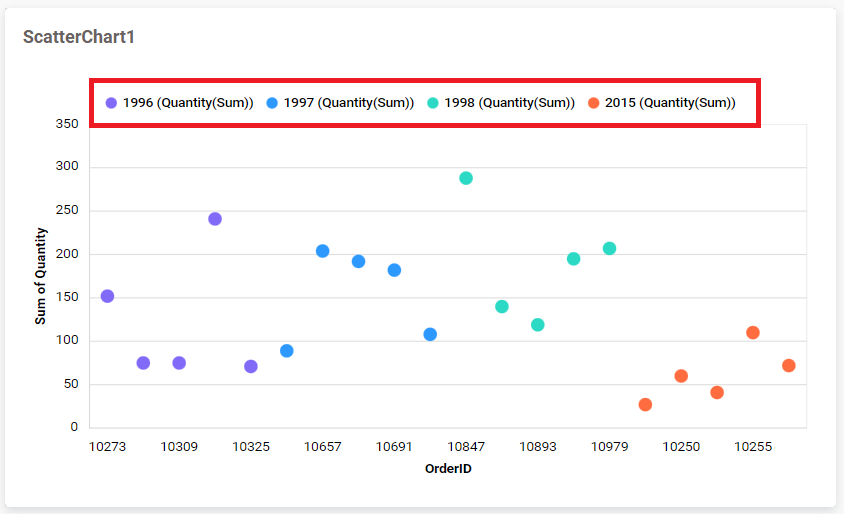
Customize
You can customize the legend text through the Custom Legend Settings dialog. This dialog will show the legend text list as labels on the left and the corresponding text area on the right to add the formatted text to display instead.
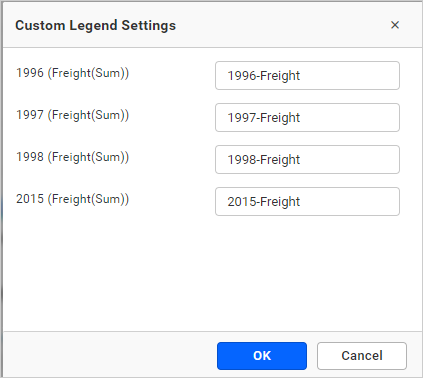
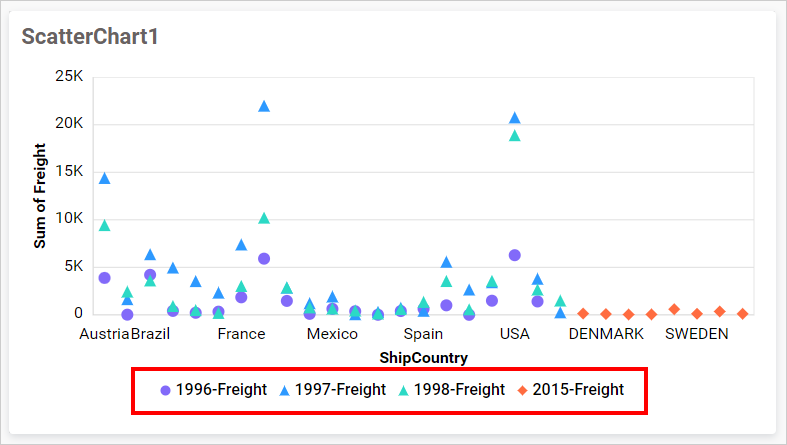
If you uncheck the Show Legend property in the property panel, the dependent properties Legend position, customization button are also hidden.
X-Axis Settings
This section allows you to customize the x-axis settings in the scatter chart.
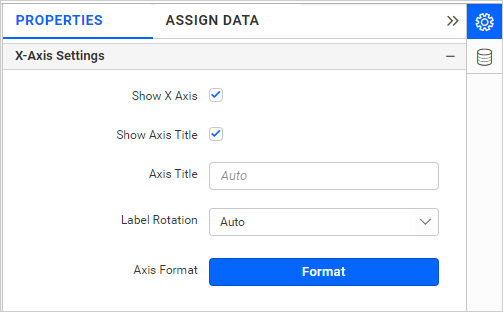
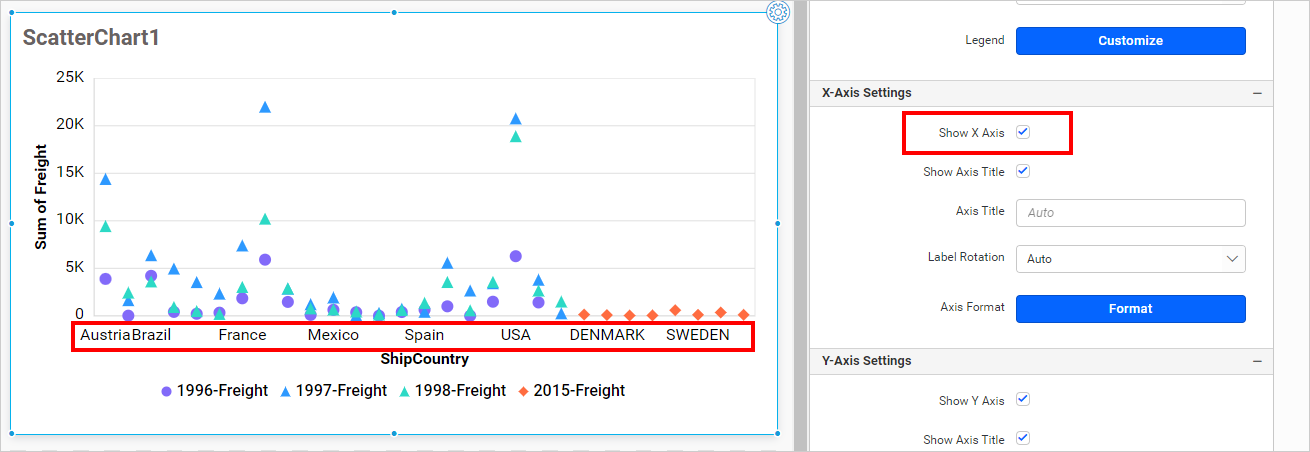
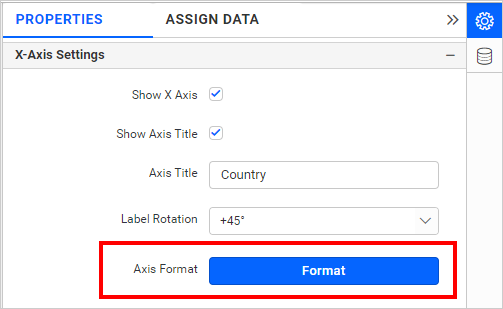
Show X Axis
This allows you to toggle the visibility of the category axis.
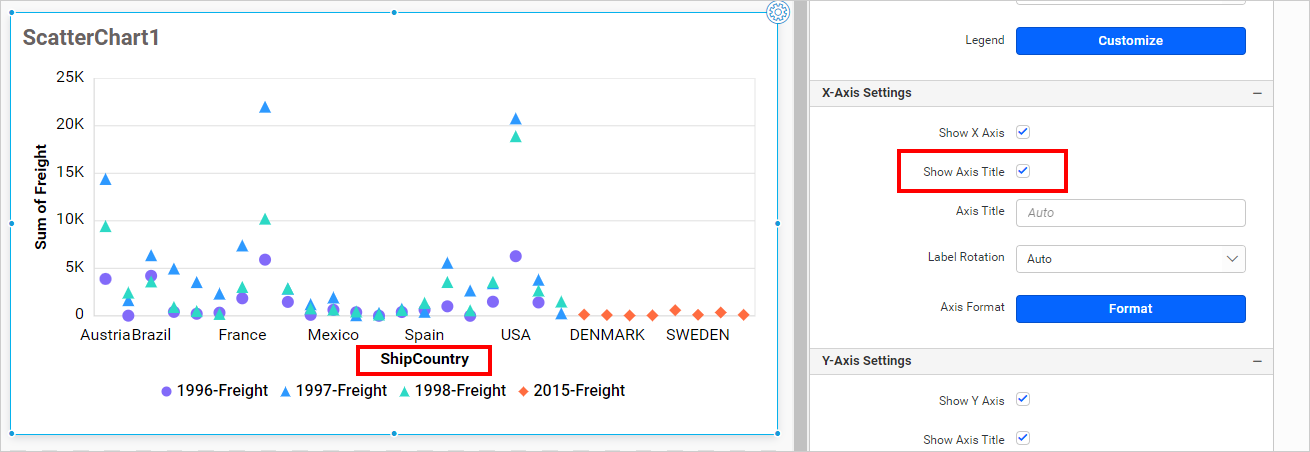
Show Axis Title
This allows you to toggle the visibility of the category axis title of the scatter chart.
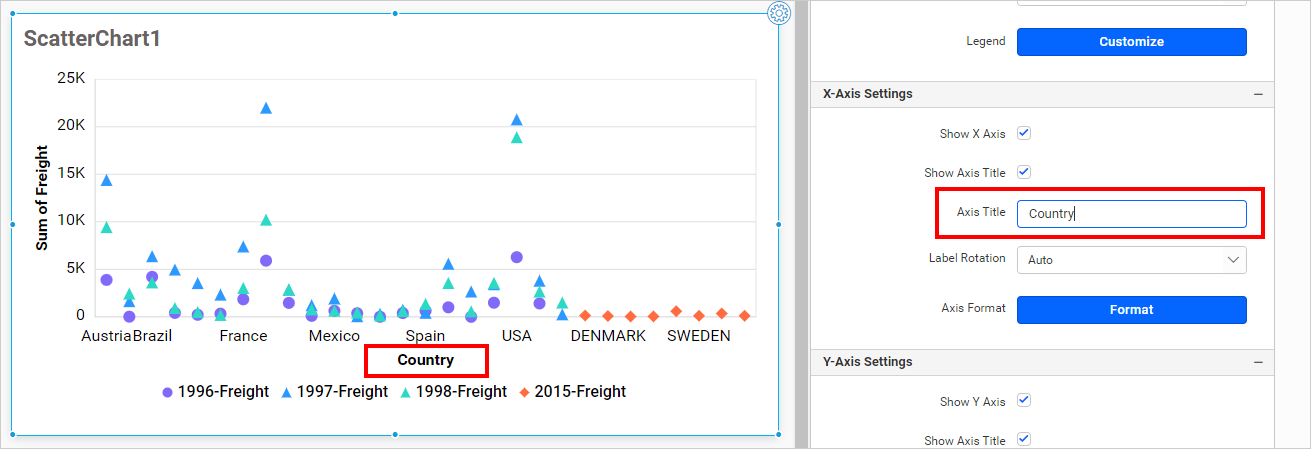
Axis Title
This allows you to edit the category axis title. It will reflect in the x-axis name of the chart.
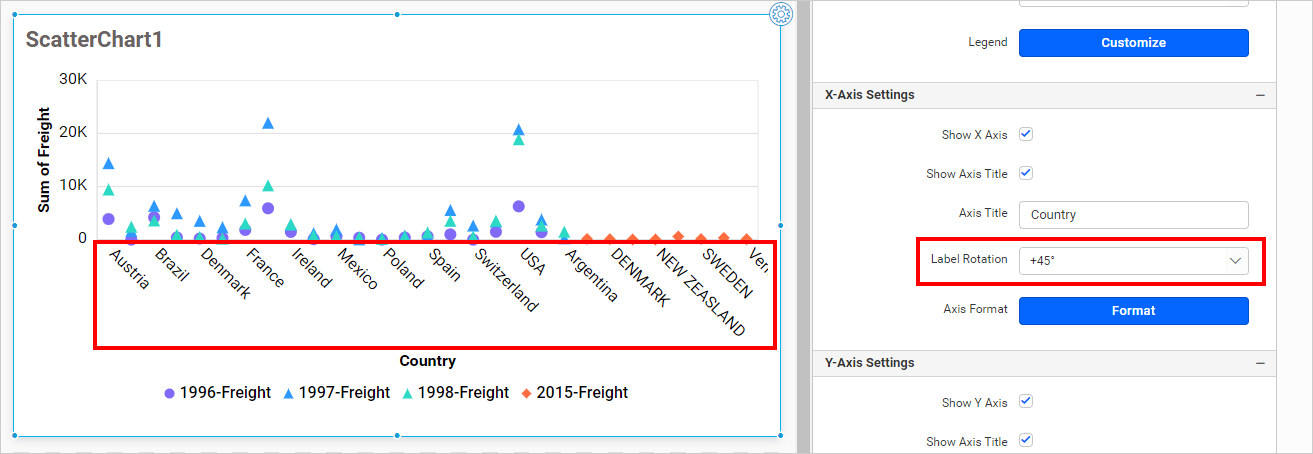
Label Rotation
This allows you to define the rotation angle for the category axis labels to display.
Axis Format
This option allows you to format category axis values from the formatting details provided using the Axis Format button. For more details, refer to this measure format.
Axis Range Settings
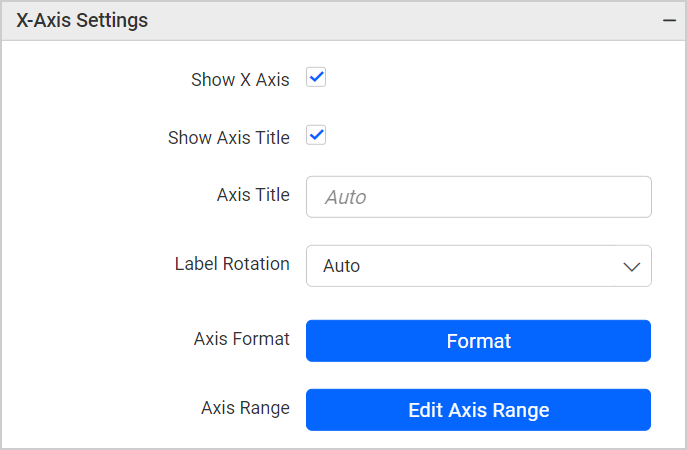
By default, the chart control automatically determines the minimum, maximum, and interval values for the axis based on the data configuration. This option is only enabled when we configure measure field data into the X-Axis section.
The axis range property allows you to manually set the Minimum, Maximum, and Interval values of the X axis through the Axis Range Settings dialog.
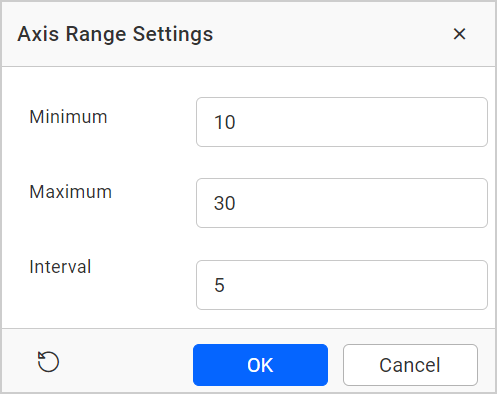
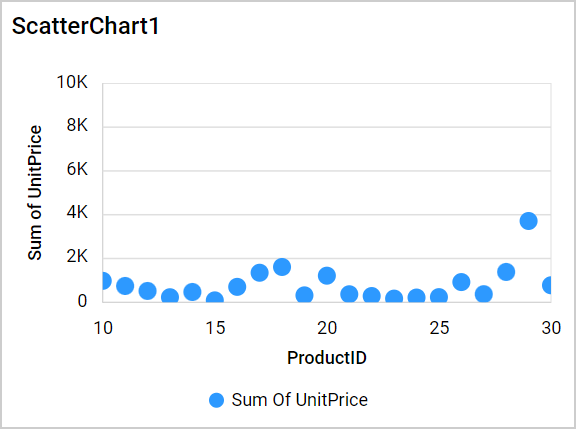
For Example : This property will customize the scatter chart X-axis range value. We set the X-axis range minimum as 10, maximum as 30, and interval as 5.
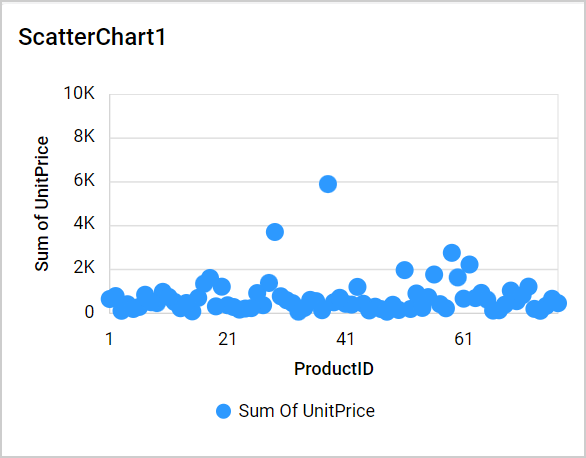
It will be reflected in the X-axis of the scatter chart.
Note: This property will be hidden while the
Show X-Axisproperty is disabled or configure a dimension field in theX-axissection.
Y-Axis Settings
This section allows you to customize the y-axis settings in the scatter chart.
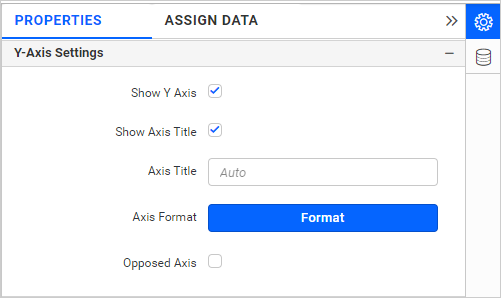
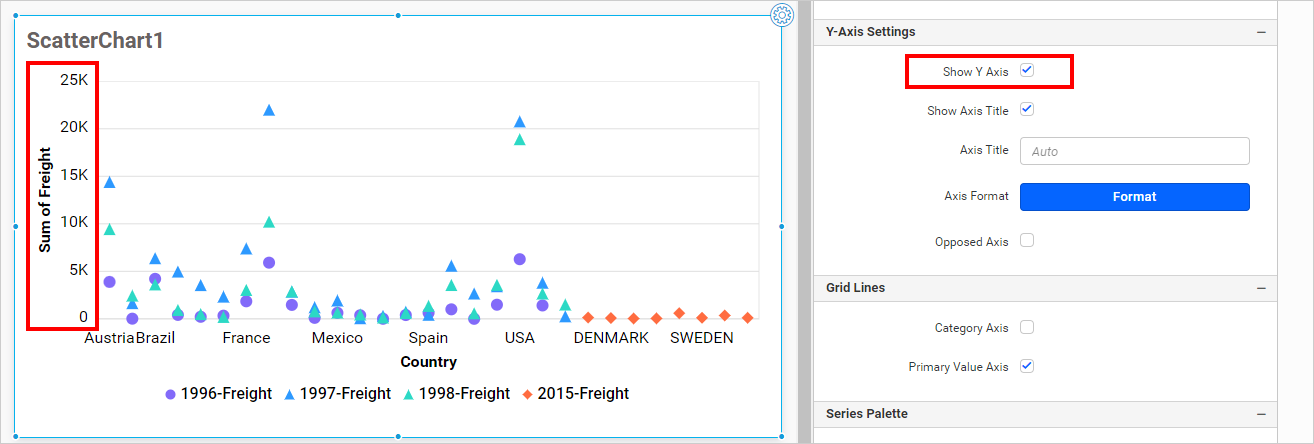
Show Y Axis
This allows you to toggle the visibility of the primary axis.
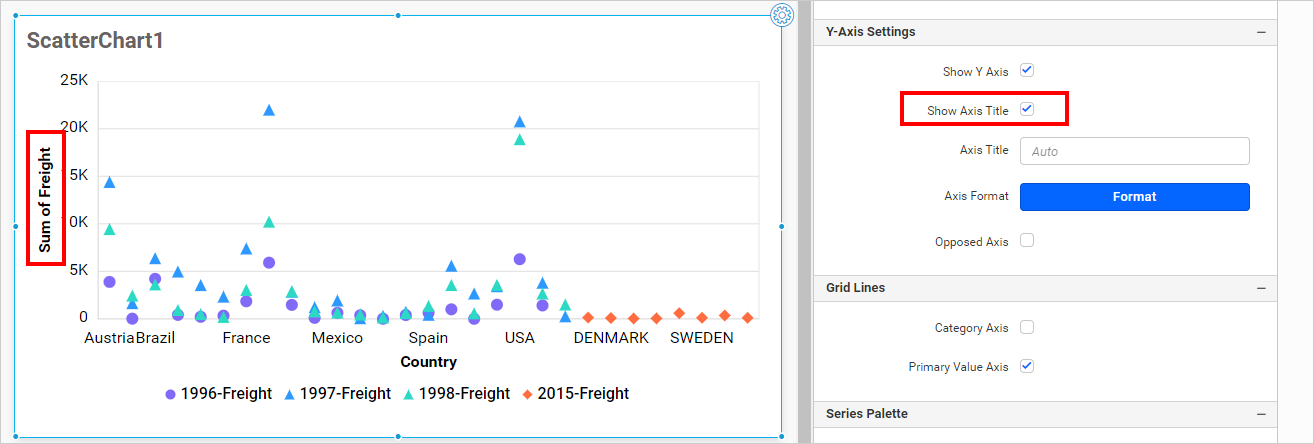
Show Axis Title
This allows you to toggle the visibility of the primary axis title of the scatter chart.
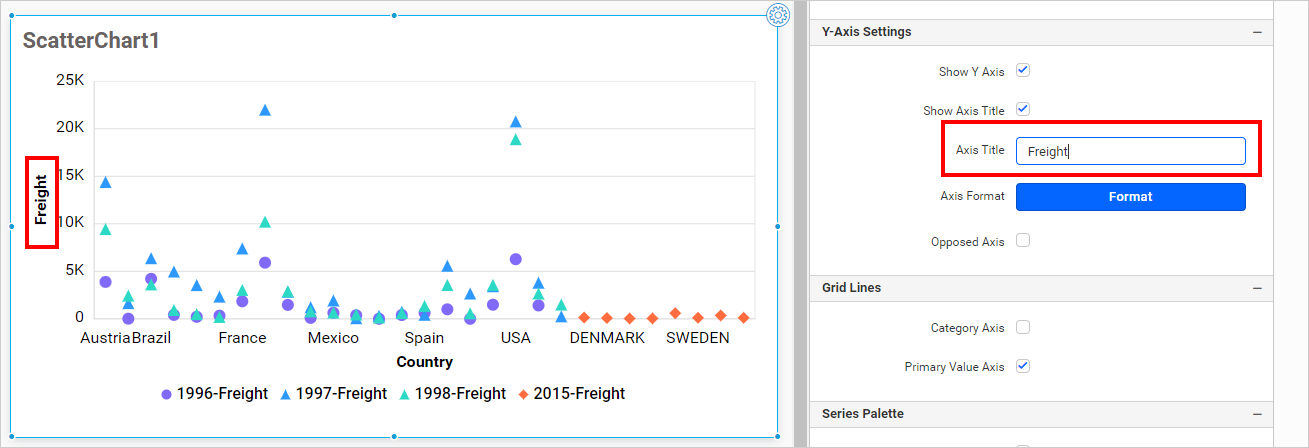
Axis Title
This allows you to edit the primary axis title. It will reflect in the y-axis name of the chart.
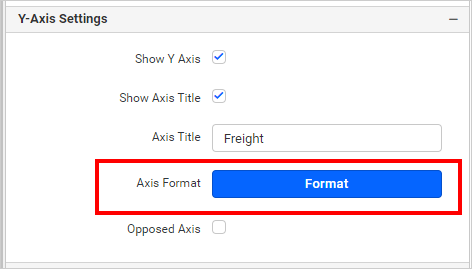
Axis Format
This option allows you to format primary axis values from the formatting details provided using the Axis Format button. For more details, refer to this measure format.
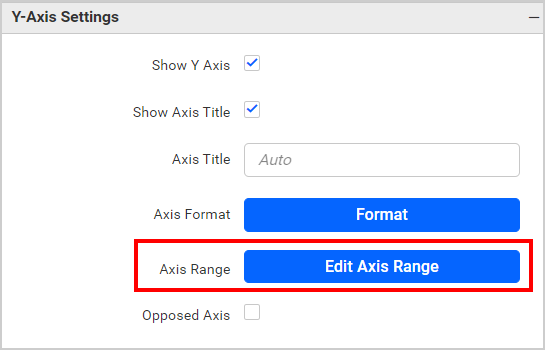
Axis Range Settings
By default, the chart control automatically determines the minimum, maximum, and interval values for the axis based on the data configuration.
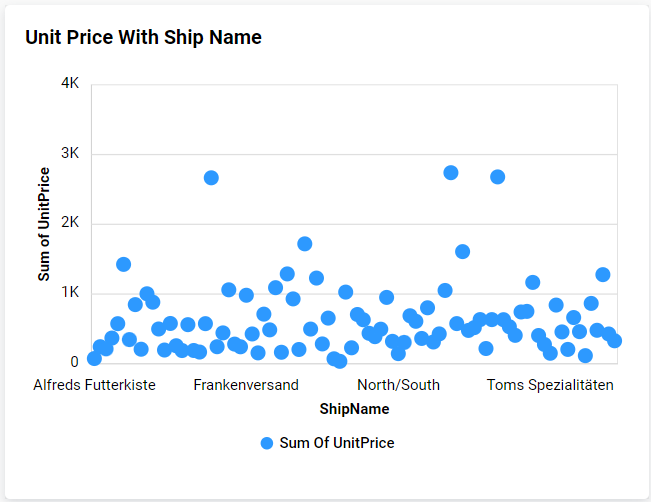
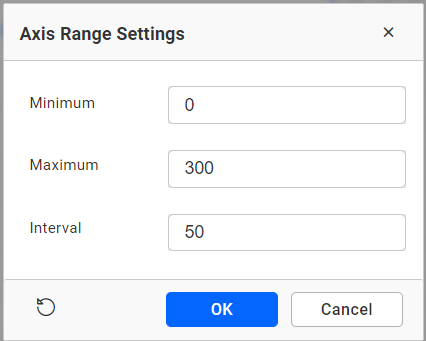
The axis range property allows you to manually set the Minimum, Maximum, and Interval values of the primary axis through the Axis Range Settings dialog.
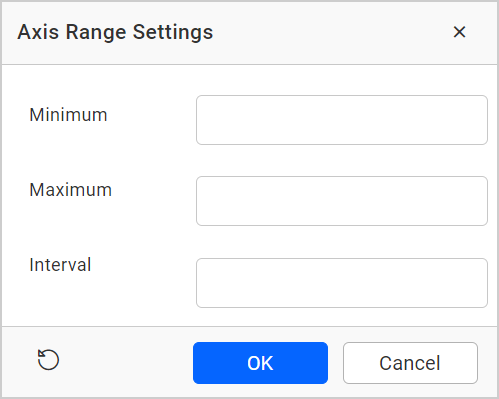
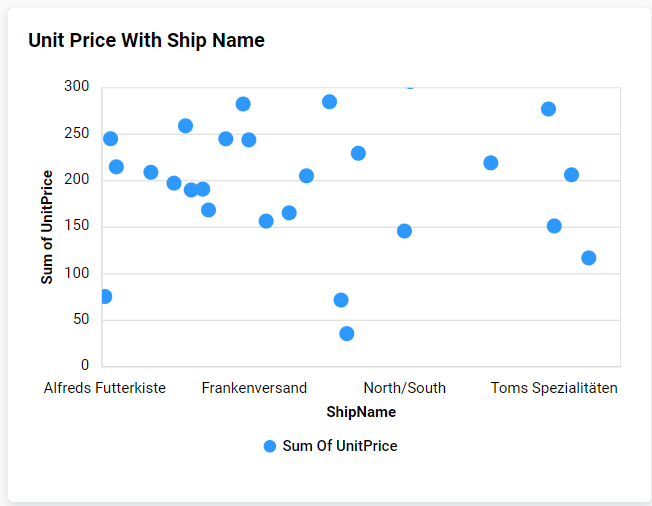
For Example : This property will customize the scatter chart primary axis range value. We set the primary axis range minimum as 0, maximum as 300, and interval as 50.
It will be reflected in the y-axis of the scatter chart.
 .
.
Note: This property will be hidden while the
Show Y-Axisproperty is disabled.
Parameter Support in Axis range:
This allows you to dynamically set the Minimum, Maximum, and Interval values of the primary value axis through the Axis Range Settings dialog by using the dashboard parameter values. Only number-type Dashboard parameter values are allowed in the axis range properties. You can create multiple types of dashboard parameters.
- Single parameter value.
- Range parameter value.
- Data source field based parameter values.
For more details about dashboard parameter, refer to the Dashboard parameter documentation.
Single Parameter Value:
A single value is stored in this type of parameter.
- Create a dashboard parameter in number type like below.
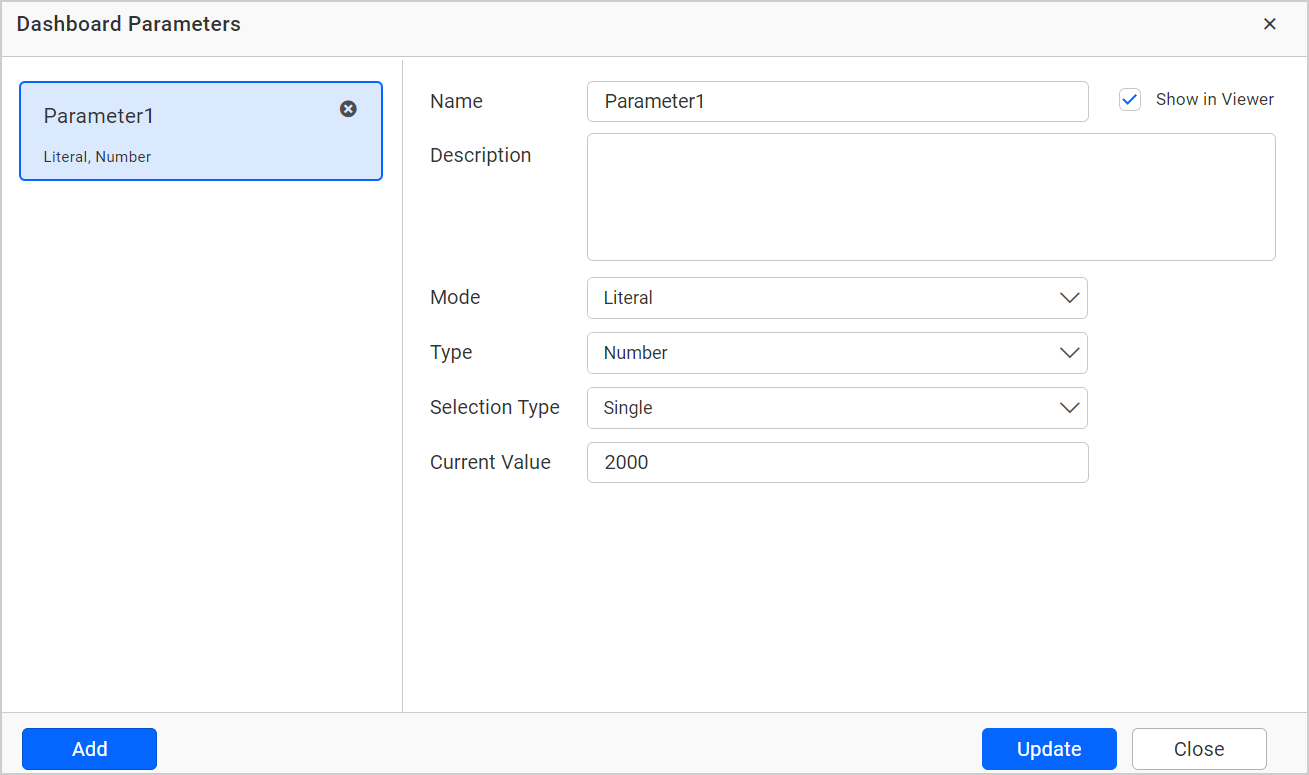
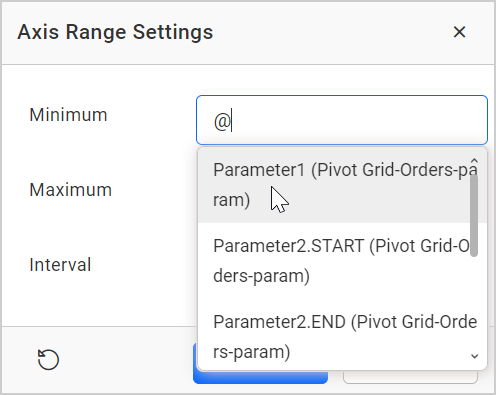
Click the axis range settings dialog and enter @ in the textbox. Select the parameter value (Numeric parameter values only allowed in the minimum, maximum, and interval).
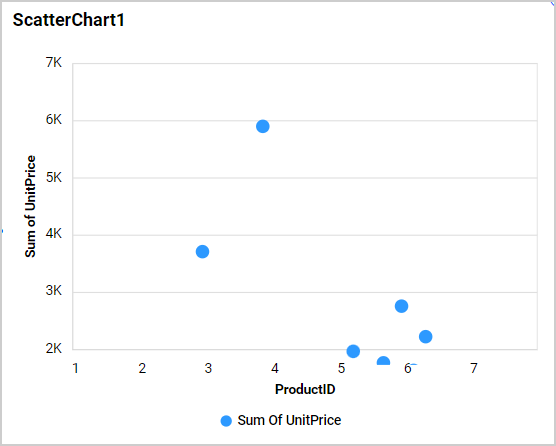
Now the parameter value is reflected in the chart axis.
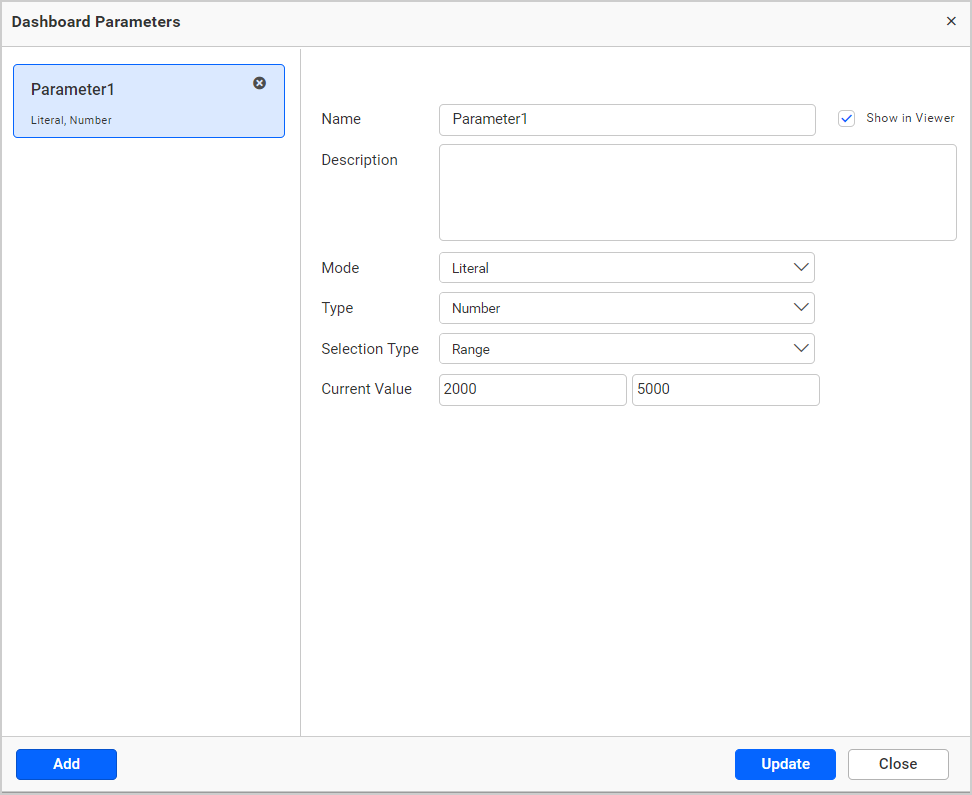
Range Parameter Value:
If you wish to set the same ranges in multiple cases, create the range type parameter value. This type of parameter has the start and end values.
- Create a parameter in range type.
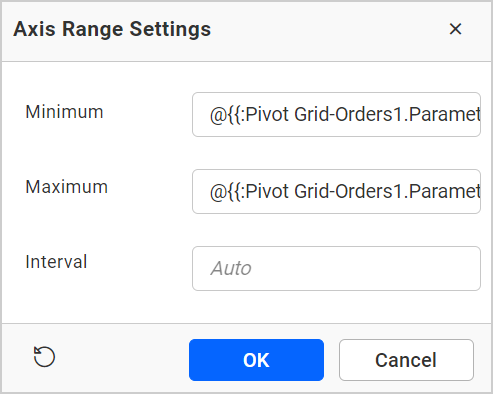
- Click the axis range settings dialog and enter
@in any textbox (minimum, maximum, and interval). The range parameter is split into start and end parameters. The first textbox value is stored in the start parameter, and the second textbox value is stored in the end parameter. Select the parameter value (Number type parameter values only allowed).
- The parameter value is reflected in the chart axis.
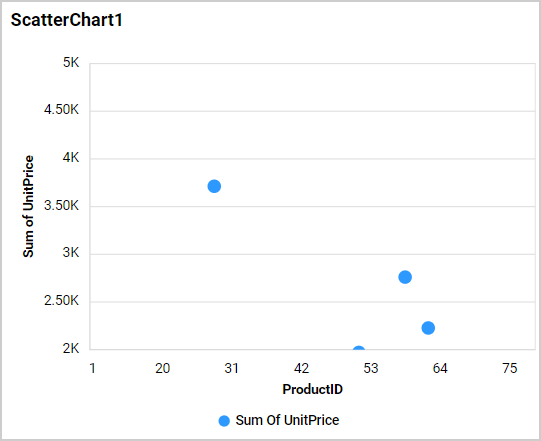
Data Source Field Based Parameter Value:
- Create a parameter in the data source type. In this, choose any field. The value is based on the selected field value.
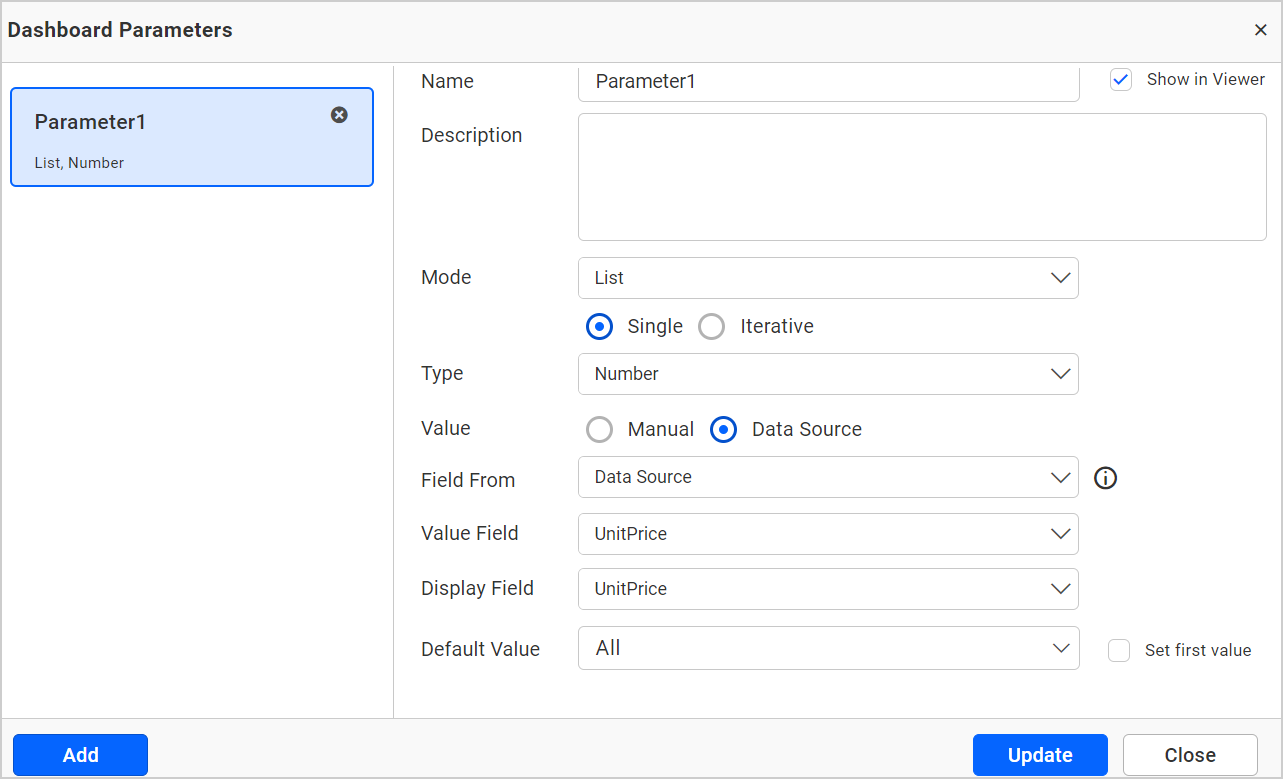
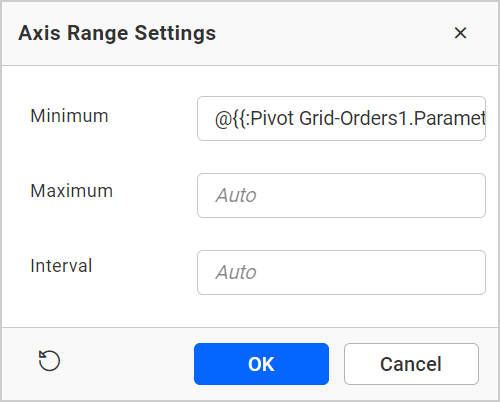
- Click the axis range settings dialog and enter
@in any textbox(minimum, maximum and interval). Select the parameter value.
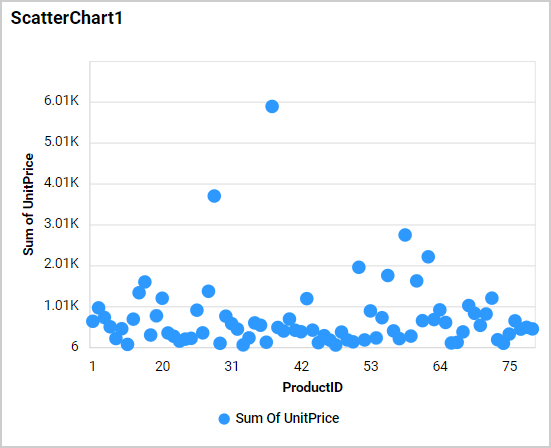
- The parameter value is reflected in the chart axis.
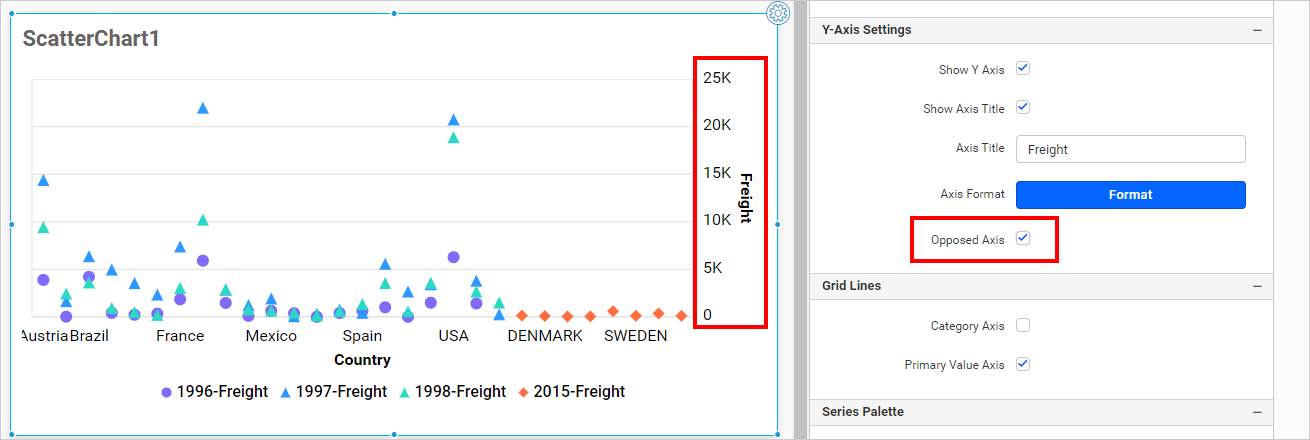
Opposed Axis
This allows you to render the primary axis to the opposite side of its default position.
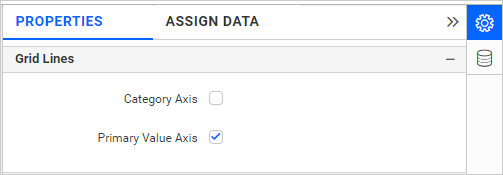
Grid Lines
You can toggle the visibility of each axis gridlines using this property.
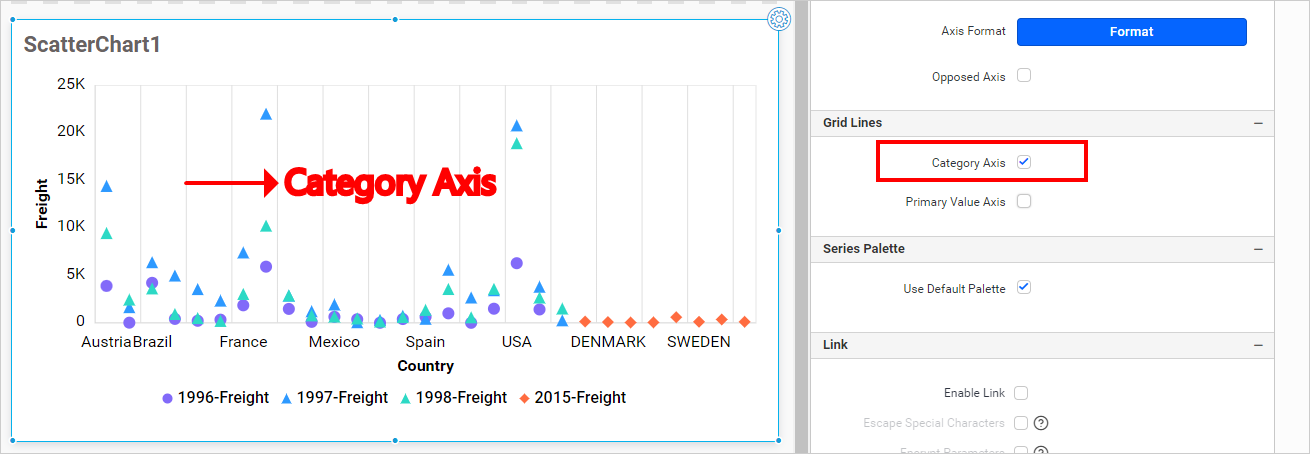
Category Axis
This allows you to enable the Category Axis gridlines for the Scatter chart.
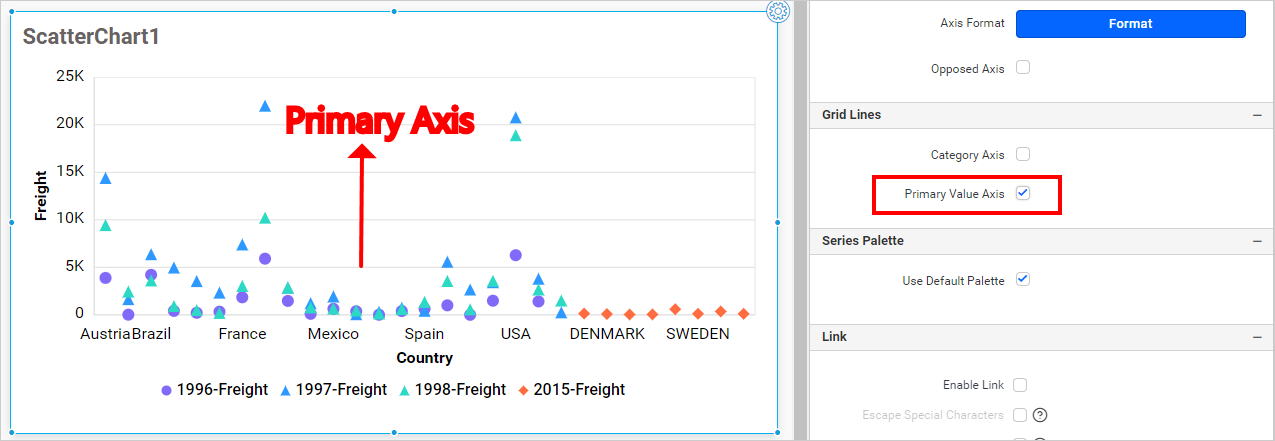
Primary Value Axis
This allows you to enable the Primary Axis gridlines for the Scatter chart.
Series Palette
This section will be shown only if the row is configured.
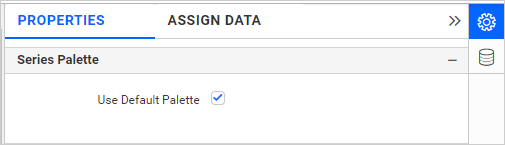
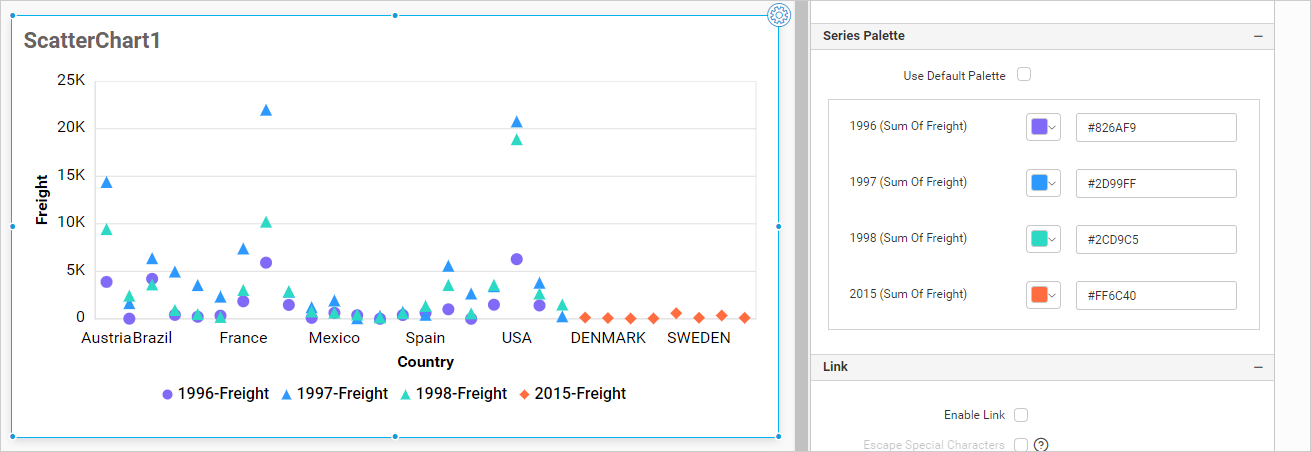
Use Default Palette
By toggling off the Use Default Palette, you can customize the scatter chart series segments’ colors by clicking the colored squares.
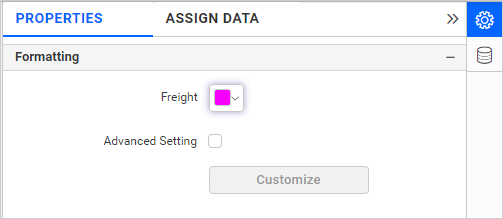
Formatting
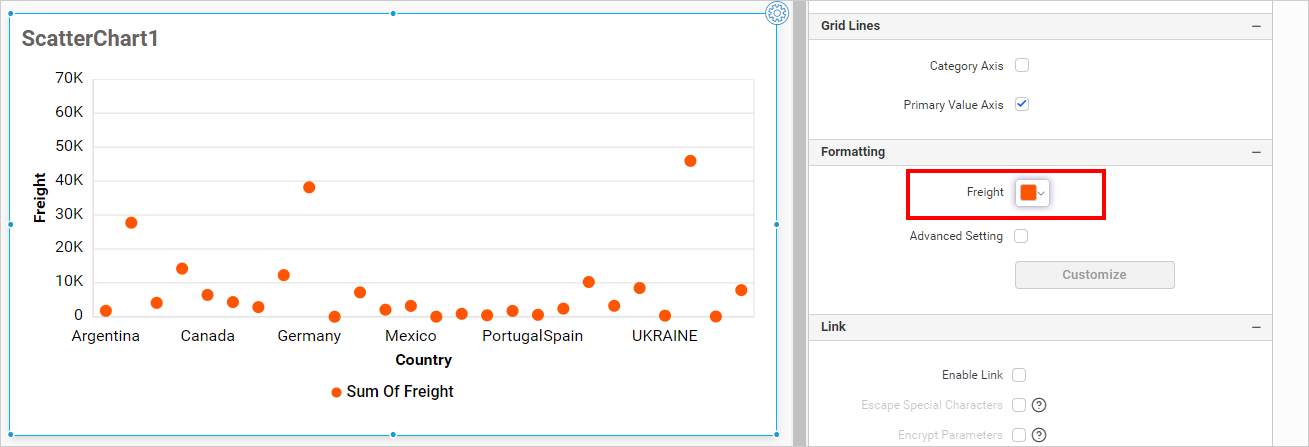
This allows you to change the color for the scatter chart. This section will be shown only if the row is not configured.
It will reflect in the scatter chart.
Advanced settings
Select Advanced setting to configure conditions and apply color to the chart based on that. You can refer more details from this section
How to apply conditional formatting
Color in the scatter chart widget can be customized using the color settings available in the properties section. This will allow users to improve the visualization in the scatter chart and distinguish the data based on conditional range values, helping the visualizer understand the data being shown.
How to enable advanced formatting
-
In the
propertiespane, under theFormattingsection, check theAdvanced Settingcheckbox. -
This will open the
Conditional Formattingdialog.
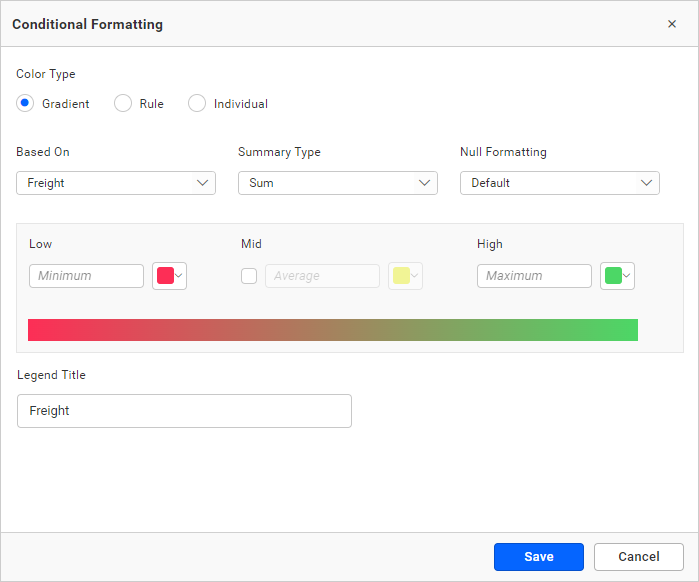
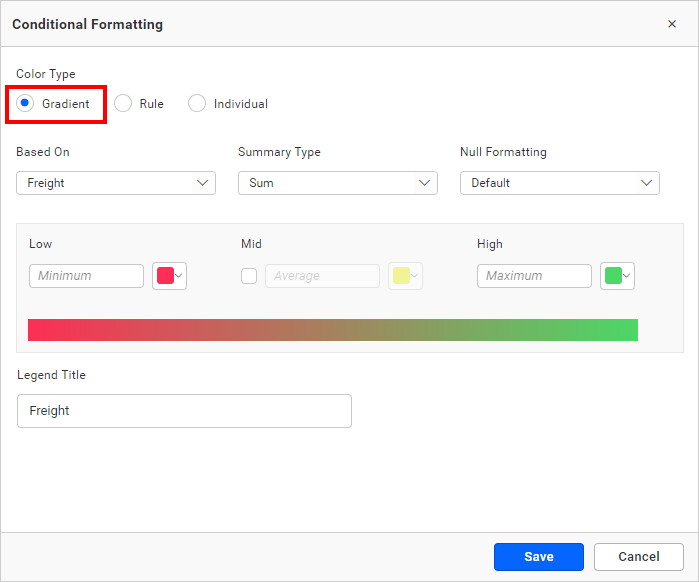
- Select the mode and enter the conditions as required, then click the
savebutton to apply.
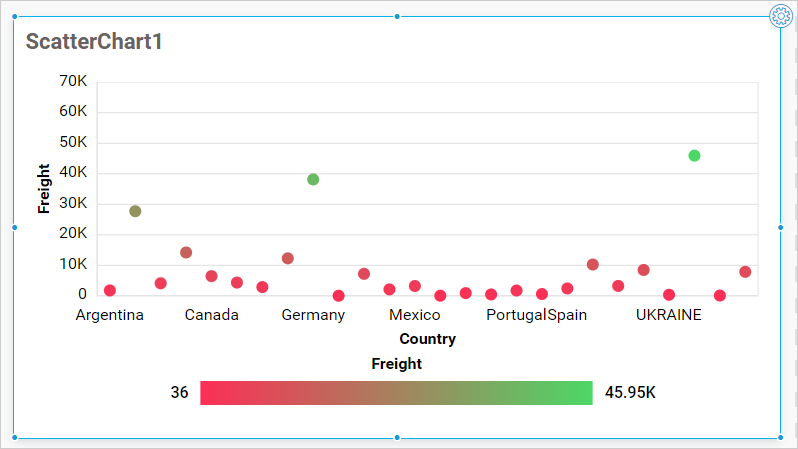
- Now, the widget visualization will be updated based on the conditions.
Refer to the following sections for detailed steps on using the Gradient, Rule and individual modes.
Gradient mode
You can customize the fill color of the scatter chart using gradient-based conditional formatting. This is the default mode.
Based on field
Choose any field from the Based-On section to apply conditions from the drop-down.
Summary type
You can select the summary type for the selected measure field.
Low, mid, and high values
Define your range by entering the low, mid, and high values.
Note: Ranges will be auto calculated based on the minimum and maximum values from the data source if no value is entered.
Legend title
You can enter the title for the scatter chart legends.
Rule based condition mode
This allows you to customize the fill color of the scatter chart based on one or more numerical/text conditions.
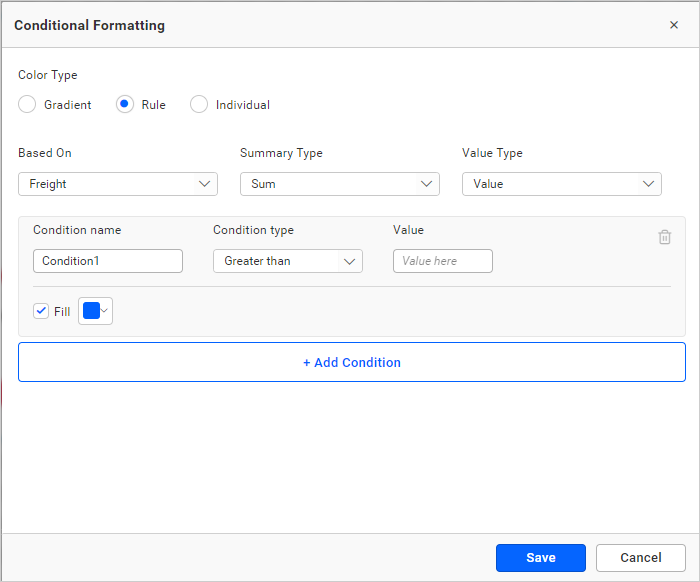
Value type
Choose between direct value (specific number like 3 goals, order ID 10248) or percentage (values above 30% or 50%).
Condition name
Give a meaningful name to the applied conditions.
Condition type
Choose the condition for the measure field from the highlighted conditions.
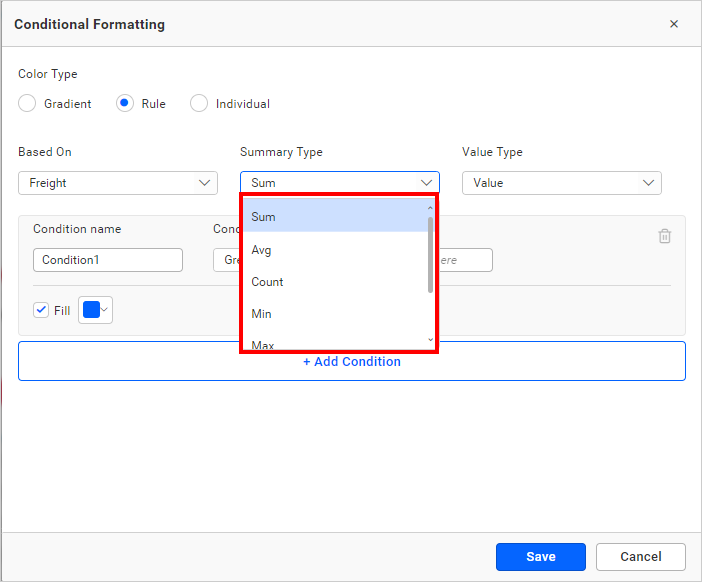
If you selected the dimension as a based-on field and want to use text conditions, text-based conditions are available.
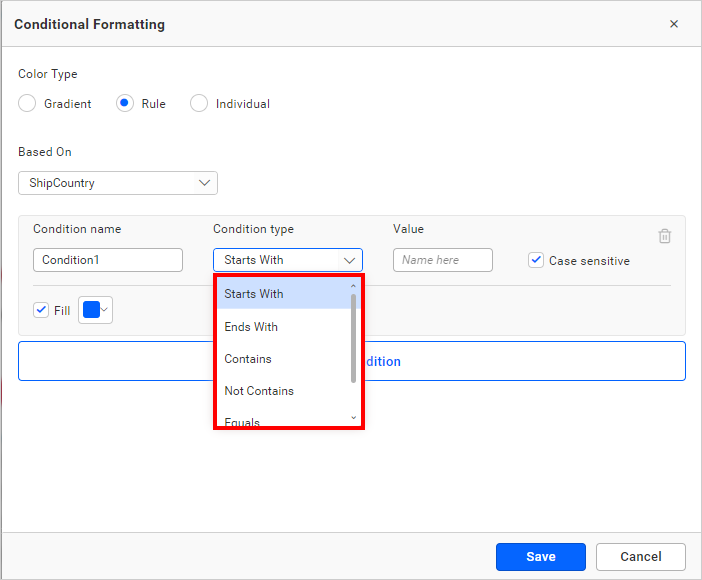
The text-based condition type will be enabled only when the dimension selected is used as the based-on field.
Value
You can mention the condition value.
Case sensitive
For the dimensions, case sensitive option is provided to choose whether the entered value is case sensitive or not.
Fill color
Select the fill color for that condition using the color picker.
Add condition
Click add condition to specify add new condition.
Delete condition
Click the delete button to remove the existing condition.
Individual mode
Using the individual mode, you can specify a color for each record.
IMPORTANT: Only top 100 records will be listed in the dialog.
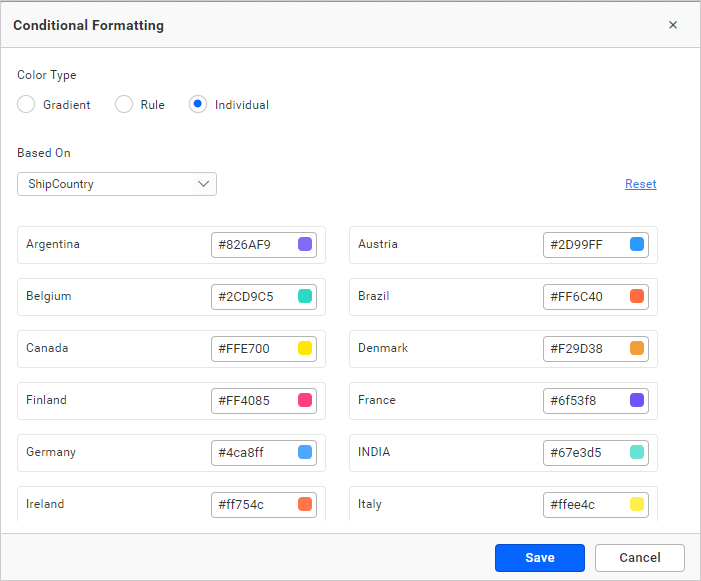
Color
You can choose the color for the record from the nearby color picker.
Reset
To undo all the changes, click reset.
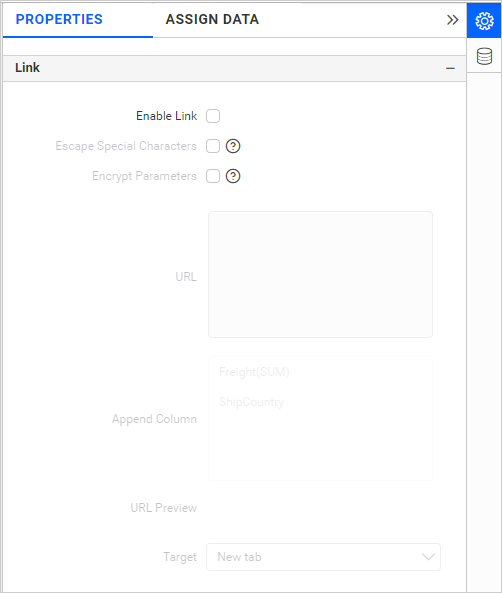
Link
To configure the linking to URL or dashboard with the widget using its settings. For more details, refer to Linking.
Filter
This section allows you to handle the filter action for the scatter chart widget.
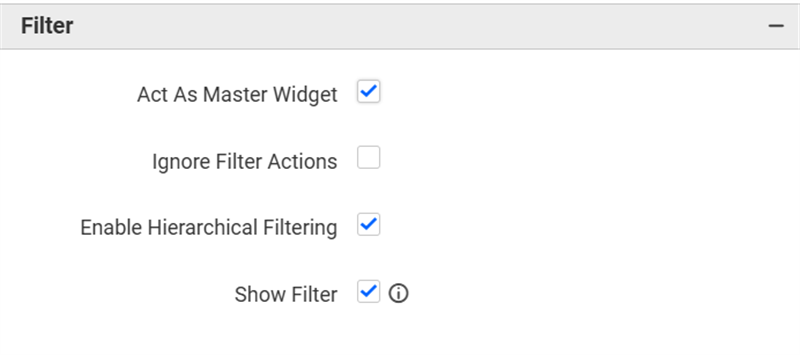
Act as master widget
This allows you to define this scatter chart widget as a master widget such that its filter action can be made to listen by other widgets in the dashboard.
Ignore filter actions
This allows you to define this scatter chart widget to ignore responding to the filter actions applied on other widgets in the dashboard.
Hierarchical filter
Using this option, you can enable or disable the hierarchical top N filtering. While applying the Top N filter with multiple dimension columns, the data returned can be customized based on whether the filtering needs to be done as flat or based on the hierarchy of dimension columns added.
When the Hierarchical Filter option is enabled, the Top N will be applied for each individual column separately based on the number set for each column.
Show Filter
This feature allows you to toggle the visibility of the Filter icon for the scatter chart widget when the Act as Master Widget option is enabled.
Container Appearance
This sections allows you to customize the Container Appearance for the scatter chart widget.
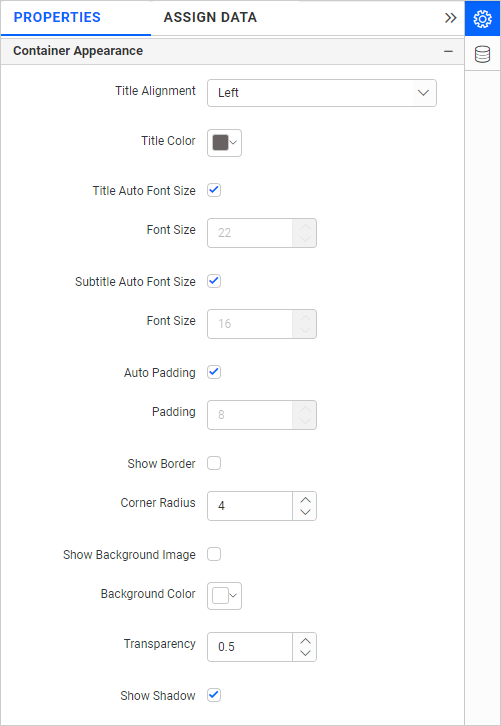
Title Alignment
This allows you to handle the alignment of widget title to either left, center, or right.
Title Color
This allows you to apply the text color to the widget title.
Title Auto Font Size
`On enabling Auto Font Size, the font size of the title will be adjusted automatically based on the screen resolution.
Font Size
This feature allows you to apply the specified font size to the widget title if the Title Auto Font Size is disabled. The value can range between 10 and 44.
Subtitle Auto Font Size
When Auto Font Size is enabled, the font size of the subtitle will adjust automatically based on the screen resolution.
Font Size
This feature allows you to apply the specified font size to the widget title if the Subtitle Auto Font Size is disabled. The value can range between 10 and 32.
Auto Padding
Enabling Auto Padding will automatically adjust the padding of the widget container if the widget size varies.
Padding
This feature allows you to customize the padding of the widget container if Auto Padding is disabled. The value can range between 0 and 25.
Show Border
This feature allows you to toggle the visibility of the border surrounding the widget.
Corner Radius
This feature allows you to apply the specified radius to the widget corners if Show Border is enabled. The value can range between 0 and 100.
Show Background Image
This feature allows you to set the background image for the scatter chart widget.
Background Color
This feature allows you to set the background color for the scatter chart widget.
Transparency
This property allows you to specify the transparency for the background color.
Show Shadow
This property allows you to toggle the visibility of the shadow for the scatter chart widget.
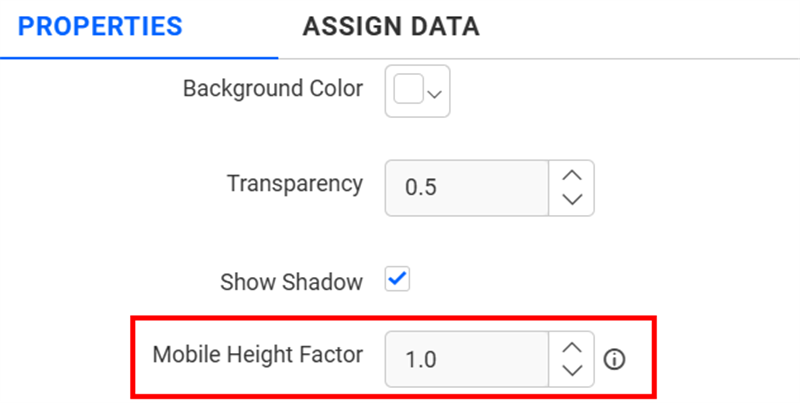
Mobile Height Factor
This option allows you to resize widgets specifically for mobile view.
Container actions
This Section allows you to customize the Container actions for the scatter chart widget.
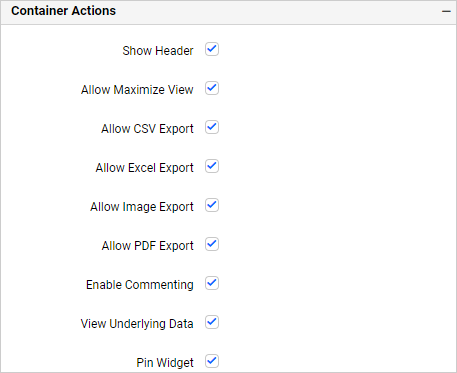
Show Header
This allows you to enable or disable the widget title of the scatter chart.
Allow Maximize View
This allows you to enable or disable the maximized mode of the scatter chart widget. The visibility of the maximize icon in the widget header will be defined based on the setting in the viewer.
Allow CSV Export
This allows you to enable or disable the CSV export option for the scatter chart widget. Enabling this allows you to export the summarized data of the widget view to CSV format in the viewer.
Allow Excel Export
This allows you to enable or disable the Excel export option for the scatter chart widget. Enabling this allows you to export the summarized data of the widget view to (.xlsx or .xls) format in the viewer.
Allow Image Export
This allows you to enable or disable the Image export option for the scatter chart widget. Enabling this allows you to export the view of the widget to image format (.jpg), (.png), or (.bmp) in the viewer.
Allow PDF Export
This allows you to enable or disable the PDF export option for the scatter chart widget. Enabling this allows you to export the view of the widget to pdf format in the viewer.
Enable Comments
This allows you to enable or disable comment for the dashboard widget. For more details, refer to the Commenting Widget.
Allow View Underlying Data
This allows you to visualize the raw data associated with a widget at runtime.
To learn more about viewing the underlying widget data, refer to the view data documentation.
Pin widget
This allows you to pin the widget.