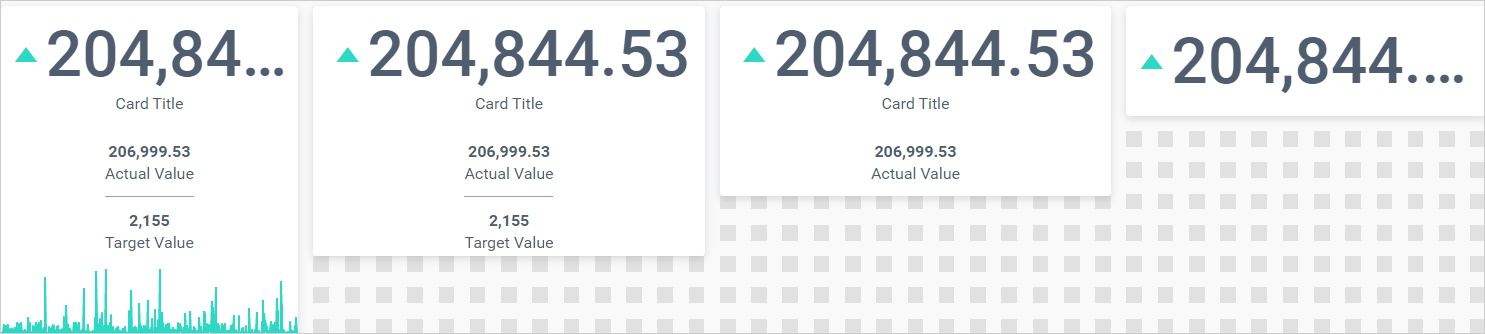
KPI Card
The KPI Card widget allows you to measure trends through key performance indicators (KPIs) such as value and goal. Key metrics like revenue vs investment, target vs current value, and stocks vs demand are typically displayed in the KPI Card widget.
The visualization of the KPI card widget is customizable, and you can format the values displayed in the widget using the provided options.
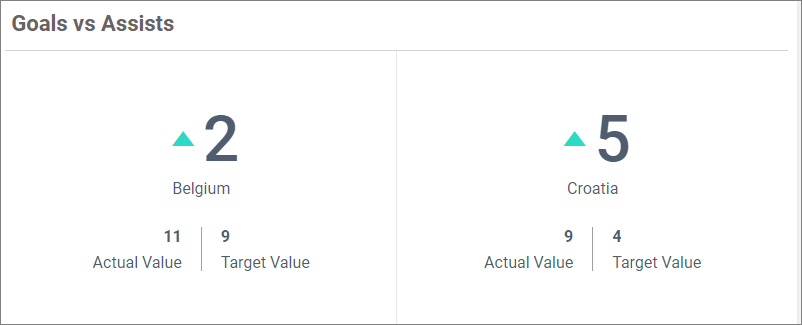
KPI Card series view:
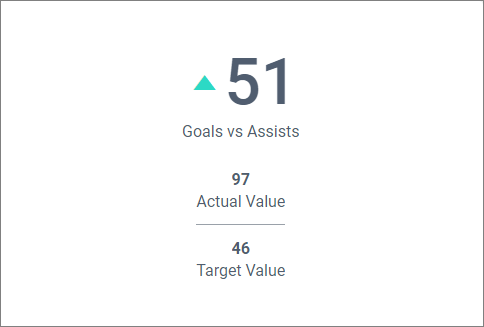
KPI card single view:
How to configure data into KPI card
NOTE: Before adding the card widget to the design layout, ensure that you have created the data source. You can refer to this section to learn how to create a new data source.
IMPORTANT: In order to showcase a KPI Card, a minimum requirement of both actual and target values is necessary.
After creating a data source, follow the steps below to configure the data into the card widget:
- Drag the
KPI Cardcontrol icon from the toolbox into the design panel. You can find the control in the toolbox by searching.
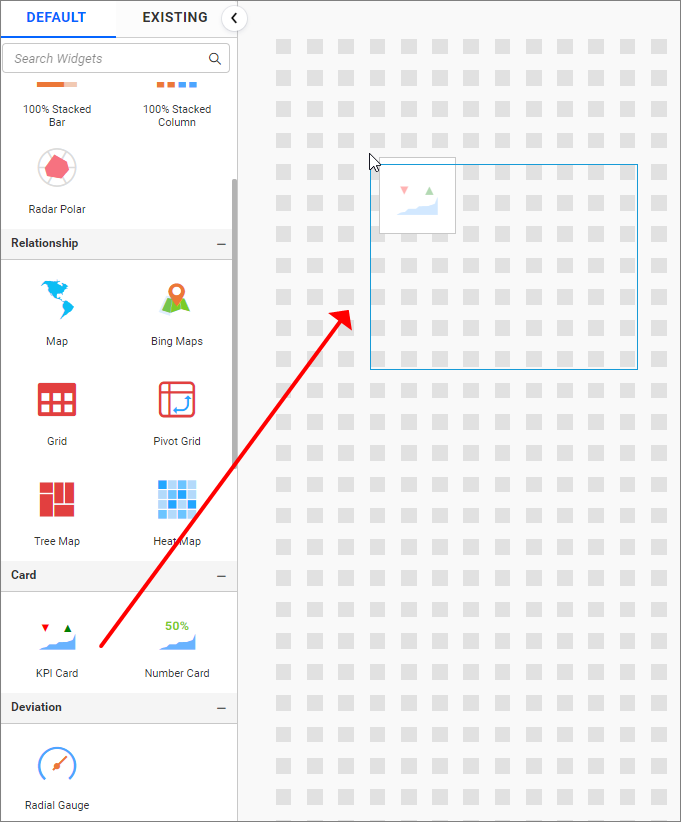
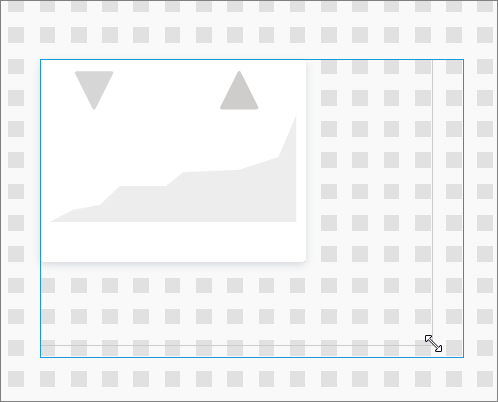
- Resize the widget as required.
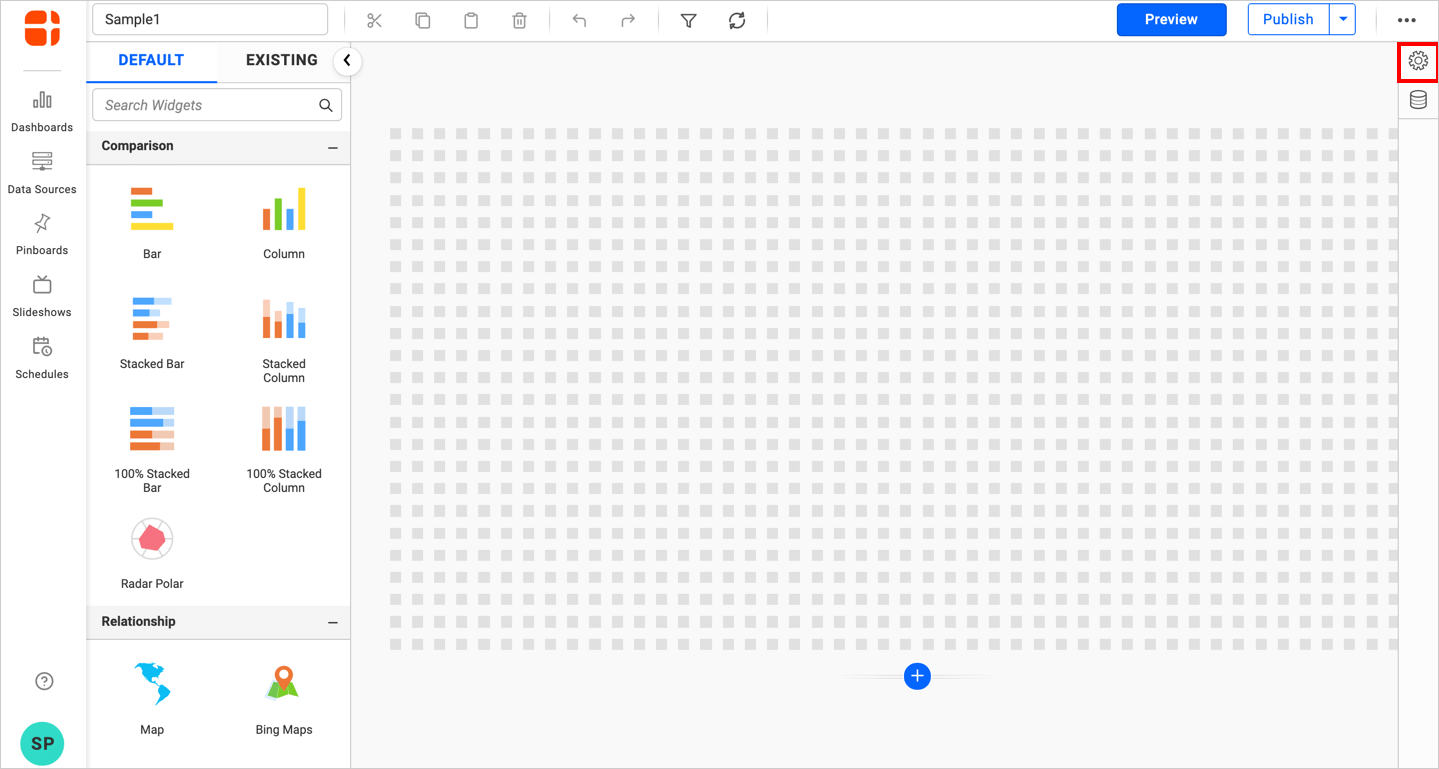
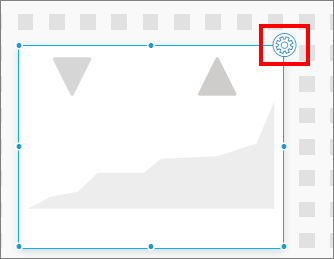
- Click the
propertiesbutton as shown in the image.
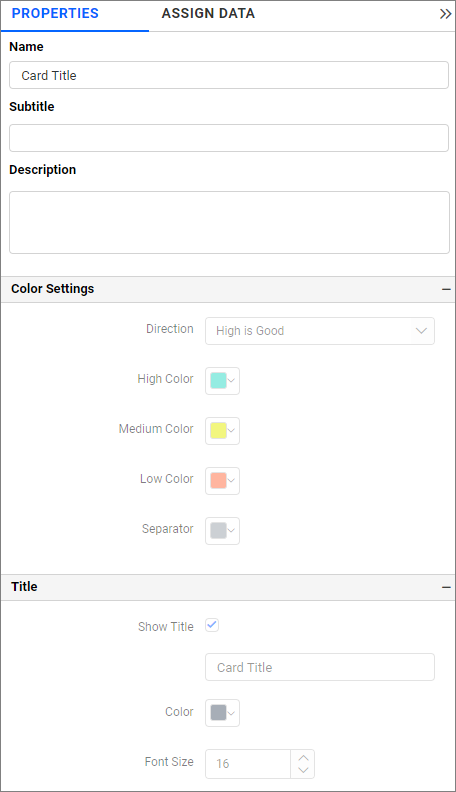
- The
properties panewill now open.
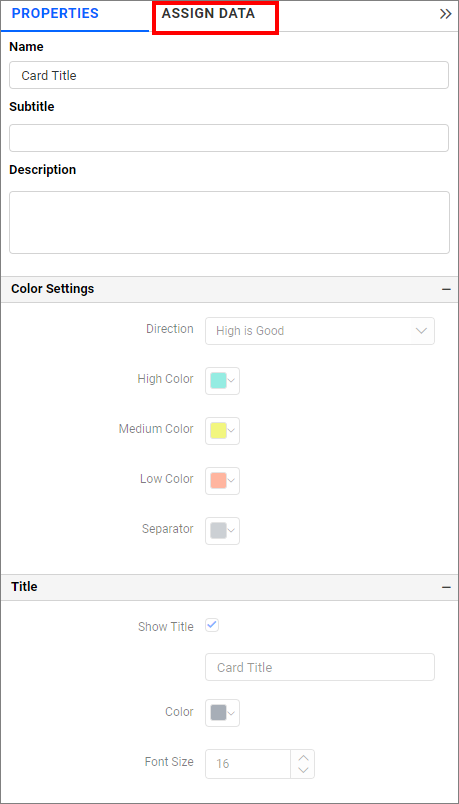
- Click
ASSIGN DATA. The data pane will open with the list of availablemeasuresanddimensionsfrom the added data sources.
Actual value
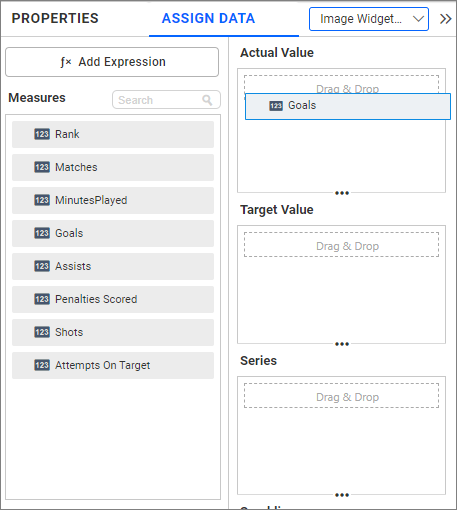
Drag the required field into the Actual Values section.
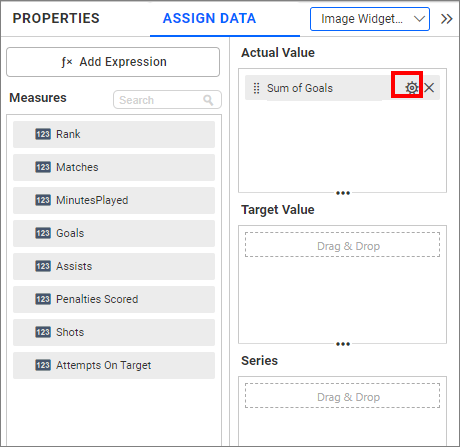
You can adjust aggregation type, filter, and format the data using options in the settings menu. To open the settings menu, click the settings icon.
Now, the menu will be shown.
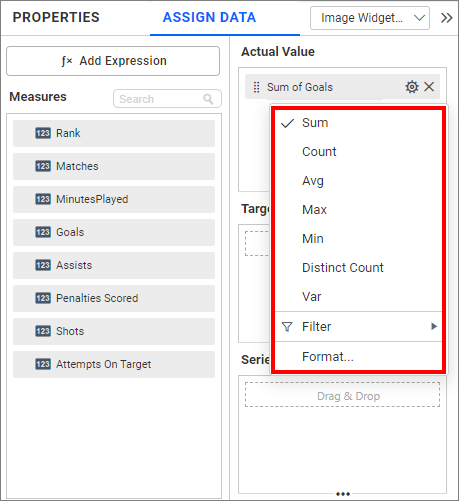
Changing the aggregation type:
You can change the summary type of the dropped measure field by clicking the summary types listed in the menu. Refer to the Aggregating Value Columns for more details on aggregation types.
Measure filtering:
You can use the Filter option to filter the data by specifying the filter condition. Refer to this page for detailed instructions on how to apply the measure filter.
Measure formatting
Select the Format option to define the display format for the values in the column using the Measure Formatting window. To learn more about measure formatting, refer to the measure format.
Target value
Drag the required field into the target value section.
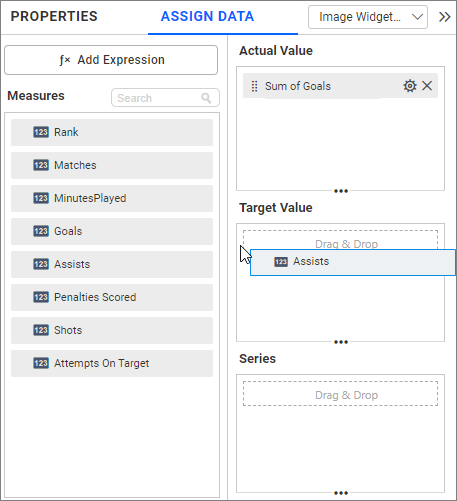
Now the KPI card widget will be rendered.
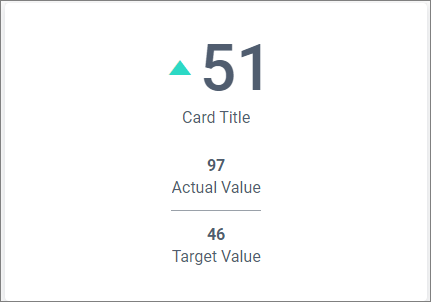
NOTE: The measure formatting option is not provided in the Target Value’s settings menu, and the measure formatting applied for the actual value will also be applied to the target value.
Series value
Drag a dimension field into the series section to render a series of KPI Cards.
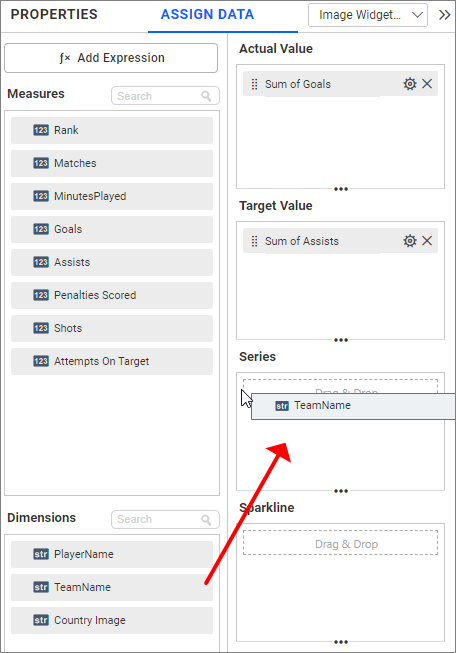
Now, the KPI card will be rendered as shown in the following image.
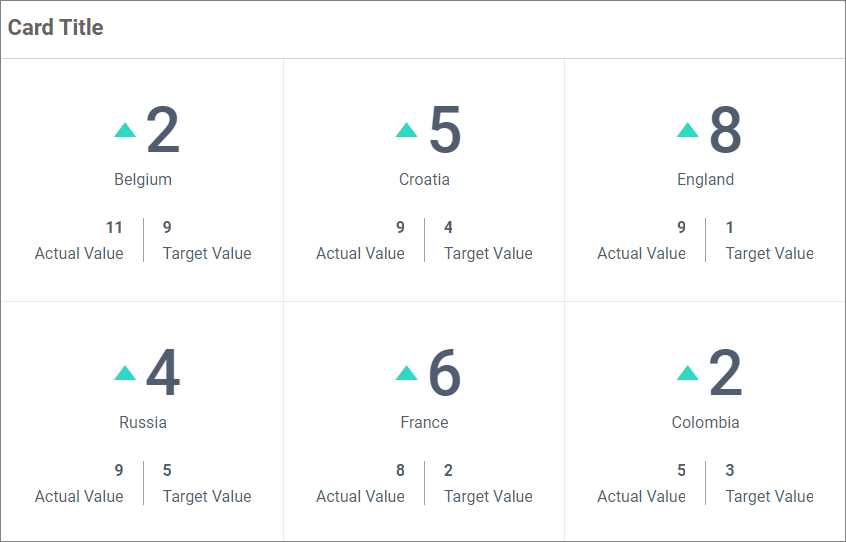
You can filter and sort the records using the settings menu items.
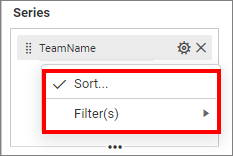
Sorting: You can customize the sorting behavior of dimension fields in the KPI Card widget. You can also order them based on alphabet or value, data source (default), or field. Refer to the Sort for detailed steps.
Refer to this page to learn how to apply measure filter.
Filtering: You can use the Filter option to filter the data by specifying the filter condition.
Refer to this page to learn how to apply measure filter.
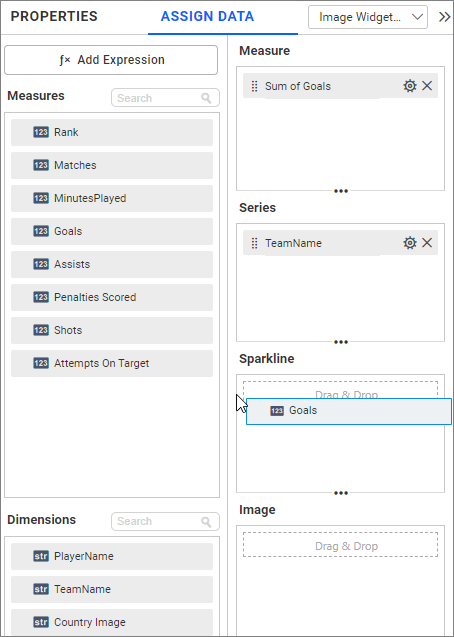
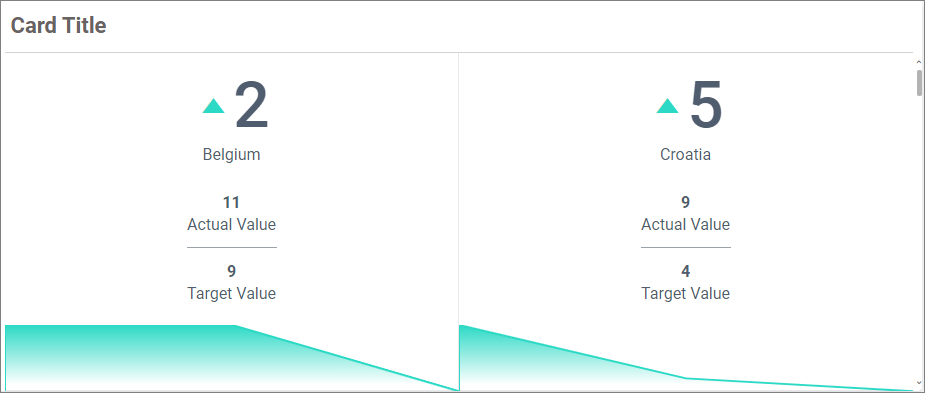
Sparkline
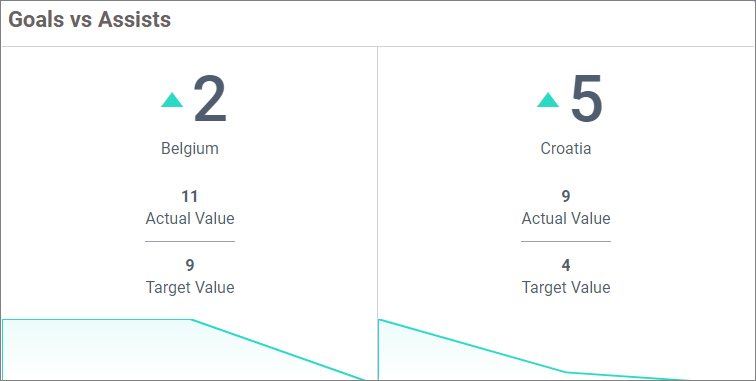
You can use the Sparkline section to showcase the variation of measurement in the KPI Card widget.
Image
The image section allows you to configure the image data for each KPI card or records. The image data may be the direct URL for the records or contain a part of the URL.
Direct URL
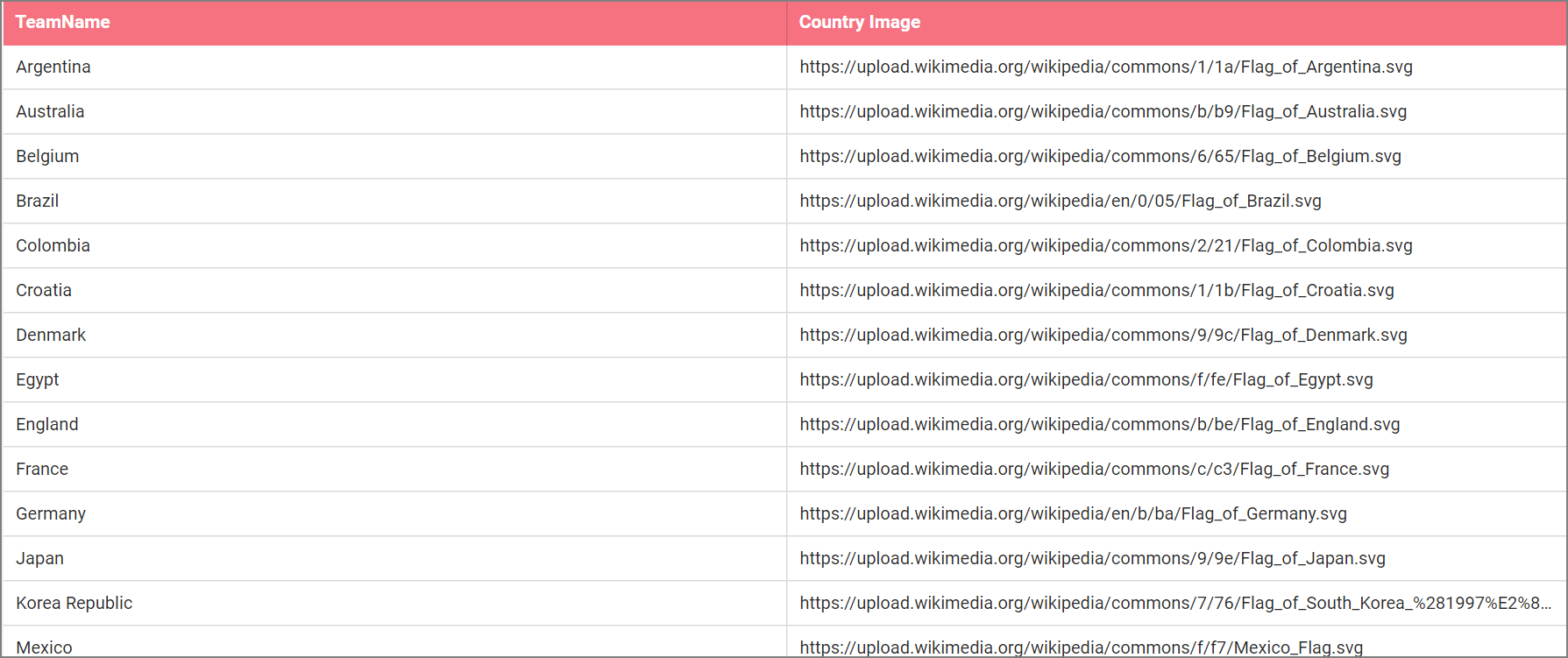
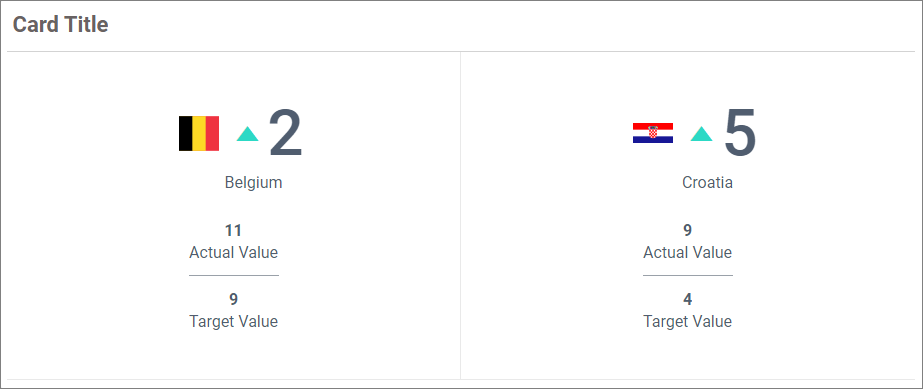
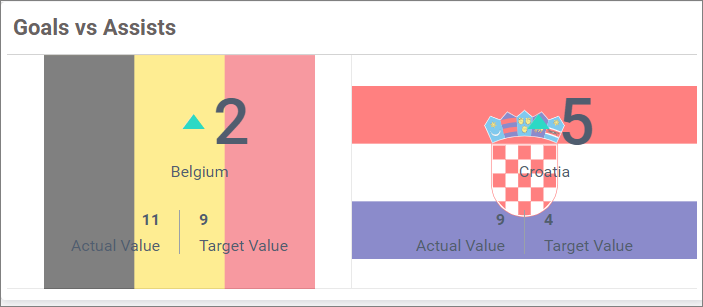
In the following example, each country flag is displayed in the KPI card by configuring the Country Image field. The Country Image column from the data source contains the full URL of the country flag.
Data screenshot
Follow the given steps to display the country image in the KPI card series:
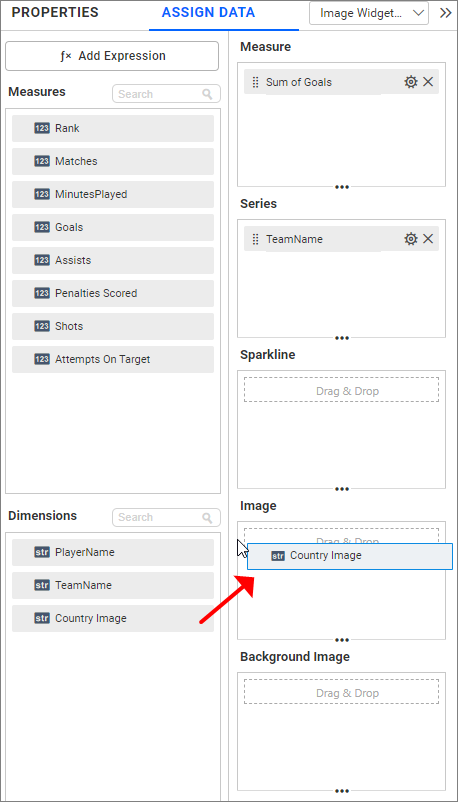
- Configure the
Country Imagefield into theImagesection.
- Ensure that the
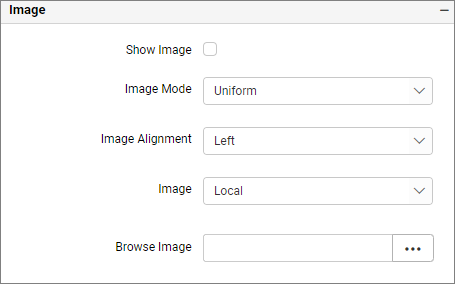
patterntext is properly updated in thePropertiespane image section.
- Now, the widget will render with image data.
Partial image data
If your data source contains partial data of the URL, you need to enter the URL text with the proper patterns.
For example, consider the following data source:
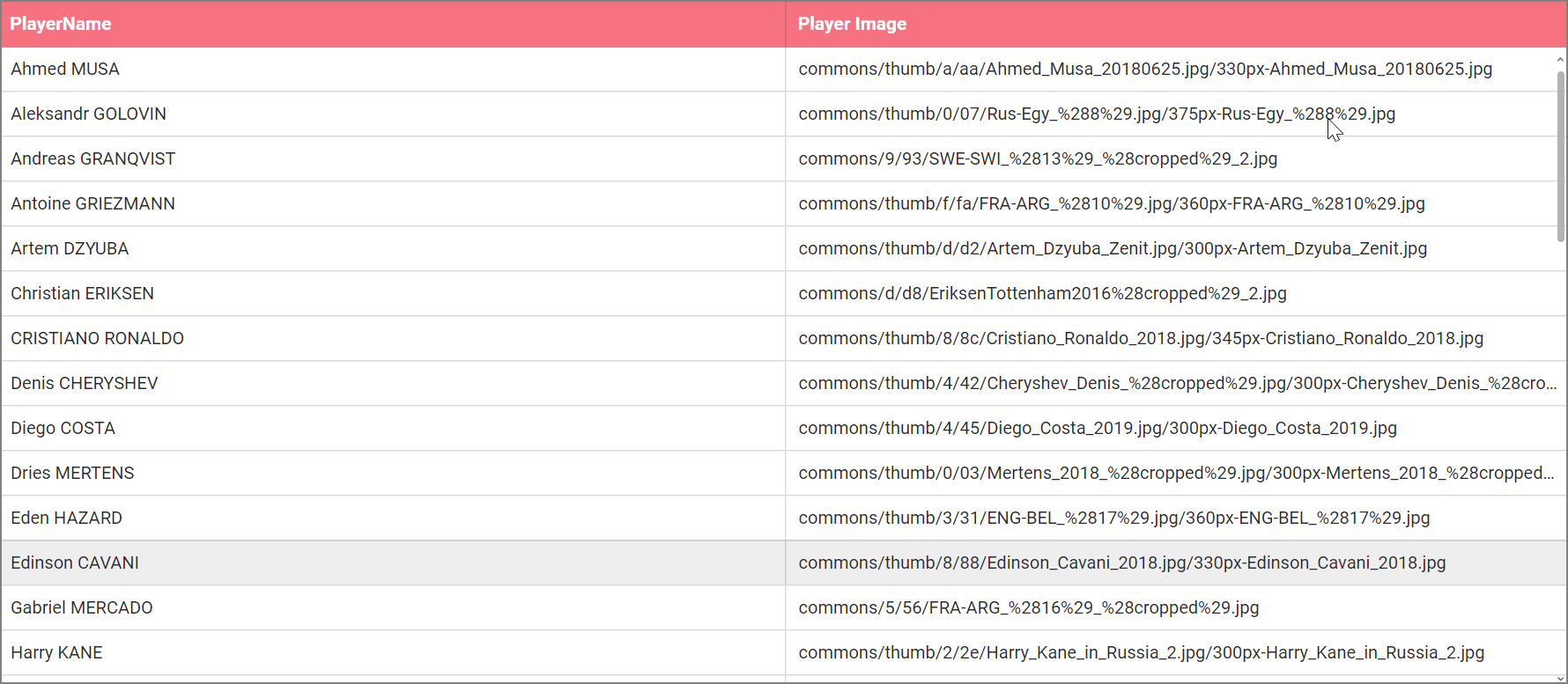
It contains the Players name and part of their image URL in the above columns.
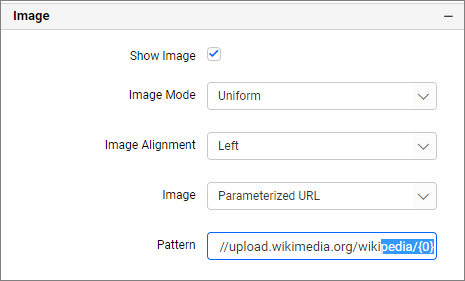
The full image URL for Cristiano Ronaldo is https://upload.wikimedia.org/wikipedia/commons/thumb/8/8c/Cristiano_Ronaldo_2018.jpg/345px-Cristiano_Ronaldo_2018.jpg and the Player Image Column contains the information is commons/thumb/8/8c/Cristiano_Ronaldo_2018.jpg/345px-Cristiano_Ronaldo_2018.jpg. So you need to enter the URL as https://upload.wikimedia.org/wikipedia/{0} Where the {0} indicates the first field in the Image
IMPORTANT: 1) You can add any number of fields in the image section and need to append {0}, {1} for the first, second fields configured in the image section. IMPORTANT: 2) If more than one data is available for the record, the first record with the highest measure will be used to display in the KPI Card widget.
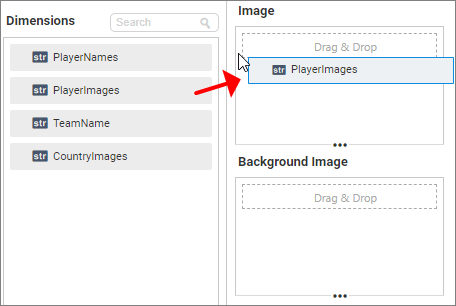
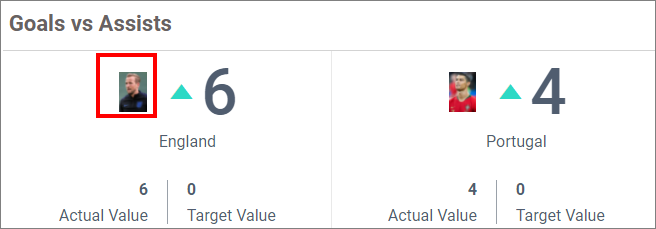
For example, if you try to show the goals of each team and configure the player image in the image section, it will show the top scorer image of each team as shown in the following screenshot.
Configure Image section:
Ensure pattern
Series view
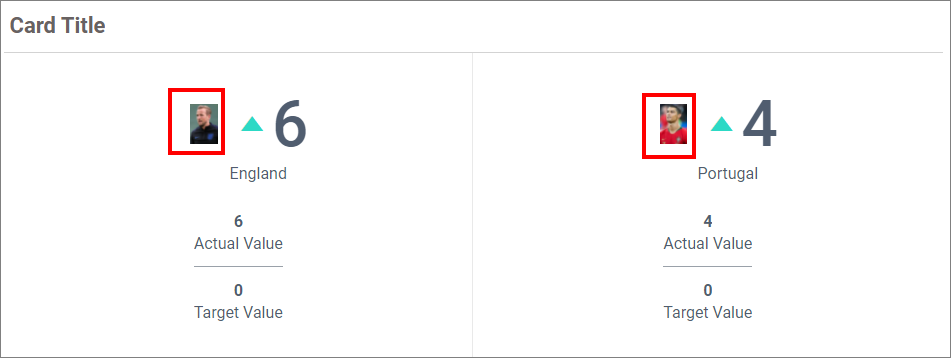
NOTE: The image will be hidden automatically if the width of the KPI card is low. An information icon will display the image as highlighted in the following image.
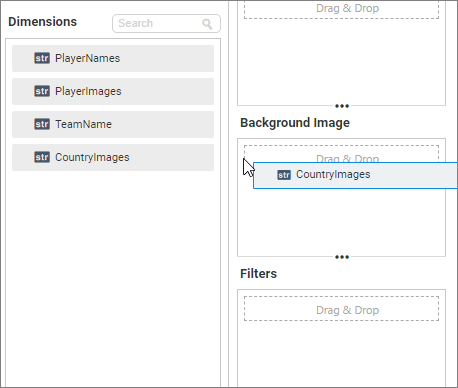
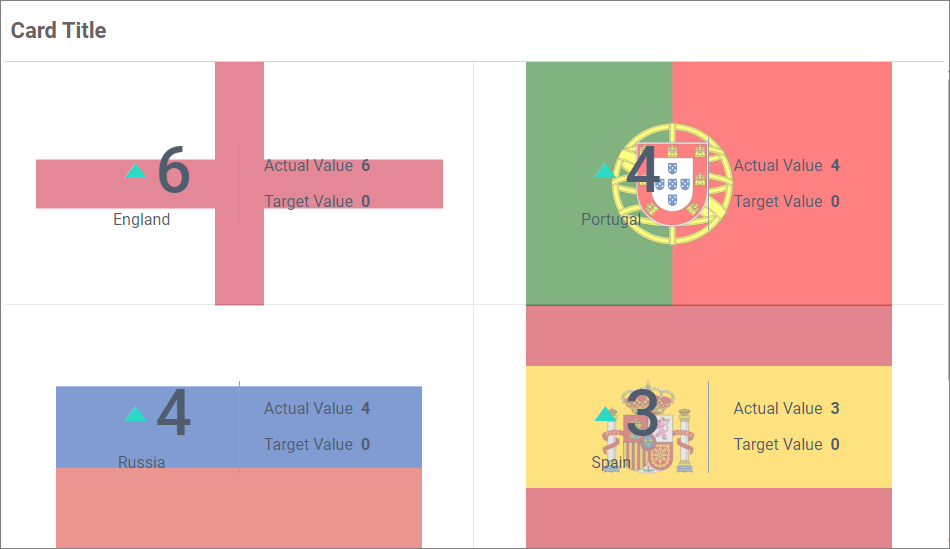
Background image
Like the image option, you can configure the background image of the KPI Card.
How to format KPI card
You can format the KPI Card for better illustration of the view through the settings available in the Properties tab.
To format the KPI card, follow the given steps:
-
Drag the KPI card into the canvas and resize it to your required size.
-
Configure data into the KPI card.
-
Focus the KPI card and click the settings icon.
- Now, the Properties pane opens.
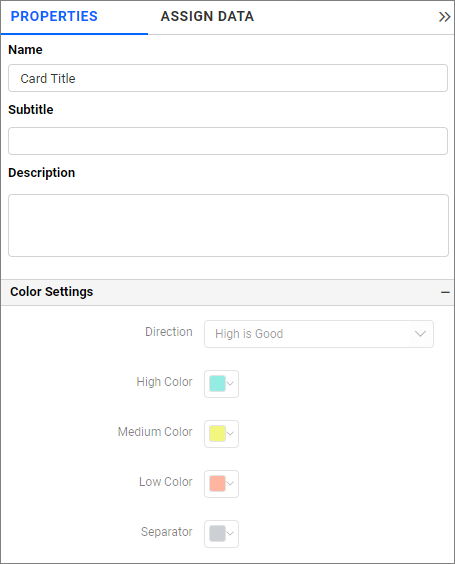
General properties
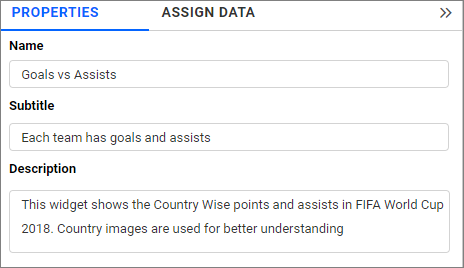
Name
This option allows you to change the title for the KPI card.
Subtitle
This option allows you to provide the subtitle for the KPI card.
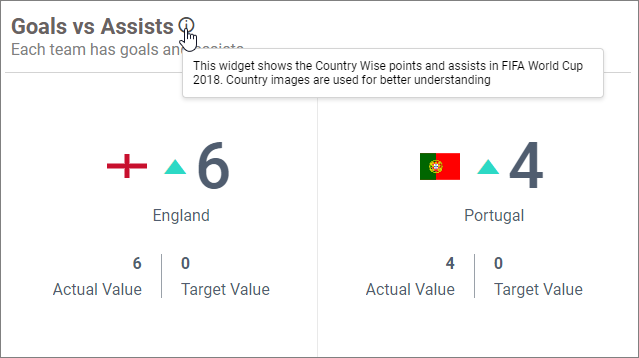
NOTE: Subtitle will be shown only when the series section is configured.
Description
This option allows you to provide the description about the KPI Card.
Header properties
KPI card with the customized title, subtitle and description
Basic Settings
Tooltip Settings
The Tooltip Settings section allows you to customize the appearance and behavior of tooltips in widget visualizations.
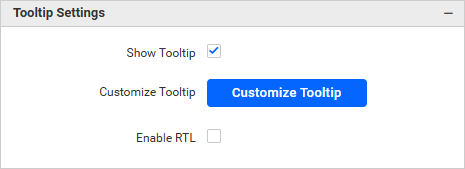
Show Tooltip
This option allows you to toggle the visibility of the tooltip in a card.
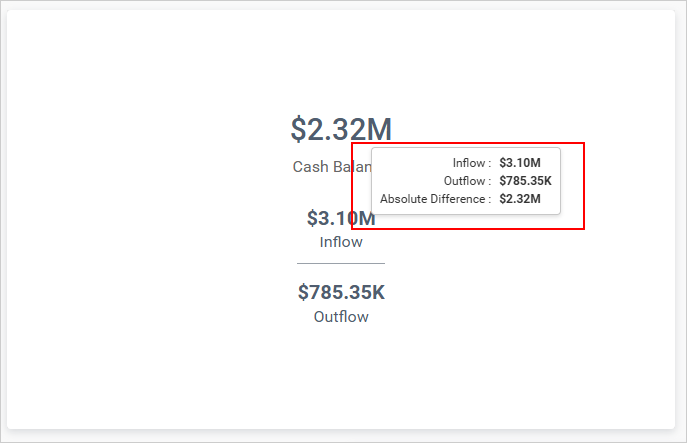
Customize Tooltip
This option allows you to customize the columns that are visible in the card tooltip.
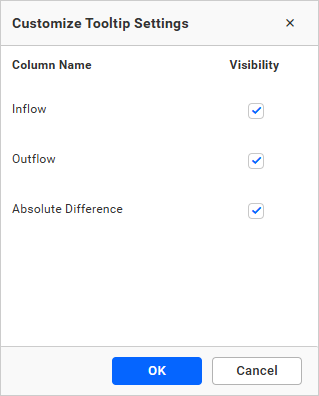
Enable RTL
This option allows you to display fields and their data from right to left.
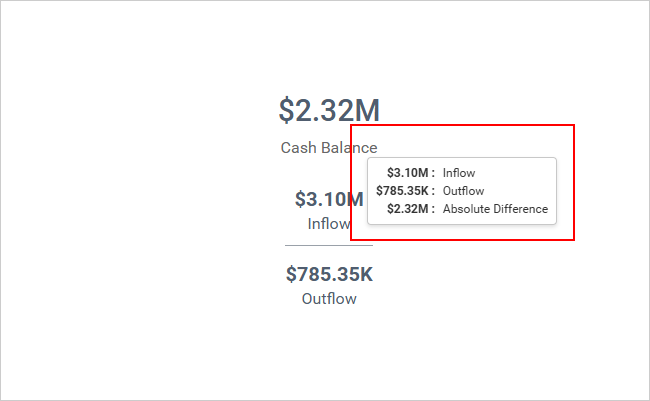
Color properties
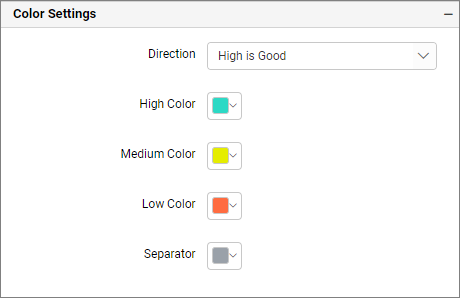
Direction
You can set the value label status to High is Good or Low is Good. The default setting is High is Good. This option is enabled only when you configured the actual value and target value.
Direction colors
You can customize the color values for the high, medium, and low colors using the provided color pickers.
Separator color
Allows you to change the separator color.
How to apply conditional formatting in KPI card
By enabling the advanced settings in formatting, you can customize the color, styles, and highlight the data based on the conditional range values.
How to enable advanced formatting
In the properties pane, check the Advanced Setting check box located under the formatting section.
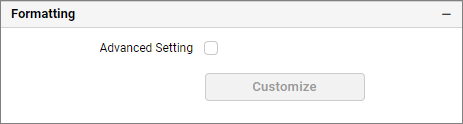
This will open the Conditional Formatting dialog box.
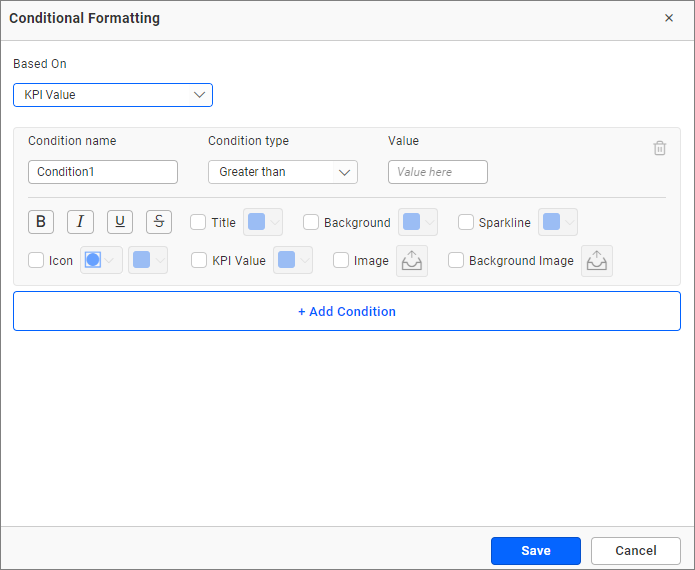
Properties
You can customize more than one property using the rule-based conditional formatting:
- Title
- Background
- Sparkline (Applicable only when sparkline is configured)
- Icon
- Icon color
- KPI Value
- Image
- Background image
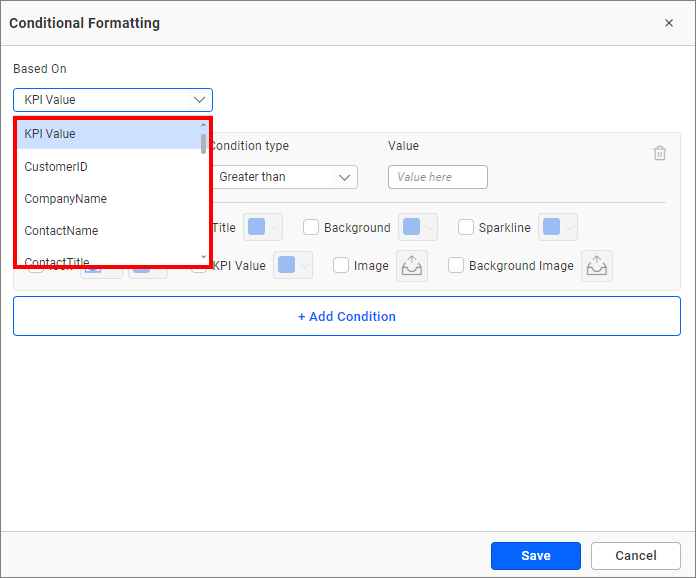
Based on field
You can choose the field from the Based On section to apply the conditions from the highlighted drop-down.
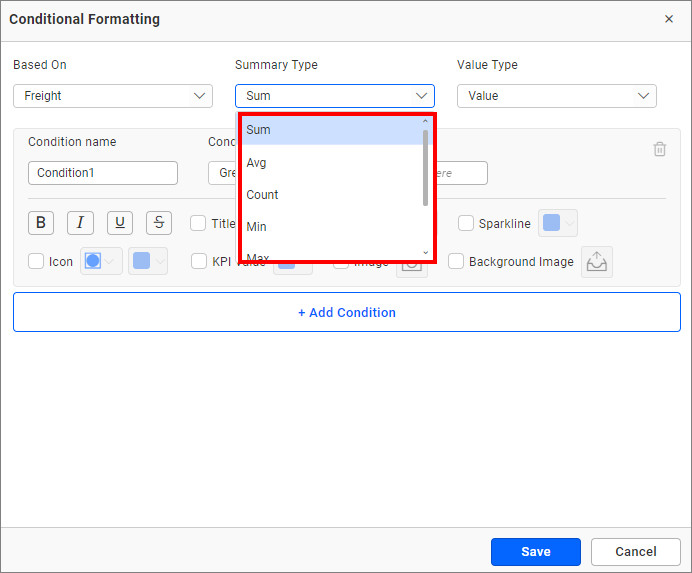
Summary type
You can select the summary type for the selected measure field.
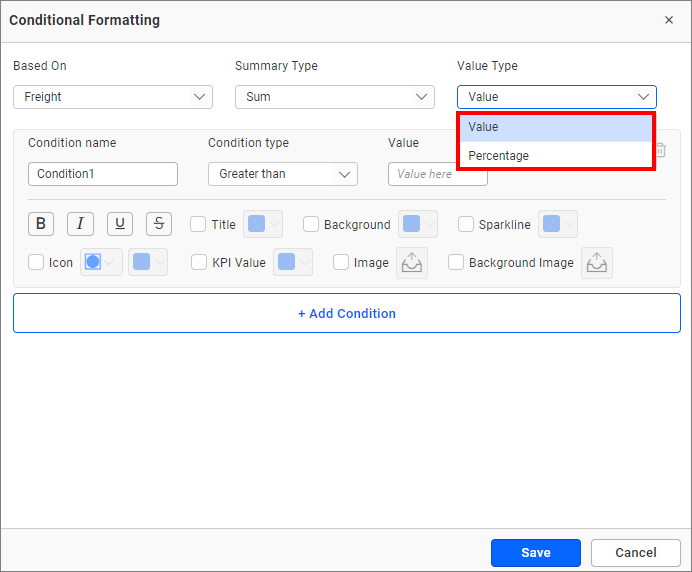
Value type
The value type drop-down allows you to choose whether you are going to apply the direct value (specific number like 3 goals, order ID 10248) or percentage (values above 30% or 50%).
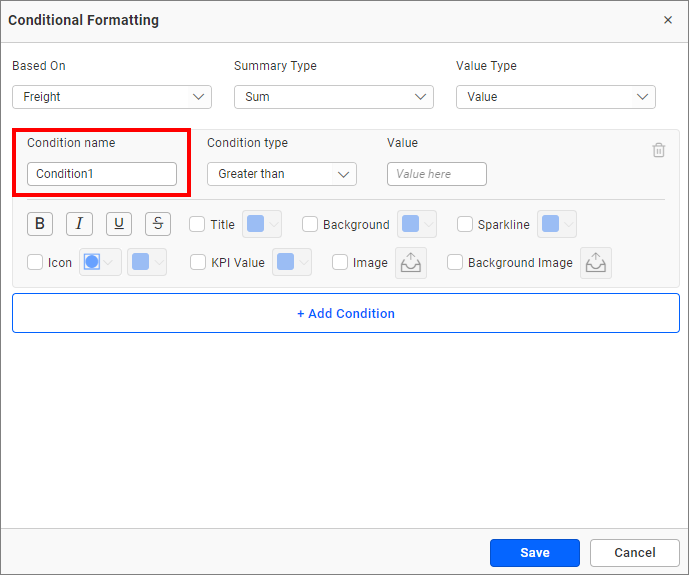
Condition name
You can give a meaningful name to the applied conditions using the highlighted text box.
Condition type
Choose the condition for the measure field from the highlighted conditions.
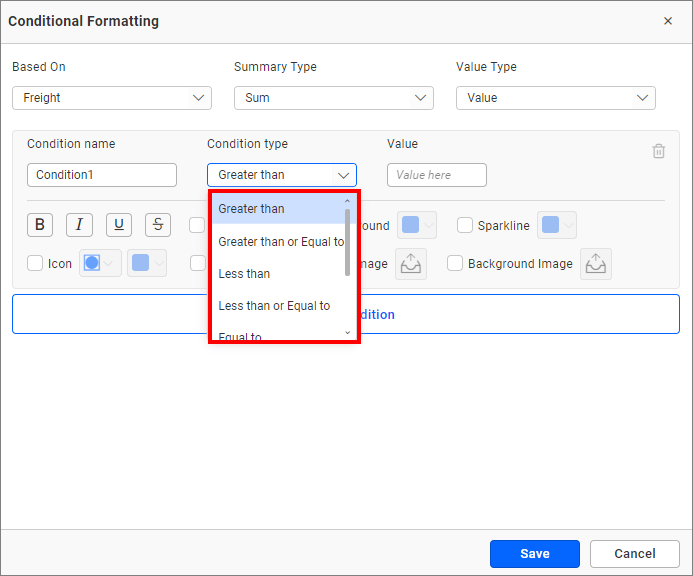
If you have selected the dimension as a based-on field and want to use text condition, the following text-based conditions are available.
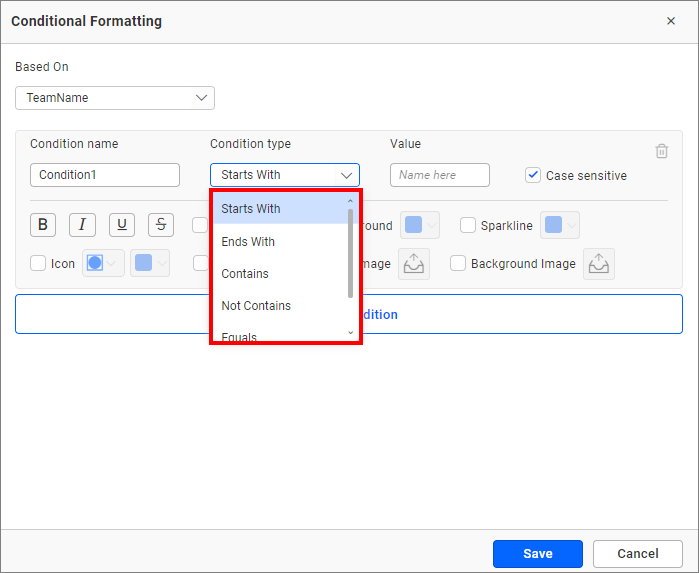
NOTE: The text-based condition type will be enabled only when the dimension configured in the series field is used as the based-on field.
Value
Enter the condition value.
Font style
Allows you to choose the title font style (Bold, Italic, Underline, and Superscript).
Case-sensitivity
For dimensions, a case-sensitive option is provided to choose whether the entered value is case-sensitive or not.
Select the checkbox provided near the options to customize the properties, and click Font Style icons for applying them.
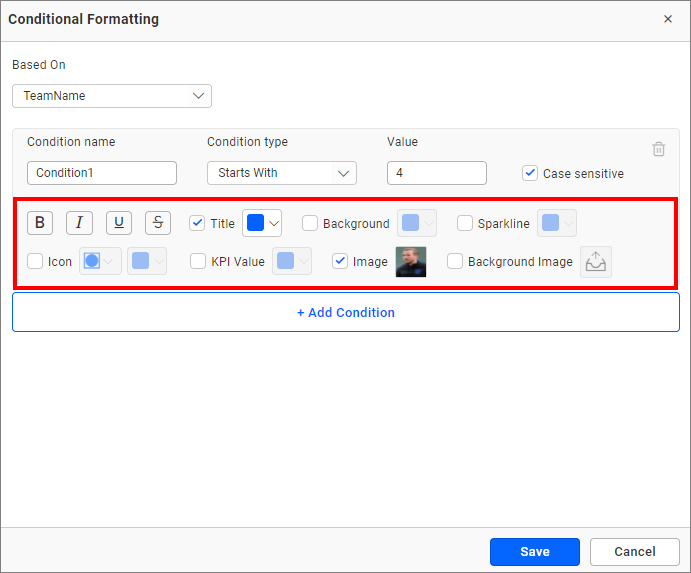
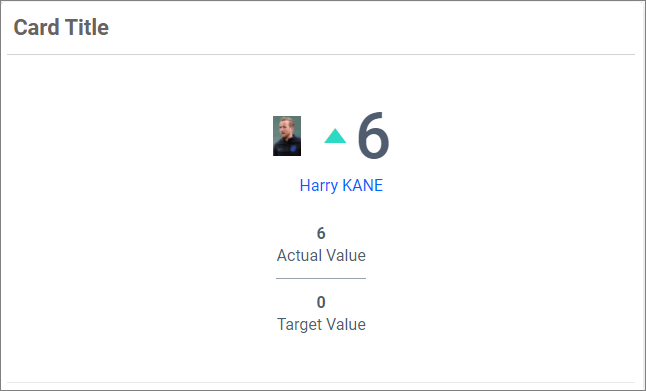
Figure: The KPI card series view with the applied conditional formatting.
Title properties
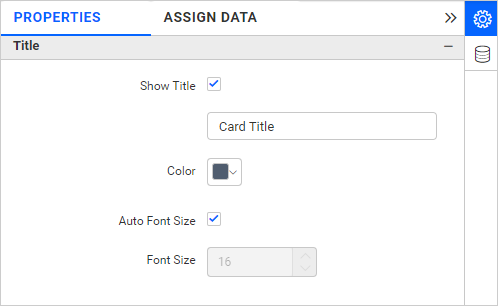
Show title
Allows you to choose whether the title needs to be shown or not in the KPI Card.
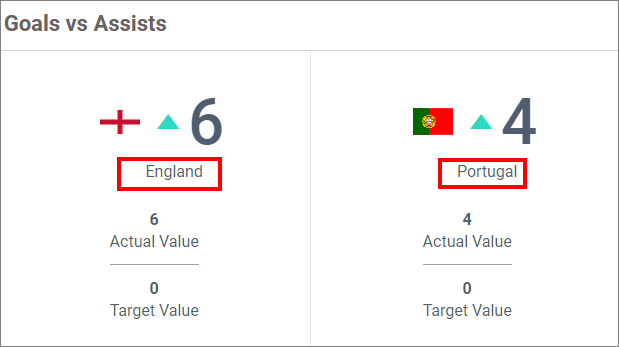
Show title for series card
The following screenshot shows the title for single card.
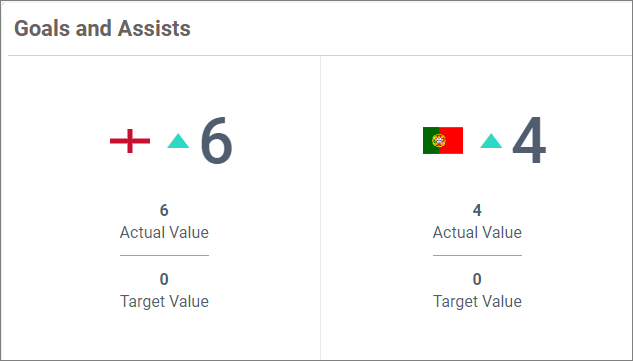
Hide title
It allows you to hide the title by unchecking the show title property.
Show title for single card
You can enter the value for the KPI card title.
Color
Allows you to choose the KPI Card title value color.
Auto Font Size
On enabling this property, the font size of the KPI card title varies based on the screen resolution.
Use Case:
If we have created a dashboard with KPI card which can be viewed by different clients of different screen resolution and we wants the title to be adjusted with respect to their resolution then we can use this option.
Auto font size at 3840 x 2160
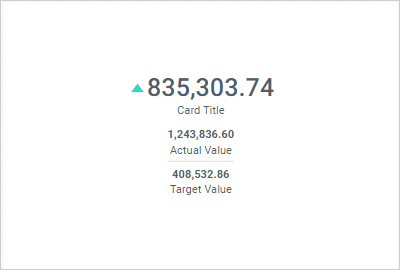
Auto font size at 1366 x 768
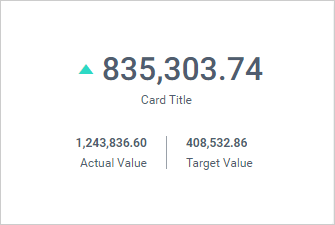
Auto font size at 1920 x 1080
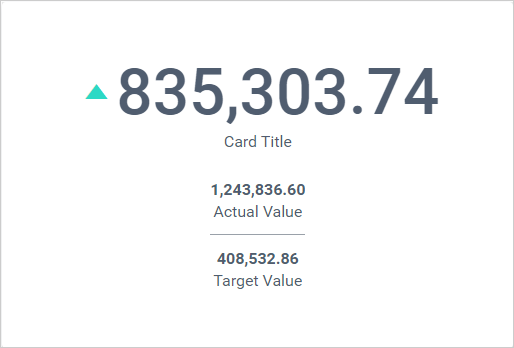
Font size
You can customize the font size of the KPI card title by unchecking Auto Font Size.
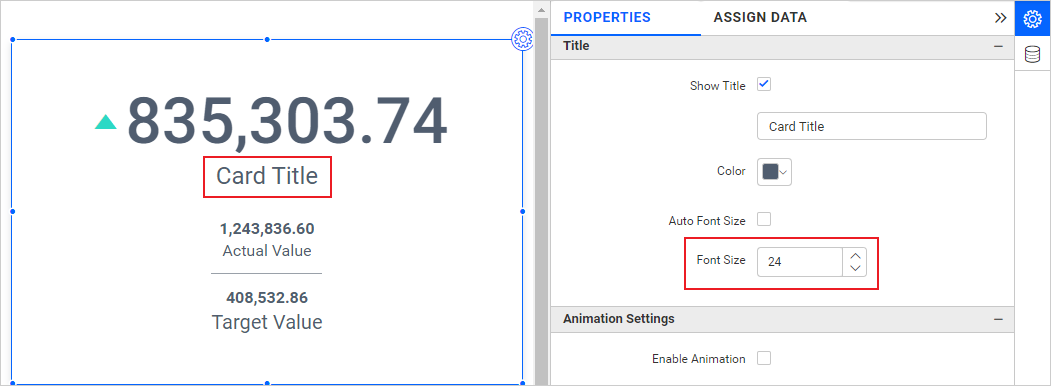
Figure: KPI card with customized title color and font size.
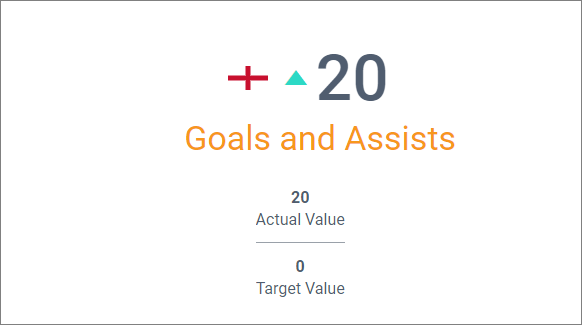
Series settings
The Series settings option enabled only when you configure the series in Assigned Data tab.
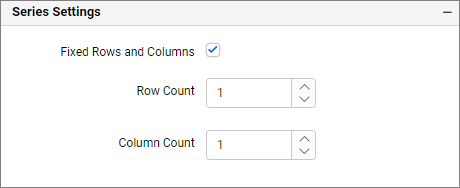
Fixed rows and columns
If you enable the Fixed rows and columns, you can customize the rows and columns based on the container size and the card size of the KPI card.
Row count
By enabling Row Count, you can set the count of the rows.
Column count
By enabling the Column Count, you can set the column count.
Note: If invalid columns and rows are given, the rows and columns reset to their default value. For example: If you give the number of rows as 6 and number of columns as 5 but your data count is only 20, the rows and columns will reset to their default value.
Animation settings
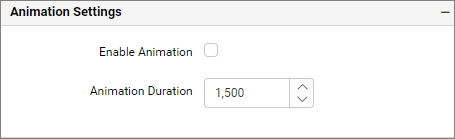
Enable animation
It animates the measure values when you enable the Enable Animation.
Animation duration
The animation duration property specifies how long the animation cycle should last. The time can be specified in seconds or milliseconds.
KPI value properties
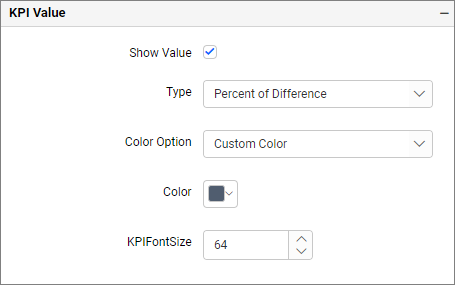
Show value
This option allows you to toggle the visibility of the KPI value in the KPI card.
Type
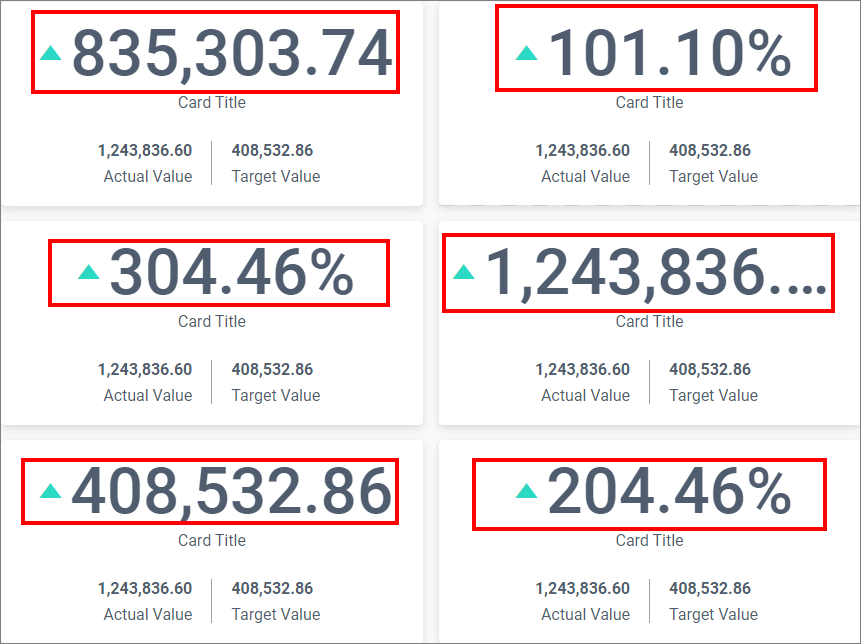
The type drop-down menu allows you to select the value that should be displayed as the KPI value. The available options are:
- Absolute difference.
- Percent of difference.
- Percent of target.
- Actual value.
- Target value.
- Percent of change.
Figure: KPI card with different KPI types.
Color option
This feature allows you to customize the color of the KPI value.
Auto Font Size
On enabling this property, the font size of the KPI card title varies based on the screen resolution.
Use Case:
If we have created a dashboard with KPI card which can be viewed by different clients of different screen resolution and we wants the title to be adjusted with respect to their resolution then we can use this option.
Auto font size at 3840 x 2160
Auto font size at 1366 x 768
Auto font size at 1920 x 1080
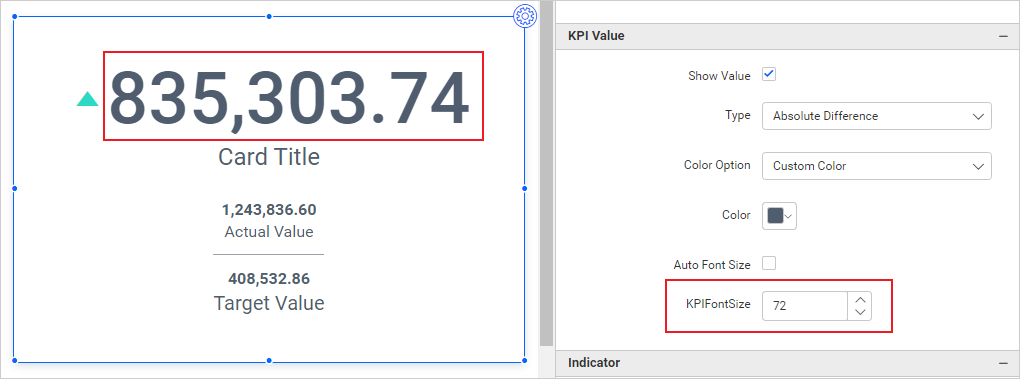
Font Size
Provides the option to change the KPI value font size by unchecking Auto Font Size.
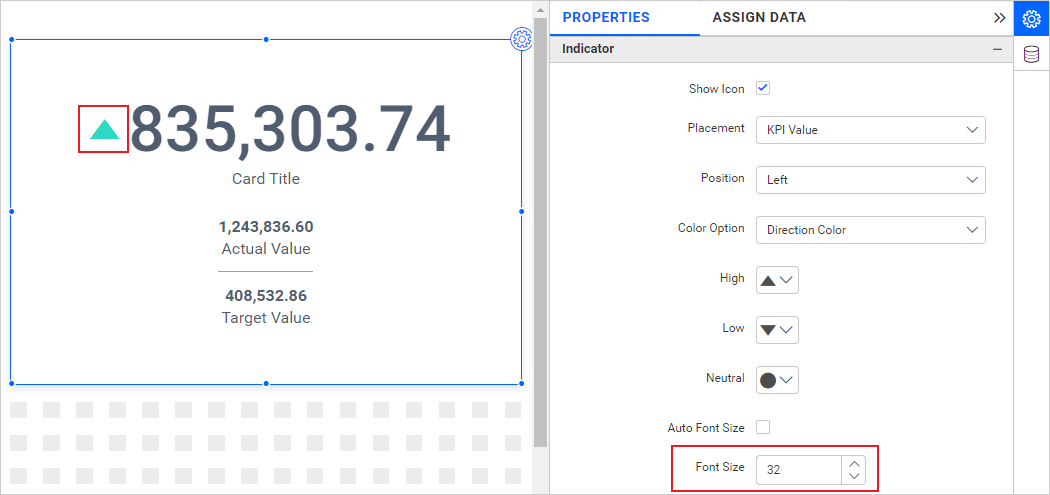
Indicator properties
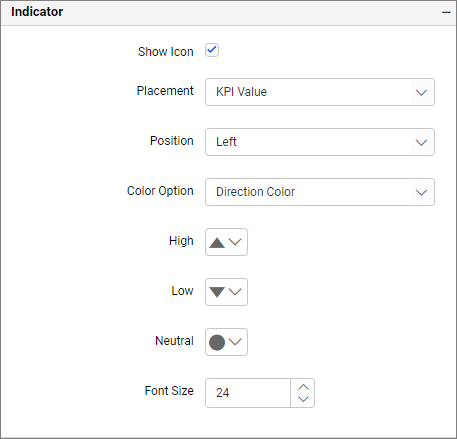
Show icon
This feature allows you to toggle the visibility of icons for the KPI values.
Color option
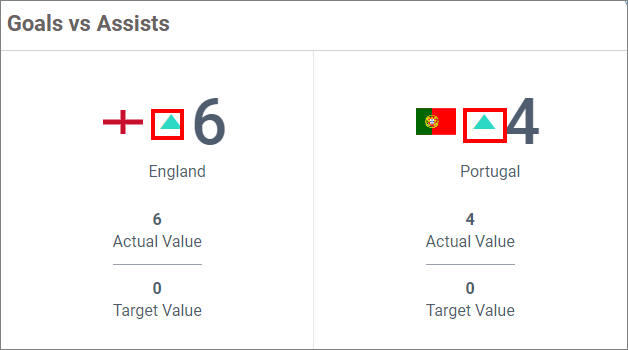
Provides the option to customize the icon colors.
Direction color: The colors from the direction settings will be applied.
Custom color: You can customize the color values for the High, Medium, and low colors using the provided color pickers.
Indicators
You can customize the indicator for the high, low, and neutral values from the set of different indicators.
Figure: Selecting the shape for the indicators.
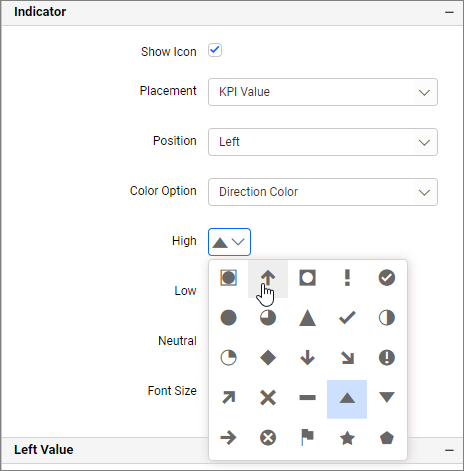
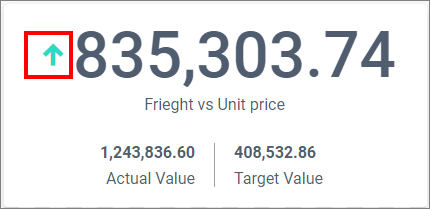
Figure: After customizing the indicator
Auto Font Size
On enabling this property, the font size of the KPI card title varies based on the screen resolution.
Use Case:
If we have created a dashboard with KPI card which can be viewed by different clients of different screen resolution and we wants the title to be adjusted with respect to their resolution then we can use this option.
Auto font size at 3840 x 2160
Auto font size at 1366 x 768
Auto font size at 1920 x 1080
Font size
Provides the option to change the font size of the indicators by unchecking Auto Font Size.
Left value properties
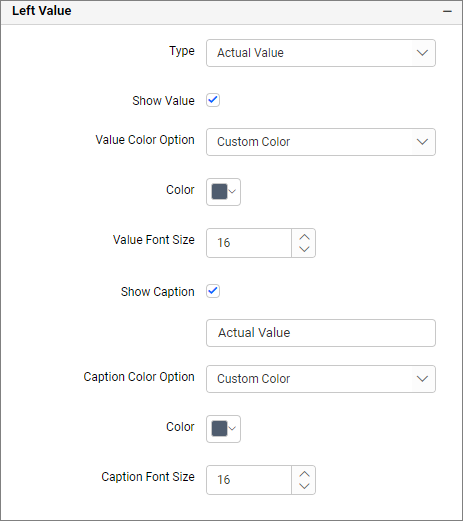
Type
The type drop-down allows you to choose the value, which needs to be shown as the left side value. The available options are:
- Absolute difference.
- Percent of difference.
- Percent of target.
- Actual value.
- Target value.
- Percent of change.
Show value
Allows the options to toggle the visibility of the left value.
Value color option
Provides the option to customize the left value colors.
Direction color
The colors from the direction settings will be applied.
Custom color
You can customize the left value color using the provided color pickers.
Auto Font Size
On enabling this property, the font size of the KPI card title varies based on the screen resolution.
Use Case:
If we have created a dashboard with a KPI card that can be viewed by different clients with different screen resolutions and we want the title to adjust with respect to their resolution, then we can use this option.
Auto font size at 3840 x 2160
Auto font size at 1366 x 768
Auto font size at 1920 x 1080
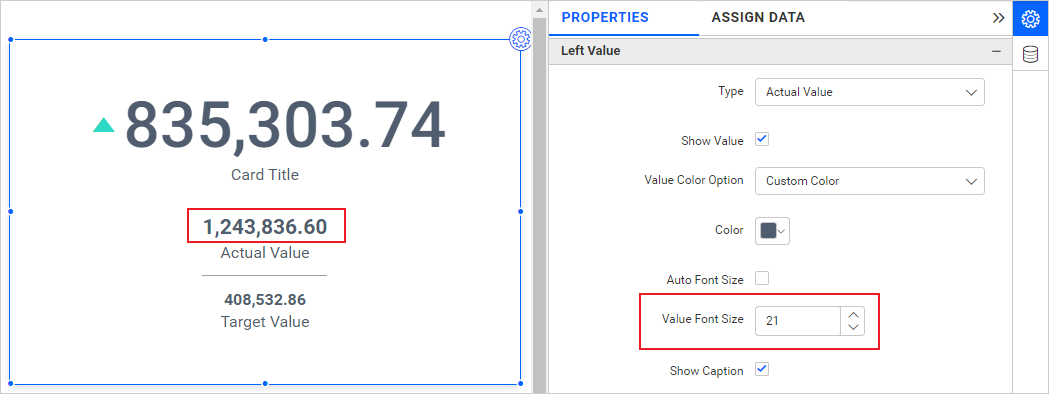
Font size
The option to change the left value font size by unchecking Auto Font Size.
Show caption
Allows you to choose whether to show the caption for the left value or not.
Value
Provides the option to modify the caption for the left value.
Caption color option
Provides the option to customize the left value caption colors.
Caption color
From the provided color pickers, you can customize the right value caption color.
Auto Font Size
On enabling this property, the font size of the KPI card title varies based on the screen resolution.
Use Case:
If we have created a dashboard with KPI card which can be viewed by different clients of different screen resolution and we wants the title to be adjusted with respect to their resolution then we can use this option.
Auto font size at 3840 x 2160
Auto font size at 1366 x 768
Auto font size at 1920 x 1080
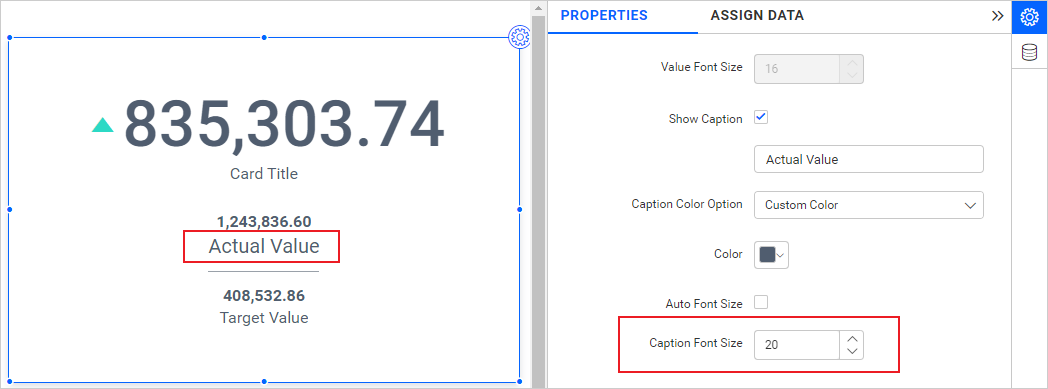
Caption font size
The option to change the left value caption font size by unchecking Auto Font Size.
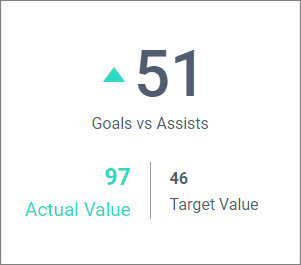
After customizing the Left Value in KPI card
Right value properties
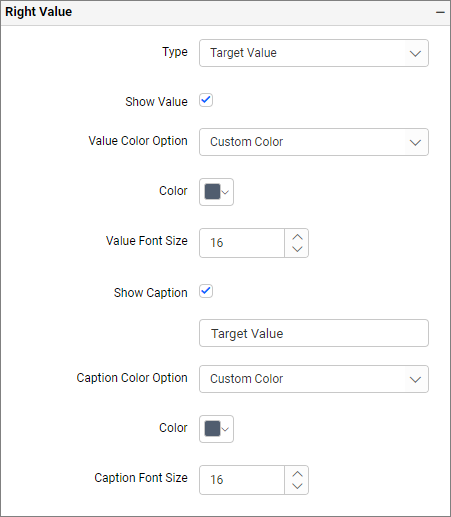
Type
The type drop-down allows you to choose the value that needs to be shown as the right-side value. The available options are:
- Absolute difference.
- Percent of difference.
- Percent of target.
- Actual value.
- Target value.
- Percent of change.
Show Value
Allows the options to toggle the visibility of the right value.
Value color option
Provides the option to customize the right value colors.
Direction color
The colors from the direction settings will be applied.
Custom color
You can customize the right value caption color using the provided color pickers.
Auto Font Size
On enabling this property, the font size of the KPI card title varies based on the screen resolution.
Use Case:
If we have created a dashboard with KPI card which can be viewed by different clients of different screen resolution and we wants the title to be adjusted with respect to their resolution then we can use this option.
Auto font size at 3840 x 2160
Auto font size at 1366 x 768
Auto font size at 1920 x 1080
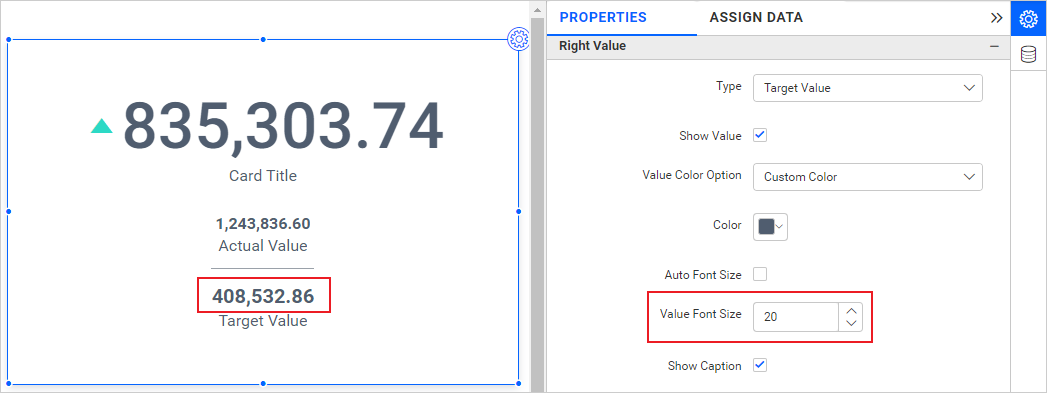
Font size
The option to change the right value font size by unchecking Auto Font Size.
Show caption
Allows you to choose whether to show the caption for the right value or not.
Value
Provides the option to modify the caption for the right value.
Caption color option
Provides the option to customize the right value caption colors.
Caption color
You can customize the right value caption color using the provided color pickers.
Auto Font Size
On enabling this property, the font size of the KPI card title varies based on the screen resolution.
Use Case:
If a dashboard with a KPI card is viewed by clients with different screen resolutions and the title needs to adjust accordingly, this option can be used.
Auto font size at 3840 x 2160
Auto font size at 1366 x 768
Auto font size at 1920 x 1080
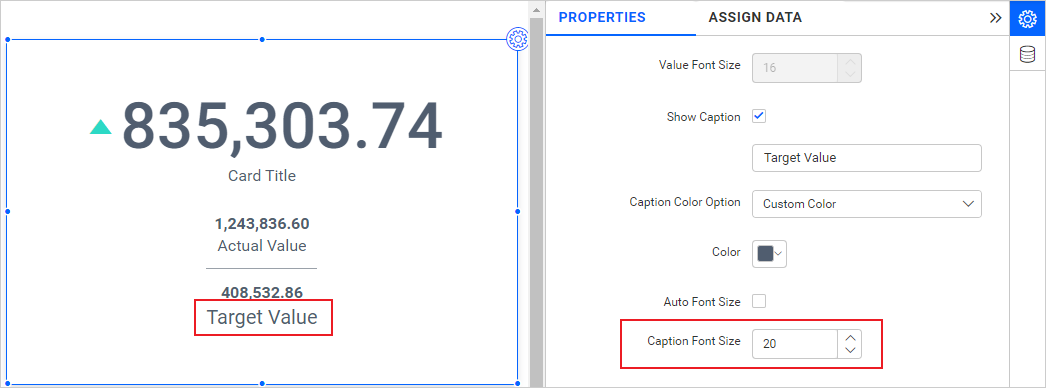
Caption font size
The option to change the right value caption font size by unchecking Auto Font Size.
After customizing the Right Value in KPI card
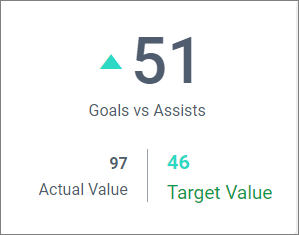
Image properties
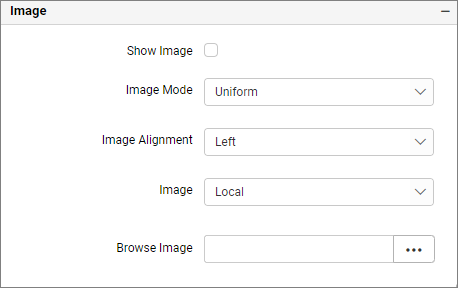
Show image
Provides the option to change the visibility of the image within the KPI Card widget.
Image mode
Allows you to choose the image mode.
Default - Displays the image in its original size.
Fill - Fills the image in the available space.
Uniform to fill - Fills the image uniformly in the space. But, the image gets clipped, if it is larger than control.
Uniform - Sets the image size proportionally (without clipping) to fit to the widget area.
Image
Provides three different options to select the image source:
-
Browse Image: Selects the image from the
localdisk. -
Direct URL: Enter the
URLof the image source. -
Pattern: Enter the URL consists of
pattern text {0}denoting the fields configured in the image data section.
After customizing the Image in KPI card
Background properties
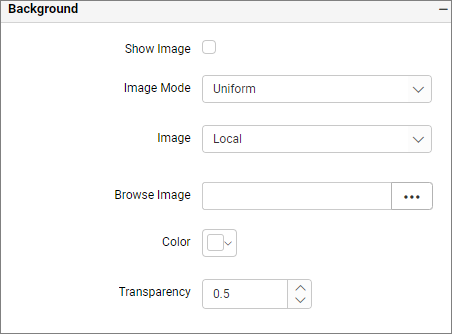
Show image
Provides the option to change the visibility of the background image within the KPI Card widget.
Image mode
Allows you to choose the image mode from the options Default, Fill, Uniform to fill, and Uniform.
Image
Provides the following three different options to select the image source.
-
Browse Image: Selects the image from the
localdisk. -
Direct URL: Enter the
URLof the image source. -
Pattern: Enter the URL which consists of
pattern text {0}denoting the fields configured in the image data section.
Color
Allows you to choose the background color for the KPI Card widget.
NOTE: If both the background image and background color are enabled in the widget, then based on the transparency of the background image and the selected image mode, either the background image alone will appear in the widget or both the background color and image will appear in the KPI Card.
Transparency
You can change the transparency of the color.
After customizing the Image in KPI card
Sparkline properties
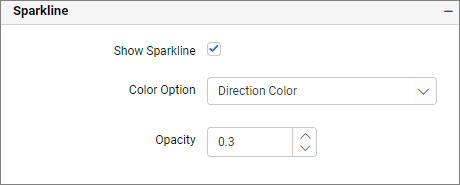
Show sparkline
Provides the option to choose whether to show the sparkline in the KPI Card or not.
Color option
Allows you to customize the sparkline color in the KPI Card.
Opacity
You can change the opacity of the sparkline color.
Link properties
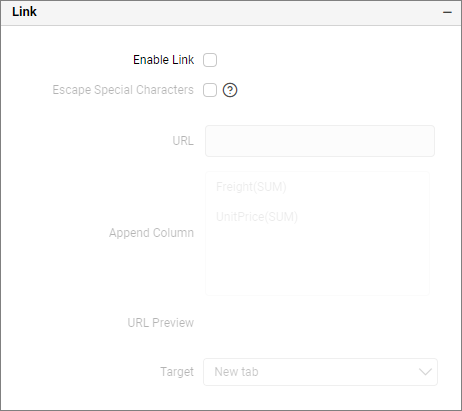
You can enable linking and configure to navigate to a general URL with or without parameters. For more details, refer to linking URLs.
Filter properties
The KPI Card widget can be set to act as a master widget by checking the Act as Master Widget checkbox. Enabling the Ignore Filter Actions checkbox allows the KPI card widget not to be filtered by any other master widgets during the interaction time in both preview and published modes.
NOTE: The Act as Master Widget checkbox will be enabled only when the Series section is configured.
Show Filter
This feature allows you to toggle the visibility of the Filter icon for the KPI card widget when the Act as Master Widget option is enabled.
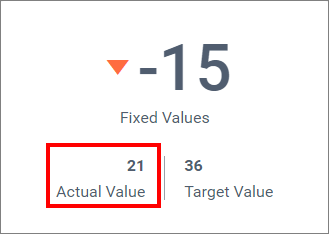
KPI Card with fixed target value and actual value
You can create fixed target value and actual value in KPI Card using expressions.
The following steps illustrates how to add the fixed value:
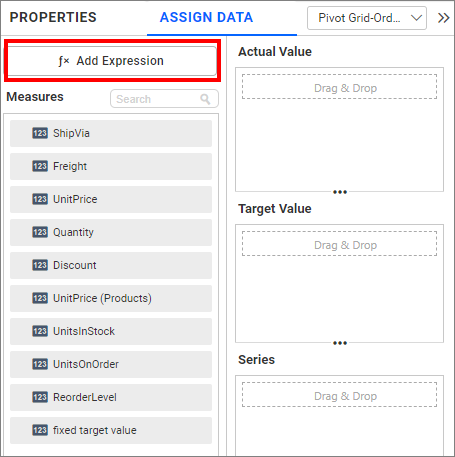
- Click the
fx expressionin the Assign Data.
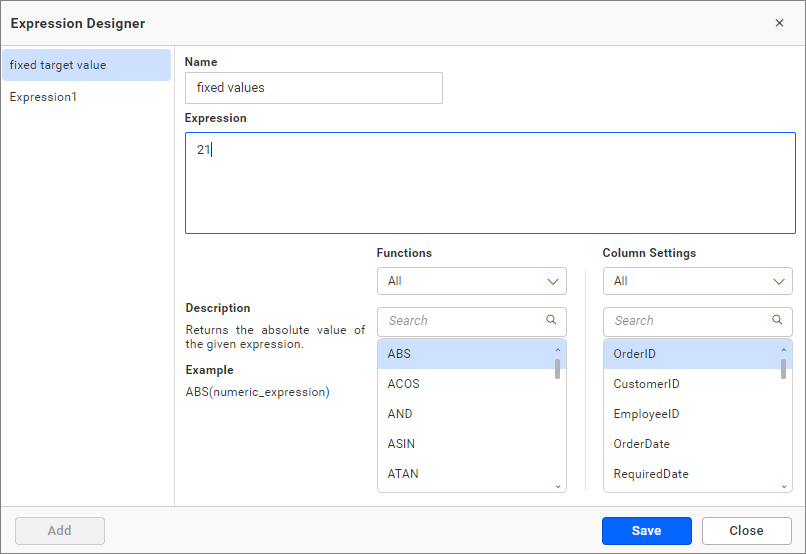
- Add the name and expression, then click
Save.
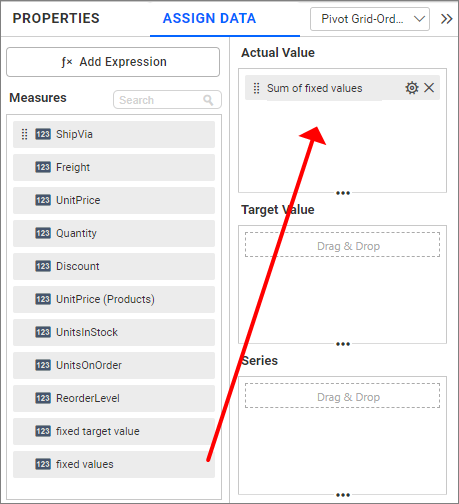
- You can view the added value in the measure section in assigned data tab. Drag the added measures in the
Value(s)section.
- Change the aggregation type to Min or Max.
Fixed Value for Number card
Container appearance
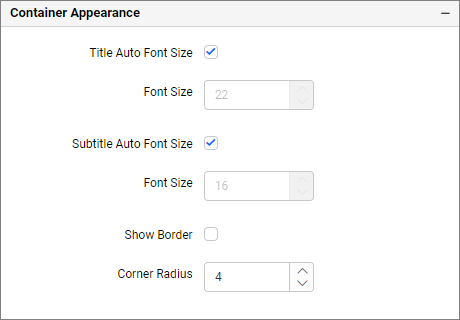
Title Auto Font Size
On enabling Auto Font size, the font size of the title will be adjusted automatically if the resolution of the screen varies.
Font Size
This allows you to apply the specified font size to the widget title, if the Title Auto Font Size is disabled. The value ranges between 10 and 44.
Subtitle Auto Font Size
On enabling Auto Font size, the font size of the subtitle will be adjusted automatically if the resolution of the screen varies.
Font Size
This allows you to apply the specified font size to the widget title, if the Subtitle Auto Font Size is disabled. The value ranges between 10 and 32.
Show Border
This allows you to toggle the visibility of the border that surrounds the widget.
Corner Radius
This allows you to apply the specified radius to the widget corners, if the Show Border is enabled. The value ranges between 0 and 100.
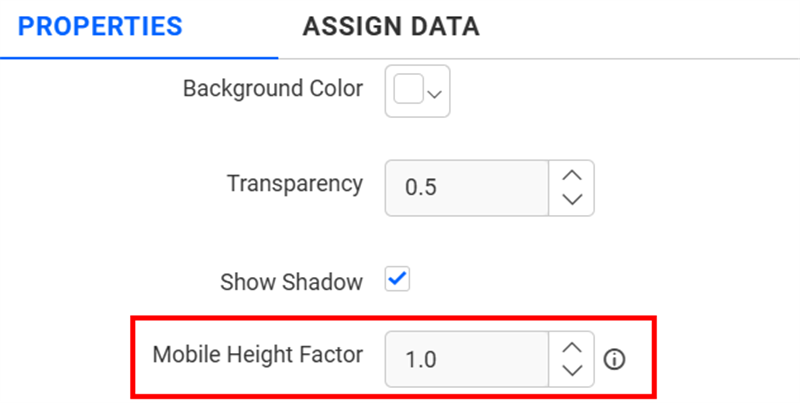
Mobile Height Factor
This option allows you to resize widgets specifically for mobile view.
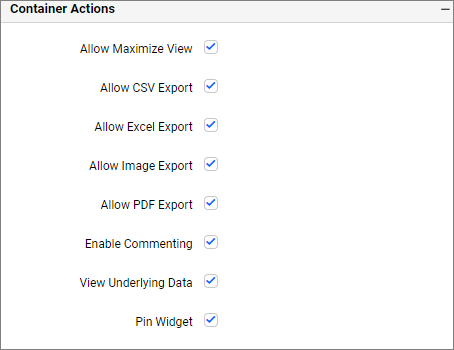
Container actions
Show header
This allows you to enable or disable the widget title of the KPI Card widget.
Allow maximize view
The visibility of the maximize icon in the widget header will be defined based on the settings in the viewer.
Allow CSV export
This allows you to enable or disable the CSV export option for the KPI Card widget. Enabling this allows you to export the summarized data of the widget view to CSV format in the viewer.
Allow Excel export
This allows you to enable or disable the Excel export option for the KPI Card widget. Enabling this allows you to export the summarized data of the widget view to (.xlsx or .xls) format in the viewer.
Allow Image export
This allows you to enable or disable the image export option for the KPI Card widget. Enabling this allows you to export the view of the widget to image format (.jpg), (.png), or (.bmp) in the viewer.
Allow PDF export
This allows you to enable or disable the PDF export option for the KPI Card widget. Enabling this allows you to export the view of the widget to pdf format in the viewer.
Enable comments
This allows you to enable or disable comment for the dashboard widget. For more details, refer to the Commenting Widget.
Allow view underlying data
This allows you to visualize the raw data associated with a widget at runtime.
Pin widget
This allows you to pin the widget.
Related links
Blog post - Turn on Insights Using the Right Card Widget
Responsive Behavior
We hide the widget elements based on the size of the widget for better readability.
Depending on the size of the widget, the card will be displayed either in Default or Horizontal or Vertical Layout.
When the card width is more than ‘447 px’ and its height is less than ‘296 px’, the card will be shown in a horizontal layout.
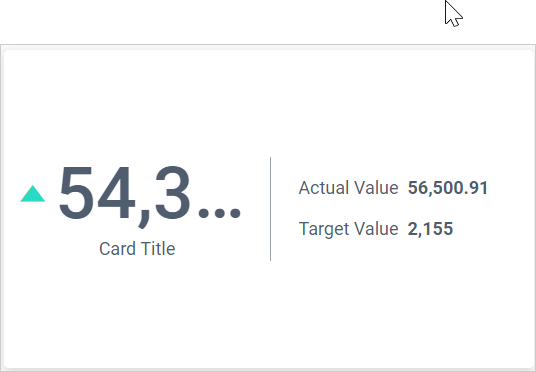
When the card height is more than ‘296 px’, the card will be shown in a vertical layout.
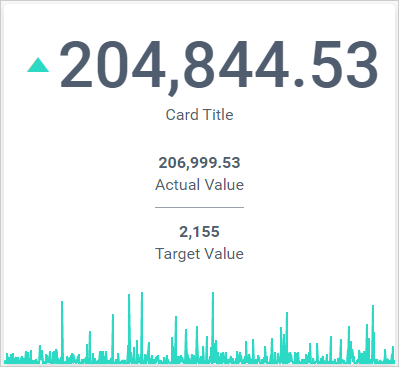
If the size of the card does not have enough space to show all the elements, it will hide the elements with respect to the size based on the following order: Sparkline, Actual and Target value container. The card title is shown in the image.