
Reset Application Database
Please refer to your operating system’s documentation for instructions on how to reset the database of the Bold BI application.
Windows
- Open the command prompt and change the directory to the admin utility location.
cd C:\BoldServices\utilities\adminutils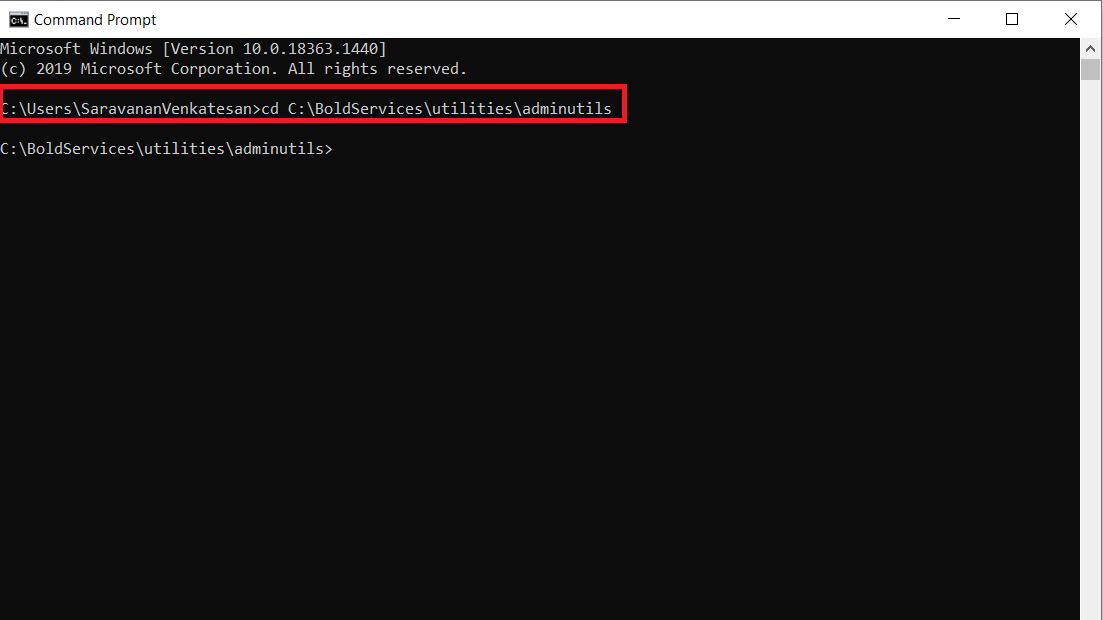
- After changing the directory, run the following command to reset the database:
Syncfusion.Server.Commands.Utility.exe dbconfig -servername "localhost" -databasename "BoldBIMasterDatabase" -u "Admin" -p "Admin@12345" -iswindowsauthentication false -sslenabled false -port "5432" -additionalparameters "Pooling=True" IMPORTANT: command details:
servername – SQL server hostname/IP
databasename – SQL database name
u – SQL server username
p – SQL server password
port - Port number required for PostgreSQL and MySQL
iswindowsauthentication – Is windows authentication required (Required for MSSQL only)
sslenabled – Is encrypted connection required (this is optional)
additionalparameters - Additional parameters required for database connection (this is optional)

- Once the database has been updated successfully, restart the application by following this link.
Linux
- Open the command prompt and change the directory to the admin utility location.
cd /var/www/bold-services/application/utilities/adminutils/
- After changing the directory, run the following command to reset the database:
../../../dotnet/dotnet Syncfusion.Server.Commands.Utility.dll dbconfig -servername "localhost" -databasename "BoldBIMasterDatabase" -u "Admin" -p "Admin@12345" -iswindowsauthentication false -sslenabled false -port "5432" -additionalparameters "Pooling=True" IMPORTANT: command details:
servername – SQL server hostname/IP
databasename – SQL database name
u – SQL server username
p – SQL server password
port - Port number required for PostgreSQL and MySQL
iswindowsauthentication – Is windows authentication required (Required for MSSQL only)
sslenabled – Is encrypted connection required (this is optional)
additionalparameters - Additional parameters required for database connection (this is optional)

- Once, the database has been updated successfully, then restart the application by following this link.
Docker
Single image
- Open the command prompt and Bash the container, then change the directory to the admin utility location.
docker exec -it <Container ID or Container name>cd /application/utilities/adminutils/ 2. After changing the directory, run the following command to reset the database:
dotnet Syncfusion.Server.Commands.Utility.dll dbconfig -servername "localhost" -databasename "BoldBIMasterDatabase" -u "Admin" -p "Admin@12345" -iswindowsauthentication false -sslenabled false -port "5432" -additionalparameters "Pooling=True"  3. Once the database has been updated successfully, then restart the application by using the below command:
docker restart <container ID or container name>Multi container Image
- Open the command prompt and Bash the id_web_container container then change the directory to the admin utility location.
docker exec -it <Container ID or Container name>cd /application/utilities/adminutils/
2. After changing the directory, run the following command to reset the database:
dotnet Syncfusion.Server.Commands.Utility.dll dbconfig -servername "localhost" -databasename "BoldBIMasterDatabase" -u "Admin" -p "Admin@12345" -iswindowsauthentication false -sslenabled false -port "5432" -additionalparameters "Pooling=True" IMPORTANT: command details:
servername – SQL server hostname/IP
databasename – SQL database name
u – SQL server username
p – SQL server password
port - Port number required for PostgreSQL and MySQL
iswindowsauthentication – Is windows authentication required (Required for MSSQL only)
sslenabled – Is encrypted connection required (this is optional)
additionalparameters - Additional parameters required for database connection (this is optional)
- Once the database has been updated successfully, then restart all containers by using the below command:
docker ps docker restart <container ID or container name>Note: Restart all seven containers using the above command one by one from the container name or ID.
Kubernetes
- Open the command prompt and Bash the id_web_deployment pod, then change the directory to the admin utility location.
kubectl exec -it <id-web-deployment-pod> -n namespace -- bashcd /application/utilities/adminutils/
- After changing the directory, run the following command to reset the database:
dotnet Syncfusion.Server.Commands.Utility.dll dbconfig -servername "localhost" -databasename "BoldBIMasterDatabase" -u "Admin" --p "Admin@12345" -iswindowsauthentication false -sslenabled false -port "5432" -additionalparameters "Pooling=True" IMPORTANT: command details:
servername – SQL server hostname/IP
databasename – SQL database name
u – SQL server username
p – SQL server password
port - Port number required for PostgreSQL and MySQL
iswindowsauthentication – Is windows authentication required (Required for MSSQL only)
sslenabled – Is encrypted connection required (this is optional)
additionalparameters - Additional parameters required for database connection (this is optional)

- Once the database has been updated successfully, restart the application using the below command:
kubectl rollout restart deploy -n <namespace>