Status Verification Using Bold Data Hub
In this article, we will demonstrate how to import tables from a CSV file, validate ticket status through transformations, and move the cleaned data into the destination database using Bold Data Hub. Follow the step-by-step process below.
Sample Data Source:
Creating Pipeline
Learn about Pipeline Creation
Applying Transformation
-
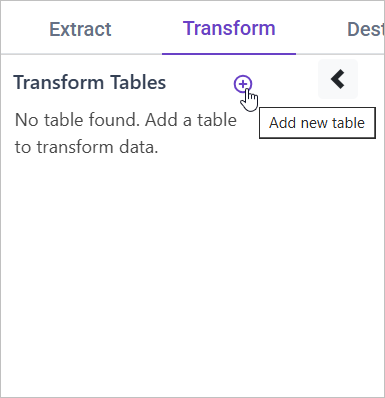
Go to the Transform tab and click Add Table.
-
Enter the table name to create a transform table for customer satisfaction summary.
Note: The data will initially be transferred to the DuckDB database within the designated {pipeline_name} schema before undergoing transformation for integration into the target databases. As an illustration, in the case of a pipeline named “customer_service_data”, the data will be relocated to the customer_service_data table schema.
Learn more about transformation here
Ticket Status Validation
Overview
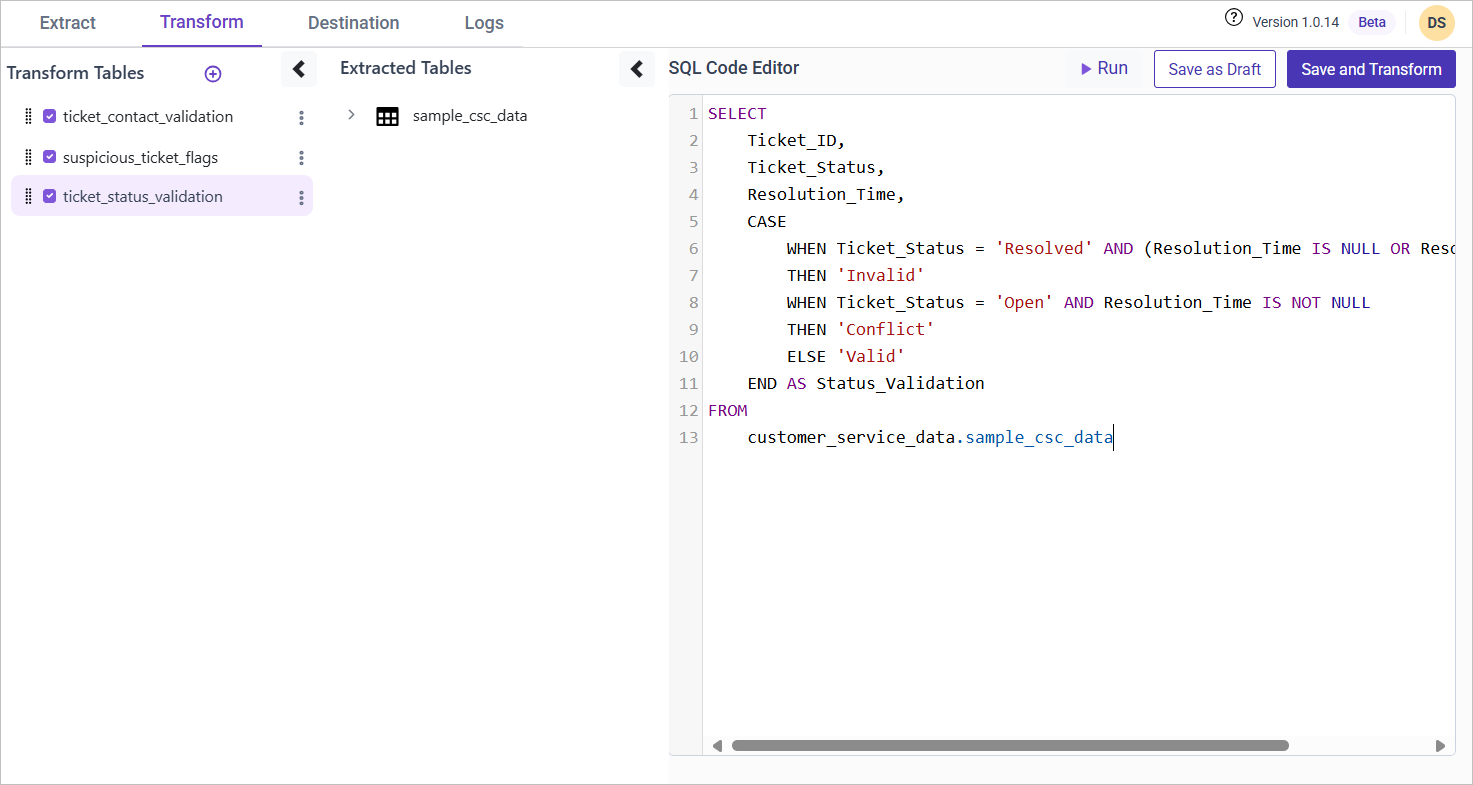
To ensure data consistency, tickets marked as “Resolved” should have a valid resolution time, and tickets marked as “Open” should not have one. Any inconsistencies are flagged for correction.
Approach
We use a CASE statement to classify ticket status validity:
- “Invalid” → Resolved tickets with missing or non-positive resolution time
- “Conflict” → Open tickets with a resolution time
- “Valid” → All other cases
SQL Query for Ticket Status Validation
SELECT
    Ticket_ID,
    Ticket_Status,
    Resolution_Time,
    CASE
        WHEN Ticket_Status = 'Resolved' AND (Resolution_Time IS NULL OR Resolution_Time <= 0) THEN 'Invalid'
        WHEN Ticket_Status = 'Open' AND Resolution_Time IS NOT NULL THEN 'Conflict'
        ELSE 'Valid'
    END AS Status_Validation
FROM {pipeline_name}.sample_csc_data;