
Create Derived Columns and Transforming Data Using Bold Data Hub
In this article, we will demonstrate how to import tables from a CSV file, to create derived columns using transformations, and move the cleaned data into the destination database using Bold Data Hub. Follow the step-by-step process below.
Sample Data Source:
Creating Pipeline
Learn about Pipeline Creation
Applying Transformation
-
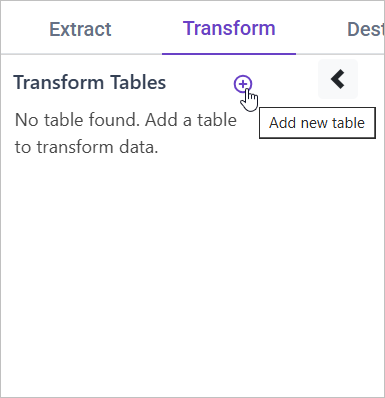
Go to the Transform tab and click Add Table.
-
Enter the table name to create a transform table for customer satisfaction summary.
Note: The data will initially be transferred to the DuckDB database within the designated {pipeline_name} schema before undergoing transformation for integration into the target databases. As an illustration, in the case of a pipeline named “customer_service_data”, the data will be relocated to the customer_service_data table schema.
Learn more about transformation here
Creating Derived Columns
Overview
Derived columns are new columns created based on existing data. They allow us to gain more granular insights by combining or transforming existing variables. For example, we can combine customer status (new vs. returning) with ticket priority to understand how these two factors influence support ticket trends.
Approach
We can create a new column that combines customer status (e.g., determined by the first ticket date) with ticket priority. This combination can help us analyze the support needs of new versus returning customers and how ticket priority impacts their service experience.
SQL Query for Creating Derived Columns
SELECT *,
       CASE
           WHEN CAST(SUBSTR(Customer_ID, 5) AS INTEGER) % 2 = 0 THEN 'Returning'
           ELSE 'New'
       END AS Customer_Status,
       CASE
           WHEN CAST(SUBSTR(Customer_ID, 5) AS INTEGER) % 2 = 0
           THEN 'Returning - ' || Priority
           ELSE 'New - ' || Priority
       END AS Customer_Status_Priority
FROM {pipeline_name}.tickets;