Mapping Customer Regions and Transforming Data Using Bold Data Hub
In this article, we will demonstrate how to import tables from a CSV file, map customer regions through transformations, and move the cleaned data into the destination database using Bold Data Hub. Follow the step-by-step process below.
Sample Data Source:
Creating Pipeline
Learn about Pipeline Creation
Applying Transformation
-
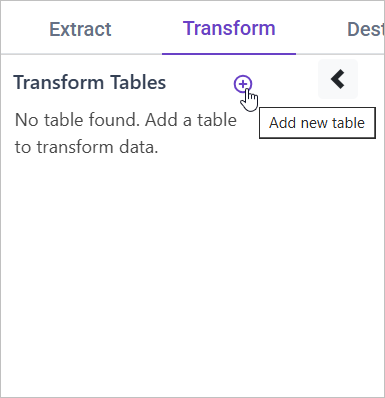
Go to the Transform tab and click Add Table.
-
Enter the table name to create a transform table for customer satisfaction summary.
Note: The data will initially be transferred to the DuckDB database within the designated {pipeline_name} schema before undergoing transformation for integration into the target databases. As an illustration, in the case of a pipeline named “customer_service_data”, the data will be relocated to the customer_service_data table schema.
Learn more about transformation here
Mapping Customer Regions
Overview
If the customer’s region is stored as a text field (e.g., a city name or abbreviation), mapping it to a standardized region or country code ensures uniformity in data representation.
Approach
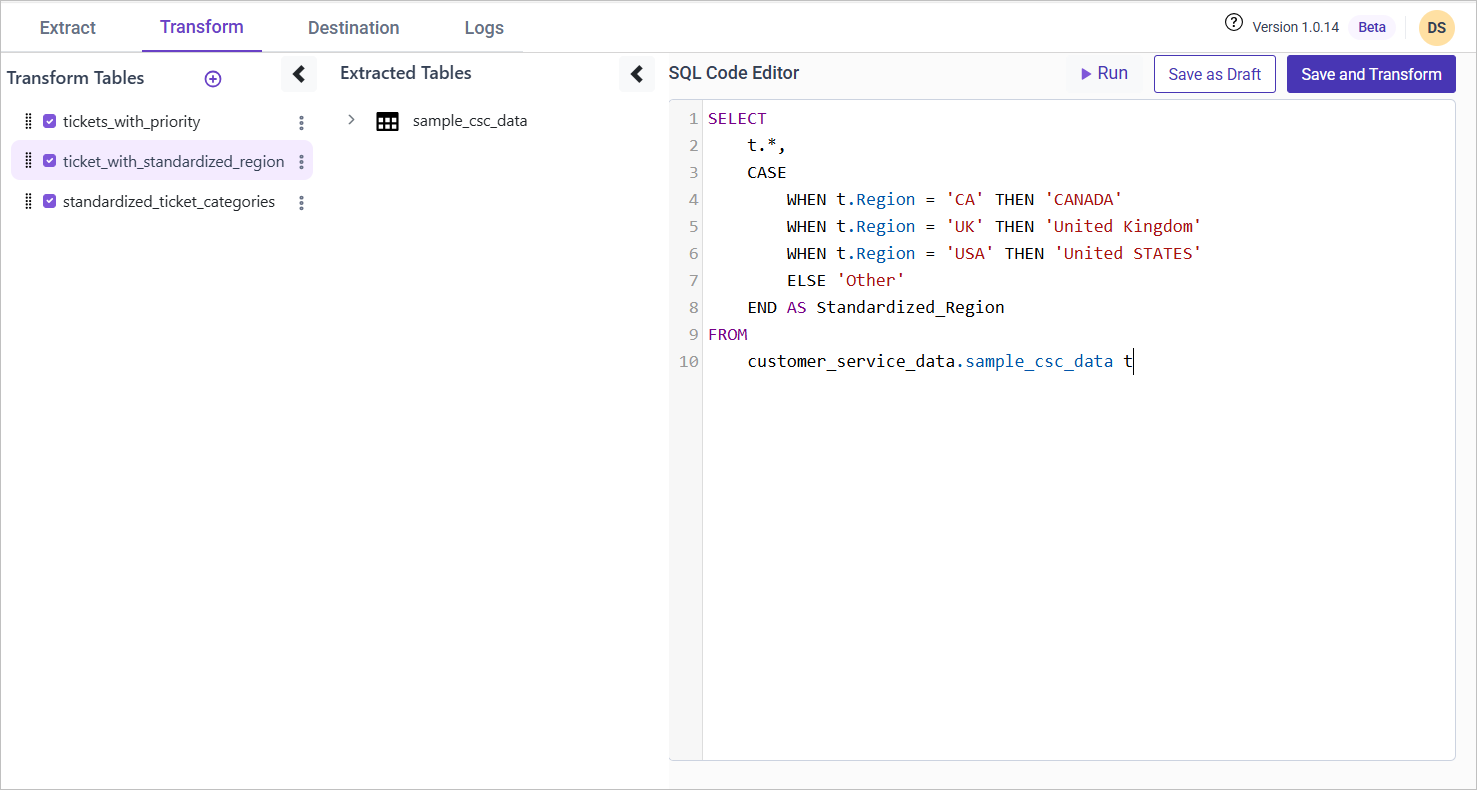
We use a CASE statement to map region abbreviations to full country names.
SQL Query for Mapping Customer Regions
SELECT
    t.*,
    CASE
        WHEN t.Region = 'CA' THEN 'CANADA'
        WHEN t.Region = 'UK' THEN 'United Kingdom'
        WHEN t.Region = 'USA' THEN 'United States'
        ELSE 'Other'
    END AS Standardized_Region
FROM {pipeline_name}.sample_csc_data t;