
Mapping User Journeys Using Bold Data Hub
In this article, we will demonstrate how to import tables from a CSV file, create customer journey map using transformations, and move the transformed data into the destination database using Bold Data Hub. Follow the step-by-step process below.
Sample Data Source:
Creating Pipeline
Learn about Pipeline Creation
Applying Transformation
-
Go to the Transform tab and click Add Table.
-
Enter the table name to create a transform table for customer satisfaction summary.
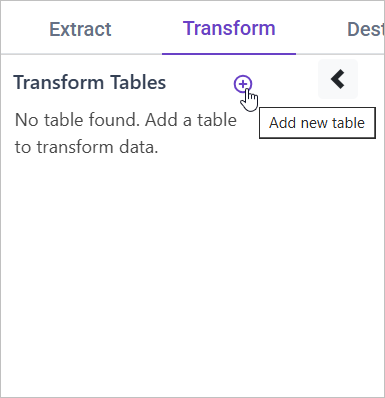
Note: The data will initially be transferred to the DuckDB database within the designated {pipeline_name} schema before undergoing transformation for integration into the target databases. As an illustration, in the case of a pipeline named “customer_service_data”, the data will be relocated to the customer_service_data table schema.
Learn more about transformation here
Creating a Customer Journey Map
Overview
A customer journey map helps to visualize and understand each customer’s experience by analyzing their interaction history. By aggregating data from various touchpoints, such as support tickets, we can track a customer’s path from their first interaction to the most recent one. This analysis helps identify patterns and improve customer experience.
Approach
We aggregate the support tickets based on Customer_ID, ordered by Ticket_Creation_Date to analyze the sequence of interactions. This allows us to track the customer’s journey over time and identify recurring issues or improvements.
SQL Query for Creating a Customer Journey Map
SELECT
    Customer_ID,
    Customer_Name,
    MIN(Ticket_Creation_Date) AS First_Interaction,
    MAX(Ticket_Creation_Date) AS Last_Interaction,
    COUNT(Ticket_ID) AS Total_Tickets,
    AVG(Resolution_Time) AS Avg_Resolution_Time,
    AVG(Customer_Satisfaction) AS Avg_Satisfaction
FROM {pipeline_name}.sample_csc_data
GROUP BY Customer_ID, Customer_Name
ORDER BY Last_Interaction DESC;