Anomaly Flagging and Transforming Data Using Bold Data Hub
In this article, we will demonstrate how to import tables from a CSV file, flag anomalies through transformations, and move the cleaned data into the destination database using Bold Data Hub. Follow the step-by-step process below.
Sample Data Source:
Creating Pipeline
Learn about Pipeline Creation
Applying Transformation
-
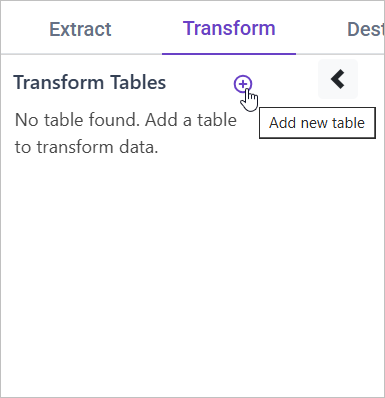
Go to the Transform tab and click Add Table.
-
Enter the table name to create a transform table for customer satisfaction summary.
Note: The data will initially be transferred to the DuckDB database within the designated {pipeline_name} schema before undergoing transformation for integration into the target databases. As an illustration, in the case of a pipeline named “customer_service_data”, the data will be relocated to the customer_service_data table schema.
Learn more about transformation here
Anomaly Flagging
Overview
Identifying anomalies in response and resolution times helps detect inefficiencies and potential service issues. Anomalies can also highlight customer dissatisfaction, requiring further investigation.
Approach
We use statistical thresholds to flag anomalies:
- “High Resolution Time” → Tickets with resolution times exceeding 2 standard deviations above the mean
- “Low Satisfaction” → Tickets with customer satisfaction scores below 2
- “Normal” → All other cases
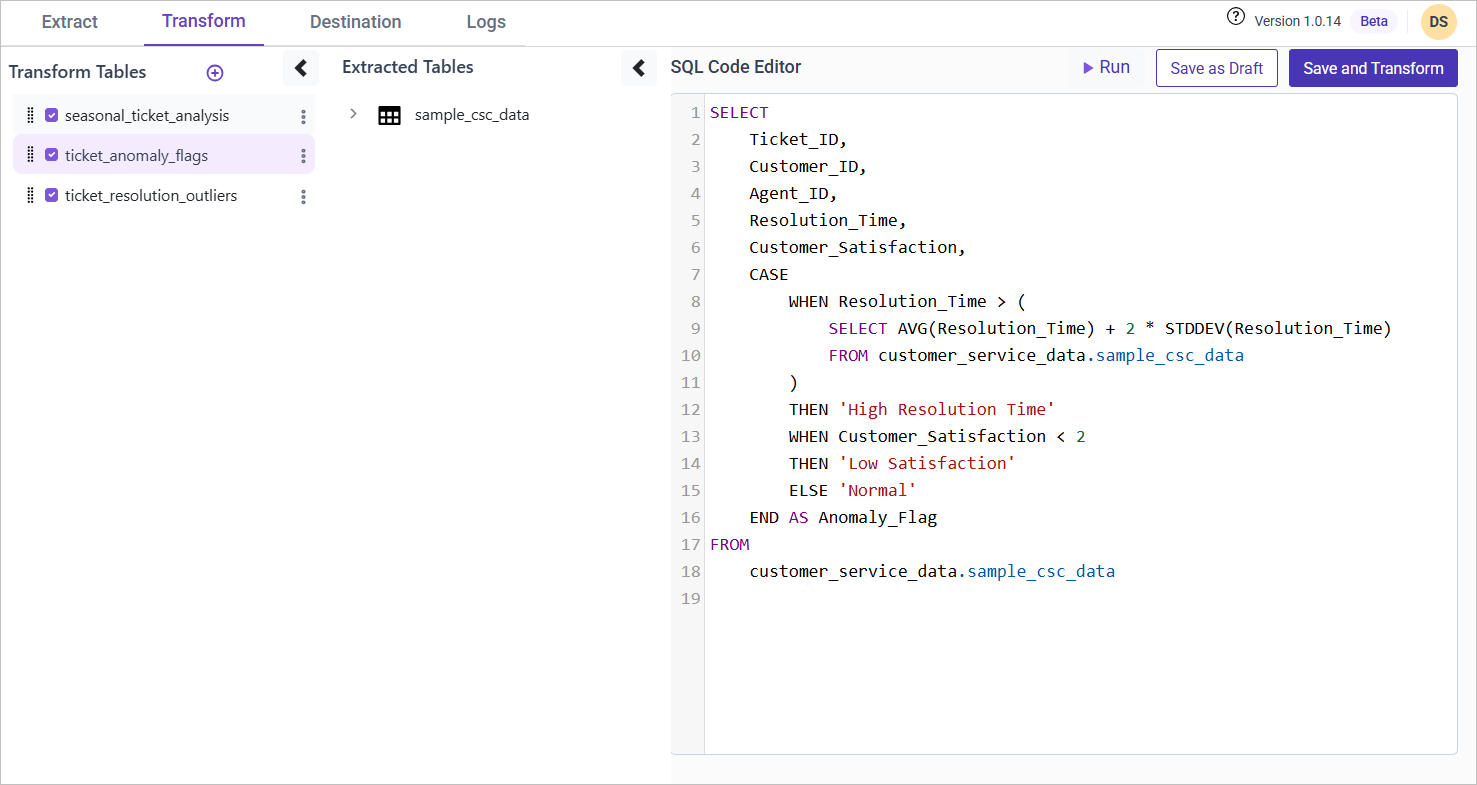
SQL Query for Anomaly Flagging
SELECT
    Ticket_ID,
    Customer_ID,
    Agent_ID,
    Resolution_Time,
    Customer_Satisfaction,
    CASE
        WHEN Resolution_Time > (
            SELECT AVG(Resolution_Time) + 2 * STDDEV(Resolution_Time)
            FROM {pipeline}.sample_csc_data
        ) THEN 'High Resolution Time'
        WHEN Customer_Satisfaction < 2 THEN 'Low Satisfaction'
        ELSE 'Normal'
    END AS Anomaly_Flag
FROM {pipeline_name}.sample_csc_data;