
Site Settings
This section explains how to customize the site settings to change the organization name, header logo, favicon, email logo, time zone, and date/time display formats.
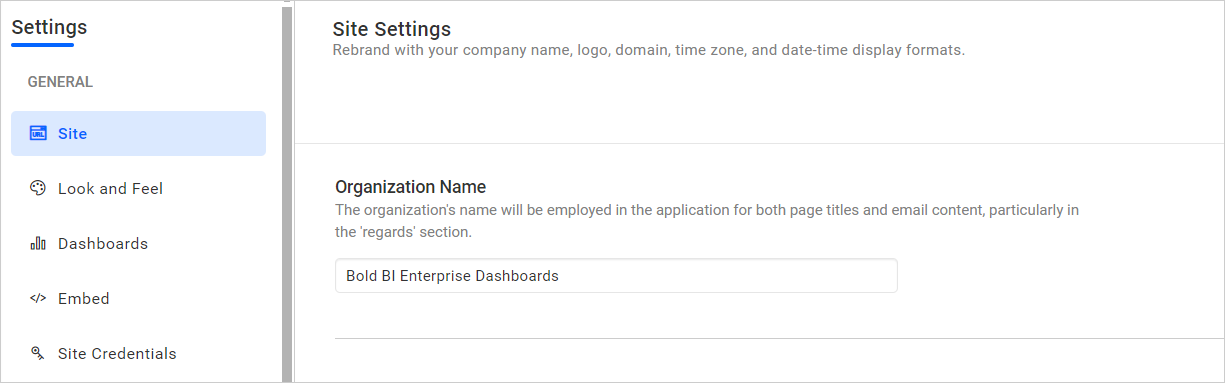
Organization Name
The organization’s name will be used in the application for both page titles and email content, especially in the ‘regards’ section.
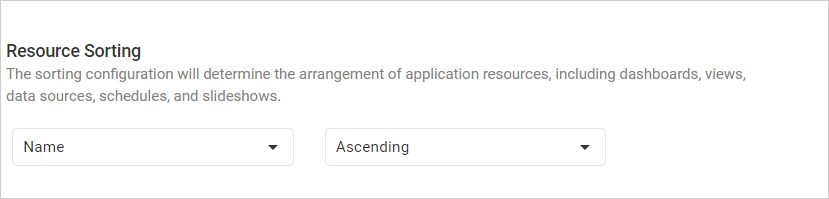
Resource Sorting
The sorting configuration will determine the arrangement of application resources, including dashboards, views, data sources, schedules, and slideshows
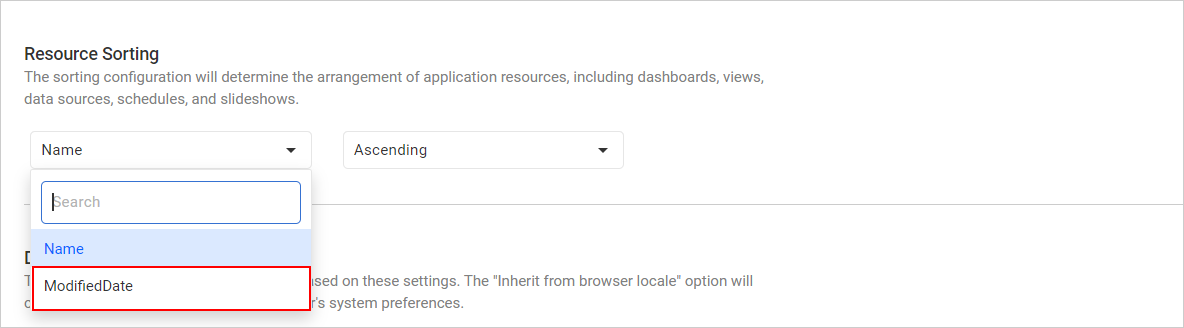
Sorting Type
The application will automatically arrange the resource based on its modified date by default. However, users have the option to switch the sorting criteria for the resource on the site to either name or modified date.
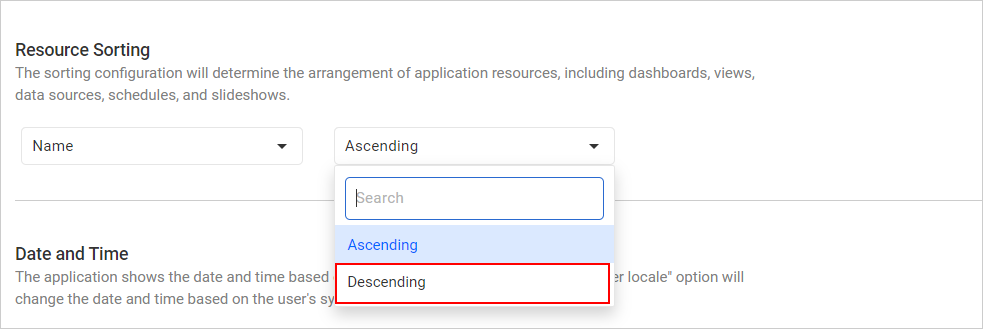
Sorting Order
The application will automatically arrange the resource in descending order of its modified date by default. However, users have the option to switch the sorting order for the resource on the site to either ascending or descending.
Date and Time
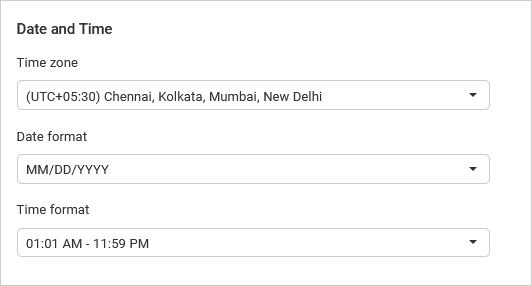
Time zone
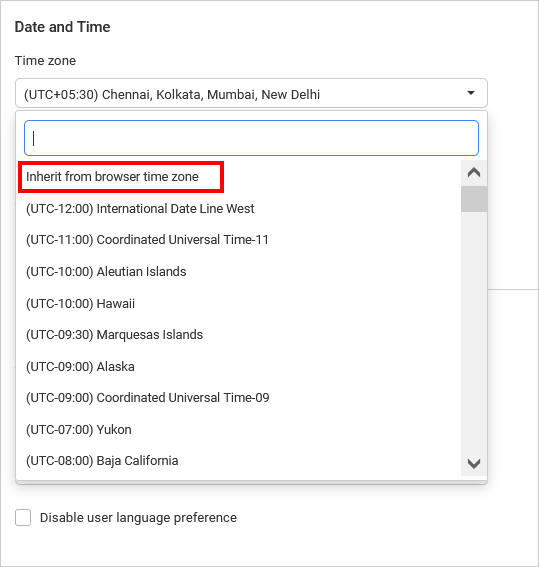
The time zone for the Bold BI site can be changed. The Bold BI site sets the default time zone based on the time zone of the machine where Bold BI is deployed. By selecting Inherit from browser time zone, the Bold BI site will use the time zone from the browser.
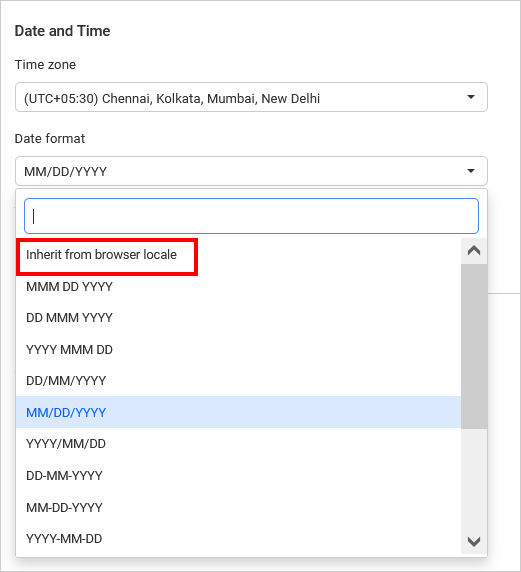
Date format
The date format of the Bold BI site can be changed. The default date format for the Bold BI site is MM/DD/YYYY. By selecting Inherit from browser locale, the Bold BI site will use the date format from the browser.
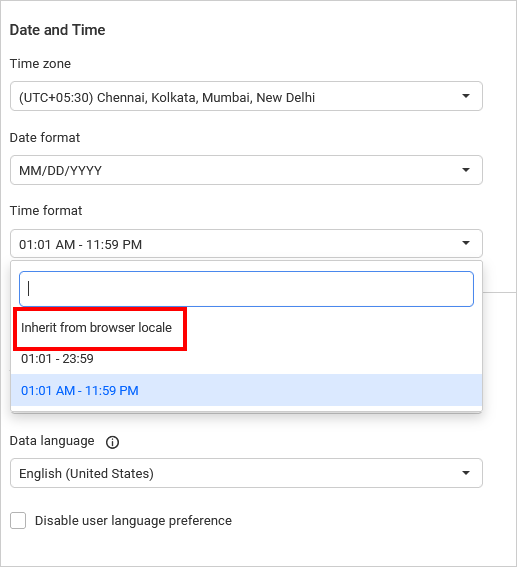
Time format
The time format of the Bold BI site can be changed. The default time format for the Bold BI site is 12 hour. By selecting Inherit from browser locale, the Bold BI site will use the time format from the browser.
Language
This section explains how to configure the language settings for application language and data language.
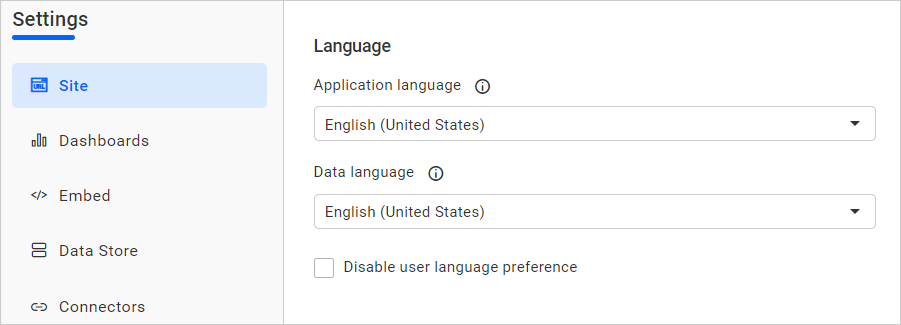
Application language
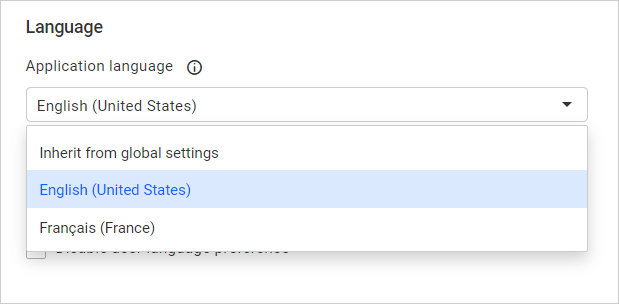
You can localize the Bold BI application to any culture by changing the language in the Application language section. Please click on the localization to learn how to add a new localization or edit the existing localization in the Bold BI application. This language is used in the application user interface, such as menu items, dialog boxes, toolboxes, and so on.
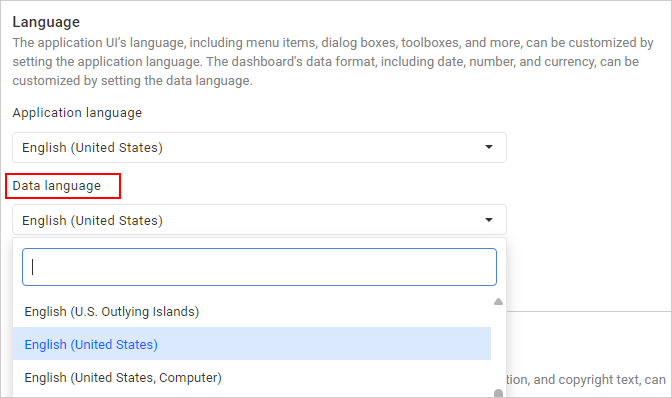
Data language
You can localize the date, number, and currency formats of the dashboards to any culture by changing the language in the Data Language section.
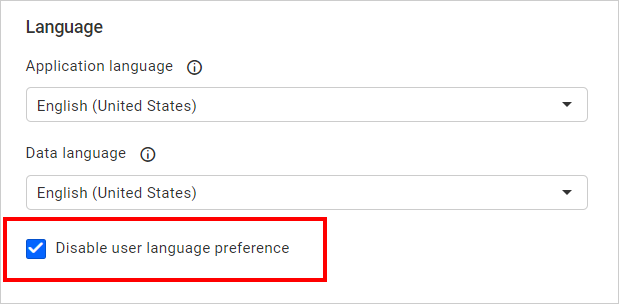
Disable user preference
Enabling the Disable user preference option restricts the user’s language preference in the profile page, so the user’s language preference will not be applied to the site.
Click here to learn more about user language preferences and branding.
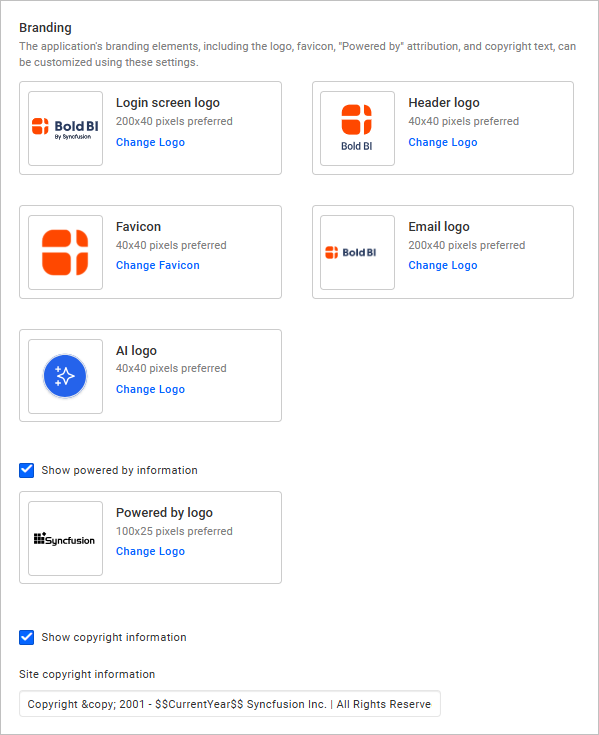
Branding
Login screen logo
The login page logo image can be changed, with the preferred image size being 200 x 40 pixels. The Bold BI site will have the Bold BI login logo as the default.
Header logo
The header logo image can be changed, with the preferred image size being 40 x 40 pixels. The Bold BI site will have the Bold BI logo as the default main screen logo.
Favicon
The favicon for the Bold BI site can be changed, with the preferred image size being 40 x 40 pixels. The Bold BI site will have the Bold BI favicon as the default.
Email logo
The email logo image can be changed, with the preferred image size being 200 x 40 pixels. The Bold BI site will have the Bold BI email logo as the default.
AI Logo
The AI logo image can be changed, with the preferred image size being 40 x 40 pixels. The Bold BI site will have the Bold BI AI logo as the default.
Powered by Syncfusion
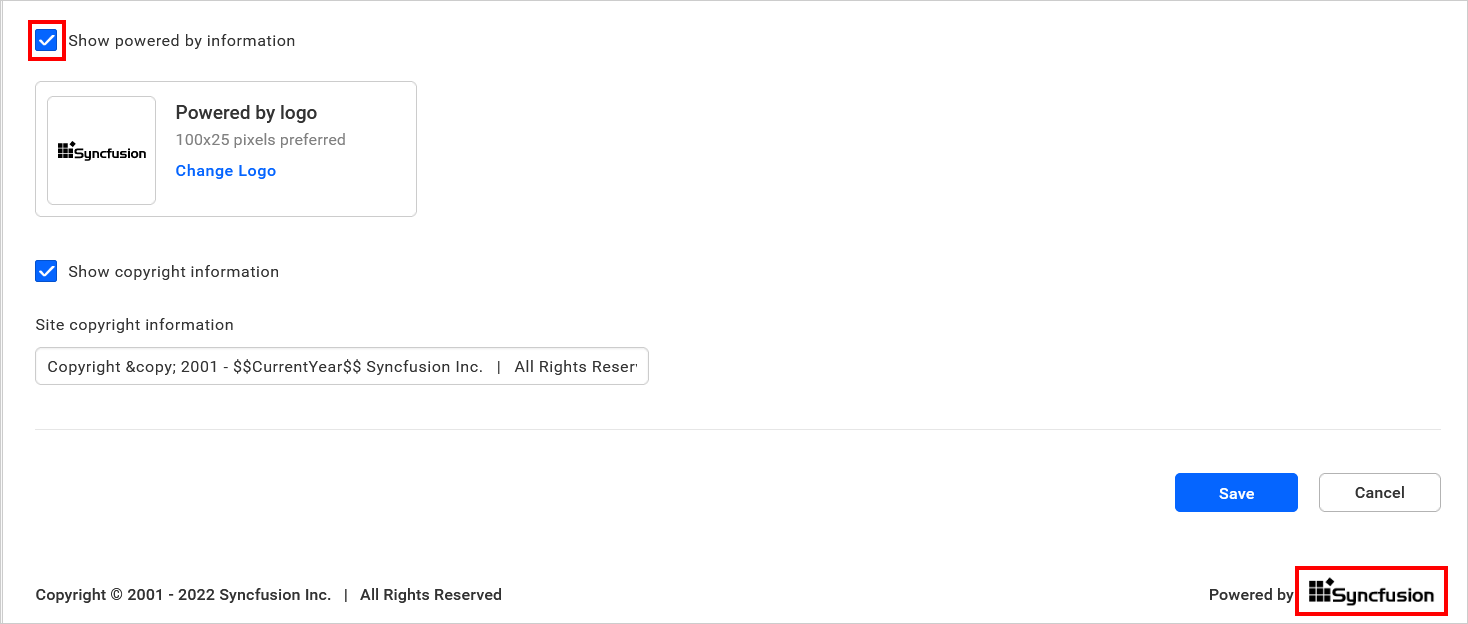
You can either change the powered by logo image with the preferred image size of 100 x 25, or disable it by unchecking the option for Embedded BI. Cloud BI users can only disable it by unchecking the option.
Copyright information
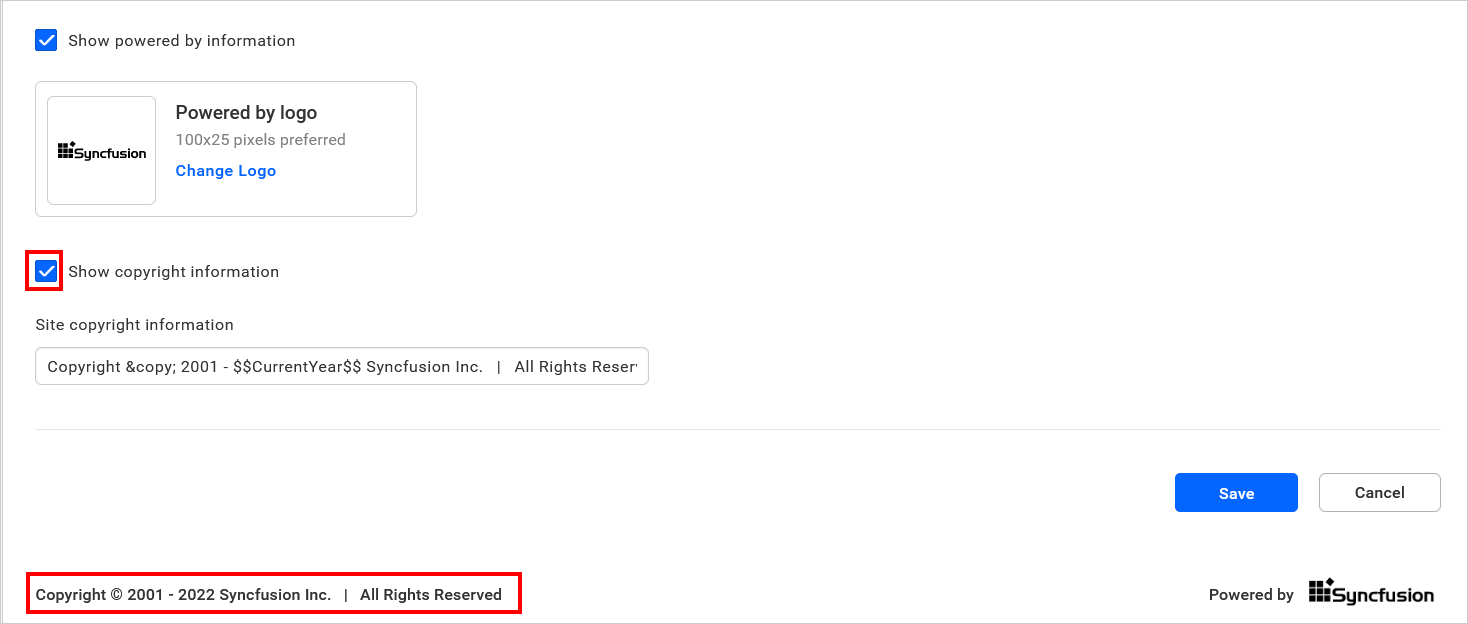
You can either change the copyright information with rebranded content, or disable it by unchecking the option. Cloud BI users can only disable it by unchecking the option.
Custom Domain for Cloud BI
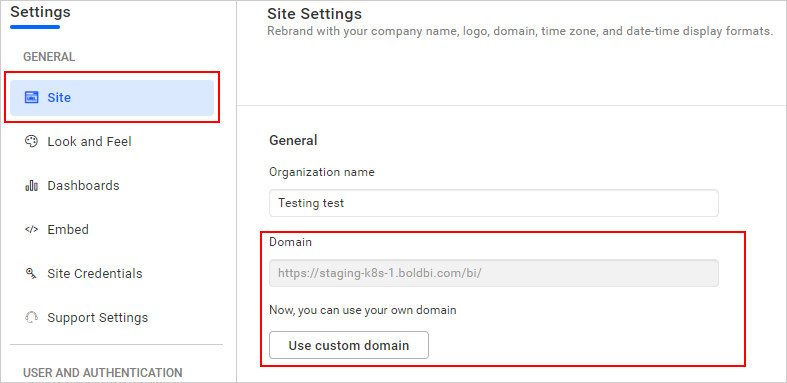
Please follow the Custom Domain in Cloud Analytics Server to learn how to set up a custom domain in Cloud BI.