
Notifications for activities done in Bold BI
This section explains how to configure notification settings to notify users of various activities in Bold BI.
Notifications can be set up by the System Administrator in the notification settings page and by users on the user profile page.
Site notifications settings
The Admin can manage application notification preferences by enabling or disabling email and system notifications in the site notification settings. If settings are disabled in the site notification settings, user notification settings will be disabled, and they cannot change their notification setting preference.
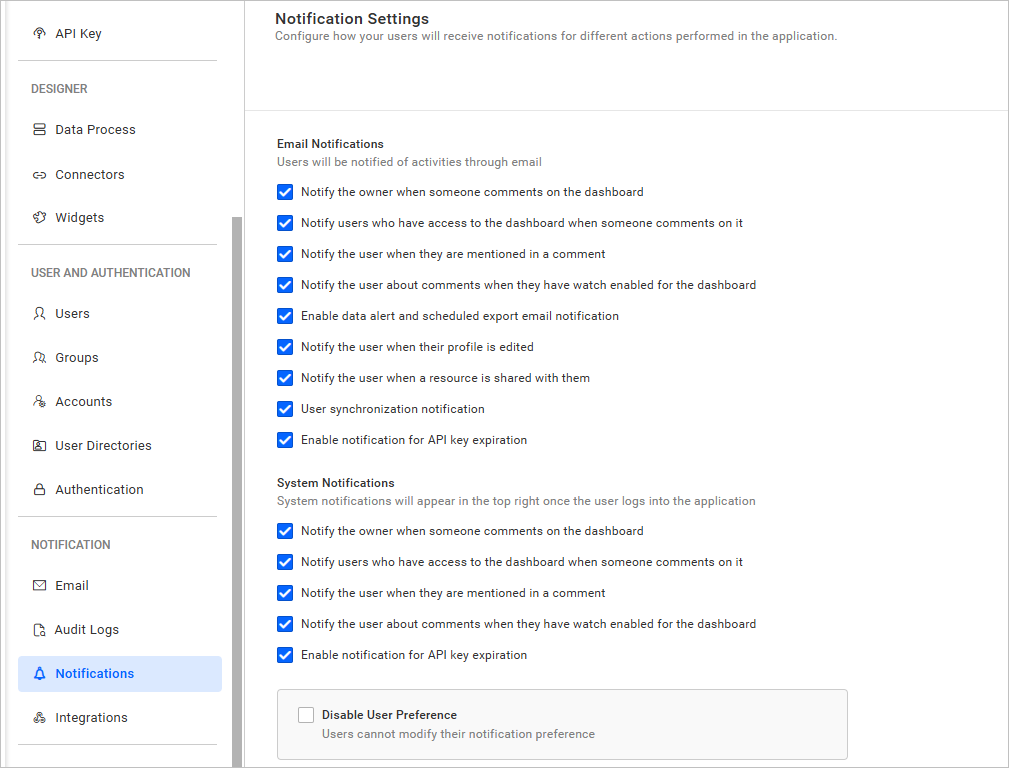
There are two different types of notification.
- Email Notifications
- System Notifications
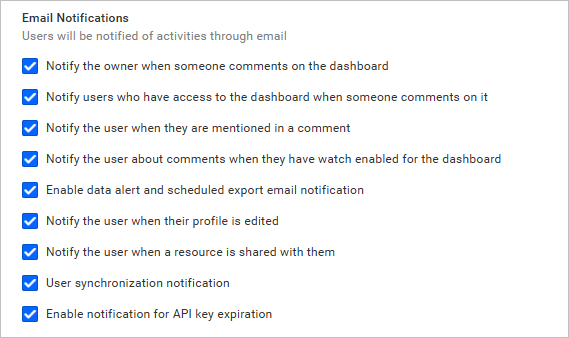
Email notifications
Users will be notified of activities by email based on the settings configured here.
System notifications
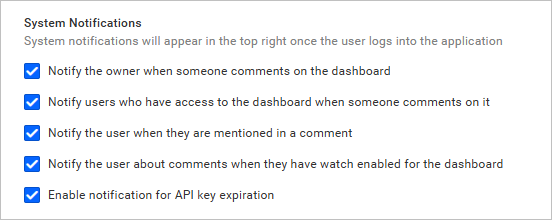
System notifications will inform users of activity on comments based on the settings configured here.
System notifications will appear at the top right corner near the user’s profile picture, as shown in the following image.
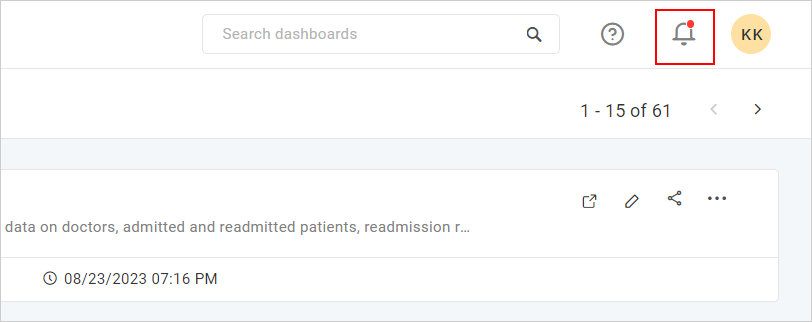
Users can navigate to a specific comment by clicking the dashboard name in the notification section. To configure user notification settings, users can navigate to the profile page by clicking on settings.
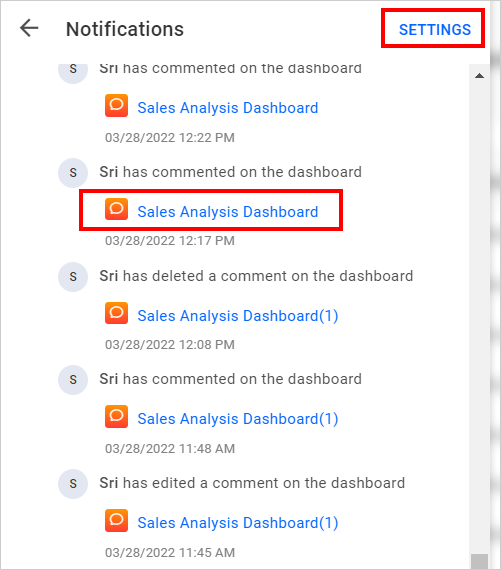
List of notifications
Notify the owner when someone comments on the dashboard
Enabling this option will send an email or system notification to the dashboard owner when someone comments on it.
Notify users who have access to the dashboard when someone comments on it
Enabling this option will send an email or system notification to all users who have access to the dashboard whenever someone comments on it.
Notify the user when they are mentioned in a comment
Enabling this option will send an email or system notification to the user whenever someone mentions their name in a comment on the dashboard.
Notify the user about comments when they have watch enabled for the dashboard
Autowatch will be enabled for comments on dashboards whenever a user adds comments to a dashboard they created or have access to. This setting is useful for receiving notifications for specific dashboards rather than all dashboards. Users can disable other notification options and watch a specific dashboard comment.
Specific watch
Apart from autowatch on created and accessible items, users can also watch a specific item.
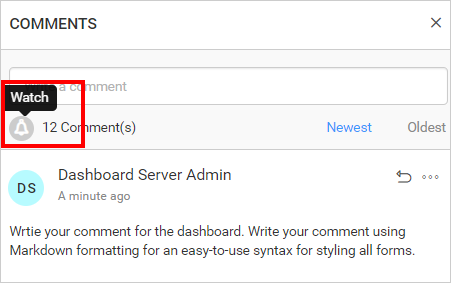
Users can toggle between watching and not watching a dashboard comment at any time.
Enable data alert and scheduled export email notification
Enabling this option will send an email to the user for data alerts and scheduled exports.
Notify the user when their profile is edited
Enabling this option will send an email to the user if their profile is edited.
Notify the user when a resource is shared with them
Enabling this option will send an email to the user whenever they are granted permissions for resources, users, groups, or settings.
User synchronization notification
Enabling this option will send an email to the user about the user synchronization schedule.
Enable notification for API key expiration
Enabling this option will notify you via email and system notification when the token validity for the API key has expired or is about to expire.
Disable user preference
Admins can choose to allow or restrict user notification preferences found on the profile page Notifications tab. Enabling the Disable User Preference will disable all user notification preference options and override them with application notification settings.

User notification settings
Users can configure their own notification preferences on the profile page Notifications tab. More details can be found in the user profile notifications.