
Embed Settings to generate Embed Secret key
This section explains how to enable embed authentication and generate the secret code in the Bold BI Server.
Get embed secret code
-
Go to the settings page and click on
Embed. Enable theEnable embed authenticationoption on that page.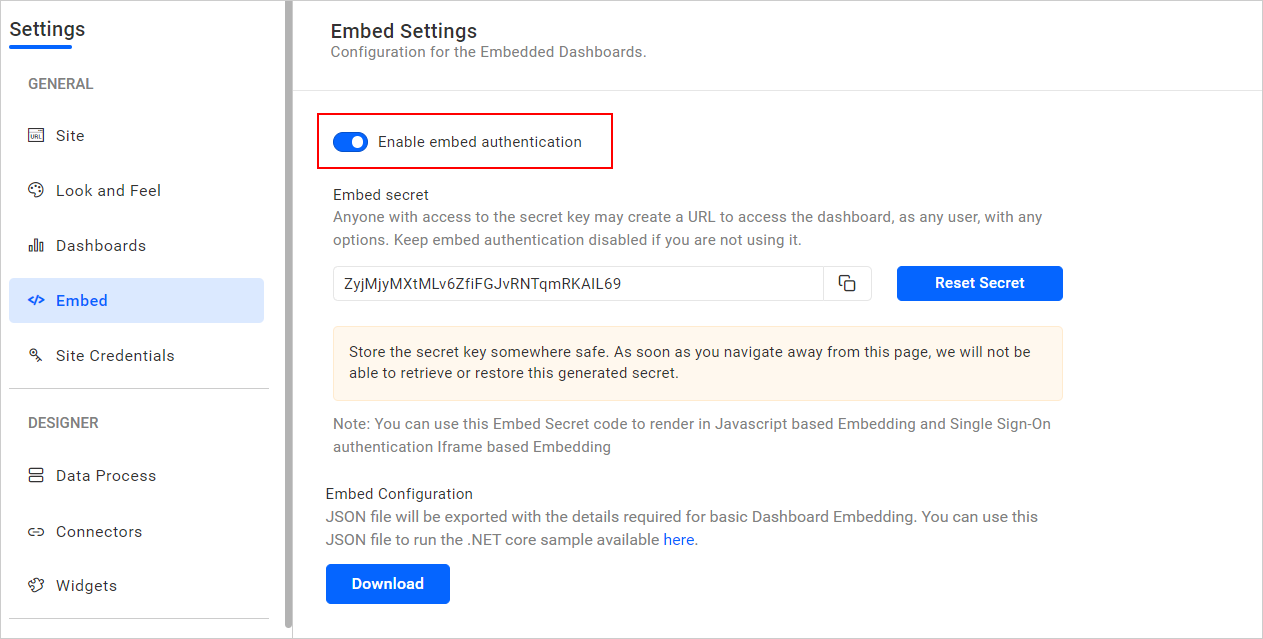
-
Click on the
Generate Secretbutton.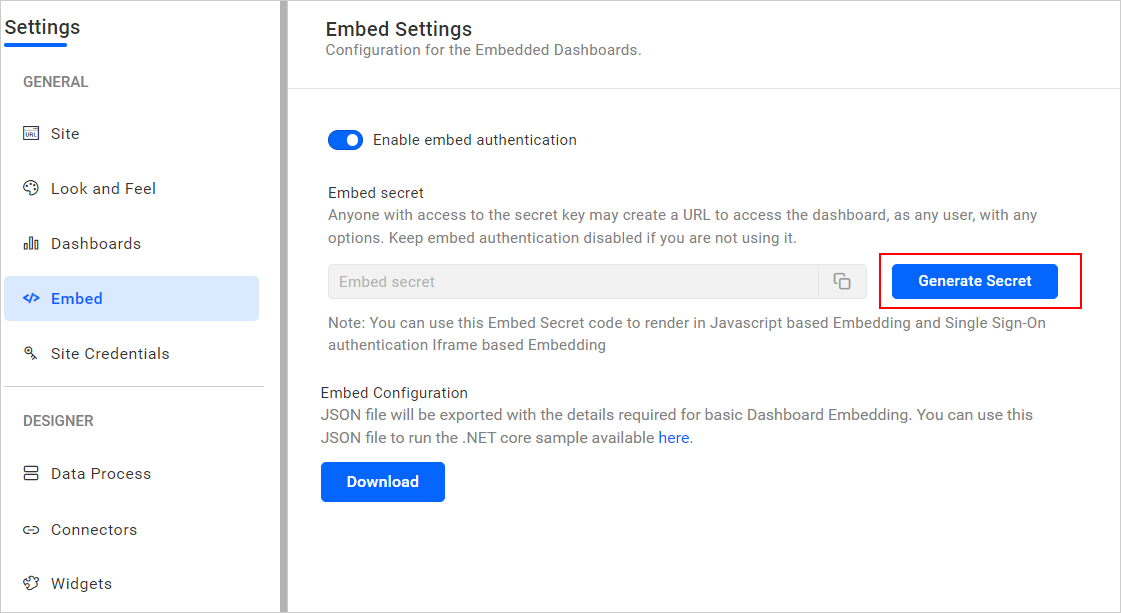
-
After clicking it, the secret code will be generated. Save the secret key securely, as it cannot be retrieved or restored once generated.
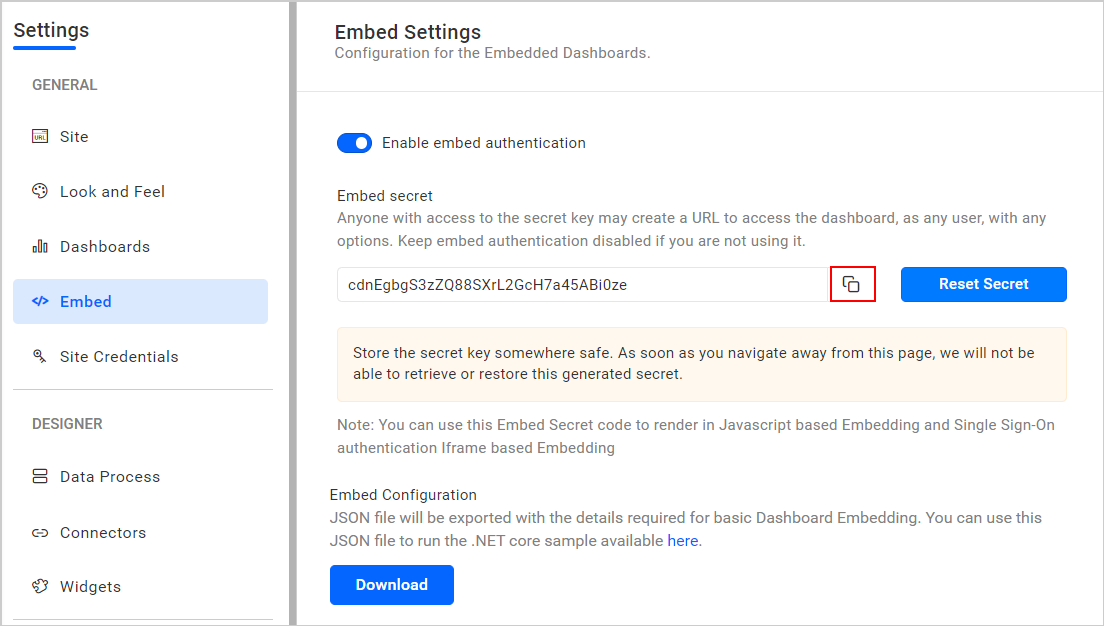
-
Once the secret code is generated, it can be reset by clicking the
Regeneratebutton.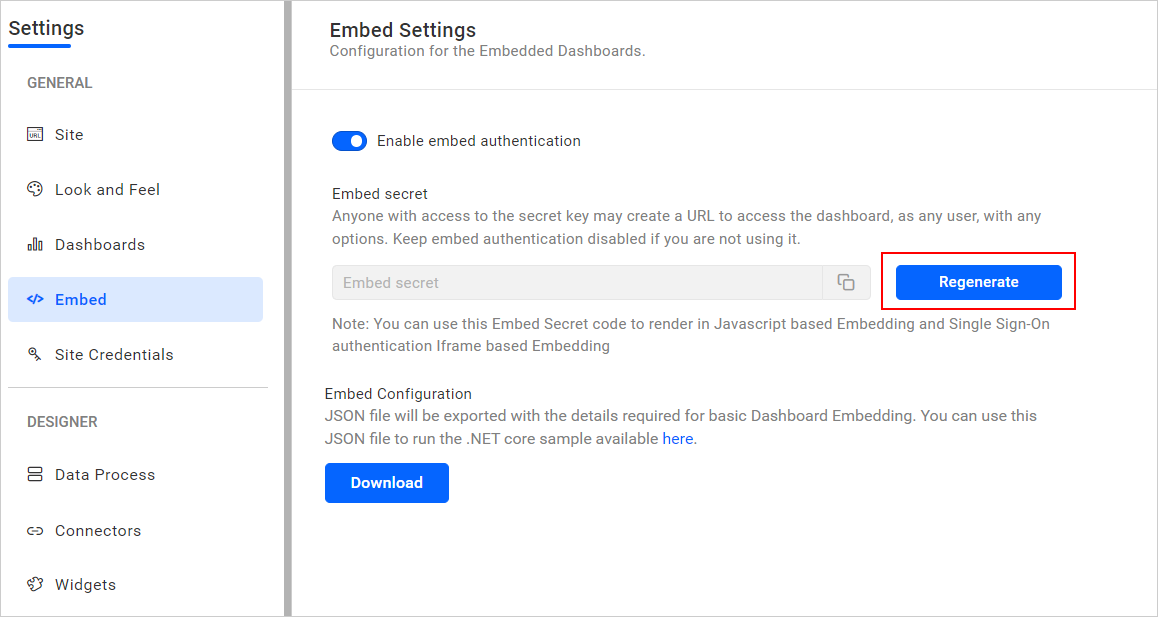
Warning : Resetting this code will disrupt the previously working embedded dashboards.
Get Embed Configuration File
-
Go to the settings page and click on
Embed. Enable theEnable embed authenticationoption on that page. -
Click on
Downloadin the Embed Configuration section.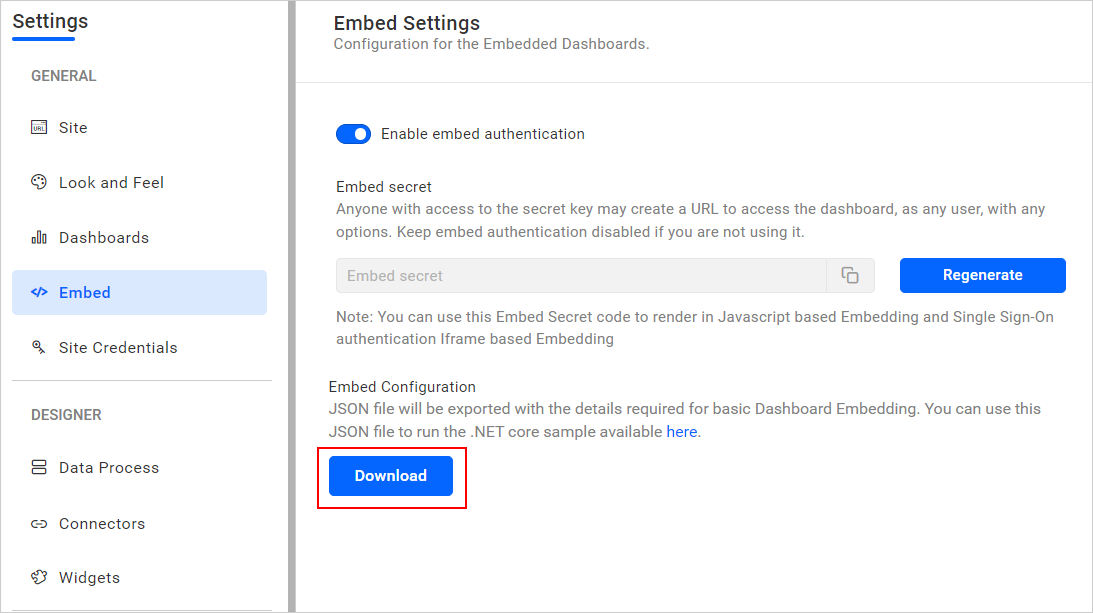
-
After clicking the button, an Embed Configuration pop-up will appear. Select the category and appropriate dashboard name, then click on
Download Json Fileat the bottom of the pop-up.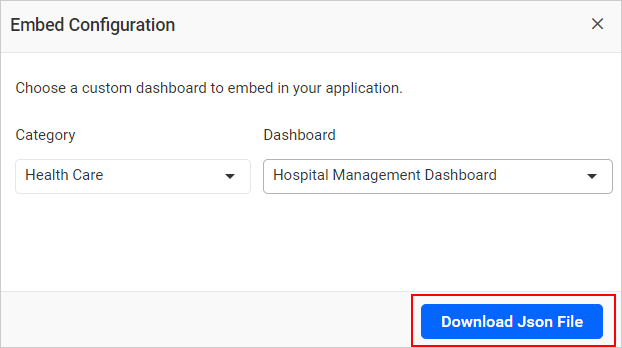
-
Copy the downloaded
embedConfig.json file, generated from the embed settings page of the Bold BI server, and paste it into the App_Data folder of a sample application.
Properties configured in sample
The following properties are used in the embedConfig.json file:
| ServerUrl | Dashboard Server URL (Eg: http://localhost:5000/bi, http://demo.boldbi.com/bi). |
| SiteIdentifier | For Bold BI On-Premise Edition, it should be like site/site1.For Bold BI Cloud, it should be an empty string. |
| Environment | Your Bold BI application environment. (If Cloud, use cloud; if On-Premise, use enterprise) |
| UserEmail | The email of the user. The dashboard will be rendered on behalf of this user. |
| EmbedSecret | You can get your EmbedSecret key from embed tab by enablingEnable embedauthentication in same page |
| DashboardId | Item id of the dashboard to be embedded in your application. |
| EmbedType | BoldBI.EmbedType.Component. |
| ExpirationTime | Token expiration time. |
Get common embed secret code from UMS
This common embed secret code will help you embed the dashboard from multiple sites using the same code. If you reset the common embed secret code, it will break the previously embedded dashboards on all sites.
-
Click on the profile icon and select the
Manage sites (Admin access)option to open the UMS sites page in a new tab.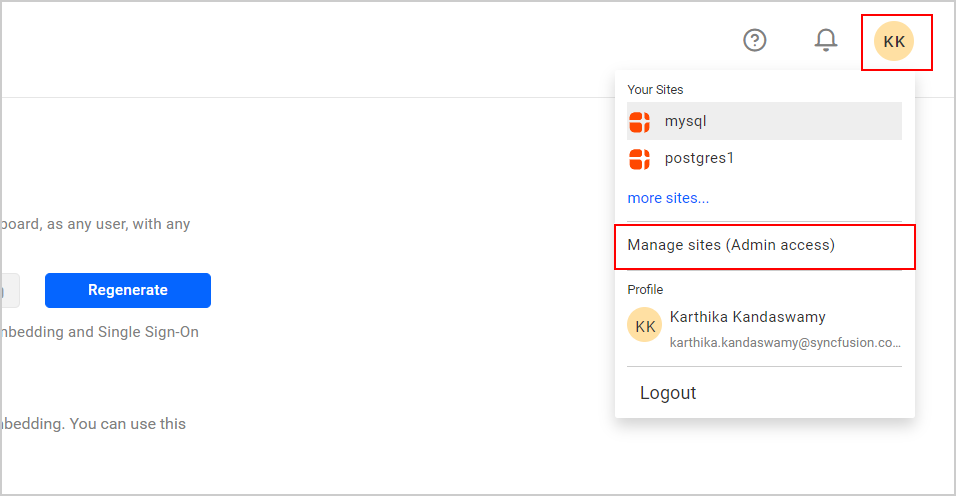
-
In UMS, go to the settings page and click on
Embed. Enable the option forEnable embed authenticationon that page.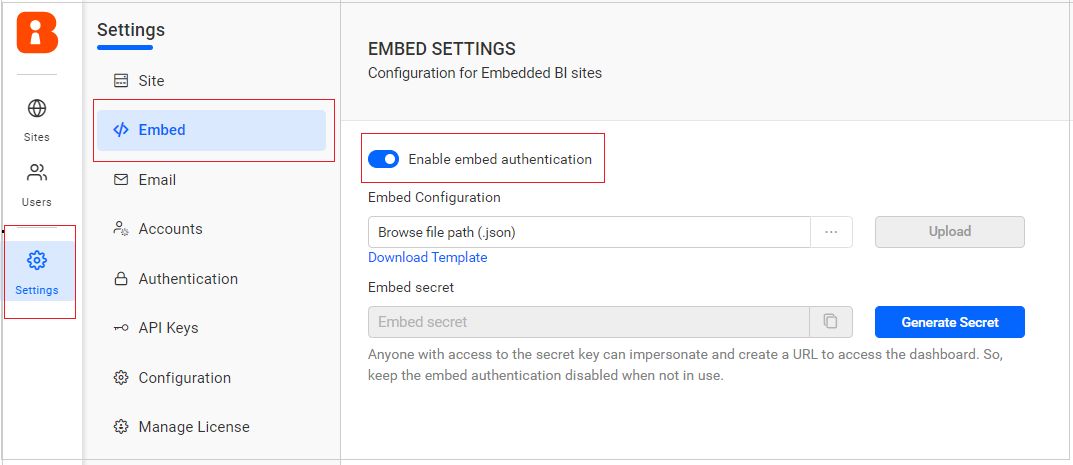
-
Click on the
Generate Secretbutton.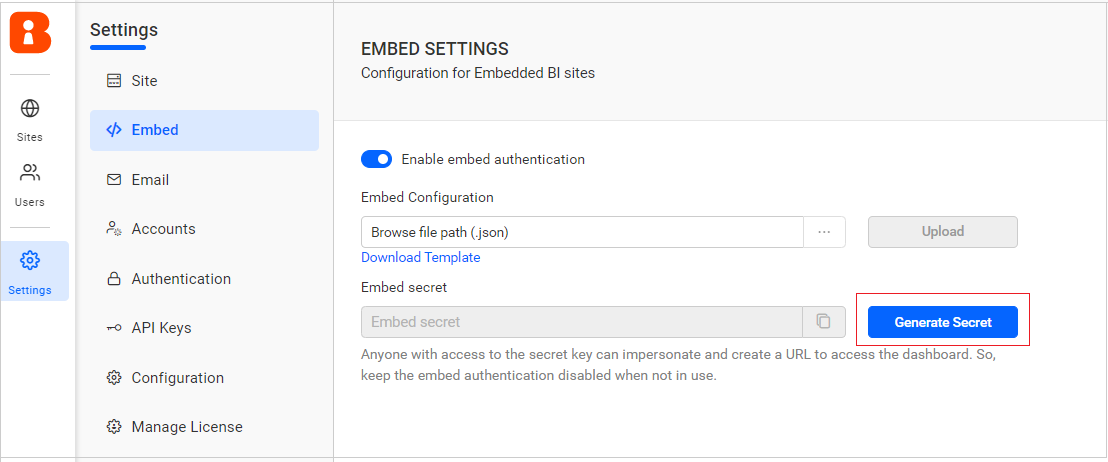
-
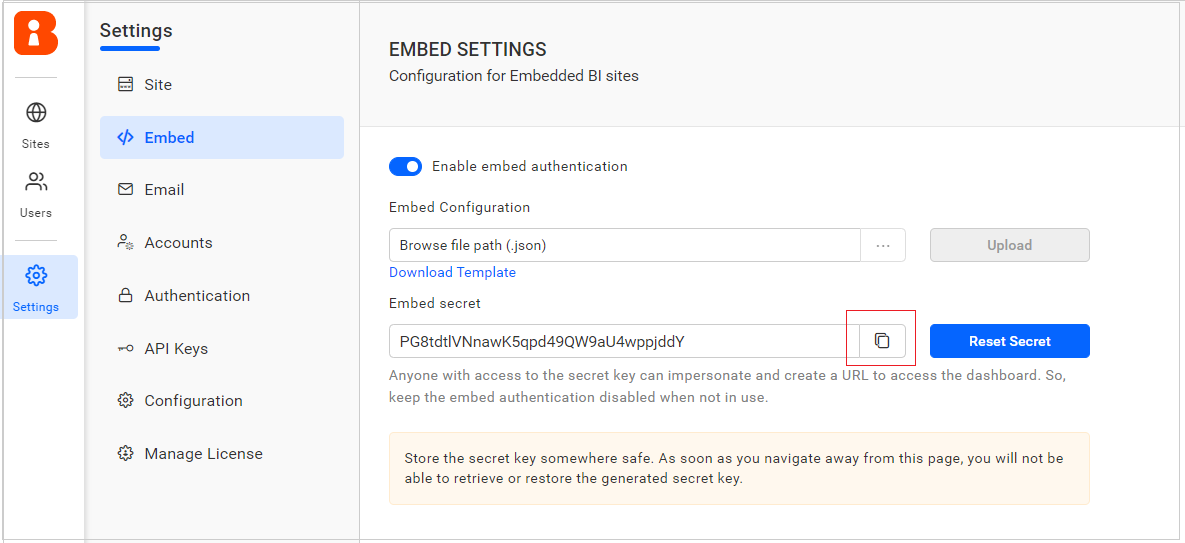
Once clicked, the secret code will be generated. Make sure to save the secret key securely as it cannot be retrieved or restored once generated.
-
If needed, the secret code can be reset by clicking on the
Reset Secretbutton.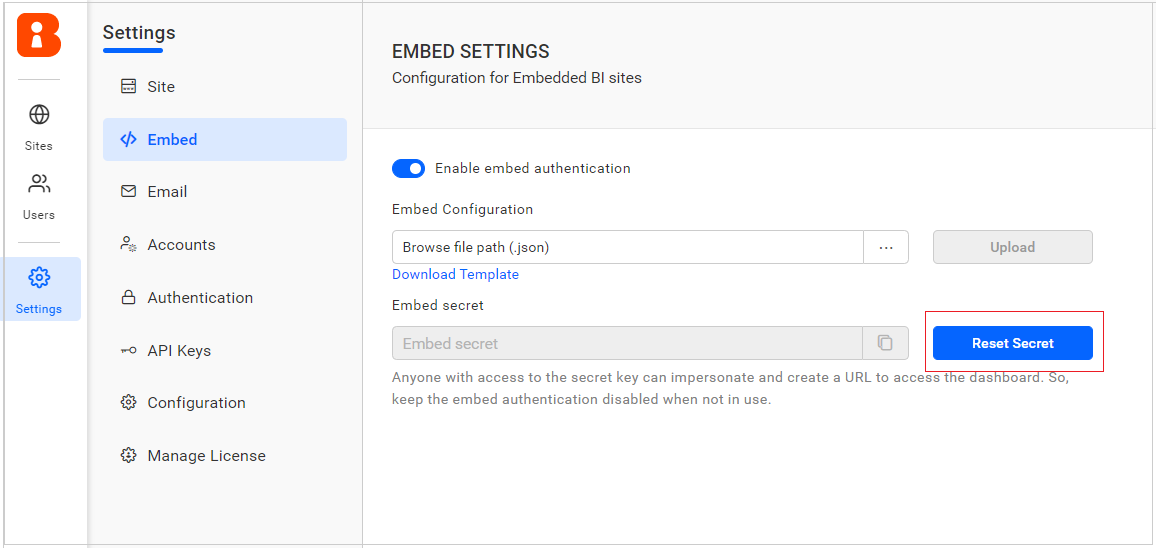
Warning: Resetting this common embed code will break previously working embedded dashboards across multiple sites.