SMTP Account
This section explains how to configure the SMTP details in the Bold BI Server to send emails.
NOTE: This email service configuration is only applicable for On-Premises Deployment.
The Bold BI Server requires the following SMTP details in order to send emails.
| SMTP Server | The SMTP server specifies the public IP address or provider which delivers the emails to the end user mail box. |
| SMTP Port | The port number of the SMTP server may vary depending on the SMTP server and the connection type (SSL/TLS). |
| Sender Name | The name displayed on the email as the "From" name. |
| Sender Email Address | The email address, which is displayed as the "From" email address in the recipient's email. |
| Authentication type |
We support two types of authentications:
|
| Username | The username of the sender's email account with send mail access. |
| Password | The password of the sender's email account. |
| Enable SSL | If SSL is enabled, it will be used to connect with your SMTP server. Otherwise, the connection will be made using TLS. |
Steps to configure SMTP account settings in Bold BI:
-
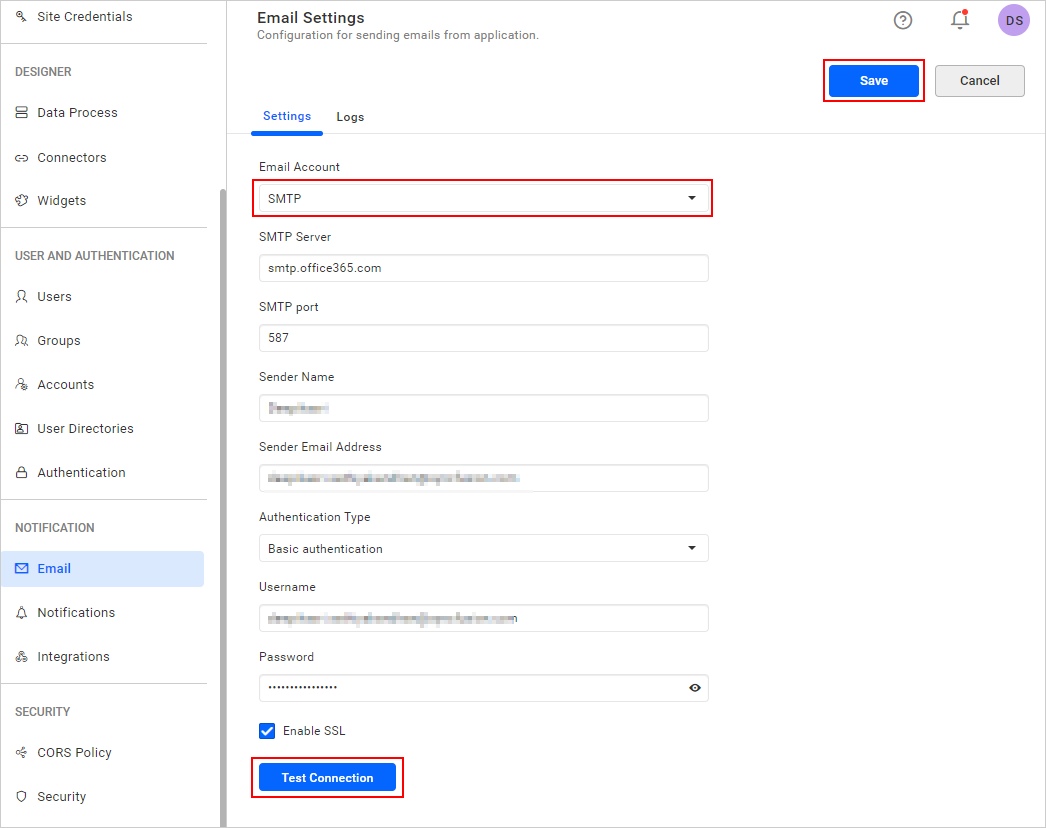
Go to
http://{domain}/bi/site/site1/administration/e-mail-settingsand selectSMTPfrom theEmail Accountdrop-down menu. -
Fill in the respective fields with the SMTP Server, SMTP port, Sender Name, Sender Email Address, Authentication Type, Username, and Password.
-
After entering the email settings connection details, test the settings by using the
Test Connectionoption and then save the settings.
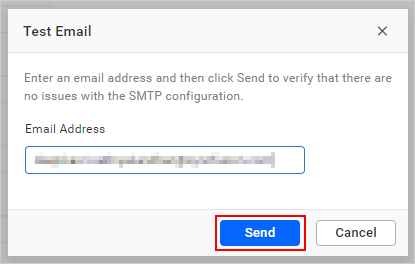
- Enter an email address and click on
Sendto ensure that the SMTP configuration is correct.