Configure DataStore Settings
This section explains how to configure the DataStore settings for storing extracted data from data sources.
DataStore is an intermediate database used to store imported data from web data sources and statistic files, with a scheduled refresh option to update data.
NOTE: This feature is available in On-Premises Deployment but not in Syncfusion Managed Cloud Server.
Database configuration
We can connect to the existing SQL Server instance with the following options:
- New Database
- Existing Database
New database
- In this method, a new database is created to store the extracted data sources and files.
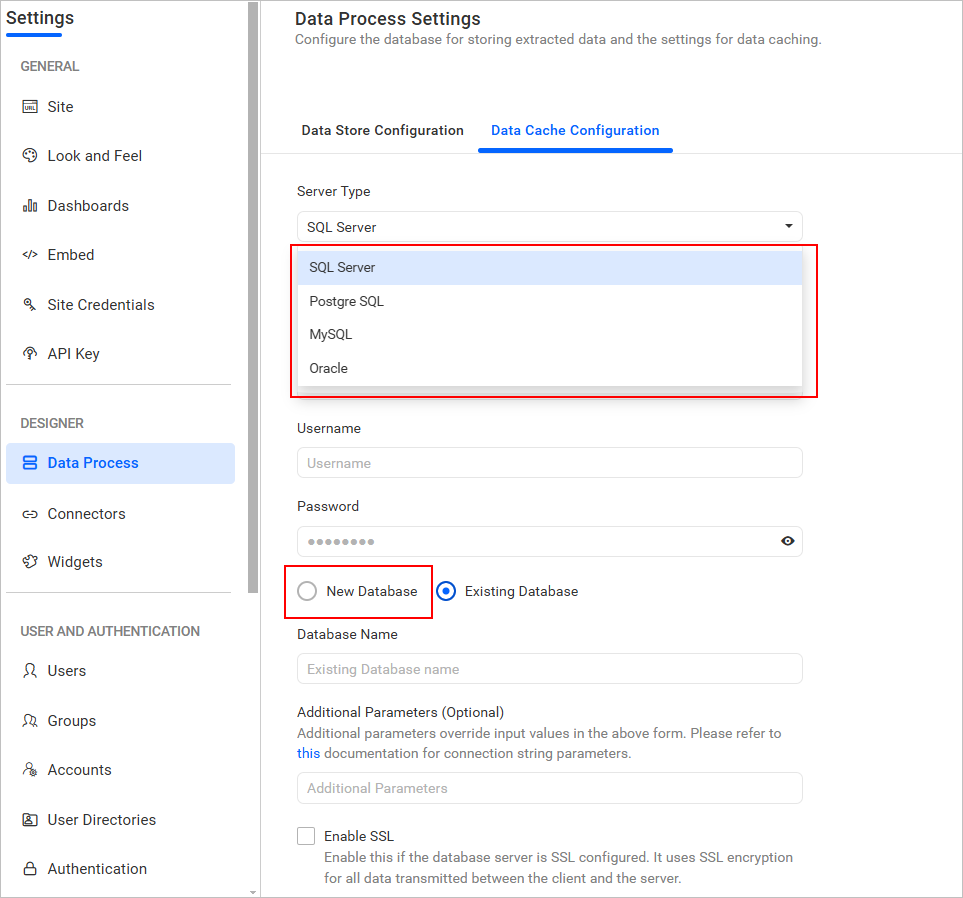
- Select server type, enter the server instance name, credentials, and choose the
New Databaseoption. - Enter your database name and click the
Savebutton.
NOTE:
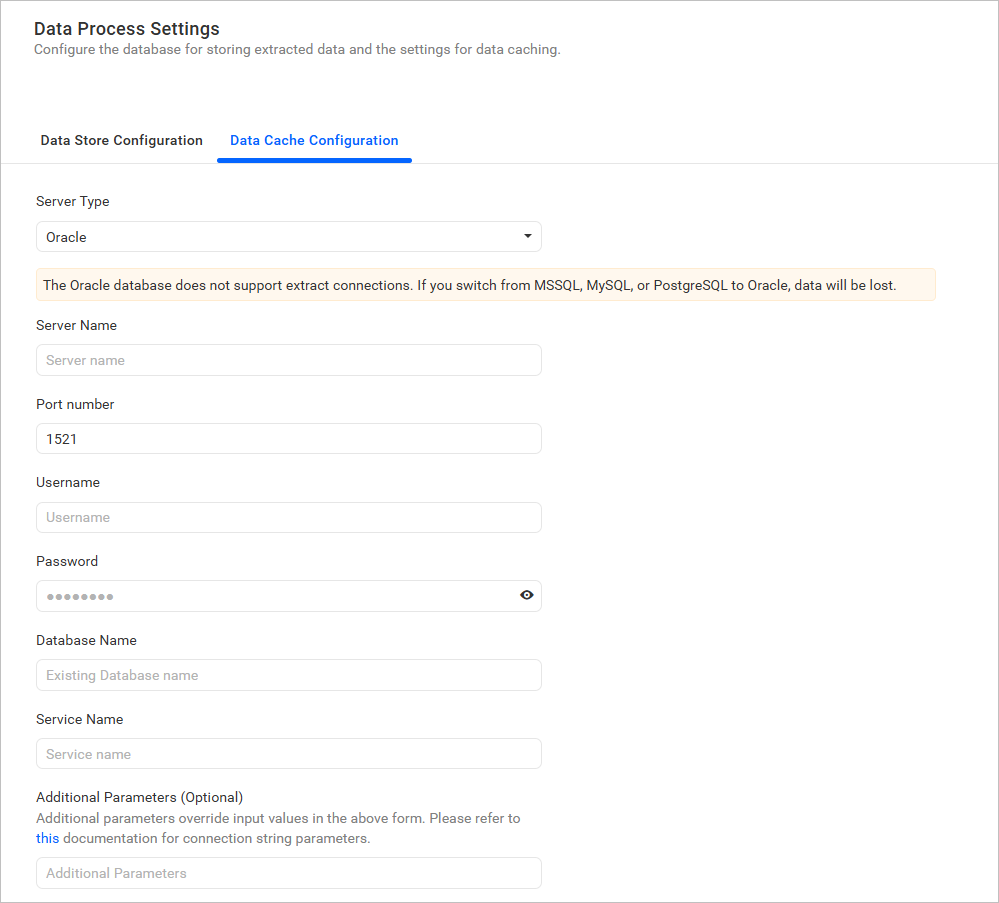
- When selecting Oracle as the database type, users cannot create a new database for storing extracted data sources.
- Changing the database type to Oracle from another database will result in the loss of all previously stored data.
Existing database
- In this method, an existing database is used to store the extracted data sources and files.
- Select server type, enter the server instance name, credentials, and choose the
Existing Databaseoption. Select a databasefrom the drop-down menu to create Data Store tables in that database, then click theSavebutton.
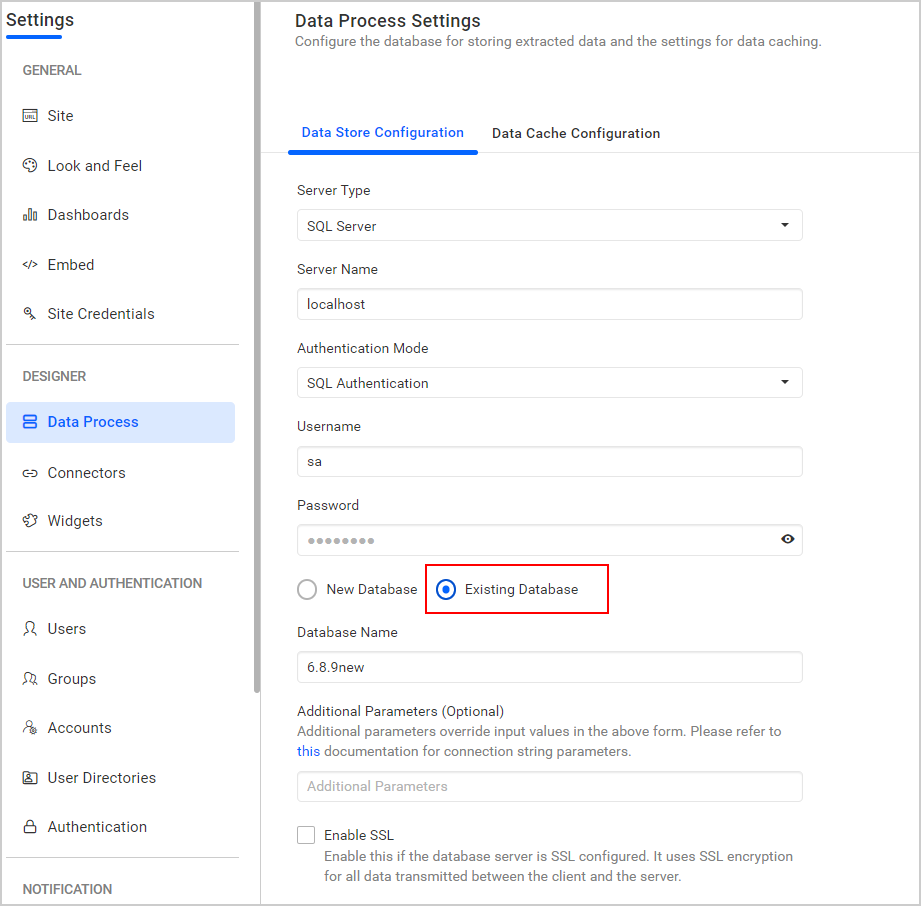
NOTE: The credentials given to connect to the SQL Server instance must have permissions to:
- Create Database
- Create Table
- Insert
- Update Table
- Alter Table
- Select
- Drop Table
- Drop Database
Using Site-Level Custom Attributes to Configure Data Store Settings in Bold BI
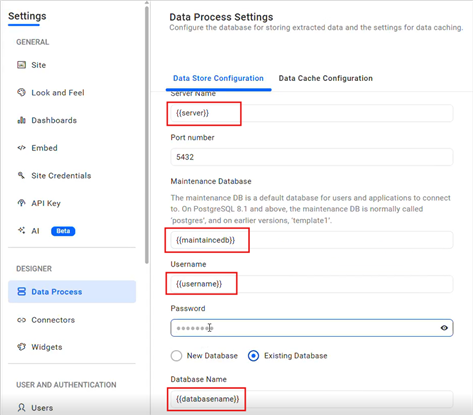
Use site-level custom attributes to drive Data Store settings (such as server name, username, maintenance database, and database name) across one or more Bold BI sites. This centralizes environment-specific values (e.g., server, database name) and makes updates scalable without hardcoding per site.
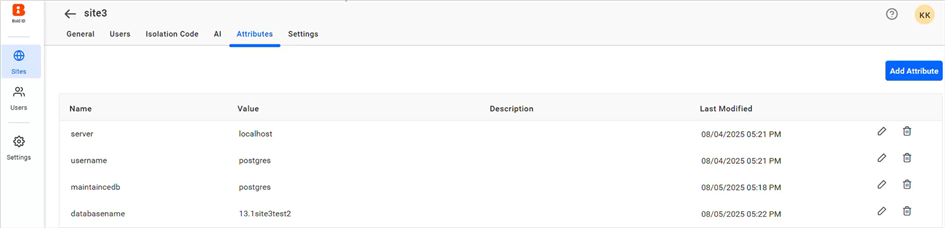
- Before you begin First, create the required custom attributes in Bold BI. For instructions please refer in here: Custom Attribute
- Configure the Data Store using custom attributes by inserting placeholders in the format {{AttributeName}}. For example, if your custom attribute is named server, reference it as {{server}} in the Data Store fields. Please refer to the images below.