
Configure Data Cache Settings
This section explains how to configure the Data cache settings to improve dashboard performance by caching widget data during interactions in a Bold BI dashboard.
The Data Cache feature allows you to enhance dashboard performance by caching the result of each widget and storing the cached data in a dashboard for a specified amount of time.
NOTE: This feature is available in On-Premises Deployment but not in Syncfusion Managed Cloud Server.
Mode selection
The mode should be either in-memory or redis. The widget data will be cached based on the selected mode.
Cache configuration
-
Navigate to the
Data Processsettings on the server page and select theData Cache Configurationtab.The Data cache can be achieved through two modes:
- In-Memory
- Redis
In-Memory
The
In-Memorycache is the default cache memory for dashboards. It stores the data in the internal cache storage. You should configure theCacheModeproperty for thein-memorymode selection.Redis
The Data is cached in an external server named
Redis. Redis is an open-source (BSD licensed), in-memory data structure store used as a database, cache, message broker, and streaming engine. Learn more aboutRedisand its installation of Redis.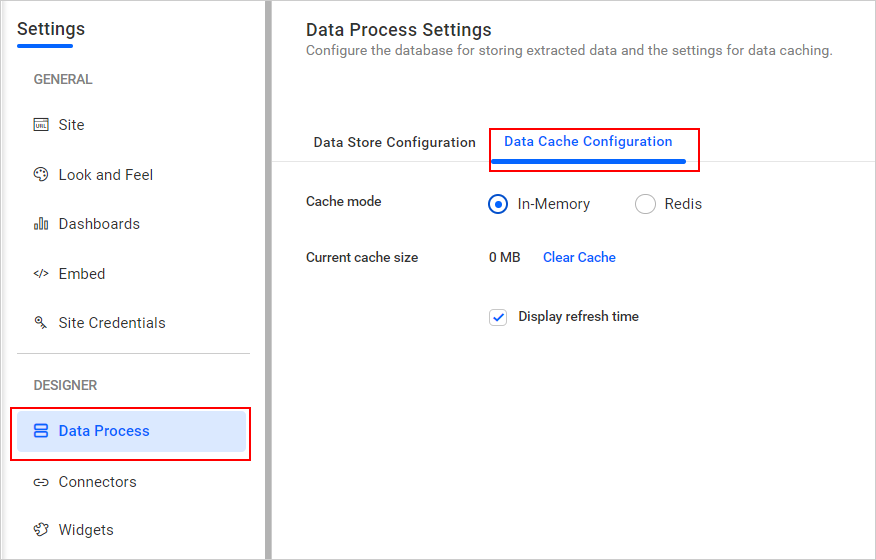
-
In
Redismode, find the connection string and test connection options. It will help to check whether it is a valid connection string or not.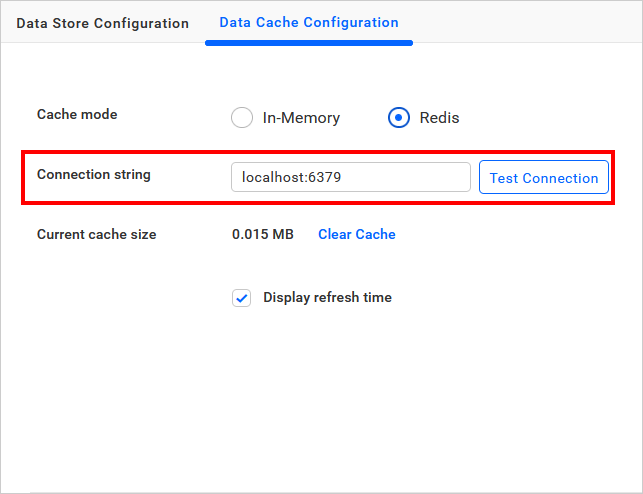
-
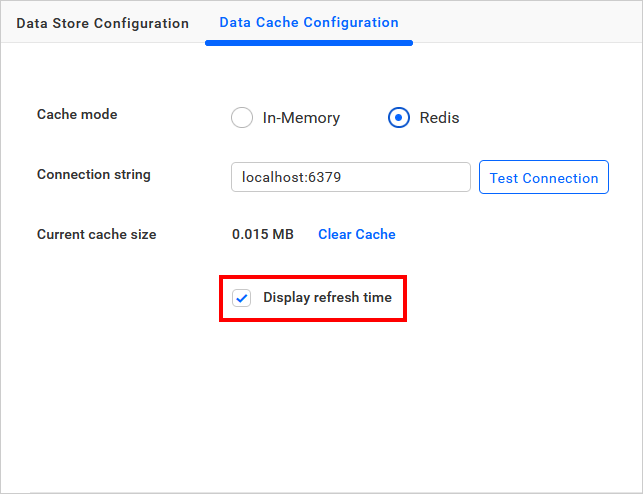
The data refreshed time is provided on the dashboard view page. Disable the data refreshed time by clicking the checkbox.
-
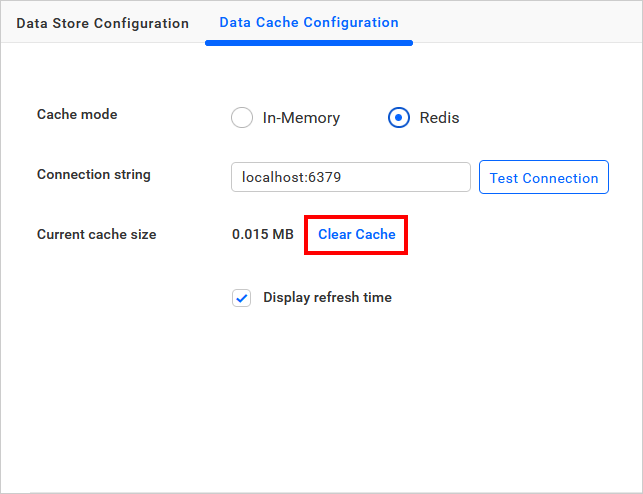
By clicking the clear cache option, all dashboard cached memory should be cleared when the data cache is in an ON state.
NOTE: The
Clear cacheoption is visible only when the cache is present.
Please find more details about Data cache.