OneLogin support for SSO authentication
The Bold BI application supports adding users using the OneLogin provider. By importing them, you can share the dashboards and email exported dashboards with them.
NOTE: This feature is available in Bold BI Embedded Analytics, but it is not available in Cloud Analytics Server.
How to register the Bold BI application in OneLogin
This section explains how to perform Single Sign-On for users in OneLogin with the Bold BI application.
NOTE: This configuration needs to be done on the OneLogin website.
Prerequisites
- An admin account in OneLogin.
- Install Bold BI application.
Steps to register the Bold BI application
-
Login to the OneLogin website using an admin account.
-
Click
Applicationsin the header menu.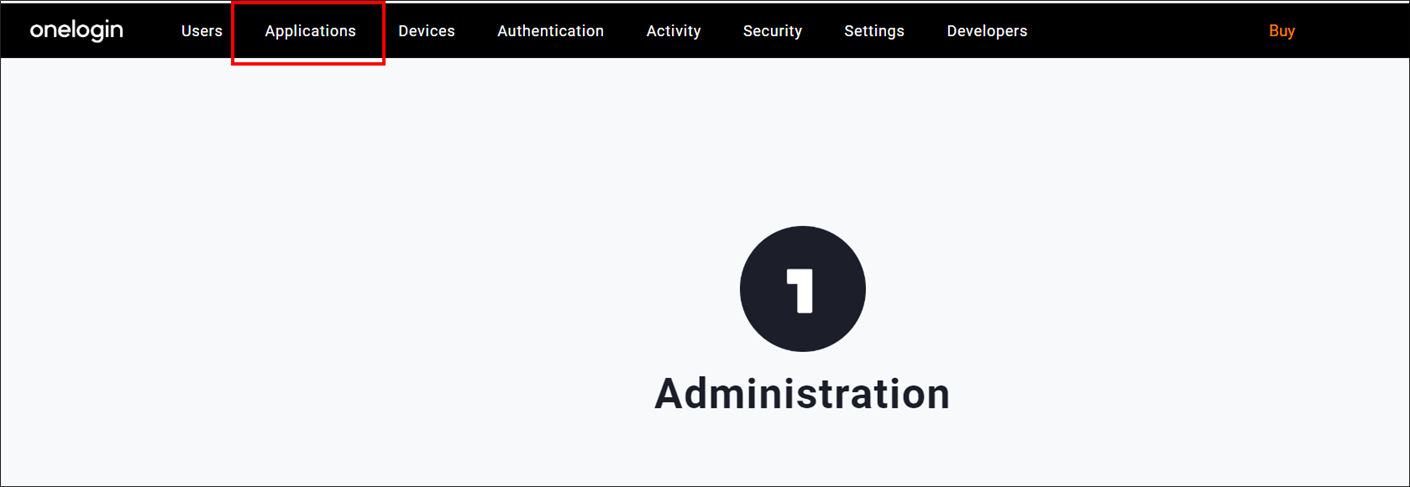
-
Click the
Add Appbutton.
-
Type the words
OpenId Connectoroidcin the search box and click on the result.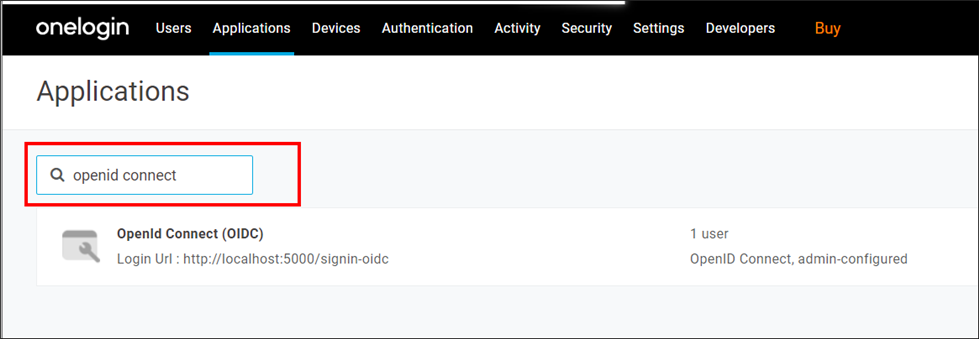
-
Please enter the application name and click on
Add App. -
Please save the application name in the
Display Name.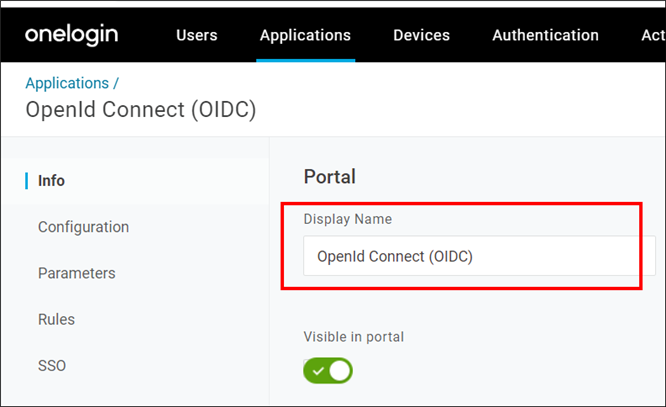
-
If you want to use the Bold BI mobile application, follow the steps above and finally click on
SSOand change theApplication TypetoNative.If not, proceed as it is.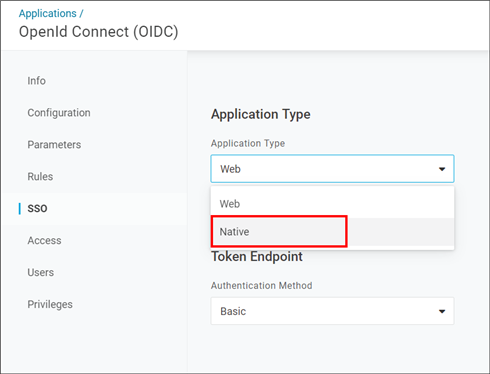
-
Click the
Configurationtab and save theRedirect URIs. For the Bold BI application, use theMobile App Redirect URIand use theRedirect URIfor the web application.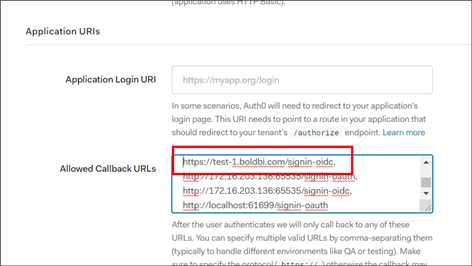
-
The
Redirect URIandLogin URLare found under theOpenID Connectsettings of your Bold BI application, as shown in the following screenshot.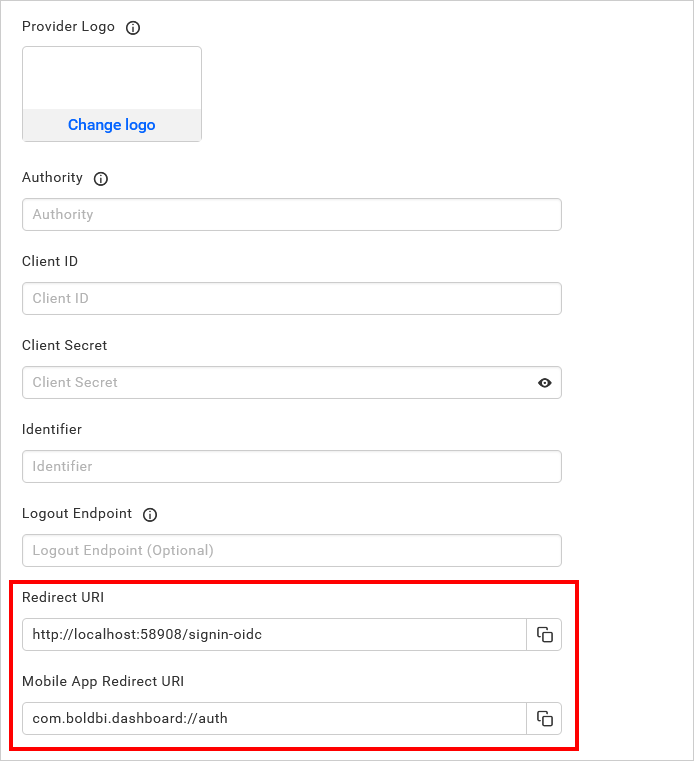
-
Click on the
SSOtab to find theClient IDandClient Secret, and use them in the Bold BI application.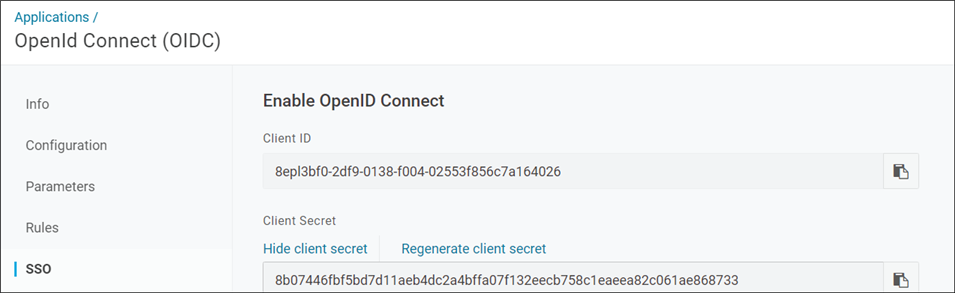
After successfully registering in OneLogin, save these settings on the Bold BI settings page to enable this authentication.
Enable OneLogin support for authentication in Bold BI
Configure the settings in Bold BI as in the following screenshot to enable the authentication using the OneLogin.
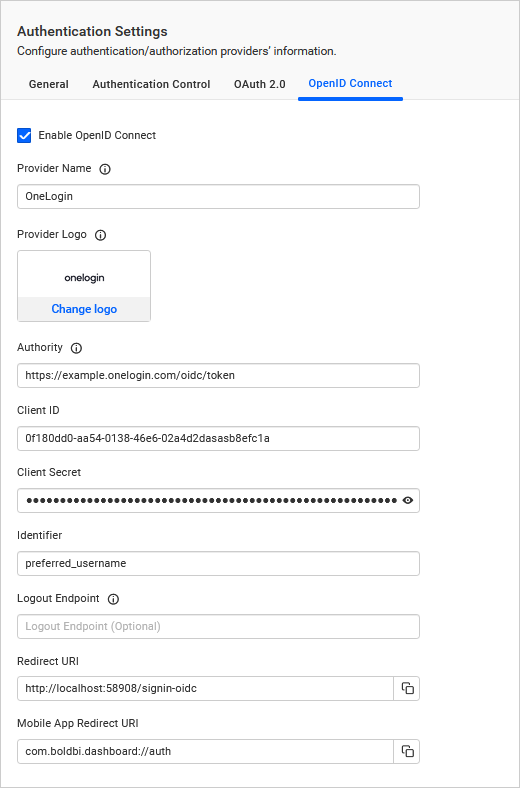
The fields that need to be saved in Bold BI in order to enable OneLogin for authentication are explained as follows.
| Provider Name | It represents the name of the authentication provider to be displayed in the login page. |
| Provider Logo | It represents the logo of the authentication provider to be displayed in the login page. |
| Authority | It must be in the form https://subdomain.onelogin.com/oidc. Sub domain represents the OneLogin instance. |
| Client ID | The Client ID you get after registered the Bold BI application in OneLogin website. |
| Client Secret | The Client Secret you get after registered the Bold BI application in OneLogin website. |
| Identifier | preferred_username |
| Logout Endpoint | It is the endpoint in the OneLogin website that signs the user out. |
Configure OneLogin Group Import Settings in Bold BI
Configure the group import setting in Bold BI using OneLogin, as shown in the image below.
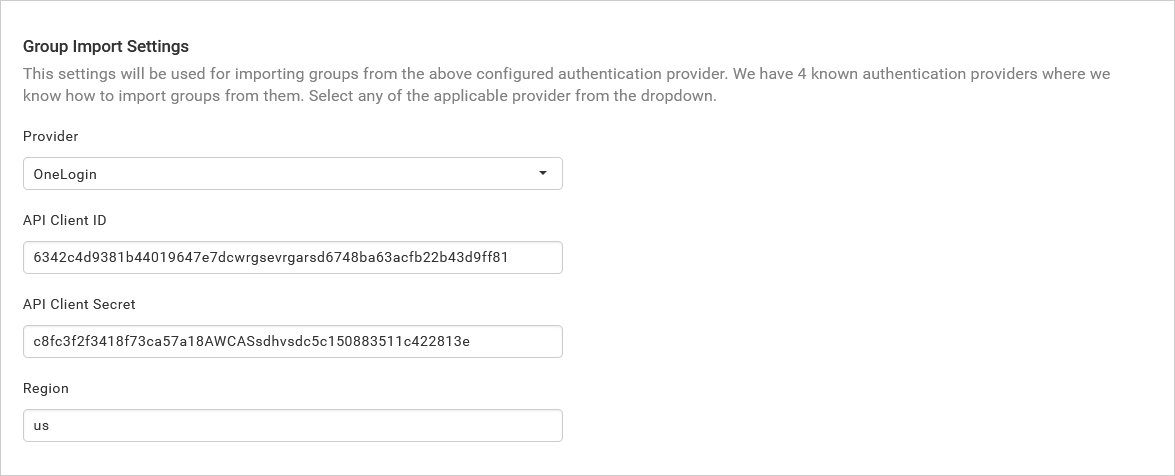
To generate the API client credentials, please follow the link: OneLogin API Credentials Guide
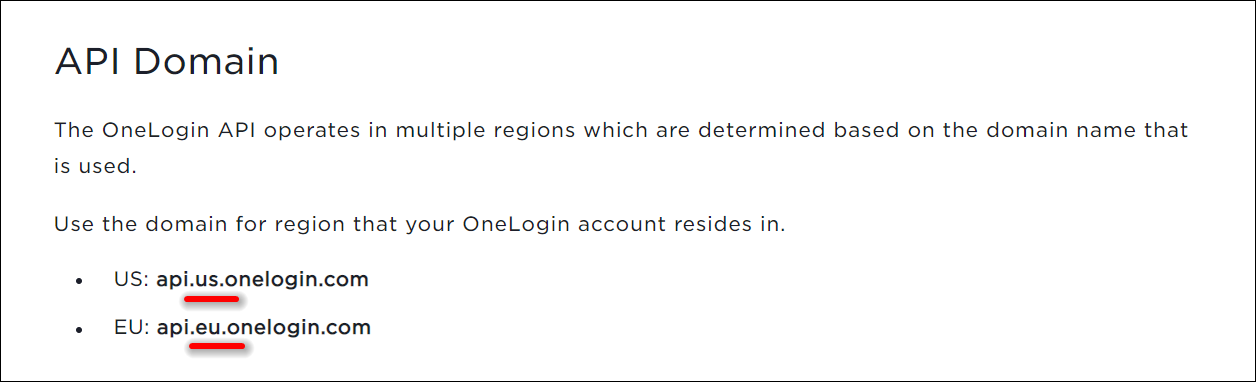
We use the client ID and client secret from the API client credentials to obtain a token for accessing the groups API. In order to access OneLogin APIs, we require the Region from the API Domain. Please refer to the image below for the region.