
Okta support for SSO authentication
The Bold BI application supports the addition of users using the Okta provider. By importing them, you can share the dashboards and email exported dashboards with these users.
NOTE: This feature is available in Bold BI Embedded Analytics, but not in Cloud Analytics Server.
How to register the Bold BI application in Okta
This section explains how to perform Single Sign-On for users in Okta with the Bold BI application.
NOTE: This configuration needs to be done on the Okta website.
Prerequisites
- An admin account in Okta.
- Install Bold BI application.
Steps to register the Bold BI application
-
Please login to the Okta website using an admin account.
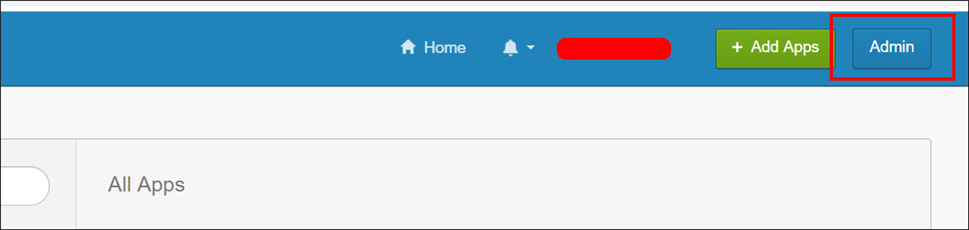
-
Please click on
Applicationsin the header menu.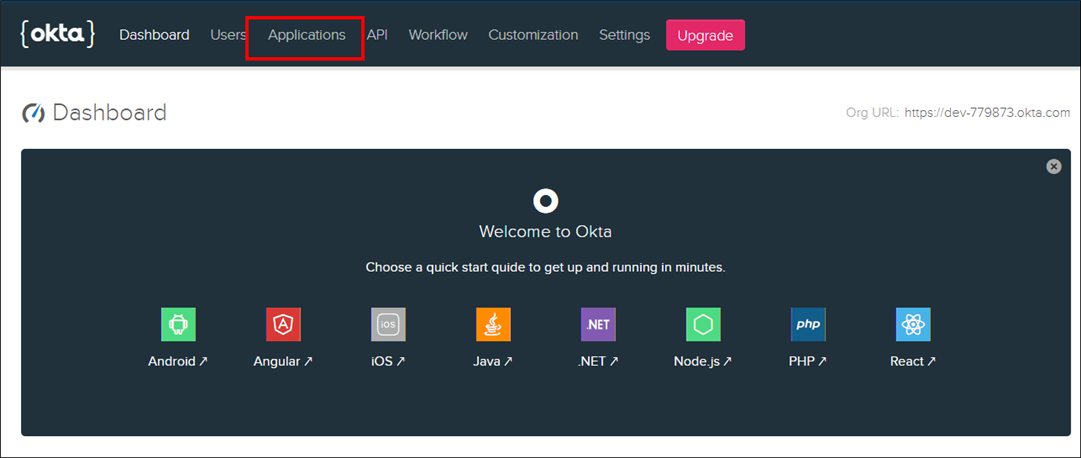
-
Click the
Add Applicationbutton.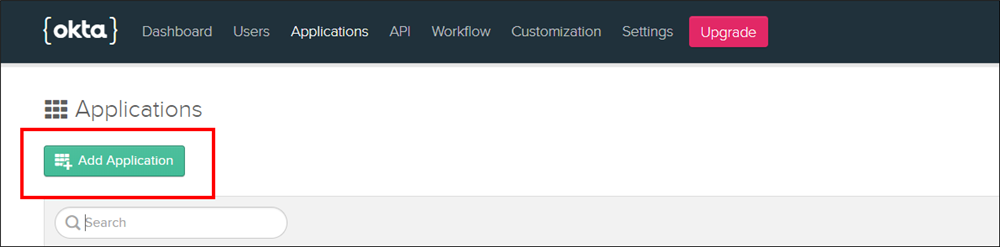
-
Click on
weband proceed to theNextstep.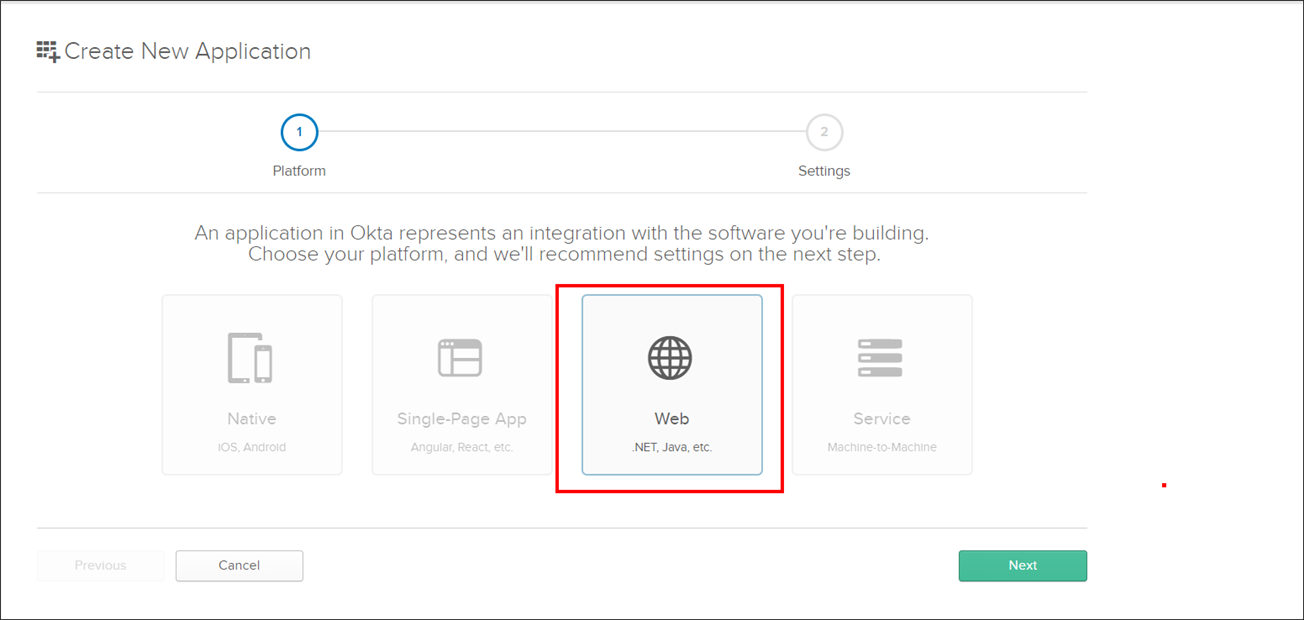
-
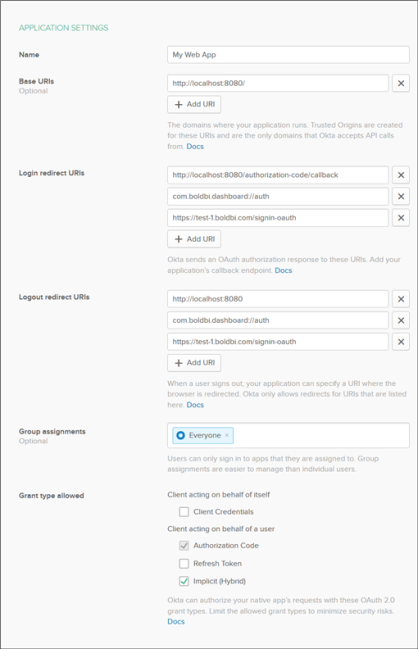
Please complete the application details on the next page and then click
Done.
-
Name
-
Login Redirect URIs
-
Logout Redirect URIs
NOTE: Choosing the
Grant type allowedasImplicit (Hybrid)is a must in addition to the default.
-
The
Login redirect URIsmust be the URI specified in the settings of your Bold BI application, as shown in the snapshot below.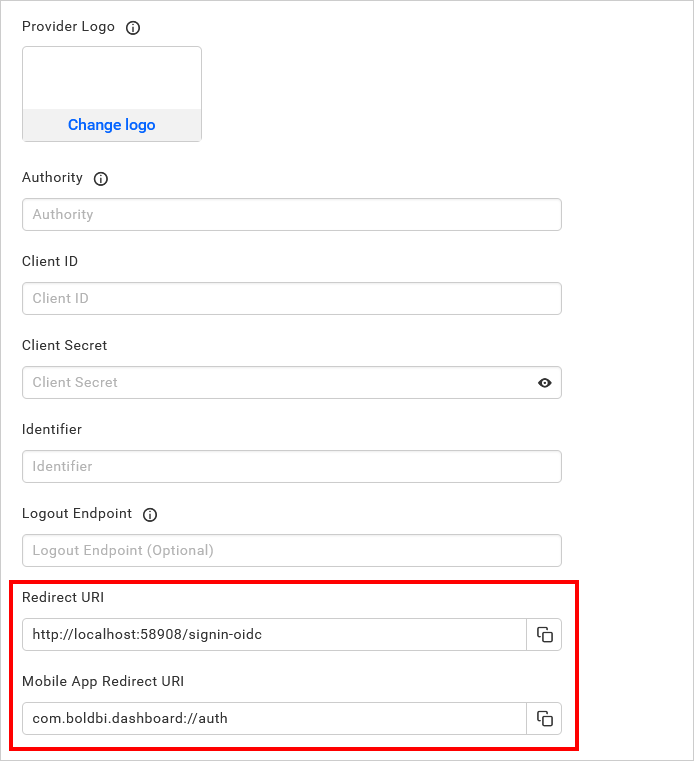
-
On the next page, you will receive the
Client IDandClient Secretat the bottom along with the other details you provided on the previous page.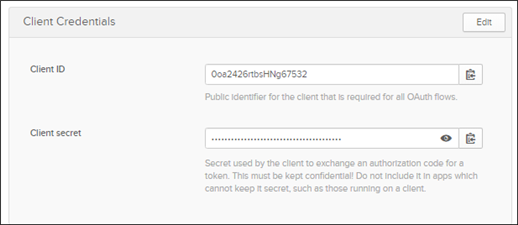
After successful registration in Okta, save these settings in Bold BI settings page to enable this authentication.
Enable Okta support for authentication in Bold BI
Please configure the settings in Bold BI, as shown in the following screenshot, to enable authentication using Okta.
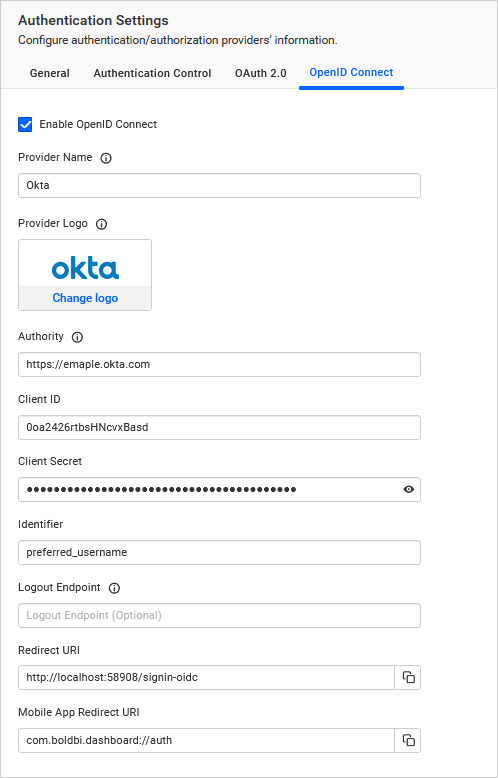
The fields that need to be saved in Bold BI in order to enable Okta for authentication are explained as follows.
| Provider Name | It represents the name of the authentication provider to be displayed in the login page. |
| Provider Logo | It represents the logo of the authentication provider to be displayed in the login page. |
| Authority | The format is https://instancename.okta.com It must be the URL of your Okta instance. |
| Client ID | The Client ID you get after registered the Bold BI application in Okta website. |
| Client Secret | The Client Secret you get after registered the Bold BI application in Okta website. |
| Identifier | preferred_username |
| Logout Endpoint | It is the endpoint in the Okta website that signs the user out. |
Configure Okta Group Import Settings in Bold BI
Configure the group import setting in Bold BI using Okta, as shown in the image below.
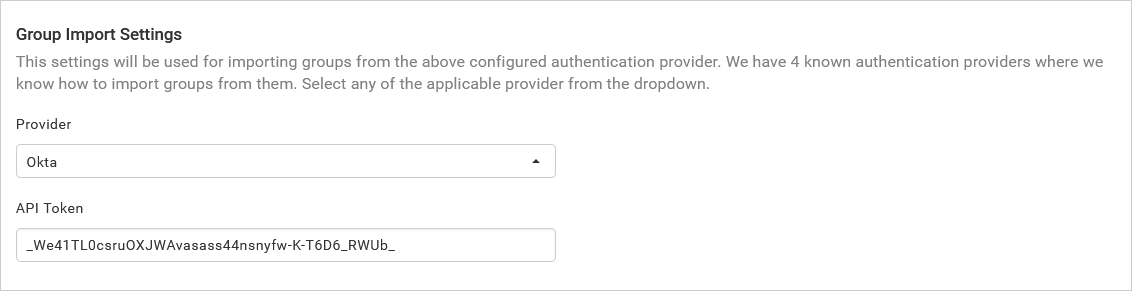
Generate an API token by following the link: Generate API Token.