
Email Template in User Management Server
This section explains how to manage email templates within the email settings. Bold BI allows you to access system templates, create custom templates, and customize templates for sending email notifications.
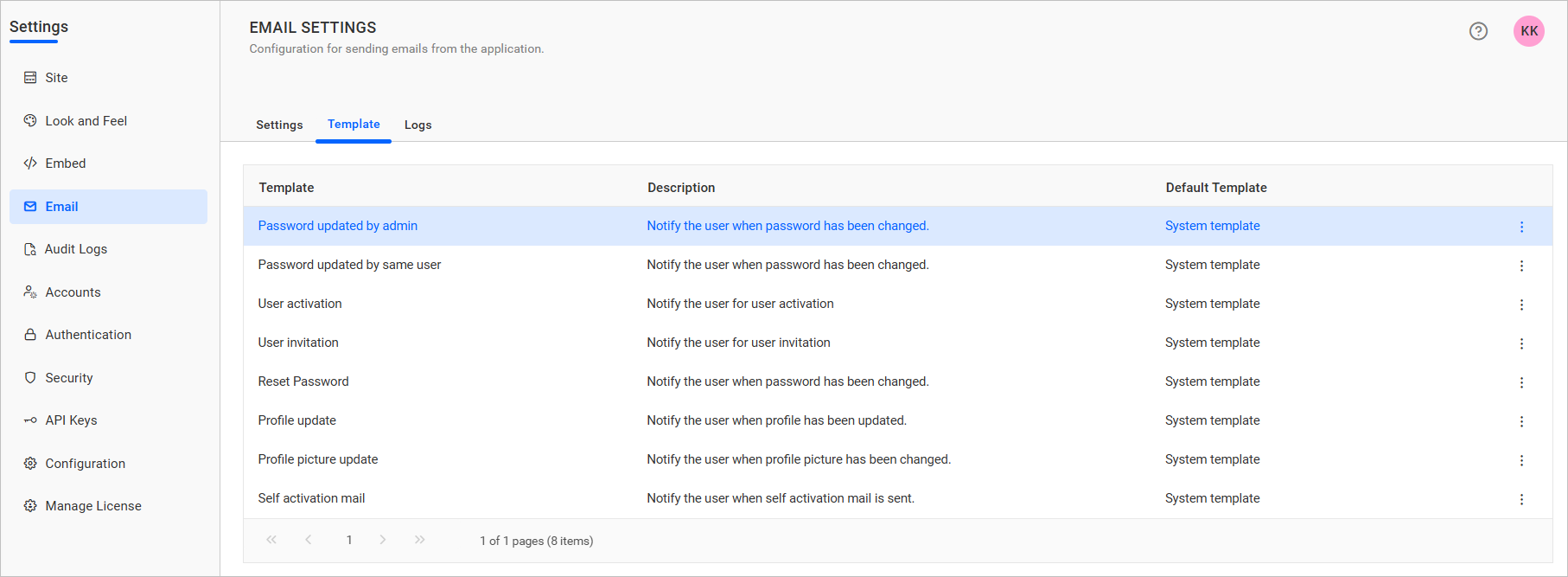
Default Template Overview
Bold BI provides default templates for each module. These templates can be customized to meet specific requirements. However, system default templates cannot be edited, deleted, or set as default for custom use.
Managing Email Templates in User Management Server
Create a New Template
-
Select a template to customize and click
Viewfrom the grid.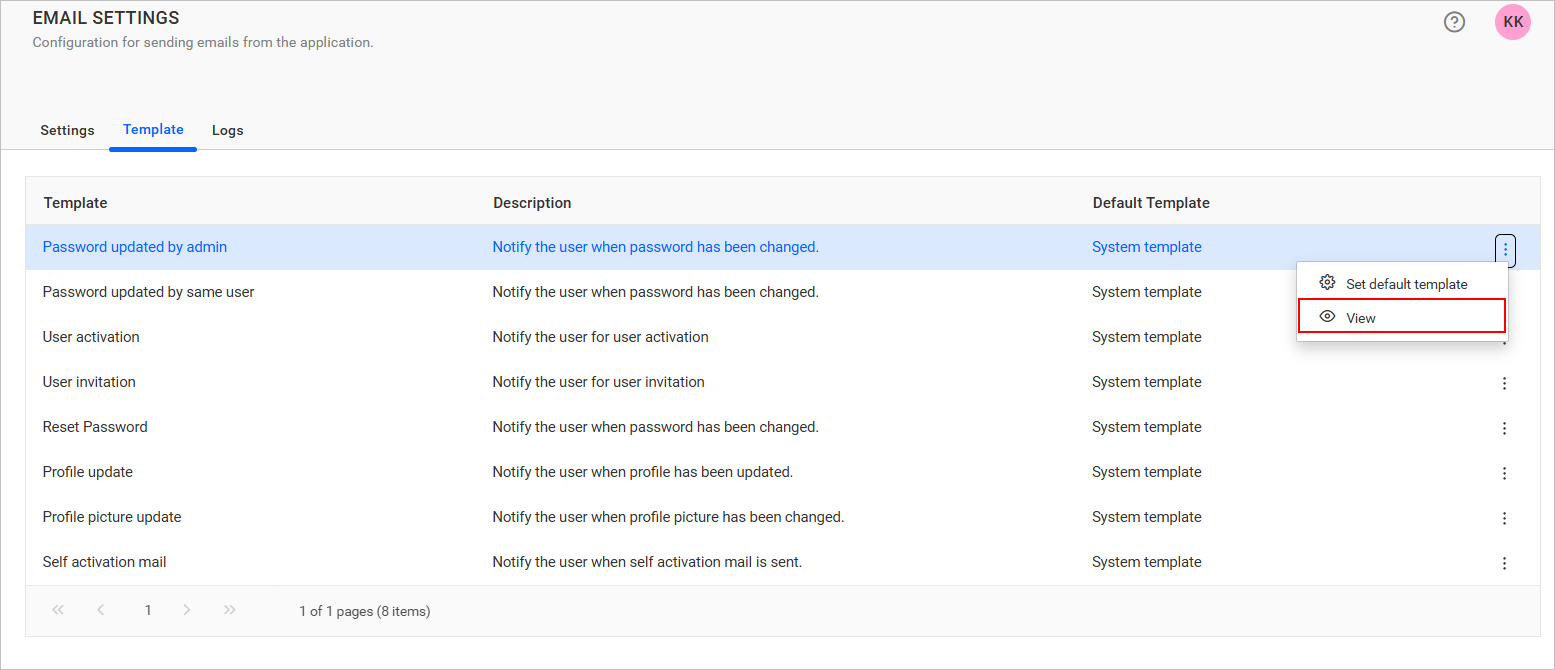
-
Click
Create Templateto create a custom template. Choose a base template to start your customization.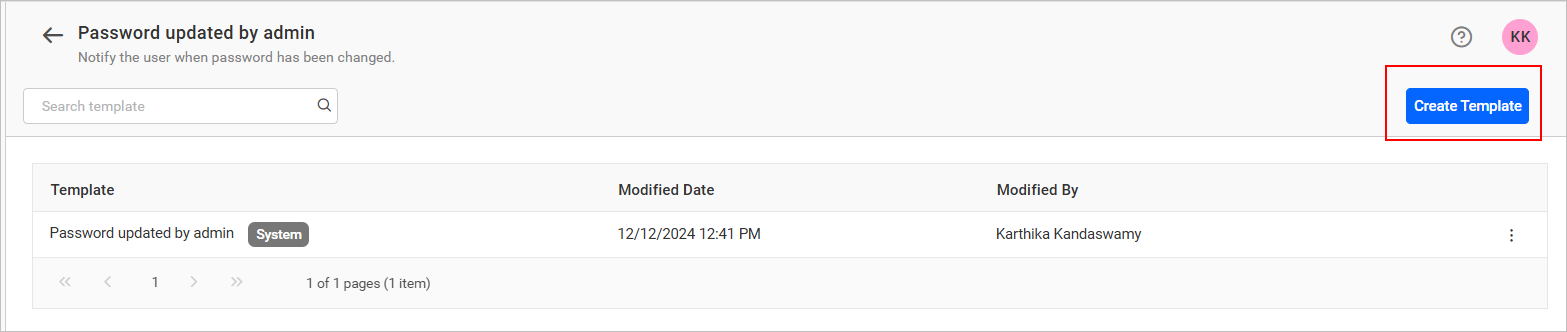
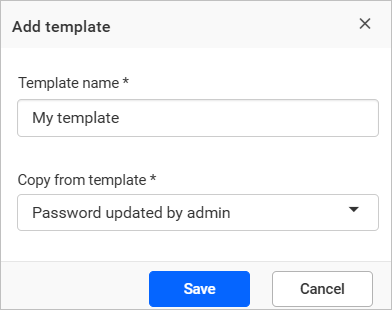
Edit Template
-
Click the
Actionsbutton in the template grid context menu and selectEdit.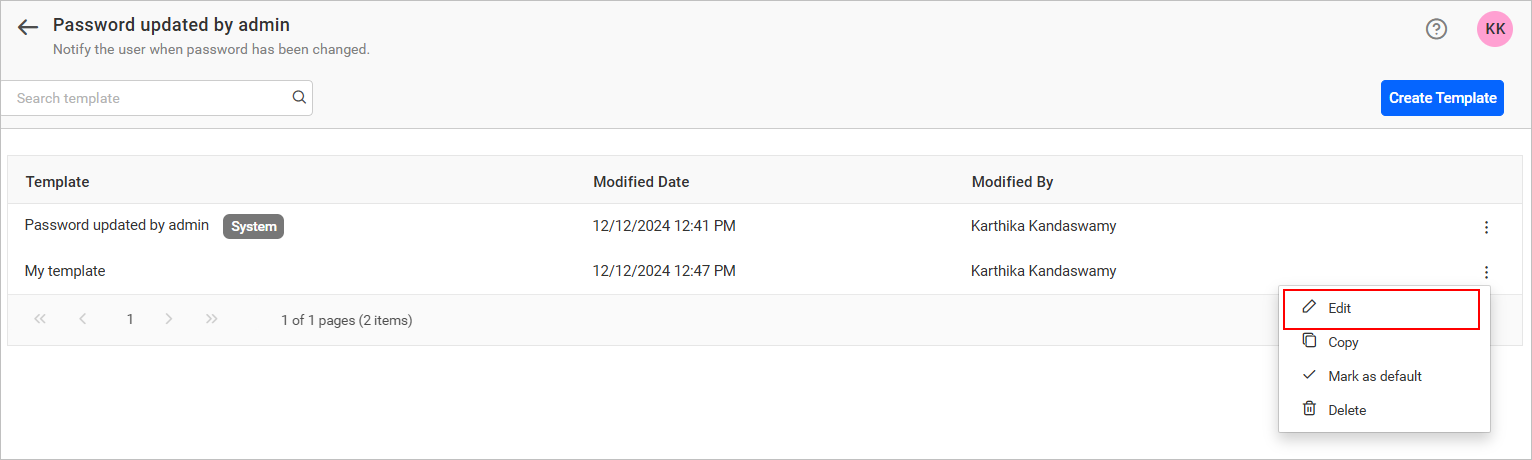
-
Modify the content as needed, then click
Saveto update the template.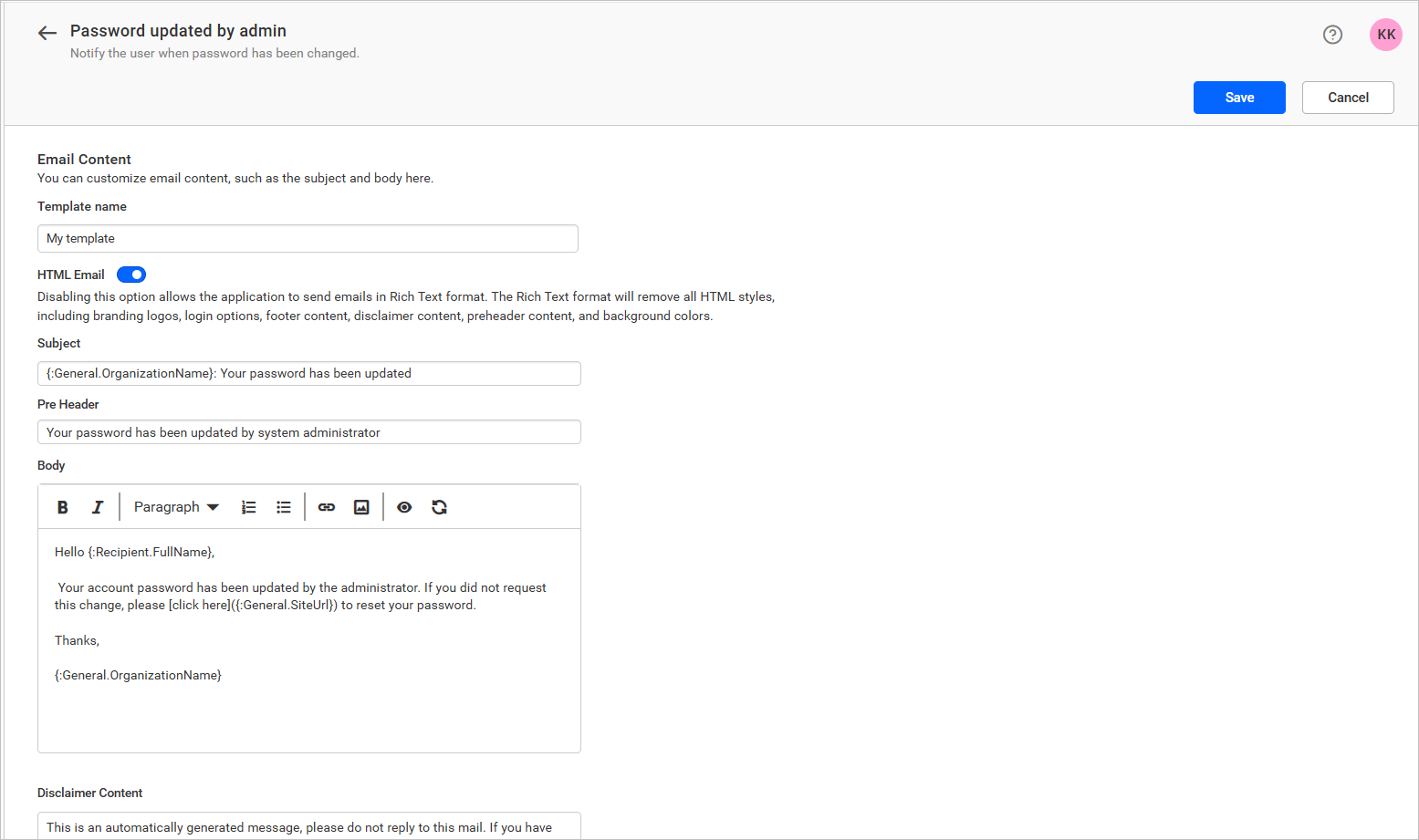
Copy a Template
-
Click the
Actionsbutton in the template grid context menu and selectCopy.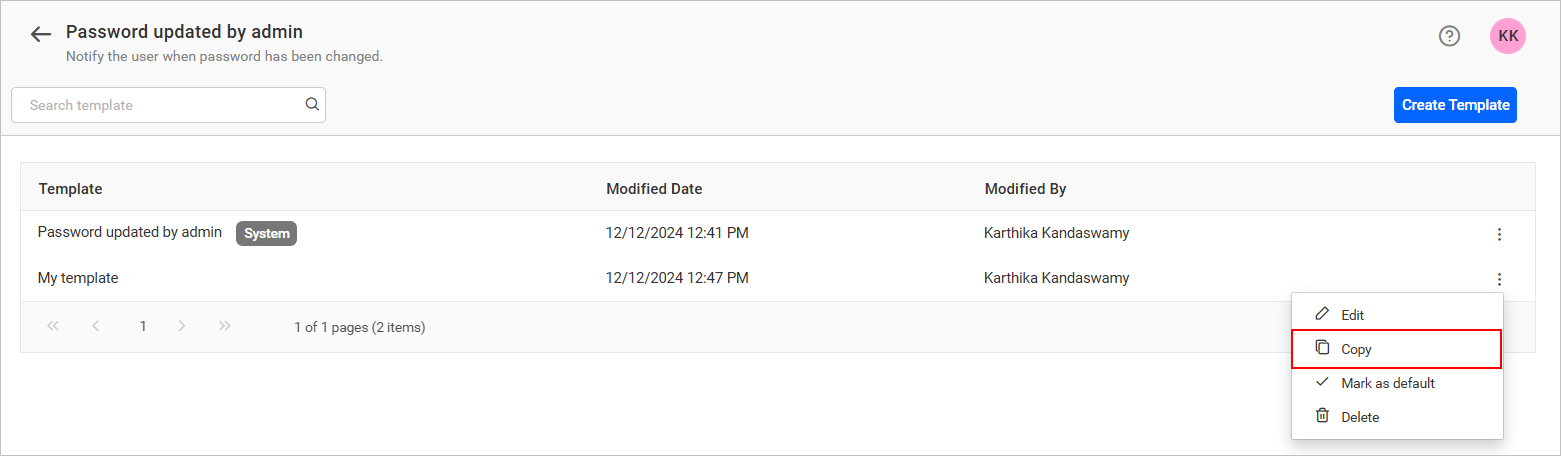
-
A dialog will appear to confirm and proceed with copying the template.
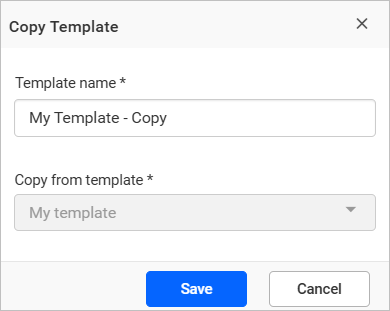
Mark a Template as Default
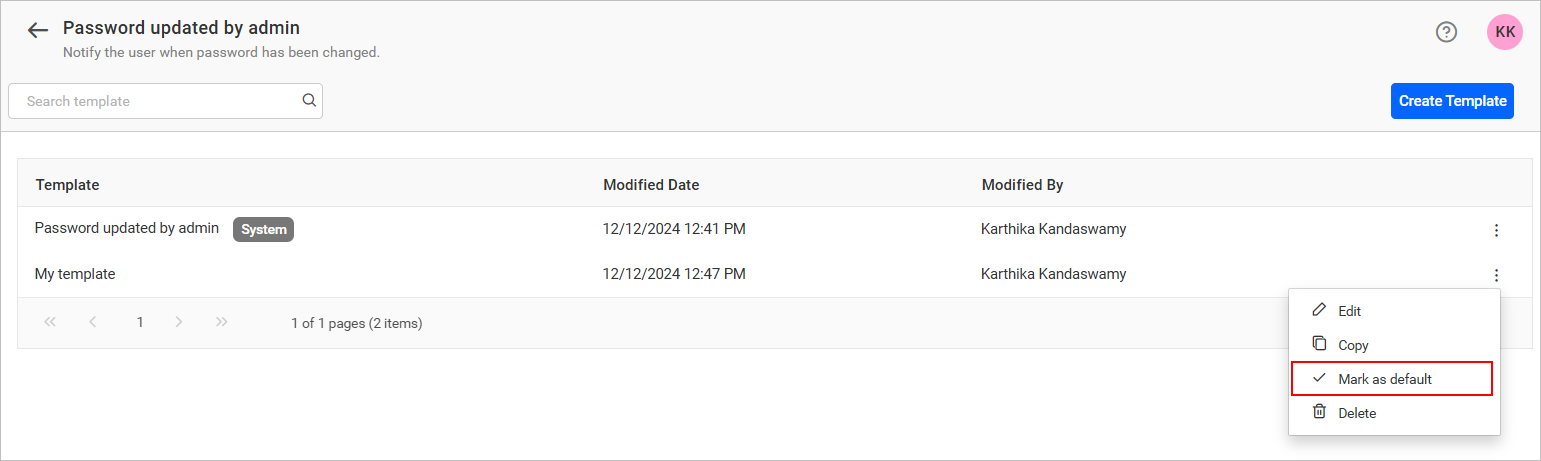
Click the Actions button in the context menu of the template grid and select Mark as default to set the selected template as the default.
Delete Template
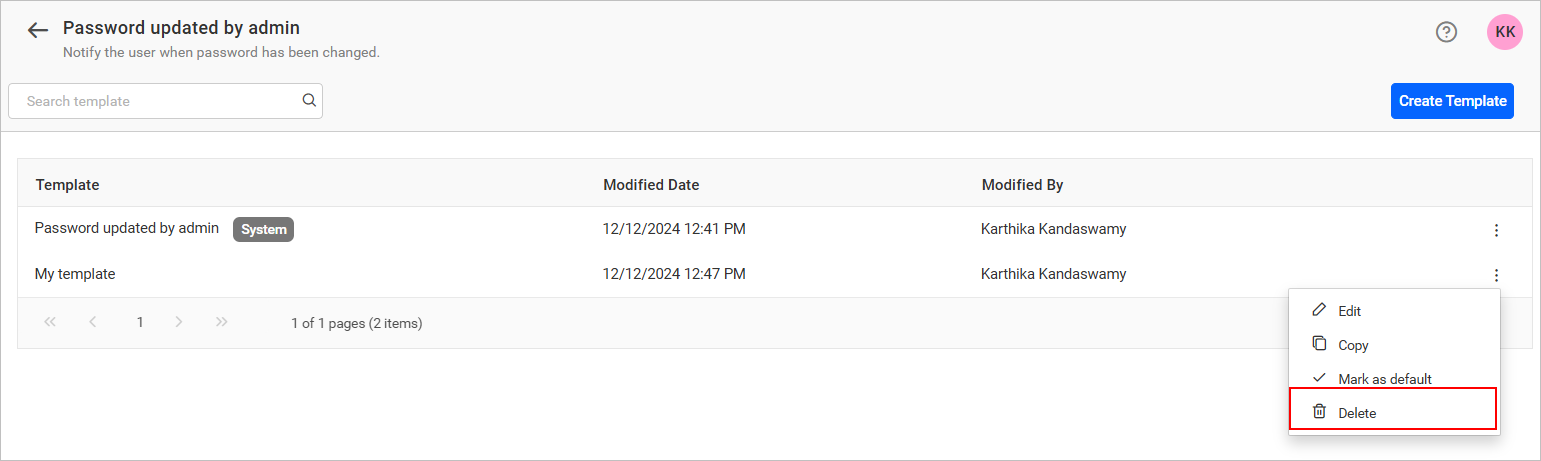
To delete the created template, click the Actions button in the context menu of the template grid, and select Delete.
NOTE: System default templates cannot be edited, deleted, or set as default.