
How to set up JWT for SSO authentication in Bold BI
This section explains how to perform Single Sign-On (SSO) for users with the Custom JSON Web Token (JWT) in the Bold BI application.
Steps to configure JWT in Bold BI
-
Login with this URL
{Bold BI URL}/ums/administrationusing the admin credentials. -
Click on
Authenticationand thenJWT.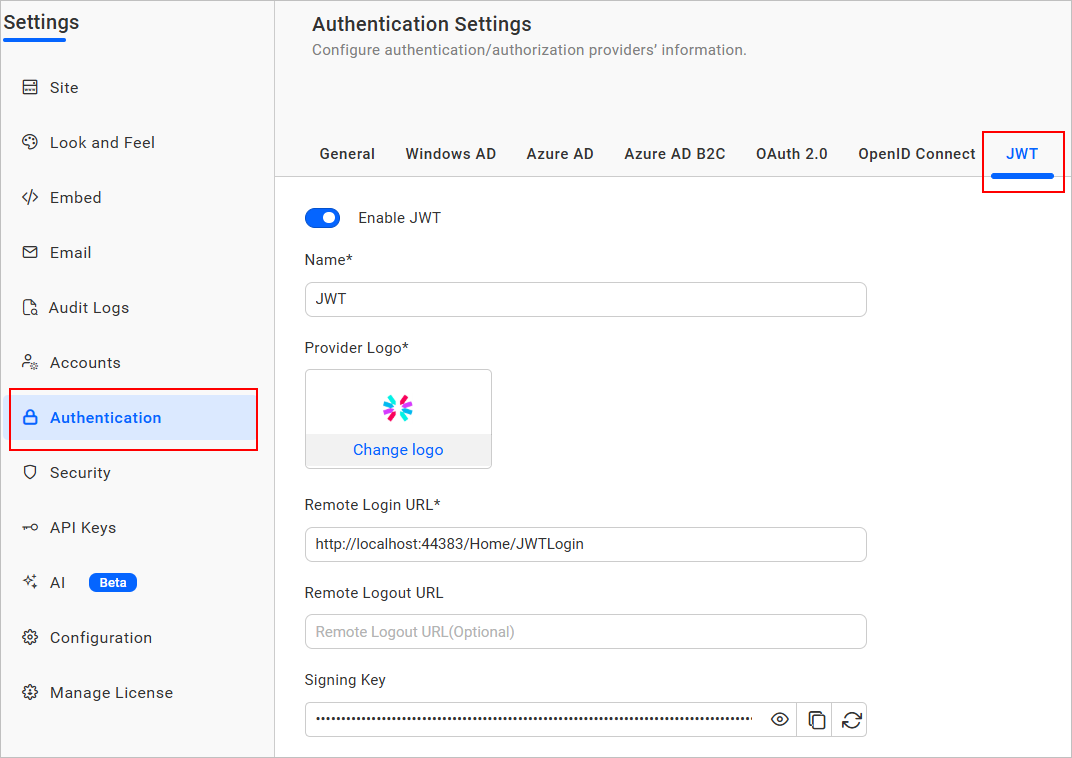
-
Enable the JWT settings.
-
Provide the following details in the
JWTsettings.Name It represents the name of the JWT provider to be displayed in the login page. Provider Logo It represents the logo of the JWT provider to be displayed in the login page. Remote Login URL It is the endpoint of the JWT provider to send the authorization request from Bold BI application. Remote Logout URL It is the endpoint of the JWT provider to send the logout request once user logged out in the Bold BI application. -
After the values are saved, the application will generate a
Signing Key. This signing key must be used for signing JSON Web Tokens from your application. -
The
Signing Keycan be copied, viewed, and reset using the following options: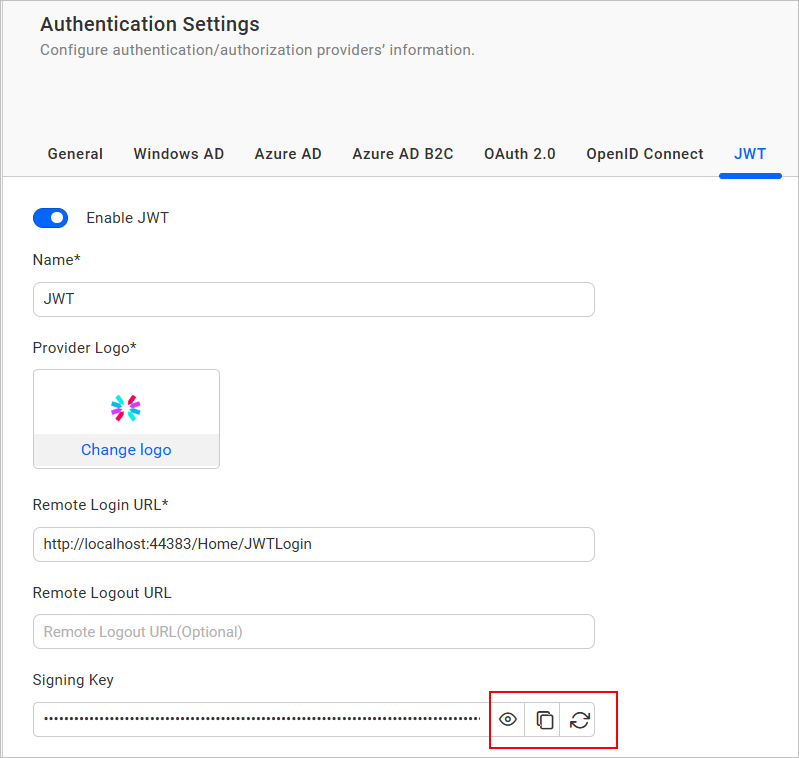
-
You can enable JWT token encryption by selecting
Enable Encryption. Once activated, a public key is generated, which is used to encrypt the JWT token. This enhances security by ensuring that token payloads remain confidential and protected from unauthorized access. By default, encryption remains disabled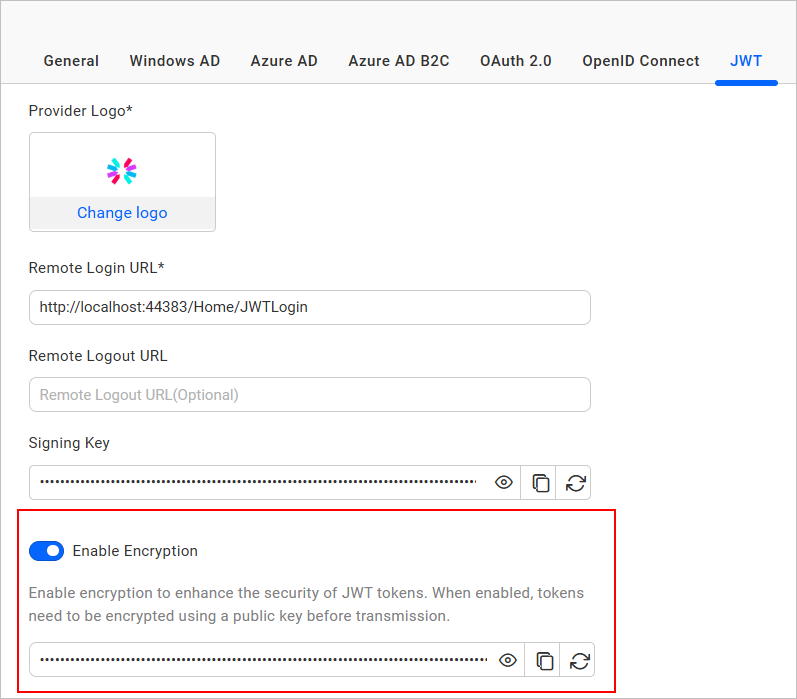
-
The
JWT Encryption Keycan be copied, viewed, and reset using the following options: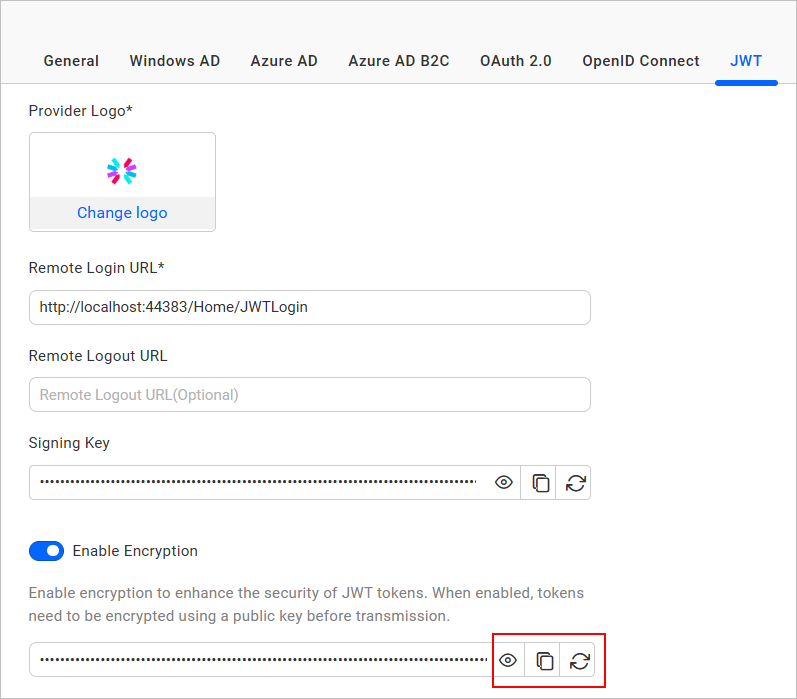
How JWT works with Bold BI
-
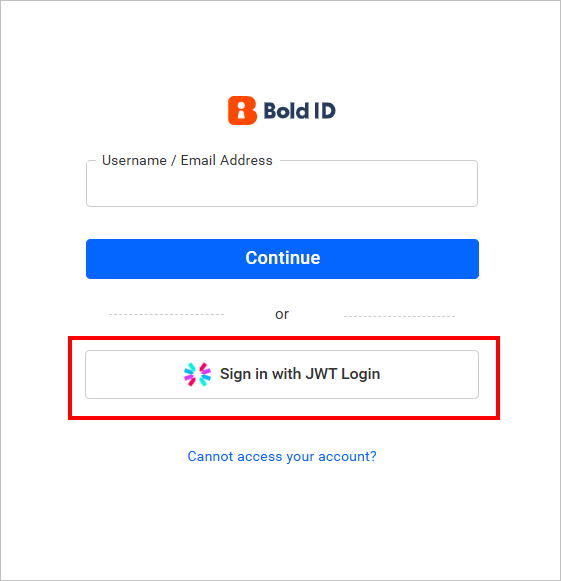
Once the JWT settings are configured, go to the Bold BI login page and click on the JWT login option.
-
After that, the application will generate the JSON Web Token for user and it is redirected back to Bold BI call back URL
{Bold BI URL}/sso/jwt/callback?jwt={token}&site_identifier={site identifier}&redirect_to={redirecturl}with the encoded JWT in a query string. -
The Bold BI application will validate the JWT and deserialize the user information from the token.
-
Based on the user information, the Bold BI application will check if the user’s email already has access in the Bold BI application. If the user is already registered in Bold BI, they will be authenticated.
-
If the user is not yet registered in the Bold BI server, they will be added as a user and authenticated to access the Bold BI application
JWT Callback URL
The JWT callback URL will validate the JWT response from the configured application.
After a user successfully logs into your configured application, you can redirect them to the specific URL provided.
{Bold BI URL}/sso/jwt/callback?jwt={token}&site_identifier={site identifier}&redirect_to={redirecturl}
| Parameter | Required | Comments |
|---|---|---|
| jwt | Yes | JSON Web Token will be passed in this parameter. It will contain the JWT Payload |
| site_identifier | No | This parameter will be used to grant site access for the JWT user.
If the JWT login accessed from the tenant, Bold BI login URL will redirect to your application with tenant site identifier in URL query string. You can use this identifier in JWT response URL. Example Url
|
| redirect_to | No | If this parameter is included in the JWT response, then the user will be redirected to that page, after the login process completed. |
Create JSON Web Token
To create the JWT, use HMAC-SHA256 as the signing algorithm.
What parameters can be passed in the payload of JWT
A JWT should contain the following claims:
| Parameter | Parameter Name | Value Type | Required | Comments |
|---|---|---|---|---|
| User Id | sub | string | Yes | Unique identifier of the user. |
| string | Yes | Email address of the user. | ||
| First Name | first_name | string | Yes | First name of the user. |
| Last Name | last_name | string | No | Surname of the user. |
| Phone | phone | string | No | Phone number of the user. |
JSON Web Token sample
Please refer to the following sample for instructions on how to generate the JWT.
private string GenerateJSONWebToken(UserModel userInfo)
{
    var signingKey = "signingkey";// Signing key value will copy from JWT Settings page
    var securityKey = new SymmetricSecurityKey(Encoding.UTF8.GetBytes(signingKey));
    var credentials = new SigningCredentials(securityKey, SecurityAlgorithms.HmacSha256Signature, SecurityAlgorithms.Sha256Digest);

    var claims = new[] {
        new Claim("sub", "420c5d51-1754-4a9b-b4b5-d5bfebb21b0f")
        new Claim("email", "john.doe@example.com"),
        new Claim("first_name", "Makila"),
        new Claim("last_name", "S"),
        new Claim("phone", "1234567890")
            };

    var token = new JwtSecurityToken(claims: claims,
                expires: DateTime.Now.AddMinutes(120),
                signingCredentials: credentials);

    return new JwtSecurityTokenHandler().WriteToken(token);
}