
Manage Users in UMS
This section explains how to add, update, activate, and delete users.
Users can only be added, edited, or deleted by those who have UMS admin access.
Add new users
To add new users, they can be added individually or in bulk using CSV import.
Add individual users
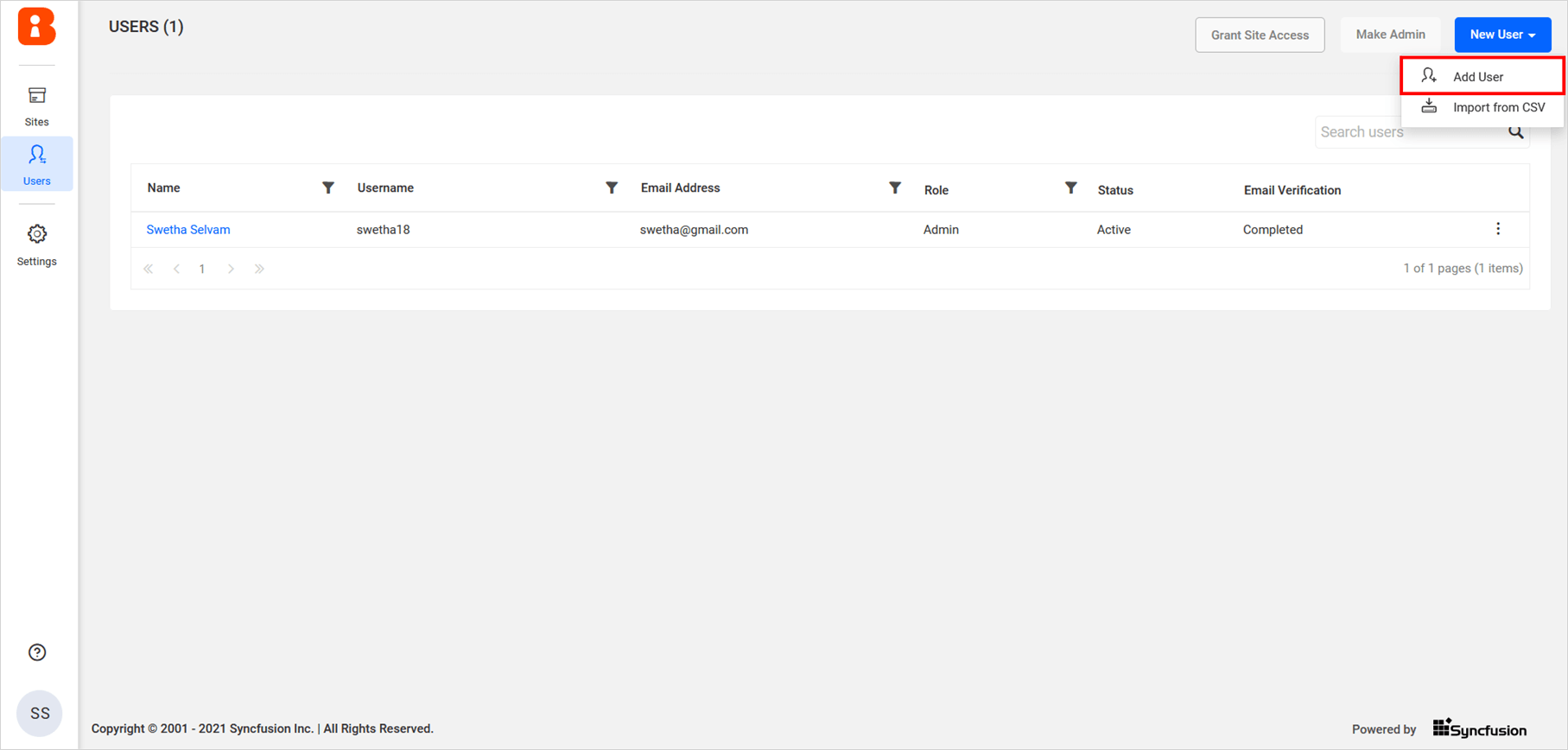
To add an individual user in UMS, click on New User and then Add User from the User Management page.
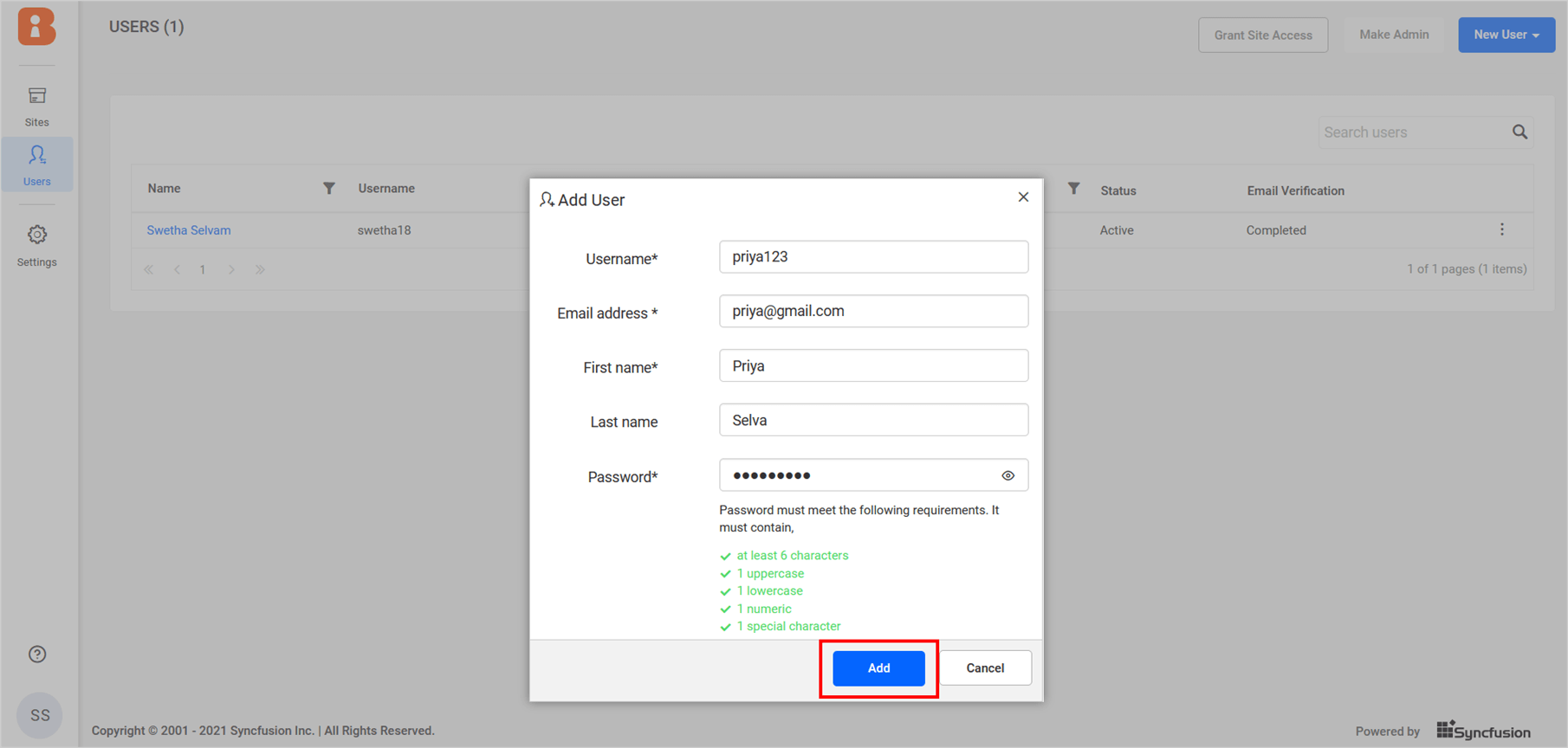
The Add User dialog will be displayed as shown in the image below.
NOTE:
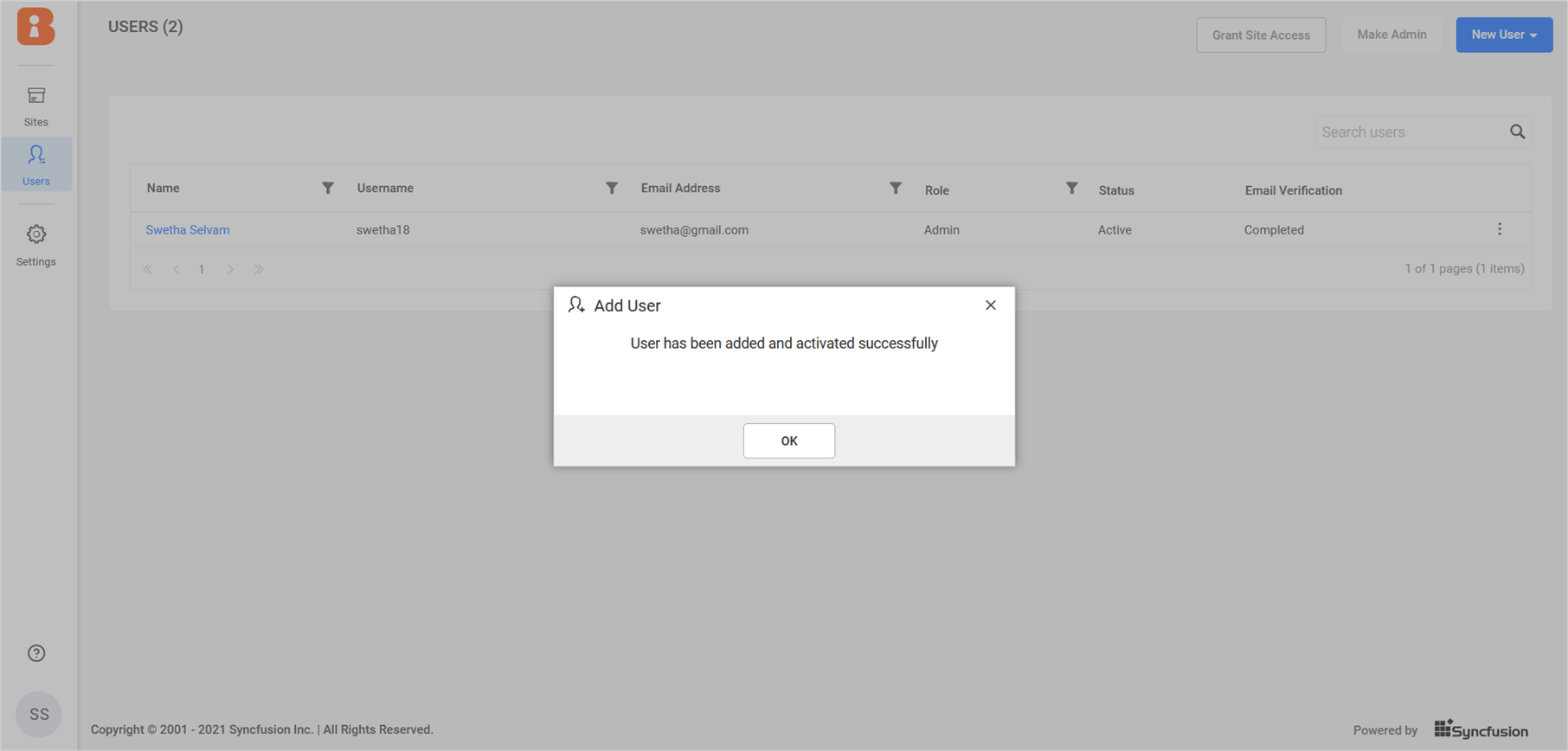
- If the account activation mode is Automatic, the new user will be automatically activated.
- If the activation type is Email, the user will receive an email to activate their account. The user account will be activated after verifying the email. By default, the Account Activation Mode is Automatic.
- Please refer to the Account settings page for more details.
| Automatic activation | Email activation |
|---|
- Fill the form with a Username, Email address, First name, Last name and password and then click on
Add.|1. Fill the form with a Username, Email address, First name and Last name and then click onAdd. - Please refer to this section for password requirement.|2. To activate the user, please check Activate Users section for more details.
Import users from CSV
To automate the process of adding a large number of users to UMS, you can download the CSV template file, add the users to it, and then import the file.
NOTE: This section will explain how to import users from a CSV file, which can be downloaded from the location below in UMS.
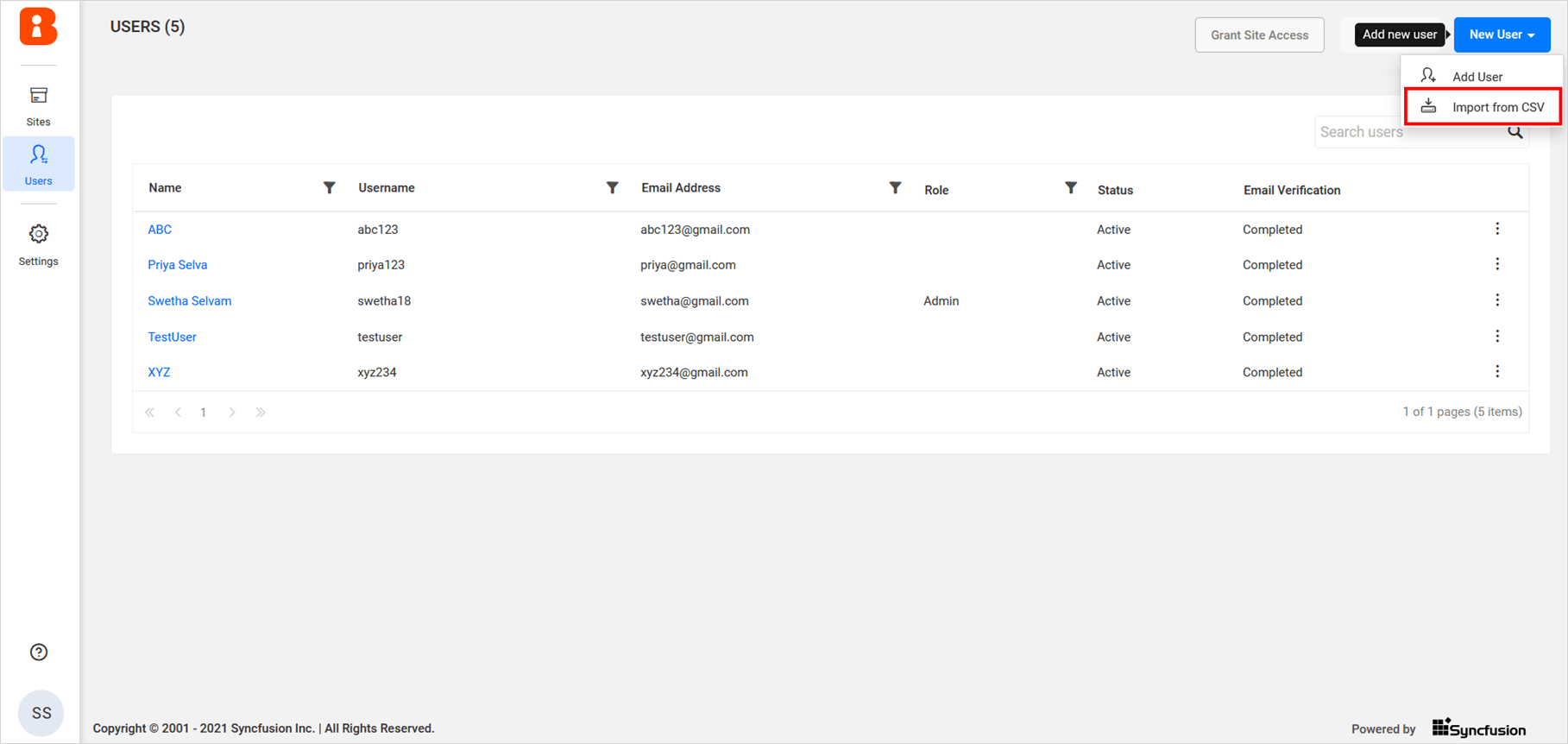
Add users from CSV file
In UMS, click Import from csv.
CSV file Requirements
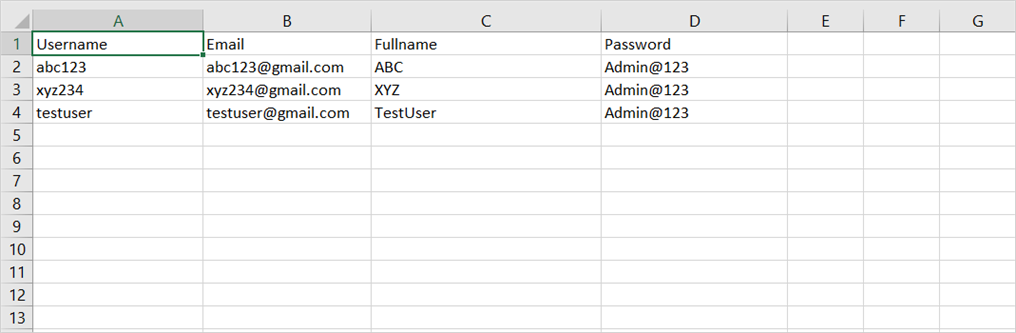
The first row in the CSV template should contain the column headings. UMS will assume that the data starting from the second line in the file represents the user information.
The following columns are mandatory in the downloaded CSV file.
| Automatic Activation | Email Activation |
|---|---|
| Username | Full Name |
| Full Name | |
| Password | - |
Follow the steps below to add users using the CSV template:
-
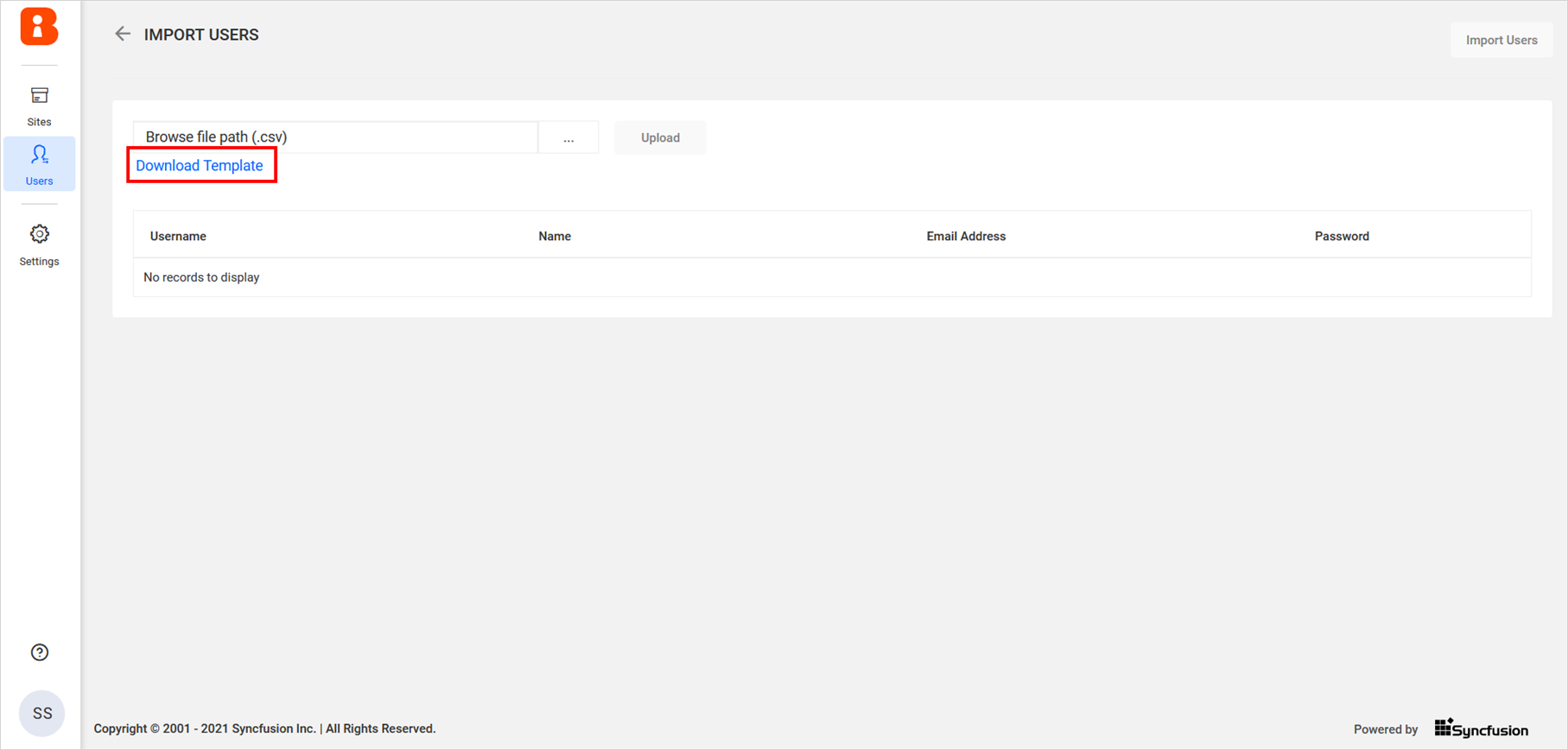
Download the CSV template.
-
Add users to the CSV. Save the file and upload it.
-
Once the file is uploaded, the user details will be displayed in the grid, as shown in the image below. Click
Import Usersto add the users.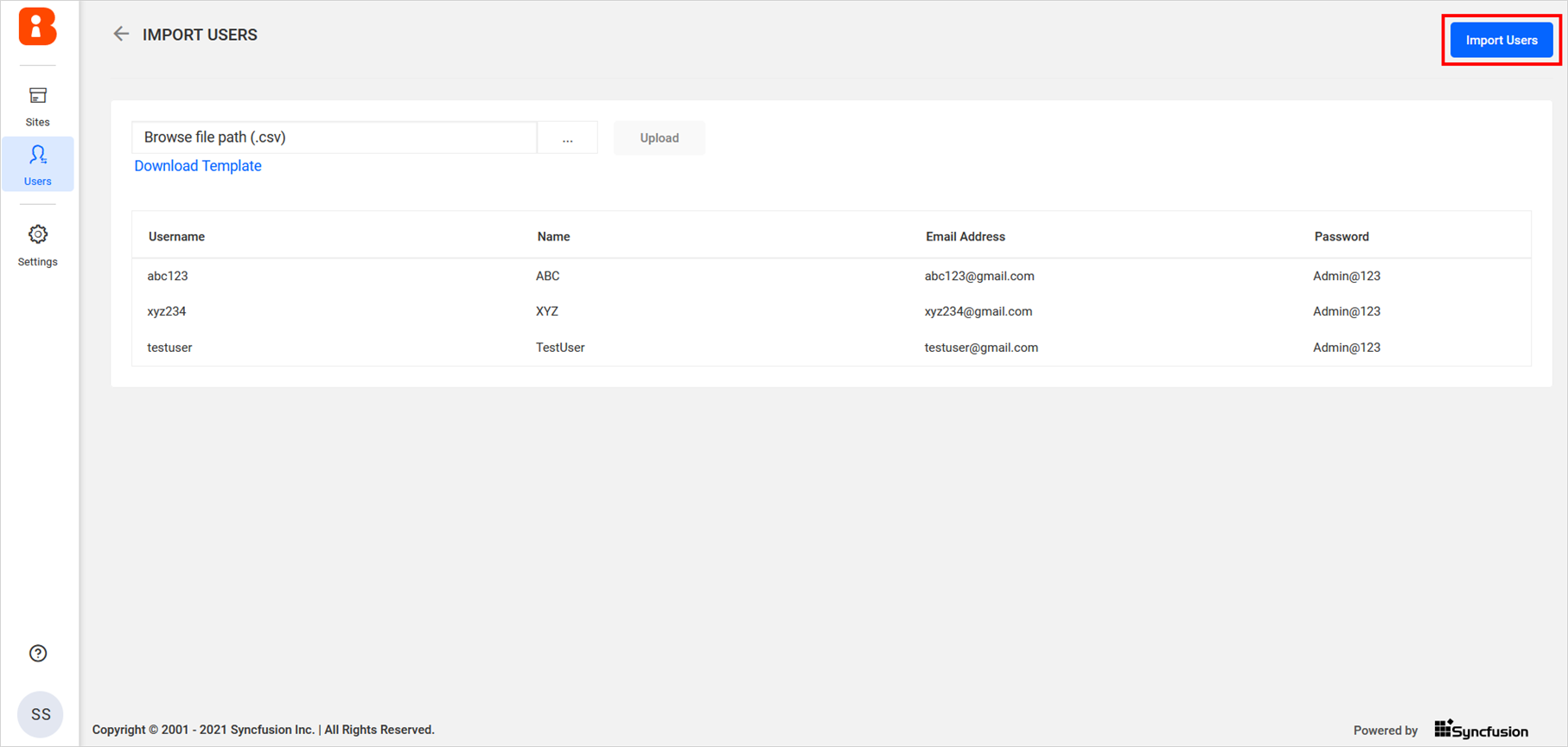
-
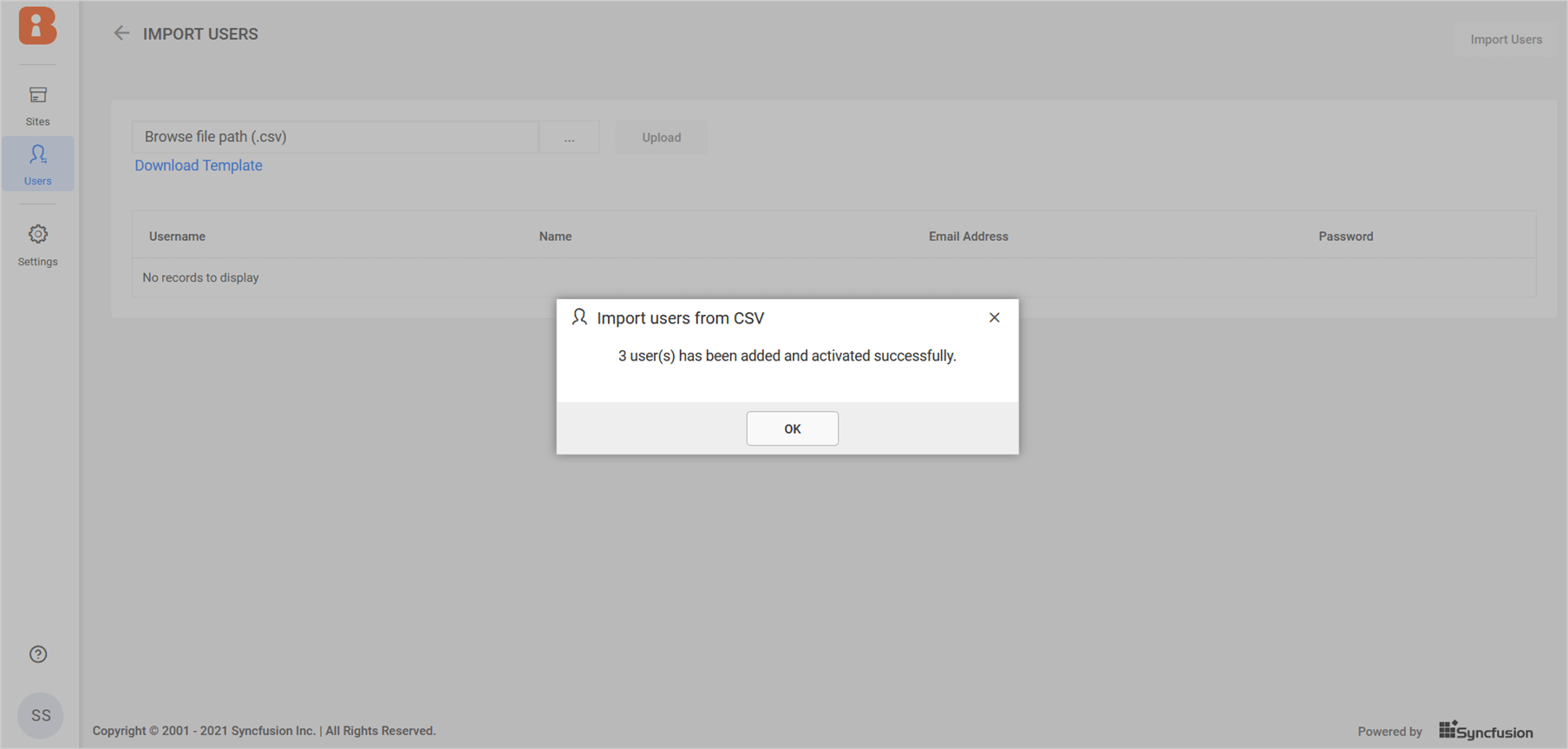
After uploading the users in UMS, the results will be displayed as shown below.
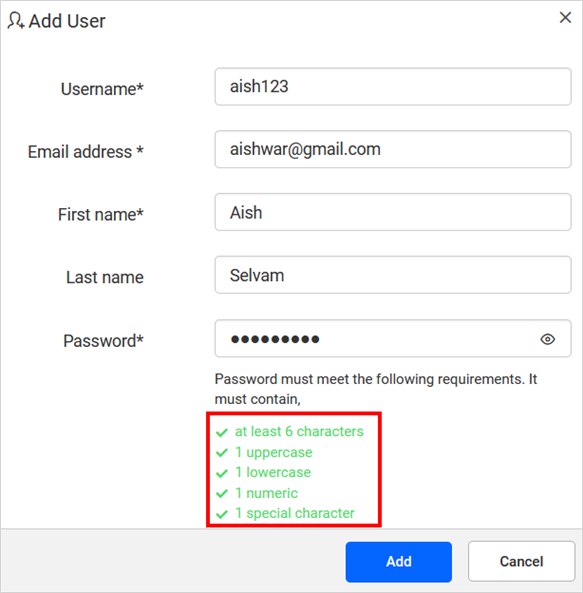
Password Requirement
The password must meet the following requirements:
It must contain:
- At least 6 characters,
- 1 uppercase,
- 1 lowercase,
- 1 numeric,
- 1 special character.
Activate users
Once the user is added, a new account will be created for the user and an account activation email will be sent to the email address with an activation link to activate the Bold BI account.
The activation link sent to the user will be valid for only 2 days. If the user does not activate within the 2 days, a new activation link can be sent to the user from the user edit page.
The account will remain inactive until the user activates the account from the activation email.
Edit users
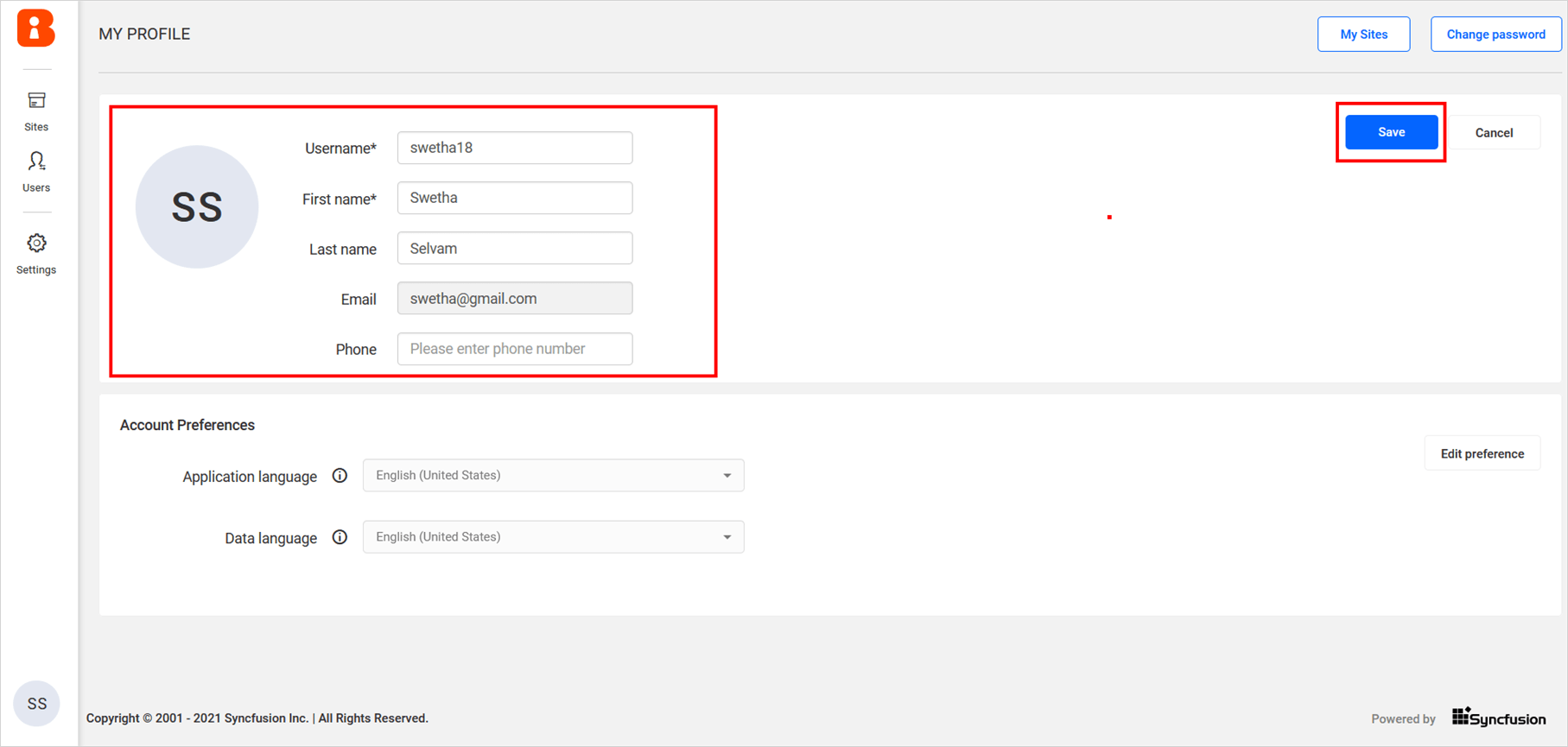
User profile details can be edited on the user edit page, as shown in the image below.
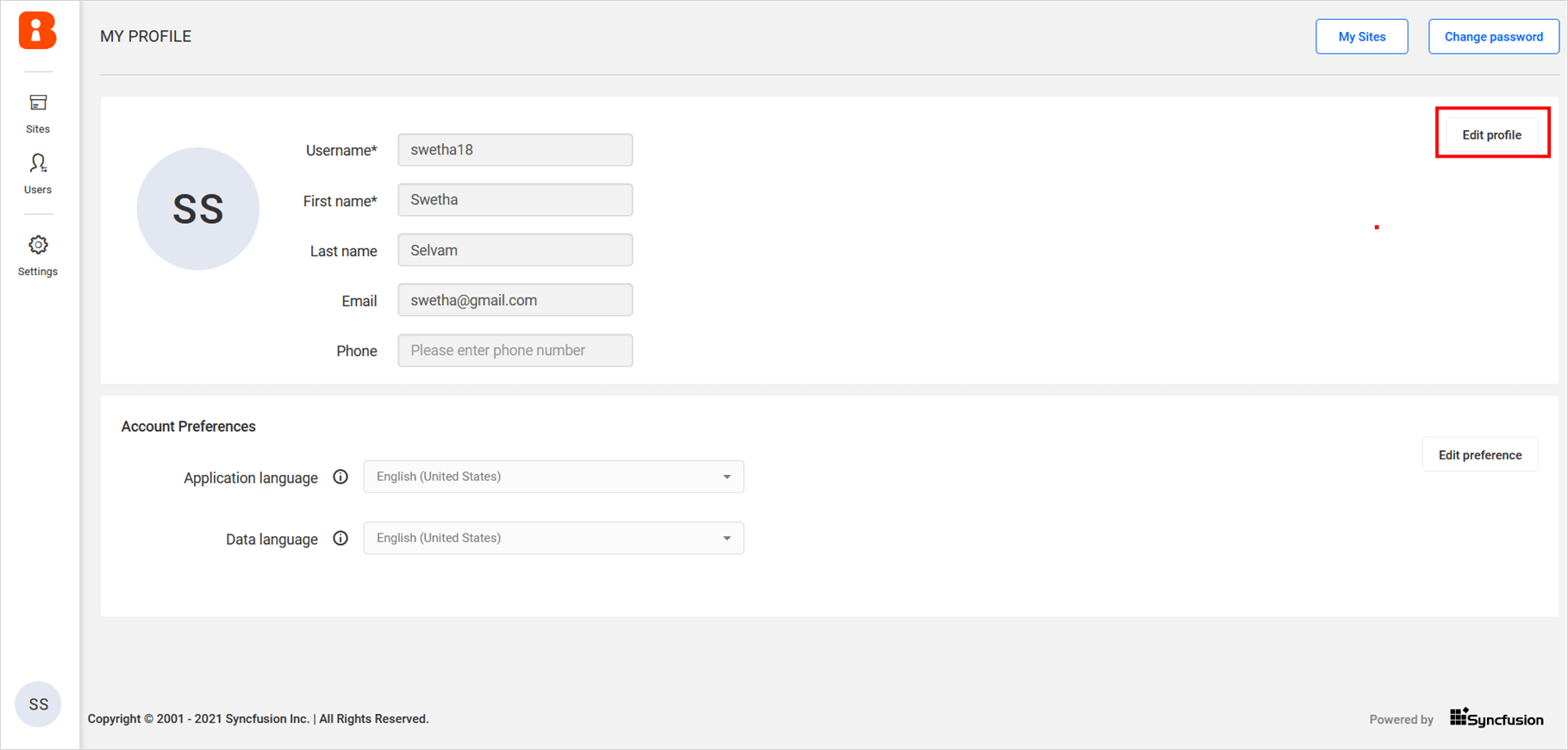
Username, First Name, Last Name, Phone number, and profile picture of the user can be edited.
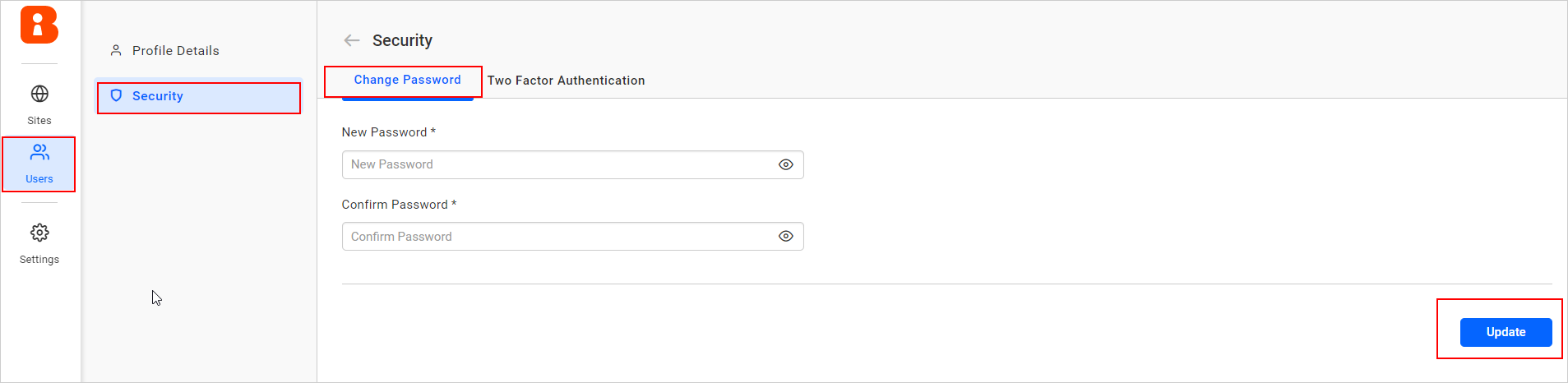
Change Password
If users forget their password or want to create a new one, administrators can reset or create a password for them using this option.
Please refer to this section for password requirements.
The password change functionality is available for the following types of users:
- Local Users – Users created and managed within Bold BI.
- Windows Active Directory (AD) Users – Users imported from a configured Windows AD domain.
Change Password for Local Users
Local users can change their password directly from the User Profile section in the application.
Change Password for Windows AD Users
Starting from version 12.1.5, Bold BI also supports changing the password for Windows AD users within the application.
- AD users can now set or update their password using the same interface used by local users.
- Once a new password is created or updated, it can be used to log in to the Bold BI application directly.
Note: The newly created password for a Windows AD user is used only within the Bold BI application and does not update the password in the actual Active Directory domain.
Two Factor Authentication
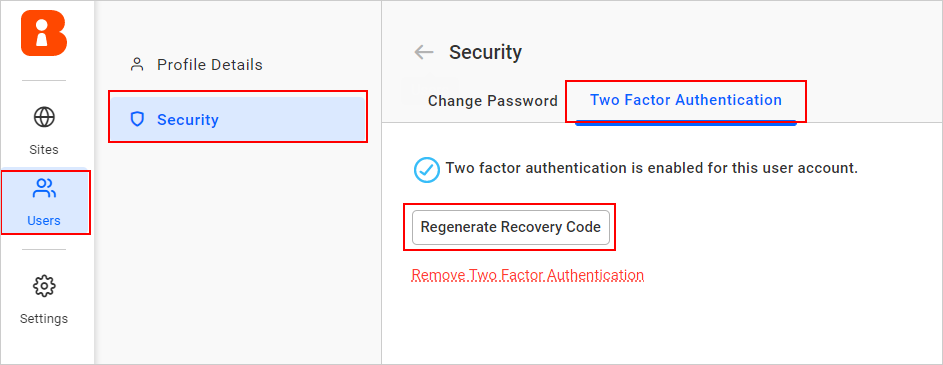
Users can enable 2FA for their account. If the user loses the recovery code or authenticator application, the admin can disable the 2FA or regenerate a new set of codes for the user. This can be done using the Two-Factor Authentication tab in the security section.
Regenerate Recovery code for user
To regenerate the recovery code for the user, view the user details and click on Regenerate Recovery Code in the Two Factor Authentication tab.
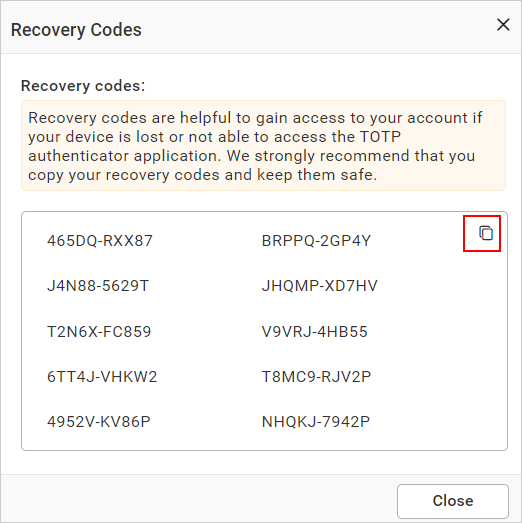
Then, click yes to generate a recovery code. Copy the newly generated code and share it with the user.
Disable Two Factor Authentication for user
To disable the Two-Factor Authentication for the user, click on the Remove Two-Factor Authentication option and proceed with yes.
Delete users
Users can be deleted from the UMS when they no longer require access. Users can be deleted from the user management page by the System Administrator.
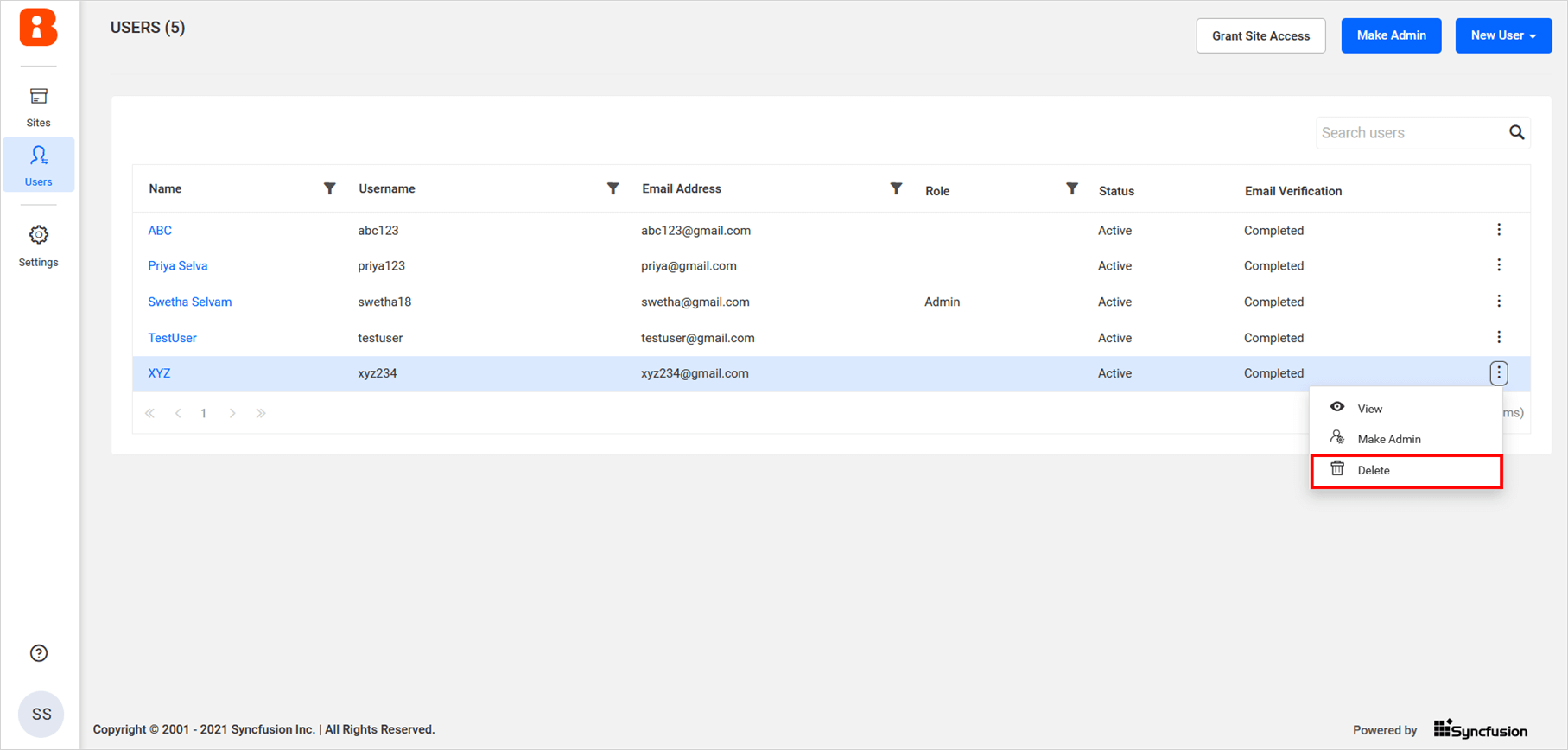
Note: Once a user is deleted by the
System Administrator, their access will be revoked from the sites they belong to.
Grant user access to multiple sites
You can select single or multiple users in user management and provide access to multiple sites.
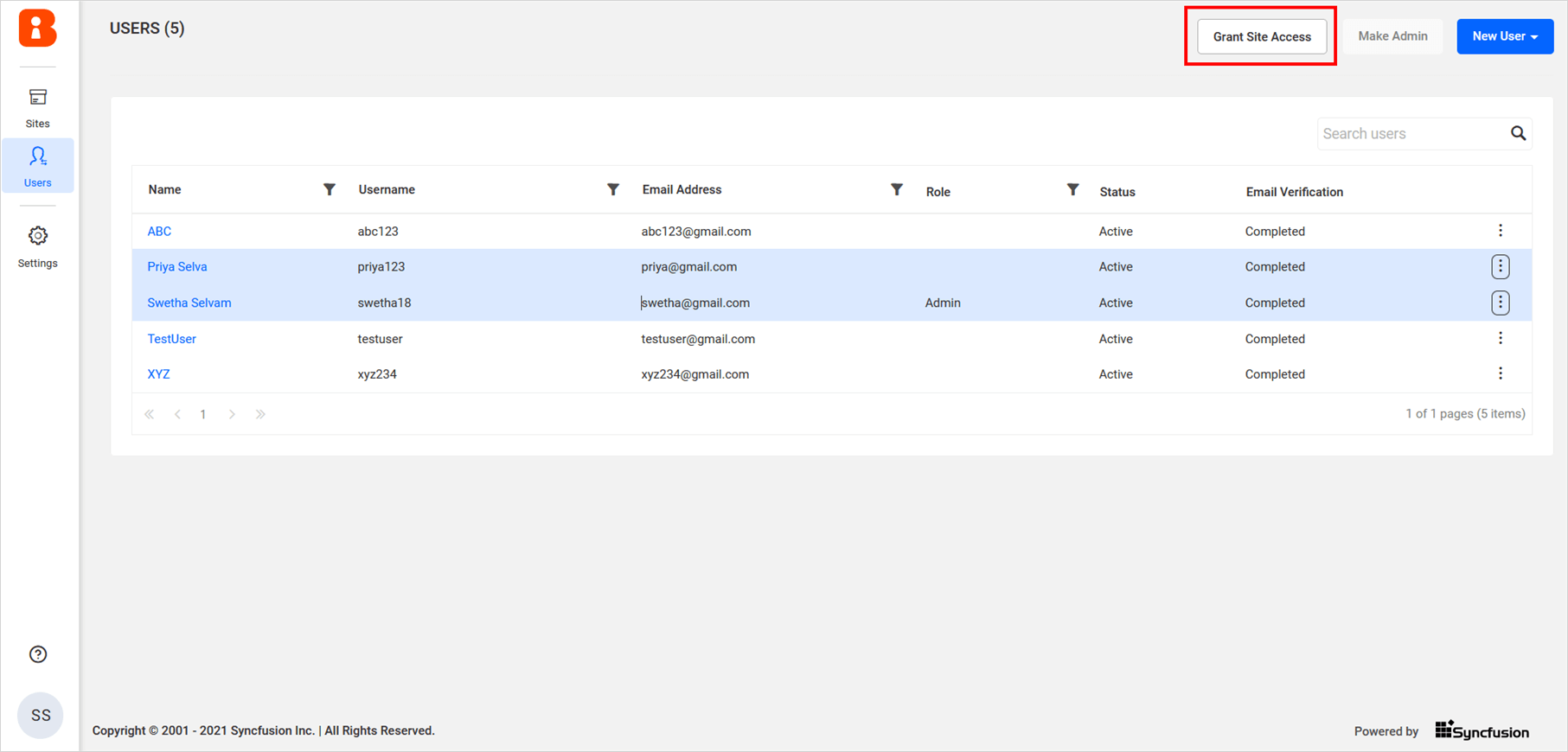
Select the sites you need to provide access to the selected users and then click the Grant Access button to proceed.
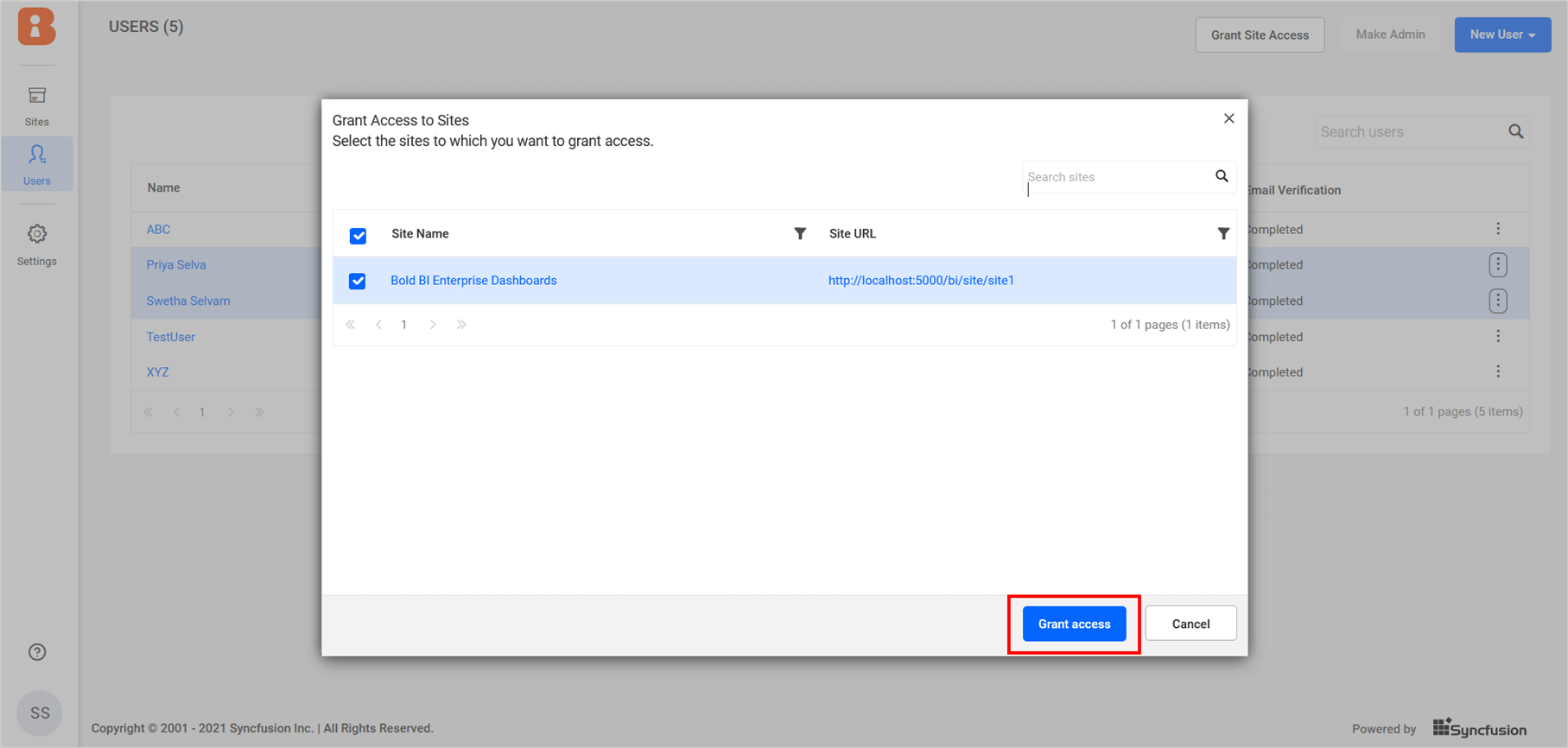
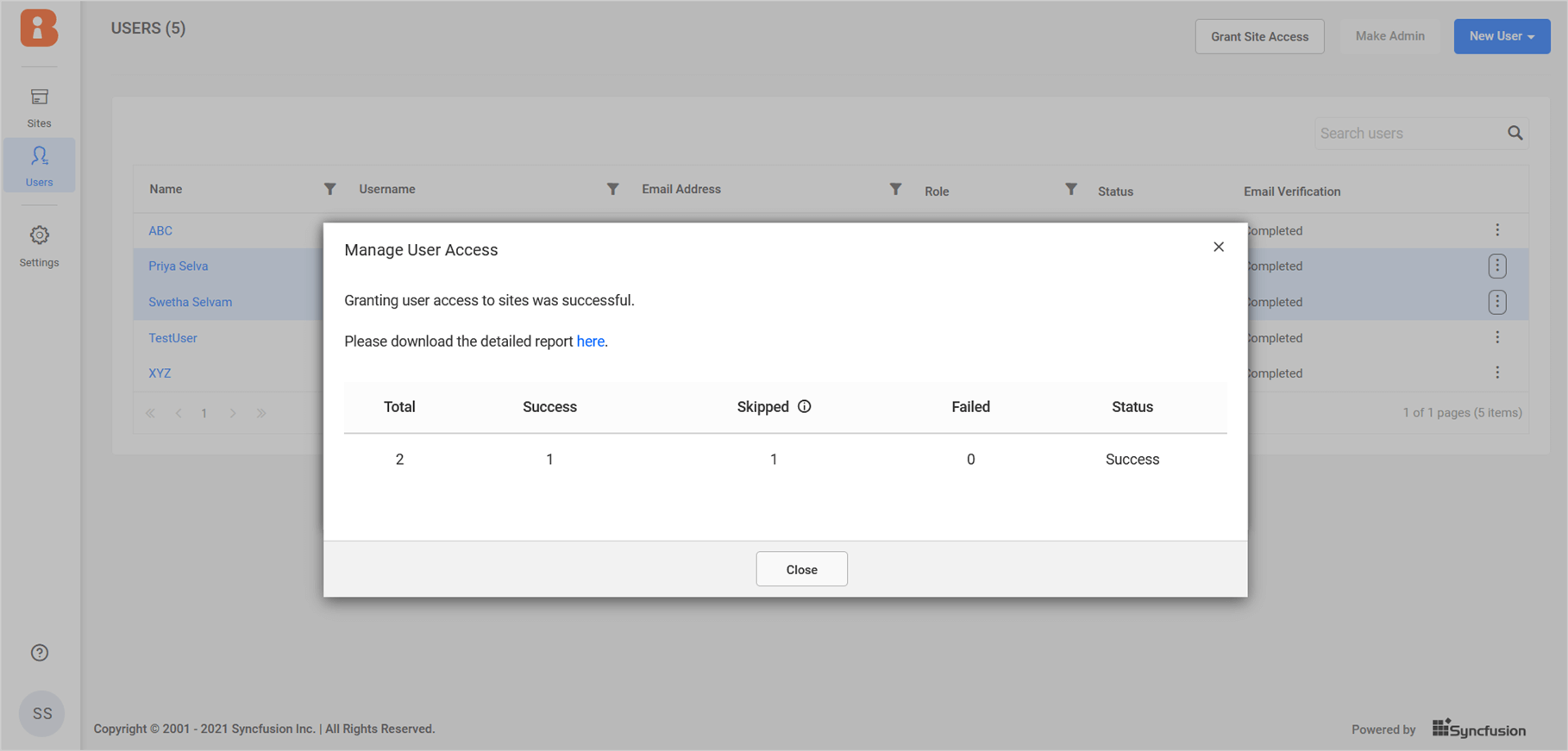
NOTE: If the selected user already has access to that site, the process will be skipped.
After the process is completed, a detailed report will be available. You can also download the report in CSV format.
You can revoke access to the site by referring here.