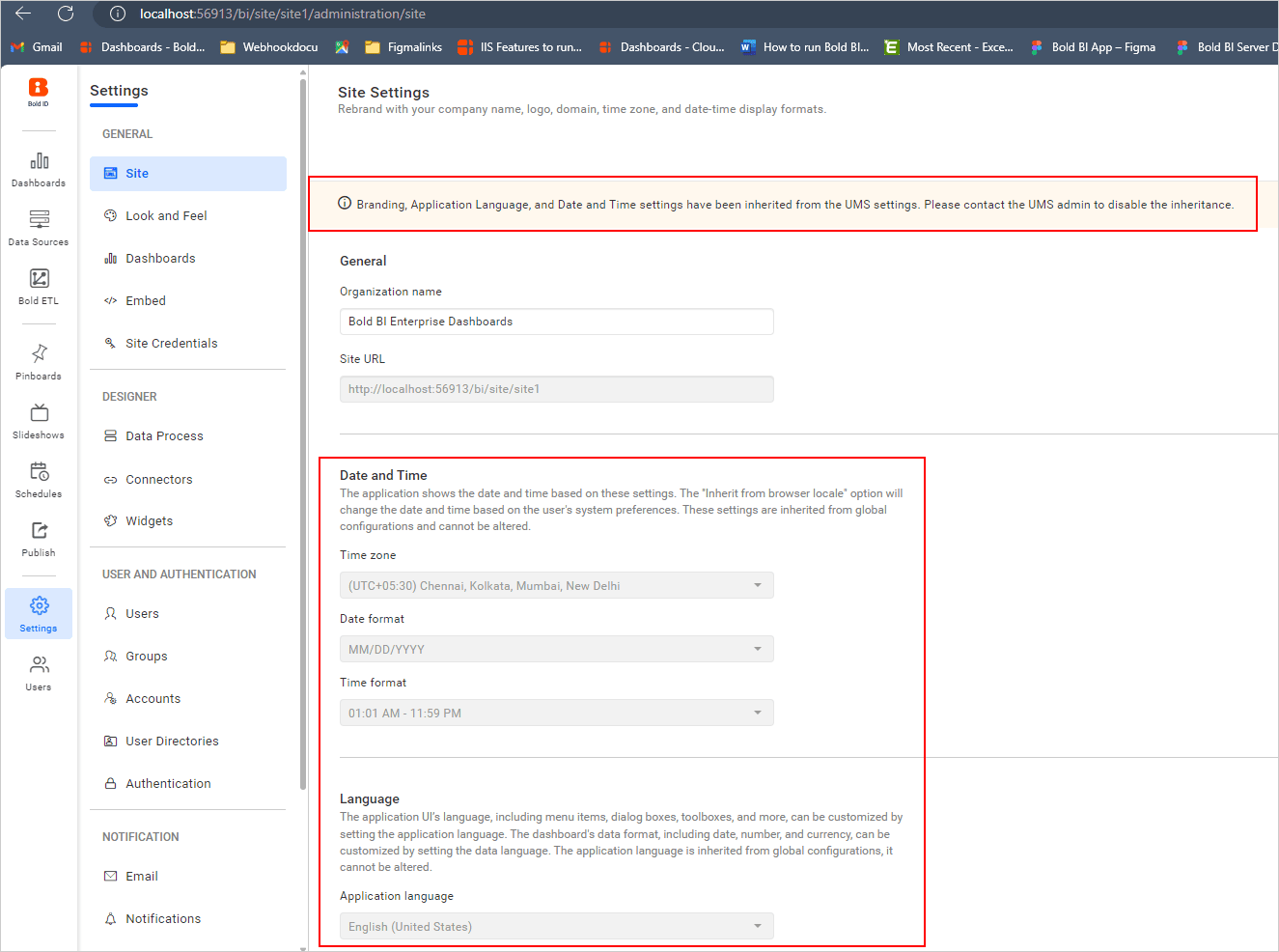
Manage sites
This section briefly explains how to manage the sites and provides information about the site.
Suspend Site
You can suspend the site by clicking the Suspend option in the Action Menu.
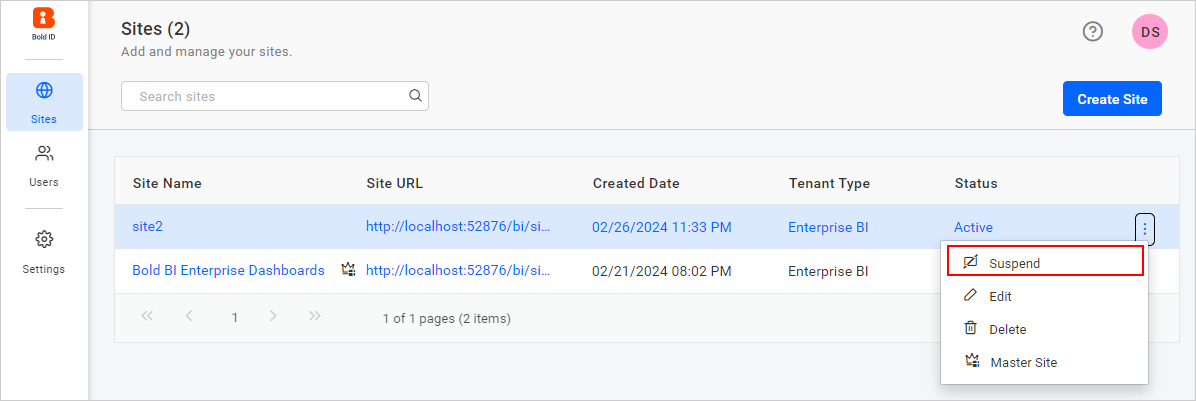
Warning : If the site is suspended, users will not be able to access the site.
Activate Site
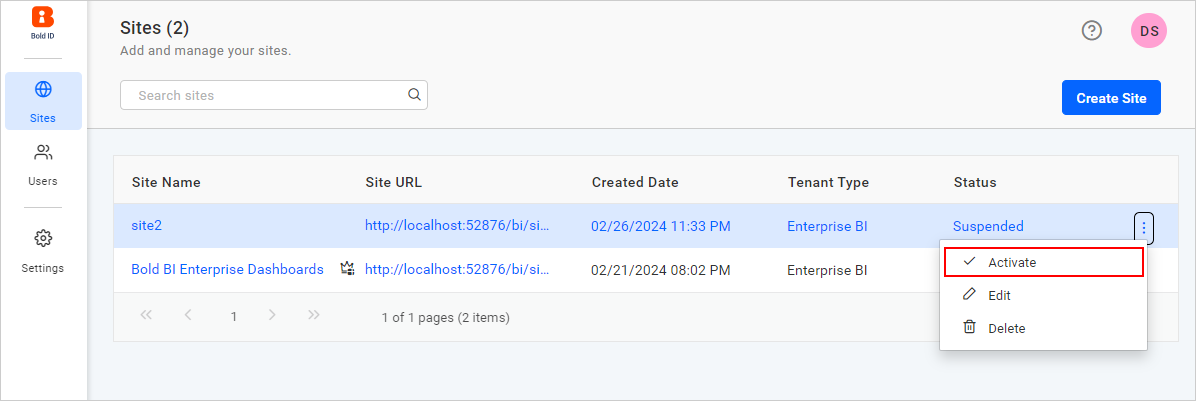
You can activate the suspended site by clicking the Activate option.
Edit Site
We are able to update the following information for the site using the Edit Site option:
- Site Name
- Site Domain
- Lock site URL and prevent automatic updates from reverse proxy requests
- Site Identifier
- Database User Credential
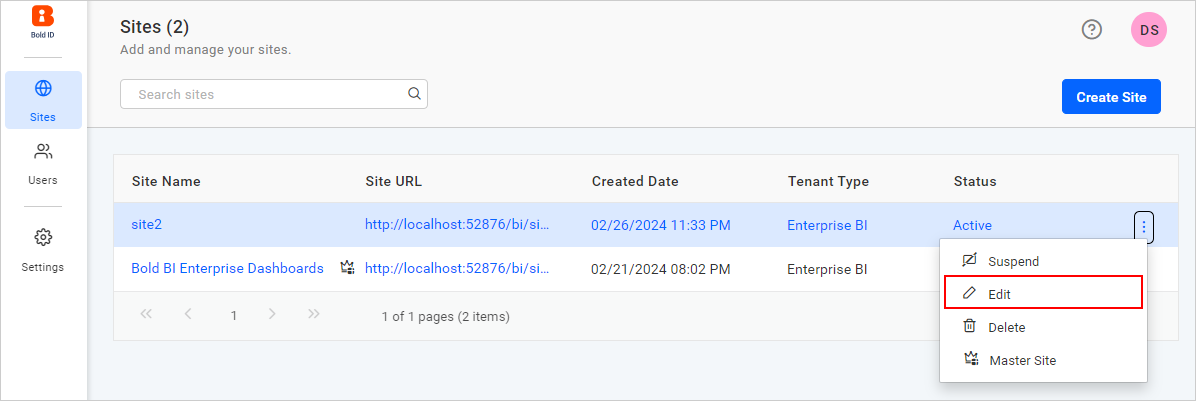
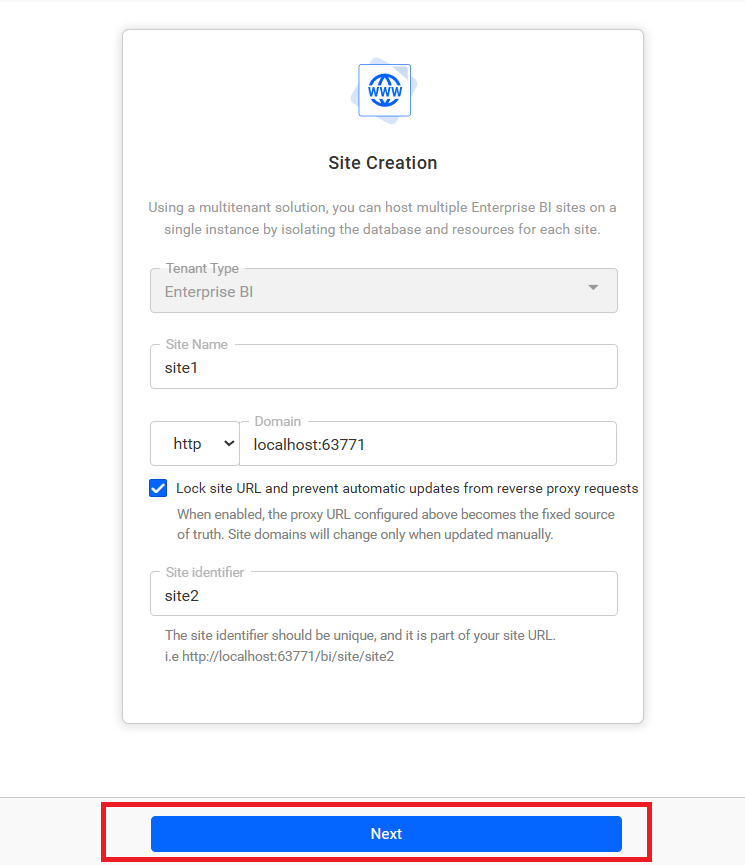
You can edit the site by clicking the Edit option in the menu.
After clicking the Edit option, the Edit Site dialog will open. Enter the site name, site domain, and site identifier in the next step and click the Next button to update the database user credential. If you want the site domain to remain fixed and prevent it from being automatically modified when the site is accessed through reverse proxy domains, enable the Lock Site URL and Prevent Automatic Updates from Reverse Proxy Requests option.
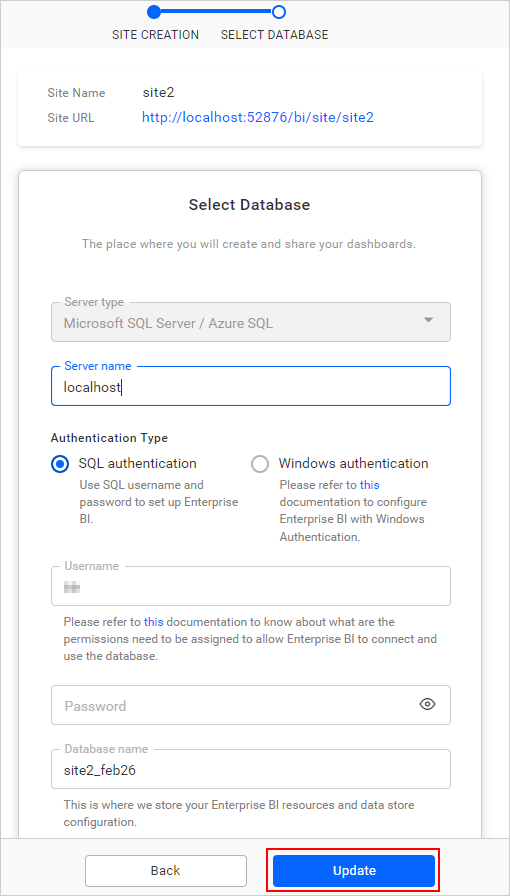
After entering your database credentials, click the Update button to update the site details.
Delete Site
You can delete the site and its database by clicking the Delete option.
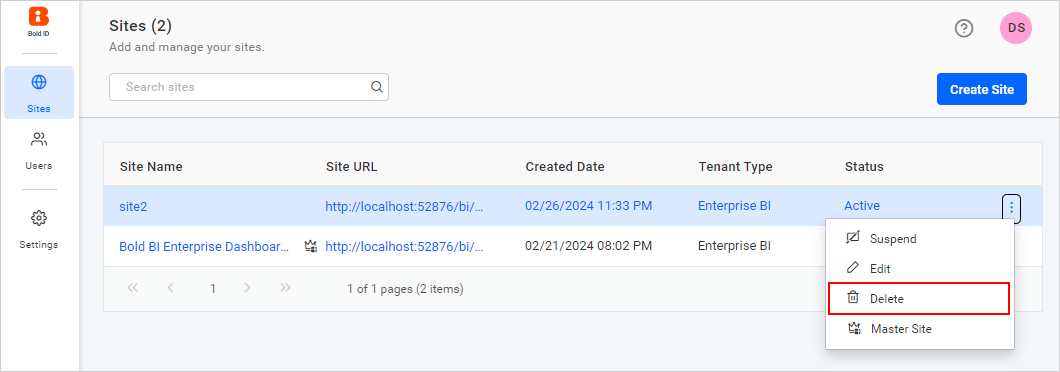
NOTE: The database will not be deleted if there are any other tables present other than the Bold BI tables.
Site Information
By clicking on the site name, you can view the site information.
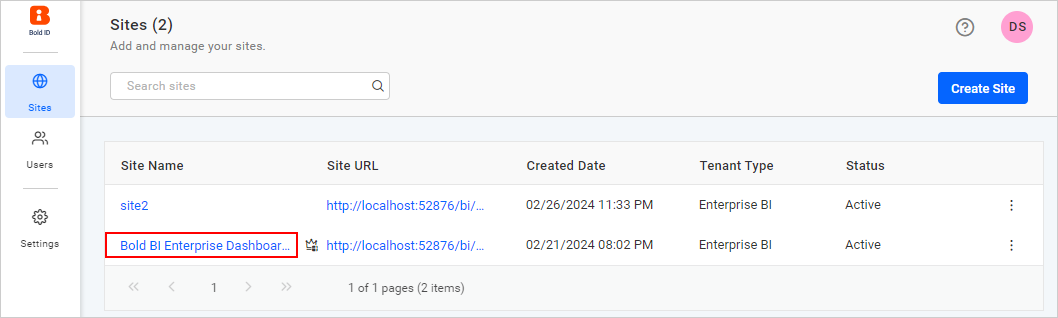
General
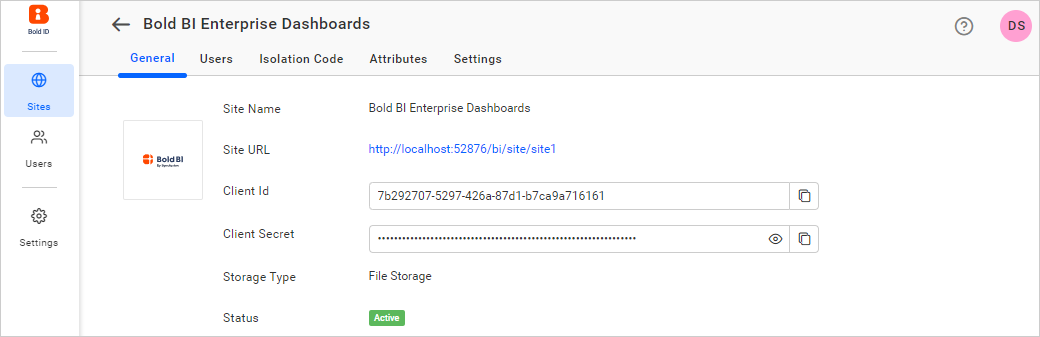
This section displays basic information about the site.
- Site Name
- Site Url
- Client id
- Client secret
Site Users
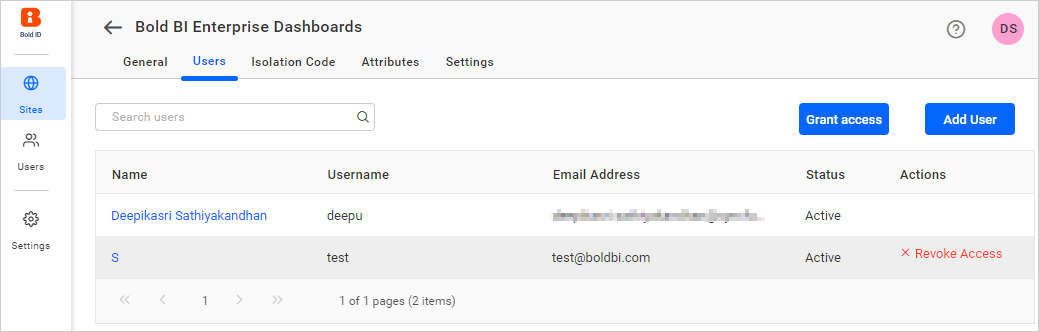
This section shows the list of users who have access to the site.
Grant Access
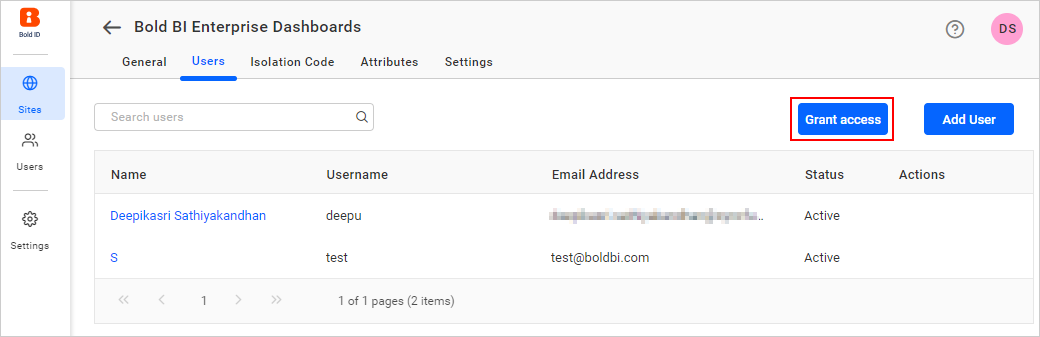
You can grant access to users by clicking the Grant Access button for this site.
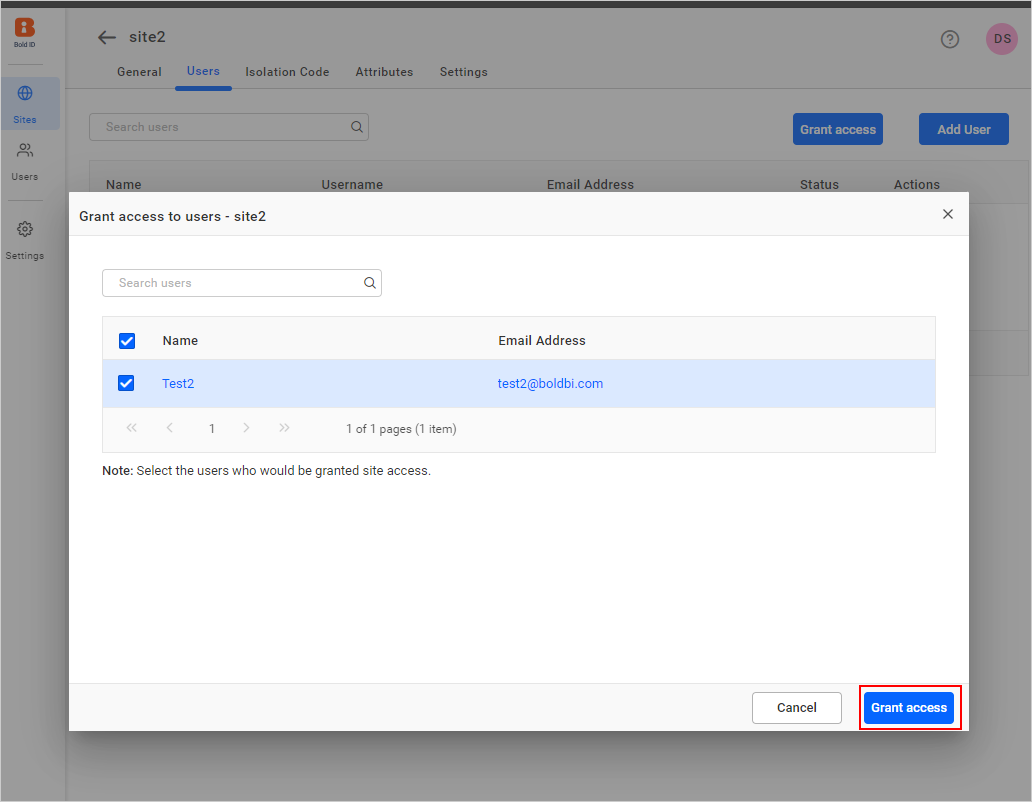
After clicking the button, select the users from the list and grant access to the site.
Revoke Access
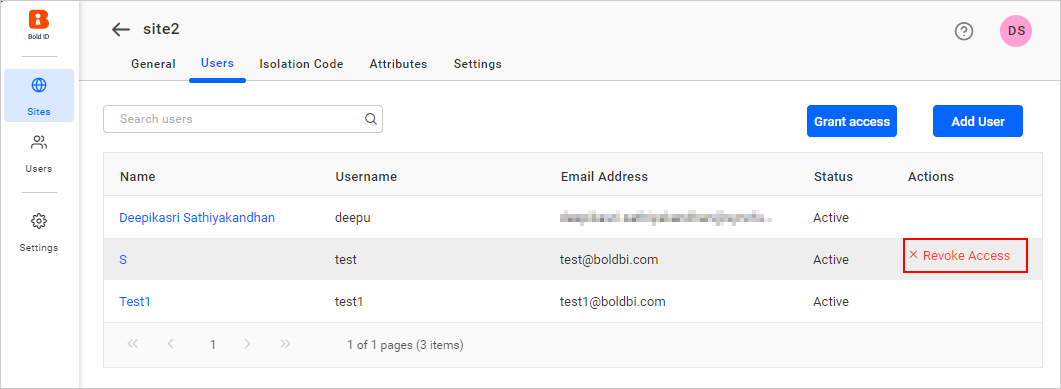
You can remove access for a single user by clicking on the Revoke Access link.
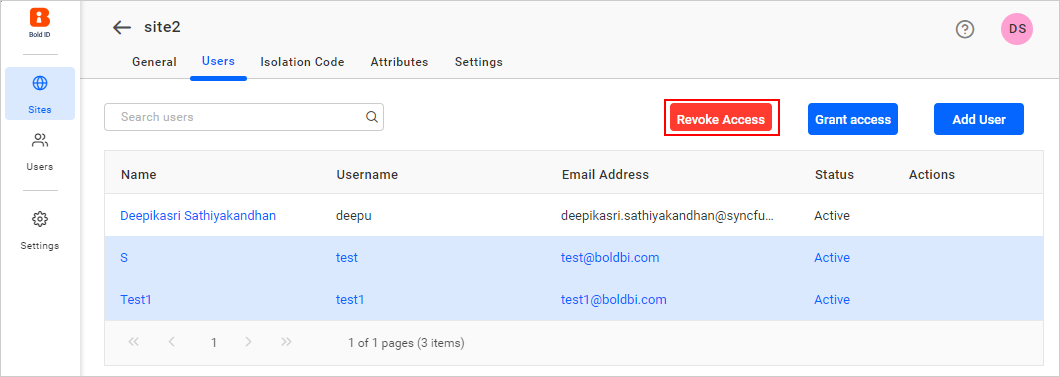
You can remove access for multiple users by clicking the Revoke Access button.
Add User
To grant access to a new user, click the Add User button.
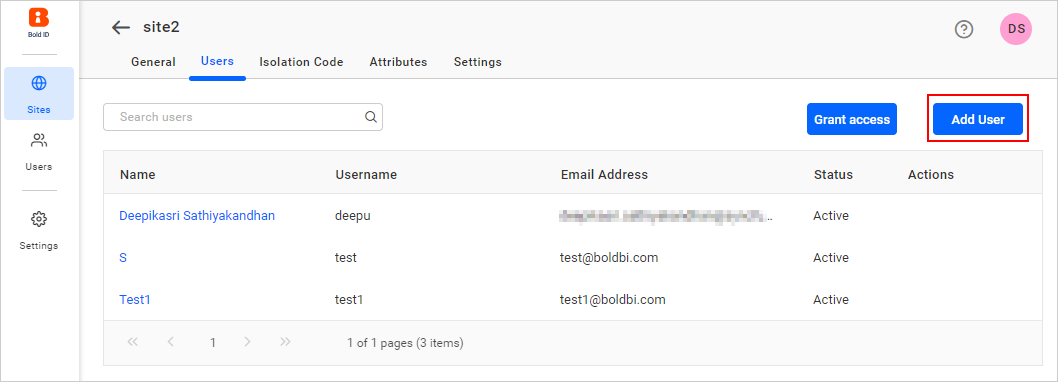
You can add the user by selecting Add User.
The user will be added and granted access to the site.
Isolation Code
To learn about how to configure the Isolation Code, click on the Isolation code.
Custom Attribute
To learn how to configure the Custom Attribute.
Settings
The “Inherit Global Settings” feature allows for common branding and settings to be applied across your multi-tenant application. The Date and Time, Language, Look and Feel, Branding, Email, and Account Settings that are configured in UMS can be inherited by your BI site.
To inherit all global settings from UMS into an existing site, select “Inherit Global Settings”. Alternatively, you can choose specific settings that you require from the global settings in UMS.
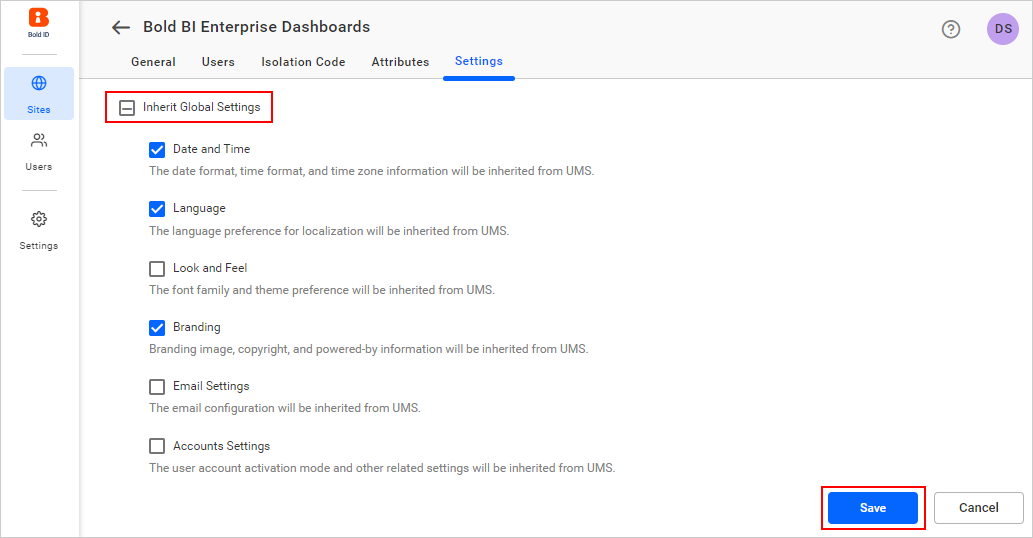
After saving the settings, navigate to the BI site and verify the selected settings.