Slideshows - Present dashboards in slides
Slideshows are a presentation of dashboards that can rotate with regular intervals.
Manage Slideshows
This section explains how to add, view, share, update, and delete slideshows in Bold BI.
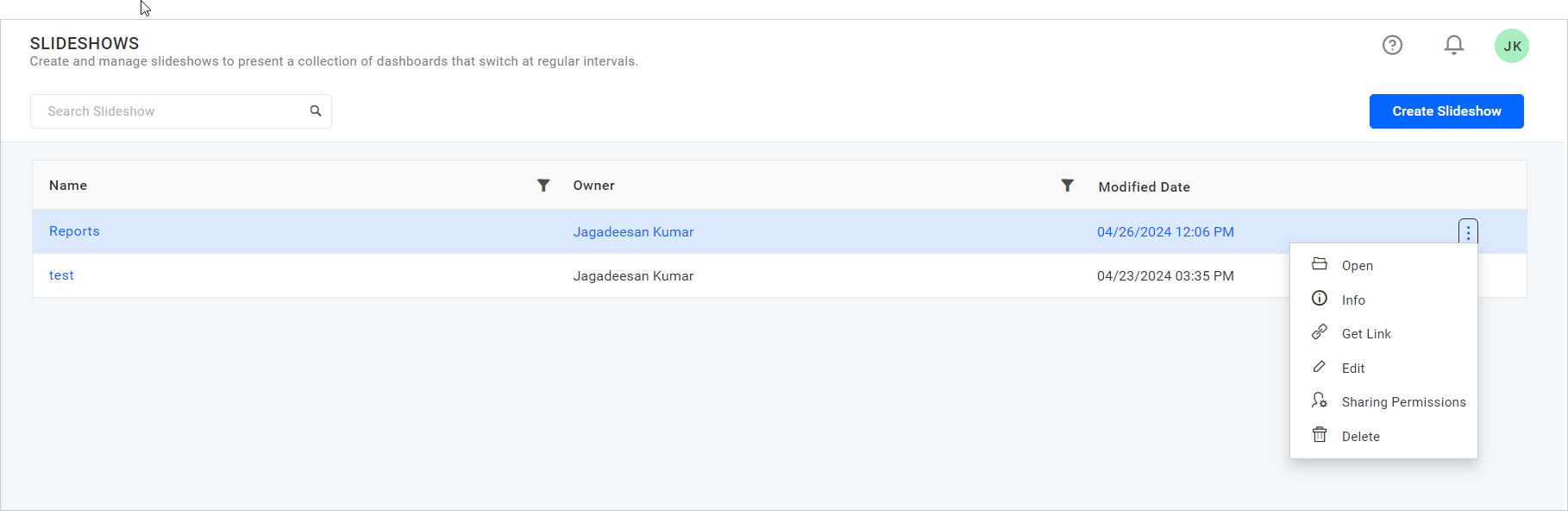
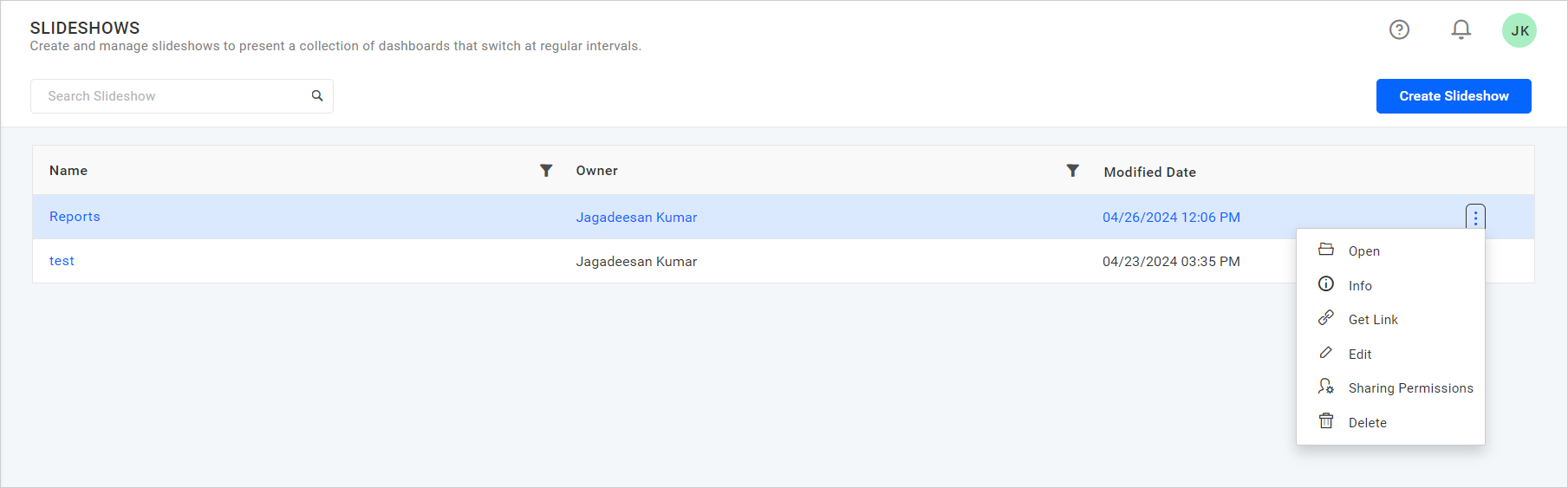
Slideshows that are accessible by the user, depending on the user’s permission, will be displayed on the slideshows page.
Add Slideshows
This section explains how to add a slideshow in Bold BI Embedded. Slideshows can only be added in Bold BI if you have Create permission for All Slideshows.
Steps to add a slideshow
-
Click on the
Createbutton in the left side menu and selectSlideshowto add a slideshow.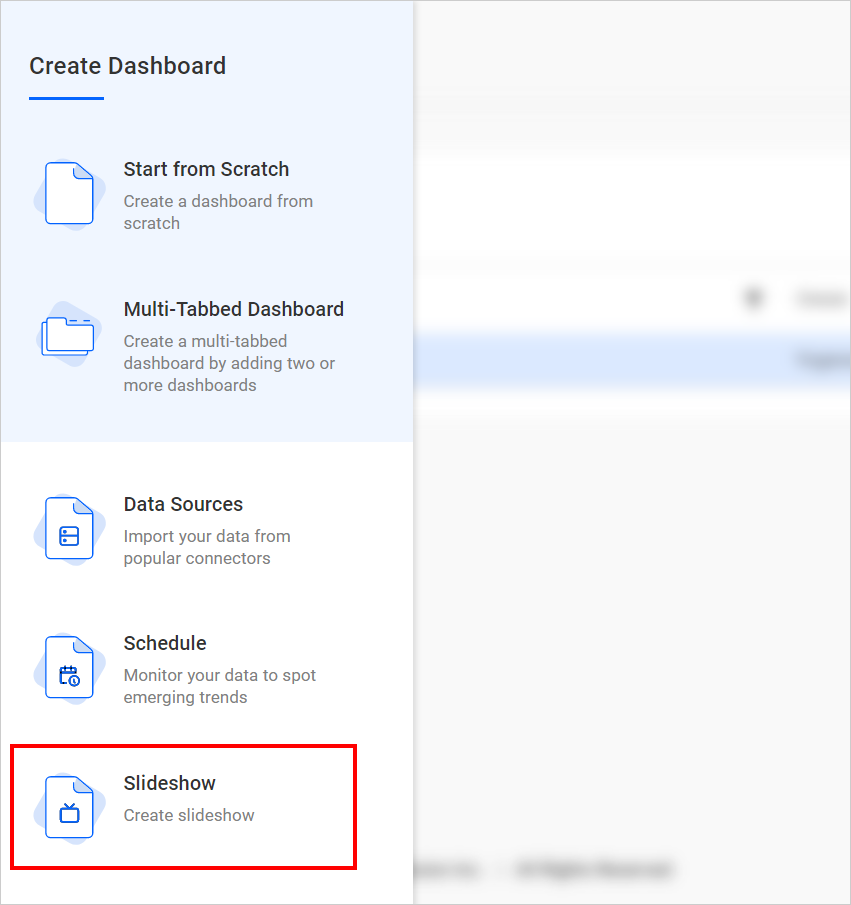
Otherwise, click
Create Slideshowfrom the slideshows page.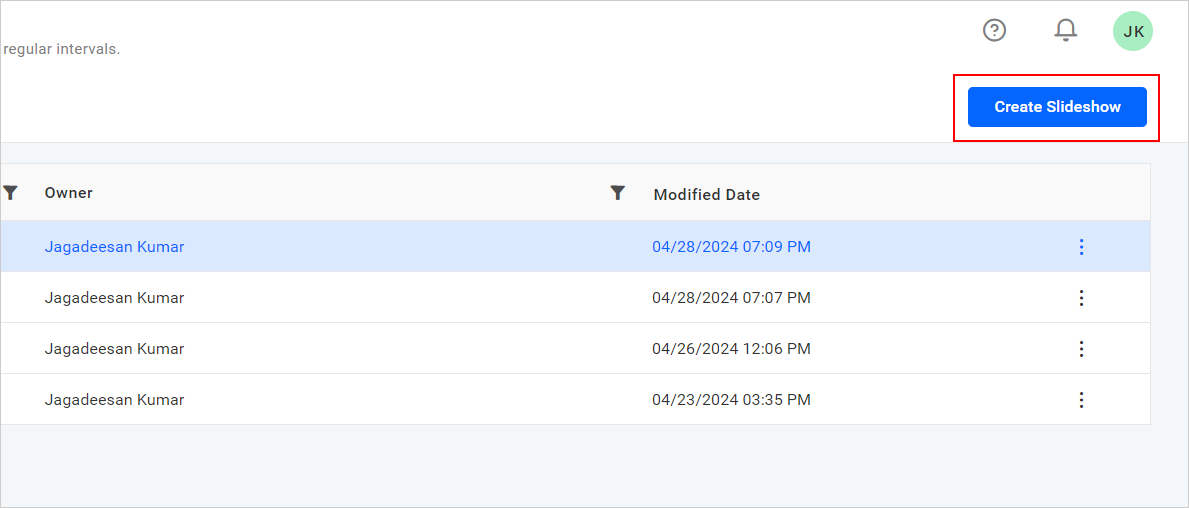
-
Fill out the form with Name and Duration for the slideshow, then click on the
Add Dashboardsin the Create Slideshow dialog box.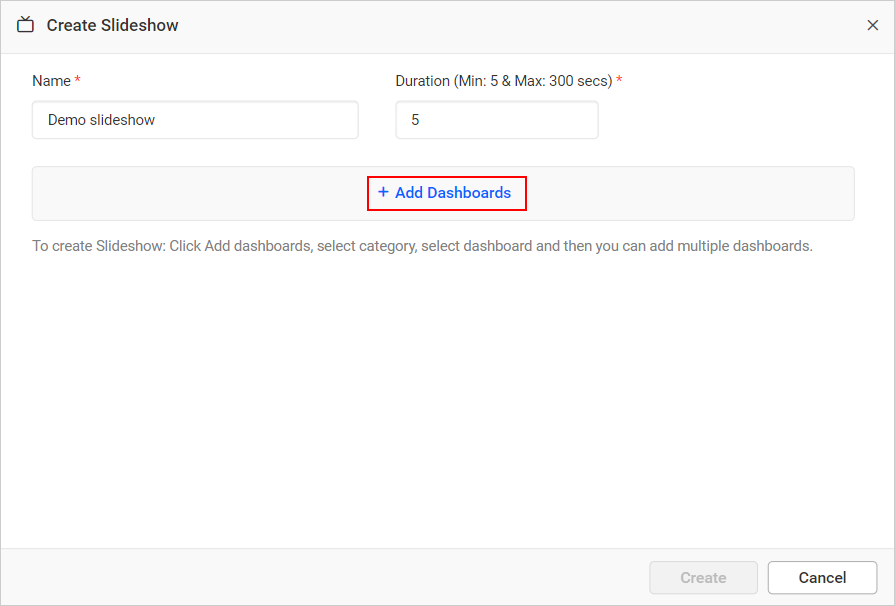
-
Select
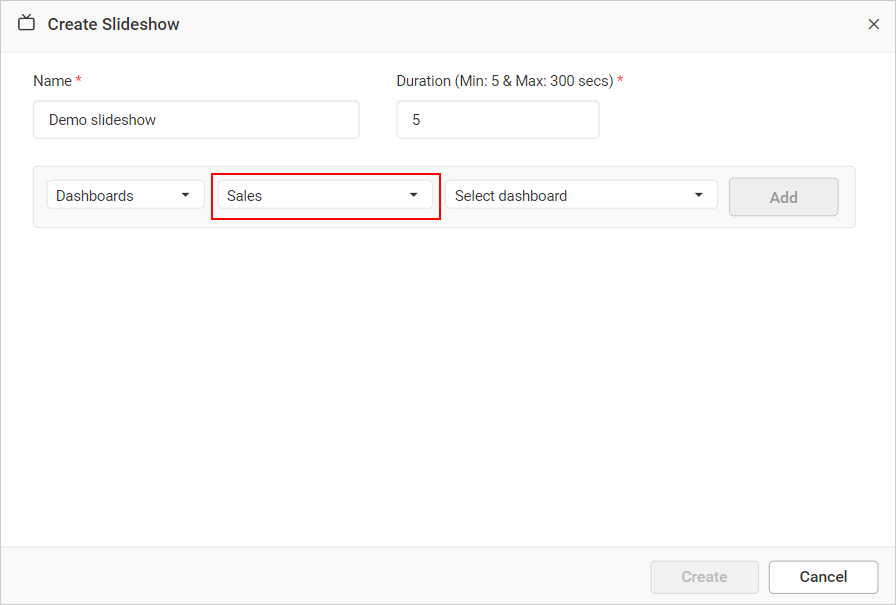
Dashboardsfrom the dropdown, then select the category from theSelect Categorydropdown. Corresponding dashboards under that selected category will be displayed in theSelect Dashboardsdropdown.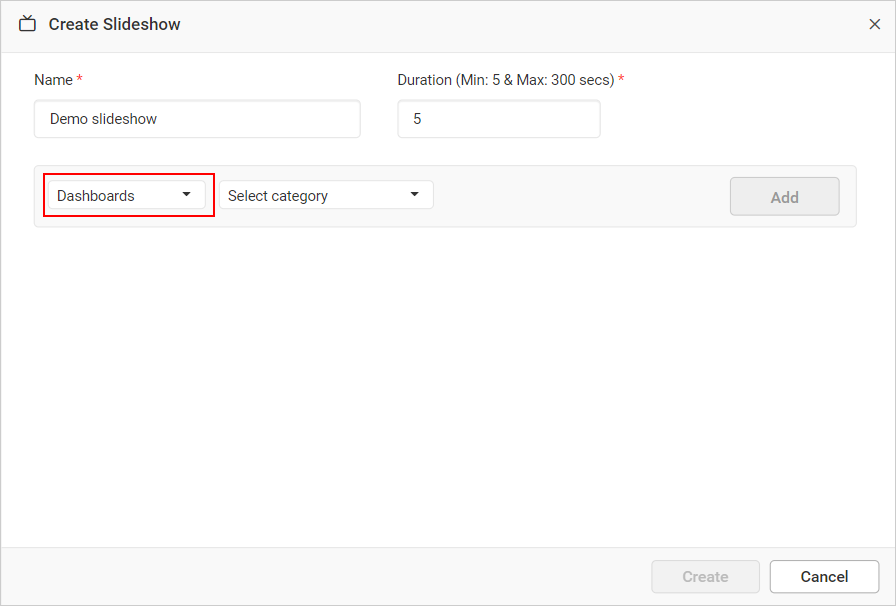
-
After selecting the dashboards from the Select Dashboards dropdown, the
Addbutton will be enabled. IfAlltype is chosen inSelect Dashboards, it will add all dashboards in that category.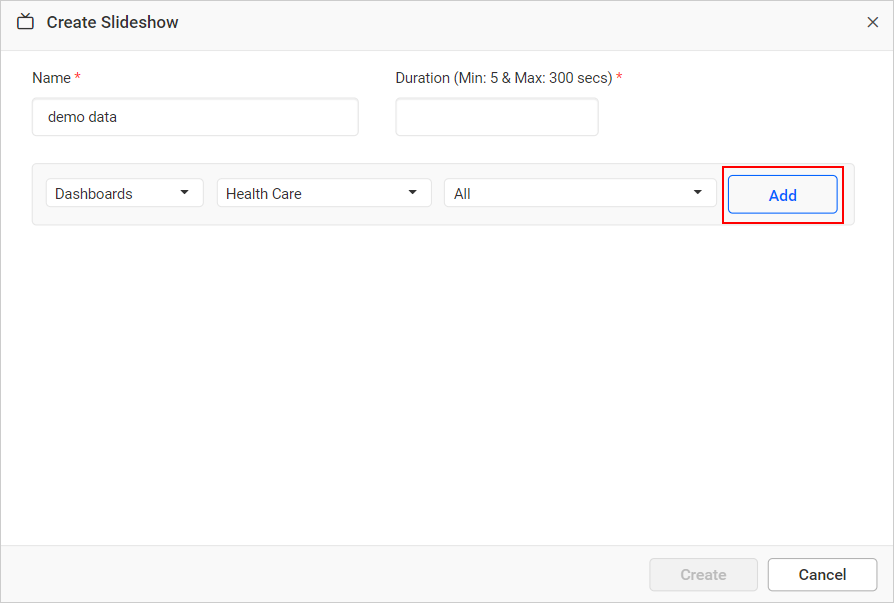
-
Click on the
Addbutton.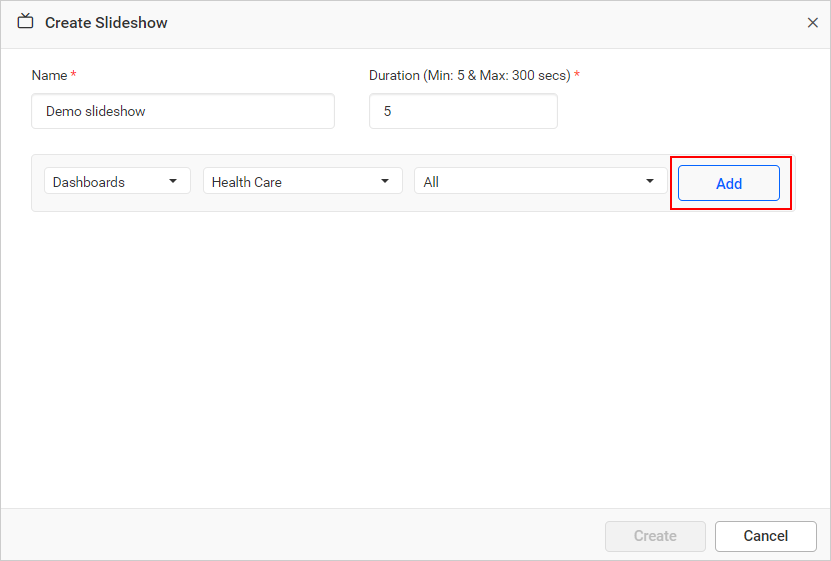
-
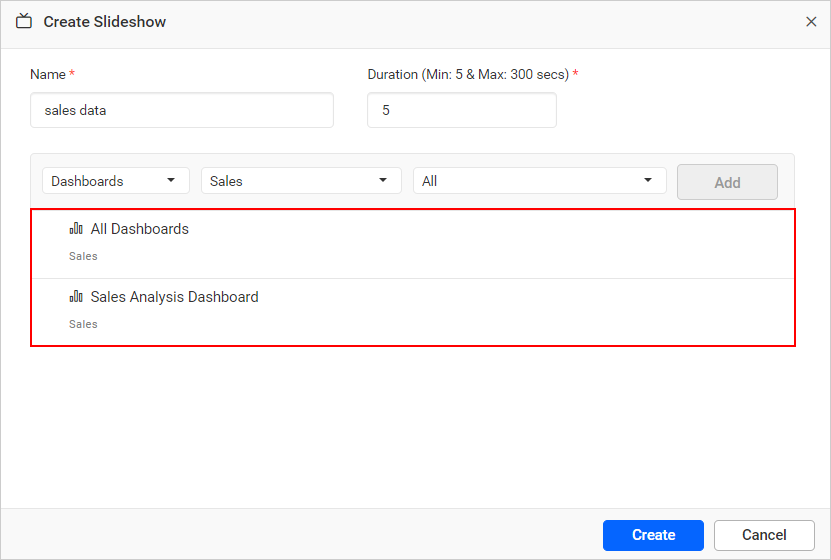
Multiple dashboards can be added for creating a slideshow. It will display the added dashboards for the slideshow.
-
After adding dashboards for the slideshow, click on the
Createbutton to add the slideshow into Bold BI Embedded.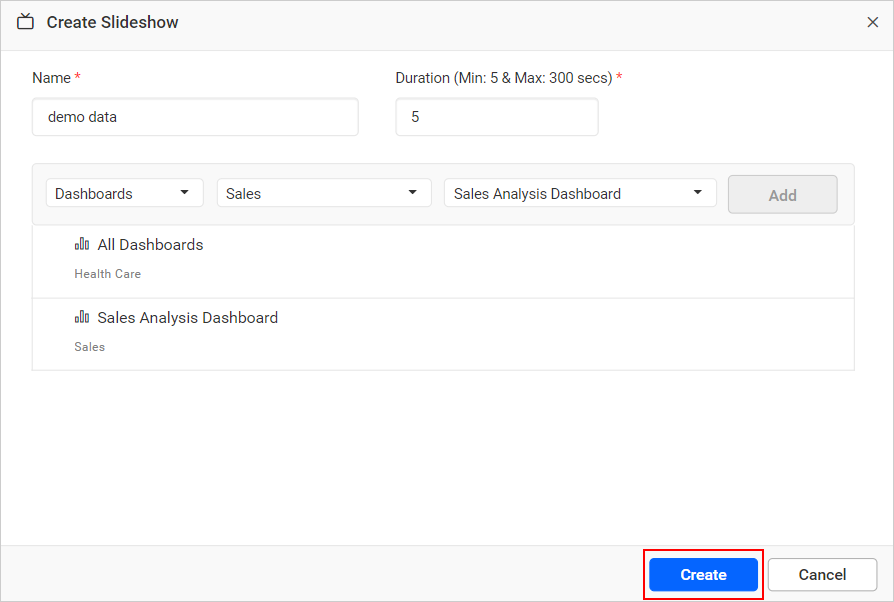
NOTE:
Read Write Deletepermission for thatSpecific Slideshowwill be added for the user who created the slideshow.
View Slideshows
This section explains how to view slideshows in Bold BI.
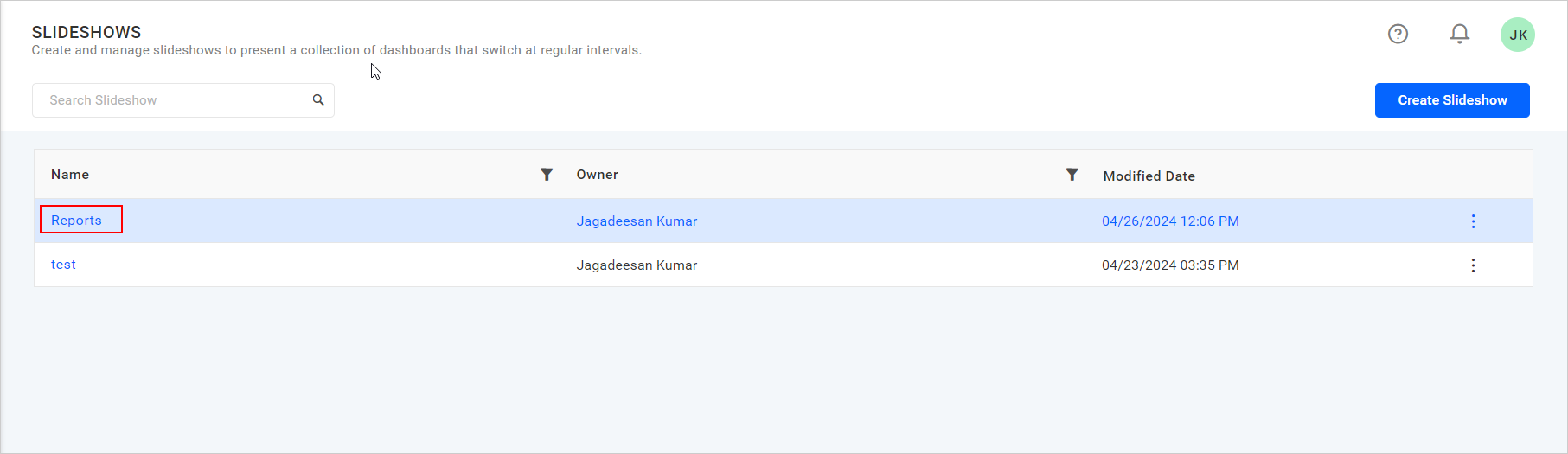
Created slideshows can be viewed by clicking on either the Actions button in the slideshow grid context menu and selecting Open, or by clicking on the name from the slideshow listing page.
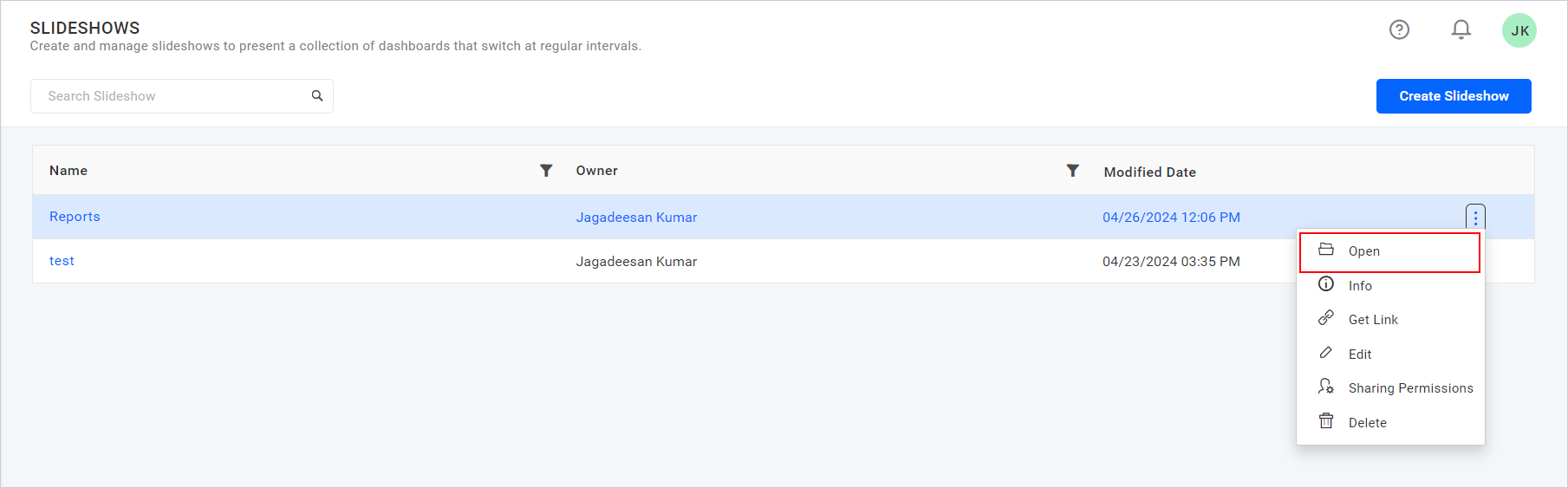
Once the slideshow is opened, selected dashboards are viewed as a presentation, changing from one to another at a given time interval.
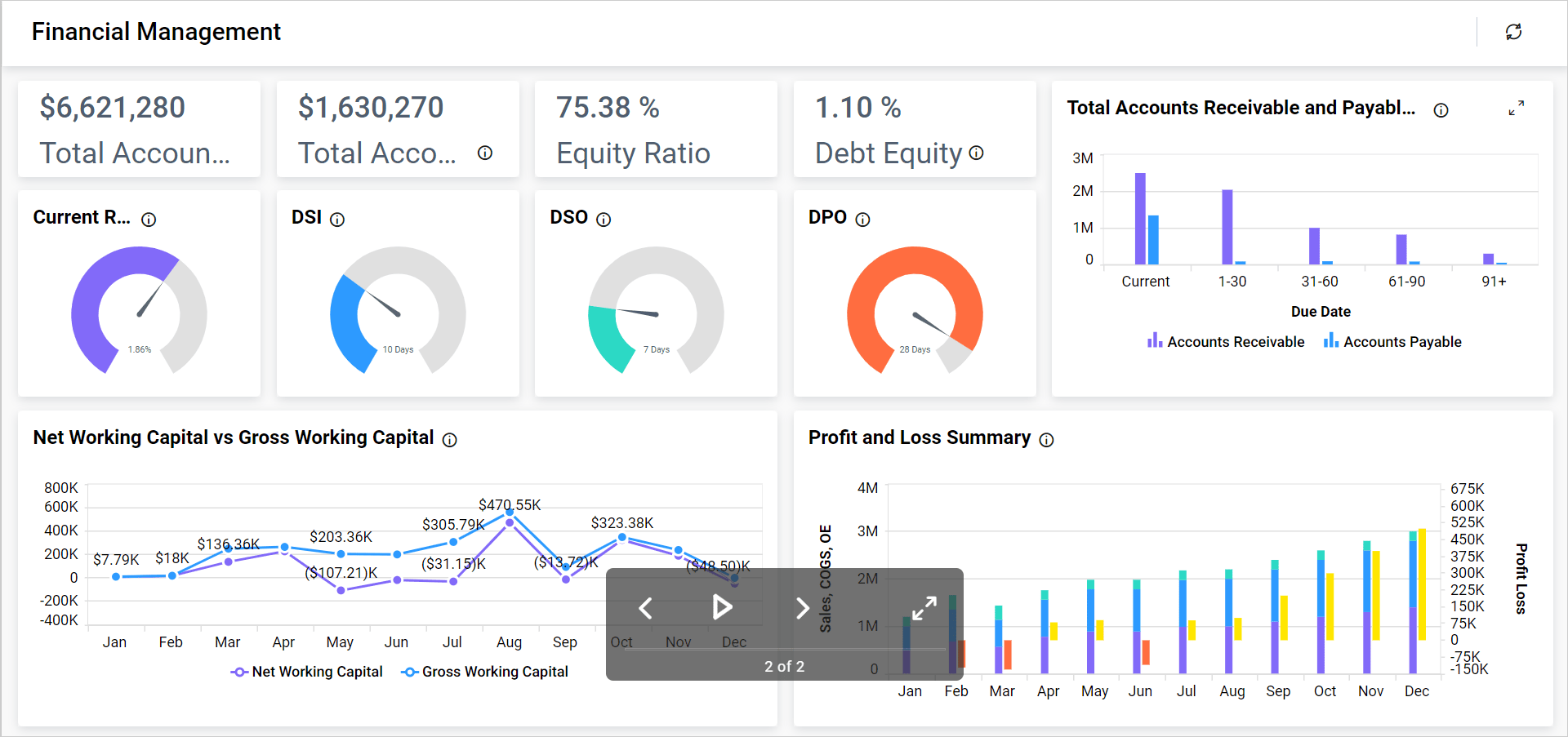
Options to view the previous dashboard in the presentation, pause the presentation, view the next dashboard in the presentation, and view the presentation in full screen are provided.
Share Slideshows
Slideshows must be shared with users or groups so that they can access them.
If the slideshow contains only public dashboards, it can be accessed anonymously.
If the slideshow contains private dashboards, only users who have access to that slideshow can navigate to it using the link. Users with appropriate permissions alone will be able to view the items in the slideshow.
This section explains how to share slideshows with other users in Bold BI.
Steps to share a Slideshow
-
Click the
Actionsbutton in the slideshows grid context menu and selectSharing Permissionsoption.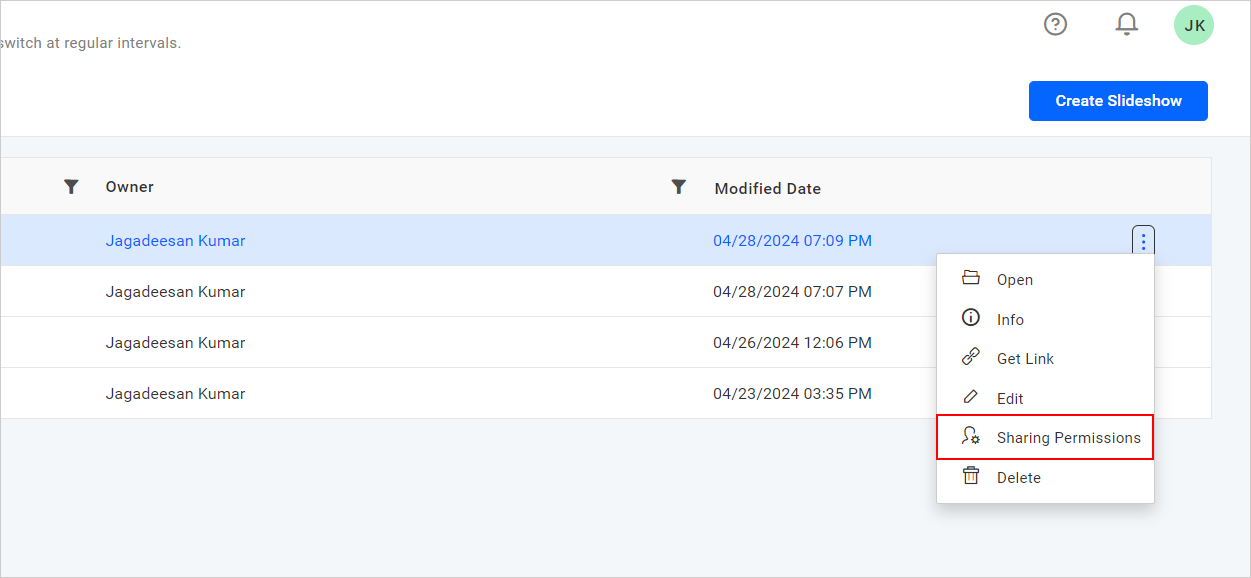
-
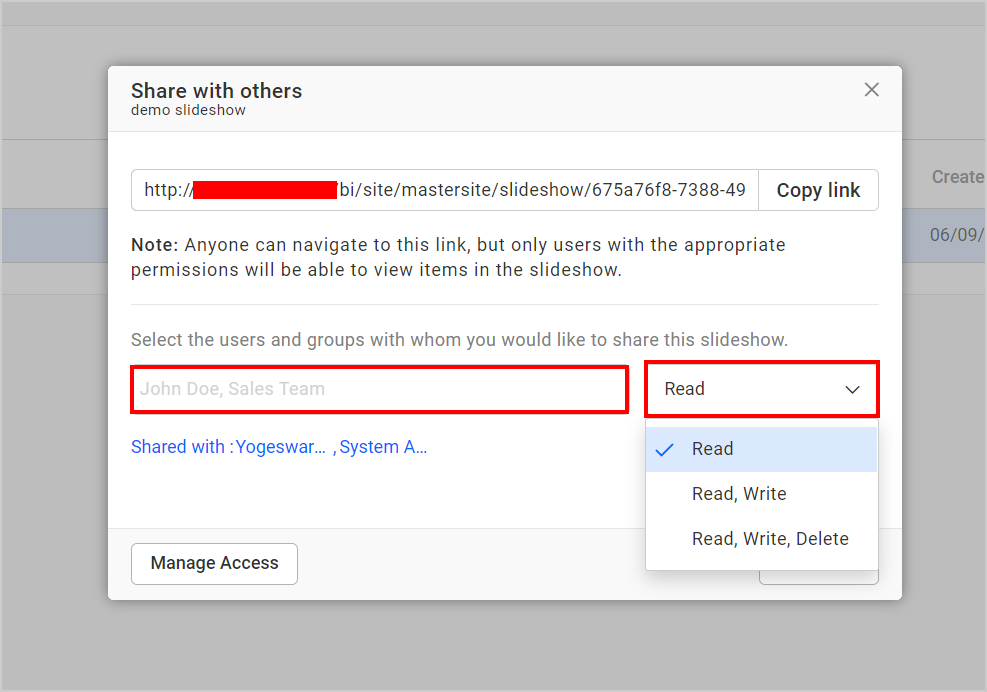
Select the permission access and type in the user or group name you want to share the slideshow with.
-
After selecting the permission access and users or groups, click on the
Sharebutton.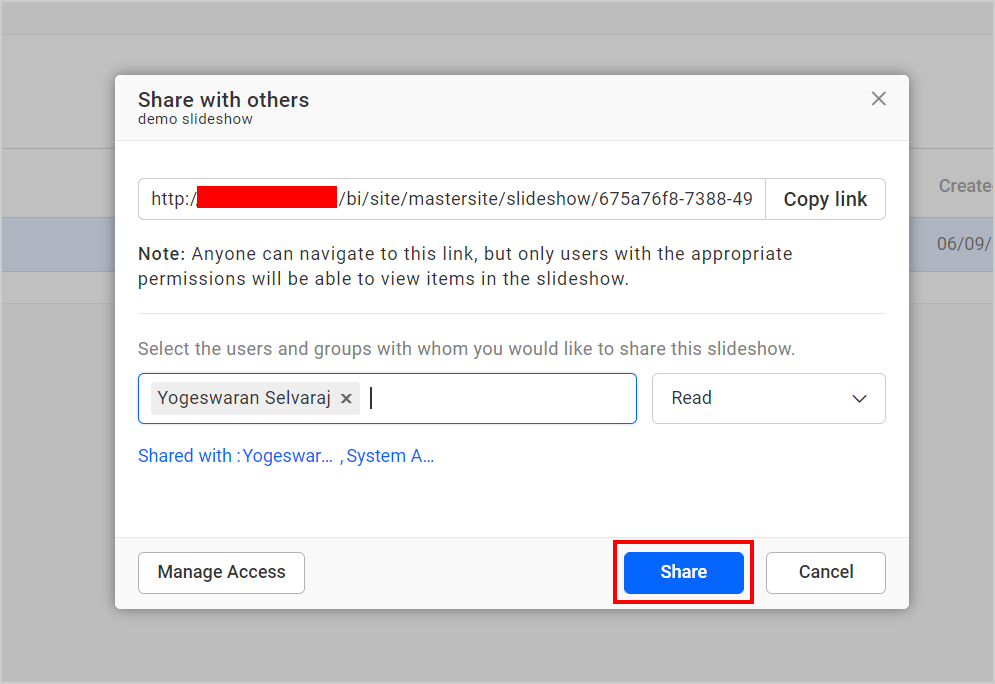
NOTE: Only the user who created the slideshow and the Administrator can share the slideshow with other Bold BI users.
Remove Permission
The user who created the slideshow and the Administrator can remove shared slideshow permissions.
-
Click the
Manage Accessbutton to see the users or groups and their permissions.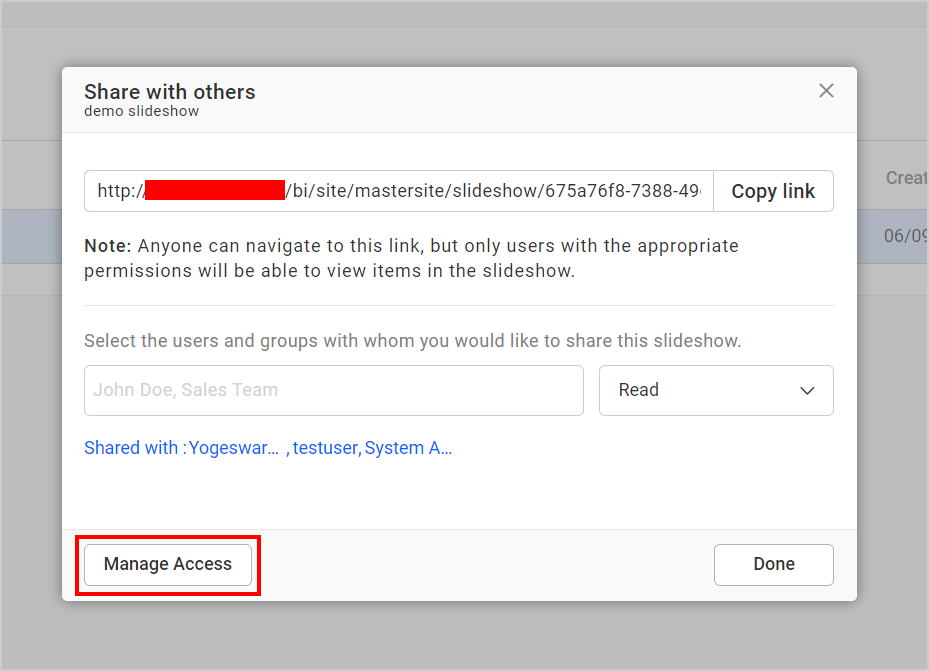
-
Then remove the permissions using the
Removeoption in theActionscolumn for each permission.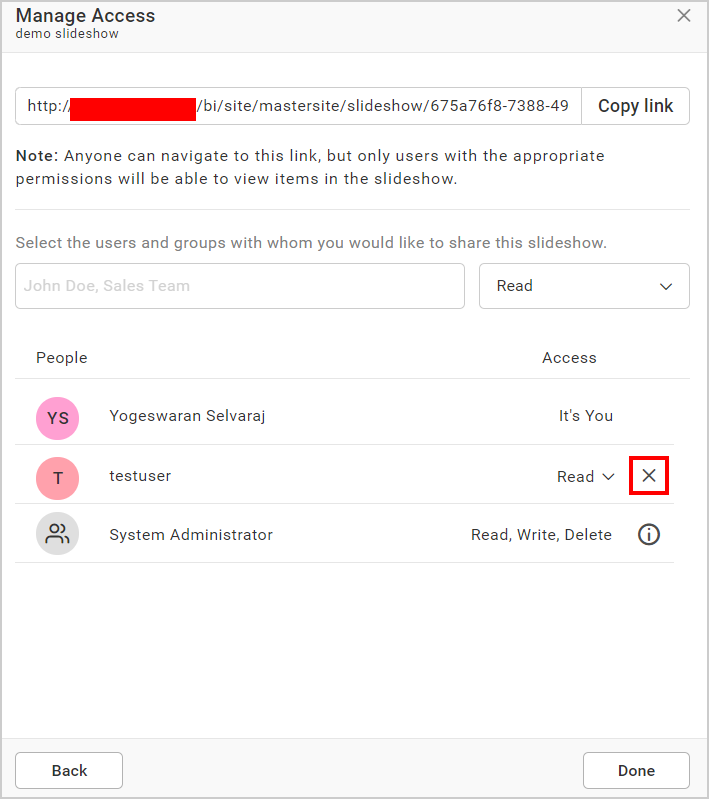
Information of Slideshow
You can view the information of the respective slideshow in a dialog box. Click Actions in the grid context menu and select Info.
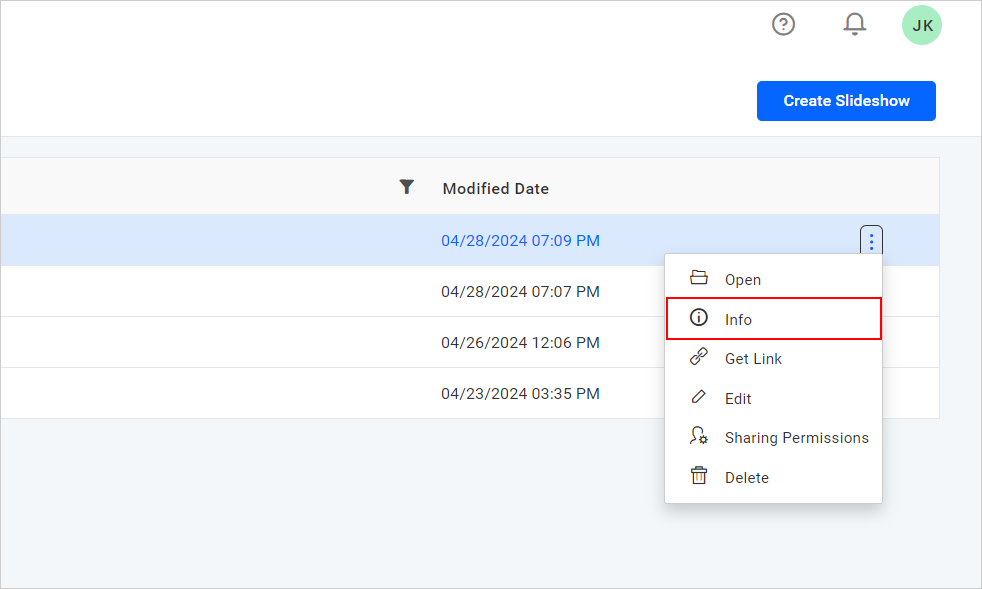
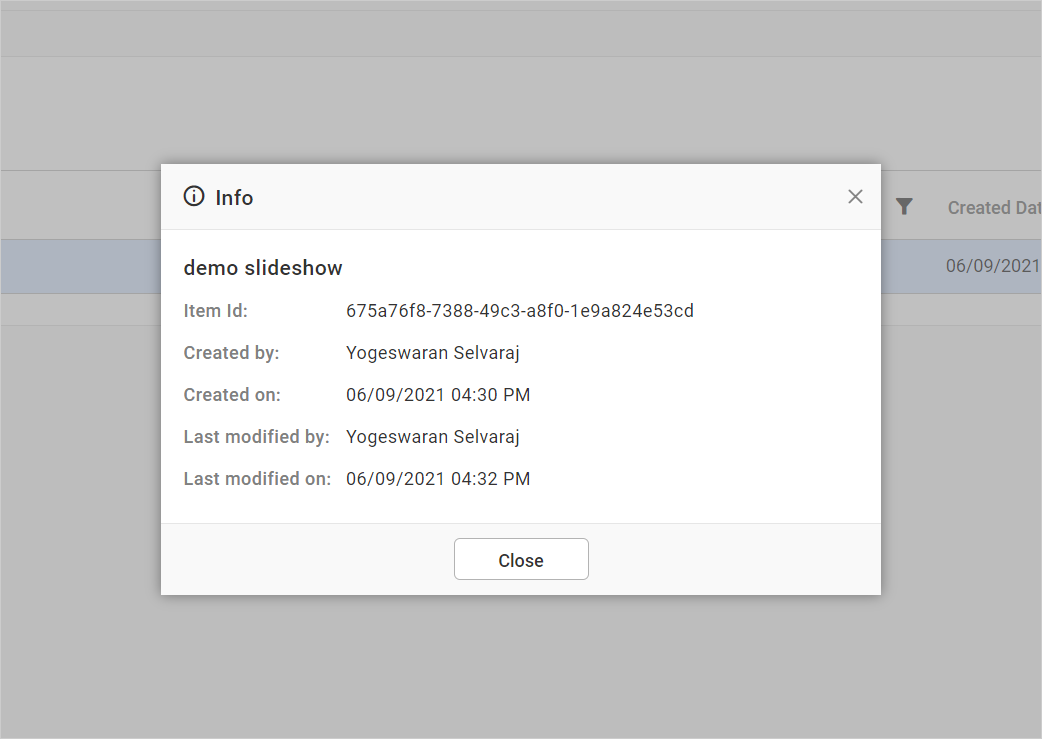
Link to Slideshows
This section explains how to get a link to the Slideshows in Bold BI Embedded.
These links are used to navigate to the slideshows and can be shared with others.
The Get Link option is available for all slideshows in the grid.
Follow the steps below to get the link of a slideshow:
-
Click on the context menu of the respective slideshow and choose the
Get Linkoption.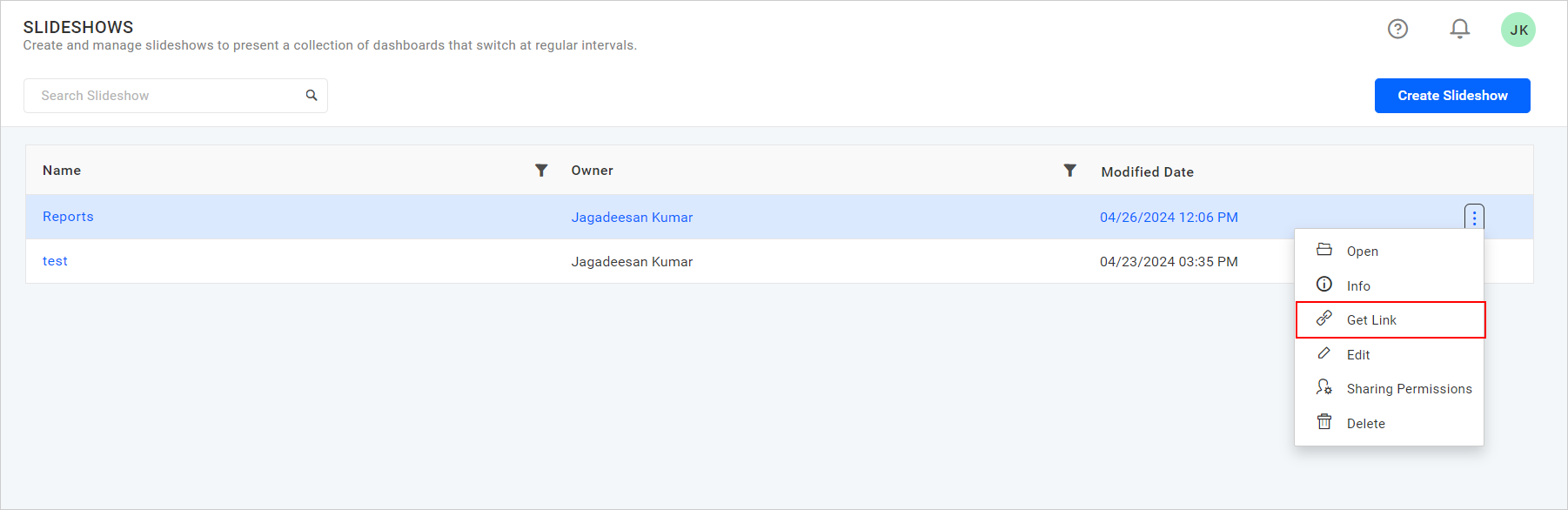
-
The
Get Linkdialog will open. Click on theCopyicon to get the link.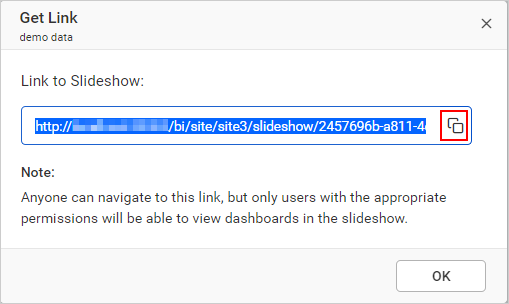
Update Slideshows
This section explains how to modify existing slideshows in Bold BI Embedded.
Steps to update a slideshow
Name, duration, and the dashboards listed for the slideshow can be changed using the Edit option.
-
Click on the
Editoption in the context menu of the respective Slideshow.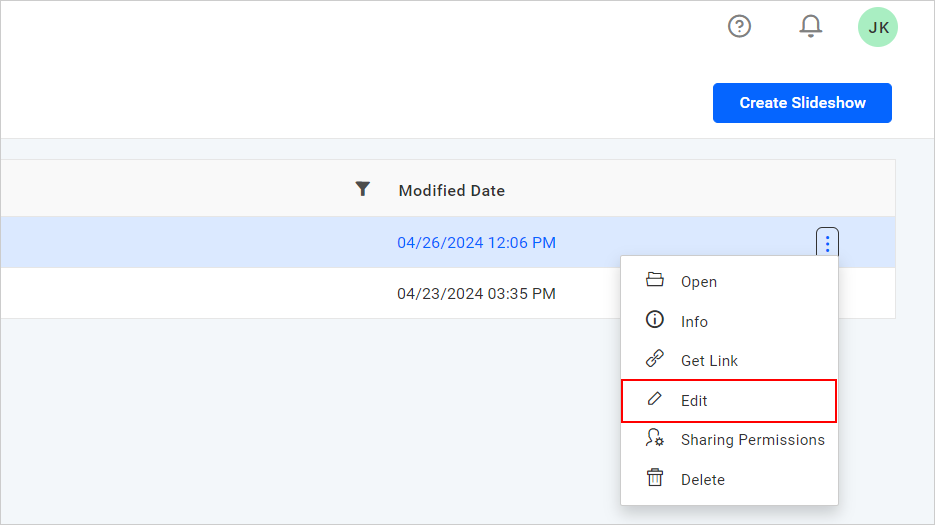
-
Dashboards can be added or removed for the slideshow.
-
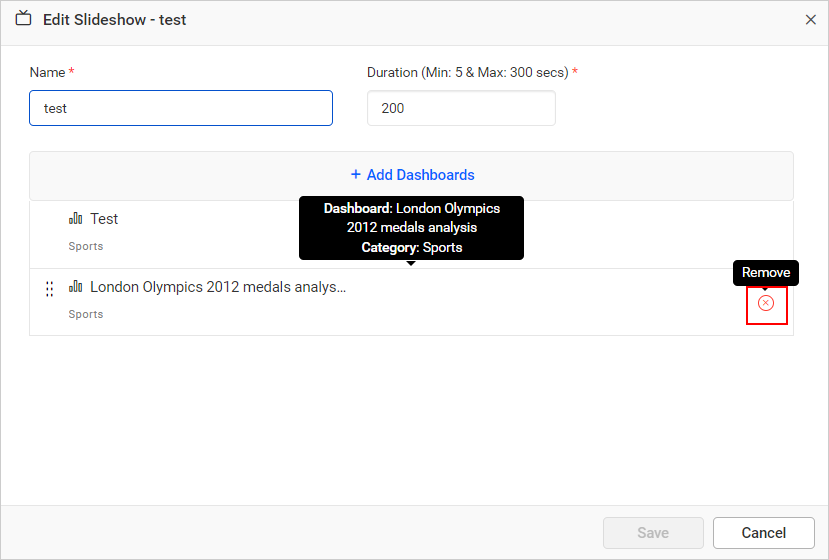
To remove the listed dashboards added for the slideshow, click icon as shown below,
-
To add a dashboard, click on
Add Dashboardsin the Edit Slideshow dialog box.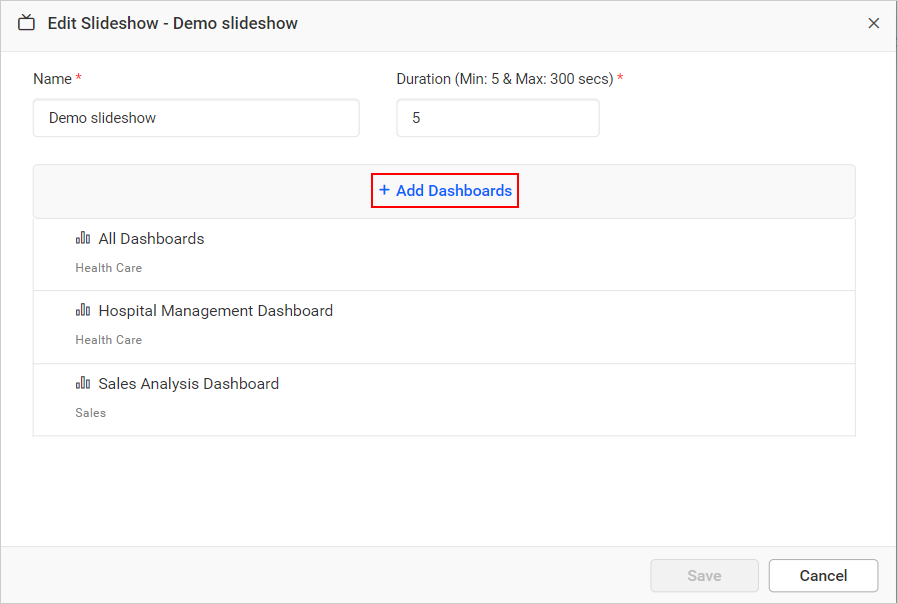
-
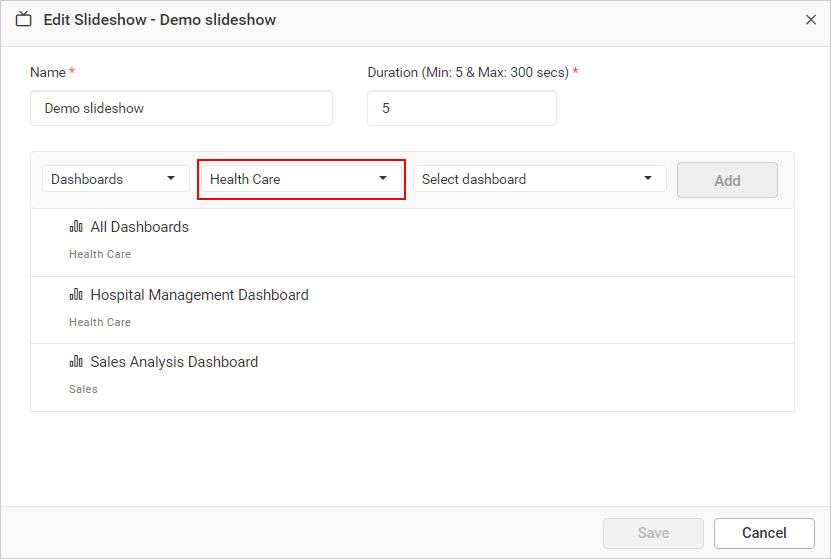
Select dashboards from the dropdown menu, then select the category from the
Select Categorydropdown. Corresponding dashboards under the selected category will be displayed in theSelect Dashboardsdropdown.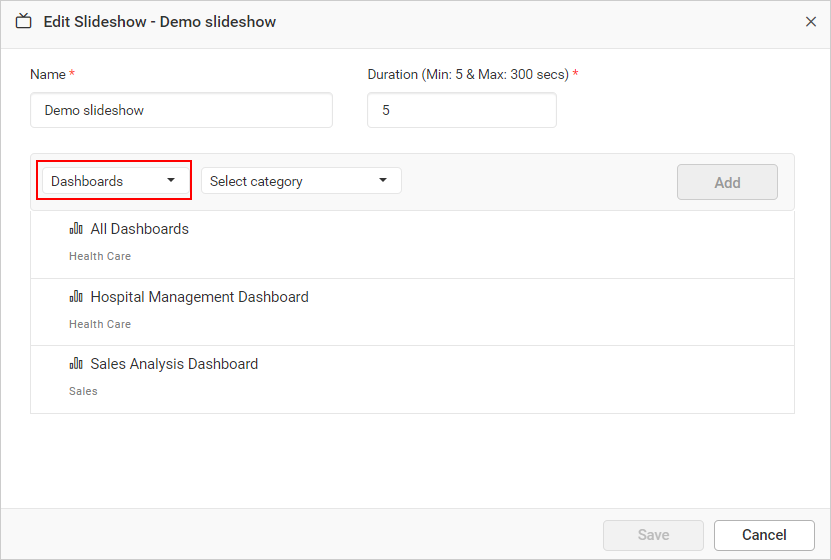
-
After selecting the dashboards, the
Addbutton will enable. Click on theAddbutton.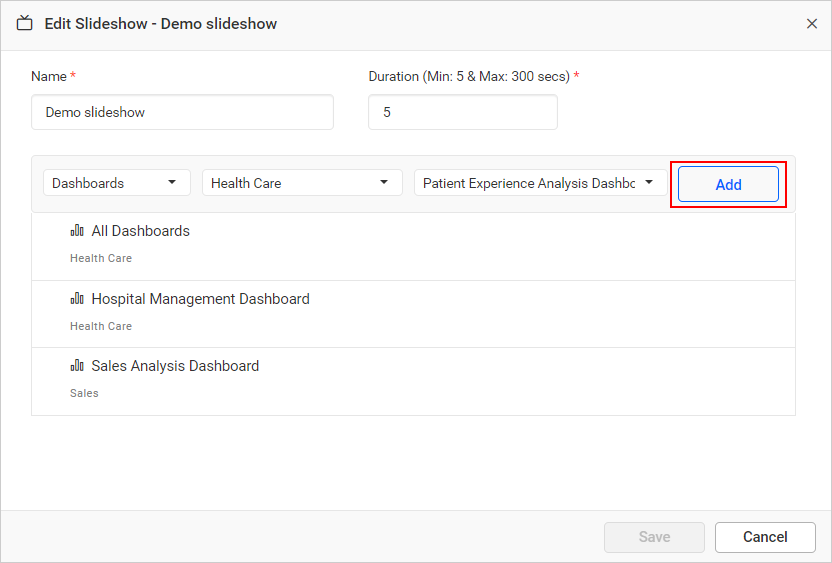
-
-
-
After making changes to the name, duration, and dashboards listed for the slideshow, click on the
Savebutton in theUpdate Slideshowdialog box.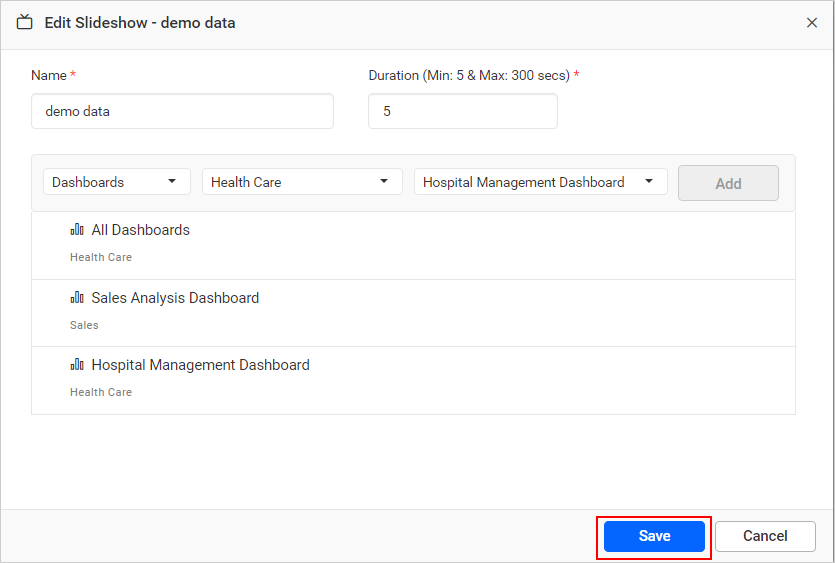
Delete Slideshows
Slideshows can also be deleted from Bold BI when they are no longer required.
Click on the Actions button in the slideshows grid context menu and select Delete to delete the slideshow.