Manage Dashboard Views
This section explains on how to open, add, update, share, delete Dashboard views and create schedule with dashboard views in the Bold BI. Dashboard Views that are accessible to the user, depending on the user’s permission, are displayed on the Dashboards page.
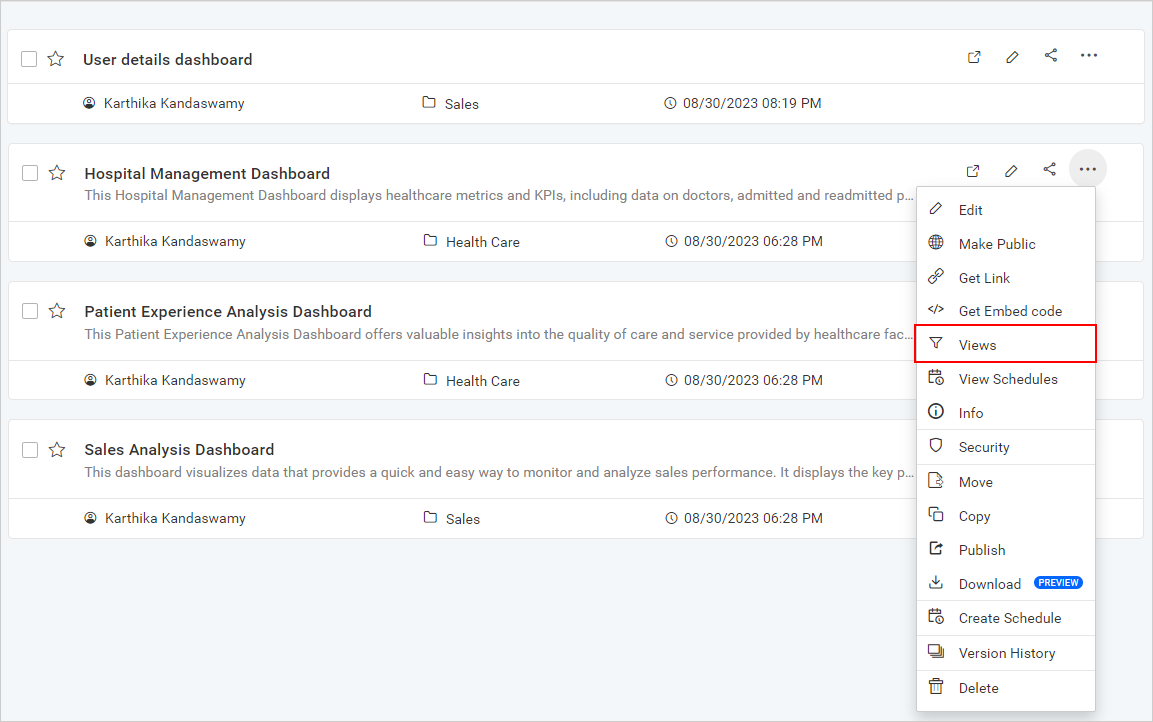
Open Dashboard Views
Dashboard Views are opened in our embedded Dashboard Viewer itself as Dashboards.
Add Dashboard Views
- If the user has the permission to
Read specific dashboards, then they can create Dashboard Views in that dashboard. - The created Dashboard Views cannot be updated or deleted by other users.
- The owner of the Dashboard View only has permission to share the Dashboard View.
- The shared Dashboard Views can be modified and saved as another view, as users cannot modify the original ones.
Steps to add a Dashboard View
-
Filters applied in the dashboards are summarized in the
Filter Overviewsection underApplied Filters.To save the filters, click on the
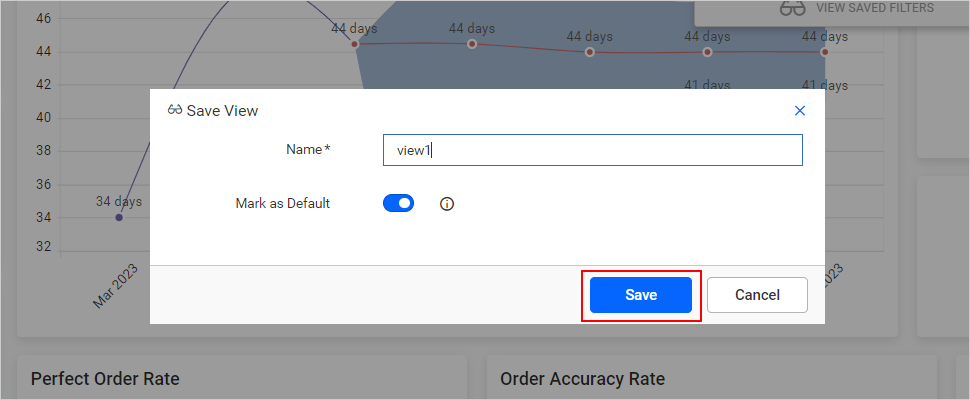
Saveicon. A popup will open to type the name for the Dashboard View and submit it.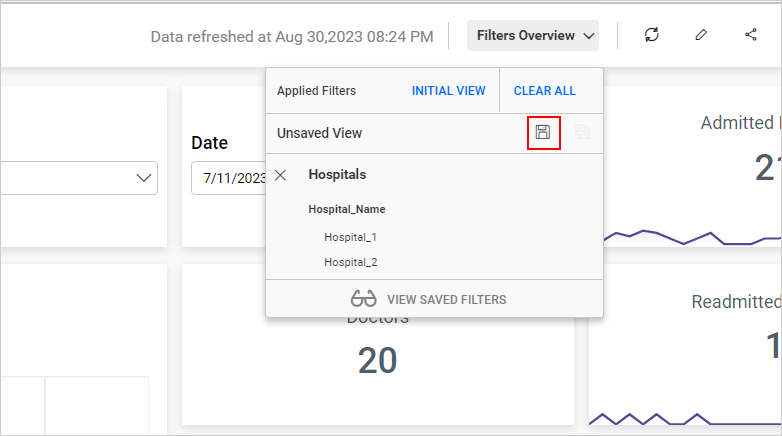
-
The views can be set as default while saving them by enabling the
Mark as Defaultoption in the save view dialog. Learn more about Default Views. -
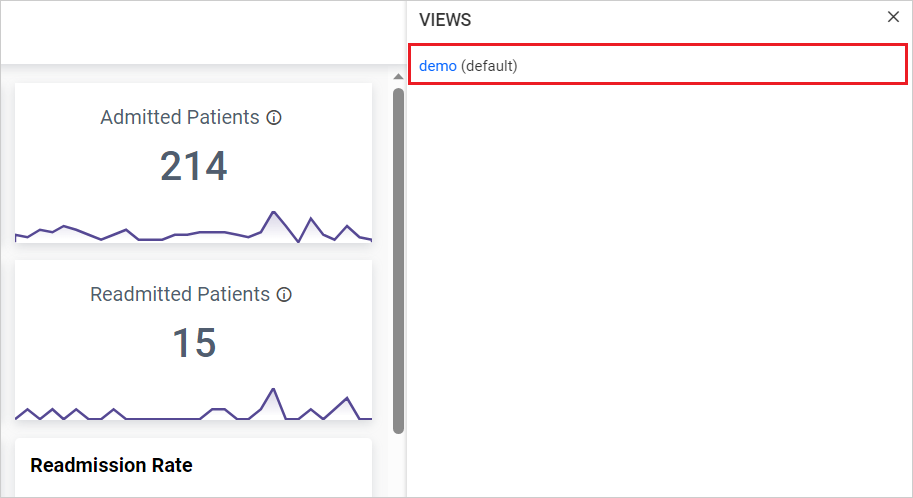
Saved Dashboard Views are shown in the Dashboard Views panel by clicking the
Viewsicon.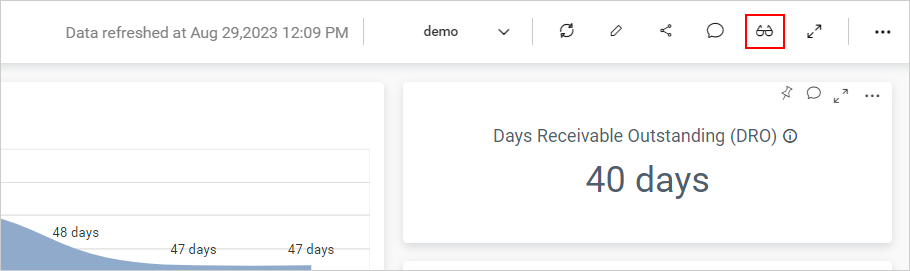
-
Click on the
saved viewsshown in the Dashboard Views panel to display the filters applied in that view as an accordion.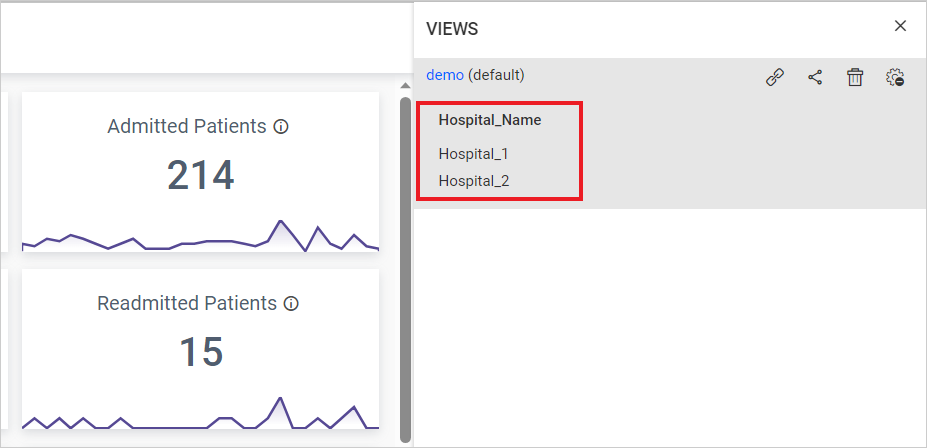
NOTE:
Read, Write, and Deletepermissions for thespecific Dashboard Vieware added to the users by the person who created the Dashboard View.- Refer to this link to configure and save the
Interaction WidgetstoDashboard Views.
Create a Schedule with Dashboard Views
Dashboard views can be scheduled to export content based on time intervals or when certain threshold conditions are met. For more information on utilizing views in dashboard export scheduling, please refer [here] (/managing-resources/manage-schedules/)
Share Dashboard Views
Dashboard views can be shared with users who have permission for the specific dashboard.
Steps to share a Dashboard View
-
Click on the
Share Permissionsoption in the dashboard views list.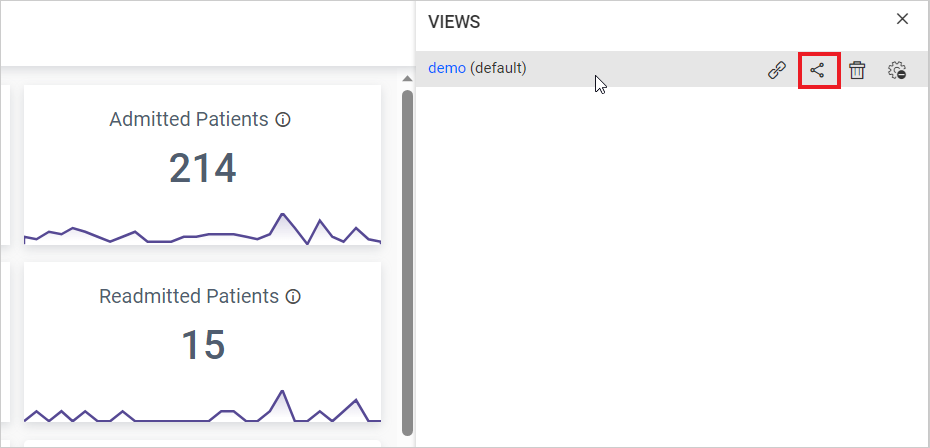
-
Type the username or group name with whom you want to share the
dashboard view.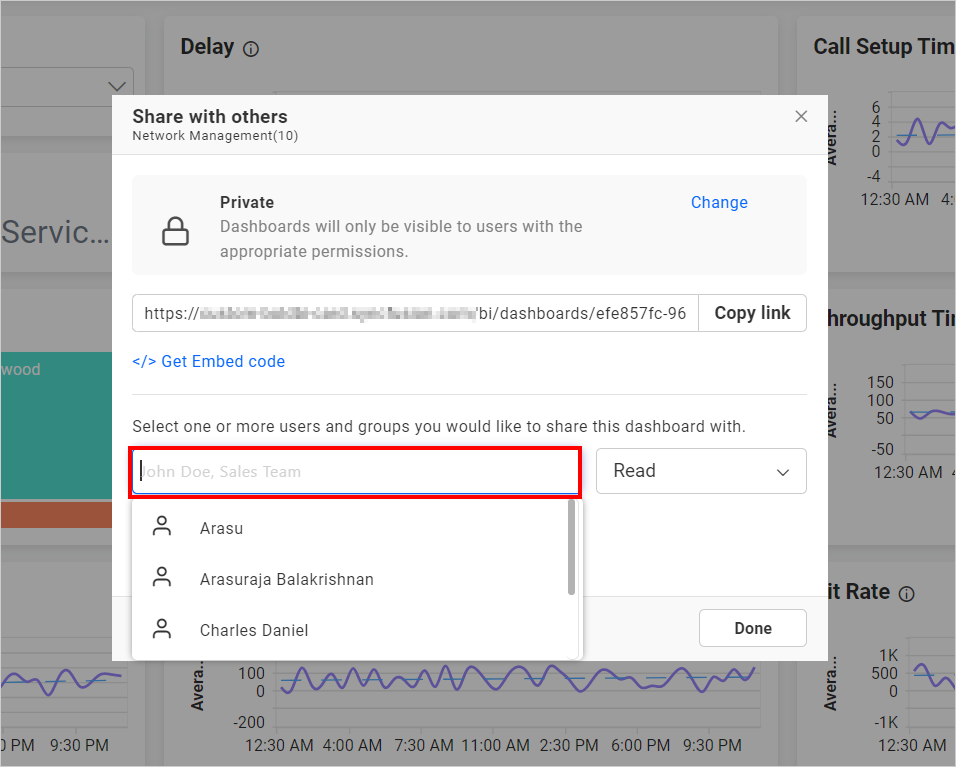
-
After selecting the users or groups, click on
Share.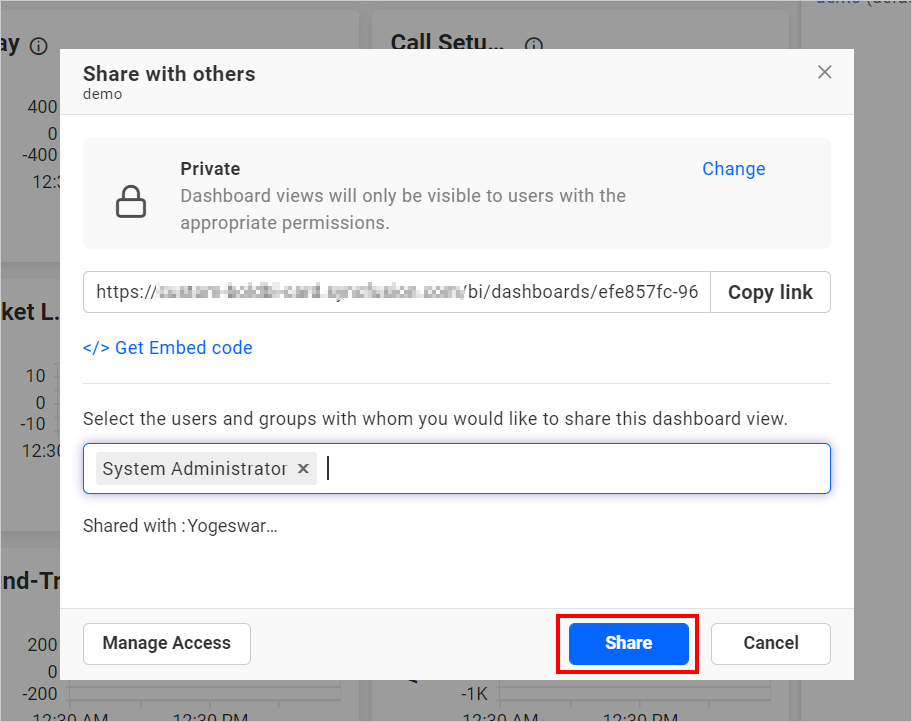
NOTE: Only the user who created the dashboard view can share it with other Bold BI users.
Remove Permission
Only the user who created the dashboard view can remove the shared dashboard view permissions.
-
Click the
Manage Accessbutton to see the users or groups and their permissions.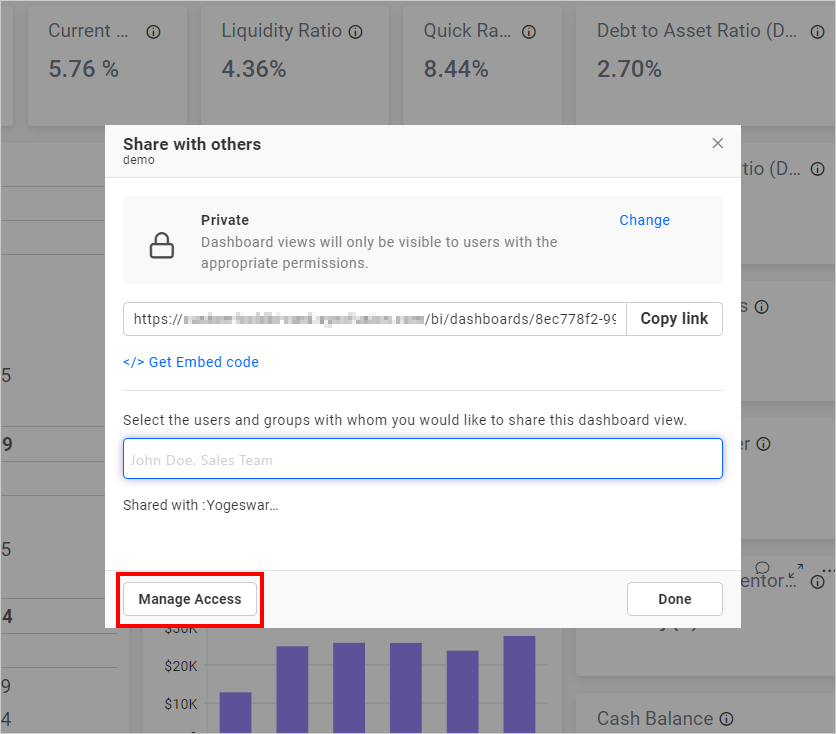
-
Then, remove the permissions using the
Removeoption in theActionscolumn of each permission.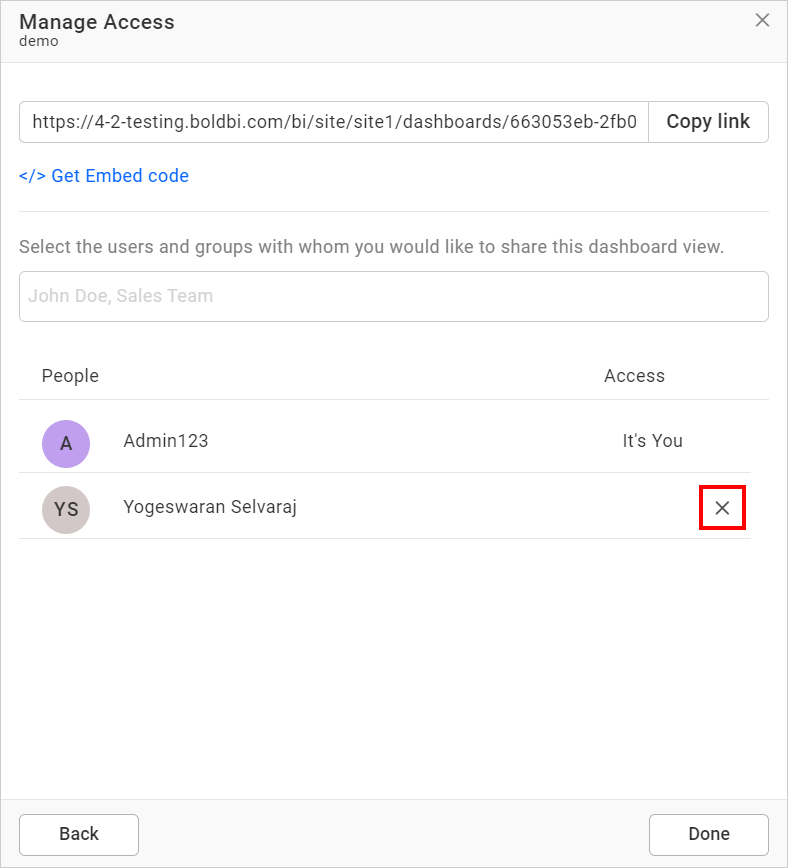
Make Public
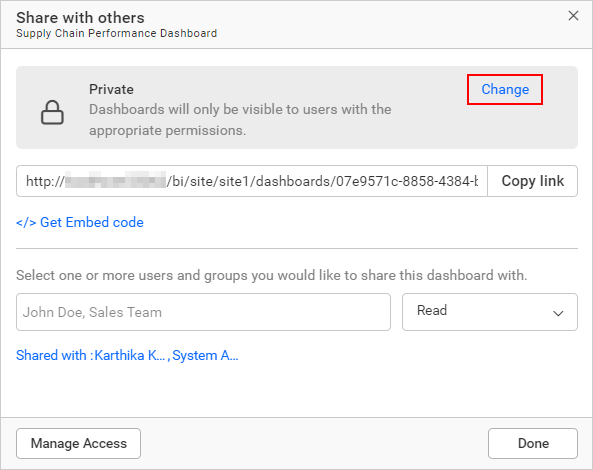
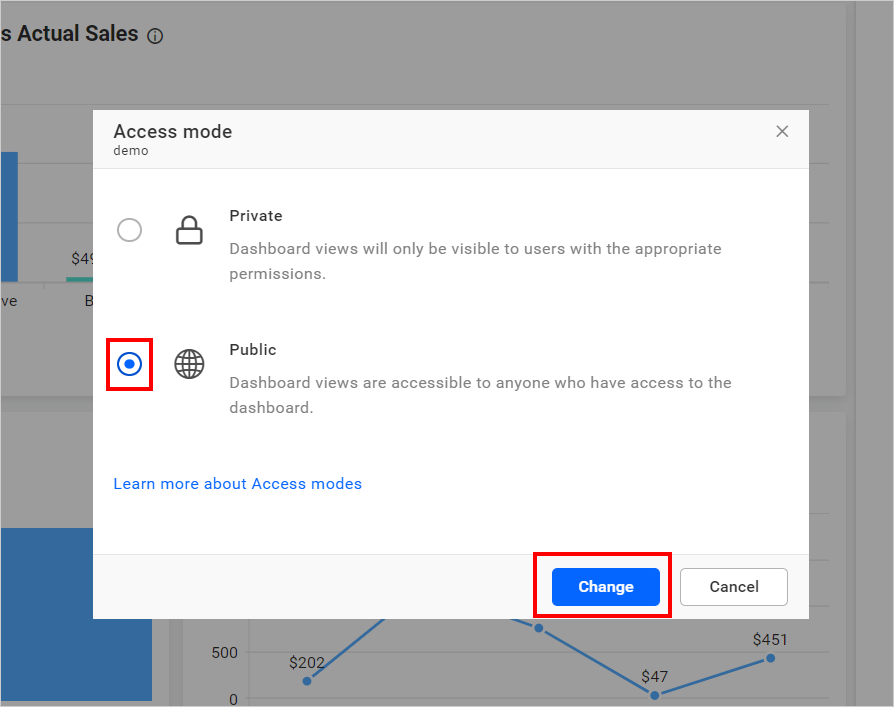
Dashboard Views can be marked as public to allow anyone to access it.
Click the change button to select the access permission.
After selecting the access permission, click the Change button.
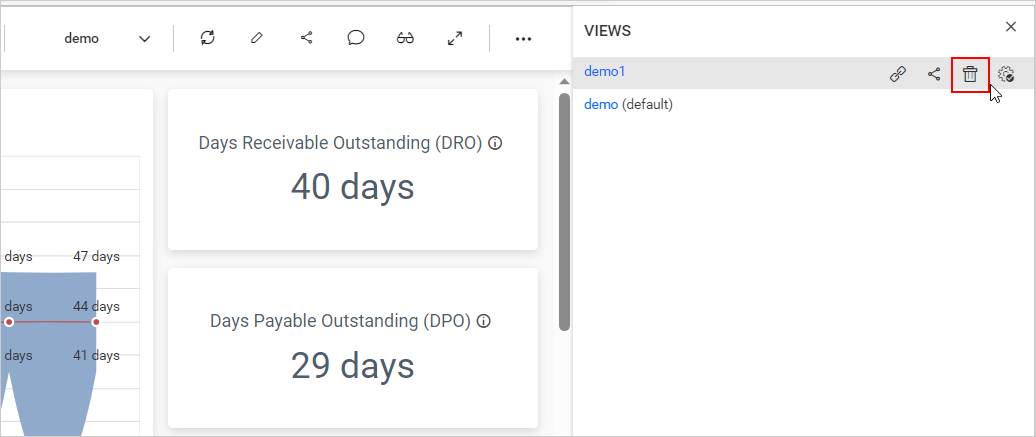
Delete Dashboard Views
Choose the Delete option to remove the Dashboard View from Bold BI.
Set a default view for the dashboard
The dashboard view can be set as the default view in two ways: while saving the view or from the views list for the dashboard by following these steps:
-
Select any view from the list of available dashboard views and click
Set as Defaultoption.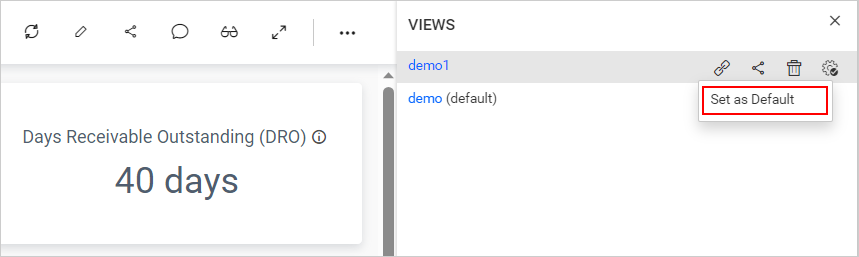
-
If the dashboard has no default views yet and you click the
Set as Defaultoption, then the respective view will be set as the default view for the dashboard and a success message will be displayed.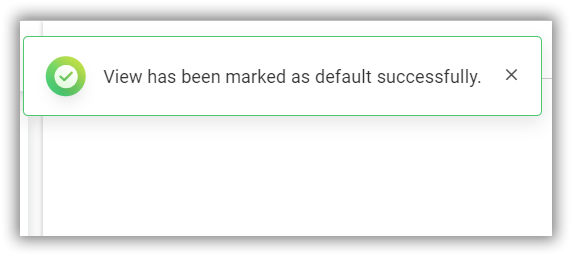
-
If a default view already exists for the dashboard, a confirmation dialog box will be opened and proceed with
Yes.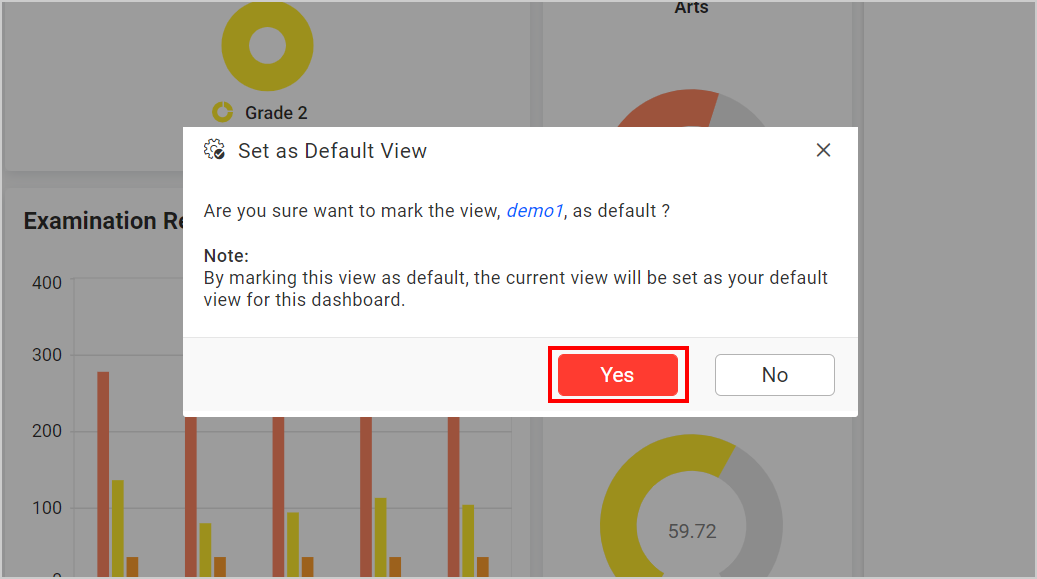
-
After setting the dashboard view as the default for the dashboard, the text
(default)will be appended with the respective view in the views listing panel.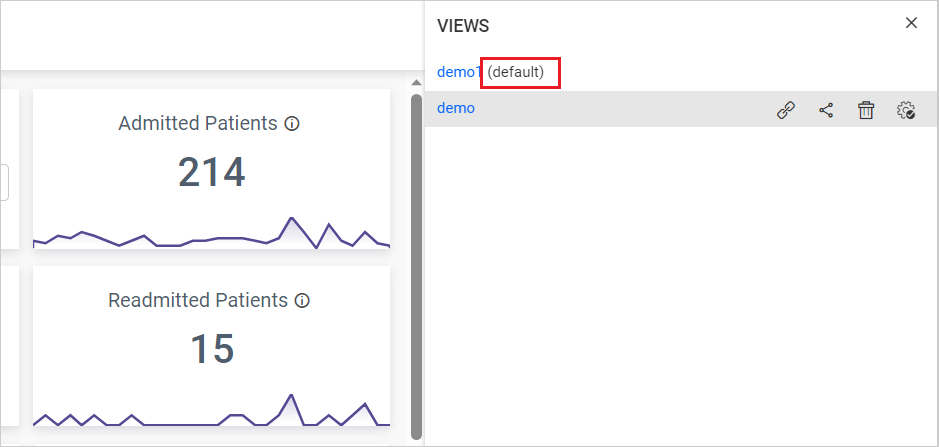
NOTE: To set a dashboard view as the default view for the dashboard, the
Default viewoption inDashboard settingsmust be enabled. Learn more about Default Views.
Remove a default view for the dashboard
The default view of the dashboard can be removed to view the dashboard with its initial view by following these steps:
-
Click
Remove as Defaultoption.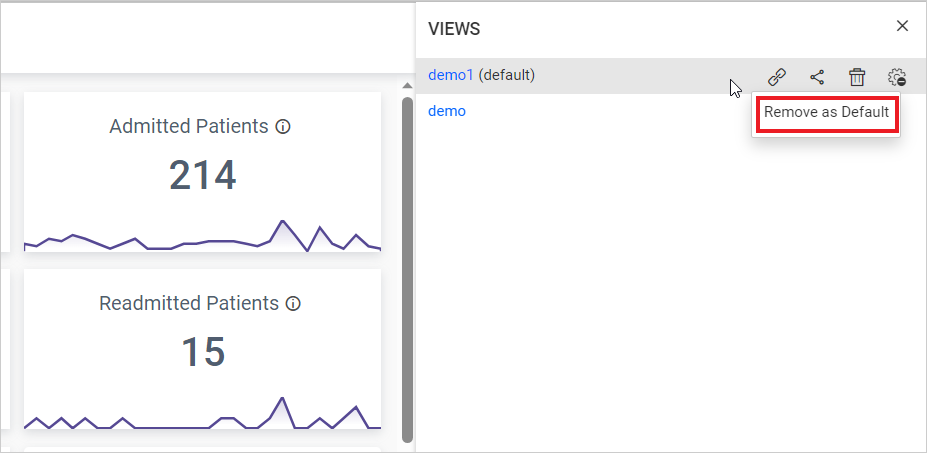
-
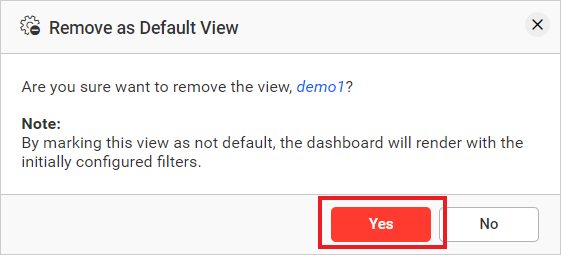
Proceed with
Yesin the opened dialog box.