
Embed Dashboard Widget
This guide explains how to embed a specific widget from a dashboard into a web application using an iframe URL obtained from the Bold BI UI, allowing for a concise display of the widget.
Steps to Embed the Widget
-
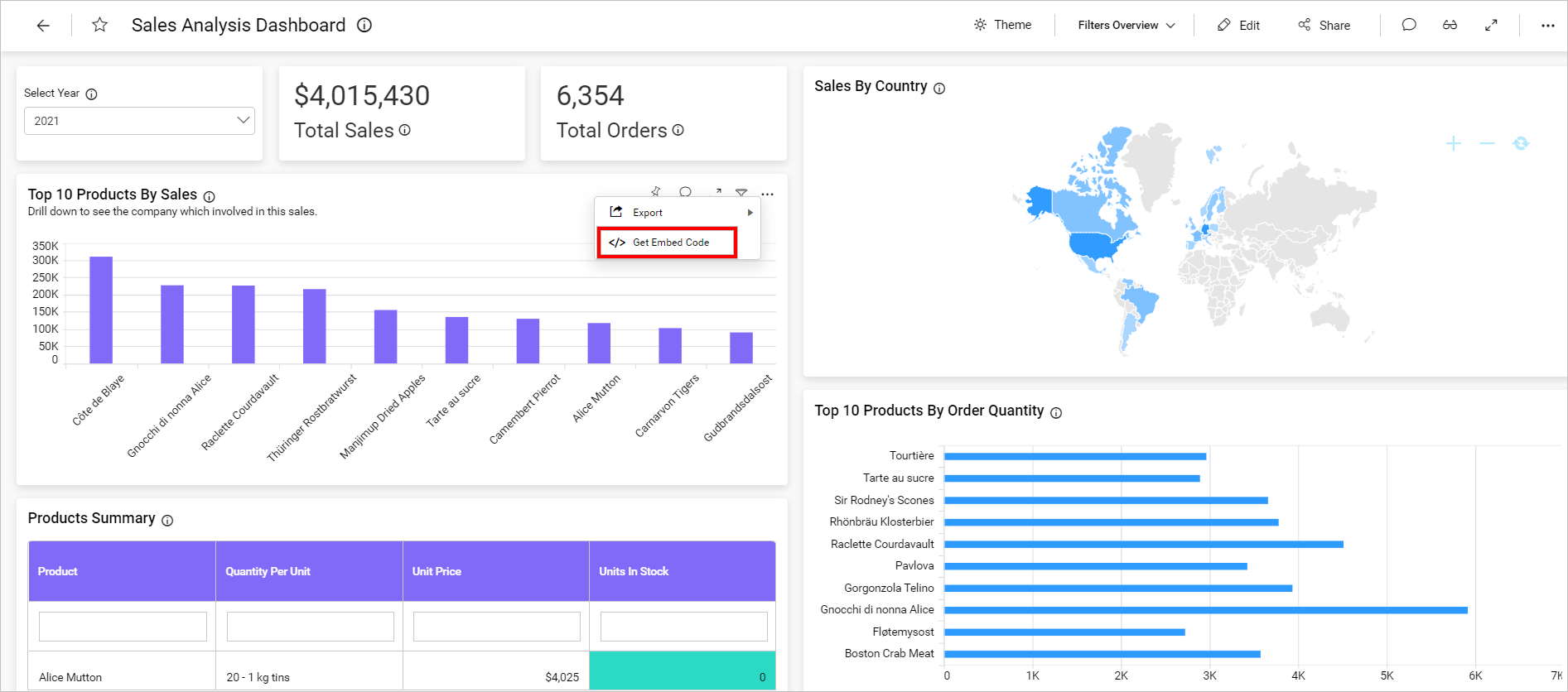
Obtain the Embed URL: In the Bold BI UI, navigate to the dashboard containing the widget you want to embed. Click the context menu (typically a three-dot icon) on the widget and select Get Embed Code.
-
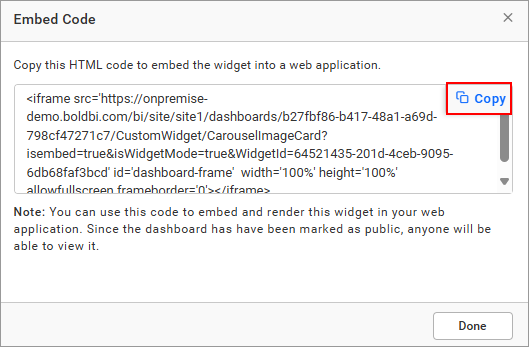
Copy the Embed URL: In the embed code dialog, ensure the URL includes
isembed=trueandisWidgetMode=truewith the correctWidgetId. Click the copy icon to copy the URL.
-
Embed the URL in Your Web Application: Modify the copied URL by replacing the server URL (e.g.,
http://localhost:53623), site identifier (e.g.,site1), dashboard ID, dashboard name, and widget ID with your specific values. Add the URL to an iframe in your web application’s HTML. Example:
<iframe src="http://your-server-url/bi/site/your-site-id/dashboards/{dashboard-id}/{dashboard-name}?isembed=true&isWidgetMode=true&WidgetId={widget-id}" id="dashboard-frame" width="100%" height="600px" allowfullscreen frameborder="0"></iframe>-
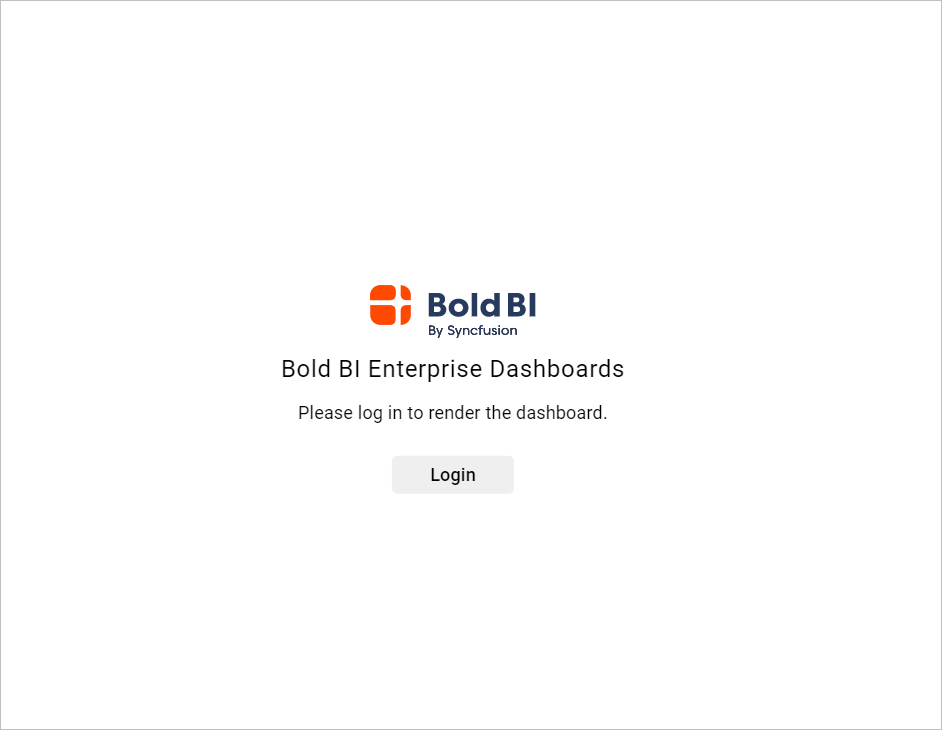
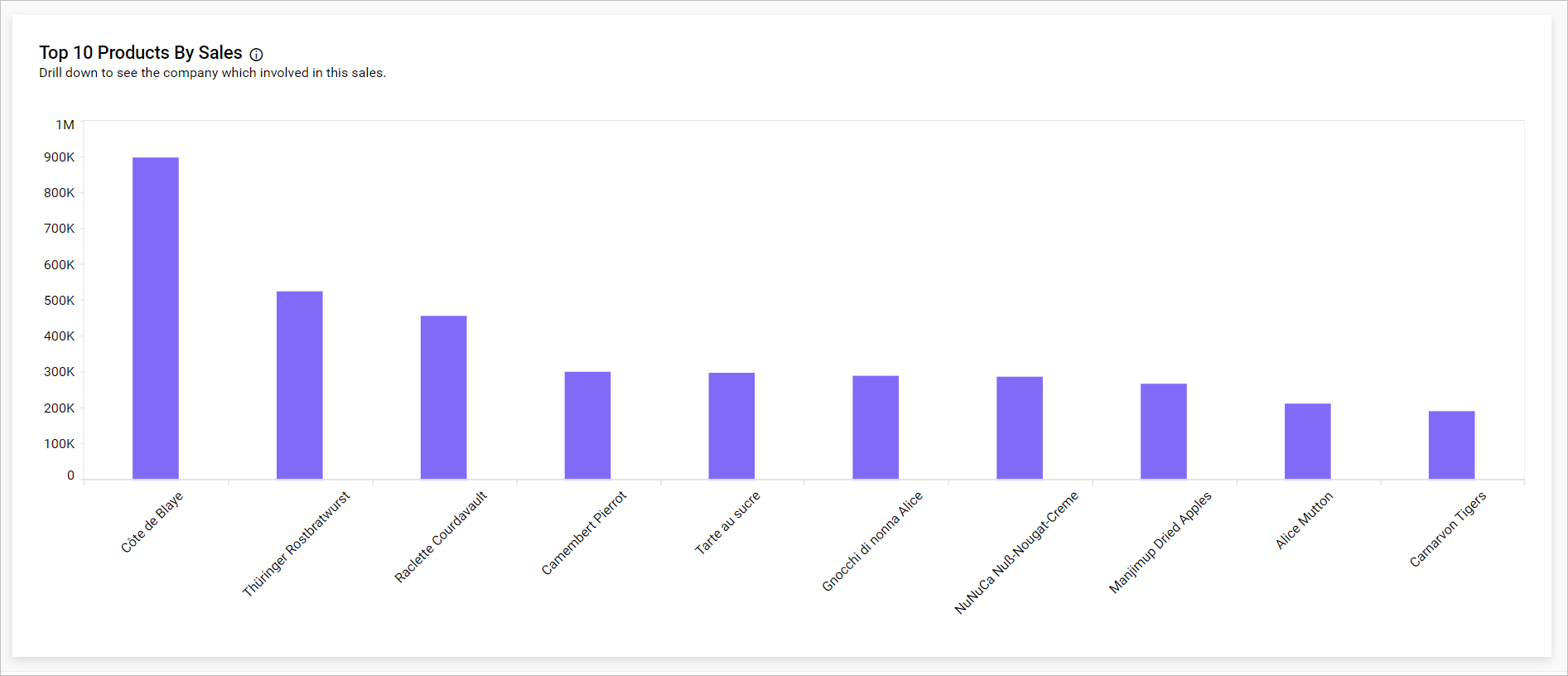
Run the Web Application: Open the web application in a browser. If a login window appears, enter valid credentials, and the widget will render automatically.
Alternatively, use an Embed Signature to securely bypass the login prompt with token-based authentication.