Embed Data Source
This guide explains how to embed the Bold BI data source editor into a web application using an iframe URL. It covers both edit and create modes, with optional Single Sign-On (SSO) authentication for secure access.
Embed Data Source in Edit Mode
1. Obtain the Embed URL
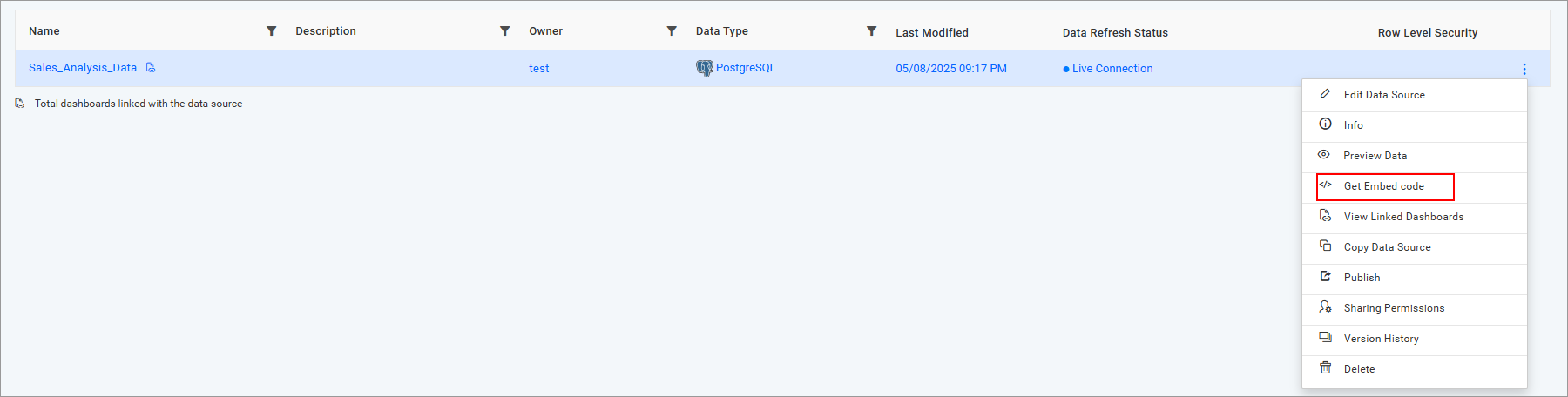
From the data source listing in the Bold BI UI, click the More icon on the desired data source and select Get Embed Code.
2. Copy the Embed URL
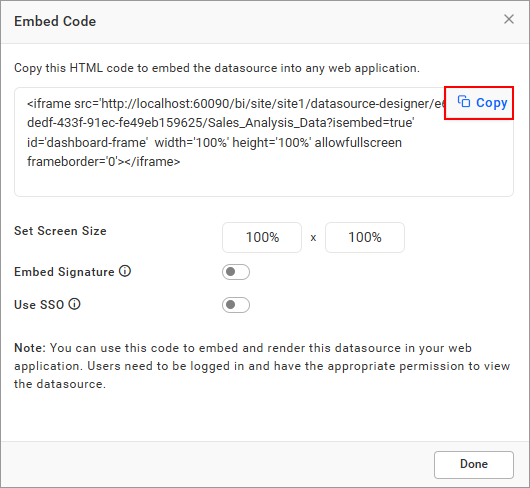
Click the copy icon in the embed dialog to copy the URL.
3. Embed the URL in Your Web Application
Paste the copied URL into an iframe in your web application’s HTML. Example:
<iframe src="http://localhost:51777/bi/site/site1/datasource-designer/8428c9d9-85db-418c-b877-ea4495dcddd7/Personal%20Expense%20Analysis?isembed=true" id="dashboard-frame" width="100%" height="100%" allowfullscreen frameborder="0"></iframe>4. Run the Web Application
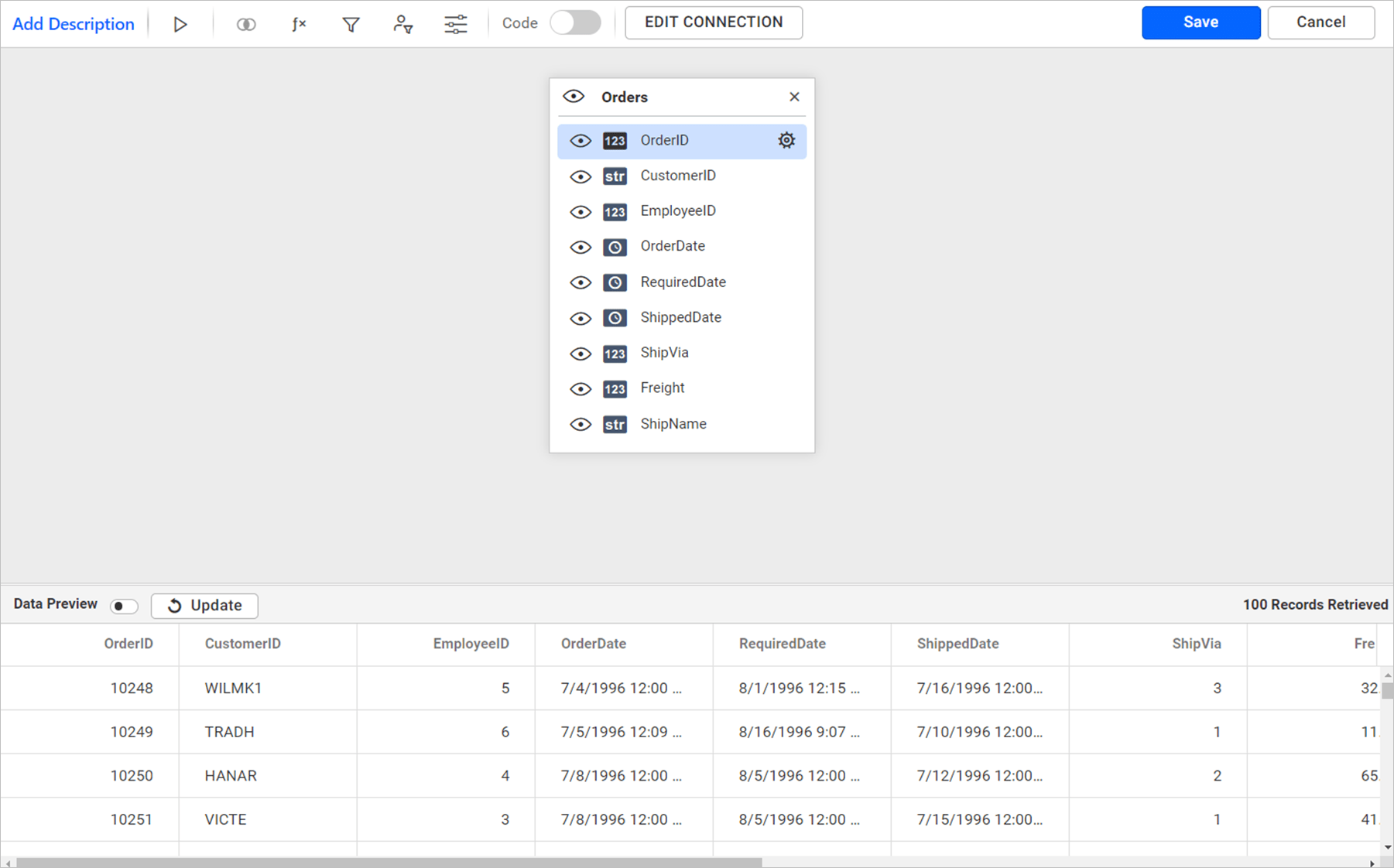
Open the web application in a browser. If a login window appears, enter valid credentials. The data source editor will load, allowing you to edit the data source.

Enable Single Sign-On (SSO) (Optional)
By default, SSO is disabled. To enable it for seamless authentication:
- In the embed dialog, toggle the SSO option and select an authentication provider (e.g., Windows Active Directory, Azure Active Directory, OAuth 2.0, or OpenID).
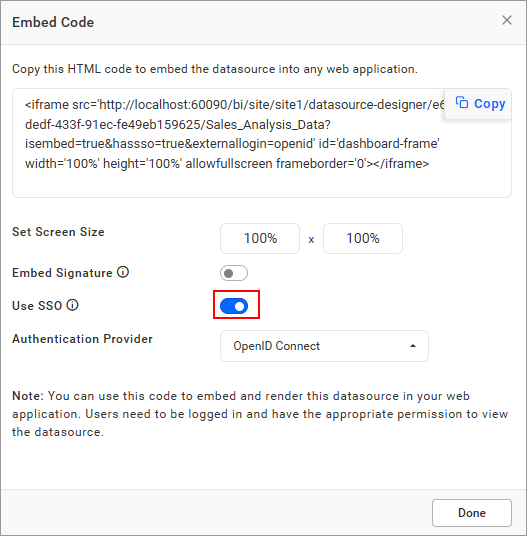
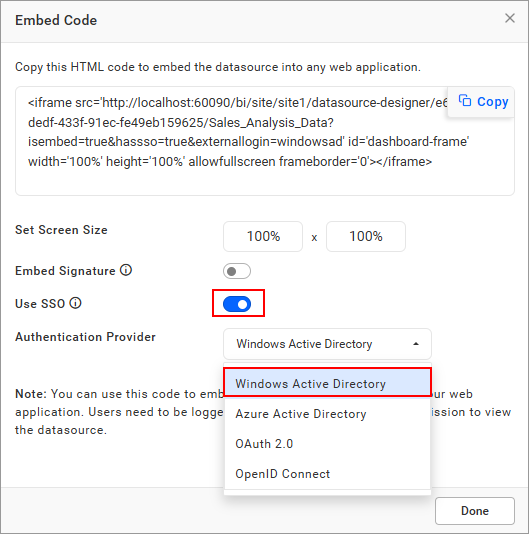
Alternatively, use an Embed Signature to securely bypass the login prompt with token-based authentication.
Embed Data Source in Create Mode
1. Prepare the Embed URL
To create a new data source connection, use the following URL:
http://localhost:51777/bi/site/site1/datasource-designer/connection?isembed=true
2. Embed the URL in Your Web Application
Add the URL to an iframe in your web application’s HTML. Example:
<iframe src="http://localhost:51777/bi/site/site1/datasource-designer/connection?isembed=true" id="dashboard-frame" width="100%" height="100%" allowfullscreen frameborder="0"></iframe>3. Run the Web Application
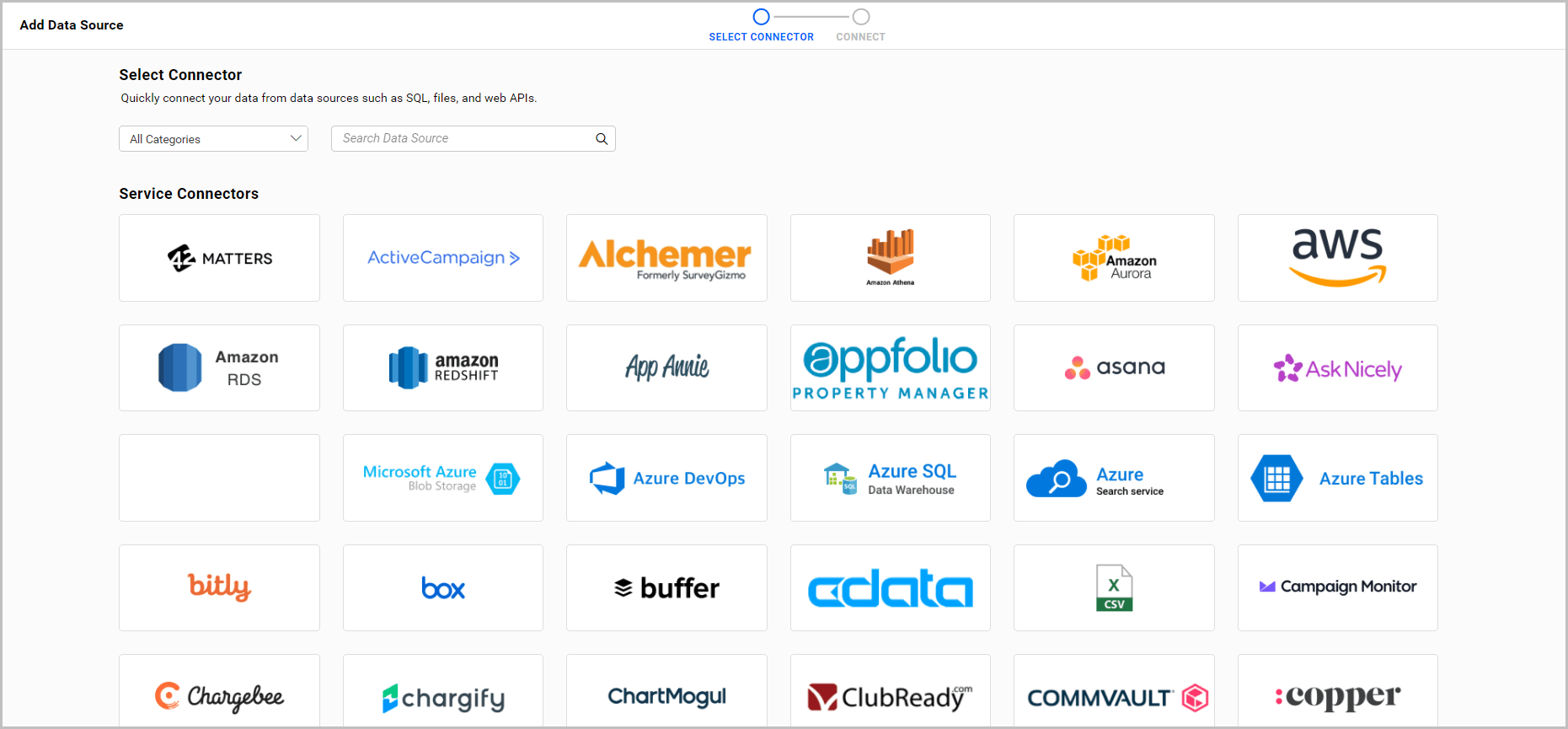
Launch the web application in a browser. If prompted, log in with valid credentials. The data source connection page will load, enabling you to use various connectors to create a new data source.