
Embed Dashboard with Saved Filter Views
This guide explains how to embed a Bold BI dashboard with saved filter views into a web application using an iframe URL obtained from the Bold BI UI. This allows users to interact with the dashboard, apply filters, and save filter views seamlessly.
Steps to Embed the Dashboard with Views
1. Obtain the Embed URL
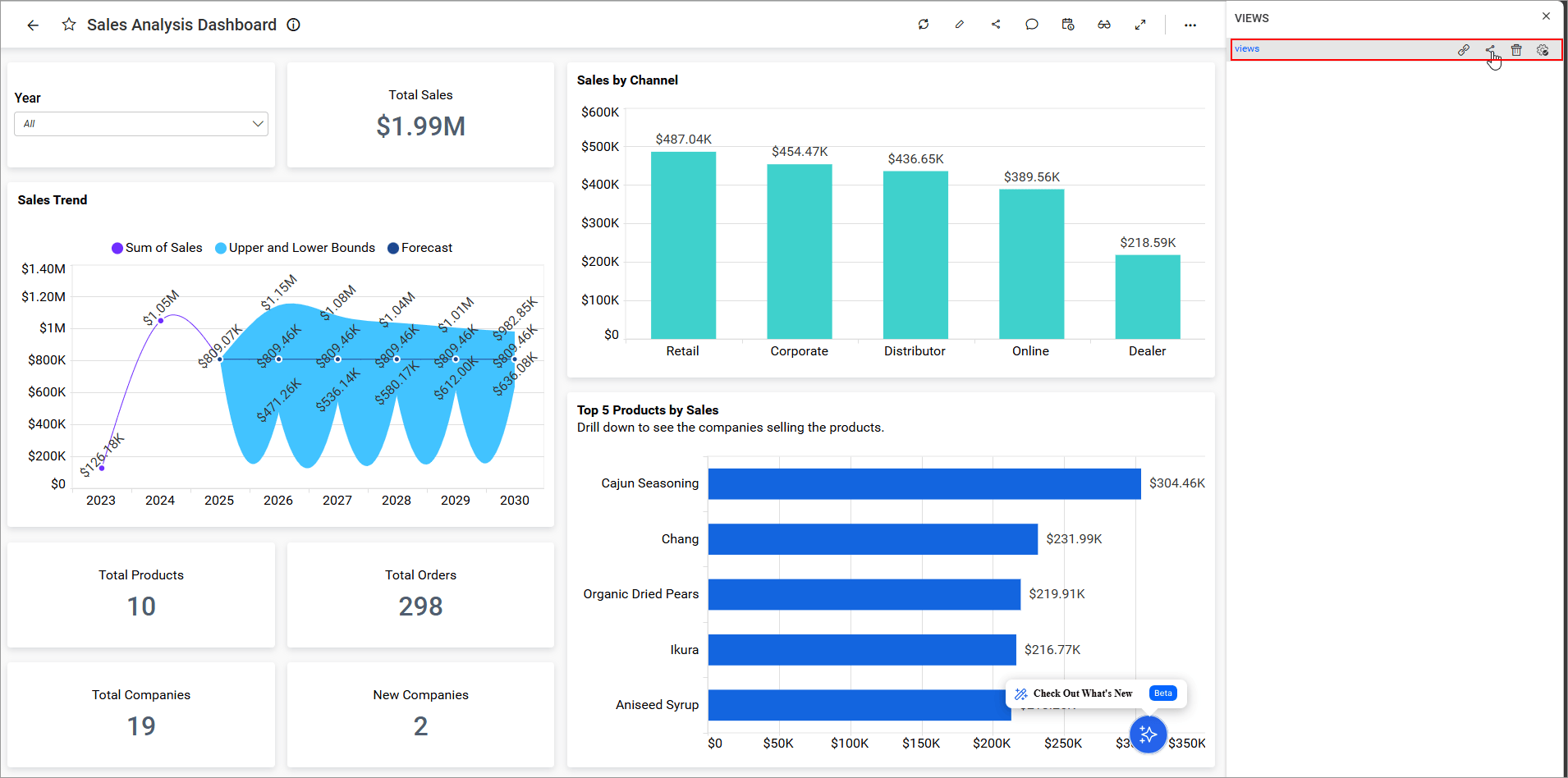
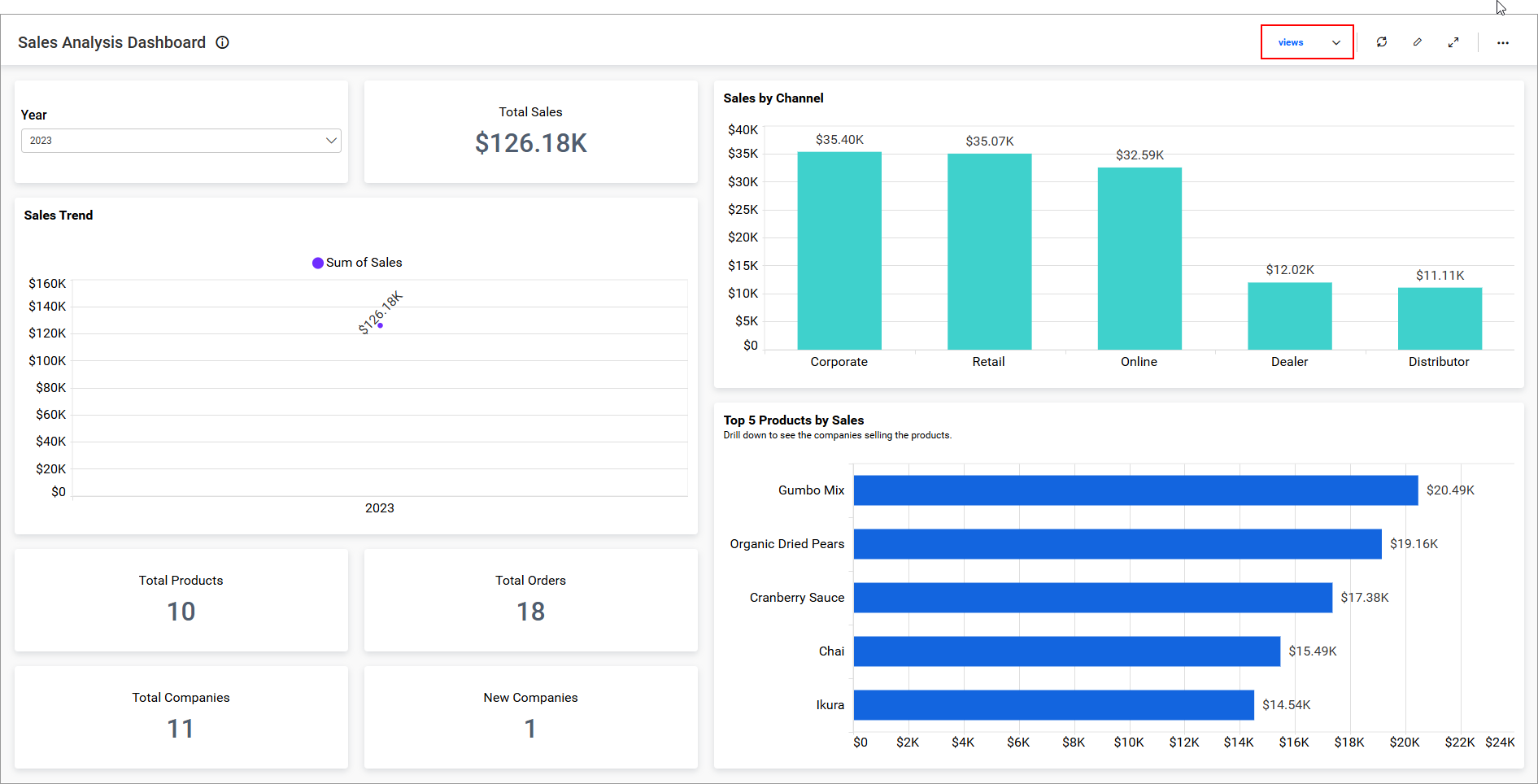
In the Bold BI UI, locate the saved view for the dashboard and click the Share icon for the desired view.
2. Access Embed Code
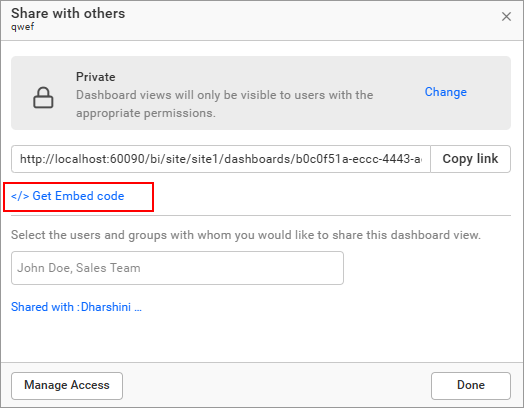
In the share dialog box, click the Get Embed Code link.
3. Copy the Embed URL
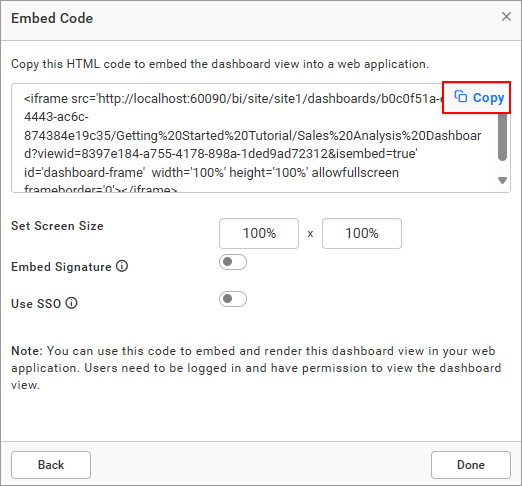
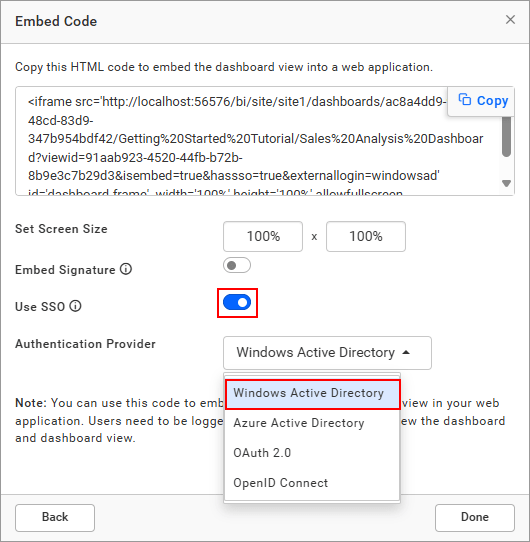
In the embed code dialog, click the copy icon to copy the URL, ensuring it includes isembed=true.
4. Embed the URL in Your Web Application
Add the copied URL to an iframe in your web application’s HTML. Example:
<iframe src="http://localhost:51777/bi/site/site1/dashboards/8428c9d9-85db-418c-b877-ea4495dcddd7/Predictive%20Analytics/Sales%20Dashboard?isembed=true" id="dashboard-frame" width="100%" height="100%" allowfullscreen frameborder="0"></iframe>5. Run the Web Application
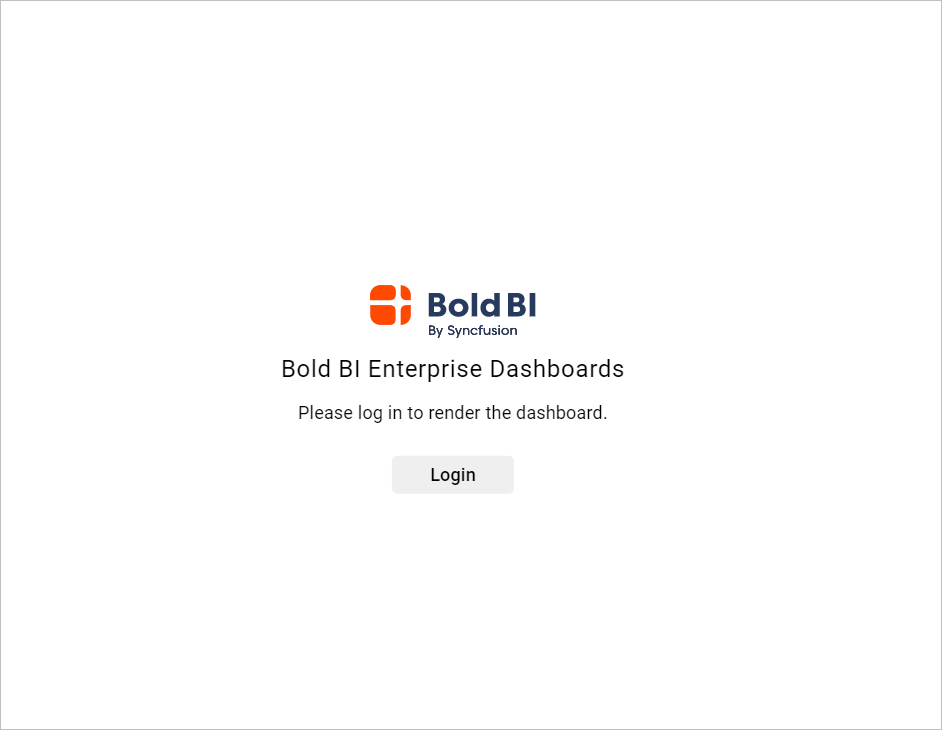
Open the web application in a browser. If the dashboard is not public, a login window will appear. Enter valid credentials, and the dashboard with the saved filter view will render automatically.
Enable Single Sign-On (SSO) (Optional)
To enable seamless authentication and bypass the login prompt:
- In the embed dialog, toggle the SSO option and select an authentication provider (e.g., Windows Active Directory, Azure Active Directory, OAuth 2.0, or OpenID).
- Alternatively, use an Embed Signature to securely bypass the login prompt with token-based authentication.