
Embed Bold BI Full Server
This guide explains how to embed the full Bold BI Enterprise application (server and designer) into a web application using an iframe for versions 5.2 and above. This enables seamless integration of dashboards, data source design, and all Bold BI features into your external application.
Steps to Embed Bold BI
1. Configure JWT Authentication in Bold ID
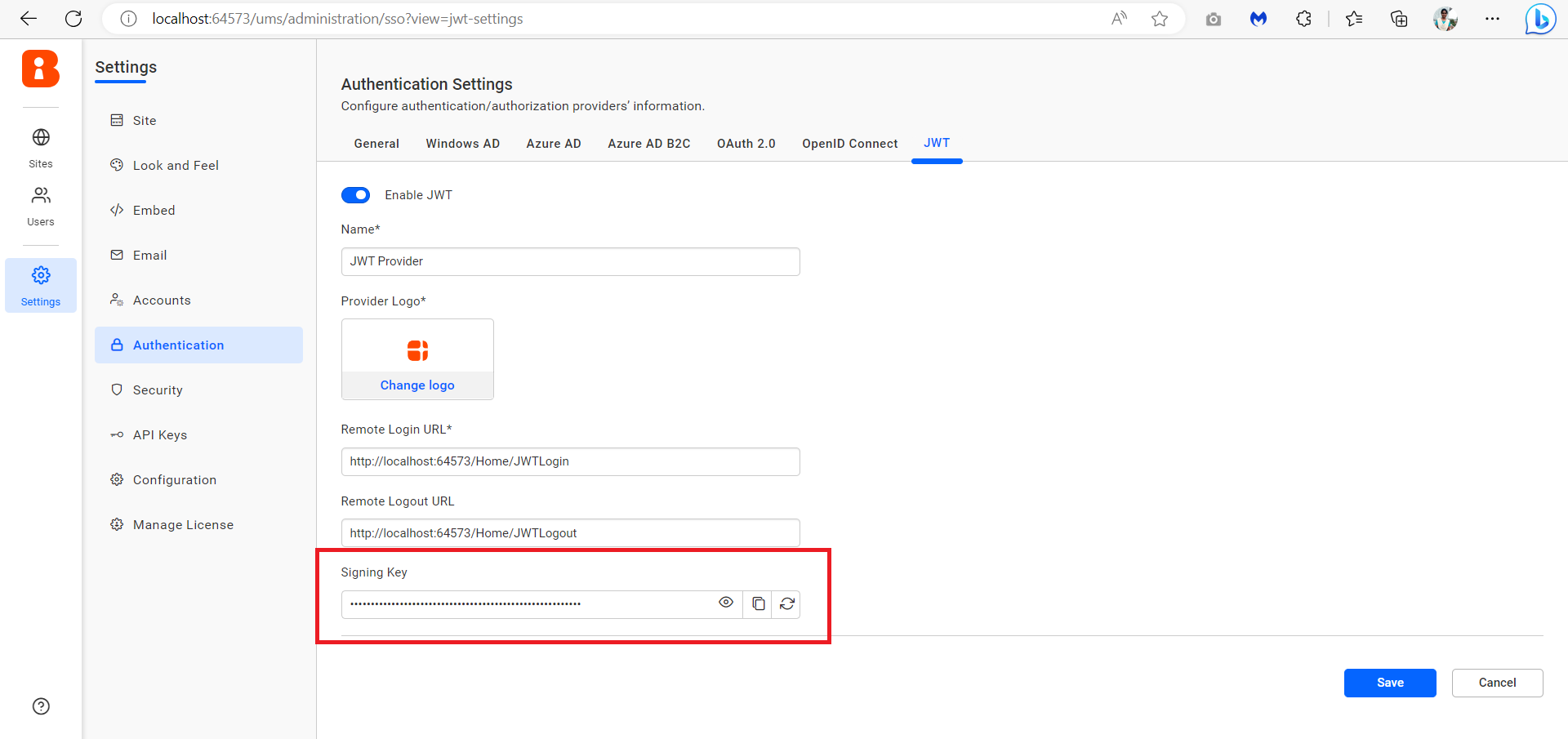
Set up JSON Web Token (JWT) authentication in the Bold ID admin panel to enable secure single sign-on (SSO).
- Navigate to the Bold ID admin panel and add your application’s URL to the JWT settings. Follow the JWT settings guide.
- Save the settings and note the generated Signing Key for use in your application.
2. Implement JWT Auto Sign-In
Generate a JWT in your external application to enable auto sign-in to Bold BI.
- Use the Signing Key to create a JWT. Refer to the JWT creation sample.
- Embed the Bold BI application in an iframe using the JWT in the callback URL:
<iframe src="http://localhost:51777/sso/jwt/callback?jwt={token}&site_identifier=site1" id="bold-bi-frame" width="100%" height="100%" allowfullscreen frameborder="0"></iframe>3. Set Default Authentication in Bold BI
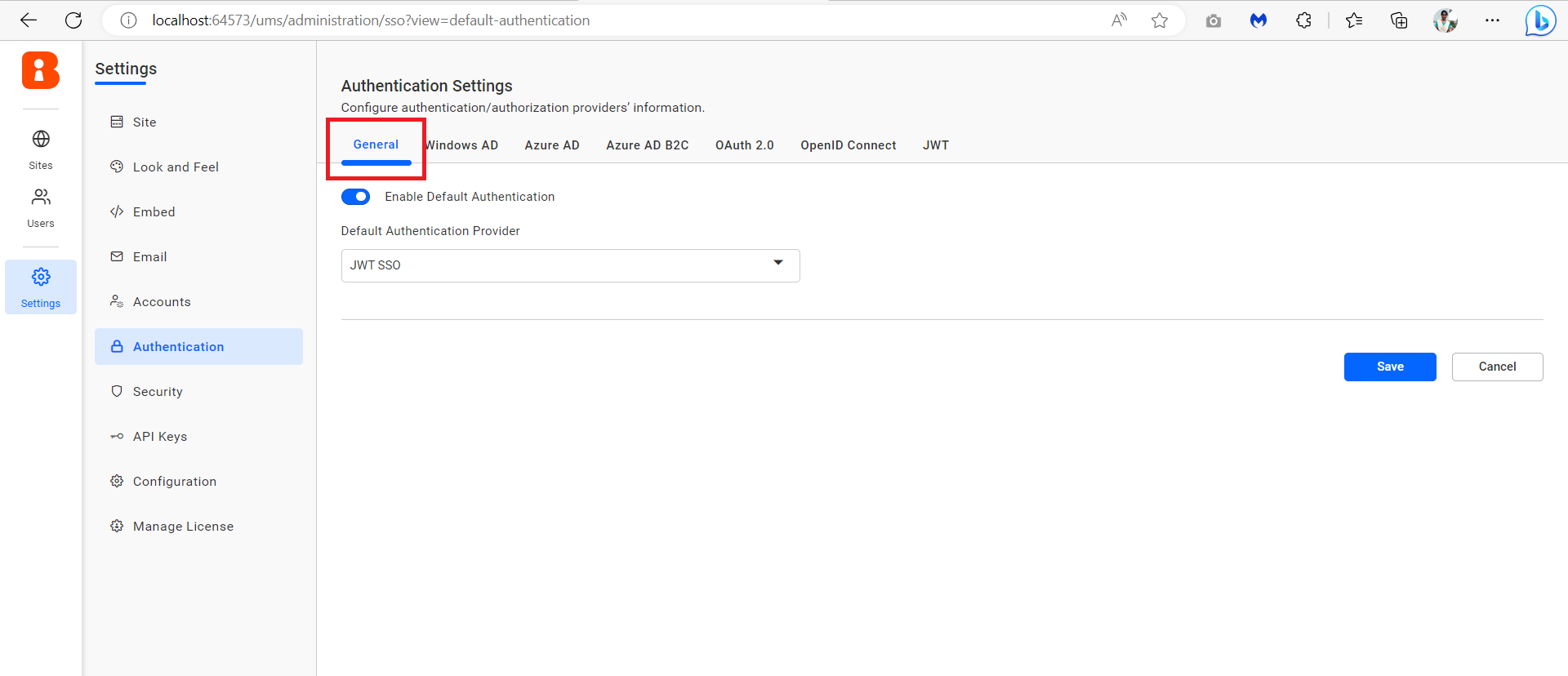
Configure Bold BI to use JWT SSO as the default authentication method.
- In the Bold BI admin panel at
http://localhost:51777/ums/administration, go to the General tab, enable Default Authentication, select JWT SSO, and save.
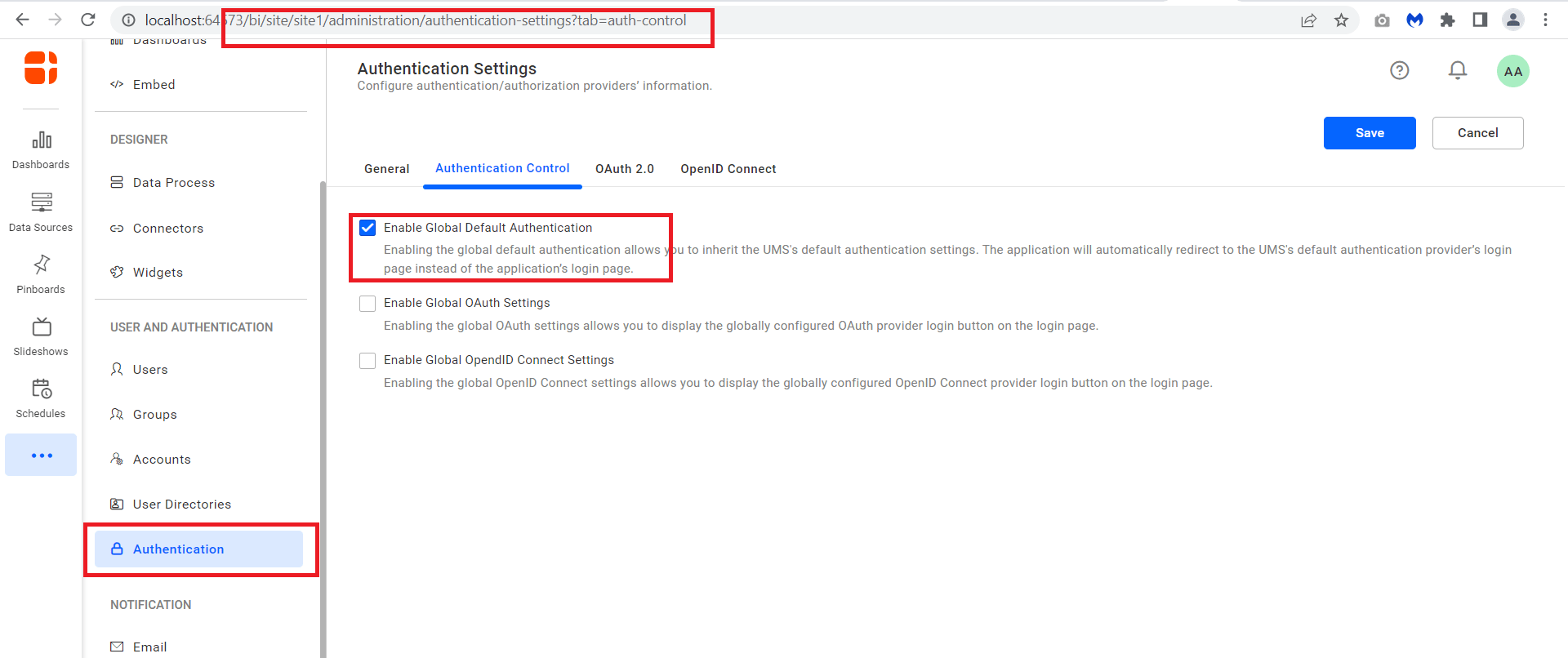
- For the specific site, go to
http://localhost:51777/bi/site/site1/administration, enable Global Default Authentication in the Authentication Control tab, and save.
4. Control Link Navigation
Ensure links within Bold BI load inside the iframe instead of opening in new tabs.
- Enable same-page navigation by following the link navigation guide.
How It Works
- Your external application generates a JWT for the authenticated user.
- The JWT is passed to the Bold BI callback URL (
http://localhost:51777/sso/jwt/callback?jwt={token}&site_identifier=site1) to log the user in automatically. - If the user exists in the Bold BI tenant site (site1), they are logged in; if not, they are automatically added and logged in.
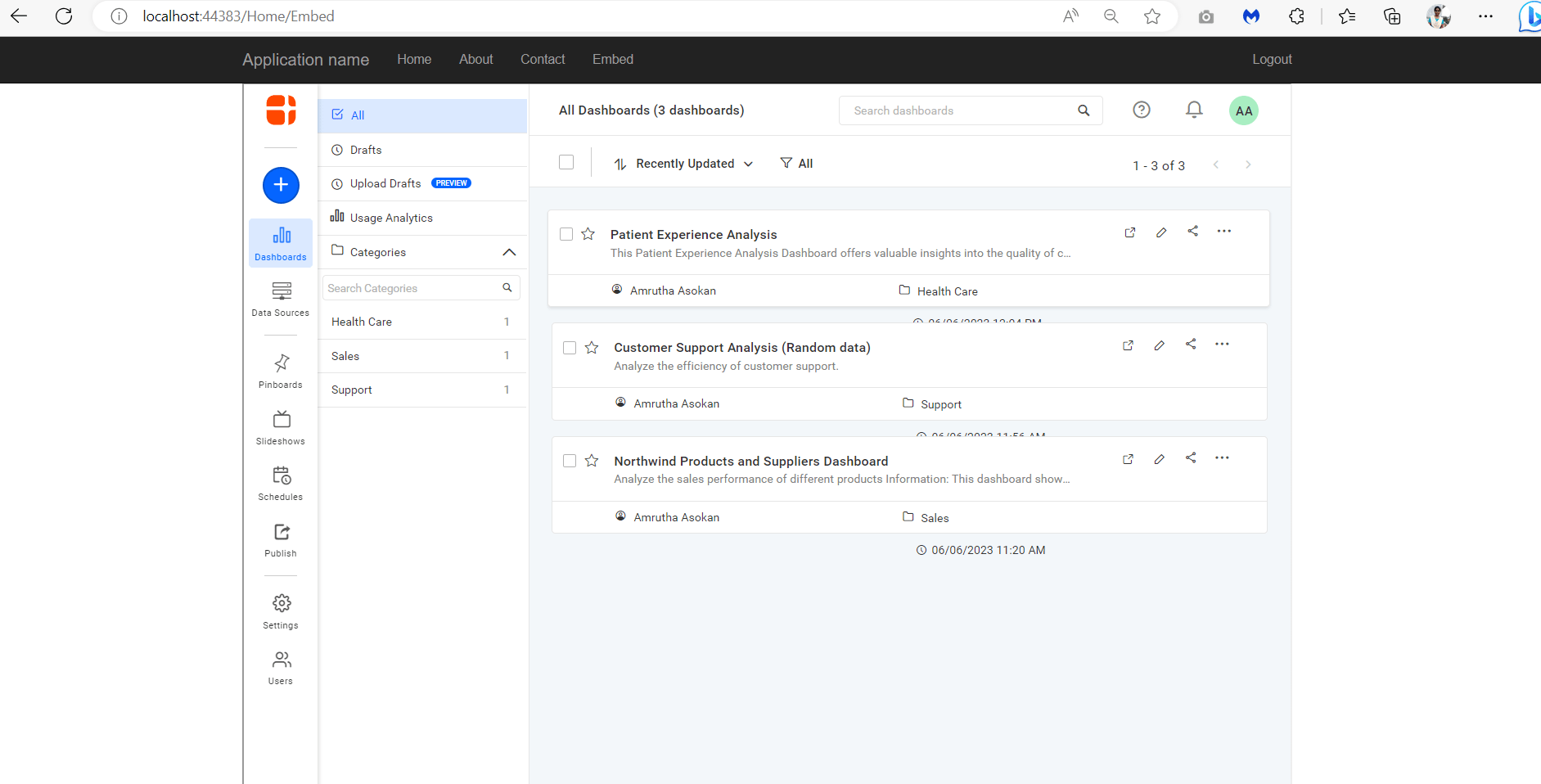
- The iframe loads the full Bold BI application, providing access to dashboards, data source design, and all features.
Additional Resources
For further assistance, please refer to the following samples and guides: