
Embedding the iFrame URL in View Mode
Follow these steps to obtain the iFrame URL and embed a dashboard in View mode, where users can view data, apply filters, and add comments (if permitted):
-
Log in to Bold BI: Access your Bold BI server and navigate to the dashboard you want to embed.
-
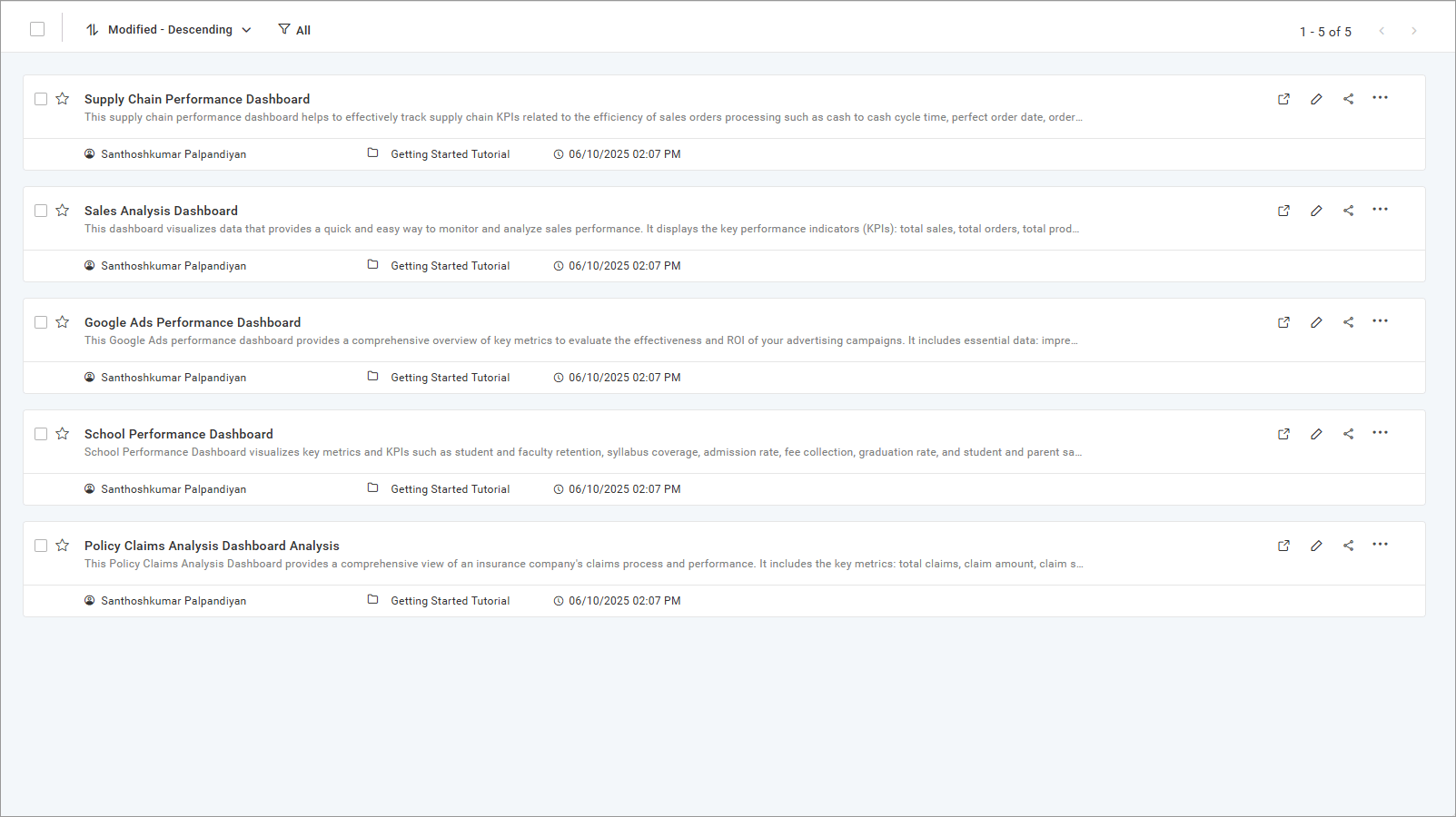
Access the Embed Code: Click the context menu (three-dot icon) on the desired dashboard and select Get Embed Code.
-
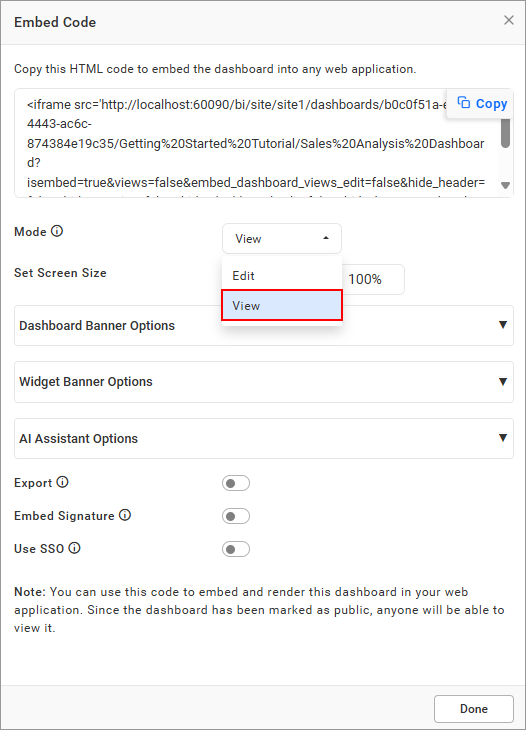
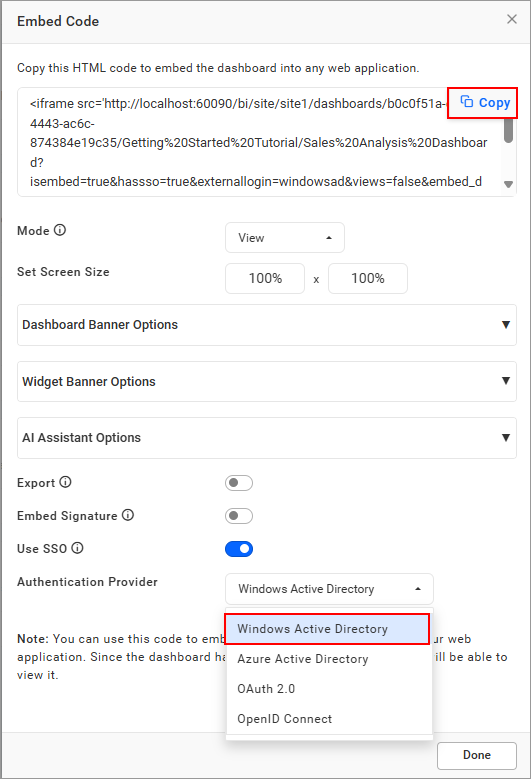
Select View Mode: In the Embed Code dialog, choose View as the mode to enable read-only access.
-
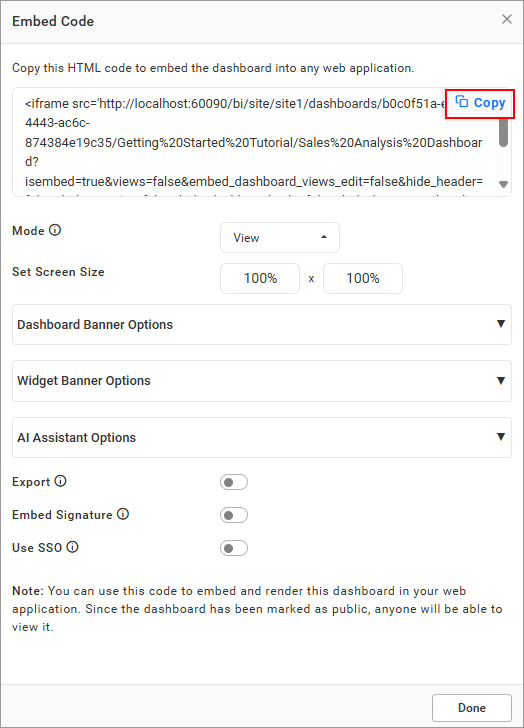
Copy the Embed URL: Click the copy icon in the Embed Code dialog to copy the iFrame URL.
-
Embed the URL: Paste the copied URL into an iFrame in your web application. Example:
<iframe src="http://localhost:51777/bi/site/site1/dashboards/5cfde98c-d352-4863-8a93-d6679263191b/Sales/Sales%20Analysis%20Dashboard?isembed=true" id="dashboard-frame" width="100%" height="100%" allowfullscreen frameborder="0"></iframe>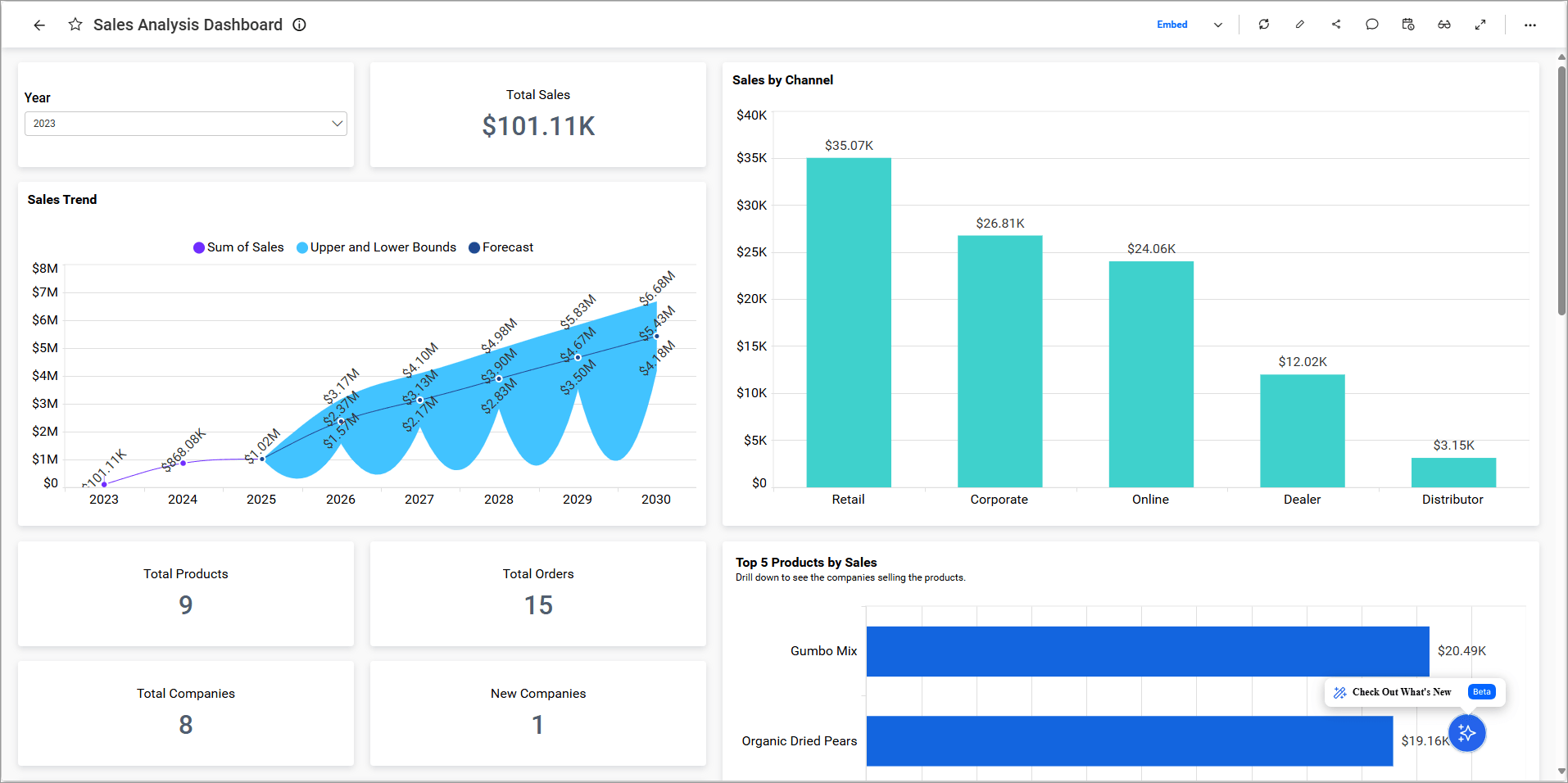
Additional Authentication Options
Configure SSO (Optional):
-
To enable Single Sign-On, slide the SSO toggle to enable it.
-
Select the appropriate Authentication Provider from options like Windows Active Directory, Azure Active Directory, OAuth 2.0, or OpenID.
-
When the web application runs, users will be prompted to sign in with their credentials for the chosen provider. Once authenticated, the dashboard will display based on the user’s assigned permissions.
Bypass Login with Embed Signature (Optional):
- Alternatively, use an Embed Signature to securely bypass the login prompt with token-based authentication.
Sample Applications
Explore GitHub samples for practical examples of dashboard and widget embedding.