
Embedding Bold BI Dashboards in Xamarin using the Embedded SDK
A GitHub link has been provided to get the sample application, which demonstrates the rendering of the dashboard with the list of available dashboards on your Bold BI server. The steps to create a new embedding application in Xamarin on your own.
NOTE: Reading the Getting Started section of the documentation is the best way to begin. The
Getting Startedguide provides you with the necessary information that you need to know before working on the sample.
Prerequisites
How to run the sample
-
Please get the Xamarin Forms sample.
-
Please ensure that you have enabled embed authentication on the
embed settingssettings page. If it is not currently enabled, please refer to the provided image or detailed instructions to enable it.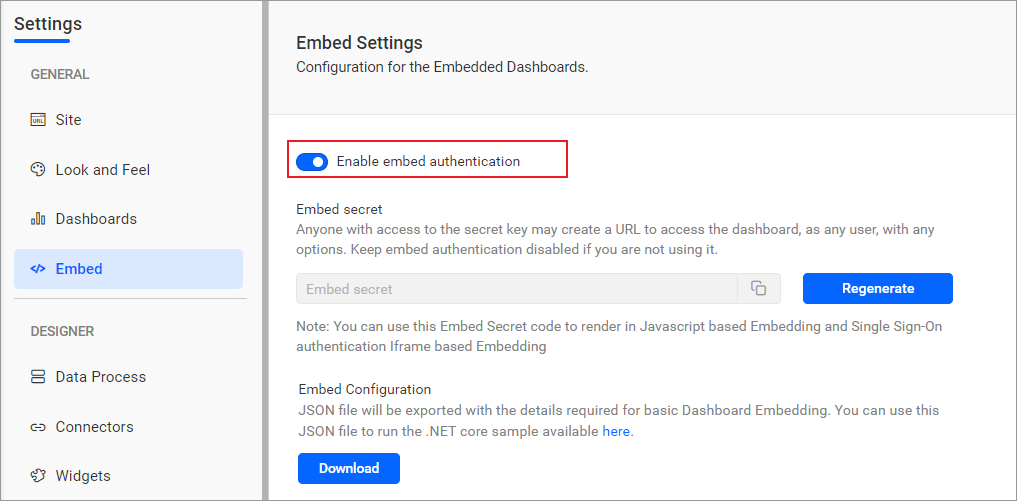
-
To download the
embedConfig.jsonfile, please follow this link for reference. Additionally, you can refer to the image below for visual guidance.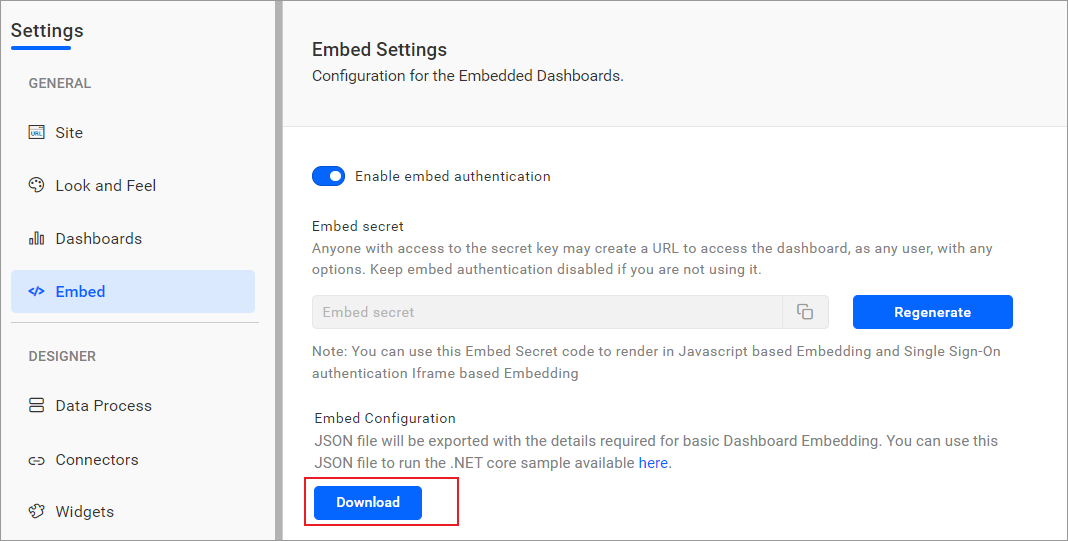
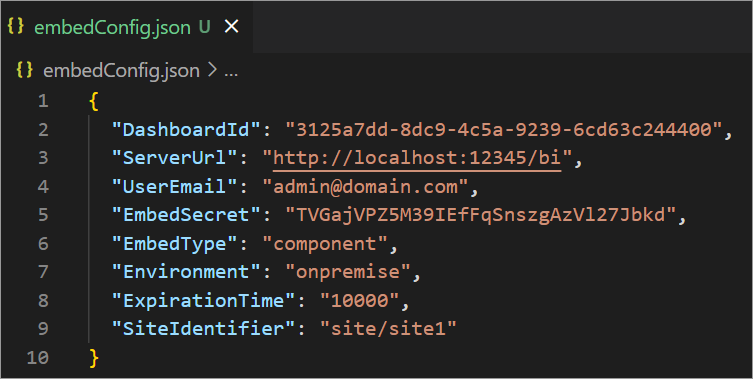
-
Please copy the downloaded
embedConfig.jsonfile and paste it into the designated location within the application. Make sure that you have placed it correctly in the application, as shown in the image.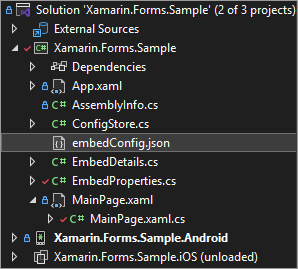
| ServerUrl | Dashboard Server BI URL (ex: http://localhost:5000/bi, https://demo.boldbi.com/bi) |
| SiteIdentifier | For the Bold BI Enterprise edition, it should be like site/site1. For Bold BI Cloud, it should be an empty string. |
| UserEmail | UserEmail of the Admin in your Bold BI, which would be used to get the dashboard list. |
| EmbedSecret | Get your EmbedSecret key from the Embed tab by enabling the Enable embed authentication in the Administration page |
| Environment | Your Bold BI application environment. (If it is a cloud analytics server, use `BoldBI.Environment.Cloud`; if it is your server, use `BoldBI.Environment.Enterprise`) |
| DashboardId | Item ID of the dashboard to be embedded in your application. |
| ExpirationTime | Token expiration time. (In the EmbedConfig.json file, the default token expiration time is 10000 seconds) |
- Open the Xamarin sample’s solution file
Xamarin.Forms.Sample.slnin Visual Studio and run it.
How this sample works
-
To generate an access token, call the
GetEmbedDetailsAPI with the providedembedConfigvalues inembedDetails.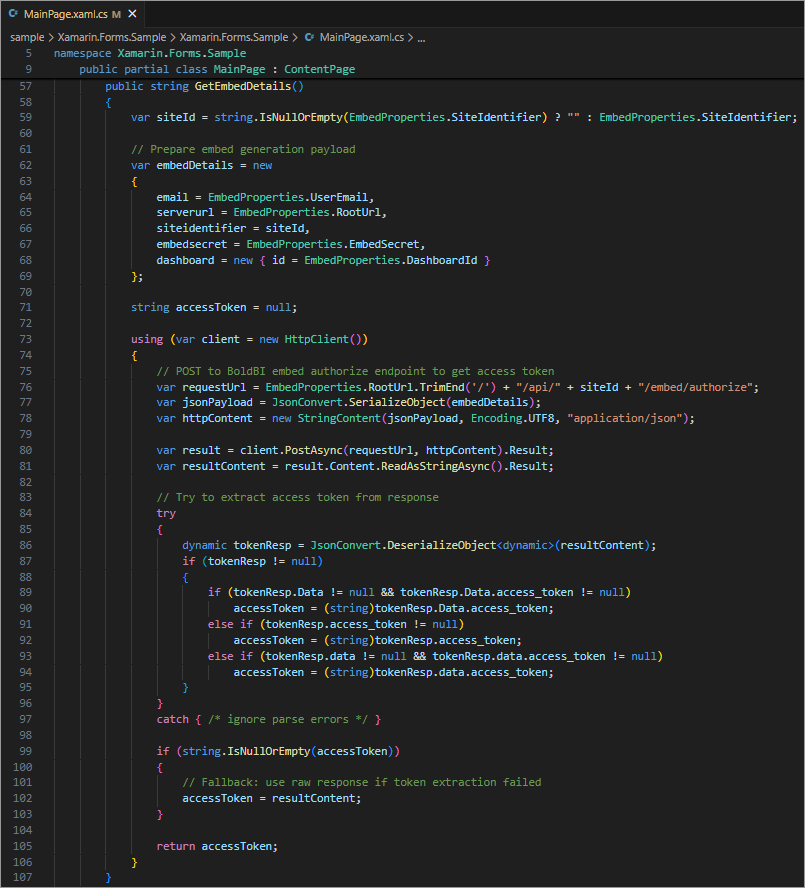
-
Once the token is generated, it will be append to the htmlString and the dashboard will start to render it.
    var token = GetEmbedDetails();
    var tokenJson = JsonConvert.SerializeObject(token);
    var serverUrlJson = JsonConvert.SerializeObject(EmbedProperties.RootUrl + "/" + EmbedProperties.SiteIdentifier);
    var dashboardIdJson = JsonConvert.SerializeObject(EmbedProperties.DashboardId);
    var embedContainerIdJson = JsonConvert.SerializeObject("dashboard");
    var widthJson = JsonConvert.SerializeObject("100%");
    var heightJson = JsonConvert.SerializeObject("100%");

    var html = $@"<!DOCTYPE html>
        <html style=""height:100%;width:100%"">
            <head>
                <meta name=""viewport"" content=""width=device-width, initial-scale=1"">
                <script src=""https://cdnjs.cloudflare.com/ajax/libs/jquery/3.6.0/jquery.min.js""></script>
                <script src=""https://cdn.boldbi.com/embedded-sdk/latest/boldbi-embed.js""></script>
                <script>
                    $(document).ready(function() {{
                        var dashboard = BoldBI.create({{
                            serverUrl: {serverUrlJson},
                            dashboardId: {dashboardIdJson},
                            embedContainerId: {embedContainerIdJson},
                            width: {widthJson},
                            height: {heightJson},
                            embedToken: {tokenJson}
                        }});
                        console.log(dashboard);
                        dashboard.loadDashboard();
                    }});
                </script>
            </head>
            <body style=""background-color: white;height:100%;width:100%"">
                <div id=""viewer-section"" style=""background-color: white;height:100%;width:100%"">
                    <div id=""dashboard""></div>
                </div>
            </body>
        </html>";
Steps to create new Xamarin application to embed dashboard
-
Open Visual Studio, search for
Xamarin, and click onMobile App(Xamarin.Forms)as shown in the following image.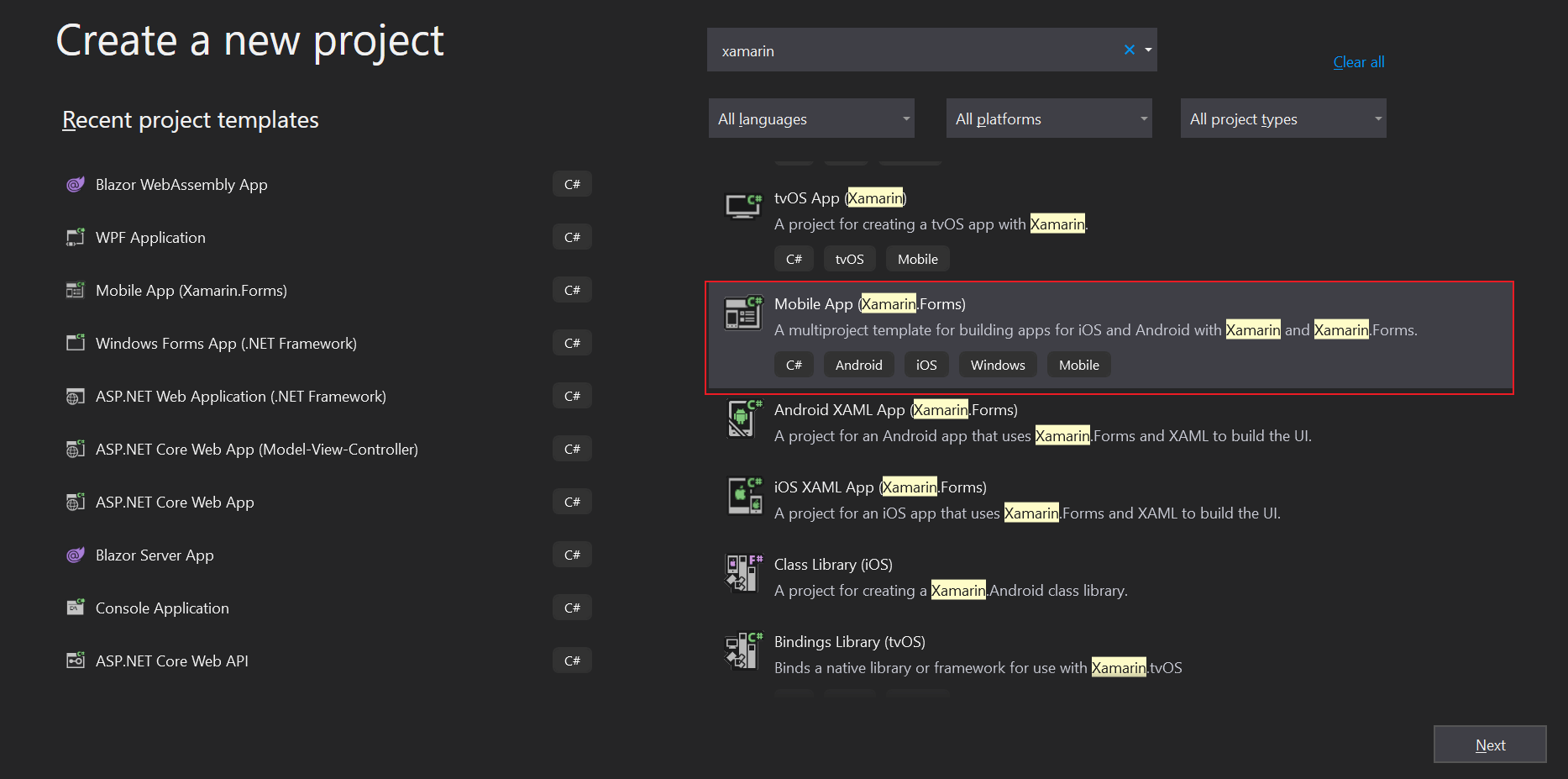
-
Then, click
Next, select the blank project as shown, and clickCreate.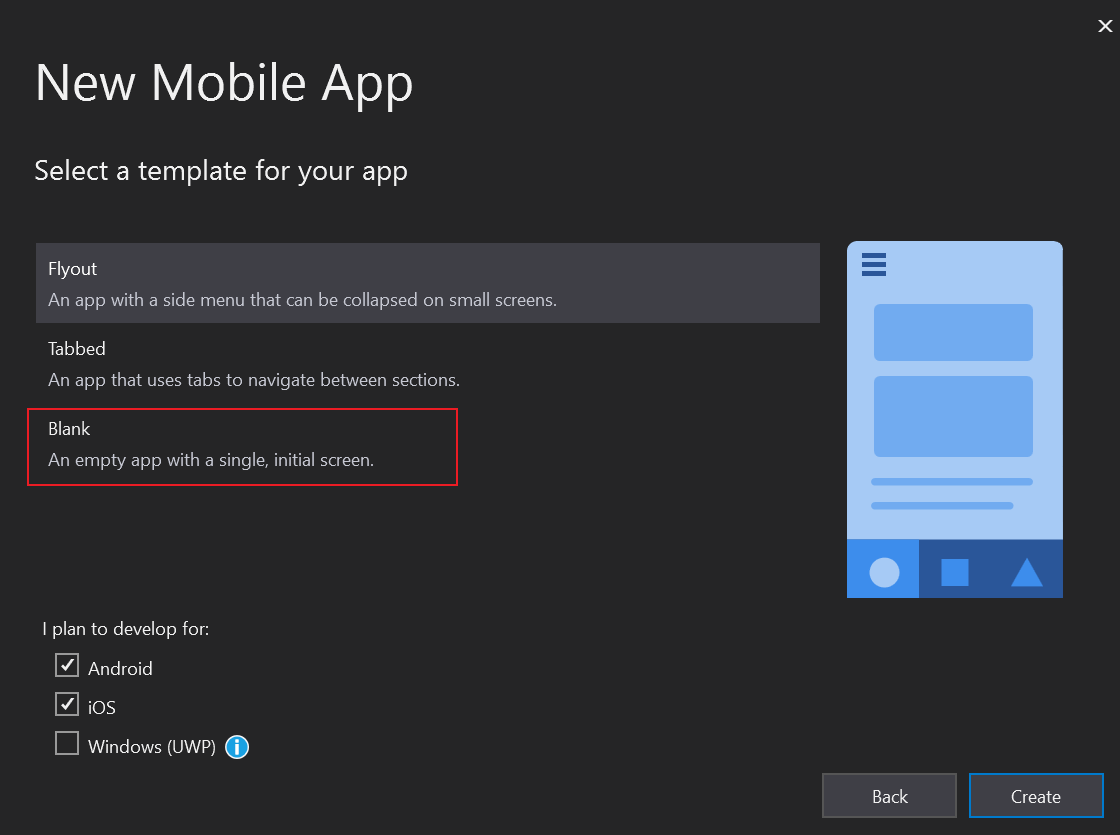
-
Create the
EmbedProperties.csclass to define the mandatory properties as follows.public class EmbedProperties { public static string RootUrl = "http://localhost:5000/bi";//For Bold BI Enterprise edition, it should be like site/site1. public static string SiteIdentifier = "site/site1";//For Bold BI Enterprise edition, it should be like site/site1. For Bold BI Cloud, it should be empty string. public static string Environment = "enterprise";//Your Bold BI application environment. (If Cloud, you should use cloud, if Enterprise, you should use enterprise) public static string EmbedType = "component";//Your Embedding type. If you are embedding as component, you should set 'component', if your are embedding as iframe, you should set 'iframe' public static string UserEmail = "";//UserEmail of the Admin in your Bold BI, which would be used to get the dashboard public static string UserPassword = "";//Password of the Admin in Bold BI, which would be used to get the dashboards public static string EmbedSecret = "";//You could get your EmbedSecret key from Embed tab by enabling <code>Enable embed authentication</code> in Administration page.(/site-administration/embed-settings/) public static string DashboardId = "";//Provide the dashboard id of the dashboard you want to embed here. } -
Please create a folder for the script and include the most recent wrapper file.
-
Please open the
MainPage.xaml.csfile and initialize theGetHtmlString()method. In this method, you should declare the HTML contents along with the necessary scripts to render the dashboard.public MainPage() { InitializeComponent(); EmbedWebView.Source = new HtmlWebViewSource { Html = GetHtmlString(), BaseUrl = DependencyService.Get<IBaseUrl>().Get() }; } public string GetHtmlString() { var embedAuthorizeDetails = GetEmbedDetails(); var html = @"<!DOCTYPE html> <html style=""height:100%;width:100%""> <head> <meta name=""viewport"" content=""width=device-width, initial-scale=1""> <script type=""text/javascript"" src=""EmbedBiWrapper.js""></script> <script type=""text/javascript""> $(document).ready(function() { this.dashboard = BoldBI.create({ serverUrl:""" + EmbedProperties.RootUrl + "/" + EmbedProperties.SiteIdentifier + "\"," + "dashboardId: \"" + EmbedProperties.DashboardId + "\"," + "embedContainerId: \"dashboard\"," + "embedType: \"" + BoldBI.EmbedType.Component + "\"," + "environment: \"" + BoldBI.Environment.Enterprise, /* If Cloud, you should use BoldBI.Environment.Cloud */ + "\"," + "mode: \"" + BoldBI.Mode.View + "\"," + "width: \"100%\"," + "height: \"100%\"," + @"expirationTime: 100000, authorizationServer: { url: """"," + "data: " + embedAuthorizeDetails }, }); this.dashboard.loadDashboard(); }); </script> </head> <body style=""background-color: white;height:100%;width:100%""> <div id =""viewer-section"" style=""background-color: white;height:100%;width:100%""> <div id =""dashboard""> </div> </div> </body> </html>"; return html; } -
The
GetEmbedDetails()function utilizes theGetSignatureUrl()method to generate the algorithm.In this method, the
embedQueryString,userEmail, and the value from theGetSignatureUrl()method are appended as query parameters in the URL to obtain details of a specific dashboard.public string GetEmbedDetails() { var embedAuthorizeDetails = string.Empty; decimal time = (decimal)Math.Round((DateTime.Now.ToUniversalTime() - new DateTime(1970, 1, 1)).TotalMilliseconds / 1000); var dashboardServerApiUrl = EmbedProperties.RootUrl + "/api/" + EmbedProperties.SiteIdentifier; var embedQuerString = "embed_nonce=" + Guid.NewGuid() + "&embed_dashboard_id=" + EmbedProperties.DashboardId + "&embed_mode=view" + "&embed_timestamp=" + Math.Round(time) + "&embed_expirationtime=100000"; embedQuerString += "&embed_user_email=" + EmbedProperties.UserEmail; var embedDetailsUrl = "/embed/authorize?" + embedQuerString + "&embed_signature=" + GetSignatureUrl(embedQuerString); using (var client = new HttpClient()) { client.BaseAddress = new Uri(dashboardServerApiUrl); client.DefaultRequestHeaders.Accept.Clear(); var result = client.GetAsync(dashboardServerApiUrl + embedDetailsUrl).Result; embedAuthorizeDetails = result.Content.ReadAsStringAsync().Result; } return embedAuthorizeDetails; } public string GetSignatureUrl(string message) { var encoding = new System.Text.UTF8Encoding(); var keyBytes = encoding.GetBytes(EmbedProperties.EmbedSecret); var messageBytes = encoding.GetBytes(message); using (var hmacsha1 = new HMACSHA256(keyBytes)) { var hashMessage = hmacsha1.ComputeHash(messageBytes); return Convert.ToBase64String(hashMessage); } } -
Then, run the Xamarin application in order to render the dashboard.