
Bold BI Dashboards embedding in Vue.js with ASP.NET core using Embedded SDK
A GitHub link has been provided to get the sample application, which demonstrates the rendering of the dashboard available on your Bold BI server. This is followed by steps to create a new embedding application in Vue.js with ASP.NET Core on your own.
NOTE: The recommended starting point is to read the Getting Started section of the documentation. The
Getting Startedguide provides all the necessary information you need to know before working on the sample.
Requirements/Prerequisites
NOTE: Node.js versions 18.17 to 20.15 are supported.
How to run the sample
-
Please retrieve the Vue.js with ASP.NET core sample from GitHub.
-
Please ensure that you have enabled embed authentication on the
embed settingspage. If it is not currently enabled, please refer to the following image or detailed instructions to enable it.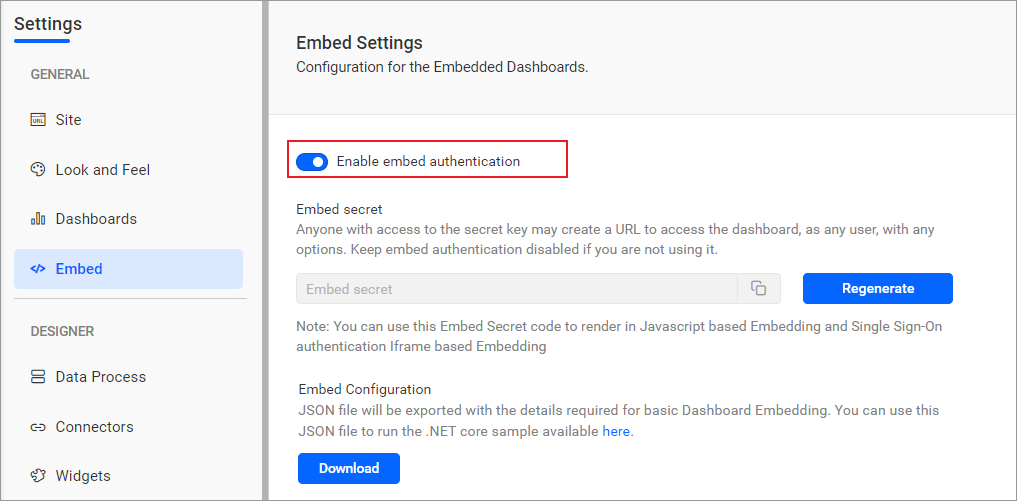
-
To download the
embedConfig.jsonfile, please follow this link for reference. Furthermore, you can refer to the accompanying image for visual guidance.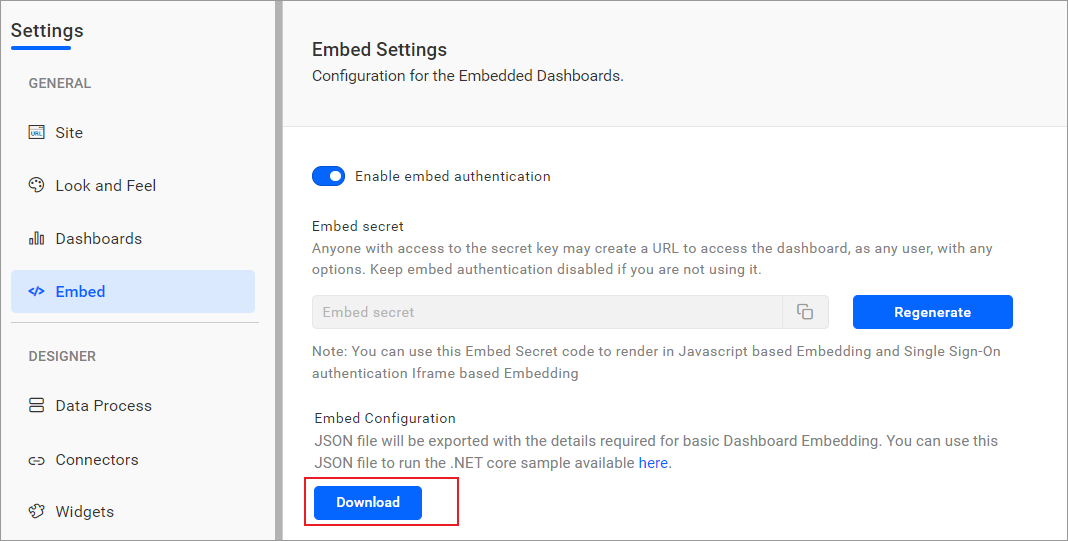
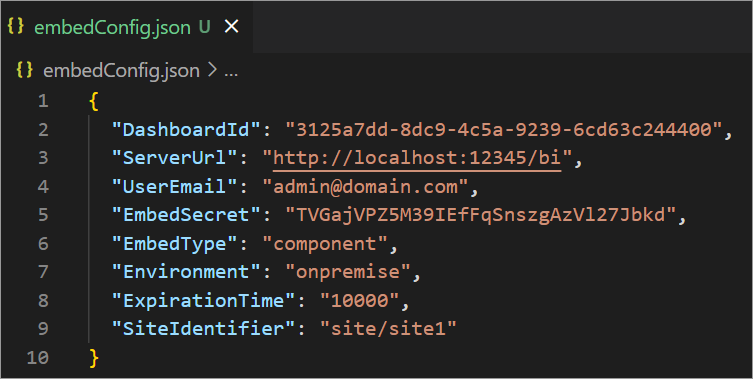
-
Please copy the downloaded
embedConfig.jsonfile and paste it into the designated location within the application. Please make sure that you have placed it in the application exactly as shown in the image below.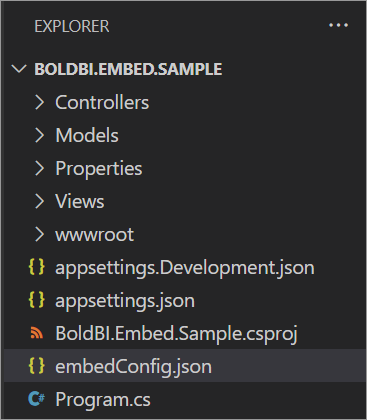
ServerUrl Dashboard Server BI URL (ex: http://localhost:5000/bi, http://demo.boldbi.com/bi) SiteIdentifier For Bold BI Enterprise edition, it should be like site/site1. For Bold BI Cloud, it should be empty string.Environment Your Bold BI application environment. (If it is cloud analytics server, use BoldBI.Environment.Cloud; if it is your own server, useBoldBI.Environment.Enterprise).DashboardId Item id of the dashboard to be embedded in your application. EmbedSecret Get your EmbedSecret key from the Embed tab by enabling the Enable embed authenticationin the Administration pageUserEmail UserEmail of the Admin in your Bold BI, which would be used to get the dashboard ExpirationTime Token expiration time. (In the EmbedConfig.json file, the default token expiration time is 10000 seconds). -
Please open your
ASP.NET Coresample in Visual Studio Code. -
To run the back-end
ASP.NET Coresample, use the following command:dotnet run. -
Please open the
Vuesample in a new window of Visual Studio Code. -
To install all dependent packages, use the following command:
npm install. -
To run your
Vuesample, use the following command:npm run serve.
How this sample works
-
The application checks if
embedConfig.jsonis available; if it is, itdeserializesand stores the content inEmbedDetails. Otherwise, it throws an error.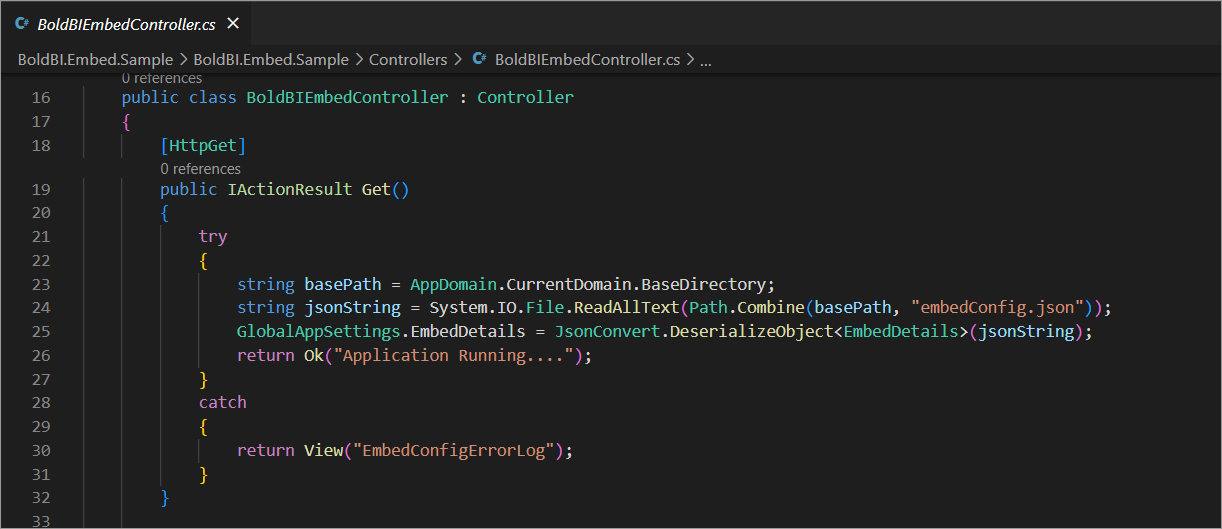
-
To generate an access token, call the
TokenGenerationAPI with the providedembedConfigvalues.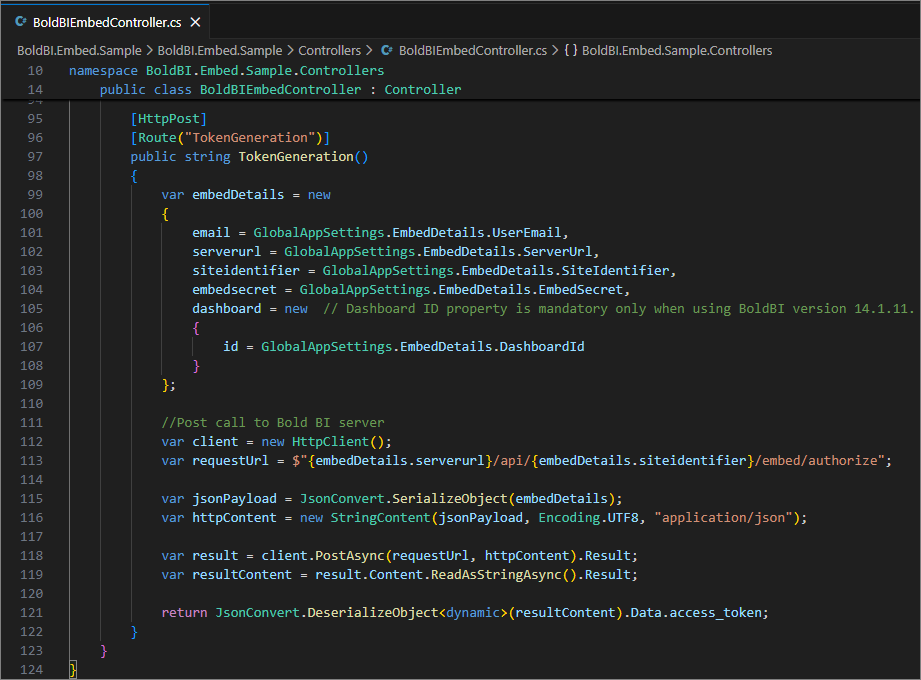
-
Once the token is generated, it will be returned to the
App.vuefile and the dashboard will start to render it.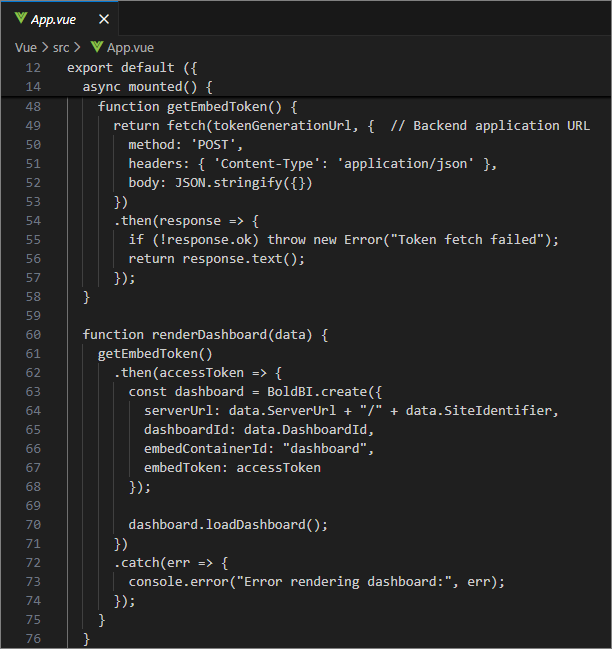
Steps to create new Vue.js with ASP.NET Core application to embed dashboard
-
Please create a folder in the desired location and open it in Visual Studio Code.
-
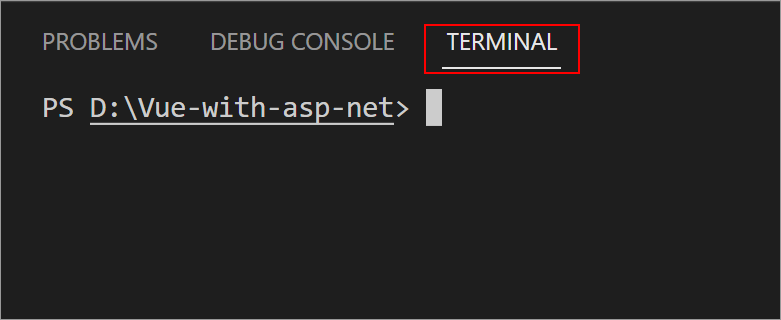
Open the terminal in Visual Studio Code. Please refer to the image below.
-
To create a new project, we need to run this command in the terminal and then navigate to the directory.
dotnet new webapi -n asp-net -
Please ensure that you have enabled embed authentication on the
embed settingspage. If it is not currently enabled, please refer to the following image or detailed instructions to enable it. -
To download the
embedConfig.jsonfile, please follow this link for reference. Additionally, you can refer to the image below for visual guidance. -
Please copy the downloaded
embedConfig.jsonfile and paste it into the designated location within the application. Please make sure that you have placed it in the application exactly as shown in the following image. -
Create a new folder named
Models. Create a model class namedDataClass.csto define the following properties. These properties are used for retrieving the dashboard list from the server.To add the necessary references to the project, execute the following commands in the terminal:
dotnet add package Newtonsoft.Jsonanddotnet add package System.Runtime.Serialization.Primitives. Make sure to include theSystem.Runtime.SerializationandNewtonsoft.Jsonnamespaces in theDataClass.csmodel file.[DataContract] public class EmbedClass { [DataMember] public string embedQuerString { get; set; } [DataMember] public string dashboardServerApiUrl { get; set; } } public class TokenObject { public string Message { get; set; } public string Status { get; set; } public string Token { get; set; } } public class Token { [JsonProperty("access_token")] public string AccessToken { get; set; } [JsonProperty("token_type")] public string TokenType { get; set; } [JsonProperty("expires_in")] public string ExpiresIn { get; set; } [JsonProperty("email")] public string Email { get; set; } public string LoginResult { get; set; } public string LoginStatusInfo { get; set; } [JsonProperty(".issued")] public string Issued { get; set; } [JsonProperty(".expires")] public string Expires { get; set; } } public class EmbedDetails { public string Environment { get; set; } public string SiteIdentifier { get; set; } public string ServerUrl { get; set; } public string EmbedSecret { get; set; } public string UserEmail { get; set; } public string EmbedType { get; set; } public string DashboardId { get; set; } } -
Create another model class called
GlobalAppSettings.csto define the following properties. These properties will maintain theembedConfig.jsonfile object within theGlobalAppSettings.public class GlobalAppSettings { public static EmbedDetails EmbedDetails { get; set; } } -
Please create a class called
BoldBIEmbedController.csin theControllersfolder. To retrieve specific dashboard details, define an API calledAuthorizationServer()that utilizes theGetSignatureUrl()method to generate the algorithm. In this API, append theembedQueryString,userEmail, and the value from theGetSignatureUrl()method as query parameters in the URL to the authorization server of the particular dashboard. Make sure to include the following namespaces:Newtonsoft.Json,System.Security.Cryptography,System.Net.Http, andMicrosoft.AspNetCore.Mvc.[ApiController] [Route("api/[controller]")] public class BoldBIEmbedController : Controller { [HttpGet] public IActionResult Get() { string basePath = AppDomain.CurrentDomain.BaseDirectory; string jsonString = System.IO.File.ReadAllText(Path.Combine(basePath, "embedConfig.json")); GlobalAppSettings.EmbedDetails = JsonConvert.DeserializeObject<EmbedDetails>(jsonString); return Ok("Application Running...."); } [HttpGet] [Route("GetServerDetails")] public IActionResult GetServerDetails() { var jsonData = System.IO.File.ReadAllText("embedConfig.json"); string basePath = AppDomain.CurrentDomain.BaseDirectory; string jsonString = System.IO.File.ReadAllText(Path.Combine(basePath, "embedConfig.json")); GlobalAppSettings.EmbedDetails = JsonConvert.DeserializeObject<EmbedDetails>(jsonString); return Ok(jsonData); } [HttpPost] [Route("AuthorizationServer")] public string AuthorizationServer([FromBody] object embedQuerString) { var embedClass = Newtonsoft.Json.JsonConvert.DeserializeObject<EmbedClass>(embedQuerString.ToString()); var embedQuery = embedClass.embedQuerString; // User your user-email as embed_user_email embedQuery += "&embed_user_email=" + GlobalAppSettings.EmbedDetails.UserEmail; //To set embed_server_timestamp to overcome the EmbedCodeValidation failing while different timezone using at client application. double timeStamp = (int)DateTime.UtcNow.Subtract(new DateTime(1970, 1, 1)).TotalSeconds; embedQuery += "&embed_server_timestamp=" + timeStamp; var embedDetailsUrl = "/embed/authorize?" + embedQuery + "&embed_signature=" + GetSignatureUrl(embedQuery); using (var client = new HttpClient()) { client.BaseAddress = new Uri(embedClass.dashboardServerApiUrl); client.DefaultRequestHeaders.Accept.Clear(); var result = client.GetAsync(embedClass.dashboardServerApiUrl + embedDetailsUrl).Result; string resultContent = result.Content.ReadAsStringAsync().Result; return resultContent; } } public string GetSignatureUrl(string queryString) { if (queryString != null) { var encoding = new System.Text.UTF8Encoding(); var keyBytes = encoding.GetBytes(GlobalAppSettings.EmbedDetails.EmbedSecret); var messageBytes = encoding.GetBytes(queryString); using (var hmacsha1 = new HMACSHA256(keyBytes)) { var hashMessage = hmacsha1.ComputeHash(messageBytes); return Convert.ToBase64String(hashMessage); } } return string.Empty; } } -
Open the
Program.csfile and insert the following code snippet beforeapp.UseHttpsRedirection().app.UseCors(corsPolicyBuilder => corsPolicyBuilder .AllowAnyOrigin() .AllowAnyMethod() .AllowAnyHeader() ); app.MapControllerRoute( name: "default", pattern: "{controller=BoldBIEmbed}/{action=Get}/{id?}"); -
To create another folder in the desired location and open it in Visual Studio Code.
-
To create a new Vue.js project, we need to execute this command in the terminal and choose the second option.
vue create vue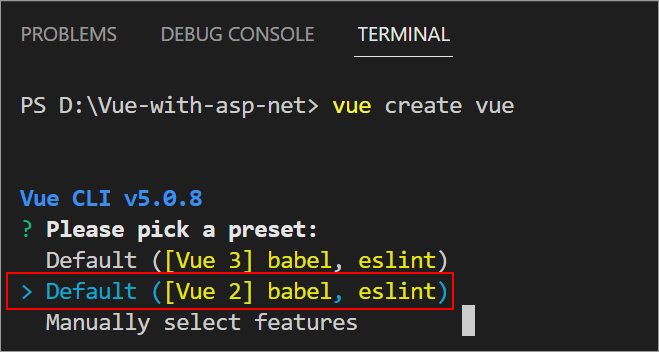
-
Please open the
App.vuefile and replace the existing code with the following.<template> <div id="app" ref="app"> <div id="dashboard" ref="dashboard"></div> </div> </template> <script> import Vue from 'vue' import $ from 'jquery' import {BoldBI} from '@boldbi/boldbi-embedded-sdk'; window.jQuery = $ export default Vue.extend ({ name: 'App', async mounted() { var scripts = [ "https://cdn.jsdelivr.net/npm/vue@2.5.16/dist/vue.js", ]; scripts.forEach(script => { let tag = document.createElement("script"); tag.setAttribute("src", script); tag.setAttribute("type", "text/javascript"); tag.setAttribute("defer", "defer"); tag.async = true; document.head.appendChild(tag); }); //ASP.NET Core application would be run on http://localhost:5297, which needs to be set as `apiHost`. let apiHost = "<your application url>"; //Url of the GetDetails action in the ValuesController of the ASP.NET Core application. let authorizationUrl = "/api/boldbiembed/authorizationserver"; //Url of the GetDashboards action in the ValuesController of the ASP.NET Core application. let getserverdetails = "/api/boldbiembed/getserverdetails" const response = await fetch(apiHost + getserverdetails); const data = await response.json(); renderDashboard(data); function renderDashboard(data) { let dashboard = BoldBI.create({ serverUrl: data.ServerUrl + '/' + data.SiteIdentifier, dashboardId: data.DashboardId, embedContainerId: 'dashboard', embedType: data.EmbedType, environment: data.Environment, width: '100%', height: window.innerHeight -18 + 'px', expirationTime: 100000, authorizationServer: { url: apiHost + authorizationUrl , }, }); dashboard.loadDashboard(); } } }); </script>NOTE: Open the
launchSettings.jsonfile, copy theapplicationUrl, and paste it in theapiHost. -
Please open the
package.jsonfile and replace the code within it.{ "name": "embeddedbi", "version": "0.1.0", "private": true, "scripts": { "serve": "vue-cli-service serve", "build": "vue-cli-service build", "lint": "vue-cli-service lint" }, "dependencies": { "@boldbi/boldbi-embedded-sdk": "6.10.12", "axios": "1.4.0", "core-js": "^3.6.5", "jquery": "^3.5.1", "vue": "^2.6.11" }, "devDependencies": { "@babel/core": "^7.12.16", "@babel/eslint-parser": "^7.12.16", "@vue/cli-plugin-babel": "~5.0.0", "@vue/cli-plugin-eslint": "~5.0.0", "@vue/cli-service": "~5.0.0", "eslint": "^7.32.0", "eslint-plugin-vue": "^8.0.3", "vue-template-compiler": "^2.6.14" }, "eslintConfig": { "root": true, "env": { "node": true }, "extends": [ "plugin:vue/essential", "eslint:recommended" ], "parserOptions": { "parser": "@babel/eslint-parser" }, "rules": {} }, "browserslist": [ "> 1%", "last 2 versions", "not dead" ] } -
Then, run the ASP.NET Core application using the
dotnet runcommand. -
Open the
vueand use this command to install dependenciesnpm installand run the sample by using thenpm run servecommand to render the dashboard.