
Embed a Dashboard View Using an Embed Token
Dashboard View refers to saved states of a dashboard, including filter and layout configurations. This allows for secure visualization of specific dashboards with their filters applied.
Prerequisites
Before you begin, ensure the following:
- You have learned how to generate an Embed Authorization Token.
- The Embed Token must always be generated on the backend server side. The
embedSecretis highly sensitive and should never be exposed in frontend code, browsers, or client applications.
Steps to Embed the dashboard views
- Install the Bold BI Embedded SDK (via NPM or CDN).
- Add a container
<div>in your frontend where the Dashboard View will load.
    <body onload="embedSample();">
      <div id="embed_container"></div>
      <script>
        function embedSample() {
          var boldbiEmbedInstance = BoldBI.create({
            serverUrl: "<Bold BI Server URL>",
            viewId: "<View ID>",
            embedContainerId: "<Embed Container Id>",
            embedToken: "<Embed token generated from backend server>"
          });
          boldbiEmbedInstance.loadView();
        }
      </script>
    </body>
Supported Authentication
- Embed Token (v14) - Support only with View ID.
- Authorization Server URL - Supports with View ID and Name.
- API Key - Support only with View ID.
How to get view details of a dashboard
- In Bold BI Server, click the context menu of the respective dashboard and choose the
Viewsoption.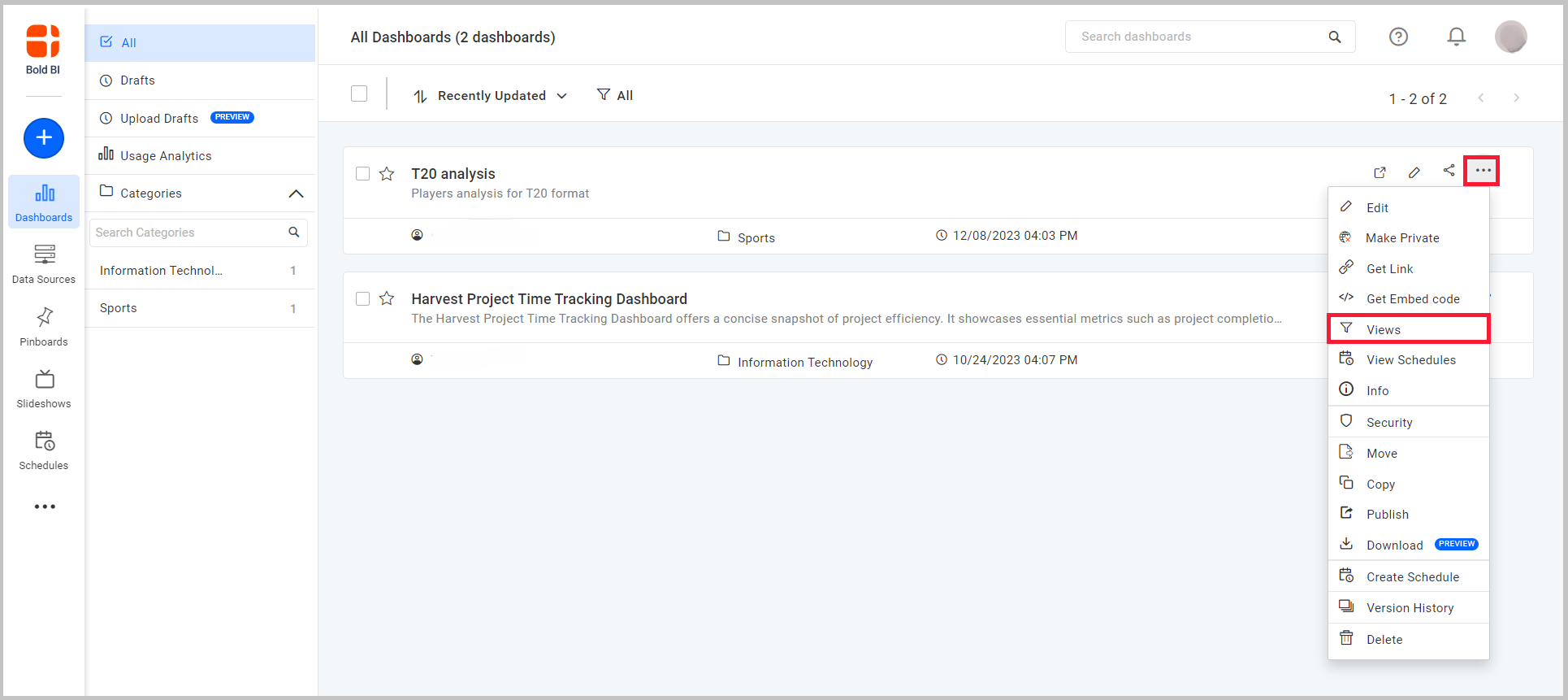
NOTE: You can get the views list of specific dashboard using fetchbydashboardid method of SDK.
-
You can find all the views name for the respective dashboard from the displayed list.
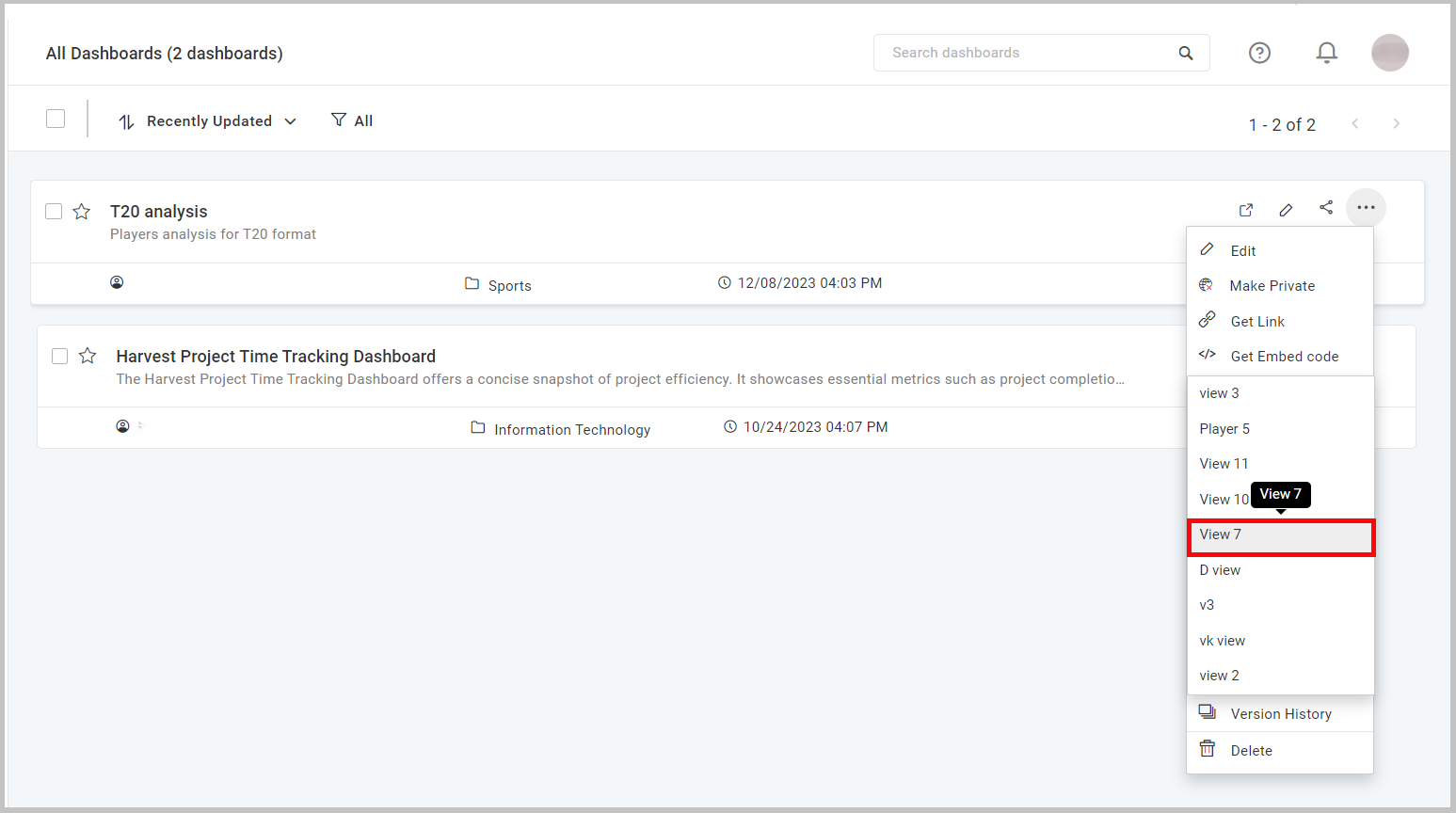
-
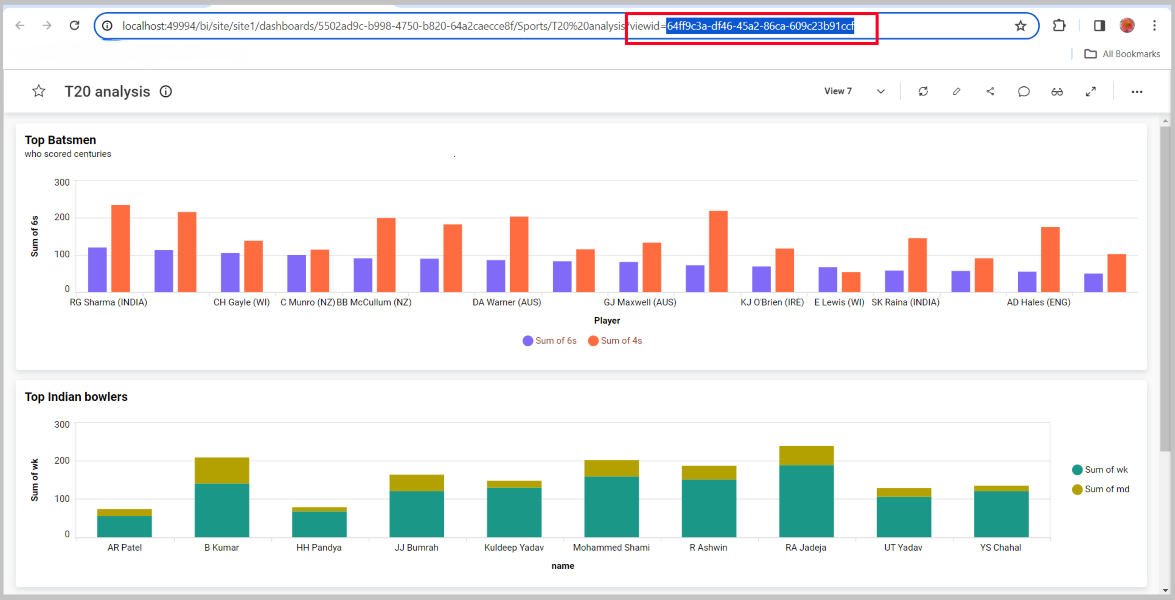
To get a view’s ID click on the respective view. The dashboard will be loaded in a new tab with the chosen view. You can find the view ID at the end of URL. Refer to the image below.
Note: For more information on view members, methods, and events, refer to this link.