Embed Authentication for the Widget Embedding
Embed the Bold BI single widget using an Embed Token and multiple widgets using Authorization Server Authentication.
Prerequisites
Before you begin, ensure the following:
- You have learned how to generate an Embed Authorization Token for single widget embedding.
- You have configured an Authorization Server to embed multiple widget embedding.
- The Embed Token must always be generated on the backend server side. The
embedSecretis highly sensitive and should never be exposed in frontend code, browsers, or client applications.
Key Considerations
- Users must have the required view permissions for the dashboards containing the widgets.
- Use the loadWidget() method to load a single widget.
- Use the loadWidgets() method to load multiple widgets.
Steps to Embed the Widget
- Install the Bold BI Embedded SDK (via NPM or CDN)
- Add a container
<div>in your frontend where the widget will load.
Embed a Single Widget Using loadWidget Method
<body onload="embedSample();">
    <div id="embed_container"></div>
    <script>
        function embedSample() {
            var boldbiEmbedInstance = BoldBI.create({
                serverUrl: "<Bold BI Server URL>",
                dashboardId: "<Dashboard Id>",
                embedContainerId: "<Embed Container Id>",
                embedToken: "<Embed token generated from backend server>"
            });
            boldbiEmbedInstance.loadWidget("<Widget ID>"); // For versions prior to v13.1, use loadDashboardWidget().
        }
    </script>
</body>
Embed Multiple Widgets in a Single Instance Using loadWidgets Method
This method will load multiple widgets of the current dashboard with a single instance call.
<body onload="embedSample();">
    <div id="dashboard"></div>
    <div id="widget1" style="height:500px;width:500px"></div>
    <div id="widget2" style="height:500px;width:500px"></div>
    <div id="widget3" style="height:500px;width:500px"></div>
    <script>
        function embedSample() {
            var dashboard = BoldBI.create({
                serverUrl: "<Bold BI Server URL>",
                dashboardId: "<Dashboard Id>",
                embedContainerId: "<Embed Container Id>",
                widgetList: [
                    {widgetName: "Medal details by Country", containerId: "widget1" },
                    {widgetName: "Total Medals by Country", containerId: "widget2" },
                    {widgetName: "Country", containerId: "widget3" }],
                authorizationServer: {
                    url: "<Authorization Server URL>"
                }
            });
            dashboard.loadWidgets();  // For versions prior to v13.1, use loadMultipleWidgets().
        }
    </script>
</body>
Supported Authentication
| Scope | Method | Supports |
|---|---|---|
| Single widget | Embed Token (v14) | Widget ID |
| Authorization Server URL | Widget ID, Name | |
| API Key | Widget ID | |
| Multiple widgets | Authorization Server URL | Multiple widget names (list) |
Note: For more information on widget members, methods, and events, refer to this link.
How to Get Widget ID
-
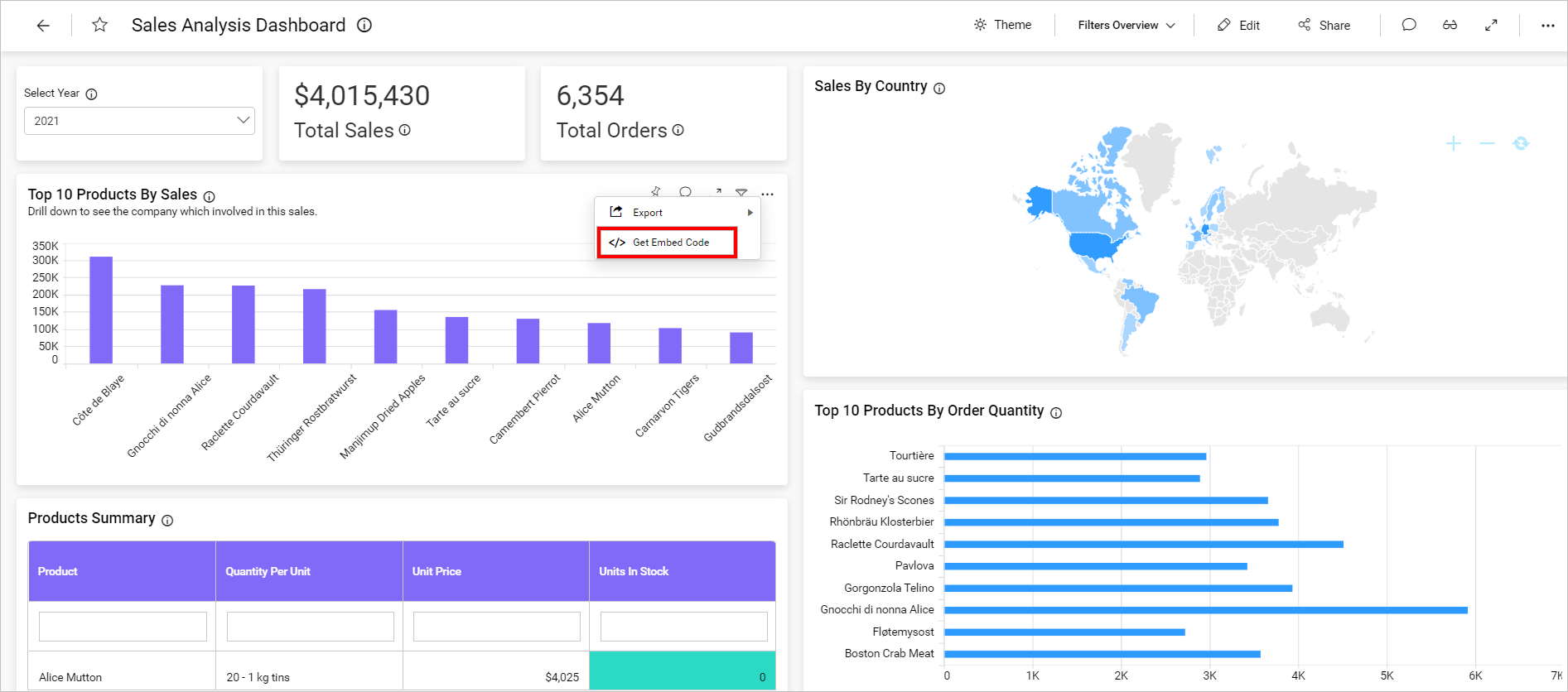
In the Bold BI UI, navigate to the dashboard that contains the widget you want to embed. Click the context menu (three-dot icon) of the desired widget and select Get Embed Code.
-
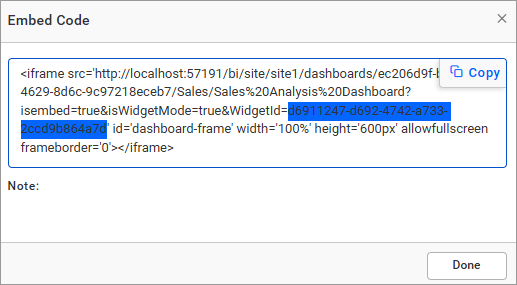
In the Get Embed Code dialog, you can find the Widget ID within the embed code details.