
No Backend Required for Token-Based Embedding
When using an API Key for embedding:
- No backend logic is required to generate or validate tokens.
- You can embed dashboards directly from the browser using a valid token.
- This simplifies the setup and is ideal for quick integrations.
Note: For advanced scenarios like row-level security or group-based permissions, consider using the Authorization URL workflow.
Steps to embed Bold BI dashboard using javascript
Follow these steps to embed the dashboard using the token API member. Previously, the details were authenticated using the AuthorizeAPI endpoint. Additionally, we provided authentication support using the token without the AuthorizeAPI endpoint.
-
Include the Bold BI Embed SDK in the
<head>tag of your HTML page. -
Create a
<div>element in the<body>tag with a unique ID to serve as the dashboard container.<head> <script type="text/javascript" src="https://cdn.boldbi.com/embedded-sdk/v15.2.6/boldbi-embed.js"></script> </head> <body> <div id="dashboard_container"></div> </body> -
In the body tag, you need to add the function to create BoldBI instance with following properties and call that function in the body using the
onloadattribute as follows. Also, call theloadDashboard()function. You can embed the dashboard using the dashboard ID and token like in below samples.<body onload="embedSample();"> <div id="dashboard_container"></div> <script> function embedSample() { var boldbiEmbedInstance = BoldBI.create({ serverUrl: "<Bold BI Server URL", dashboardId: "<Dashboard ID>", embedContainerId: "<Embed Container ID>", token: "NjQ2ZDgwZjgtN2Q3MS00ZDQwLWFkNTItYTdkNDRhOGE2NmVi", // Use the generated API key. }); boldbiEmbedInstance.loadDashboard(); } </script> </body> -
Download the embed configuration file from there to obtain the server URL, site identifier, and dashboard Id values.
-
Please refer to the following table for the value of the previous properties based on your application.
serverUrl Use your Bold BI server url (http://localhost:[portno]/bi/site/site1) dashboardId Use item id of the dashboard, which needs to be viewed in your application. embedContainerId Id of the created div element in your body. token Token which is used to authenticate the user, for generating the token.
Token Generation
Steps to generate the API key from Bold BI server UI
The API key can be generated from the Bold BI server UI, which provides the flexibility to set the token’s expiration period. To learn more about the API key, please refer to this link. Follow the below steps to generate API Key.
-
Click on the
profileicon located at the top right corner of the Bold BI server.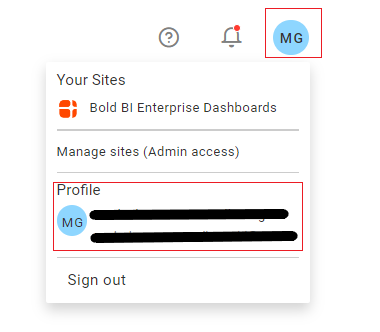
-
In
My Profileclick theAPI Keytab.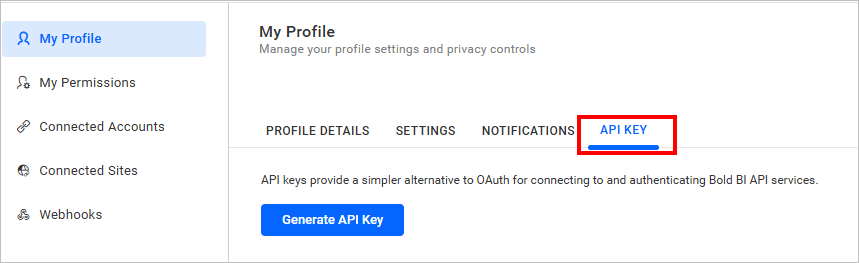
-
Click the
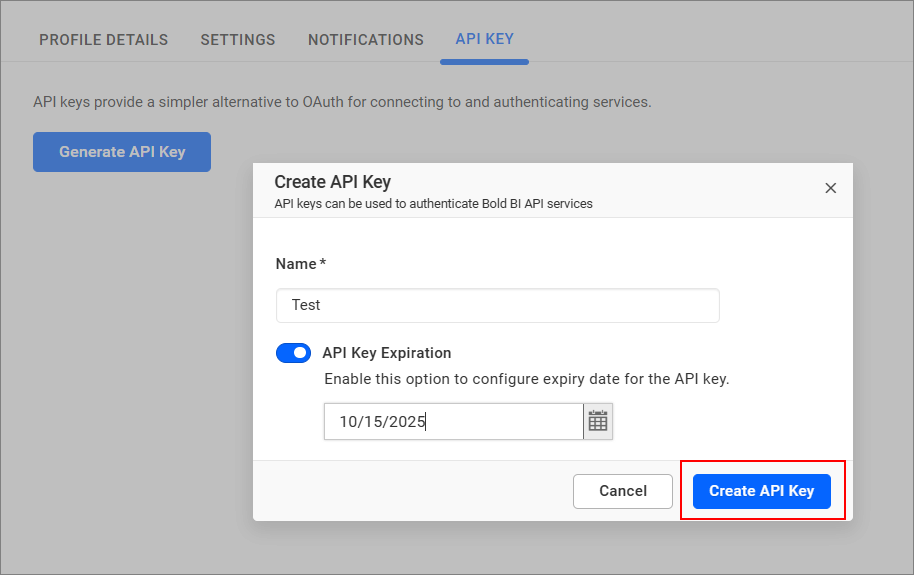
Generate API Keybutton, and provide a name for the API Key. By enabling the API Key Expiration toggle, you can set an expiration time. By default, there will be no expiration for infinity period. After that, clickCreate API Key.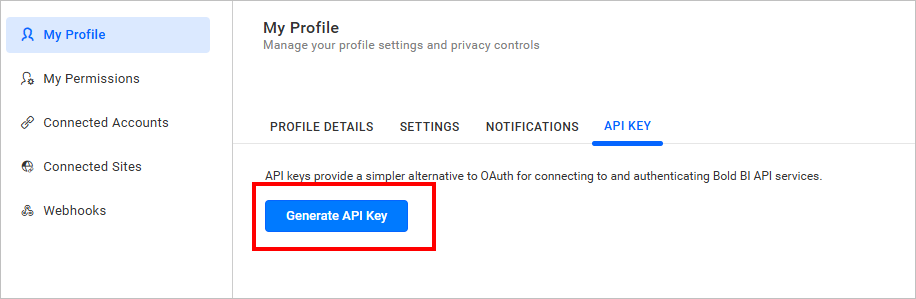
NOTE: For security breaches, if you feel that the API key generated without an expiration should no longer be used once it is deleted.
-
An API key has been generated. Now, you can copy and use it for embedding.
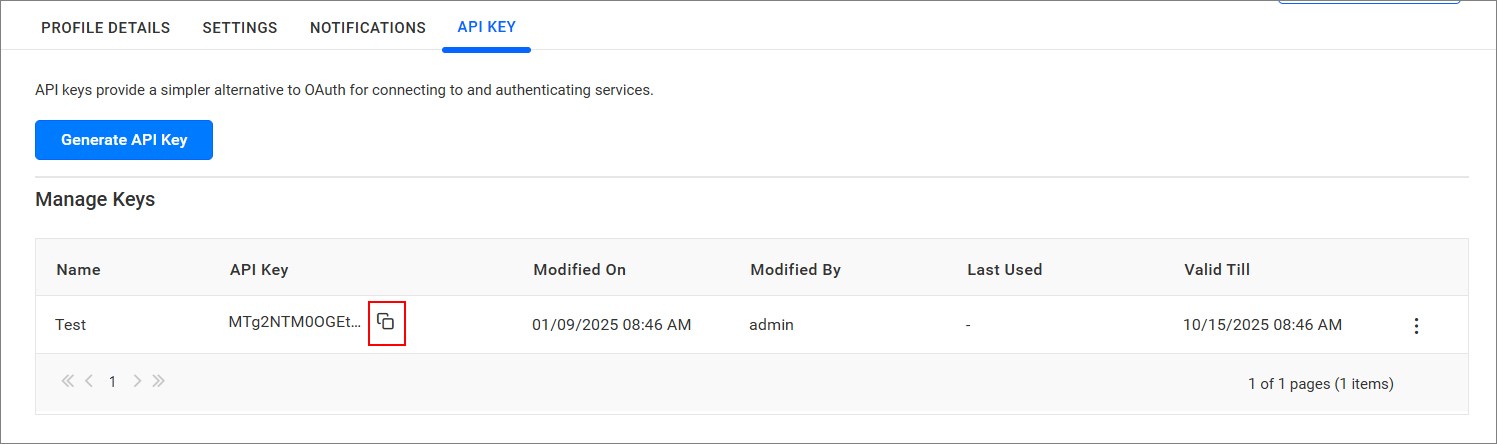
NOTE: You can generate up to 2 API keys, but they should be stored securely. Once you navigate away from this page, we will not be able to retrieve or restore this token.
Following embedding modules is achievable by using token API member
- Designer
- Data source
- Connection
- Widget
- LoadView
NOTE: For token API member is applicable to identifiers such as Dashboard ID, Datasource ID, Widget ID, and View ID.