Upgrade Guidelines
Overview
This section provides upgrade guidance that should be followed before proceeding with the Bold BI upgrade on the production environment.
- Save all open settings and unsaved items.
- Ensure that no one is currently working with dashboards.
- Inform users about the maintenance time.
- Take a backup of the persistent data.
Taking a backup of the persistent data helps us to restore Bold BI to a previous version in case any breaking issues are found in the latest version. You need to know where the persistent data of Bold BI is saved to take a backup. The following diagram demonstrates the Bold BI infrastructure architecture.
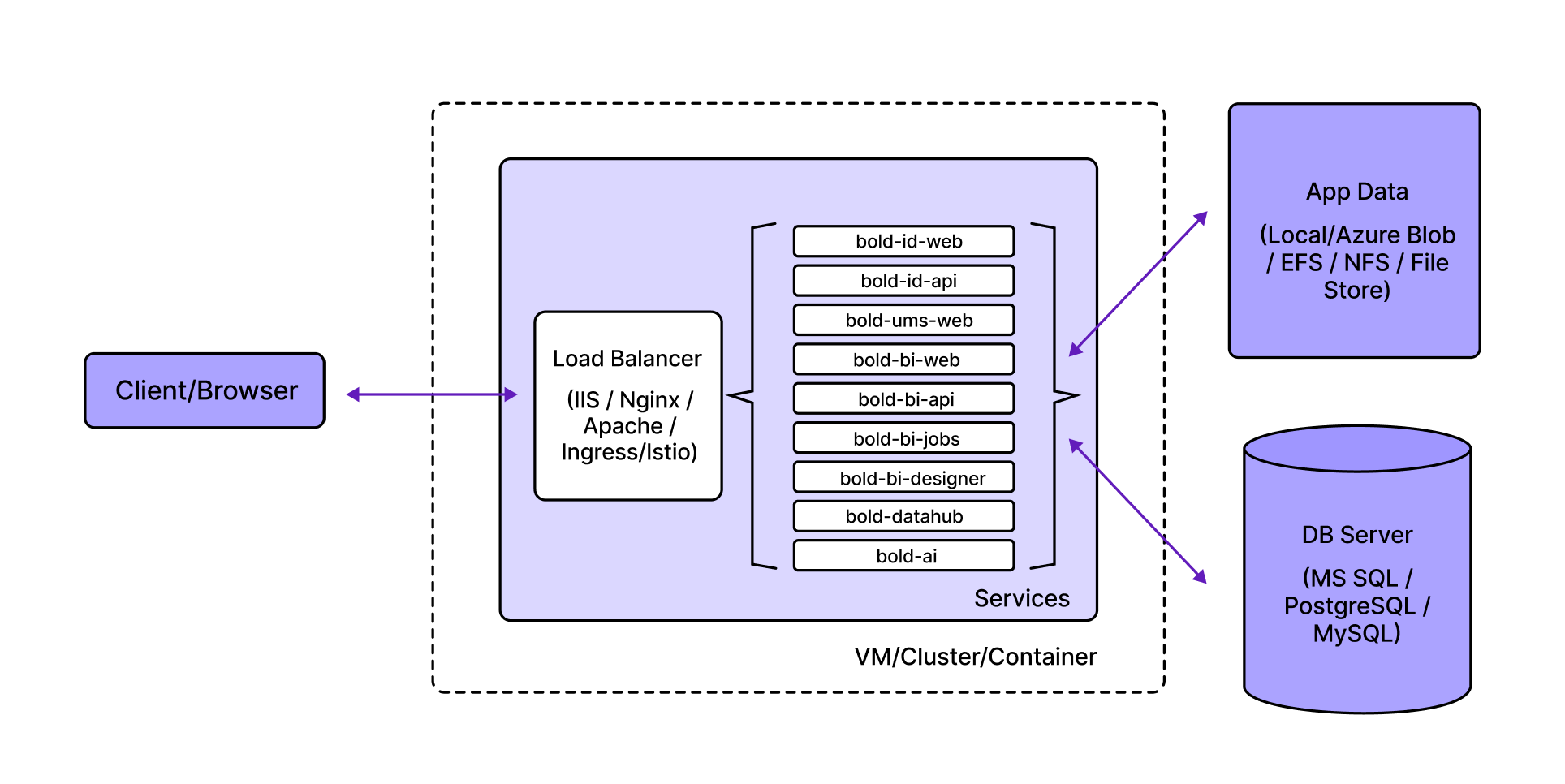
The above diagram shows that Bold BI persistent information is saved in the App_data and DB server. The next section will provide details about the persistent data, its location, and details of the information saved there.
Bold BI Persistent Data
Bold BI persistent data, which includes users, groups, dashboards, schedules, and application-related data, is saved in the following resources:
- App_Data
- Database Server
App_Data
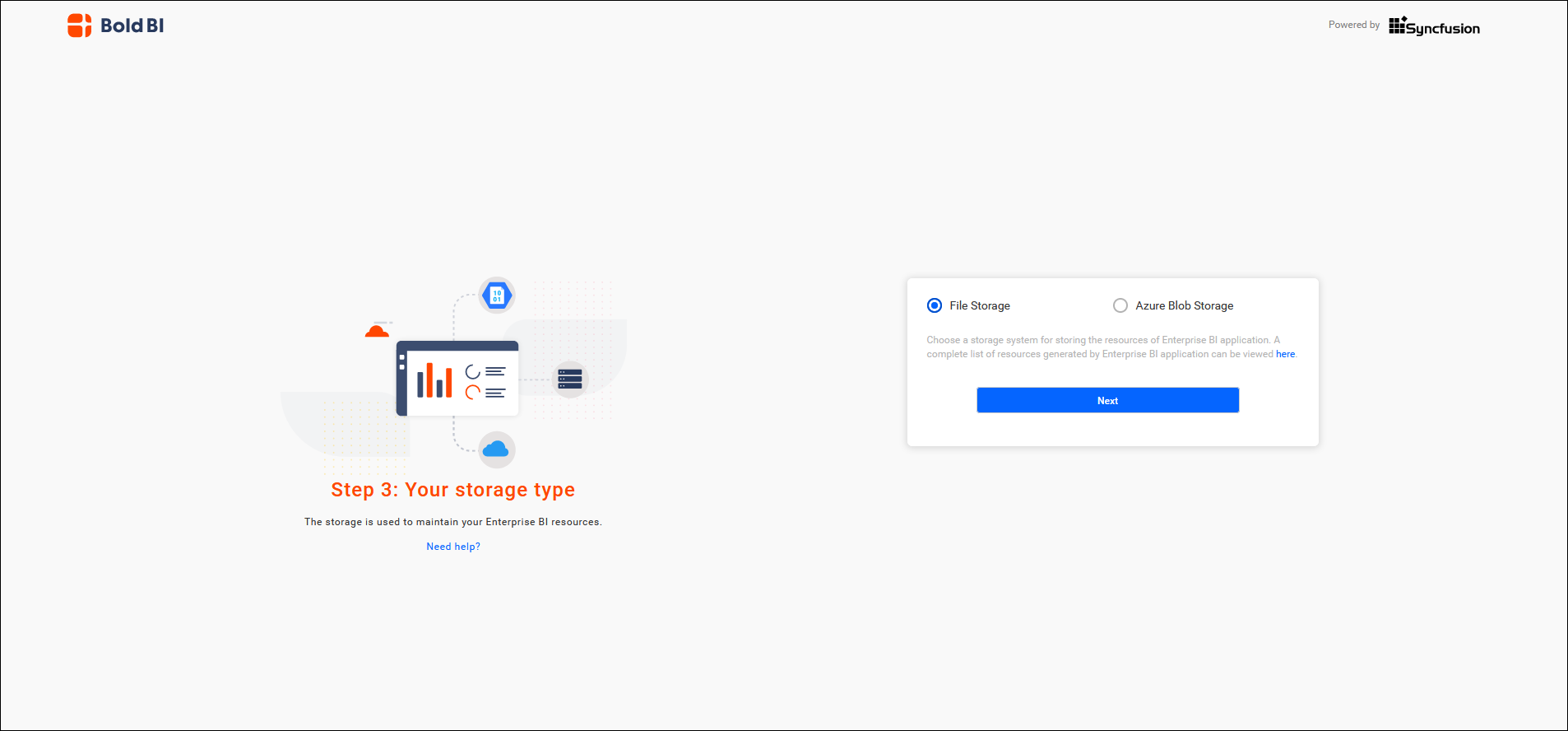
All dashboard resource information is saved in the App_Data location and can be saved in any of the following supported options:
- File Storage
- Azure Blob storage
File Storage
The File Storage typically refers to the storage that contains Bold BI application data. It can be a local file storage or managed cloud storage based on the deployment environment.
| Environment | App Data Location |
|---|---|
| Windows | {Deployed Location}/BoldServices/App_Data/ |
| Linux | /var/www/bold-services/application/ |
| Docker | Mounted Path/Mounted Storage |
| Kubernetes | File Share |
| Azure App Service | Azure Blob |
Azure Blob storage
By selecting this option, the APP_Data information will be saved in the designated Azure blob storage.
Database Server
The metadata and intermediate data details of the Bold BI site will be saved on the database server. Bold BI supports the following databases for use as Meta and IMDB servers:
- My SQL
- MS SQL
- Postgres SQL
The upcoming section will provide guidance on how to take backup and restore Bold BI persistent resources.
Backup and Restore Persistent Data
This section will explore how to take backup and restore Bold BI persistent resources. From the infrastructure diagram and persistent data saving location, you can understand that Bold BI persistent information can be saved in:
- Physical or Virtual Machine - File System/Mounted Path
- DB Server - MS SQL/ Postgres SQL/ My SQL
- Azure Blob Storage
- ReadWriteMany Storage- SMB/NFS/EFS/File Store
Physical or Virtual Machine
When using the App_Data storage type as File Storage, the App_Data information will be saved on the hosting machine itself. Therefore, it is important to take a backup of the App_Data location or the entire machine as needed. For a physical machine, you can take a backup from the following location:
| Environment | App Data Local Path |
|---|---|
| Windows | {Deployed Location}/BoldServices/App_Data/ |
| Linux | /var/www/bold-services/application/ |
If you are using a virtual machine (VM), you can either take a complete snapshot of the VM or only back up the directory mentioned above. Find the help links below to take a snapshot of the VM.
| Resources | Reference Links |
|---|---|
| AWS VM | Backup: Creating Snapshot Restore: Restoring an EC2 Instance |
| Azure VM | Backup: Snapshot and Copy Managed Disk Restore: Restoring a VM from Snapshot |
| GCP VM | Backup: Creating Windows Persistent Disk Snapshot Restore: Restoring Snapshot |
Database Server
For DB server backup and restore, refer to the following documentation link based on your DB kind and type.
On-premise DB Server
| Database Type | Backup and Restore Documentation |
|---|---|
| PostgreSQL | Backup and Restore |
| MS SQL | Backup and Restore of SQL Server Databases |
| My SQL | Backup and Recovery Documentation |
Managed DB Server
| Managed Database | Database Type | Backup and Restore Documentation |
|---|---|---|
| AWS | My SQL, MS SQL, PostgreSQL | Backup: Create Snapshot of RDS Restore: Restore RDS from Snapshot |
| Azure | My SQL MS SQL PostgreSQL |
Backup: Backup MySQL Database Restore: Restore MySQL Database Backup: Backup MSSQL Database Restore: Restore MSSQL Database Backup: Backup PostgreSQL Database Restore: Restore PostgreSQL Database |
| GCP | My SQL MS SQL PostgreSQL |
Backup: Backup MySQL Database Restore: Restore MySQL Database Backup: Backup MSSQL Database Restore: Restore MSSQL Database Backup: Backup PostgreSQL Database Restore: Restore PostgreSQL Database |
Azure Blob Storage
If you have configured Azure Blob storage when setting up the site, it is necessary to back up the Azure Blob.
| Azure Blob |
|---|
| Backup: Configure and Manage Blob Backup Restore: Blob Restore |
ReadWriteMany Storage
For Kubernetes deployment, you need to mount the ReadWriteMany persistent volume to store Bold BI App_Data information. You can find the documentation link for backing up and restoring the ReadWriteMany storage volume based on your cloud provider.
| Cloud Storage | Backup and Restore Documentation |
|---|---|
| Elastic File Storage for EKS | AWS Backup Documentation |
| Azure File Share for AKS | Azure File Share Backup |
| GKE File Store for GKE | File Store Backup |
List of Changes Required for Using Restored Resources
This section describes the list of possible changes required in the environment and Bold BI application level for using restored persistent data resources.
Restore the App_Data
| Deployed In | Restore |
|---|---|
| Physical Machine | Replace the backed-up files in the installed App_Data directory. |
| Cloud VM | If you restore the VM from the snapshot, you need to make domain or IP changes in the application level as described below. If you only restored the App_Data directory, you can skip the domain or IP changes. |
| Docker | Replace the backed-up files in the container-mounted host path. |
| Kubernetes | Replace the restored persistent volume Azure File Share/EFS filesystem/Google File-store details in the deployment manifest or Helm chart, and redeploy the application. |
Update Database Connection String
To update the database connection string, please refer to the guidance document below to reset the database connection for different environments.
If you have backed up the database on another server and the database name remains the same, following this KB article is sufficient to update both the UMS and tenant databases. How to update the tenant database information in bulk in on-premise deployments.
If you have backed up the databases on another server with different names, you need to follow both the above KB article and the documentation below.
Change Domain Mapping or IP Binding
- If you use a domain name and restore the server from the snapshot, you can map the new IP with the same domain name.
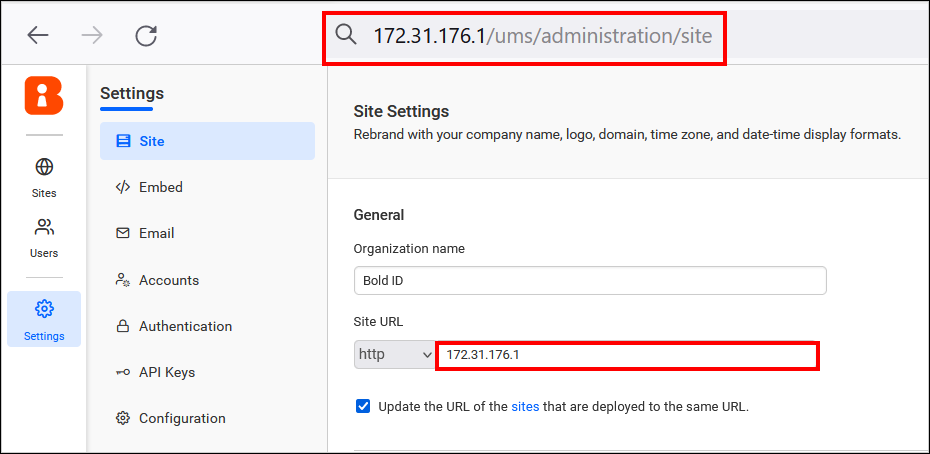
- If you are hosting the application using the IP address and the server IP has changed, you need to update the IP address in the UMS administration page. Navigate to
URL/ums/administrationin the browser and ensure that the new URL is updated. If not, update the new URL on the administration page and save the changes.