Installation and Deployment
This section explains how to install and deploy Bold BI Enterprise.
Unlock the setup
This topic outlines the steps necessary for installing Bold BI Enterprise.
To view the system requirements for deploying Bold BI Enterprise in a business setting, refer to the System Requirements.
Run the Bold BI Enterprise Installer.
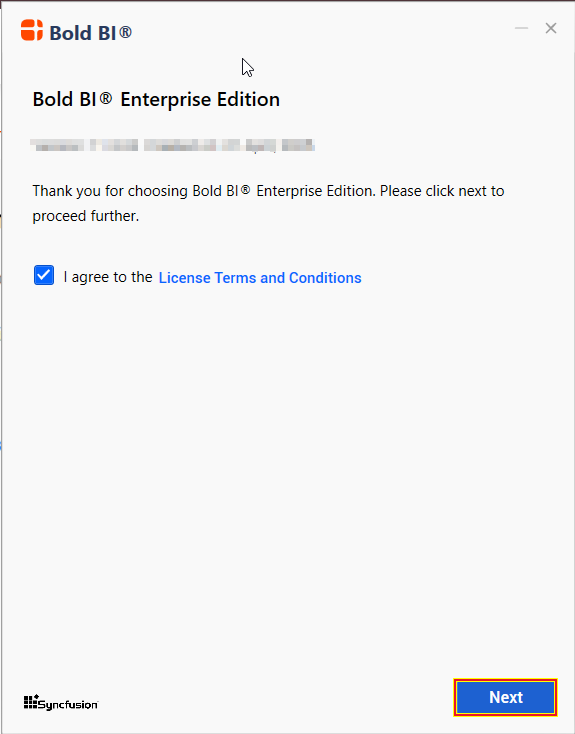
You can review the license agreement for the Bold BI Enterprise edition by clicking on the License Terms and Conditions.
Hosting type
You have been provided with the Bold BI Enterprise Edition for hosting in the IIS web-server type.
IIS
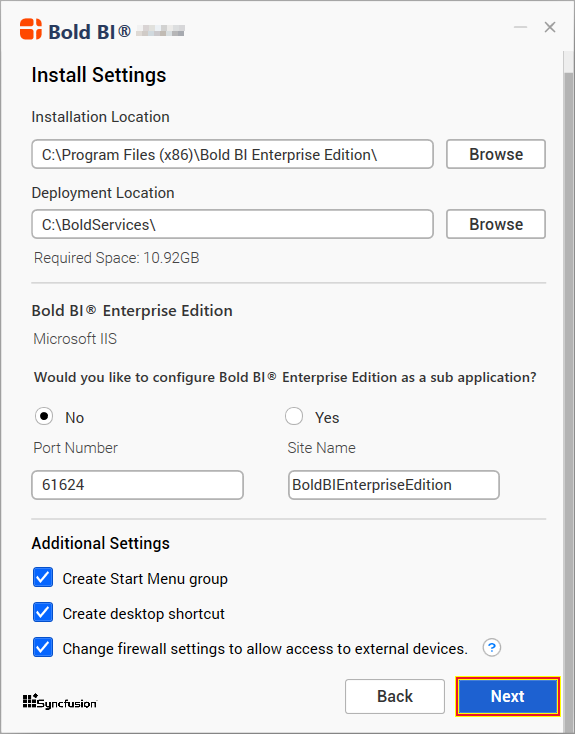
You need to input the port number, location, and site name to host Bold BI Enterprise in the IIS.
Chromium Packages
IMPORTANT: Chromium packages are necessary to enable image and PDF export functionalities in dashboards, widgets, and schedules from Bold BI. Without these packages, the image and PDF export options will be disabled.
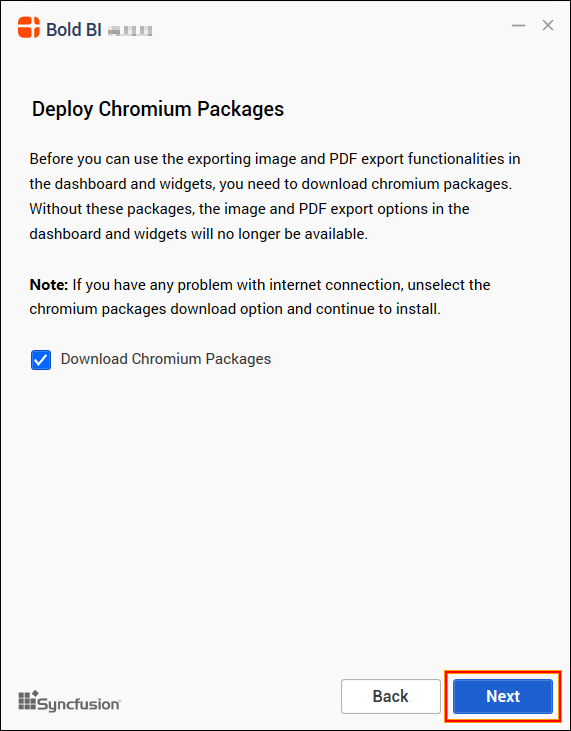
NOTE: If you encounter any issues with your internet connection or lack one, deselect the Chromium Packages download option and proceed with the installation. For manual installation of the Chromium Packages, refer to this guide.
Bold Data Hub
IMPORTANT: Bold Data Hub is designed to load data from various sources into the Bold BI Data Store database, and other databases such as PostgreSQL, MSSQL, MySQL, Apache Doris and Apache Doris. It offers flexible scheduling options to automate data extraction at regular intervals and supports data transformation using SQL scripts.
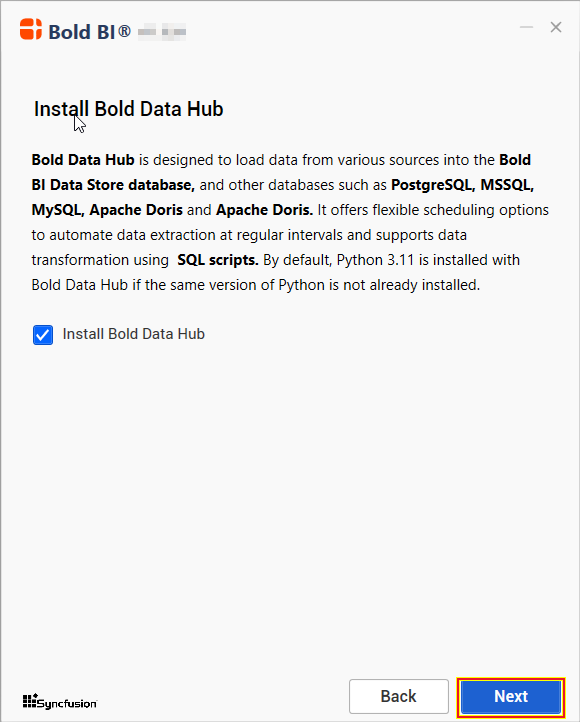
NOTE: By default, Python 3.11 is installed with Bold Data Hub if the same version of Python is not already installed.
Client libraries
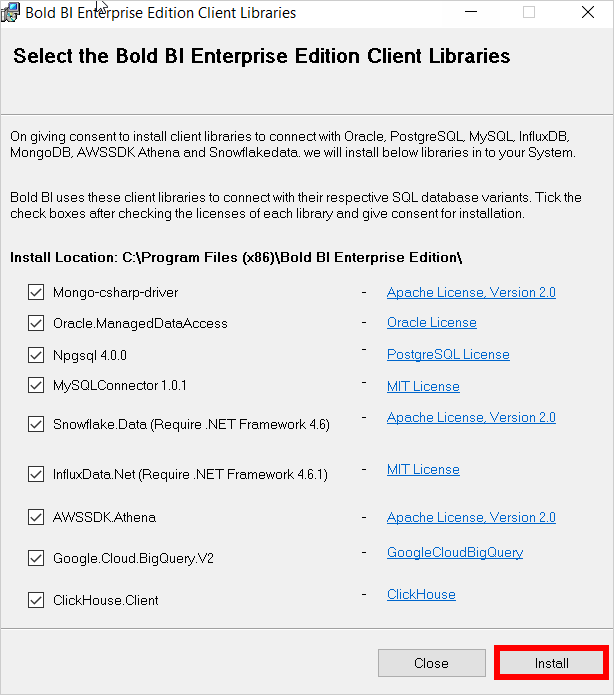
IMPORTANT: Bold BI Enterprise Edition uses client libraries such as Oracle, PostgreSQL, MySQL, Snowflake, and MongoDB to connect with their respective SQL database variants. Review and accept the license for each library to consent to its installation. Only the selected client libraries installed.
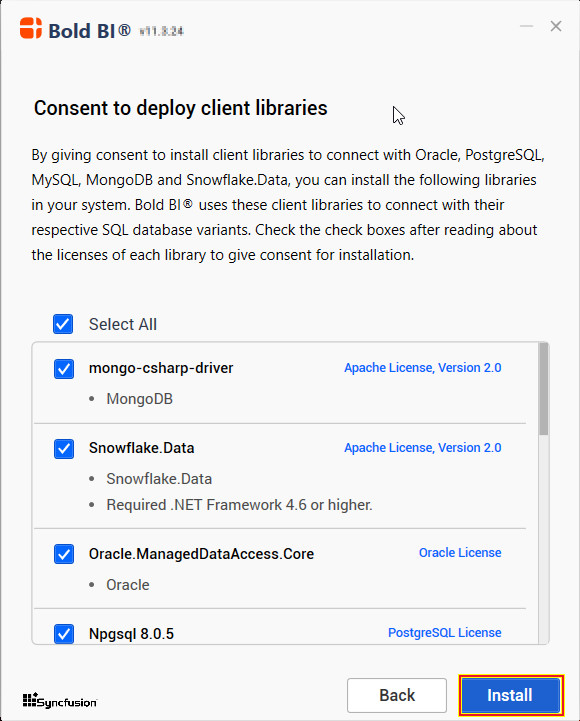
Read and accept the license to ship the selected client libraries, then click Next.
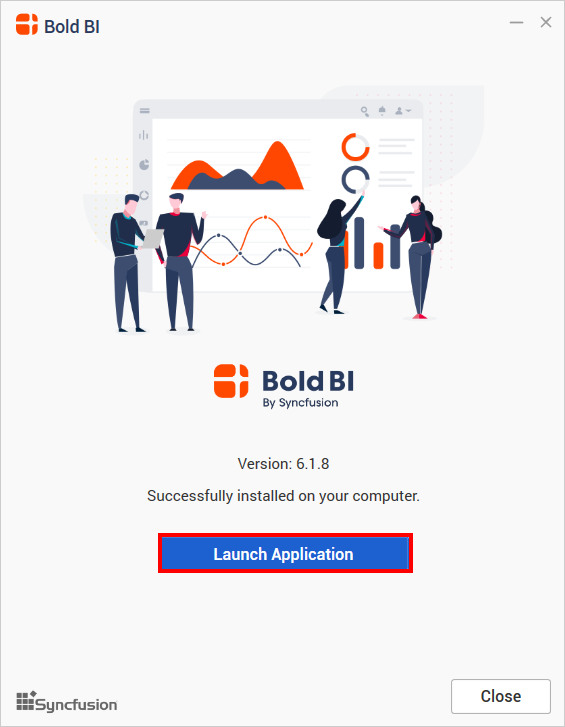
Once the installation is complete, you can launch the application by clicking Launch Application.
If you didn’t install the client libraries during this installation, you can do so later using the ClientLibrary.msi setup after installing the Bold BI setup. Follow these steps to install the client libraries:
-
Navigate to the location
C:\Program Files (x86)\Bold BI Enterprise Edition\Client Libraryand double-click the setup file namedClientLibrary.msi.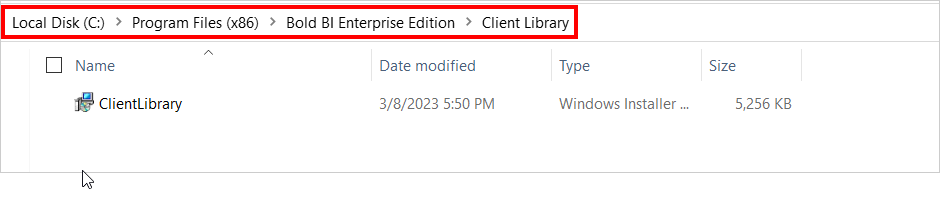
-
The client libraries dialog will then open, allowing you to choose and install the necessary client libraries.