
Self-Deploy a Bold BI Server on Microsoft Azure Virtual Machine
The following steps will guide you through deploying Bold BI on Azure Virtual Machines. Follow the steps according to your instance type.
Deploy Bold BI on an Azure Windows Virtual Machine
Set up an Azure Windows Virtual Machine
-
Sign into the Azure Portal.
-
Click on
Create a Resource.
-
Click on
virtual machine.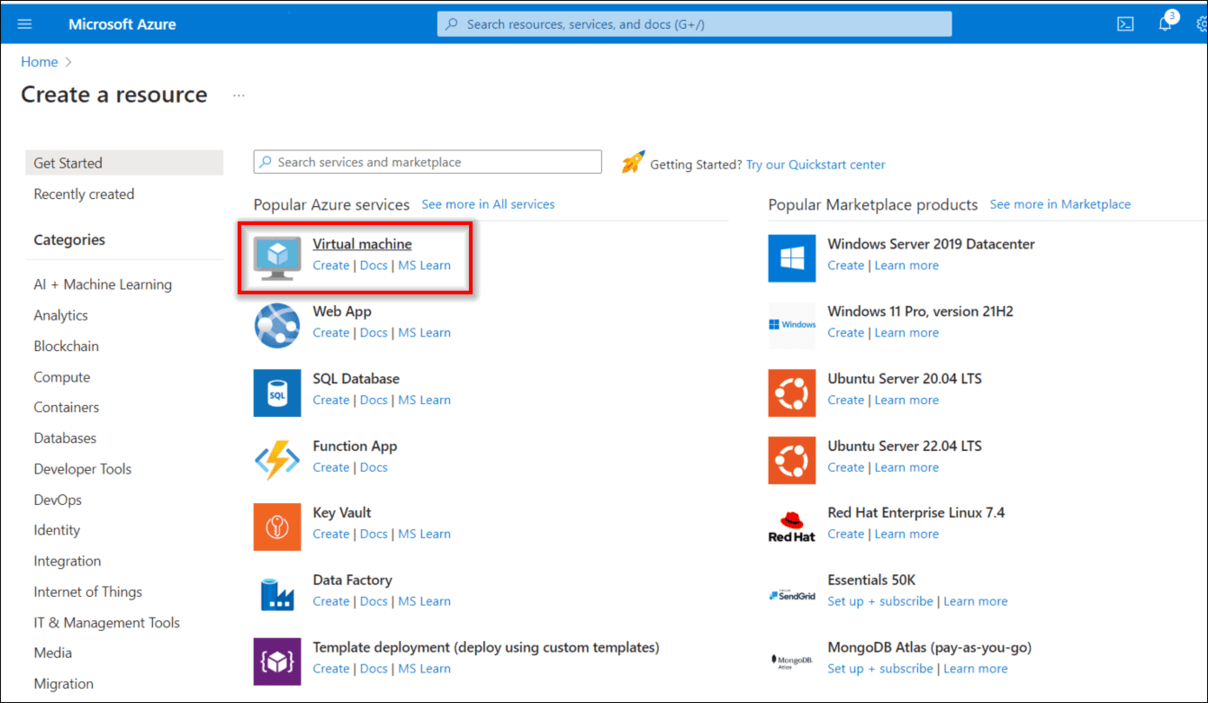
-
Provide the necessary administrative information for the new VM on the
Basicsblade.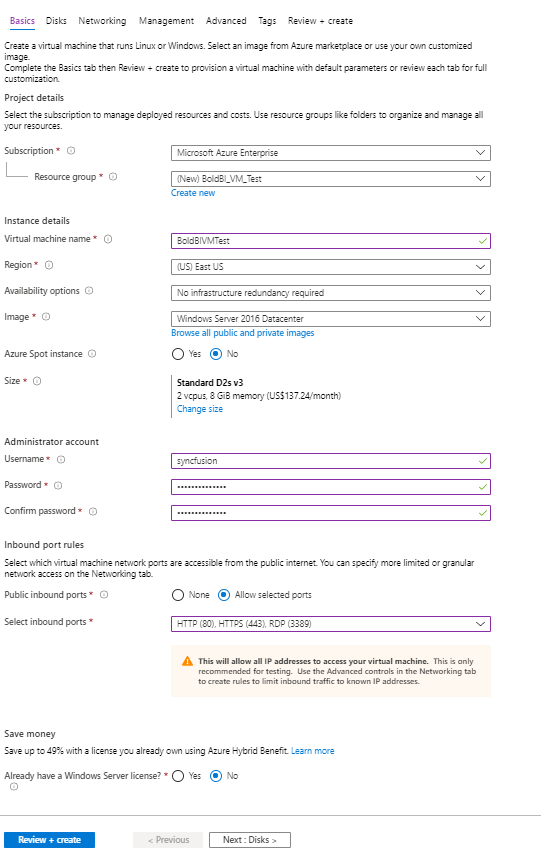
Virtual Machine Name: Enter a name for your VM (max 15 characters).
VM disk type: Choose SSD/HDD as your convenience (SSD is recommended for better performance).
Image Choose the Windows Server Image.
Size: Choose the VM size that meets our system requirement. For example, choose the D2s_V3 size, and then click Select.
Username: Enter your username, which you will use to log in to the VM using Remote Desktop Protocol (RDP).
Password: Enter your password, as you will need it to log in to the VM using RDP.
Subscription: This VM should be associated with the Azure subscription.
Resource group: Choose Create new and enter the name of a new resource group to host the VM’s resources.
Region: Choose your preferred region for your VM.
-
Under the
Disksblade, choose the VM OS disk type (SSDis recommended).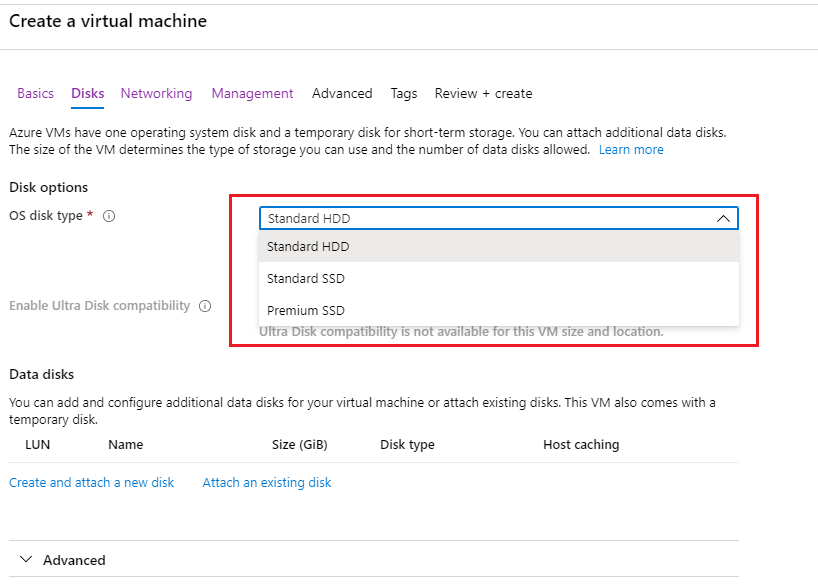
-
Under the
Networkingblade, selectAdvancedinNIC network security group.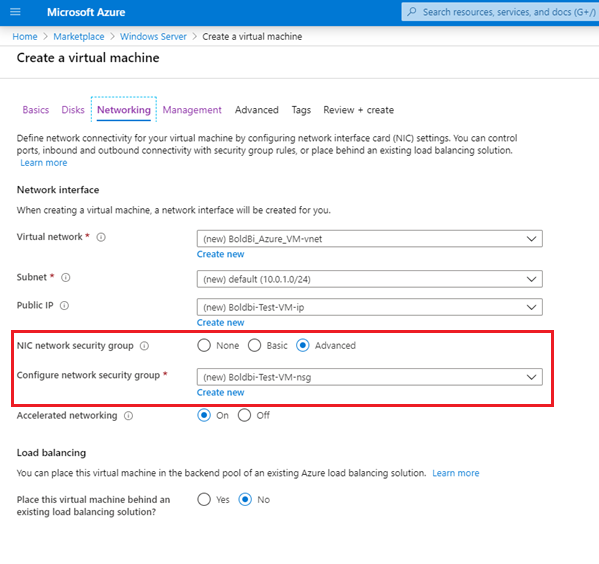
-
Click on
Create newin theNIC network security groupoption to add an inbound security rule. This rule will allow specific types of internet traffic to reach your VM.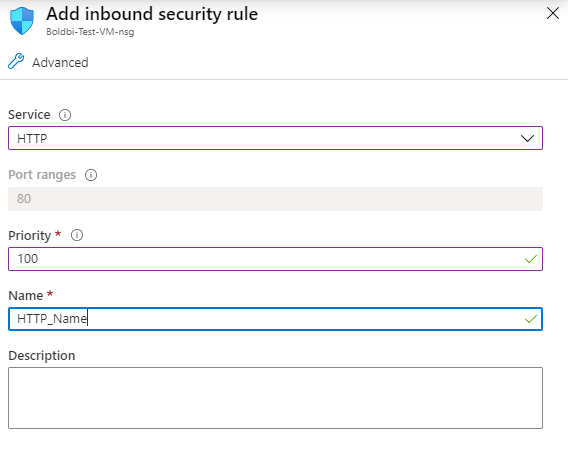
-
Choose
HTTPfrom theServicedrop-down list on theAdd inbound security ruleblade. -
In the “Priority” box, assign a numerical priority to the rule, such as 100. Rules with lower numbers are processed first. For instance, a rule with a priority of 100 will be processed before a rule with a priority of 110.
-
In the Name box, type a name for the inbound rule, such as HTTP Port-80, and then click OK.
-
Repeat the steps to create an inbound security rule for the HTTPS service with a priority of 101.
-
When finished, the Create network security group dialog should have three rules allowing
RDP, HTTP, and HTTPSaccess. Click OK. -
On the
Createblade, review your settings under Summary and clickCreate.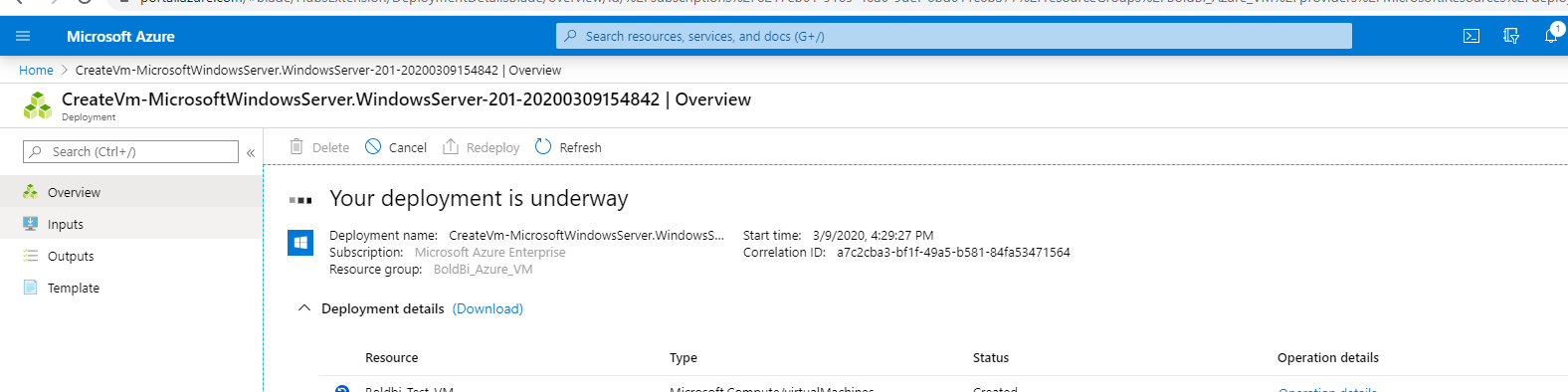
How to Connect the VM through the Remote Desktop Connection
Follow the below steps to connect to the virtual machine.
-
Click
Connecton the virtual machine overview window to download a Remote Desktop Protocol (.rdp) file from the Azure portal.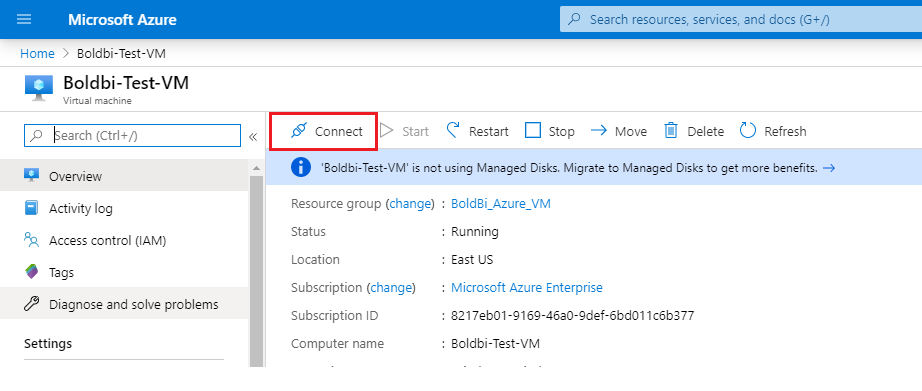
-
Open the .rdp file and click
Connectto proceed despite the warning from an unknown publisher.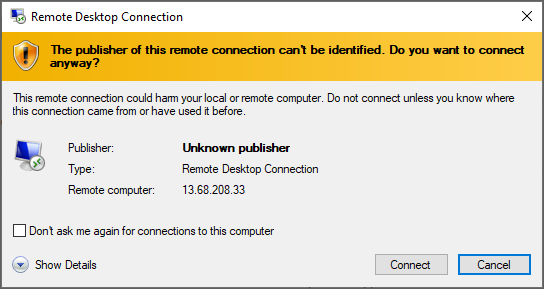
-
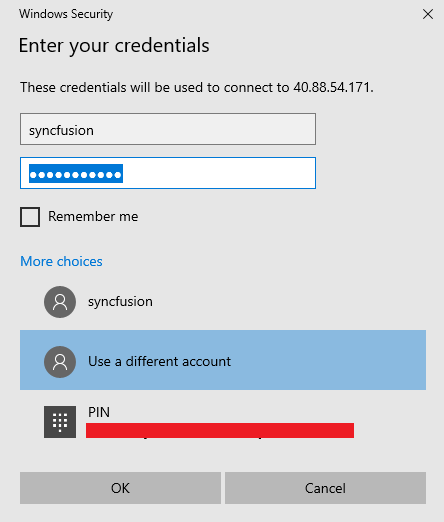
Enter the credentials that you provided when creating the VM, as shown below, and click OK.
-
After a successful connection, the identity verification window will be displayed as shown below. Click
OKto accept the certificate problems and connect to the virtual machine.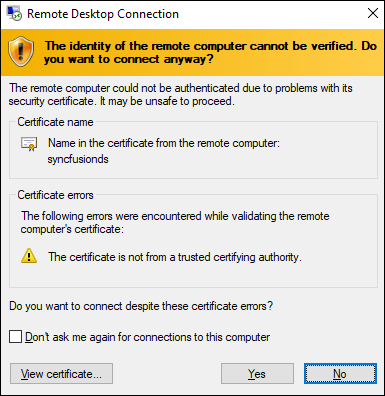
Installation and Running of the Bold BI Server
This section provides instructions on how to install and run the Bold BI server in a virtual machine (VM).
-
Install the Bold BI server on the created virtual machine (VM) in the Azure portal using help link.
-
Launch your application either by default or through your Desktop shortcut menu item. For example,
Start Bold BI in IIS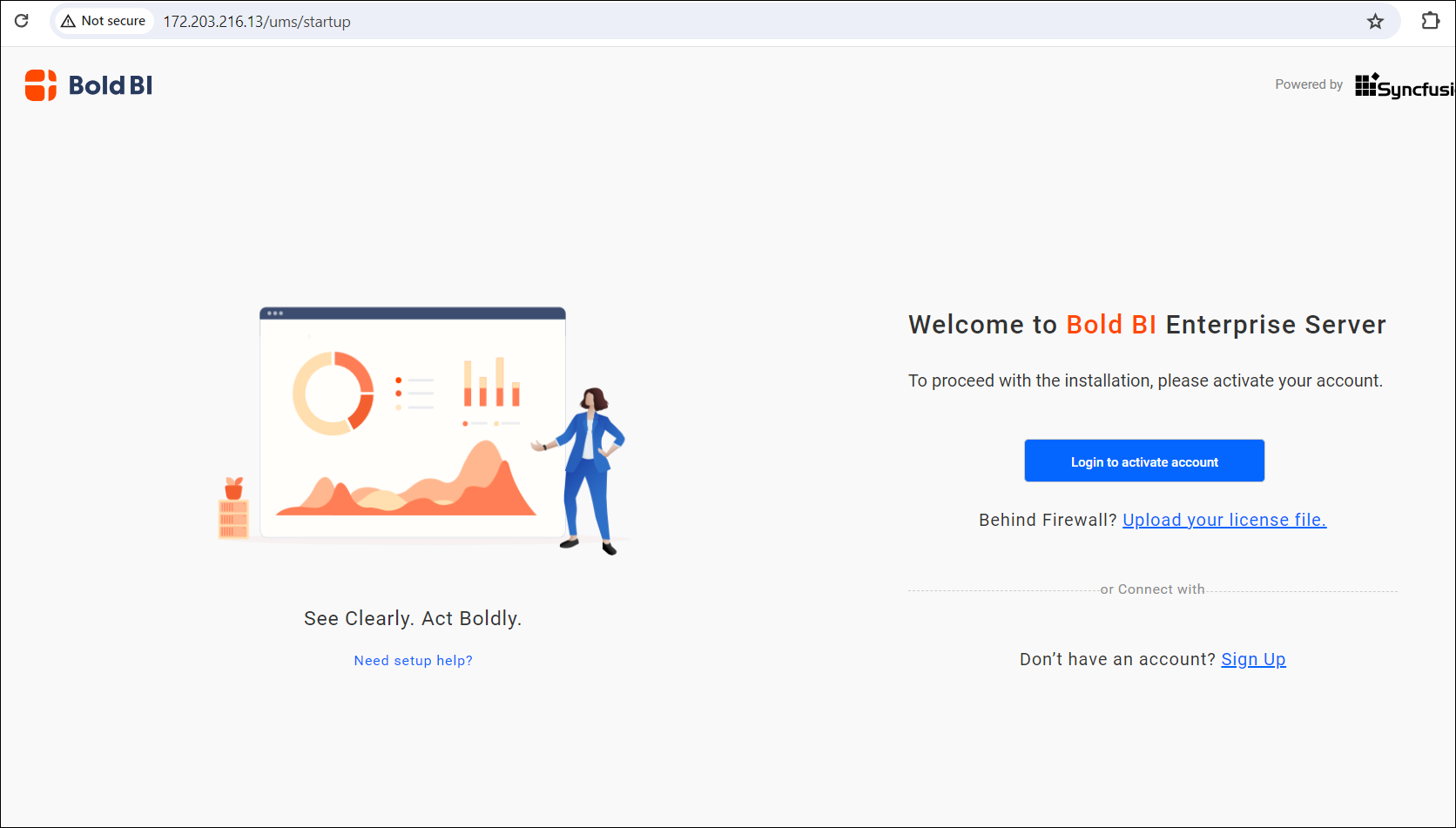
-
Follow the steps in the link to do the application startup.
Deploy Bold BI on an Azure Linux Ubuntu Virtual Machine
Set up an Azure Linux Virtual Machine
-
Sign into the Azure Portal.
-
Click on
Create a Resource. -
Click on
virtual machine. -
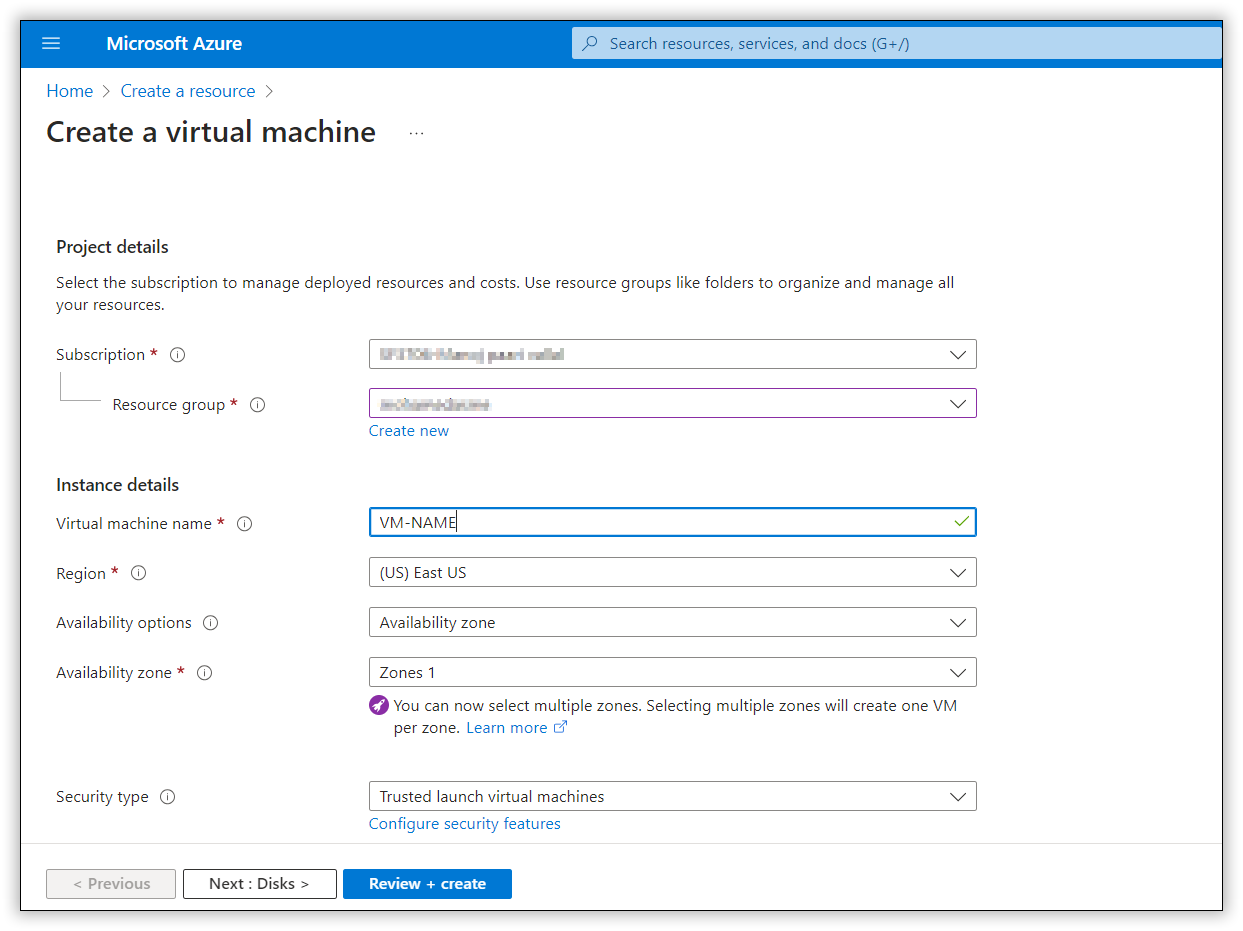
Provide the necessary administrative information for the new VM on the
Basicsblade. -
Virtual Machine Name: Enter a name for your VM (max 15 characters).
-
Subscription: This VM should be associated with the Azure subscription.
-
Resource group: Choose
Create newand enter the name of a new resource group to host the VM’s resources. -
Region: Choose your preferred region for your VM.
-
Image: Choose
Ubuntu Server 20.04 LTS-x64 Gen2image. -
Size: Choose the VM size that meets our system requirement. For example, choose the
Standard_D2s_v3.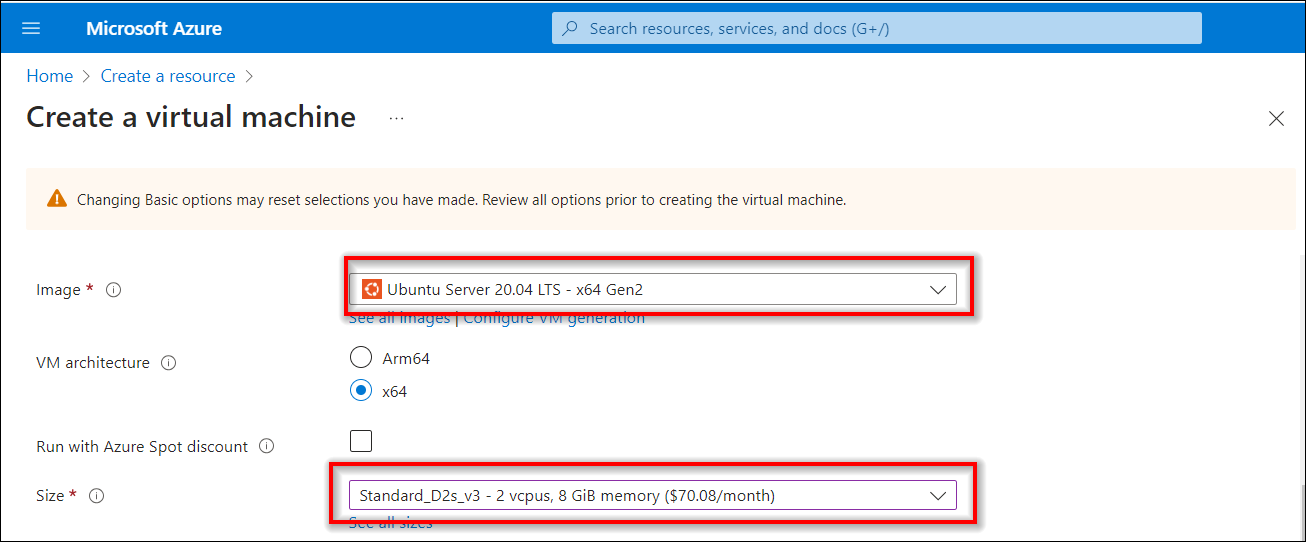
-
Username: Enter your username, which you will use to log in to the VM using Terminal.
-
Password: Enter your password, as you will need it to log in to the VM using Terminal.
-
Inbound Ports: Choose All port in check Box
HTTP,HTTPS and SSH.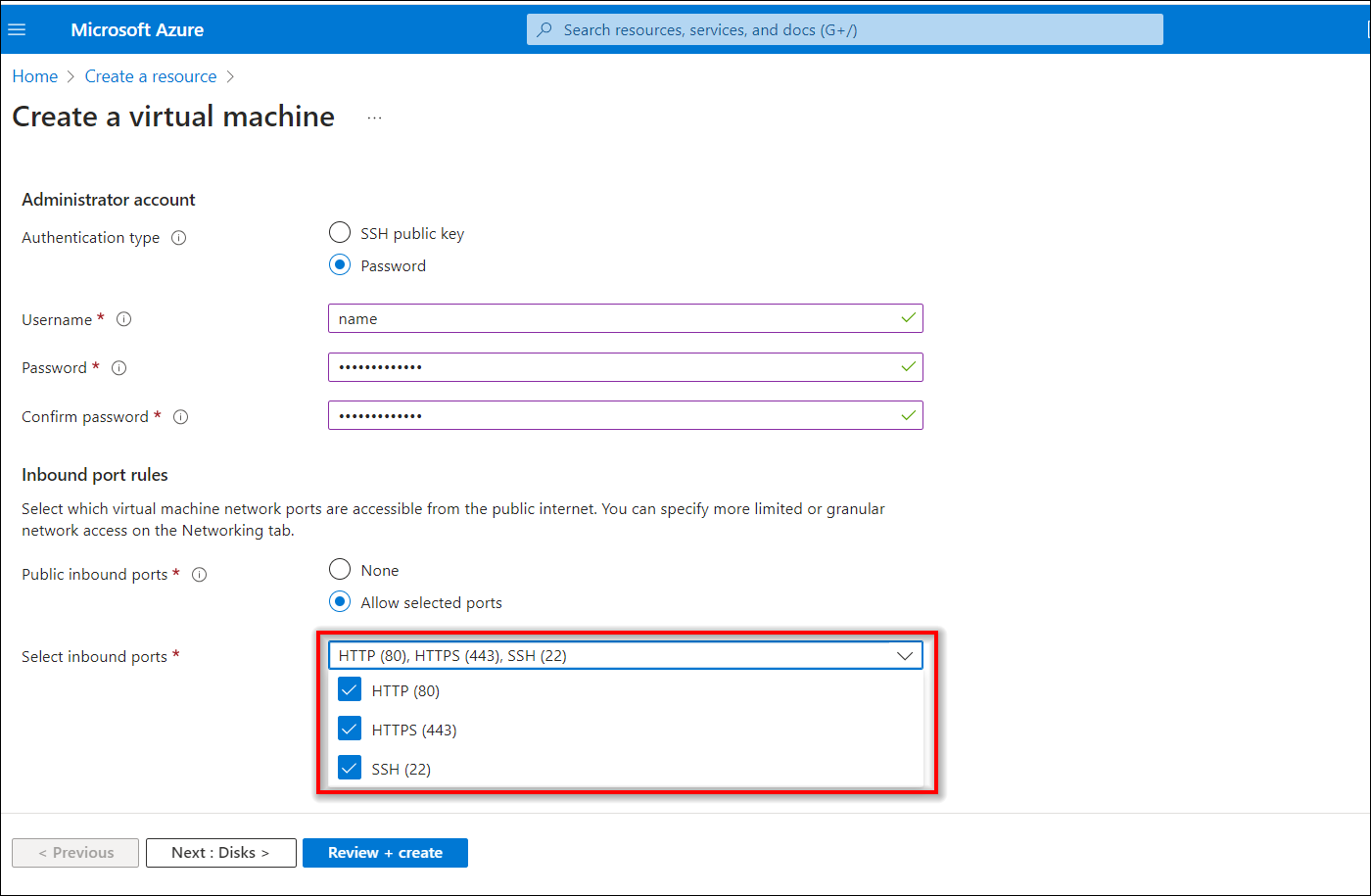
-
Under the
Disksblade, choose the VM OS disk type (SSD is recommended). -
Choose OS Disk size
256GiB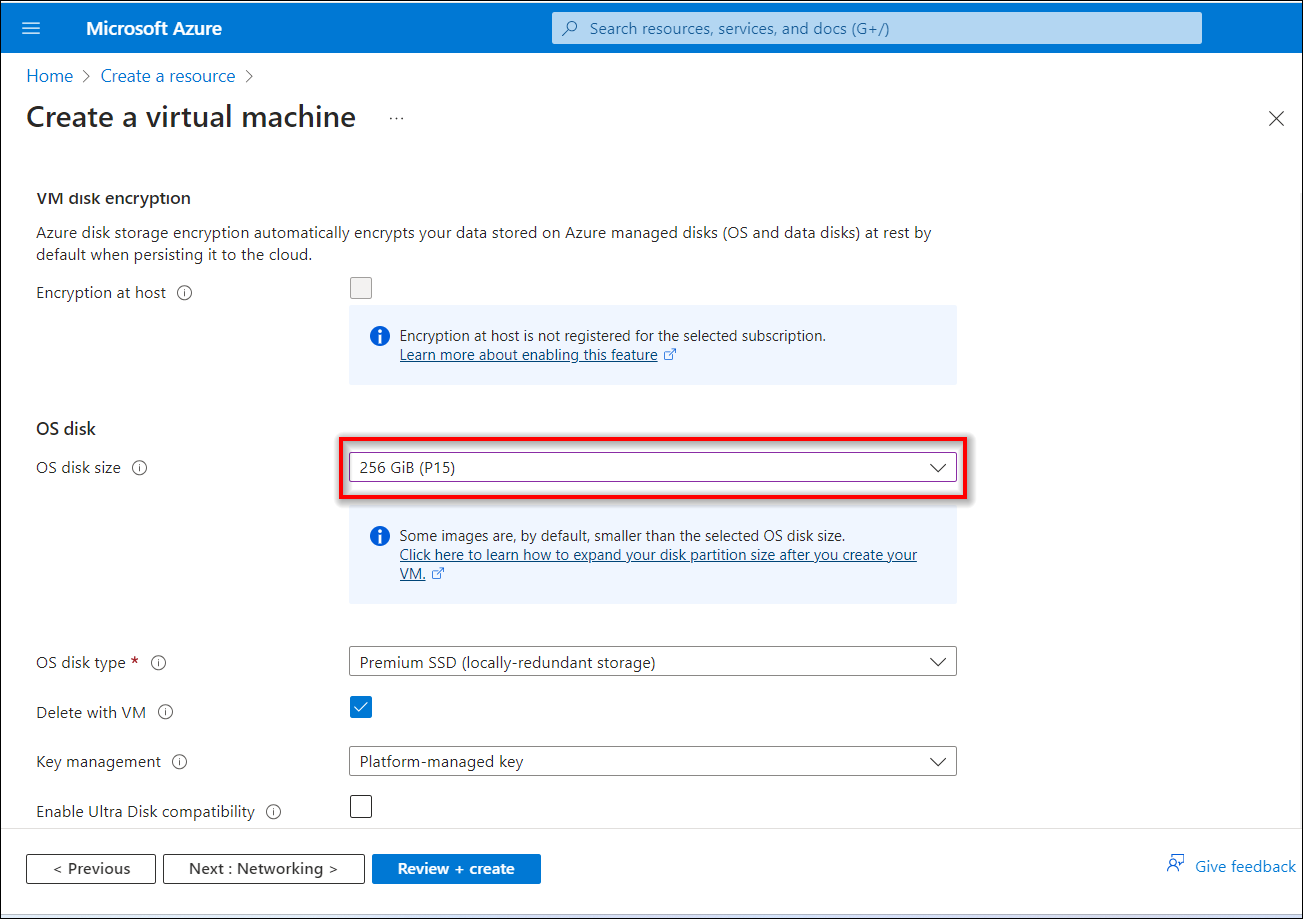
-
Click on
Review + create
How to Connect the Linux VM using SSH command
-
Depending on your operating system, open the respective terminal application.
-
Use the SSH command to connect to the VM. The command typically looks like this
ssh username@ipaddress -
After running the SSH command, you will be prompted to enter the password for the username you specified.

-
Note: Please refer to the link for a few more connection options.help Link.
Installation and Running of the Bold BI Server
-
Install the Bold BI in Linux Environment help Link.
-
After the installation, when you access the IP address or domain name in the web browser, you will see the same interface as shown in the image below.
-
Follow the steps in the link to do the application startup.