
Enable Or Disable AI Feature and Configuration AI
Enable or disable AI feature
-
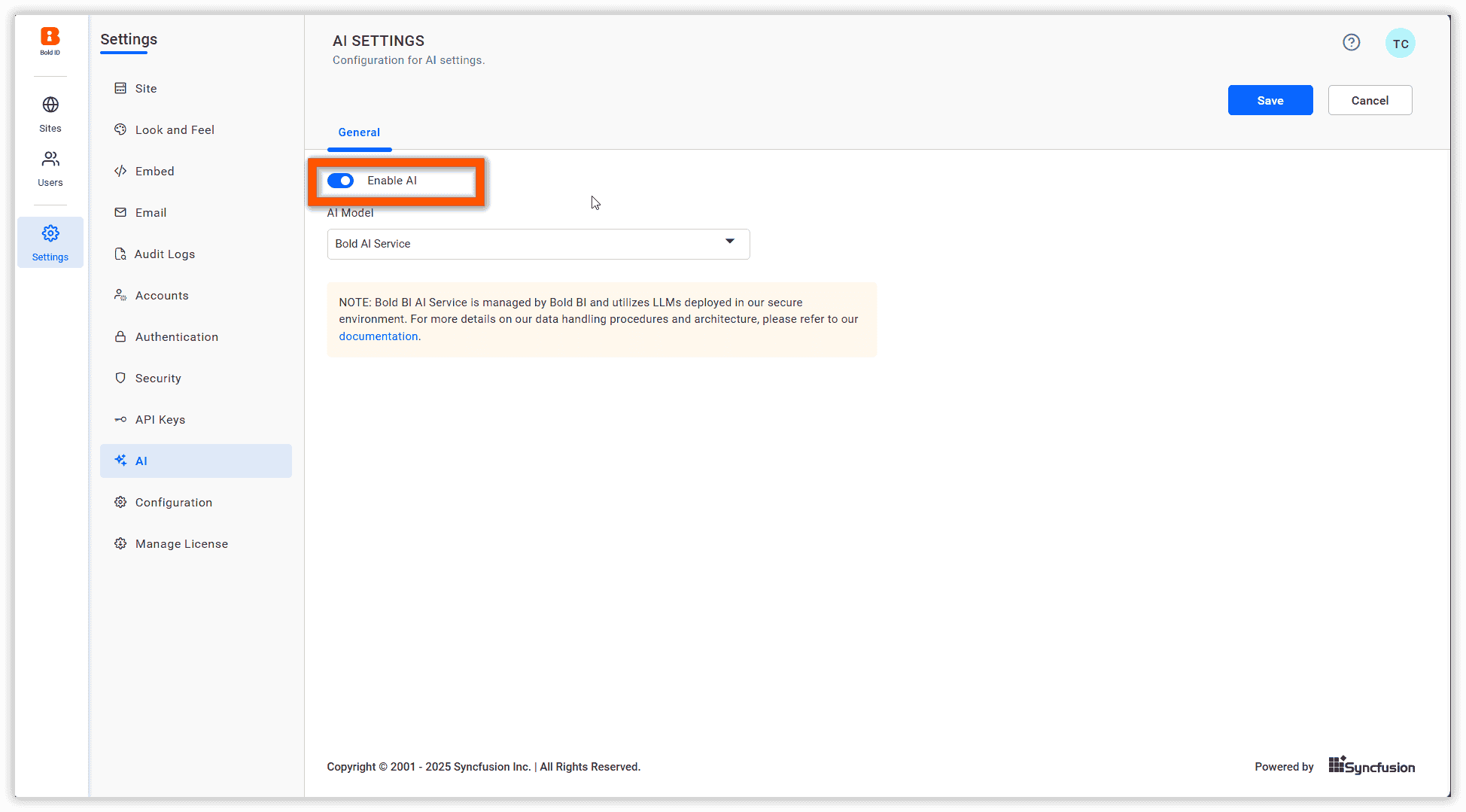
Users can globally enable or disable AI features in the Bold BI application using the
Enable AItoggle button. -
When the toggle is disabled, AI features will not function in the Bold BI application. When enabled, AI features will be available.
Configure your own AI
-
Configure your own AI by providing custom credentials OpenAI and Azure AI in the Bold BI application.
-
Syncfusion AI requires no credentials and operates on a cloud-based service.
-
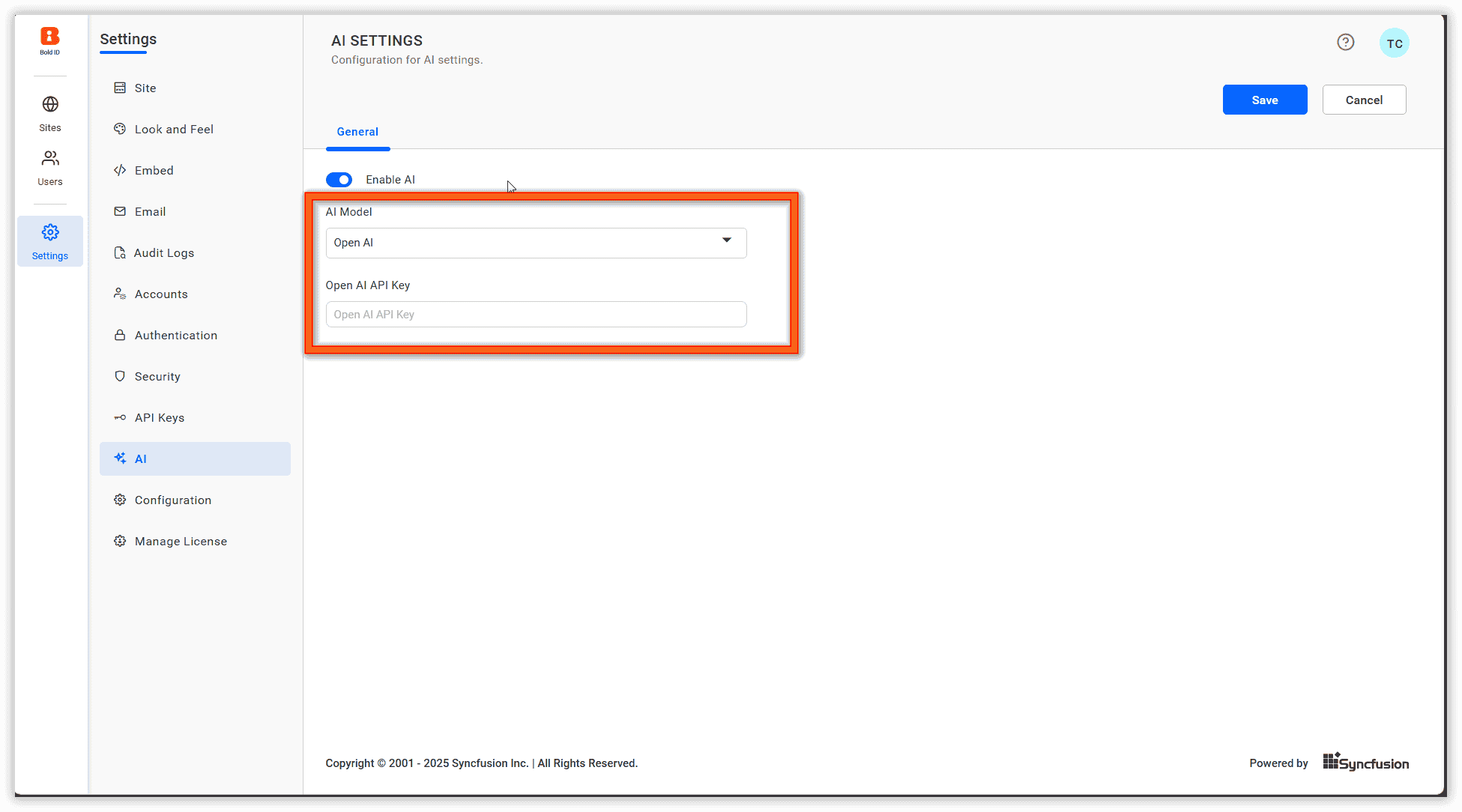
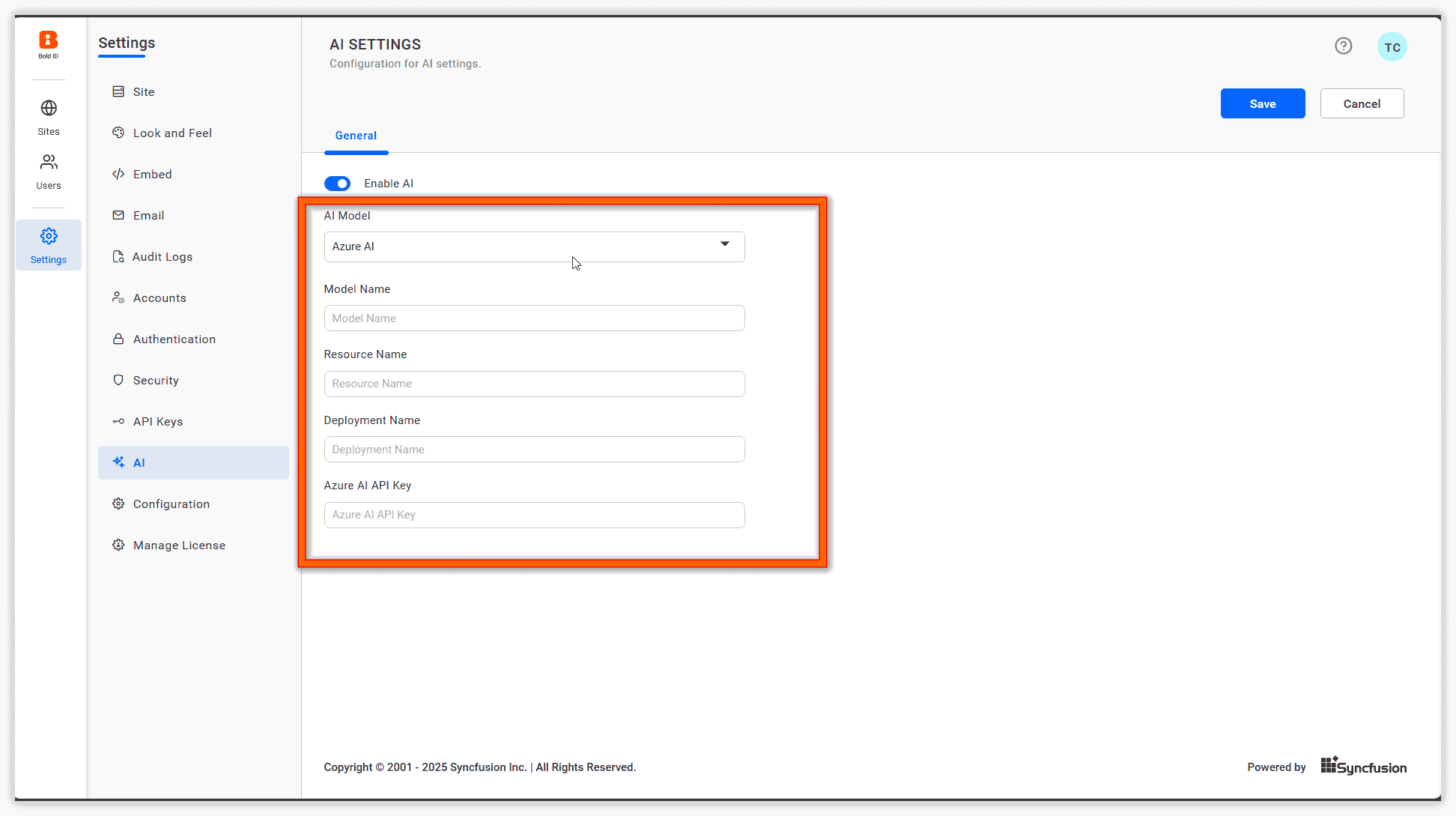
OpenAI and Azure AI require users to enter their Model Name, Deployment Name, Resource Name, and API Key for integration.
Steps to enable or disable AI features and configure AI
- Click on the
profileicon and selectManage Sites.
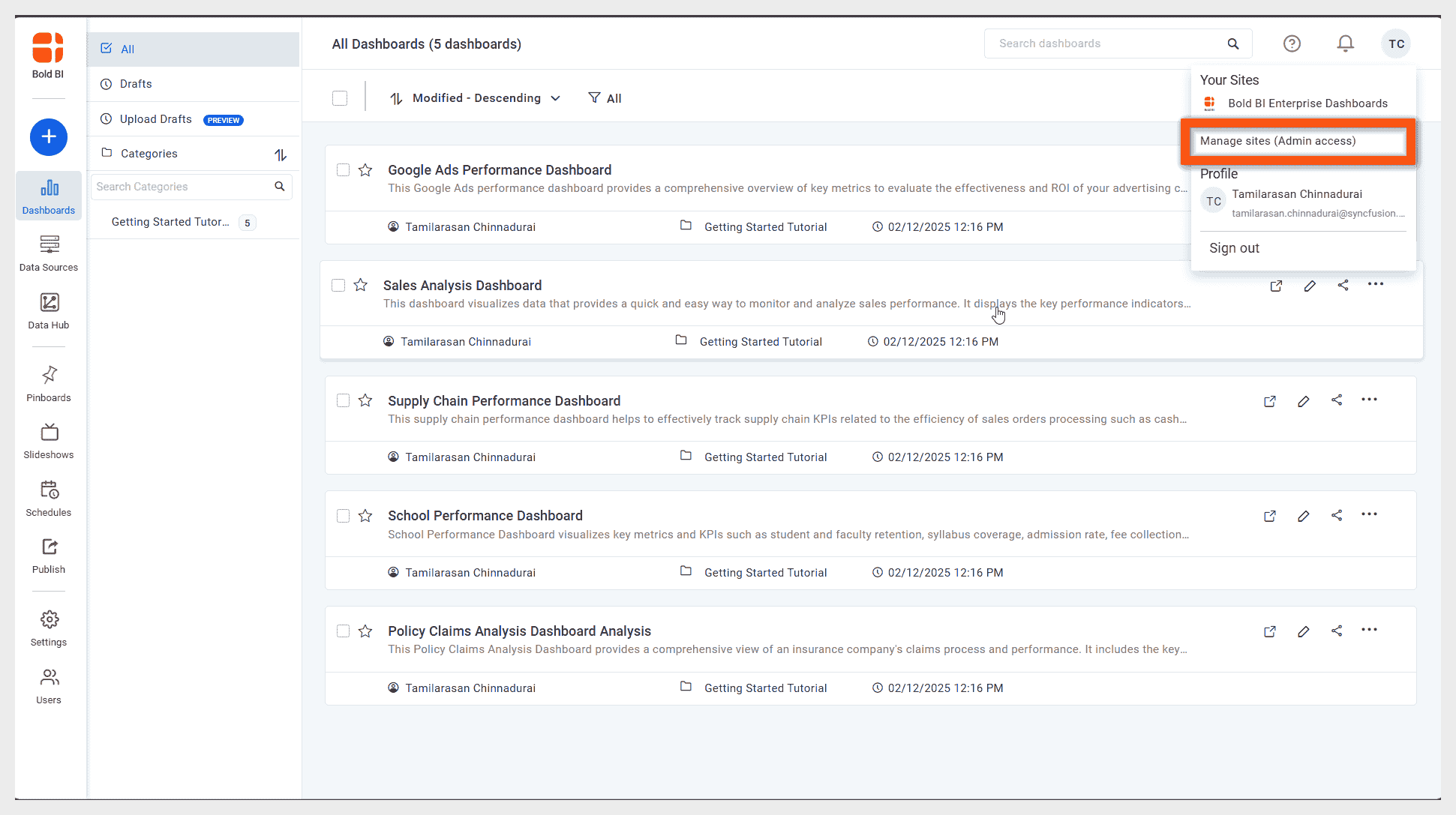
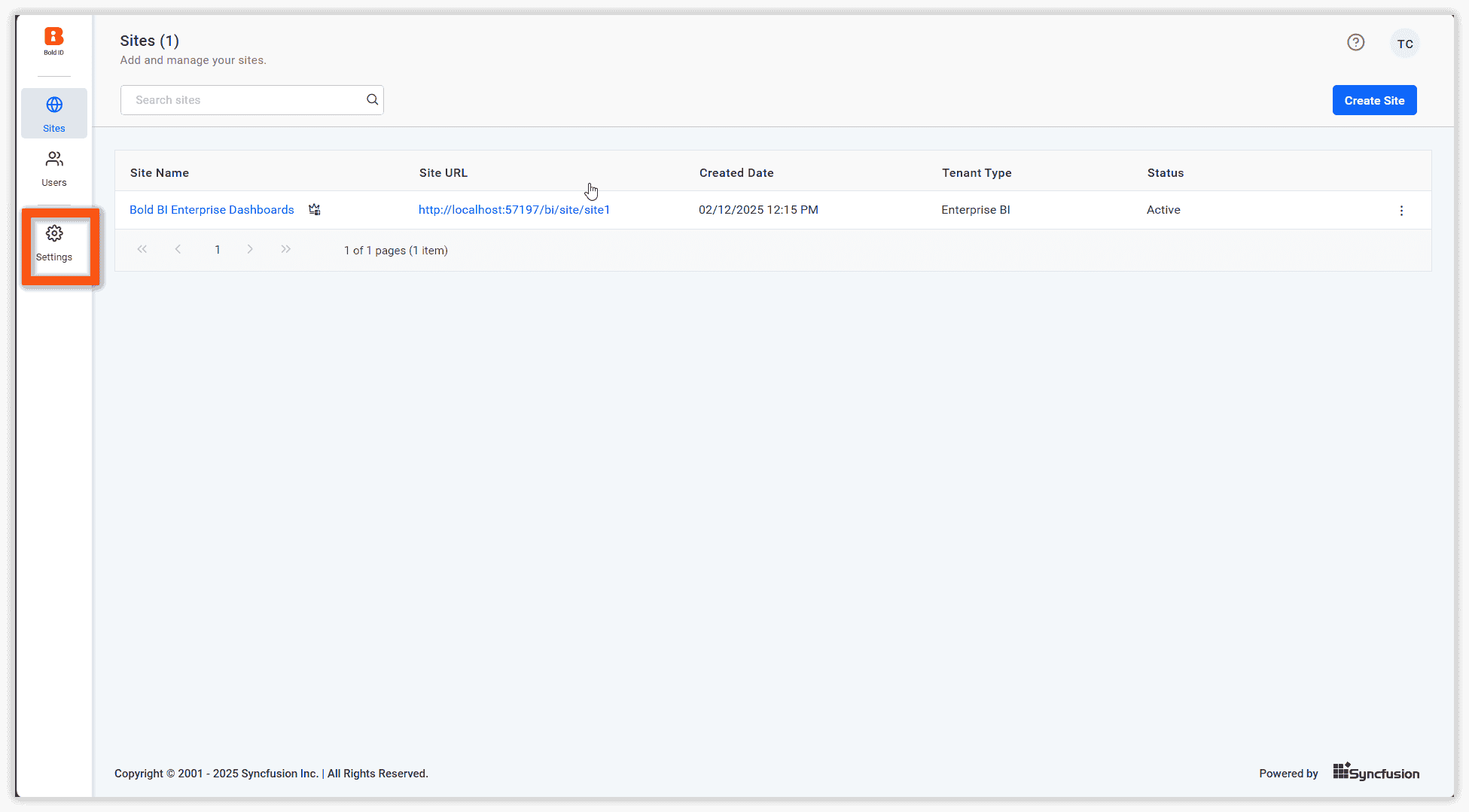
- On the Manage Sites page, click the
Settingsicon.
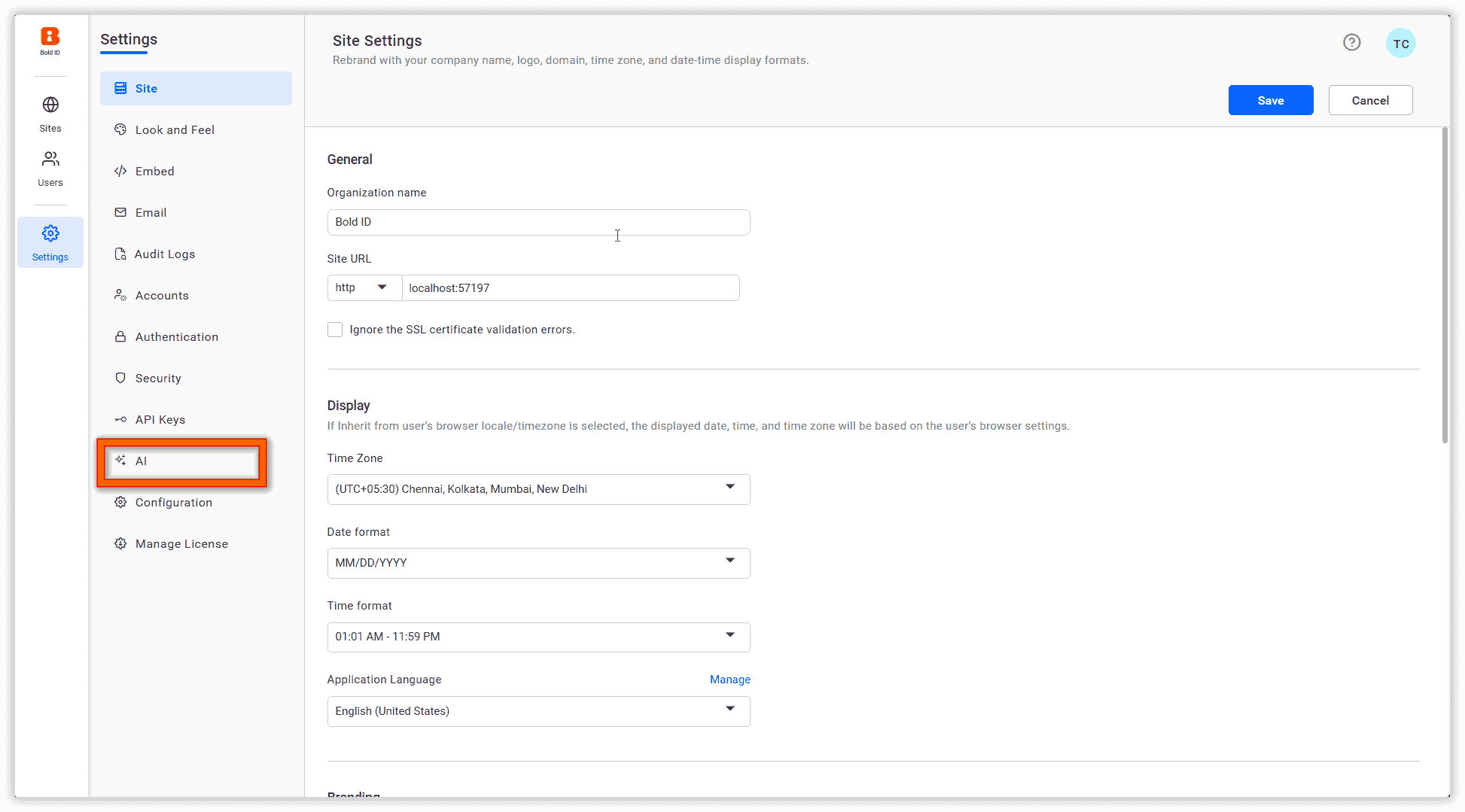
- In the Settings page, navigate to the
AIoption.
- On the AI page, enable or disable the Enable AI toggle button.
- Choose and configure your preferred AI on the AI page.
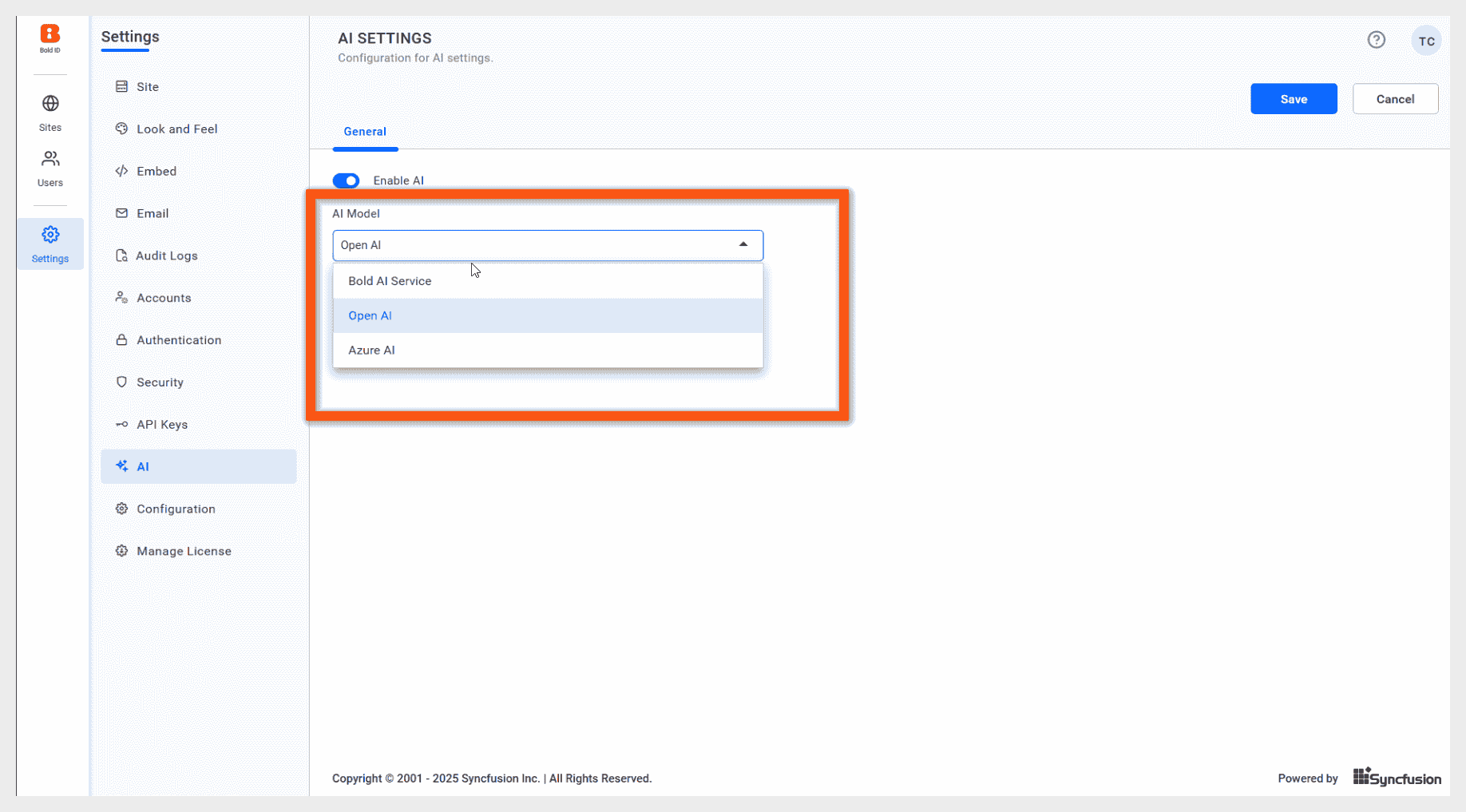
- If select Open AI, enter the API Key.
- If select Azure AI, enter the model name, deployment name, resource name, and API key for configuration.
NOTE: This feature is available exclusively for on-premise users.