
Activate AI Feature
Watch our latest video tutorial to learn how to activate the AI feature in Bold BI. Follow step-by-step instructions and helpful tips to get the most out of this powerful functionality!
Steps to activate AI feature
- Click on the AI Copilot feature icon located at the bottom right of the dashboard designer or viewer.
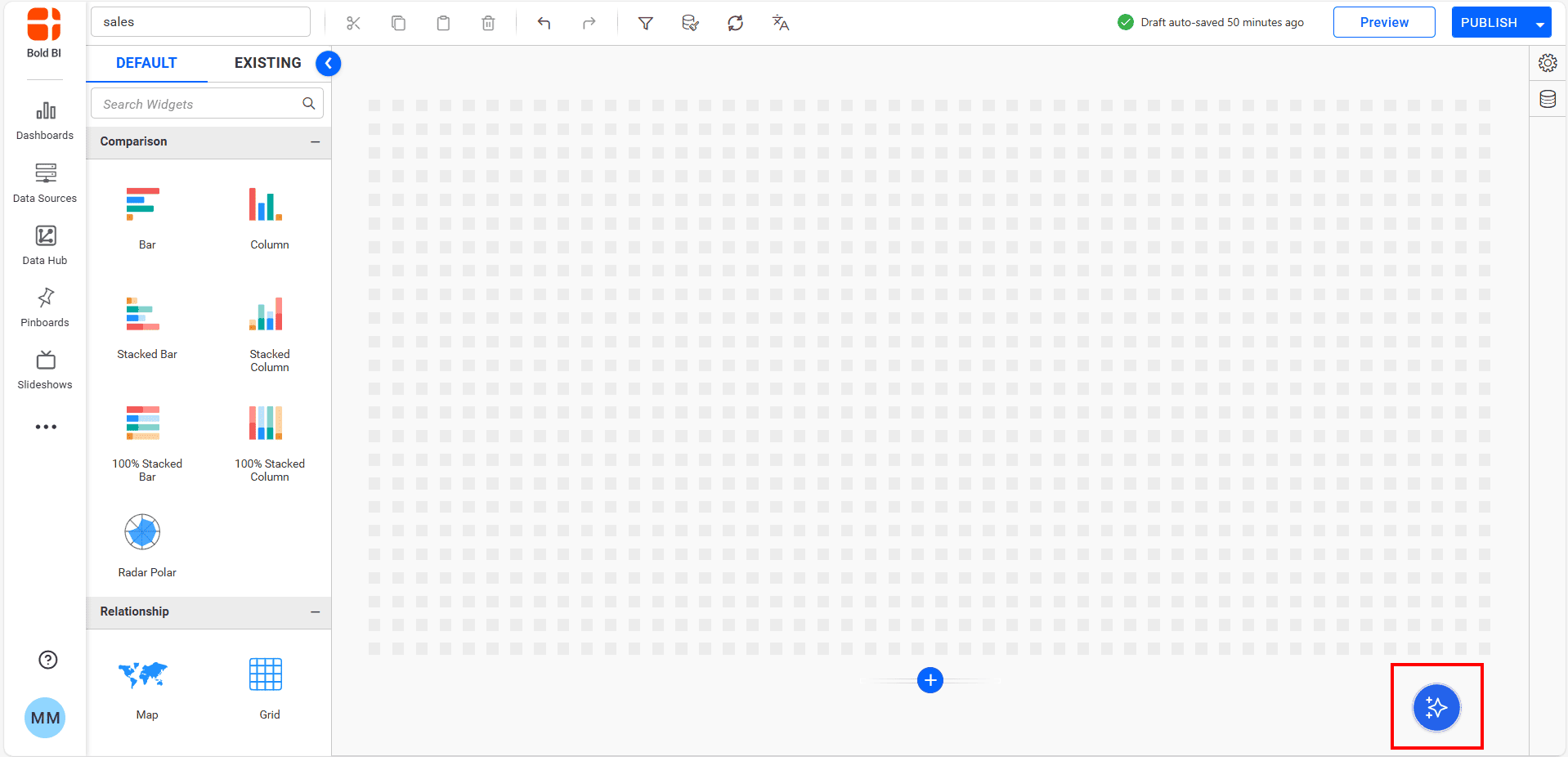
- After clicking the icon, AI Copilot Activation page will appear.
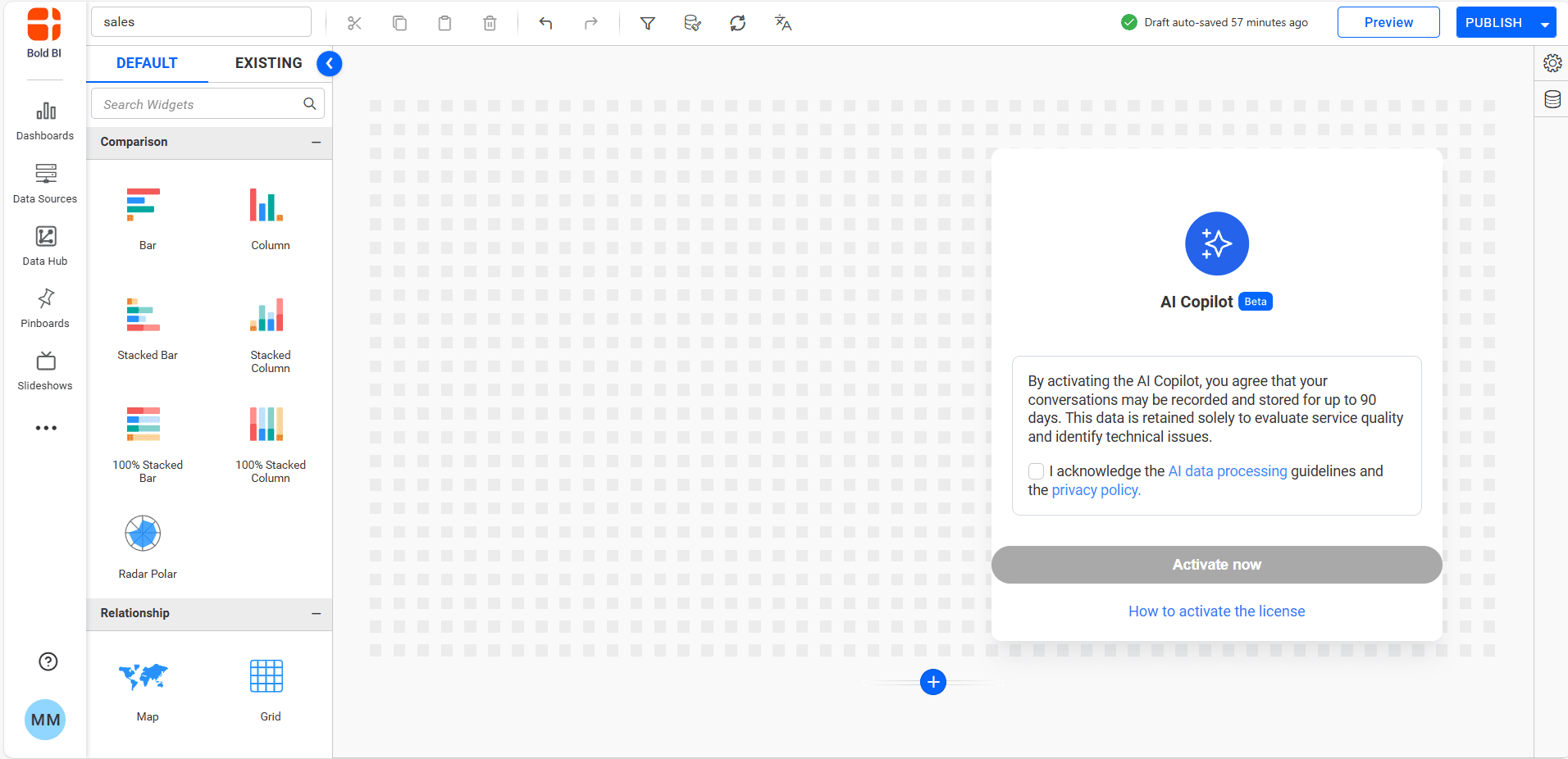
- Review the AI data processing procedure and acknowledge it, which will enable the Activate button. Then, click the
Activate Nowbutton.
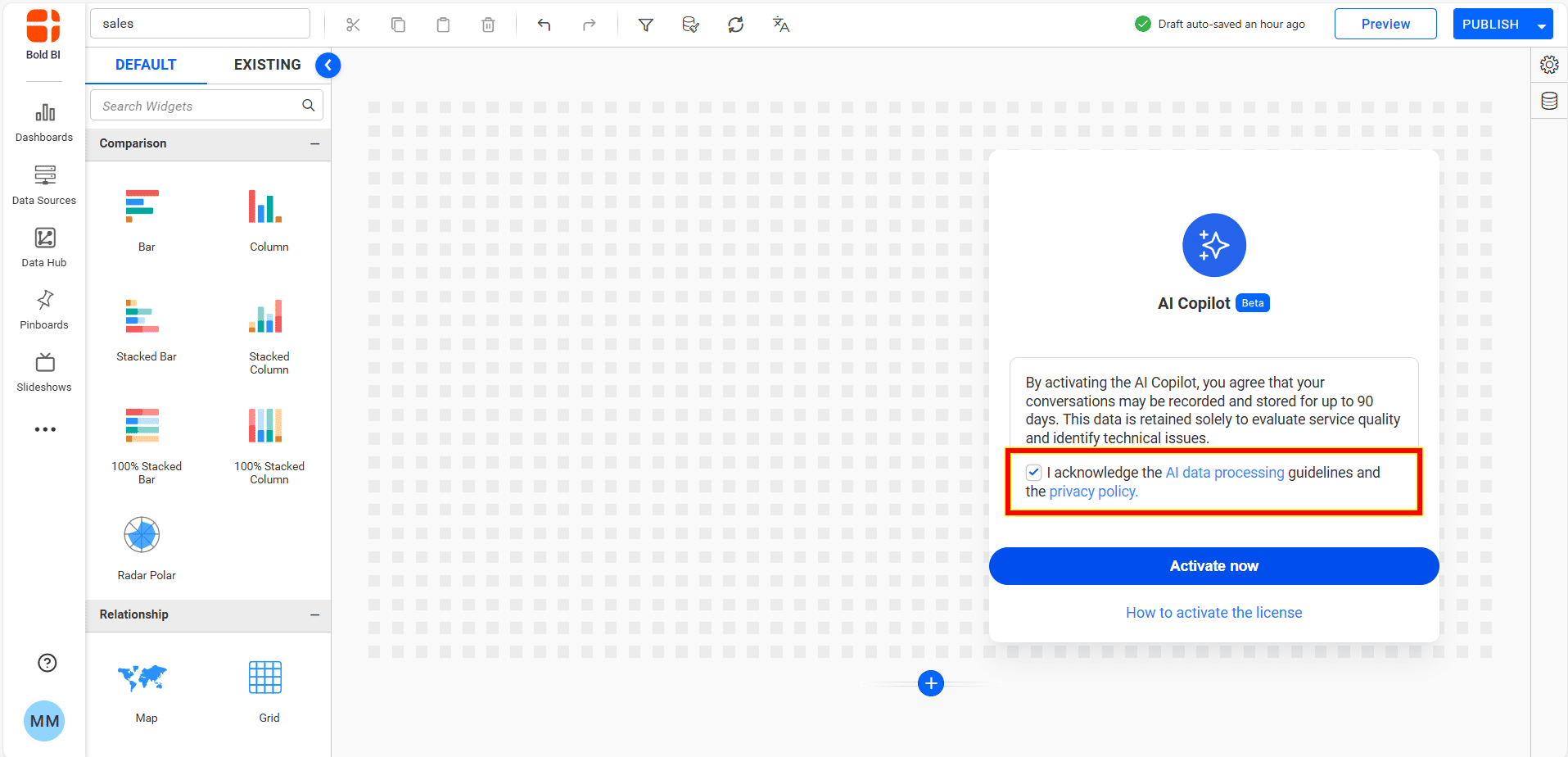
- Before continuing, to update the license with AI features enabled in the cloud environment, click on
Manage Licenseto navigate to the license management page.
- To include the updated license key with AI features enabled in the cloud environment, click the
Refresh Licensebutton.
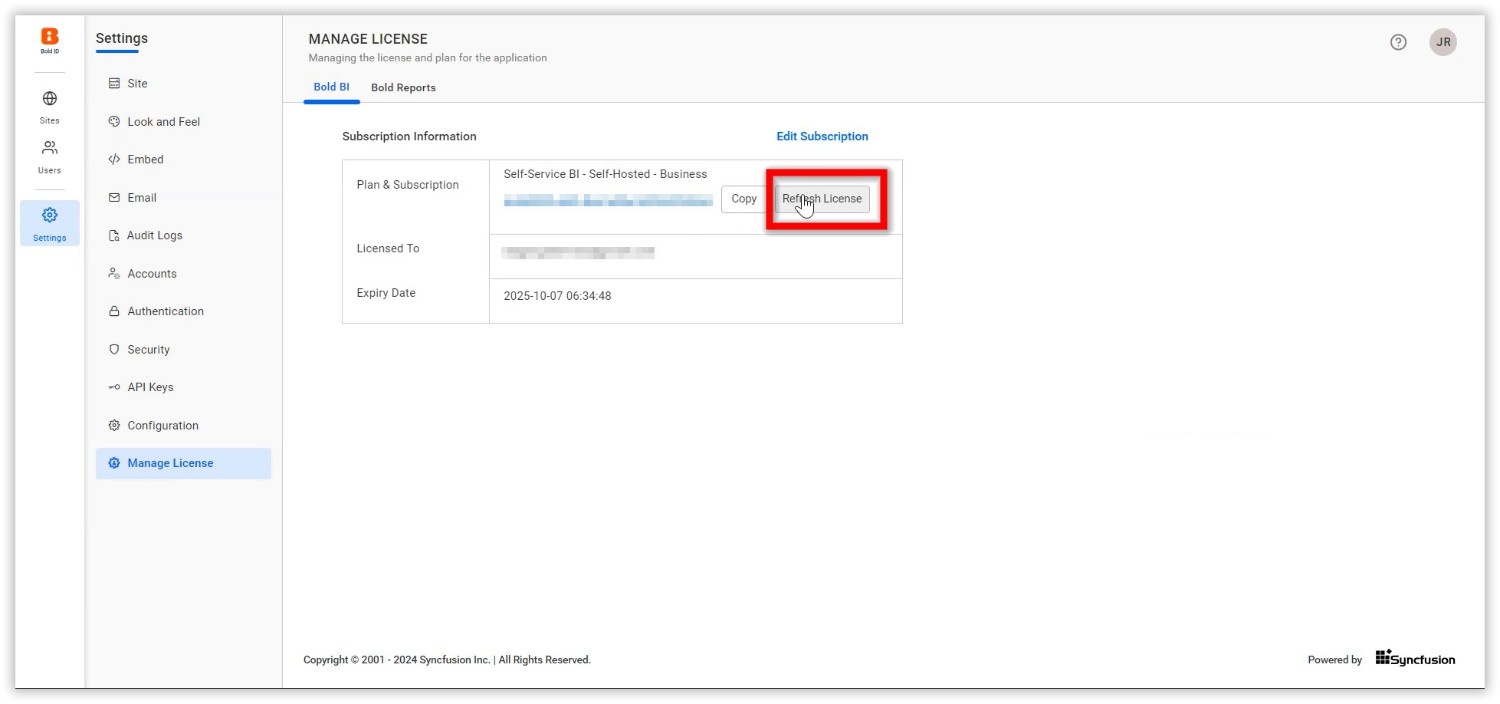
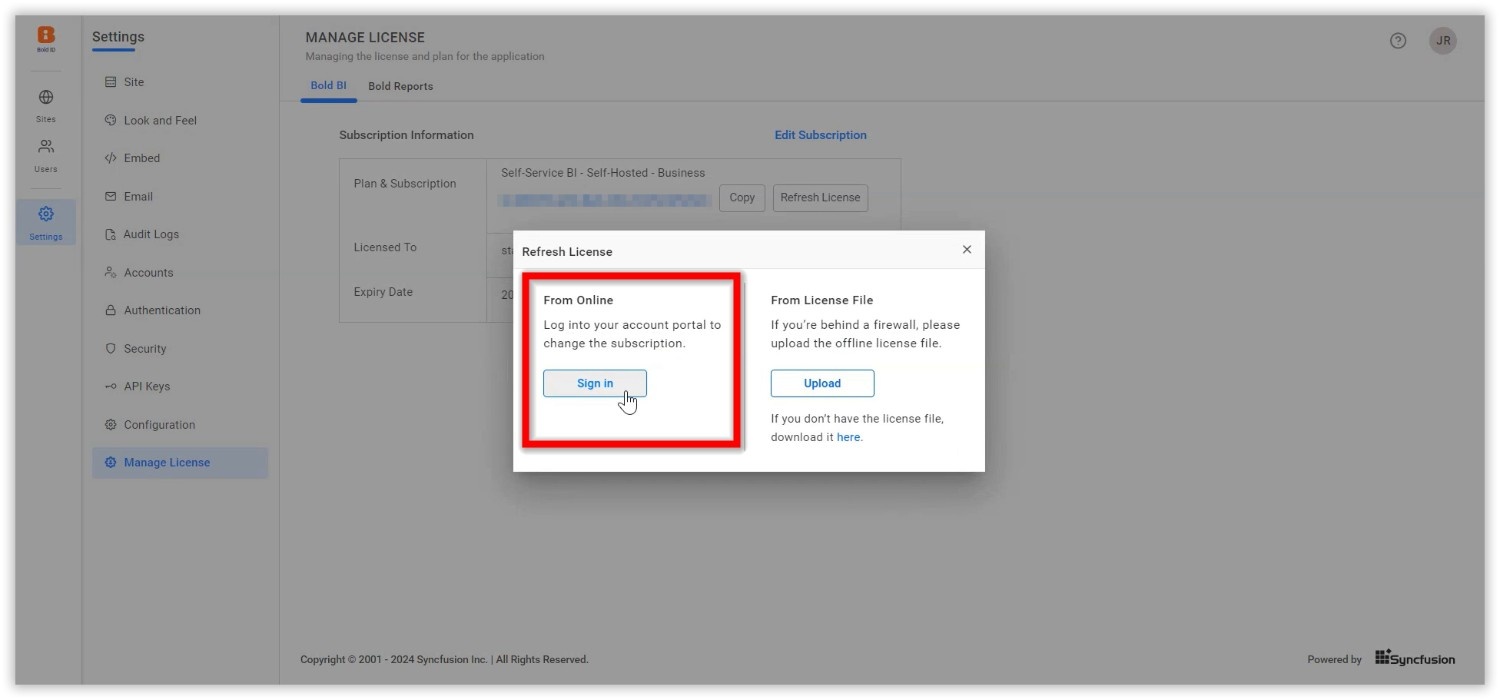
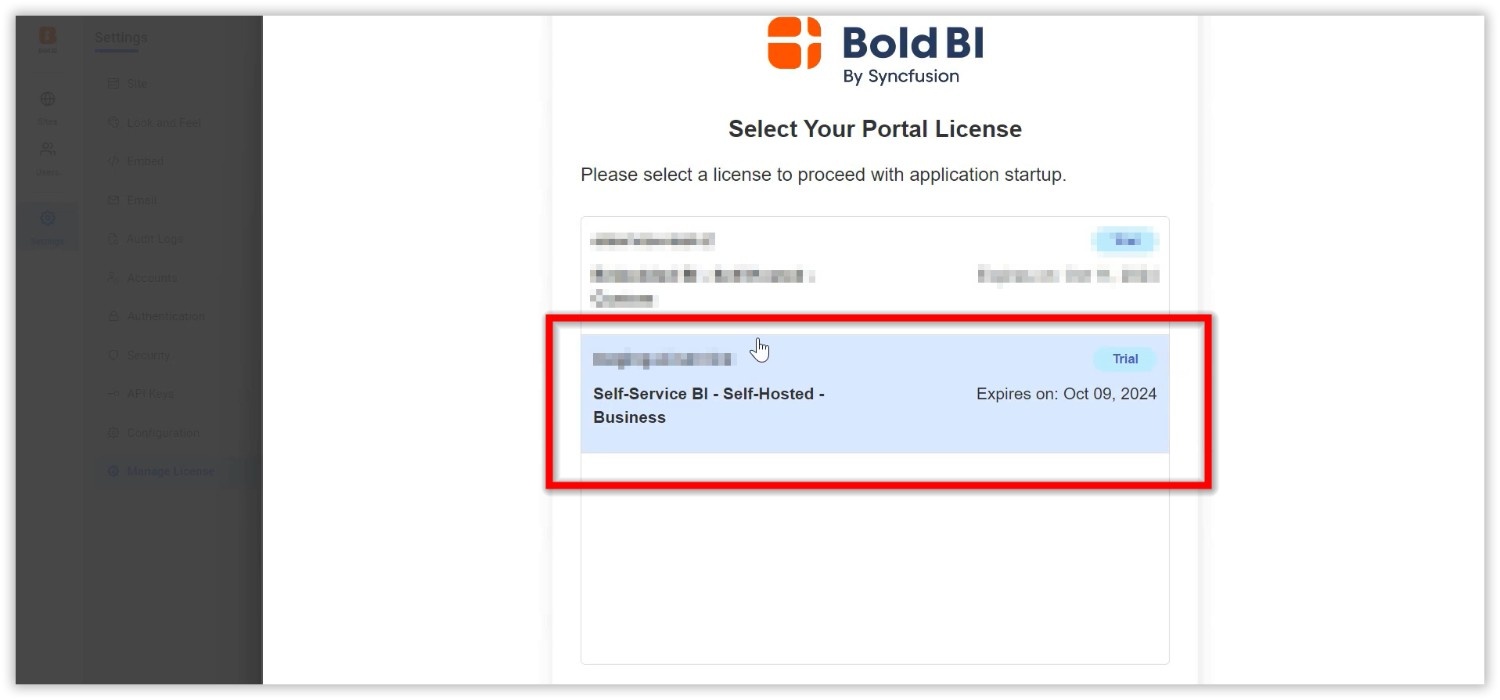
- For online activation, sign in using your account credentials.
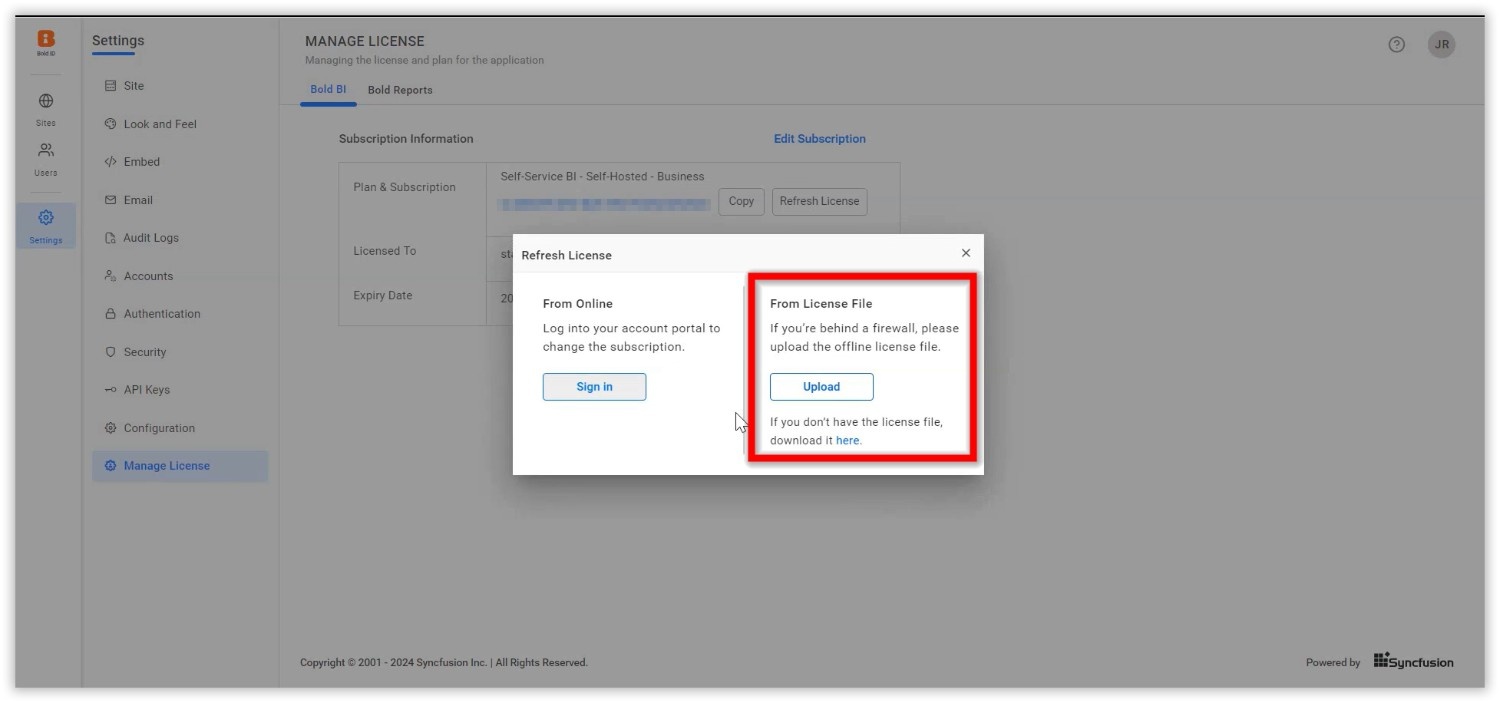
- To activate offline, follow the steps outlined in this Offline Activation Guide
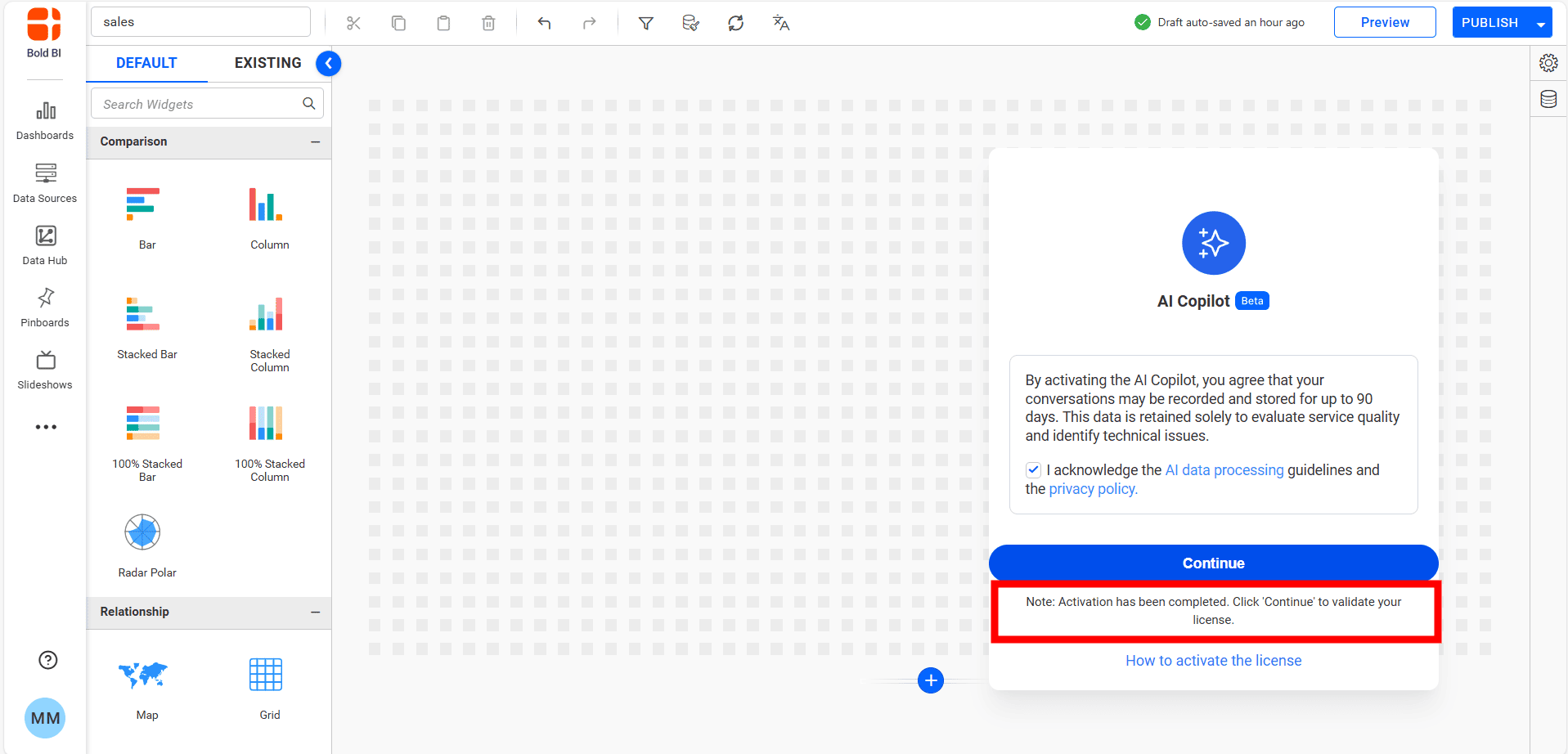
- After the activation is complete, click the
Continuebutton.
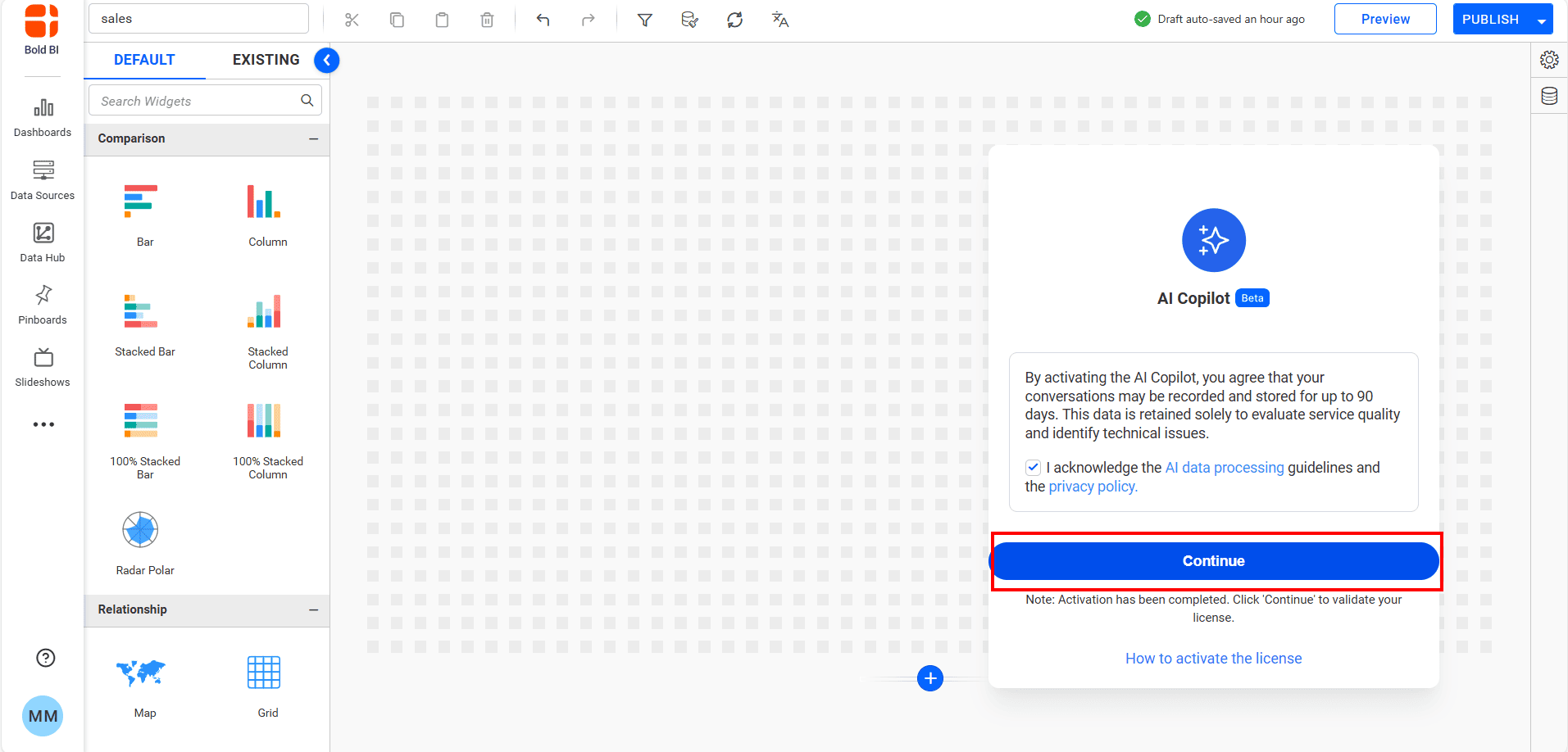
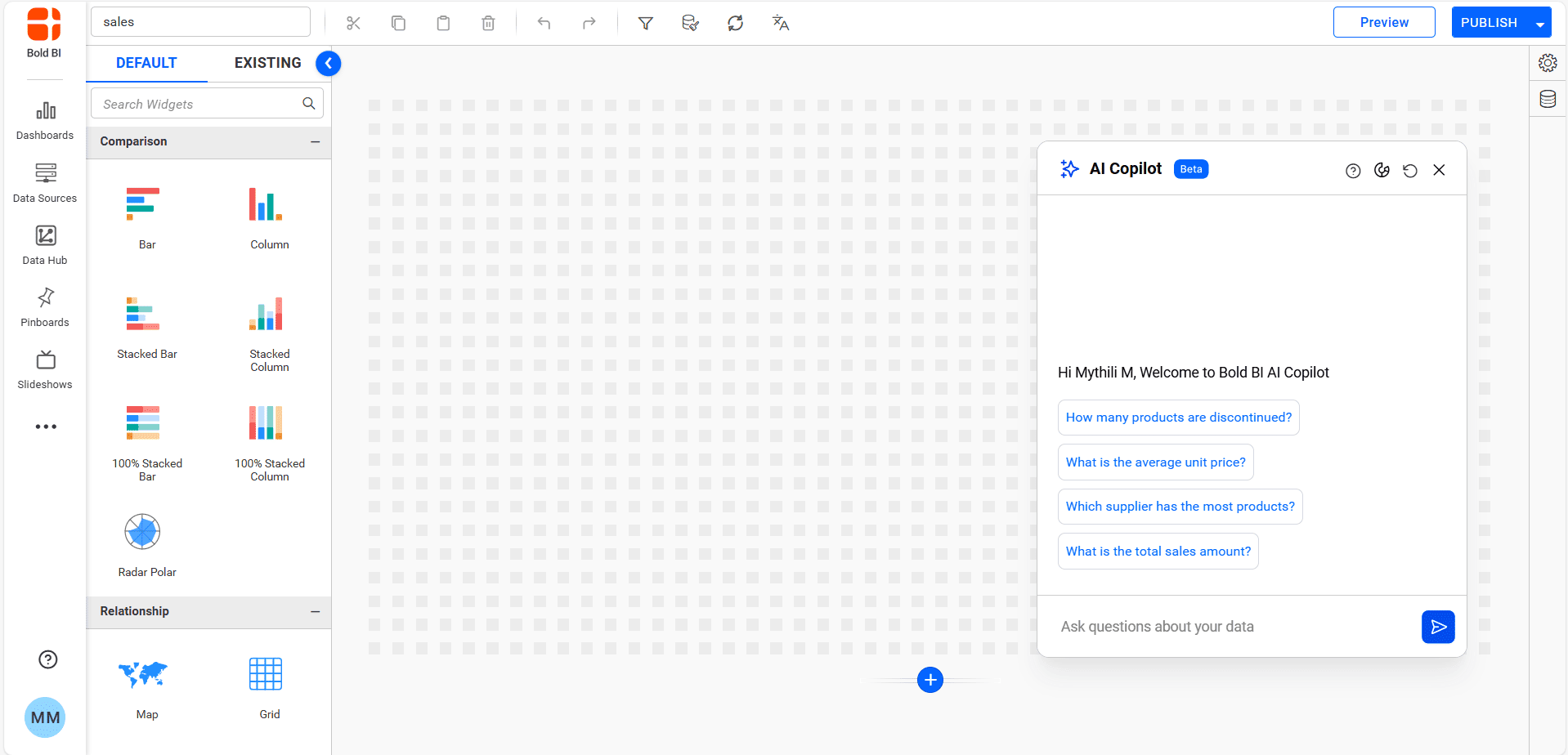
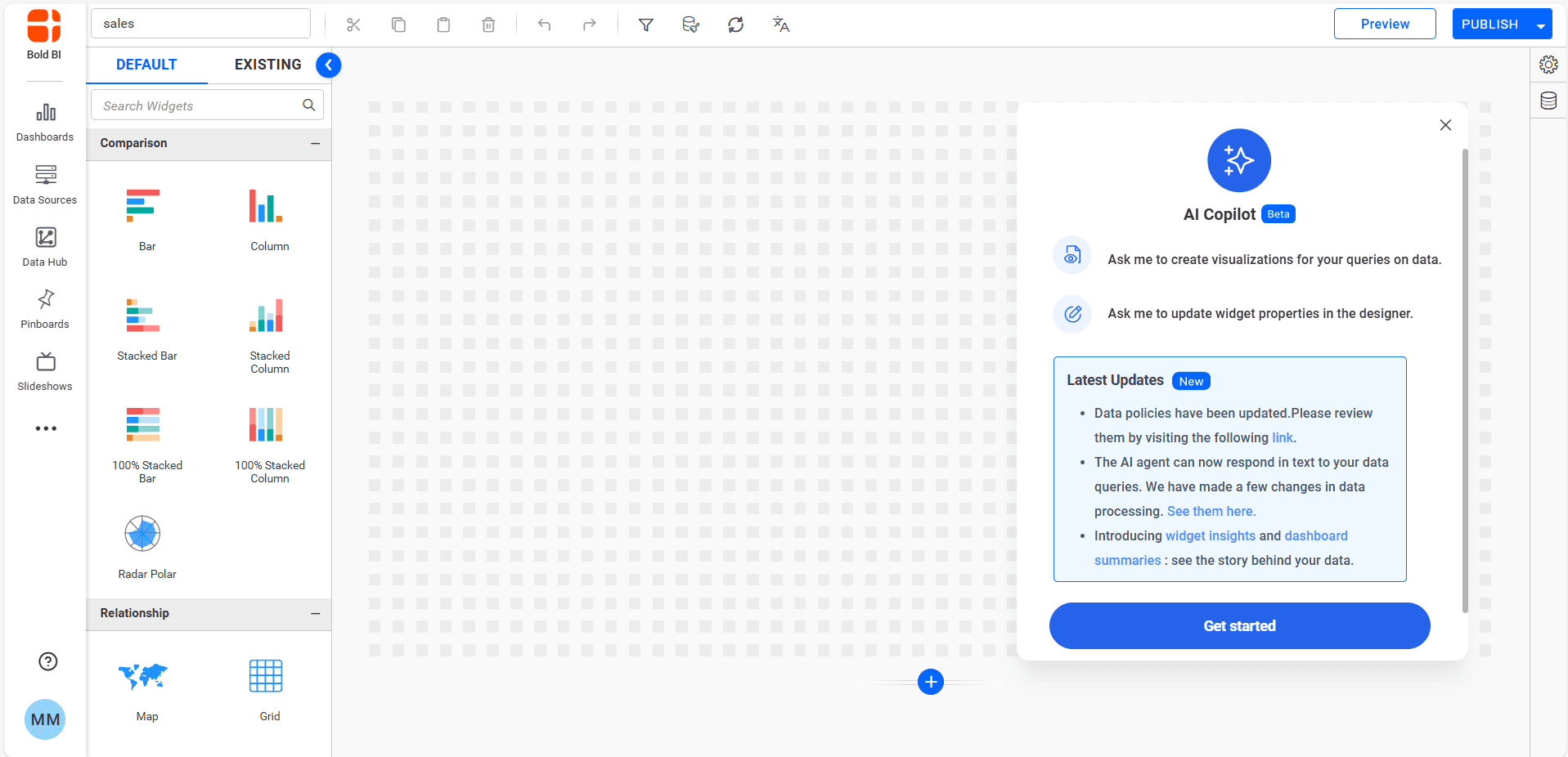
- You will be directed to a confirmation page indicating that the AI feature has been activated. If activating a fresh build, the release notes page will appear; otherwise, the AI chat page will be displayed.
NOTE: These activation steps apply only to existing license keys. For new license keys, activation will be completed at license registration itself.